How to See Where You're Logged Into Twitter: Step-by-Step Guide
Discover how to view and manage active login sessions on Twitter to protect your account from unauthorized access.

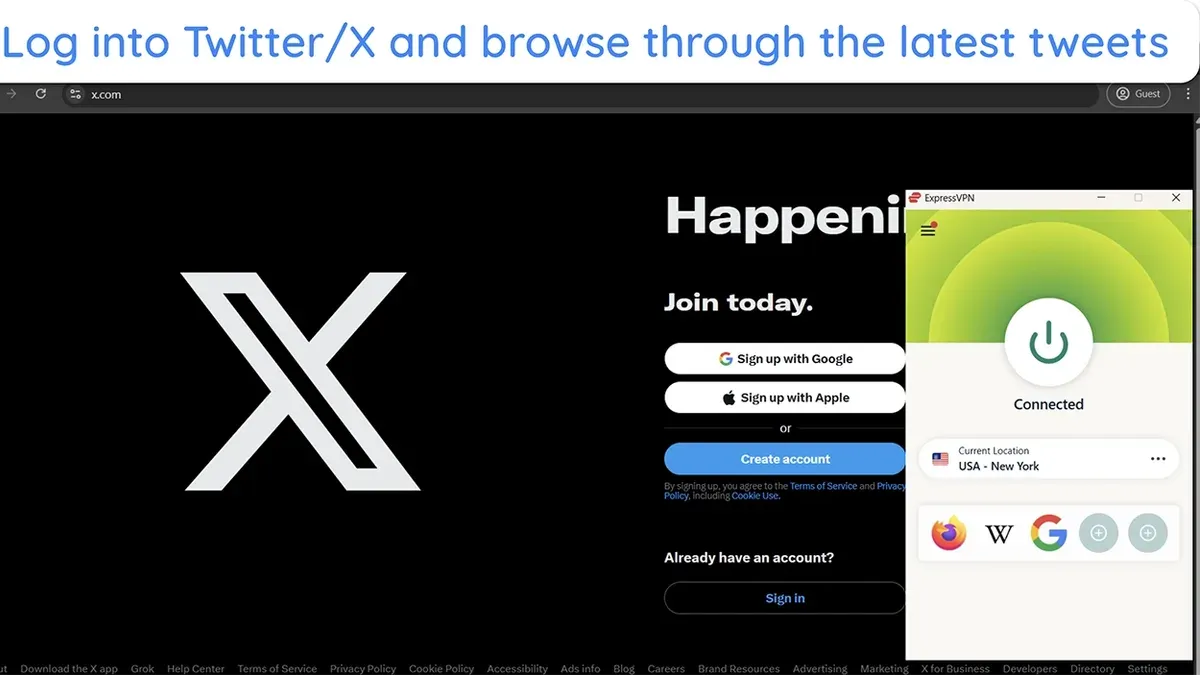
This guide explains how to see where you're logged into X (Twitter) and manage active sessions to protect account security. Twitter users often overlook the detailed session information that reveals device type, locations, and login timestamps. Identifying all active sessions helps decide which ones to keep and which to terminate immediately.
Accessing this information requires a verified Twitter account and stable internet connection. The process differs slightly between the desktop website and mobile app but remains straightforward. Understanding session details reduces the risk of unauthorized access and strengthens overall account safety.
Before you start: What is needed to check active Twitter sessions
Accessing active Twitter sessions requires a verified account with the correct login credentials. Without the username and password, the session information cannot be viewed or managed. Users must have access to either the Twitter mobile app or the desktop website since session details are accessible only through these official platforms.
Session visibility depends on the platform and login method used. Supported platforms include Windows, macOS, iOS, Android, and web browsers. However, some sessions initiated via third-party apps or single sign-on methods may show limited details or may not appear in the session list.
A basic understanding of account security concepts is helpful to interpret session data properly, such as recognizing unfamiliar devices or locations. This awareness aids in deciding which sessions to keep or terminate to maintain account safety.
- Prepare login credentials: Have the Twitter username and password ready. Successful entry grants access to account settings.
- Choose a device: Use a smartphone with the Twitter app installed or a computer with a web browser. Opening Twitter should show the user’s home timeline after login.
- Confirm account verification: Ensure the account is active and not restricted, so all security features are accessible.
How to find active login sessions on Twitter via the desktop website
- Log in to the Twitter desktop website. Once logged in, click on the More option in the left sidebar to open the menu.
- From the menu, select Settings and privacy. The settings page will load with various account options.
- Click on Security and account access in the sidebar. This section contains security-related settings.
- Select Apps and sessions. Here, Twitter displays apps connected to the account and active login sessions.
- Click on Sessions to see a list of all active logins. Each session entry shows device type (e.g., Windows, iPhone), approximate location based on IP, and the last activity time.
- Review the list carefully to spot any unfamiliar devices, locations, or recent activity that does not match the user's behavior. Suspicious sessions should be noted for logout.
Tip: Hover over session details or click on a session if available for more precise information to confirm legitimacy.
Sessions are listed with timestamps reflecting the last activity, which helps identify stale or potentially unauthorized logins.
Logging out from unwanted sessions is essential to prevent unauthorized access; this option appears next to each session entry.
How to check active Twitter sessions using the mobile app
- Open the Twitter app and tap the profile icon in the top left corner. This opens the main navigation menu.
- Scroll down and select Settings and privacy. The settings menu will appear.
- Tap Security and account access, then choose Apps and sessions. This section shows all connected apps and current login sessions.
- Select Sessions to view a list of active login sessions. Each session entry displays the device type (e.g., iPhone, Windows PC), approximate location based on IP, and the last active time.
- Scan the list for unfamiliar devices or locations. Sessions with unknown devices or unusual locations often indicate unauthorized access.
Tip: Pay special attention to sessions labeled as "Web" or unexpected mobile devices, as these can sometimes be overlooked sources of unauthorized logins.
For example, a session list might show entries like "Chrome on Windows - New York, NY - Active 2 hours ago" or "Twitter for iPhone - San Francisco, CA - Active 10 minutes ago". Identifying discrepancies helps decide which sessions to terminate.
How to safely log out of unwanted or suspicious Twitter sessions
To log out of individual sessions, navigate to the "Apps and sessions" section under Settings and privacy > Security and account access > Apps and sessions > Sessions. Select the specific session to terminate and click "Log out." A confirmation message should appear, and the session will no longer have access to the account.
To log out of all sessions except the current one, use the "Log out of all other sessions" option. This action immediately ends access for every session except the device currently in use. It is the most effective step when multiple unknown sessions are detected.
After logging out, it is advisable to change the account password and enable two-factor authentication (2FA) to prevent unauthorized re-entry. This ensures that even if credentials were compromised, attackers cannot regain access without the second verification step.
Logging out terminates active sessions but does not interrupt ongoing actions on the current device, such as posting or messaging. Users may notice a brief delay before sessions disappear due to caching on some devices or apps; this does not indicate that the session remains active.
What the session information does and does not reveal about login activity
Twitter session data relies heavily on IP-based location tracking, which can be approximate. For example, a login from a city center may show the location of the internet service provider rather than the exact user location. This means location details offer general guidance, not precise tracking.
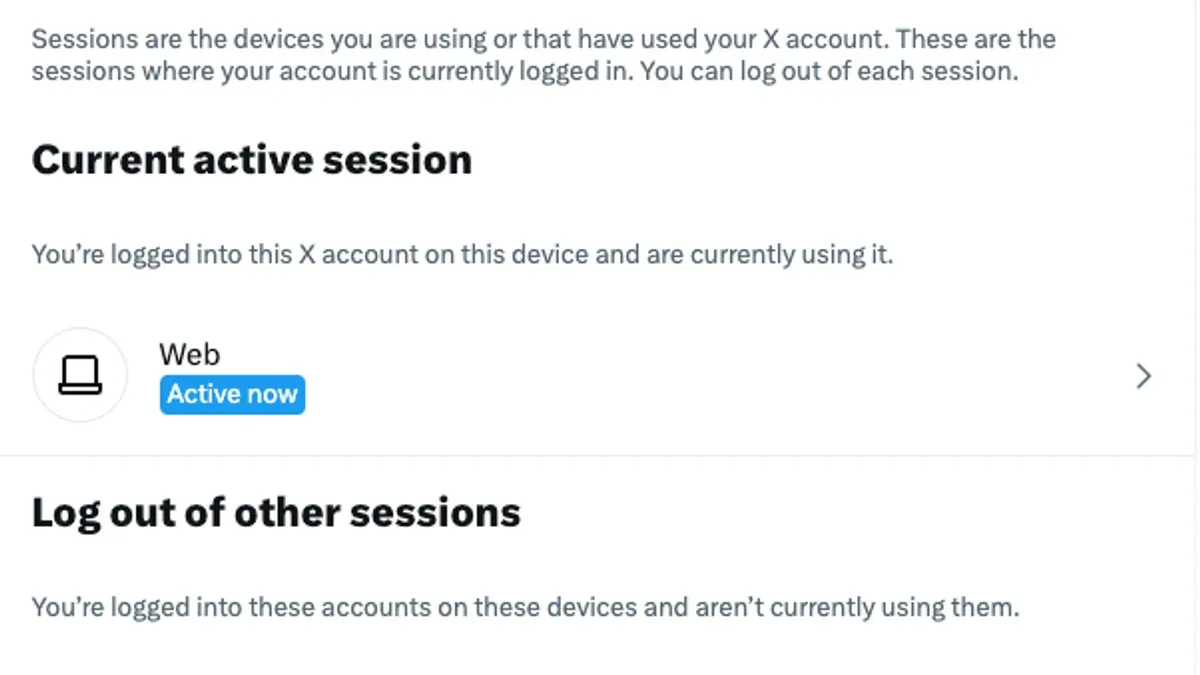
Active sessions display device types and approximate login times but do not provide exact timestamps for every login event. Sessions may remain active even after the device has been idle for hours or days, as Twitter typically times out sessions after several days without activity, not immediately upon device inactivity.
Session information cannot reliably distinguish between human users and automated logins such as bots or scripts. Suspicious activity may require further account security measures beyond reviewing session details.
Tip: Treat session location as an indication, not proof, of unauthorized access, and review multiple data points before taking action.
Troubleshooting common issues when checking Twitter login sessions
When the session list fails to load or shows outdated information, the issue often lies with browser cache or app glitches. Clearing the browser cache or app data refreshes stored files and usually resolves stale session displays. For browsers, clear cache via settings under Privacy or History, then reload Twitter. In the mobile app, updating to the latest version from the app store can fix known bugs affecting session visibility.
Account restrictions or security holds may prevent access to login session details. Twitter sometimes temporarily blocks account features after suspicious activity or policy violations. In these cases, an error message like "Access denied" or "Account restricted" appears when attempting to view sessions. Resolving this requires following prompts to verify identity or comply with Twitter’s security checks.
If unauthorized access is suspected but session management remains inaccessible, contacting Twitter support is necessary. Provide clear details about the problem and any error messages received. Support can investigate account activity and unlock session controls if appropriate.
- Clear browser cache or app data, then reopen Twitter; the session list should load correctly.
- Update the Twitter app to the latest version; session details should be visible afterward.
- If an "Access denied" or similar error appears, check account notifications and follow verification steps.
- When problems persist and unauthorized access is suspected, submit a support request to Twitter with error details.
Frequently asked questions
How often should session activity be checked on Twitter?
Session activity should be reviewed regularly, especially if there is any suspicion of unauthorized access. Checking once every few weeks or immediately after receiving security alerts is advisable. Frequent checks help ensure no unknown devices remain logged in.
Can someone see if I log out of their session?
No, Twitter does not notify other users or devices when a session is logged out remotely. The session simply loses access without alerts to the device holder. This keeps logout actions discreet for security purposes.
What does it mean if I see a session location I don’t recognize?
An unrecognized session location may indicate unauthorized access or use of a VPN or proxy masking the true location. It is wise to log out of any unfamiliar sessions and change the account password immediately. Reviewing associated devices can help confirm legitimacy.
Does logging out of a session immediately prevent access from that device?
Logging out terminates the session’s current authentication token, which effectively prevents further access from that device. However, if login credentials are compromised, the user should change their password to prevent new sessions. The logout action alone stops active access but does not block future logins.
What this guide does not cover and who should seek further help
This guide does not cover recovering accounts after a breach or performing advanced forensic analysis of login activity. Users who suspect their Twitter account has been hacked or compromised should immediately follow Twitter’s official account recovery process, including resetting passwords and enabling two-factor authentication. For complex security incidents or persistent unauthorized access, consulting cybersecurity professionals or using specialized security tools is recommended.
The single most useful next step is to regularly review active sessions and promptly log out from any unfamiliar devices. This proactive habit significantly reduces the risk of unauthorized access and enhances overall account security.
See also: How to See Where You're Logged Into WhatsApp: A Clear Step-by-Step Guide · How to See Where You're Logged Into WeChat: Step-by-Step Guide · How to See Where You're Logged Into Viber and Manage Sessions