Switching from Canva for Education to Adobe Express: Your Expert Guide
Explore key steps and strategies for switching from Canva for Education to Adobe Express to enhance your classroom's digital content creation.

Short answer: Switching from Canva for Education to Adobe Express involves evaluating differences in feature sets, adapting your workflow to new tools, and managing content migration with care to minimize disruptions. Adobe Express offers robust design and collaboration capabilities that can enhance your classroom projects but requires deliberate preparation to integrate smoothly.
This guide covers the critical aspects you need to consider when switching from Canva for Education to Adobe Express. You will find clear comparisons of key features, practical steps to transfer your content efficiently, and strategies to navigate common integration challenges. Whether you are still deciding or have committed to the switch, the insights here will help you maintain teaching momentum and improve your digital content creation experience.
Understand Why Switching Matters for Your Classroom
Canva for Education offers a user-friendly interface with robust templates tailored for lesson plans, collaborative projects, and student portfolios. Its strength lies in seamless real-time collaboration and a broad library of educational assets accessible via the "Classroom" tab. However, Adobe Express introduces advanced customization with Adobe Stock integration, creative effects, and more flexible multimedia handling, which can enrich visual storytelling and elevate student engagement.
Consider how these platforms influence your lesson design and workflow. Canva’s integration with Google Classroom simplifies assignment distribution, yet Adobe Express supports wider integration options, including Microsoft Teams and LMS platforms, providing broader compatibility for diverse school setups. Licensing differences also matter: Canva for Education offers free access for schools, while Adobe Express’s education plans include tiered user rights that affect content sharing and storage.
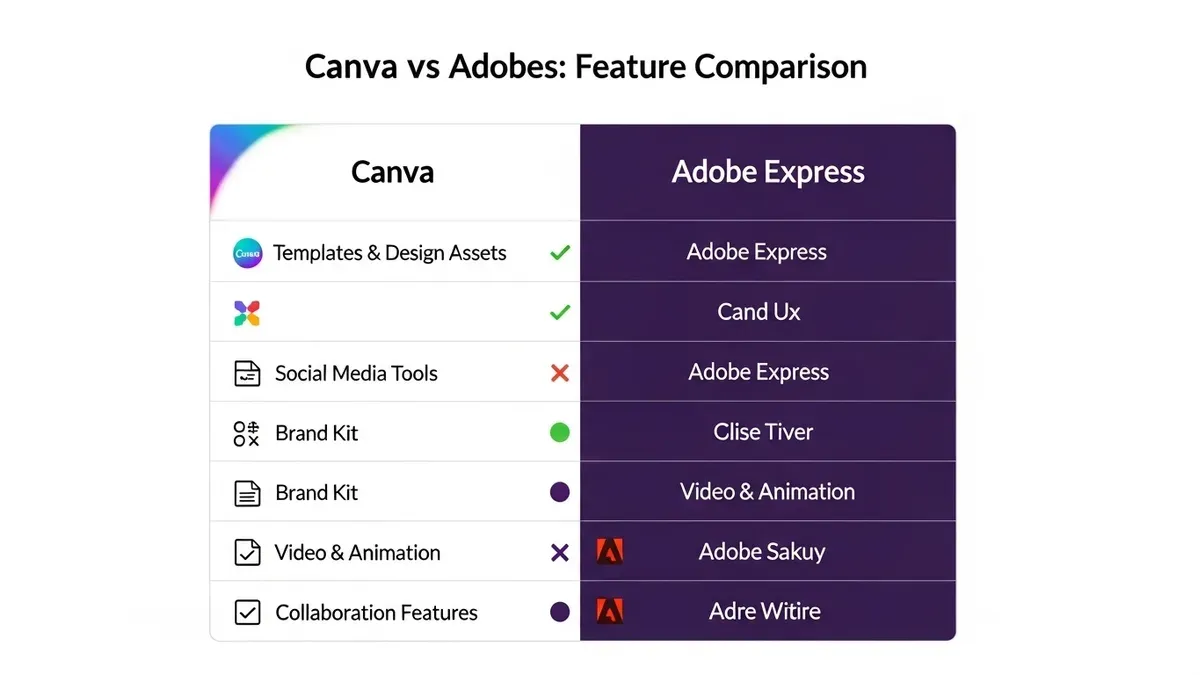
Below is a side-by-side feature comparison highlighting critical differences:
| Feature | Canva for Education | Adobe Express |
|---|---|---|
| Templates Focus | Education-specific, lesson plan oriented | Creative, multimedia-rich designs |
| Collaboration | Real-time editing, Classroom groups | Shared projects via Teams, comment threads |
| Integration | Google Classroom, Drive | Microsoft Teams, LMS platforms |
| Media Assets | Built-in free elements, limited video | Adobe Stock access, advanced video tools |
| Licensing | Free for verified educators | Tiered education licenses with varied sharing |
Imagine preparing a history project where students create multimedia presentations. With Canva, students quickly assemble slides using templates and collaborate in real time. Switching to Adobe Express allows adding licensed Adobe Stock images and video clips, applying motion effects, and exporting interactive formats, potentially increasing student creativity but requiring adjustment to new workflows and licensing terms.
Prepare for the Transition: What You Need to Know Before You Switch
Before initiating the switch from Canva for Education to Adobe Express, begin by auditing your existing Canva content. Identify key projects, templates, and student work that must be exported or archived. Canva allows export in formats such as PNG, PDF, or MP4, but note that native Canva project files cannot be directly imported into Adobe Express, so plan to retain editable versions separately.
Next, review your Adobe Express setup. Confirm account creation for all educators and students, assign proper permissions via the Admin Console, and verify user management settings. Overlooking this can delay access and collaboration after the switch.
Plan training sessions tailored to your school’s needs. Adobe Express offers different workflows and tools; scheduling onboarding prior to full rollout prevents frustration and speeds adoption.
Establish backup procedures for your Canva data, considering your institution’s data retention policies. For example, exporting entire project folders before disabling Canva accounts safeguards against accidental data loss.
Commonly missed steps include neglecting user permission synchronization and underestimating training time, which can cause weeks of disruption.
- Audit and export critical Canva content early
- Set up Adobe Express accounts and permissions in advance
- Schedule and conduct user training sessions
- Implement comprehensive backup and archival of Canva data
- Verify user access and permissions before full adoption
Migrate Your Content Efficiently from Canva for Education to Adobe Express
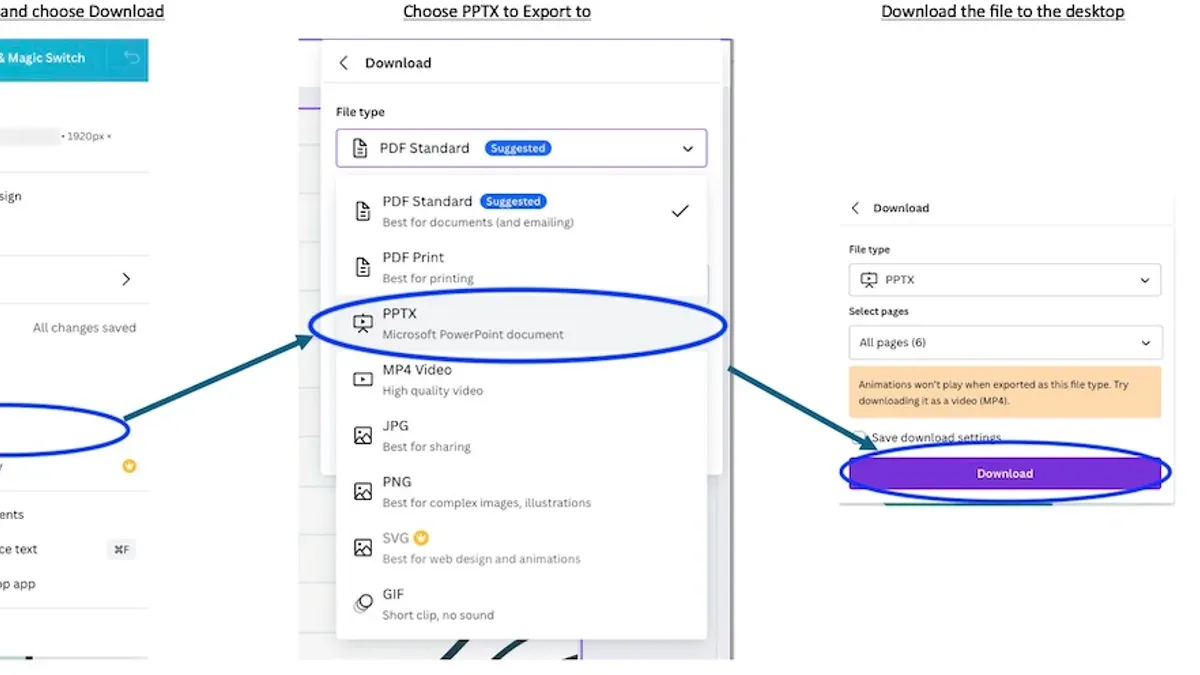
Start by exporting your existing Canva for Education designs as high-quality PNG or PDF files via the "Download" button located on the top right of the editor. For media assets like images and logos, download them individually in their original format to maintain quality. A typical classroom project, such as a weekly lesson infographic, can be exported as a PDF for layout preservation and PNGs for individual graphic elements.
Next, import these files into Adobe Express by selecting "Add" > "Upload Photo or Video" from the dashboard. Since Adobe Express does not support direct import of Canva project files, you must reconstruct templates and workflows manually. Use Adobe Express’s template library to find similar layouts, then replace placeholder content with your exported assets to maintain branding consistency.
To minimize downtime, begin migrating non-urgent projects first to familiarize yourself with Adobe Express’s interface and capabilities. Keep naming conventions consistent across platforms to streamline file management and collaboration during the transition.
- Export designs as PNG or PDF from Canva using the "Download" option
- Download media assets individually in original formats
- Upload assets to Adobe Express via "Add" > "Upload Photo or Video"
- Select similar templates and rebuild workflows in Adobe Express
- Maintain consistent file naming and branding throughout
- Start migration with low-priority projects to reduce disruption
Apply Adobe Express Features to Enhance Your Educational Content
Adobe Express offers a rich library of education-focused templates including interactive infographics, newsletters, and video presentations that can bring lessons to life. Unlike static Canva templates, Adobe Express enables embedding of audio narration and clickable buttons directly within projects, increasing student engagement.
Collaboration is streamlined through Adobe Express’s shared projects feature, where teachers can assign editing permissions and track student contributions in real time via the “Share” menu’s access controls. This contrasts with Canva’s more limited group editing options, giving you finer control over workflow.
Integration with popular Learning Management Systems (LMS) like Google Classroom and Microsoft Teams is accessible through Adobe Express’s direct export and assignment options. For example, you can export a multimedia science experiment project as a shareable link or embed code that students submit directly through the LMS.
Consider an interactive history timeline: Adobe Express lets you combine images, text, voice-over, and quizzes into one seamless project. This approach transforms a linear Canva slideshow into an immersive learning experience, improving comprehension and retention.
- Select education templates from the Adobe Express homepage.
- Use the "Share" menu to set collaborative permissions.
- Export projects via LMS-compatible formats or embed codes.
- Incorporate multimedia elements like audio and clickable buttons to boost interactivity.
Avoid Common Mistakes When Switching Platforms
One frequent mistake is underestimating the time needed for training and adjusting to Adobe Express. Educators often expect a seamless transfer but overlook that adapting to new workflows and tools can take several weeks, impacting lesson planning and delivery.
Ignoring the differences in user interface and tool availability also disrupts productivity. For example, Adobe Express’s menu structure places templates under the "Discover" tab, unlike Canva's prominent homepage access. Missing these nuances can slow down content creation and frustrate users.
Failing to communicate platform changes to students and stakeholders can cause confusion. A middle school teacher reported that students struggled with submitting assignments initially because the integration with the LMS required different steps in Adobe Express, which wasn’t clearly explained ahead of time.
Lastly, overlooking licensing or account management details leads to access issues. Adobe Express’s education licensing requires verification through specific domains, and neglecting this can delay account activation for entire classes.
- Allocate ample time for training and adjustment before going live
- Familiarize yourself with Adobe Express’s interface and tool locations
- Inform students and stakeholders clearly about new submission and collaboration processes
- Verify licensing requirements and set up accounts accordingly to avoid access delays
Maintain Momentum Post-Switch: Support and Continuous Improvement
After switching to Adobe Express, sustaining your progress requires ongoing support and active refinement. Start by regularly accessing Adobe’s dedicated Educator Hub, where you can find webinars, tutorials, and community forums tailored to school settings. This ongoing training helps you and your colleagues stay current with new features and best practices.
Collect feedback systematically by using simple surveys or quick polls within your learning management system to understand how students and educators are adapting to new workflows. For instance, one district implemented monthly feedback sessions resulting in timely adjustments to shared templates and project guidelines.
Keep your content fresh by scheduling quarterly reviews of templates and lesson materials, updating them to leverage Adobe Express’s latest interactive tools and multimedia options. This practice ensures your resources remain engaging and effective.
Finally, monitor usage via the Adobe Admin Console to track active users and license allocations. Adjust user roles and licenses as needed to match your school’s evolving needs, avoiding unnecessary costs and ensuring all educators have appropriate access.
- Access Adobe Educator Hub for continuous learning
- Gather regular user feedback through surveys or polls
- Update templates and content quarterly to reflect best practices
- Use Adobe Admin Console to monitor and adjust licenses and roles
Read next
- Your Expert Checklist for Moving from Adobe Express to Canva for Education
- Switching from Book Creator to Adobe Express: Your Expert Guide
- Canva for Education Rollout Plan for Homeschool Families
- Mastering Adobe Express Implementation Timeline: A Complete Guide
Frequently asked questions
Can I import Canva designs directly into Adobe Express?
Adobe Express does not support direct import of Canva files. You will need to export your Canva designs as PDFs or images and then upload them into Adobe Express. This process may require some reformatting to adjust layouts and interactive elements.
What are the key feature differences that affect lesson planning?
Adobe Express offers stronger integration with Adobe Creative Cloud assets and more advanced video and animation tools, which can enhance multimedia lesson content. Canva for Education has simpler team collaboration features and a broader template library tailored for quick lesson creation. Consider how these differences align with your workflow and content goals.
How do I manage student accounts when switching platforms?
When moving to Adobe Express, you typically manage student accounts through Adobe's Education Enterprise Portal or via Single Sign-On (SSO) integrations like Google Workspace for Education. Ensure you synchronize student rosters before the switch to avoid access interruptions. Communicate account setup instructions clearly to students to minimize confusion.
What should I do if some content doesn’t transfer correctly?
Review all imported content carefully for formatting issues or missing elements. Manually recreate interactive or layered components that did not transfer properly. Keep original Canva files accessible until you confirm all essential materials function as expected in Adobe Express.
What This Guide Does Not Cover
This guide focuses specifically on switching from Canva for Education to Adobe Express. It does not cover switching from Canva Pro or other Canva versions, which may have different export capabilities and licensing terms. If you are using a non-education Canva account or require advanced brand management features, consider consulting platform-specific resources or support channels tailored to those versions.
Quick checklist
- Review all existing Canva for Education projects and identify those to migrate.
- Export designs as high-resolution PDFs or PNGs using the Canva download menu.
- Set up your Adobe Express account and explore template libraries relevant to your curriculum.
- Recreate interactive or multimedia content using Adobe Express’s video and animation tools.
- Train staff and students on key Adobe Express workflows like the Quick Actions panel and collaborative sharing.
- Monitor integration with your existing LMS and adjust permissions as needed.
- Establish a support channel for ongoing questions and updates post-migration.
Your next step is to schedule a pilot project with Adobe Express involving a small group of educators. This hands-on approach reveals practical workflow differences early, helping you tailor training and avoid surprises as you expand adoption across your school or district.