
Switching from Chromebooks to MacBooks: Your Complete Expert Guide
This expert guide helps you smoothly switch from Chromebooks to MacBooks by covering key differences, data migration, and software adjustments.

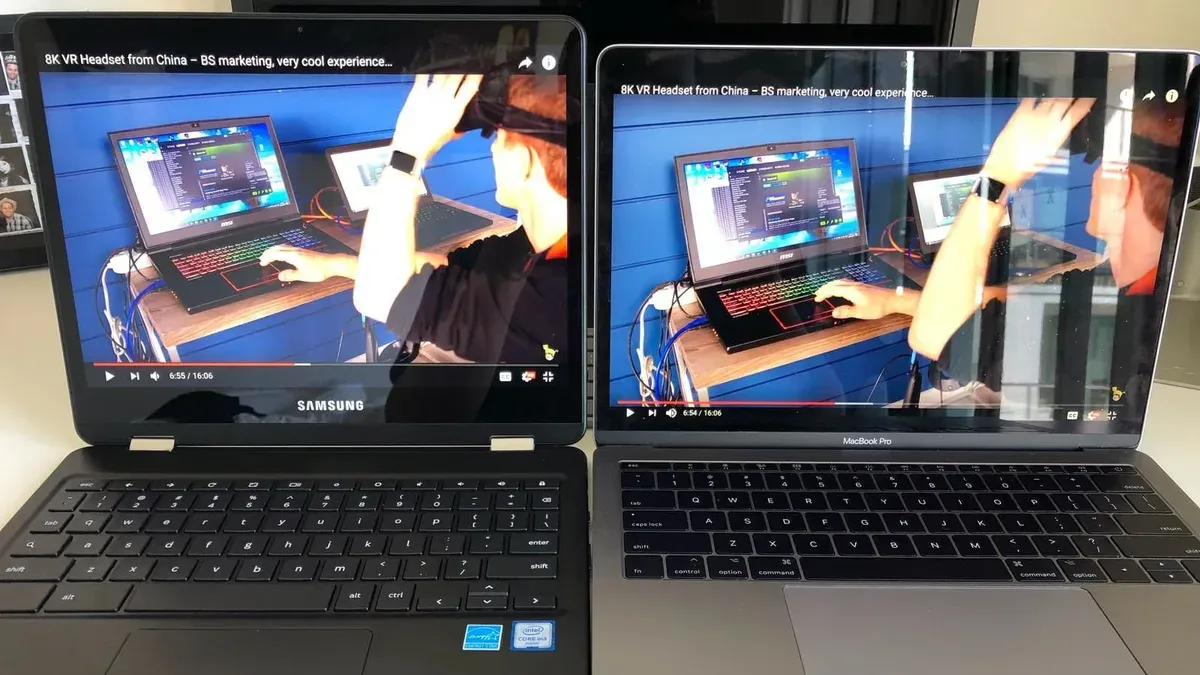
Short answer: Switching from Chromebooks to MacBooks involves moving between two distinct operating systems with different ecosystems, user interfaces, and software compatibilities. You’ll need to understand macOS basics, adjust to hardware and software differences, and plan your data migration carefully to ensure a smooth transition.
This guide covers the key differences between Chromebooks and MacBooks, explains how to manage software and browser changes, details how to migrate your data and apps, and highlights common pitfalls to avoid. It also helps you evaluate whether switching fully meets your needs by comparing Chromebook advantages. With clear, expert instructions, you’ll gain the insight needed to make informed decisions and confidently handle the practical steps of switching from Chromebooks to MacBooks.
Understand the Fundamental Differences Between Chromebooks and MacBooks
Switching from a Chromebook to a MacBook means moving between two distinct operating systems designed with different philosophies. Chrome OS is a lightweight, cloud-centric system built around the Chrome browser, emphasizing web apps and online functionality. In contrast, macOS is a full-featured desktop OS with a rich native app ecosystem and powerful offline capabilities.
Hardware differences are significant. Chromebooks typically use Intel or ARM-based processors optimized for energy efficiency, with RAM options usually between 4GB and 8GB and battery life often exceeding 10 hours due to their minimalist design. MacBooks employ Apple’s custom silicon chips, such as the M-series processors, delivering higher performance and efficiency with RAM starting at 8GB and battery life ranging around 15 to 20 hours.
| Feature | Chromebook | MacBook |
|---|---|---|
| CPU Types | Intel/ARM (low power) | Apple M-series (high performance) |
| RAM Options | 4GB–8GB | 8GB and up |
| Typical Battery Life | 10+ hours | 15–20 hours |
| OS Features | Cloud-first, web apps, sandboxed environment | Full desktop OS, extensive native apps, advanced multitasking |
Software availability differs as well. Chrome OS relies heavily on web apps and Android apps from the Play Store, which can limit access to professional-grade software. macOS supports a wide range of native applications optimized for performance and offline use, such as Final Cut Pro, Logic Pro, and full versions of Adobe Creative Cloud.
Cloud integration on Chromebooks is seamless with Google Drive deeply embedded, but offline work can be limited without prior setup. MacBooks offer robust offline functionality and integrate well with iCloud, allowing automatic syncing of documents, photos, and backups across Apple devices.
For example, if you often edit videos, a MacBook provides native apps and processing power that Chromebook web apps can’t match. Understanding these differences sets realistic expectations and helps you plan your transition effectively.
How to Change Chromebook OS to Windows or Linux: Alternatives and Limitations
Chromebooks run Chrome OS, a locked-down operating system designed primarily for web-based tasks and integrated cloud services. Unlike Macs, you cannot simply install Windows or a full Linux distribution directly on most Chromebooks. The firmware and hardware compatibility limit this, and attempts to replace Chrome OS often require advanced technical skills and void warranties.
For Linux users, Chrome OS offers Crostini, a built-in Linux container accessible via Settings > Developers > Linux development environment. This allows running many Linux apps without replacing the OS but comes with constraints like limited hardware access and no native Windows support. Some enthusiasts use dual-boot tools like MrChromebox’s firmware to install Linux alongside Chrome OS, but these methods work reliably on only select Chromebook models and involve complex setup and risk.
In contrast, MacBooks run macOS natively, with official support for Windows through Boot Camp on Intel models, allowing users to dual boot with a straightforward installer. Virtualization software like Parallels Desktop or VMware Fusion also enables running Windows or Linux inside macOS with fewer risks. Apple Silicon Macs currently rely on virtualization for Windows or Linux, as Boot Camp is unavailable.
Switching OS on a Chromebook is fundamentally different from moving to a MacBook. On Chromebooks, OS changes are often experimental or partial, while MacBooks provide robust, officially supported multi-OS options. If you imagine replacing Chrome OS with Windows on a Chromebook, consider the rarity of success and the potential need to switch devices entirely for full OS flexibility.
- Access Linux via Settings > Developers > Linux development environment (Crostini) on Chromebooks
- Consider dual boot only on supported Chromebook models using custom firmware
- MacBooks support Boot Camp for Windows dual boot on Intel models
- Use virtualization on MacBooks for Windows or Linux without rebooting
- Understand OS switching on Chromebooks is limited and often experimental
How to Switch Browser on Chromebook and MacBook for a Consistent Experience
Chromebooks default to Google Chrome, which is also fully supported on MacBooks. To maintain a consistent browsing experience, syncing your Chrome profile between devices is key. On your Chromebook, ensure you are signed into Chrome with your Google account and syncing is enabled via Settings > You and Google > Sync and Google services.
On your MacBook, download Chrome from google.com/chrome and sign in using the same Google account. This syncs your bookmarks, passwords, history, and extensions seamlessly, preserving your browsing environment.
If you prefer to use Safari or Firefox on your MacBook, you can import Chrome bookmarks by opening Safari’s File > Import From > Google Chrome, or Firefox’s Bookmarks > Show All Bookmarks > Import and Backup > Import Data from Another Browser. Passwords and extensions, however, require separate manual handling or reinstallation, as they don’t transfer directly.
Keep in mind that Safari integrates tightly with macOS features like Keychain and Handoff, offering faster performance and better energy efficiency than Chrome. Conversely, Chrome offers cross-platform uniformity and a vast extension library. An example: syncing your Chrome profile on Chromebook and MacBook ensures you can pick up browsing immediately without reconfiguring settings.
- On Chromebook, confirm Chrome sync is active under Settings > You and Google > Sync.
- Download and install Chrome on MacBook from google.com/chrome.
- Sign into the same Google account on MacBook’s Chrome to sync data.
- To use Safari or Firefox, import bookmarks via their import menus.
- Manually reinstall extensions and passwords if switching away from Chrome.
How to Connect a Nintendo Switch to a Chromebook and What That Means for MacBooks
Connecting a Nintendo Switch to a Chromebook is limited by the Chromebook’s hardware and OS constraints. While you can pair Switch controllers via Bluetooth—for example, the Joy-Cons or Pro Controller—using the Chromebook’s Bluetooth settings, direct USB connections are less straightforward. Chromebook does not support HDMI input, so you cannot use it as a display for the Switch, unlike some dedicated capture cards or streaming setups.
On a MacBook, the environment is more flexible. You can connect Switch controllers via Bluetooth with minimal setup through System Preferences > Bluetooth. Additionally, MacBooks support USB connections natively; plugging in a Pro Controller via USB-C to USB-A or USB-C adapter is recognized instantly. For streaming gameplay, MacBooks can leverage third-party capture software like OBS with compatible capture cards, enabling you to view and record Switch gameplay on your laptop.
Because Chromebooks lack native media input options, gaming experiences involving the Switch are constrained mostly to controller use for cloud gaming or emulators, not direct screen capture or streaming. MacBooks, with their broader peripheral compatibility and software support, provide a fuller gaming accessory ecosystem.
For example, if you want to play a cloud-based Switch game on a Chromebook using a Bluetooth Pro Controller, it works well, but streaming your physical Switch gameplay to the Chromebook screen is not feasible. On a MacBook, the same controller connection plus a capture card allows full streaming and gameplay recording.
- Pair Switch controllers on Chromebook via Settings > Bluetooth
- Use USB connection on MacBook for direct controller support
- Utilize capture cards and OBS on MacBook for Switch streaming
- Recognize Chromebook’s inability to act as HDMI input device
- Prefer MacBook for advanced Switch accessory integration and streaming
Switching Desktops on Chromebook: What Changes When You Move to MacBook
Chromebooks offer a streamlined desktop experience with a simplified window manager and virtual desks that you can quickly switch between. This environment emphasizes ease of use, with app windows snapping automatically and limited multitasking complexity. Virtual desks on Chrome OS are accessed via the Overview button, displaying all open windows and desks in a clear grid.
macOS, by contrast, uses Desktop Spaces combined with Mission Control, providing a more powerful but nuanced multitasking system. Mission Control aggregates all open windows, split view apps, and fullscreen views, letting you swipe between multiple Desktops or full-screen apps with gestures or keyboard shortcuts (e.g., Control + arrow keys). This setup supports a more customizable workflow but requires adjusting how you organize and switch tasks.
For example, on a Chromebook, you might open three tabs and apps side-by-side with simple snap assist. On a MacBook, you can place these apps on separate Desktop Spaces and switch fluidly, but you need to create and manage these Spaces actively in Mission Control. This means your workflow shifts from static window layouts to dynamic space management.
To optimize your MacBook’s desktop for productivity, configure Mission Control settings found in System Preferences under Mission Control: enable “Automatically rearrange Spaces based on most recent use” and set keyboard shortcuts for Desktop switching. Using Hot Corners to invoke Mission Control also speeds navigation.
- Use Control + Up Arrow to open Mission Control
- Set up multiple Desktop Spaces by clicking the plus sign in Mission Control
- Assign apps to specific Desktops via right-click on the Dock icon > Options > Assign To
- Enable Hot Corners for quick access to Mission Control in System Preferences > Desktop & Screen Saver
Practical Steps to Migrate Your Data and Apps from Chromebook to MacBook
Begin by backing up your Google Drive data and local Chromebook files. Use the Google Drive web interface or the Backup and Sync app on your MacBook to ensure all cloud files transfer seamlessly. For local files stored on your Chromebook, connect a USB drive or upload them to Google Drive, then download them on your MacBook.
Next, migrate your email by configuring the Apple Mail app or accessing Gmail via a browser. Set up your Apple ID immediately by navigating to System Settings > Apple ID; this enables iCloud syncing for contacts, calendars, and photos, maintaining continuity across devices.
Identify macOS app equivalents for your Chromebook apps. For example, if you used Google Docs, macOS offers Microsoft Word and Apple Pages as alternatives. Microsoft Word provides advanced formatting but requires a subscription, while Pages is free with intuitive Apple integration but less compatible with some file formats. For Android apps previously run on your Chromebook, macOS does not natively support them; consider web versions or look for macOS-specific alternatives.
Establish new workflows to replace Chromebook-specific features like Android app support. Use macOS’s robust app ecosystem and web services to fill gaps. For instance, instead of Android-only note apps, try Apple Notes synced via iCloud.
- Back up Google Drive data and transfer local files via USB or cloud upload
- Set up Apple ID and enable iCloud for syncing essential data
- Configure email in Apple Mail or via browser access
- Identify macOS app alternatives; evaluate pros and cons (e.g., Pages vs. Word)
- Replace Android apps with web or macOS-native versions
- Adjust workflows to fit macOS features like iCloud and native apps
For example, if you stored photos locally on your Chromebook and used Google Keep for notes, upload photos to iCloud Photos after signing in to your MacBook and switch to Apple Notes for note-taking. This ensures your media and productivity data remain accessible and integrated within macOS.
Avoid Common Mistakes When Switching from Chromebook to MacBook
One common error is expecting your favorite Chromebook apps to run identically on a MacBook. Many Chrome OS apps are web-centric or optimized for lightweight hardware, while macOS relies on native applications that may differ significantly in interface and functionality. For example, a user accustomed to the simplicity of the Chromebook Files app might find Finder’s layered folder system on macOS initially confusing.
Underestimating the MacBook’s learning curve can lead to frustration. macOS requires configuring preferences like System Preferences > Keyboard to customize shortcuts, or adjusting Dock settings under System Preferences > Dock & Menu Bar. Unlike Chromebooks, MacBooks have diverse hardware ports; missing an adapter for USB-C or Thunderbolt ports is a common oversight that interrupts workflow.
Ignoring backup and data migration planning risks data loss. Users who attempt to move files without using Apple’s Migration Assistant or cloud sync services may find critical documents missing. One IT manager shared how lack of thorough backup before switching caused delays due to missing project files.
Keyboard shortcut differences also trip users up. For instance, the Command key replaces Chromebook’s Ctrl for most shortcuts, but function keys behave differently. Preparing by reviewing macOS shortcuts in System Preferences > Keyboard > Shortcuts helps smooth the transition.
- Research app equivalents and test macOS versions before switching
- Spend time customizing macOS settings and learning new shortcuts
- Use Migration Assistant or cloud backup to secure data before switching
- Prepare necessary adapters for MacBook ports in advance
Evaluate Chromebook Advantages Over MacBooks to Confirm Your Decision
Before finalizing your switch, weigh what Chromebooks continue to offer that MacBooks may not match in certain areas. Chromebooks excel in affordability, often costing a fraction of MacBooks, making them ideal for budget-conscious users who prioritize basic tasks like web browsing, document editing, and streaming. Their simplicity is a strong advantage—boot times are near-instant and the user interface is minimal, reducing the learning curve for new users.
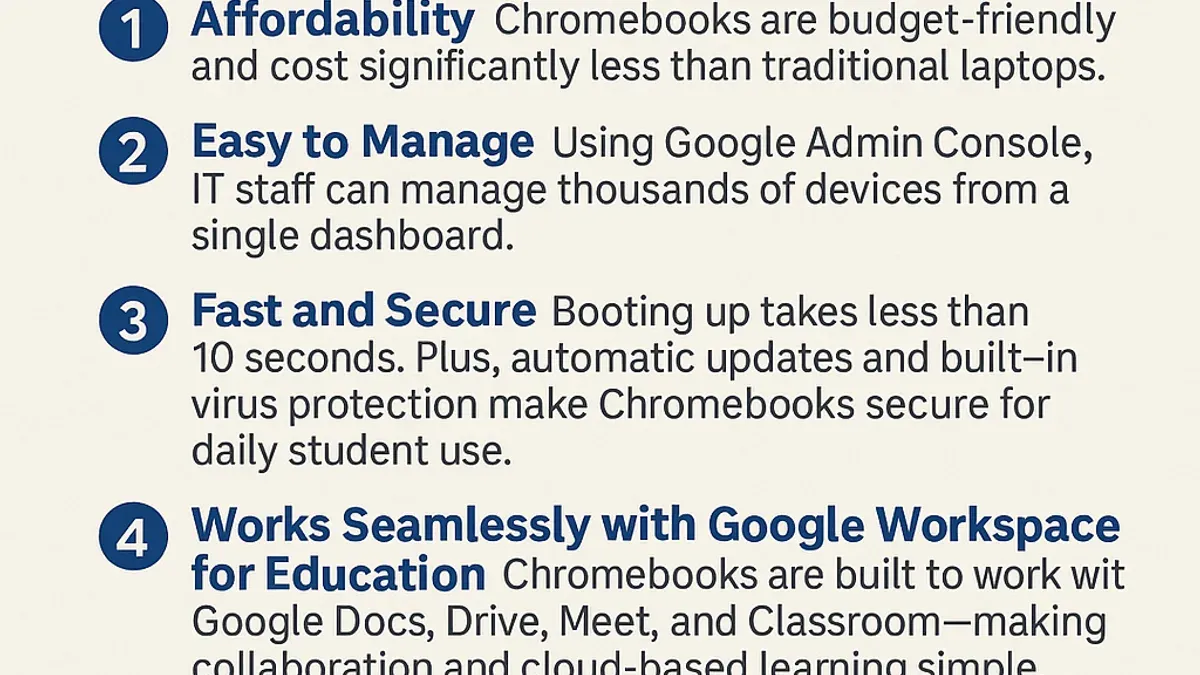
Chromebooks tightly integrate with Google’s ecosystem, providing seamless access to Google Drive, Gmail, Docs, and Sheets with automatic syncing and offline capabilities. Security is another key strength: Chromebooks receive automatic updates multiple times a month without user intervention, helping maintain a more secure environment against malware and vulnerabilities.
In contrast, MacBooks offer superior performance, especially for processor-intensive tasks like video editing or software development. The macOS software ecosystem includes powerful creative and professional applications unavailable on Chromebooks, which rely heavily on web-based or Android apps. For example, switching from a Chromebook to a MacBook means gaining access to Final Cut Pro or Logic Pro, but you lose the instant-on and straightforward cloud-first workflow of Chrome OS.
| Feature | Chromebook Advantage | MacBook Advantage |
|---|---|---|
| Cost | Lower upfront price, affordable models | Higher price, premium build quality |
| Security & Updates | Automatic, frequent, behind-the-scenes updates | Regular updates but less frequent, user-controlled |
| Software Ecosystem | Google apps, Android apps | Native macOS apps, professional software |
| Performance | Good for lightweight tasks | High performance for creative/professional work |
Picture a student who values quick access to Google Classroom and collaborative documents on a budget—this user might find Chromebooks perfectly fitting. Conversely, a designer needing advanced photo editing will benefit from MacBook’s robust software and performance. Confirm your priorities to avoid surprises after the switch.
Read next
- Switching from Chromebooks to Android Tablets: A Practical Guide
- Moving from Android Tablets to MacBooks: Your Essential Checklist
- Chromebooks Rollout Plan for Private Schools: A Clear, Expert Guide
- How to Install QuickBooks on Mac: A Clear Step-by-Step Guide
Frequently asked questions
How to switch chromebook to windows?
Chromebooks do not natively support Windows as their operating system. To run Windows, you would need to replace the Chromebook hardware with a Windows-compatible device or install Windows on a supported PC. Alternatively, using remote desktop apps from your Chromebook can give access to a Windows environment without installing Windows directly.
How to connect switch to chromebook?
Connecting a Nintendo Switch to a Chromebook involves using the Switch's handheld mode with compatible controllers or streaming options. You can connect the Switch's Joy-Con controllers via Bluetooth under Chromebook's Bluetooth settings. For screen capture or streaming, specialized USB capture devices are necessary since direct video output connection is not supported.
How to switch chromebook to linux?
You can enable Linux (Beta) on your Chromebook via Settings > Developers > Linux development environment (Beta) > Turn on. This installs a Debian-based container allowing you to run Linux apps alongside Chrome OS. Keep in mind this Linux environment is sandboxed and is not a full Linux OS replacement.
Is a chromebook a mac?
No, a Chromebook is a laptop running Chrome OS, developed by Google, focused on cloud-based applications. A Mac refers to Apple’s line of computers running macOS, which is a distinct operating system with different software ecosystems and hardware designs.
How to change laptop to chromebook?
To convert a traditional laptop into a Chromebook, you can install Chrome OS Flex by Google. This involves downloading the Chrome OS Flex installer on a USB drive and booting your laptop from it to install. Note that hardware compatibility varies, and some features may not work as on official Chromebooks.
What this advice does not cover
This guide does not cover advanced technical hacks like installing macOS on Chromebook hardware, which is unsupported and legally questionable. Users with specialized software needs not available on macOS should verify compatibility before switching. Additionally, highly customized enterprise environments or complex network setups may require consultation with IT professionals to ensure a smooth transition.
Quick checklist
- Review software compatibility with macOS before committing
- Back up all Chromebook data to Google Drive or an external storage device
- Sign out and disable sync services on your Chromebook
- Set up iCloud and Apple ID on your MacBook for seamless integration
- Install essential apps on your MacBook from the Mac App Store or official websites
- Configure your preferred browser on MacBook to match Chromebook settings
- Familiarize yourself with macOS gestures and system preferences
- Test peripheral device compatibility, including controllers like the Nintendo Switch
Start your transition by fully backing up your Chromebook data and ensuring you have access to all critical files. This foundational step prevents data loss and sets the stage for a smooth migration to your MacBook.



