Switching from Chromebooks to Windows Laptops: Your Expert Guide
Explore expert advice on switching from Chromebooks to Windows laptops, covering hardware differences, software options, and data migration tips.

Short answer: Switching from Chromebooks to Windows laptops means moving from a cloud-centric, lightweight operating system to a more versatile, software-rich environment. You can't simply convert a Chromebook into a Windows device, but you can prepare for the transition by understanding the hardware differences, software availability, and data migration steps involved.
This guide covers the practical realities behind switching from Chromebooks to Windows laptops. It explains the fundamental differences between the two platforms, clarifies what is and isn’t possible when changing operating systems, and provides clear, step-by-step advice on selecting compatible hardware and migrating your data effectively. You’ll also learn common pitfalls to avoid so you can make an informed decision and ensure a smooth switch without unrealistic expectations about OS conversions.
Understand the Fundamental Differences Between Chromebooks and Windows Laptops
Chromebooks run Chrome OS, a lightweight, web-centric operating system optimized for cloud-based tasks and web apps. It relies heavily on Google services and web browsers, making it ideal for users focused on online productivity with minimal local software installation.
Windows laptops operate a full desktop OS that supports a vast array of legacy and modern applications, from productivity suites to advanced creative and engineering software. This broad compatibility demands more robust hardware and storage capacity.
Hardware differences reflect these OS designs: Chromebooks often use energy-efficient processors and limited local storage since many tasks happen in the cloud. Windows laptops typically include more powerful CPUs, larger RAM, and greater storage to handle intensive software and multitasking.
Attempting to convert a Chromebook to run Windows is rarely straightforward due to firmware locks, driver incompatibilities, and hardware constraints. For example, a Chromebook’s firmware often prevents installing non-Chrome OS systems, and key components like touchpads or Wi-Fi adapters may lack Windows drivers.
| Feature | Chrome OS | Windows OS |
|---|---|---|
| OS Type | Lightweight, web-centric | Full desktop OS |
| Primary Software | Web apps, Android apps | Desktop applications, legacy software |
| Hardware Focus | Energy-efficient, cloud-reliant | High performance, versatile |
| Installation Flexibility | Restricted, firmware locked | Flexible, broad hardware support |
Picture this: your Chromebook is like a streamlined electric scooter designed for city streets—efficient but limited in power and customization. Windows laptops are the all-terrain motorcycles capable of handling diverse terrains and heavier loads, but they require more maintenance and fuel. Understanding these core differences helps set realistic expectations about switching between these platforms.
How to Change Chromebook to Windows: What’s Possible and What’s Not
Installing Windows directly on most Chromebooks is blocked by hardware and firmware restrictions. Chrome OS devices use locked bootloaders and firmware designed specifically for Chrome OS, preventing a straightforward Windows installation.
Some Intel-based Chromebooks, like the Google Pixelbook or certain models from Acer and ASUS, can support Windows installation with advanced steps. This typically involves enabling Developer Mode, disabling OS verification, and flashing a custom firmware or BIOS compatible with Windows. For example, on the Google Pixelbook, you must press Esc + Refresh + Power to enter recovery, then enable Developer Mode via Ctrl + D on boot, followed by flashing new firmware using tools like MrChromebox's script.
However, this process voids warranties, risks bricking the device, and may result in missing drivers or unstable performance.
More practical alternatives include running Windows applications through virtualization tools such as Parallels or CrossOver, or using remote desktop solutions to access Windows machines without modifying your Chromebook’s OS.
- Check if your Chromebook model supports Developer Mode and firmware modification.
- Research community-supported firmware tools like MrChromebox for your device.
- Understand warranty and bricking risks before proceeding.
- Consider virtualization or remote desktop as safer alternatives.
How to Change Laptop to Chromebook: Why It’s a Different Challenge
Switching a Windows laptop to a Chromebook isn't a straightforward OS swap because Chromebooks run Chrome OS, a distinct operating system designed specifically for certain hardware. However, Google offers Chrome OS Flex, a version meant to be installed on existing Windows or Mac hardware, giving you a Chromebook-like experience without buying new hardware.
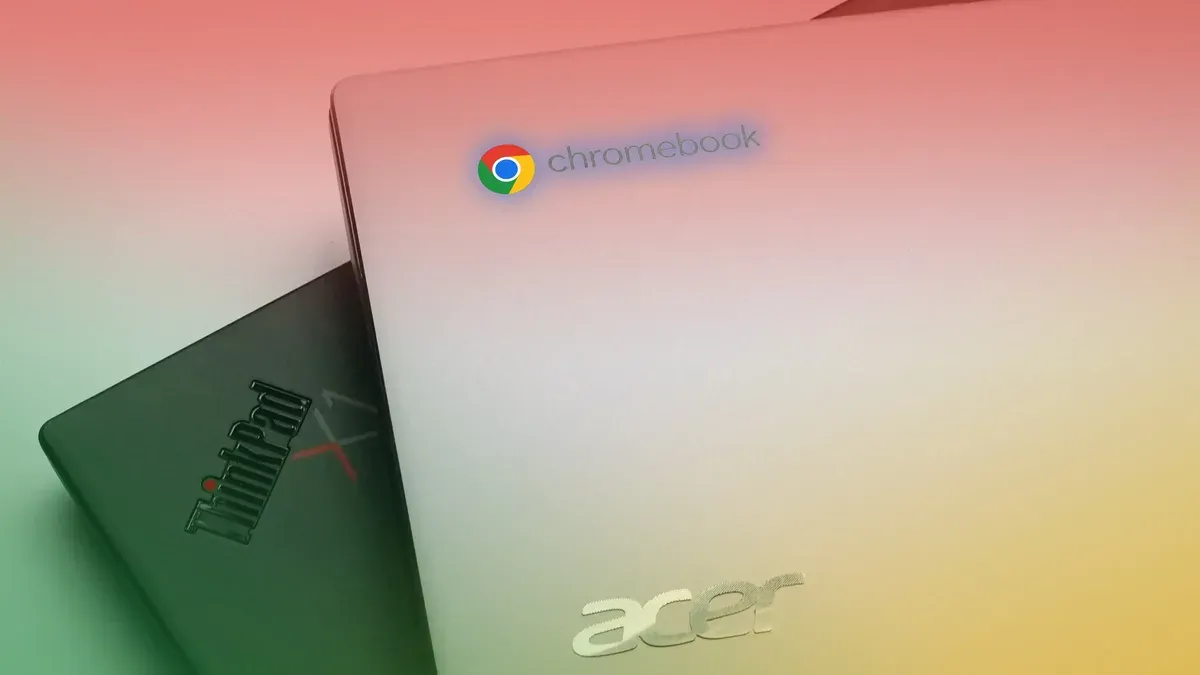
Chrome OS Flex supports a broad range of Intel- and AMD-based processors and requires at least 4GB RAM and 16GB storage. It boots quickly and focuses on cloud-based applications but lacks some native features of true Chromebooks, like verified boot and Android app support.
To install Chrome OS Flex, you create a bootable USB using the Chromebook Recovery Utility, insert it into your Windows laptop, and boot from USB by selecting the boot menu (often by pressing F12 or ESC at startup). After launching the installer, you can try the OS without installation or proceed to erase Windows and fully install Chrome OS Flex.
For example, a Dell Latitude with Intel i5, 8GB RAM, and 128GB SSD can run Chrome OS Flex smoothly, but you won’t get native Play Store apps, and some hardware features like fingerprint sensors may not work.
- Check your laptop meets minimum hardware specs: 4GB RAM, 16GB storage
- Download Chromebook Recovery Utility from Chrome Web Store
- Create a Chrome OS Flex bootable USB
- Boot your laptop from the USB drive via the boot menu key
- Choose to try or install Chrome OS Flex
- Understand limitations: no Android apps, limited hardware integration
How to Switch Desktops on Chromebook: Managing Multiple Workspaces
Chromebooks support multiple virtual desktops, called "Desks," to help you organize open windows and multitask efficiently. You can create up to four desks, each acting like a separate workspace where different apps and windows reside.
To switch between desks, use the keyboard shortcut Search (or Launcher) + ] to move right, and Search + [ to move left. Alternatively, swipe left or right with three fingers on the touchpad to cycle through desks.
For example, you might keep work-related apps on Desk 1 and personal apps on Desk 2. This workflow helps you focus and quickly toggle between tasks.
Windows also offers multiple desktops, accessible via Win + Ctrl + Left/Right Arrow, but Windows supports more desks and offers a dedicated Task View button for overview. Knowing Chromebook’s desk management helps you adapt your multitasking habits when switching OS by understanding each system’s navigation and window grouping.
| Action | Chromebook Shortcut | Windows Shortcut |
|---|---|---|
| Switch to Next Desktop | Search + ] or 3-finger swipe right | Win + Ctrl + Right Arrow |
| Switch to Previous Desktop | Search + [ or 3-finger swipe left | Win + Ctrl + Left Arrow |
| Create New Desktop | Click Overview (F5) > + New desk | Win + Ctrl + D |
| Open Desktop Overview | Press Overview key (F5) | Win + Tab |
- Use Search + ] / [ or 3-finger swipe to switch desks on Chromebook
- Organize windows by task or app category on separate desks
- Press Overview key (F5) to see all desks and windows
- Compare with Windows’ multiple desktop shortcuts to anticipate workflow differences
Practical Steps to Transition from Chromebook to a Windows Laptop
Start by backing up your data from the Chromebook’s Google Drive and syncing your Google account settings. Use the Google Takeout tool to export emails, contacts, and calendar entries, then import them into Microsoft Outlook or the Windows Mail app. For documents, copy files from Google Drive to OneDrive to keep them accessible on Windows.
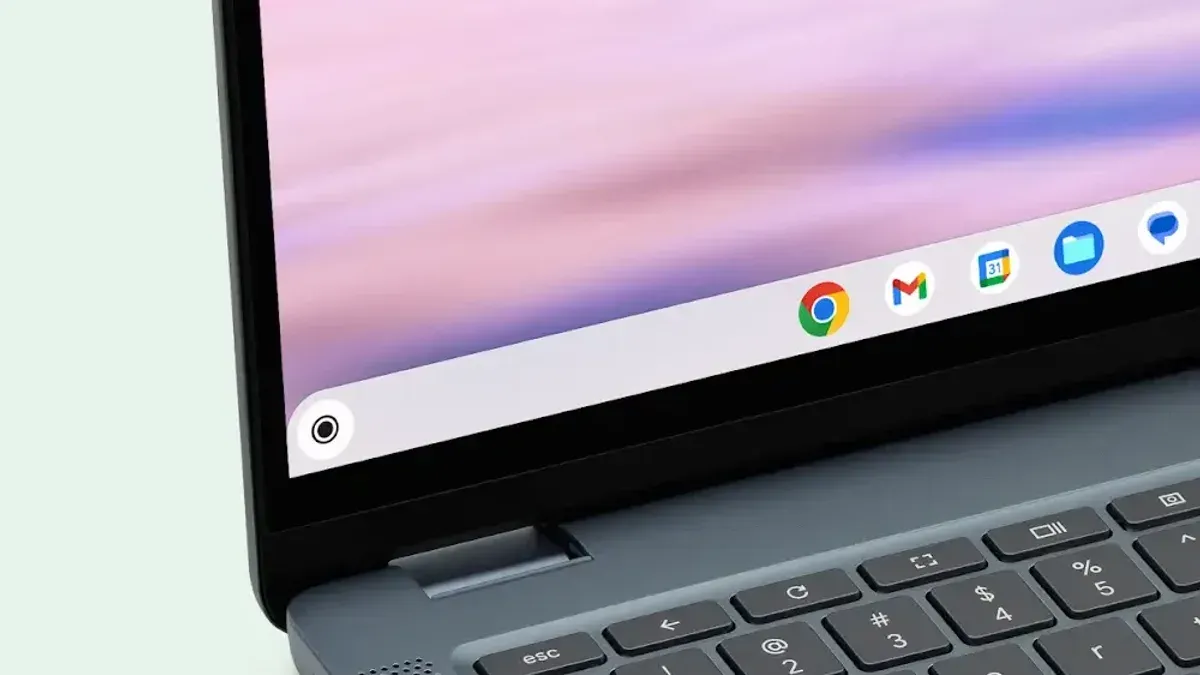
When choosing a Windows laptop, consider your Chromebook use: if you mainly worked in a browser, a mid-range device with good battery life will suffice. For heavier tasks, prioritize a laptop with at least 8GB RAM and an SSD. Brands like Dell, HP, and Lenovo offer models suited to different needs.
Install Windows apps equivalent to your Chromebook tools. For example, replace Google Docs with Microsoft Office or LibreOffice, and use Microsoft Edge or Google Chrome for browsing. Set up OneDrive for file syncing and Microsoft Teams for communication if needed.
Adjust to Windows by exploring the Start menu, Taskbar, and Settings app. Enable features like Snap Assist for multitasking. Familiarize yourself with keyboard shortcuts such as Win + D to show the desktop or Alt + Tab to switch apps.
| Chromebook App | Windows Equivalent |
|---|---|
| Google Docs | Microsoft Word / LibreOffice Writer |
| Google Drive | OneDrive |
| Google Chrome | Microsoft Edge / Google Chrome |
| Gmail | Microsoft Outlook / Windows Mail |
| Google Calendar | Microsoft Outlook Calendar |
Migration Checklist:
- Back up Google Drive files and export Gmail, contacts, calendar via Google Takeout
- Import exported data into Microsoft apps
- Choose a Windows laptop matching your performance and portability needs
- Install and configure Windows apps replacing Chromebook tools
- Set up OneDrive and sync your files
- Learn essential Windows navigation and keyboard shortcuts
For example, if you regularly used Google Docs and Gmail on a Chromebook, export your documents and emails, then import them into Microsoft Office and Outlook on your new Windows laptop. Set OneDrive to sync your projects automatically, ensuring seamless access while adapting to Windows workflows.
Common Mistakes to Avoid When Switching from Chromebooks to Windows Laptops
One common error is expecting your Chromebook to simply "turn into" a Windows device via software tweaks. Firmware locks on most Chromebooks prevent Windows installation, so attempting this can lead to bricked devices or lost data. For example, a user trying to install Windows on an unsupported Chromebook model found their device unusable after failed attempts.
Another pitfall is overlooking hardware compatibility and driver support. Windows laptops require specific drivers for components like touchpads, Wi-Fi, and webcams. Buying a Windows laptop without verifying driver availability can cause peripherals not to function properly, leading to frustration.
Neglecting to back up data and plan account migration is also risky. Chromebooks sync heavily with Google accounts, so failing to export files or configure Windows apps for email and cloud storage can cause data loss or access issues.
Finally, ignoring the learning curve differences between Chrome OS and Windows causes unexpected workflow disruptions. Windows’ file system, Settings app, and multitasking features differ significantly. Users who skip tutorials or training often feel overwhelmed initially.
Read next
- Switching from Chromebooks to MacBooks: Your Complete Expert Guide
- Switching from Chromebooks to Android Tablets: A Practical Guide
- Chromebooks Rollout Plan for Private Schools: A Clear, Expert Guide
- Moving from Android Tablets to Windows Laptops: Your Complete Checklist
Frequently asked questions
How to convert windows laptop to chromebook?
You cannot literally convert a Windows laptop into a Chromebook because Chrome OS is designed for specific hardware. However, you can install Chrome OS Flex, a version of Chrome OS for PCs and Macs, to get a Chromebook-like experience. Note that this won’t replicate full Chromebook functionality, as some Chrome OS features depend on certified hardware.
How to turn my chromebook into windows?
You cannot install Windows on a Chromebook directly because Chromebooks use hardware and firmware tailored for Chrome OS. The BIOS and storage layout typically prevent Windows installation. If you need Windows, the best approach is to purchase a Windows laptop instead of trying to convert your Chromebook.
How to turn laptop into chromebook?
To make a laptop behave like a Chromebook, you can install Chrome OS Flex, which is compatible with many Windows and Mac machines. This provides Chrome OS features but may lack some Chromebook hardware optimizations like verified boot and Android app support. Always back up data before installation and check hardware compatibility on Google’s website.
How to switch on chromebook?
To switch on a Chromebook, simply press the power button, usually located on the keyboard’s top-right corner or on the side. The device will boot into Chrome OS within seconds. If it doesn’t turn on, hold the power button for about 10 seconds and try again, or connect it to a charger to ensure sufficient power.
How to turn my Chromebook into Windows?
Installing Windows on a Chromebook is generally not possible due to hardware and firmware restrictions. Chromebooks use a locked bootloader and storage format that prevent Windows installation. If you require Windows, consider acquiring a dedicated Windows laptop instead of attempting to modify your Chromebook.
Quick checklist
- Confirm your Windows laptop meets your software and performance needs before purchase.
- Backup all important files from your Chromebook to cloud storage or external drives.
- Familiarize yourself with Windows settings: Start Menu, Control Panel, and Microsoft Store.
- Prepare installation media or recovery options for Windows troubleshooting.
- Plan software replacements for Chrome OS apps with Windows-compatible versions.
- Understand that installing Windows directly on a Chromebook is generally unsupported and risky.
- Set realistic expectations about hardware differences, battery life, and system updates.
This guide does not cover advanced firmware hacking or unsupported hardware modifications
If you want to replace Chrome OS with Windows on a Chromebook, be aware this requires advanced skills, may void warranties, and can permanently damage your device. This guide focuses on choosing a new Windows laptop instead of modifying your Chromebook hardware or firmware.
Switching to Windows means embracing a different ecosystem with its own setup and maintenance. Start by selecting hardware designed for Windows and then migrate your data and workflows accordingly.
Your most useful next step is to make a detailed list of your essential software and tasks, then verify their Windows compatibility. This groundwork ensures your transition is smooth and avoids surprises once you switch devices.