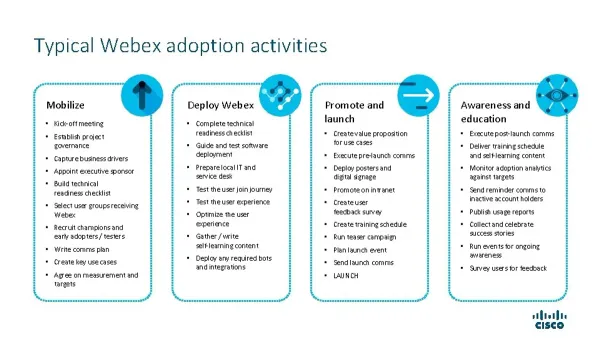
How to Switch from Google Workspace to Microsoft 365: A Complete Migration Guide
Switching from Google Workspace to Microsoft 365 requires planning and step-by-step migration of emails, calendars, contacts, and files for a smooth transition.

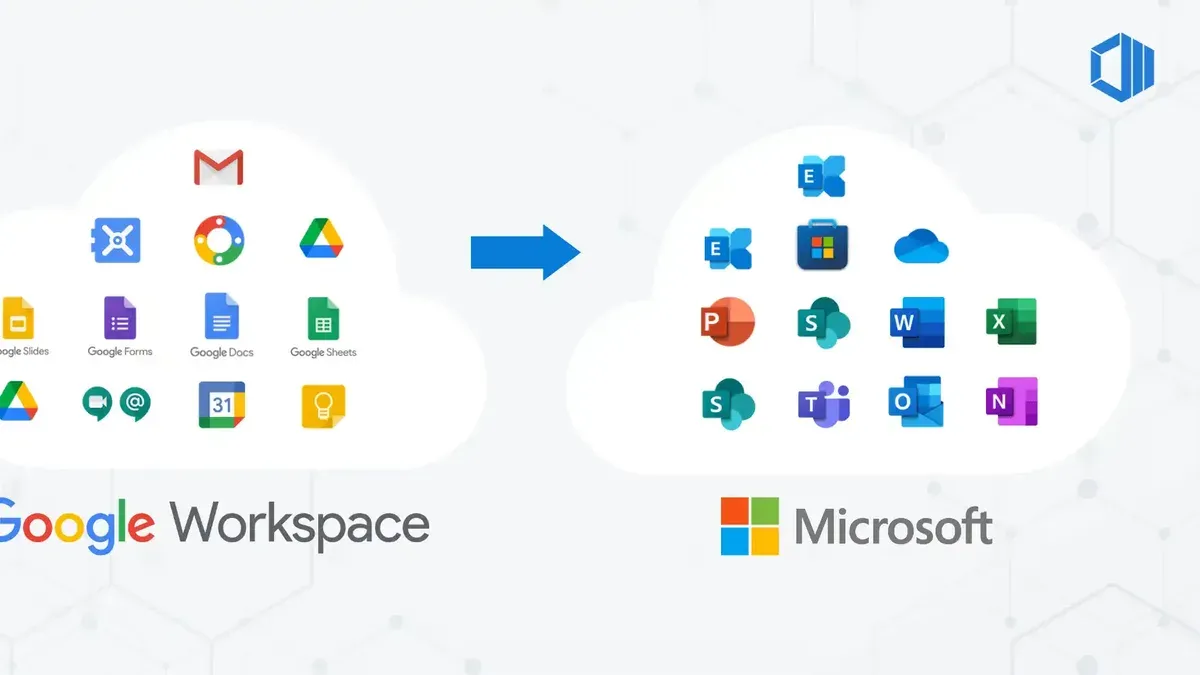
Short answer: Switching from Google Workspace to Microsoft 365 involves careful planning, selecting the right Microsoft 365 business plan, and executing a multi-step migration process that includes emails, calendars, contacts, and files. You must understand the differences in service features, storage, and collaboration tools to ensure a smooth transition that meets your organization's needs.
This guide covers a detailed comparison of Microsoft 365 and Google Workspace business plans, helping you choose the best fit for your organization. It then walks you through planning your migration strategy and provides step-by-step instructions for moving emails, calendars, contacts, and files. You'll also learn how to avoid common migration pitfalls and how to optimize user adoption once the switch is complete, ensuring your team can work productively with Microsoft 365 from day one.
Understand the key differences between Microsoft 365 and Google Workspace
When comparing Microsoft 365 and Google Workspace business plans, the distinctions lie in productivity apps, collaboration tools, security, storage, and pricing structures. For example, Microsoft 365 Business Basic offers access to online versions of Word, Excel, and PowerPoint, while Google Workspace Business Starter provides Google Docs, Sheets, and Slides. Both include email hosting with custom domains, but Microsoft 365 integrates deeply with Outlook, a familiar tool for many enterprises.
In terms of collaboration, Google Workspace emphasizes real-time editing in Docs and seamless integration with Google Meet, whereas Microsoft 365 combines Teams for communication with SharePoint and OneDrive for file management, favoring organizations needing advanced workflow automation and hybrid environments.
Security features differ as well; Microsoft 365 often includes advanced threat protection and data loss prevention in higher tiers, while Google Workspace focuses on endpoint management and phishing protections. Storage allocations vary, with Microsoft 365 typically offering 1 TB per user in Business Basic, compared to 30 GB in Google Workspace Business Starter.
Consider a mid-sized company deciding between plans: Microsoft 365’s familiar Office apps and larger storage support document-heavy workflows with tighter security needs, potentially increasing cost but improving productivity. Google Workspace suits organizations prioritizing cloud-native collaboration with straightforward pricing.
| Feature | Microsoft 365 Business Basic | Google Workspace Business Starter |
|---|---|---|
| Core Productivity Apps | Online Word, Excel, PowerPoint | Google Docs, Sheets, Slides |
| Email Hosting | Outlook with 50 GB mailbox | Gmail with 30 GB storage |
| Collaboration | Teams, SharePoint, OneDrive (1 TB) | Google Meet, Drive (30 GB) |
| Security | Basic threat protection, data loss prevention | Endpoint management, phishing protection |
| Price | Moderate, includes desktop app upgrades in higher tiers | Lower entry price, fewer desktop apps |
Plan your migration strategy from Google Workspace to Microsoft 365
Start by creating a detailed inventory of what you need to migrate: emails, calendars, contacts, files stored in Google Drive, and shared permissions. For example, a mid-sized company might have 500 users, 10 TB of Drive data, and complex sharing settings that require careful mapping to Microsoft 365 permissions. Assess user readiness by identifying key adoption challenges such as training needs or resistance to change, and develop a communication plan to keep users informed and supported.
When choosing migration tools, compare Microsoft’s native Migration Endpoint, which integrates directly with Exchange Online, against third-party solutions like BitTitan MigrationWiz. The native tool handles mailbox migrations directly via the Microsoft 365 admin center but can be limited for complex or large-scale migrations. BitTitan offers more granular control, supports migrating Drive files alongside mailboxes, and provides detailed reporting, though it comes with additional licensing costs.
Set realistic timelines based on your data volume and user count. For instance, migrating 500 mailboxes with mixed data sizes might take 2–3 weeks including pilot testing and post-migration support. Always establish backup plans such as exporting Google Workspace data with Google Takeout before starting the migration.
- Inventory all data types and permissions to migrate
- Assess user adoption challenges and create a communication plan
- Choose between Microsoft Migration Endpoint and third-party tools like BitTitan
- Define a realistic migration timeline with buffer periods
- Backup Google Workspace data before migration
How to migrate emails from Google Workspace to Microsoft 365
Begin by preparing your Google Workspace environment. Enable the Gmail API under APIs & Services > Library in the Google Cloud Console, then create a service account with domain-wide delegation to authorize Microsoft 365 to access mailbox data. Download the JSON key file for authentication.
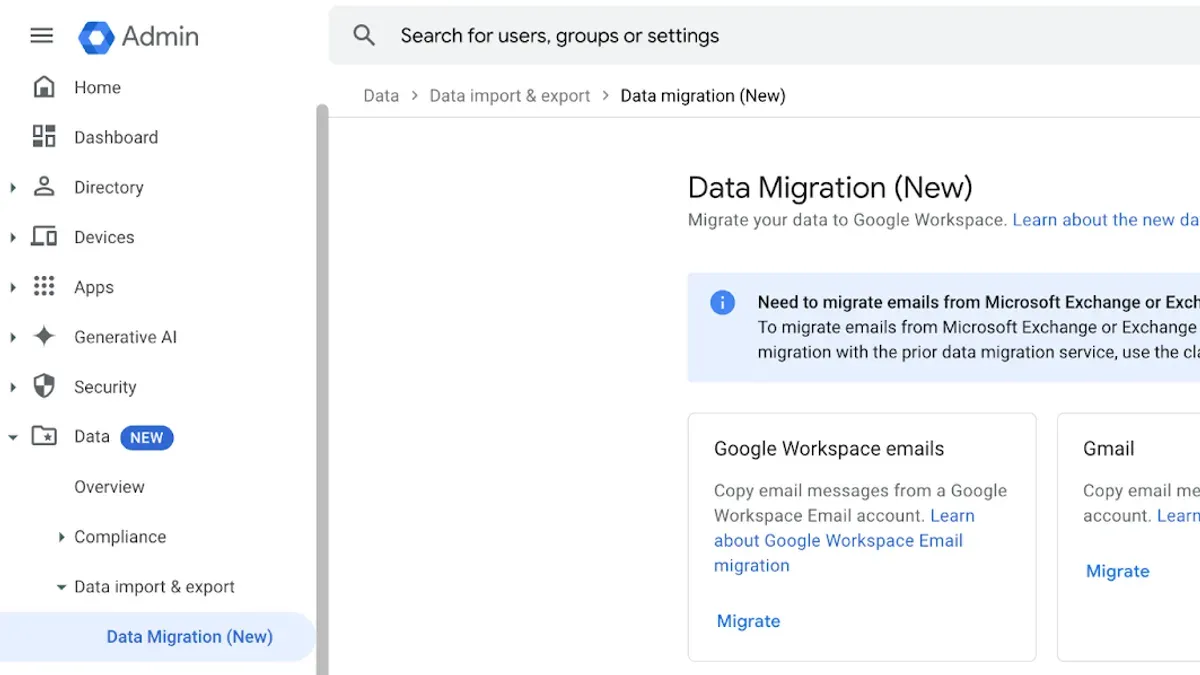
Next, in the Microsoft 365 admin center, navigate to Setup > Data migration and choose Google Workspace as the source. Create a migration endpoint by providing the service account credentials and specifying the Google Workspace admin email. This endpoint facilitates secure data transfer.
Start migration batches by selecting the users or mailboxes to migrate, assigning target Microsoft 365 mailboxes, and running the batch. Monitor progress in the migration dashboard, which shows statuses like Syncing, Completed, or Failed. For example, a common error is "Authentication failed" due to incorrect service account permissions; resolving it typically involves rechecking domain-wide delegation settings.
After migration completes, validate email integrity by spot-checking messages, folder structures, and timestamps. Address any missing items by rerunning migration batches for affected mailboxes.
- Enable Gmail API and create service account with domain-wide delegation in Google Cloud Console
- Set up Microsoft 365 migration endpoint using service account credentials
- Create and run mailbox migration batches from Google Workspace to Microsoft 365
- Monitor migration status and resolve common errors like authentication failures
- Validate email data post-migration and rerun batches if needed
How to migrate calendars, contacts, and files from Google Workspace to Microsoft 365
Start by exporting calendars and contacts from Google Workspace using Google Calendar's “Settings & sharing” > “Export calendar” option and Google Contacts' “Export” tool in CSV format for Outlook compatibility. In Microsoft 365, import calendars via Outlook's “Open & Export” > “Import/Export” wizard selecting the iCal files, and import contacts using the same wizard with CSV files. This method minimizes disruption by preserving event details and contact fields.
For files, choose between migrating Google Drive content to OneDrive for Business or SharePoint depending on collaboration needs. OneDrive suits personal files, while SharePoint is optimal for team-shared documents. Use Microsoft’s SharePoint Migration Tool or third-party tools like Mover to transfer files. Ensure you select the option to preserve file permissions and sharing settings to maintain access controls.
After migration, sync settings in OneDrive clients and verify data integrity by spot-checking key files and calendar events. For example, confirm recurring meetings are intact and shared files open with correct permissions. This validation avoids post-migration productivity loss.
- Export calendars from Google Calendar as iCal files
- Export contacts from Google Contacts as Outlook-compatible CSV
- Import calendars and contacts in Outlook using Import/Export wizard
- Choose OneDrive for personal files, SharePoint for team files
- Use SharePoint Migration Tool to migrate Google Drive files with permissions
- Verify synced data and preserve sharing settings post-migration
Avoid common mistakes when switching from Google Workspace to Microsoft 365
Many migrations falter because communication with users starts too late. If you delay informing your teams about changes, confusion and resistance increase. Announce key dates and new login procedures at least two weeks before migration.
Permissions migration is often underestimated. Google Drive's granular sharing settings do not map one-to-one with Microsoft 365's SharePoint and OneDrive permissions. Neglecting a detailed permissions audit can lead to unauthorized access or data lockdown.
Skipping pilot testing is another frequent error. Running a test migration with a small group uncovers hidden issues like missing data or sync delays. One organization faced a two-week delay after going live without pilot testing, as critical calendar data failed to appear in Outlook.
Finally, plan for coexistence if your migration spans days or weeks. Users may need simultaneous access to both platforms. Without coexistence tools like Microsoft’s Hybrid Exchange or calendar sharing, workflows break down.
Checklist for pre-migration validation:
- Communicate migration timeline and expectations to all users
- Perform a detailed audit of Google Drive permissions and plan corresponding Microsoft 365 settings
- Conduct a pilot migration with representative users and validate data integrity
- Set up coexistence solutions for email, calendar, and file access during transition
Optimize user adoption after migrating to Microsoft 365
Supporting your users through the transition to Microsoft 365 ensures your organization gains maximum value from the migration. Begin with a tailored training plan that focuses on core Microsoft 365 apps like Outlook, Teams, OneDrive, and SharePoint. For example, schedule three one-hour sessions over two weeks: the first on email and calendar management in Outlook, the second on collaboration using Teams, and the third on file storage and sharing through OneDrive and SharePoint.

Encourage users to replace Google collaboration habits by promoting Microsoft Teams channels for group chats and meetings, and OneDrive as the go-to platform for personal file storage and sharing. Highlight features such as Teams’ integrated chat and meeting scheduler, which streamlines communication compared to separate Google apps.
Monitor adoption by reviewing usage metrics available in the Microsoft 365 admin center under Reports > Usage, comparing activity levels on Teams and OneDrive before and after migration. Use this data alongside direct user feedback to identify areas where additional support or training is needed.
Leverage Microsoft 365 admin tools to manage licenses and enforce security policies. For instance, configure Conditional Access policies in Azure AD to secure user sign-ins and regularly review license allocation to optimize costs while ensuring all users have access to necessary apps.
- Develop a phased training plan covering Outlook, Teams, OneDrive, and SharePoint
- Promote Teams and OneDrive to replace Google Workspace collaboration habits
- Regularly analyze usage reports in the Microsoft 365 admin center
- Collect user feedback to identify training gaps
- Manage licenses and security policies using Microsoft 365 admin tools
Read next
- Switching from Google Workspace to Dropbox: A Complete Expert Guide
- Moving from Dropbox to Microsoft 365 Checklist for Seamless Migration
- Google Workspace Rollout Plan Tailored for Substitute Teachers
Frequently asked questions
How to migrate from gsuite to microsoft 365?
Start by preparing your Microsoft 365 tenant and verifying your domain. Use the Microsoft 365 admin center's migration tool to connect to your Google Workspace account, then select the data types to migrate, such as emails and calendars. It's crucial to sync user accounts beforehand and monitor the migration progress through the Exchange admin center.
How to switch from google workspace to microsoft 365?
Begin with a thorough assessment of your Google Workspace data and user needs. Choose the appropriate Microsoft 365 subscription that fits your organization. Plan the migration phases, communicate with users about changes, and execute the migration by leveraging Microsoft’s migration tools for email, contacts, and files.
How to migrate from google workspace to microsoft 365?
Use the Microsoft 365 admin center's migration wizard, which supports direct migration from Google Workspace. Authenticate both accounts, select the mailboxes and data to move, and configure the migration batch. After migration, update DNS records to route mail to Microsoft 365 and decommission Google Workspace services carefully.
How to migrate from G Suite to Microsoft 365?
Ensure your Microsoft 365 environment is ready with user accounts matching those in Google Workspace. Utilize the Exchange admin center's IMAP migration or Google Workspace migration tools for seamless transition of emails, calendars, and contacts. Plan data transfer during off-hours to minimize user disruption.
What are the best tools for migration from Google Workspace to Microsoft 365?
Microsoft provides native tools such as the Exchange admin center migration wizard and Microsoft 365 admin center migration options, which are reliable for most scenarios. Third-party solutions like BitTitan MigrationWiz or Quest On Demand Migration offer enhanced control and support complex environments. Choose tools based on your organization’s size, complexity, and data types.
What this guide does not cover
This guide does not cover migrations involving complex third-party integrations or custom app ecosystems which require specialized consulting. If your organization relies heavily on bespoke applications or intricate API connections within Google Workspace, engaging a migration specialist is recommended to ensure data integrity and seamless functionality.
Quick checklist
- Review and finalize your Microsoft 365 business plan based on feature needs and user licenses.
- Create a detailed migration timeline including email, calendar, contacts, and file transfers.
- Configure Microsoft 365 admin center settings, including user accounts and domain verification.
- Use the Microsoft 365 Migration Tool or third-party solutions for email migration.
- Export and import calendars and contacts via supported formats (e.g., ICS, CSV).
- Migrate Google Drive files to OneDrive or SharePoint using the Migration Manager or manual upload.
- Communicate changes clearly to all users and provide training resources.
- Monitor the migration progress and verify data integrity post-migration.
- Set up ongoing support channels to resolve user questions and issues.
The single most effective next step is to begin your migration planning by auditing your current Google Workspace usage. Identify essential data, active users, and custom configurations. This groundwork ensures you select the right Microsoft 365 plan and migration tools, minimizing disruptions and aligning the process with your organizational priorities.