
Switching from Google Workspace to SharePoint: Your Expert Guide
Discover expert guidance on switching from Google Workspace to SharePoint for better document management and collaboration.

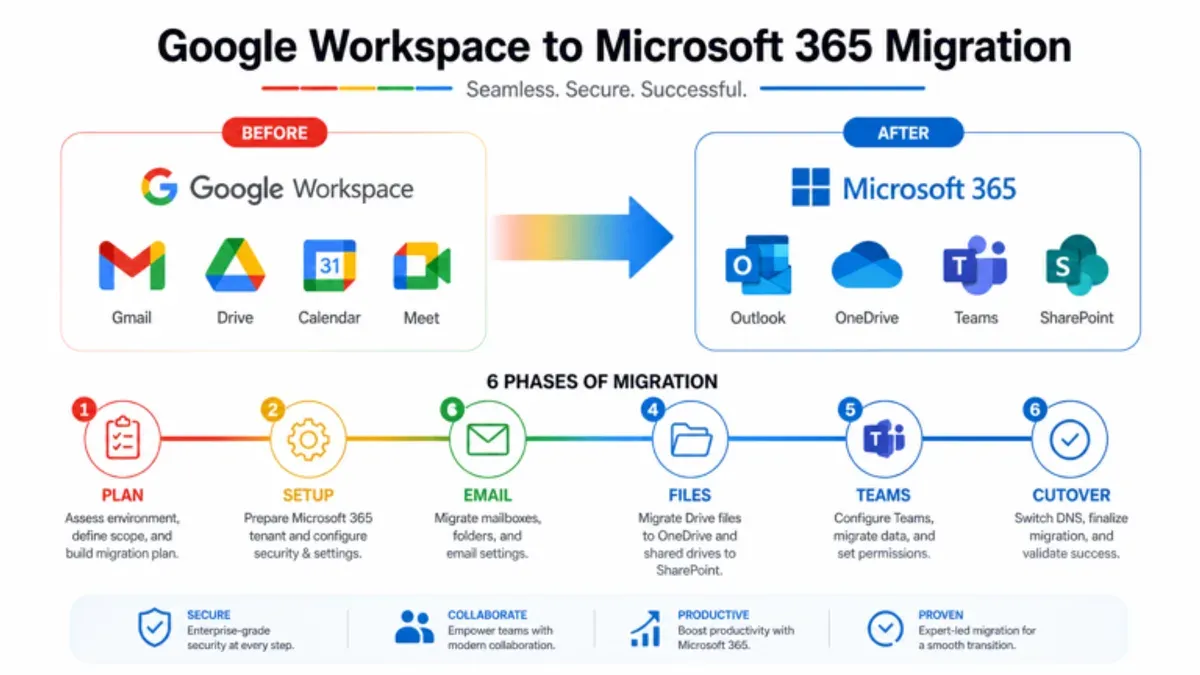
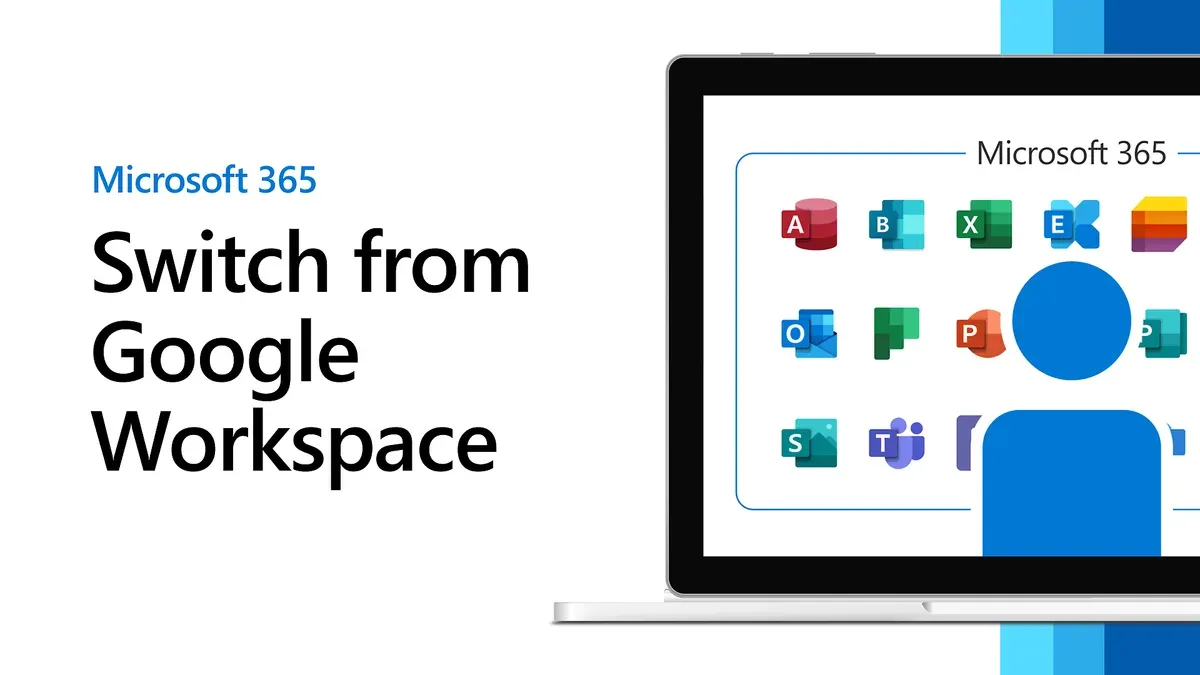
Short answer: Switching from Google Workspace to SharePoint involves understanding fundamental differences in collaboration styles and document management. SharePoint centers on structured content management and intranet capabilities, while Google Workspace emphasizes real-time collaboration and simplicity. A successful transition requires a clear migration plan tailored to your organization's priorities.
This guide covers the nuanced differences between Google Workspace and SharePoint's collaboration models, outlines a step-by-step migration process within Microsoft 365, and highlights when Google Workspace may still be preferable. You'll also find practical advice on managing and sharing files effectively before migration and common pitfalls to avoid. This focused approach helps IT managers and business decision-makers set realistic expectations and execute a smooth switch aligned with their document management and intranet goals.
Understand the core differences between Google Workspace and SharePoint
Google Workspace is an integrated cloud office suite designed for simplicity and seamless real-time collaboration. Its core apps, like Google Docs, Sheets, and Slides, enable multiple users to simultaneously edit documents from any device with automatic saving. The interface centers on Google Drive for storage and sharing, emphasizing ease of access and quick collaboration over complex document control.
SharePoint, part of Microsoft 365, excels in structured document management, intranet portals, and supporting complex organizational workflows. It offers granular permission settings, version control, metadata tagging, and integration with business processes through Power Automate. SharePoint sites serve as centralized hubs for teams, departments, or entire organizations, supporting content management far beyond simple file sharing.
| Feature | Google Workspace | SharePoint (Microsoft 365) |
|---|---|---|
| Collaboration Model | Real-time co-authoring in cloud apps | Document check-in/out, version history, workflows |
| Storage & Organization | Google Drive folders, simple sharing links | Document libraries with metadata and views |
| Intranet & Portals | Limited to shared drives | Customizable team/department sites & portals |
| Workflow Automation | Basic via Google Apps Script | Advanced with Power Automate integration |
For example, a marketing team using Google Workspace may benefit from instantly sharing and editing campaign documents in Docs during brainstorming sessions. Conversely, a legal department needing strict document control, audit trails, and integration with approval workflows will find SharePoint better suited.
Choose SharePoint when your organization requires robust document governance, intranet capabilities, and workflow automation. Google Workspace is preferable for teams prioritizing quick, intuitive collaboration without complex infrastructure.
How to migrate from Google Workspace to Microsoft 365 SharePoint step-by-step
Start by auditing what needs migration: emails, Drive files, calendars, and user permissions. For example, the marketing department often has shared folders, individual drives, and complex calendar events. Prioritize shared documents and essential calendars to migrate first.
Choose your migration tool carefully. Microsoft’s SharePoint Migration Tool (SPMT) supports bulk file transfers from Google Drive but does not migrate emails or calendars. For emails and calendars, consider using Microsoft 365’s native migration features or third-party tools like BitTitan MigrationWiz. Understand each tool’s limitations; for instance, SPMT requires files to be under 15 GB and does not preserve Google-specific metadata.
Prepare your SharePoint environment by creating sites and libraries aligned with organizational structure. Set up permission groups mimicking Google Workspace sharing settings but adapted to SharePoint’s model. Train users on differences, such as using OneDrive for personal files versus SharePoint for team collaboration.
Execute the migration in stages to minimize downtime. Begin with a pilot group—say, the marketing team—to migrate their Drive files using SPMT. Validate that all files transferred correctly, share permissions replicate as intended, and users can access content without issues.
After the pilot, roll out migration department by department, scheduling migrations during off-peak hours. Post-migration, run audits to verify file integrity, permission accuracy, and that no data was lost or corrupted.
- Audit data types: emails, files, calendars, permissions
- Select suitable migration tools (SPMT, Microsoft 365 native, or third-party)
- Set up SharePoint sites and permissions before migration
- Run pilot migration with a sample department
- Validate data accuracy and access post-migration
- Roll out staged migration to all users
- Perform final audits and user training
Why use Google Workspace and when it might still be worth it
Google Workspace excels in ease of use and supports real-time collaboration through tools like Google Docs and Sheets. Its intuitive interface allows teams to co-edit documents simultaneously without complex setup, making it ideal for small teams and startups that prioritize agility over structured workflows.
Cost-effectiveness is another strength. Google Workspace offers straightforward pricing tiers with included storage and apps, which can be less expensive than Microsoft 365 bundles for organizations with limited needs. For example, a startup with fewer than 20 users may find Google Workspace's Business Starter plan more budget-friendly while still covering essential communication and collaboration tools.
Integration with Google’s broader ecosystem—such as Google Drive, Gmail, Calendar, and third-party apps like Slack or Zapier—creates a seamless workflow for teams already invested in Google products. This connectivity reduces friction and training time.
Many organizations continue to prefer Google Workspace when their workflows demand rapid collaboration without the overhead of document management features. For instance, a creative agency working on client presentations often values instant access and easy sharing over complex permission structures.
How to share and manage files effectively in Google Workspace before migrating
In Google Workspace, sharing files and folders involves granular permission settings that you must understand to replicate effectively in SharePoint. Start by selecting a file or folder in Google Drive, then click the "Share" button. You can enter individual email addresses or Google Groups to share with multiple users simultaneously.
Permission levels include "Viewer" (read-only), "Commenter" (can comment but not edit), and "Editor" (full editing rights). For folders, you can set permissions that apply to all contained files, streamlining access management.
A common mistake is granting "Editor" access too broadly, leading to unintentional changes or data loss. For example, giving editing rights to a large group without restriction can cause version conflicts and complicate migration. Also, users often forget to check the "Prevent editors from changing access and adding new people" option, resulting in uncontrolled sharing expansions.
Before migrating, audit shared files using Google Drive's "Shared with me" and "Shared drives" views to identify externally shared items. Note that SharePoint manages permissions differently: it uses site, library, folder, and item-level permissions but lacks Google Workspace's real-time collaboration simplicity. SharePoint permissions tend to be more hierarchical and structured, emphasizing controlled access over fluid sharing.
For example, a report shared as "Editor" with a team in Google Workspace might translate to a SharePoint document library with restricted editing set at the folder level, preventing ad hoc permission changes.
- Open the file or folder in Google Drive.
- Click "Share" and enter individual emails or groups.
- Assign appropriate permission levels: Viewer, Commenter, Editor.
- Use the checkbox "Prevent editors from changing access and adding new people" for tighter control.
- Audit shared files using "Shared with me" and "Shared drives" to identify external shares.
- Document current sharing settings to map to SharePoint’s permission structure.
Mistakes to avoid when switching from Google Workspace to SharePoint
One common pitfall is underestimating SharePoint’s complex site architecture and granular permission settings. Unlike Google Workspace’s flat sharing model, SharePoint uses nested site collections, libraries, and unique permission levels. An organization once migrated without aligning these structures to their business units, resulting in users losing access to critical documents, causing workflow disruptions.
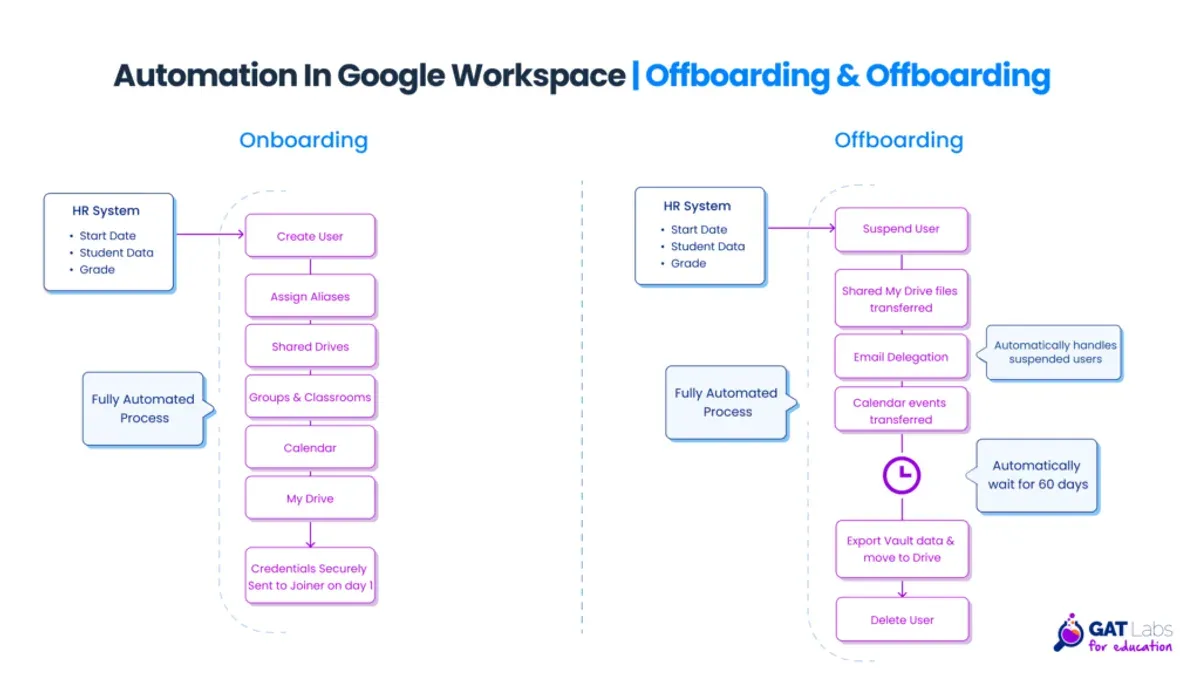
Ignoring user training and change management also undermines adoption. SharePoint’s interface and collaboration methods differ significantly, so users need guided onboarding to avoid frustration and resistance. Without it, productivity drops as employees revert to legacy tools or create shadow IT environments.
Migrating unnecessary or redundant data clutters SharePoint and degrades performance. For instance, retaining old drafts or duplicated files from Google Drive can inflate storage costs and complicate document search. Conducting a thorough content audit before migration is essential.
Failing to align SharePoint’s architecture with business processes leads to confusing navigation and poor user experience. SharePoint thrives when its site hierarchy reflects organizational workflows, enabling quick access to relevant content.
Relying solely on automated migration tools without manual verification risks permission errors and data loss. Manual checks, especially of critical document libraries and shared links, ensure migration fidelity.
Checklist:
- Map SharePoint site structure to your business units and workflows before migration.
- Invest in comprehensive user training and change management.
- Perform a content audit to remove redundant or obsolete files.
- Manually verify permissions and file integrity post-migration.
Read next
- Switching from Google Workspace to OneDrive: A Practical Migration Guide
- Switching from Dropbox to SharePoint: Your Expert Migration Guide
Frequently asked questions
Is google workspace worth it?
Google Workspace offers a seamless cloud-based productivity suite ideal for teams prioritizing real-time collaboration and ease of access across devices. It is worth it if your organization values simplicity, integration with Google services, and strong email hosting. However, if advanced document management and intranet capabilities are critical, SharePoint might better suit your needs.
Is google workspace similar to sharepoint?
Google Workspace and SharePoint both facilitate collaboration but differ fundamentally in approach. Google Workspace focuses on cloud-native apps for real-time editing and communication, while SharePoint centers on robust document management, customizable intranet sites, and enterprise content organization. They complement different collaboration and management styles rather than being direct equivalents.
How to share a google workspace?
You share content in Google Workspace primarily through Google Drive. Select the file or folder, click the "Share" button, and enter the email addresses of your collaborators. You can set permissions to Viewer, Commenter, or Editor, controlling access precisely. Additionally, sharing links with customized access settings is available for broader distribution.
How to go to google workspace?
Access Google Workspace by navigating to workspace.google.com or directly visiting any Google app like Gmail, Drive, or Docs with your organizational account. You need valid login credentials provided by your Google Workspace administrator. Bookmarking the admin console at admin.google.com is useful if you manage your organization's settings.
How to enable google workspace?
To enable Google Workspace for your organization, start by signing up at workspace.google.com and choosing a plan. After domain verification and user setup in the Admin console, you configure services and security settings. Activation includes setting up email routing, enabling apps like Drive and Calendar, and assigning user licenses through admin.google.com.
What this advice does not cover
This guide focuses on migrating to SharePoint within Microsoft 365 and does not cover email migration or advanced customizations in depth. Organizations with highly customized Google Workspace setups or complex compliance needs should consult specialized migration experts to address specific technical and regulatory requirements.
Quick checklist
- Review your current Google Workspace file structure and identify critical documents for migration.
- Map Google Drive folders to SharePoint document libraries before migration.
- Use the SharePoint Migration Tool or a trusted third-party migration service for file transfer.
- Set appropriate permissions in SharePoint to reflect your organization's collaboration model.
- Train your teams on SharePoint’s document management and intranet features.
- Validate migrated content and adjust workflows as needed.
- Plan for phased adoption to minimize disruption during the transition.
Start by conducting a detailed inventory of your Google Workspace content and collaboration patterns. This initial step helps you tailor the SharePoint environment to your organization's needs, ensuring a smoother migration and faster user adoption.



