Switching from iPads to Android Tablets: Your Expert Transition Guide
Learn expert tips for a smooth transition when switching from iPads to Android tablets, covering data transfer, app management, and ecosystem changes.

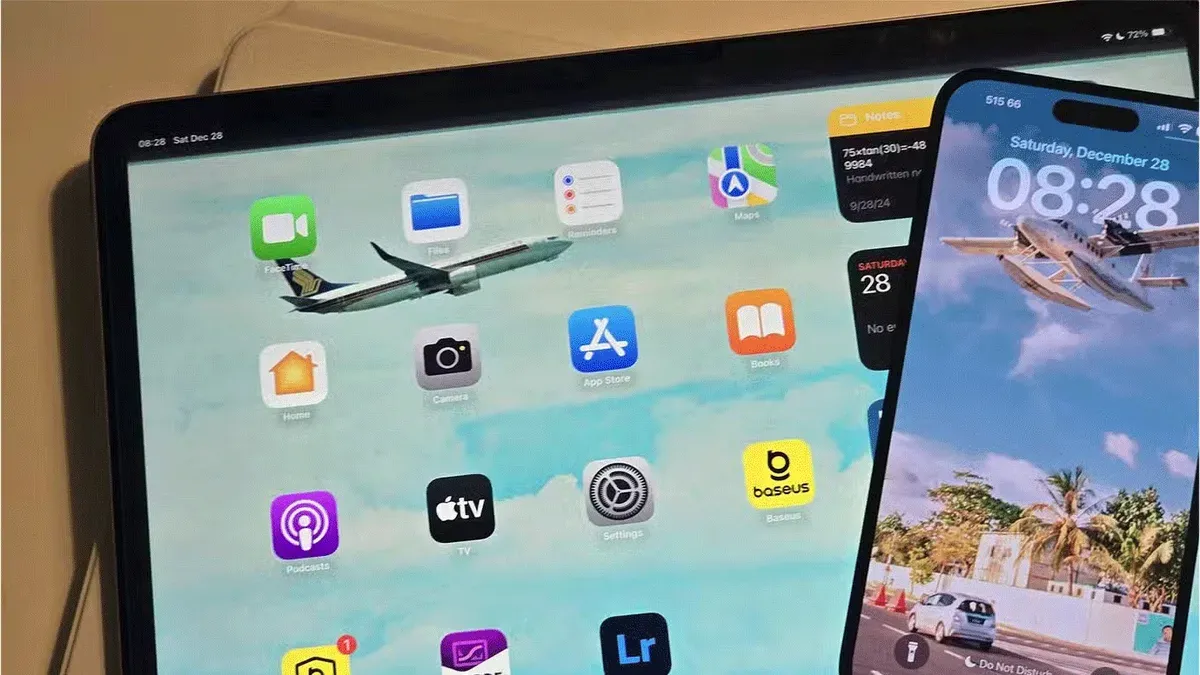
Short answer: Switching from iPads to Android tablets requires more than just moving apps and files; it involves adapting to a different ecosystem philosophy and user interface. You’ll need to rethink how you manage apps, settings, and services because Android offers more customization but less uniformity than iPadOS.
This article guides you through the nuanced user experience and ecosystem mindset shift when switching from iPads to Android tablets. You’ll learn practical steps for transferring data, syncing devices, navigating app management, and key considerations if you’re moving from an iPhone as well. We also explore why Android tablets might be a better fit for your needs and highlight common mistakes to avoid to ensure a smooth transition.
Understand the Key Differences Between iPads and Android Tablets
The core distinction starts with the operating systems: iPads run on iPadOS, a tightly controlled system optimized for consistent performance and stability across a limited set of hardware. Android tablets, however, operate on various Android versions customized by manufacturers, resulting in a broader range of experiences and features but less uniformity.
Hardware variety is another key difference. iPads come in a few models with defined specifications, ensuring predictability in performance and accessory compatibility. Android tablets span a wide spectrum from budget to premium devices, with different screen sizes, processors, and build qualities. This diversity means you can tailor your choice more but may encounter inconsistencies in app behavior or updates.
App availability also differs. Apple's App Store has strict app review policies that generally ensure quality and security, while Google Play offers a larger volume of apps with more flexible publishing rules. Some apps may appear first or only on one platform, and certain professional apps optimized for iPadOS might not have Android equivalents.
Customization on Android is extensive—you can change default apps, add widgets freely, and use third-party launchers or even root your device. iPadOS is more restrictive, focusing on simplicity and reliability over deep personalization.
For example, switching from an iPad to an Android tablet means adjusting to settings spread across different menus—like enabling split-screen multitasking through Recent Apps rather than a dedicated Dock. These differences influence your workflow, requiring a mindset shift from uniformity to flexibility and from curated app sets to a more open but variable ecosystem.
| Feature | iPadOS | Android Tablets |
|---|---|---|
| Operating System | Uniform, controlled updates | Varied OS versions, manufacturer-specific UI |
| Hardware | Limited models, consistent quality | Diverse options, wide price range |
| App Store | Strict app review, curated apps | Large selection, less restrictive |
| Customization | Minimal, system-focused | Highly customizable, launchers, defaults |
| User Experience | Predictable, cohesive | Flexible, varied |
User satisfaction surveys frequently highlight iPads for smooth, reliable performance and strong app quality, whereas Android tablets are praised for versatility and choice but sometimes criticized for inconsistent updates and app optimization. Recognizing these foundational differences sets realistic expectations for your transition.
How to Transfer Data from iPad to Android Tablet
Transitioning your essential data from an iPad to an Android tablet involves multiple steps, mainly because the two ecosystems handle data differently. Cloud services like Google Drive or Microsoft OneDrive act as reliable intermediaries, simplifying the process.
Export Contacts and Calendars
Begin by exporting your contacts and calendars from iCloud. On your iPad, go to Settings > [your name] > iCloud and ensure Contacts and Calendars are synced. Then, visit icloud.com on a computer, export your contacts as a vCard (.vcf) file, and import it into Google Contacts (contacts.google.com). For calendars, export your iCloud calendar as an.ics file and import it into Google Calendar.
Transfer Photos and Videos
Photos and videos are best transferred using Google Photos. Install the Google Photos app on your iPad, sign in with your Google account, and back up your media over Wi-Fi. Depending on the size, this can take from a few minutes to several hours. On your Android tablet, Google Photos will sync your media automatically.
Move Documents and Files
For documents, upload files from your iPad’s Files app to Google Drive or OneDrive. Open the Files app, select the documents, tap Share, and choose your preferred cloud storage app. On the Android tablet, install the corresponding app to access your documents.
What Can’t Be Transferred Directly
App data, iMessages, and some purchased media (like Apple Music tracks or videos) cannot be transferred directly. Alternatives include using apps that have Android versions to sync data through accounts or exporting content manually where possible.
Step-by-Step Transfer Example
- Enable iCloud sync for contacts and calendars on your iPad.
- Export contacts as.vcf from iCloud.com and import into Google Contacts.
- Export calendars from iCloud and import into Google Calendar.
- Back up photos and videos using Google Photos app on your iPad (time varies with data size).
- Upload documents from Files app to Google Drive or OneDrive.
- On your Android tablet, sign in to Google account to sync contacts, calendars, and photos; open cloud storage apps for documents.
Reliable Transfer Tools
- Google Drive and Google Photos (free, cloud-based)
- Microsoft OneDrive (alternative cloud storage)
- iCloud.com (for exporting contacts and calendars)
- Google Contacts and Google Calendar (for importing)
How to Connect an iPad to an Android Tablet for File Sharing and Syncing
Sharing files or syncing data directly between an iPad and an Android tablet requires navigating platform differences. Native Bluetooth file transfers are not supported between these devices, and Wi-Fi Direct connections typically don’t work cross-platform either. Instead, cross-platform apps and cloud services are your best options.
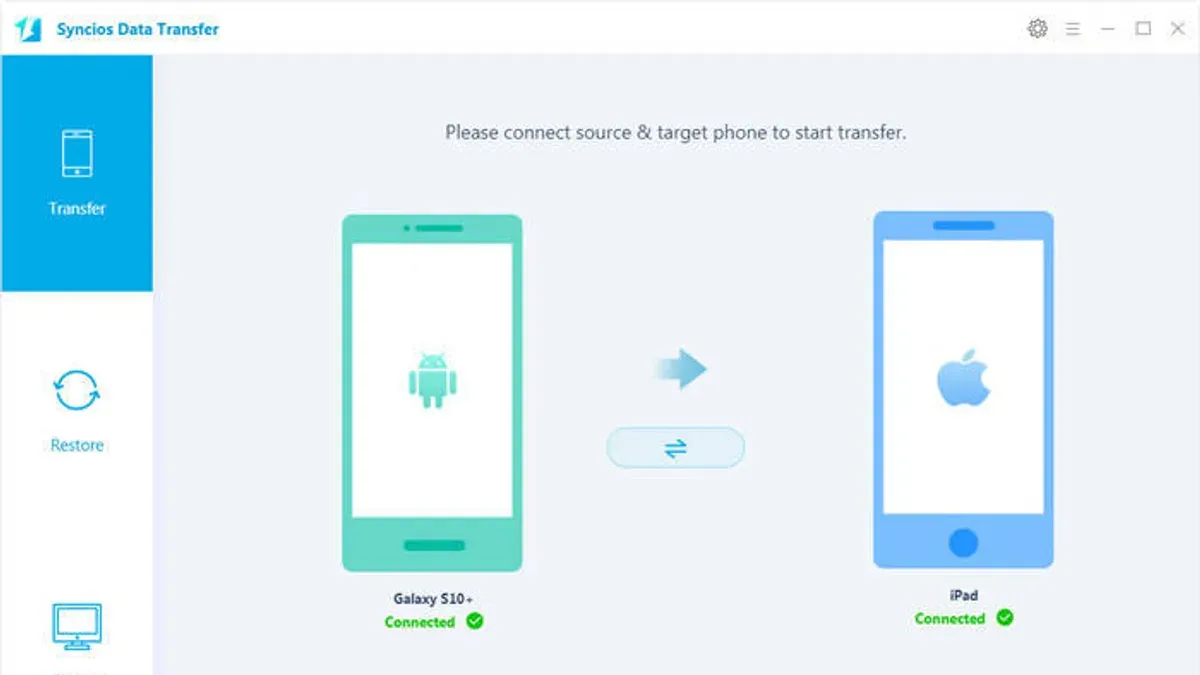
Apps like Google Photos and Dropbox are reliable for sharing photos, videos, and documents. For example, uploading a 200MB video from your iPad to Google Photos over Wi-Fi usually takes under 5 minutes, depending on your internet speed. Once uploaded, accessing the same video on your Android tablet via the Google Photos app is nearly instantaneous. This method avoids direct device-to-device transfer but offers seamless syncing.
If you need quick transfers without cloud upload, email or messaging apps like WhatsApp or Telegram can work well for smaller files (under 25MB). Simply attach the file on your iPad and open it on your Android tablet. However, this is less efficient for larger files or bulk transfers.
Setting up cloud syncing with Google Drive or OneDrive ensures ongoing access to your documents across devices. Upload files from your iPad to the cloud and access them from the Android tablet’s corresponding app. This approach requires internet access but keeps your data synchronized without manual transfers.
- Use Google Photos or Dropbox apps to upload and access files across devices
- Avoid Bluetooth or Wi-Fi Direct for cross-platform transfers—they usually don’t connect
- Use email or messaging apps for quick, small file sharing
- Set up cloud syncing (Google Drive, OneDrive) for continuous access and syncing
How to Switch Between Apps on an iPad Compared to Android Tablets
On an iPad, app switching relies heavily on intuitive gestures. For example, swiping up from the bottom edge and pausing reveals the app switcher, allowing you to scroll horizontally through open apps. Quick app switching can be done by swiping left or right with four or five fingers to jump between recent apps. Split View is activated by dragging an app from the Dock to the screen edge, while Slide Over floats a secondary app in a narrow window that can be swiped off screen.
Android tablets offer a more varied multitasking experience that depends on the device’s interface, but common gestures include a swipe up from the bottom or tapping a dedicated multitasking button to open the recent apps view. Android supports split-screen mode by long-pressing an app's icon and selecting "Split screen," then choosing the second app to run alongside. Unlike iPadOS, Android often allows free resizing of split windows and supports floating app windows (freeform mode) on some models, enabling overlapping apps similar to desktop environments.
For example, imagine you’re drafting an email while referencing a browser page. On an iPad, you’d use Split View to open Mail and Safari side by side, but resizing is limited to a few presets. On Android, you can resize windows dynamically or even move the browser into a floating window for easier multitasking. This flexibility requires a slightly different mindset but offers more granular control over your workspace.
To manage apps efficiently on Android tablets, familiarize yourself with the recent apps overview and gestures for split-screen and floating windows. Customize the behavior in Settings under "Display" or "Advanced features" depending on your device. Use the "Overview" screen to quickly swipe away apps you no longer need or drag them into multitasking modes. Remember that app behaviors may vary because of manufacturer customizations, so exploring device-specific tutorials or support pages is helpful.
- Swipe up and pause on iPad to access the app switcher
- Use four- or five-finger swipes for quick app switching on iPad
- Long-press app icon on Android to enable split-screen mode
- Drag and resize split windows or use floating windows on Android for multitasking
- Customize multitasking gestures and settings in Android’s Display or Advanced features menu
How to Switch from iPhone to Android Tablet: Essential Considerations
Moving from an iPhone to an Android tablet means adapting to a different app ecosystem and core services. Not all iOS apps have direct Android versions, so you’ll need to identify alternatives or web-based options. For example, if you rely heavily on Apple Notes, consider Google Keep or Microsoft OneNote, which sync well across platforms.
Switching also requires moving from Apple’s tightly integrated services like iCloud, iMessage, and FaceTime to Google’s ecosystem. Set up your Google account early by navigating to Settings > Accounts > Add Account > Google on your Android tablet. This allows you to sync your email, calendar, and contacts seamlessly with Gmail, Google Calendar, and Google Contacts.
Handling messaging is often the biggest adjustment. Since iMessage won’t work on Android, ask your contacts to switch to SMS or use cross-platform apps like WhatsApp or Signal. To avoid losing messages from iPhones, disable iMessage on your iPhone by going to Settings > Messages and toggling off iMessage before switching devices.
Consider the experience of Sarah, who switched to an Android tablet while keeping her iPhone. She found that setting up Gmail as her primary email and installing apps like Google Photos helped bridge the gap. However, she initially struggled with missing FaceTime calls and had to inform contacts to use alternative video apps such as Google Meet.
- Identify Android alternatives for essential iOS apps before switching
- Add your Google account via Settings > Accounts on the Android tablet
- Disable iMessage on your iPhone before moving to avoid message loss
- Use cross-platform messaging apps to maintain contact continuity
- Inform contacts about FaceTime alternatives for video calls
Evaluating Tablet Options Other Than iPads: Why Choose Android?
Choosing an Android tablet over an iPad often comes down to flexibility and value. Android tablets span a wide price range, from budget-friendly models like the Amazon Fire series to premium devices such as Samsung’s Galaxy Tab S line. This diversity means you can select hardware tailored to your budget and specific needs without overpaying for features you won’t use.
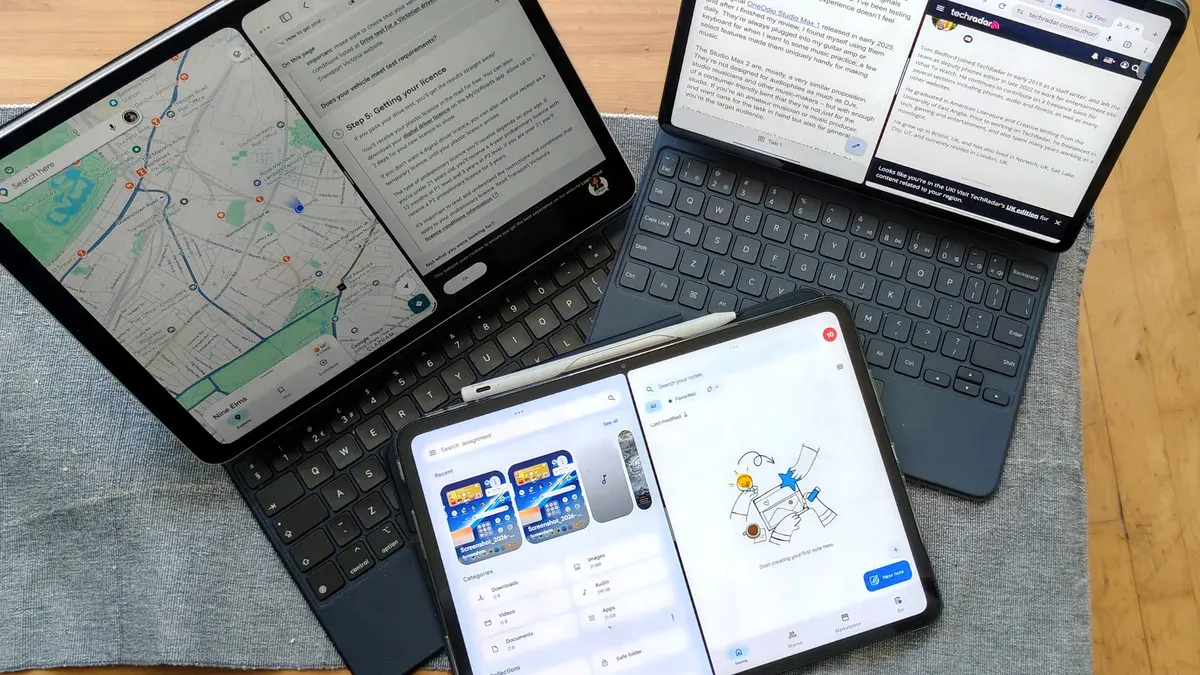
Customization is a key advantage. Unlike iPads, many Android tablets support expandable storage via microSD cards, allowing you to increase capacity as you go. You also have freedom to change default apps, install third-party launchers, and tweak system settings to match your workflow. For example, Samsung’s One UI offers DeX mode, which mimics a desktop environment ideal for productivity tasks—something iPads don’t replicate natively.
Integration with non-Apple devices is smoother on Android tablets. If your ecosystem includes Windows PCs, Chromebooks, or smart home devices from brands outside Apple’s lineup, Android tablets often provide better native support. Amazon Fire tablets, while more limited on app selection, integrate deeply with Amazon services and Alexa, making them a solid choice for media consumption and smart home control.
Consider this: a Galaxy Tab S8 Ultra offers a 14.6-inch AMOLED display, 120Hz refresh rate, and an S Pen stylus included—all for significantly less than the largest iPad Pro. This combination supports creative work and multitasking with flexibility that can match or exceed iPad capabilities for some users.
| Tablet | Price Range | Key Features |
|---|---|---|
| Samsung Galaxy Tab S8 Ultra | Premium | 14.6" AMOLED, 120Hz, S Pen, DeX mode |
| Amazon Fire HD 10 | Budget | 10.1" Full HD, Alexa integration, affordable |
| Lenovo Tab P11 Plus | Midrange | 11" IPS, good performance, expandable storage |
Common Mistakes to Avoid When Switching from iPads to Android Tablets
One frequent mistake is underestimating the difference in app ecosystems. Many iPad users expect the same apps and features on Android, but apps may have different interfaces or lack certain iOS-specific functions. For example, a photo editing app popular on iPad might have a simplified version on Android, limiting your workflow.
Neglecting to create a complete backup before starting the transfer can lead to irreversible data loss. Unlike Apple's seamless iCloud backup, Android backups often require manual setup via Google Drive or third-party apps. Missing this step means losing important contacts, notes, or media if the transfer process encounters errors.
Expecting an identical user experience causes frustration. Android’s interface is more customizable but less uniform; features like notifications, multitasking, and settings menus are organized differently. Assuming gestures or multitasking modes will work exactly as on iPad can lead to confusion and slower adaptation.
Ignoring security and privacy settings on your new Android tablet is another pitfall. Default settings may differ significantly, such as app permissions or device encryption status. Failing to review these can expose your data or limit app functionality unexpectedly.
Overlooking accessory compatibility often surprises switchers. Many iPad accessories, like the Apple Pencil or Smart Keyboard, won’t work with Android tablets. Buying a new stylus or keyboard compatible with your specific Android model is necessary to maintain productivity.
- Don't assume app parity; check app features on Android before switching.
- Always perform a full backup via Google Drive or a reliable service before transfer.
- Prepare for a different interface and user flow; invest time in learning Android navigation.
- Review and configure security settings, including app permissions and encryption.
- Verify accessory compatibility and purchase replacements if needed.
Read next
- Android Tablets Rollout Plan for Special Education Teachers: A Clear Guide
- Mastering Android Tablets Implementation Timeline for Seamless Use
- Switching from Windows Laptops to Android Tablets: Your Expert Guide
- Switching from Chromebooks to Android Tablets: A Practical Guide
Frequently asked questions
How to switch from iphone to ipad?
Switching from an iPhone to an iPad is straightforward because both run iOS and use the same Apple ID system. You can restore your iPad using an iCloud backup from your iPhone during the initial setup, which transfers apps, settings, and data. If you already use iCloud, ensure iCloud Drive, Photos, and other sync options are enabled to keep your content consistent.
How to switch to tablet?
Switching to a tablet involves choosing the right device and preparing your data for transfer. Consider whether you'll stay in the same ecosystem or switch platforms, as this affects app availability and syncing. Back up your data from your current device, then use manufacturer tools or cloud services to migrate contacts, photos, and documents.
How to switch on ipad?
To switch on an iPad, press and hold the top button until the Apple logo appears. If the device is unresponsive, try charging it for a few minutes before attempting to power it on again. For models with a Home button, the top button is on the right side; for newer models without a Home button, it's the only physical button on top.
How to switch from android to apple?
Switching from Android to Apple involves transferring your data and adjusting to iOS. Use the “Move to iOS” app during iPhone or iPad setup to transfer contacts, message history, photos, and more. Be aware that some Android apps may not be available on iOS, so plan for replacements accordingly.
How to transfer android to ipad?
To transfer data from an Android device to an iPad, use Apple's “Move to iOS” app available on Google Play. This app transfers contacts, message history, photos, and bookmarks during the iPad's initial setup. If your iPad is already set up, you can manually move files using cloud services like Google Drive or by syncing through apps like Dropbox.
Quick checklist
- Review app compatibility and check if your essential apps are available on Android
- Use Google Drive or a similar cloud service to back up your iPad data before transferring
- Set up Android's Files app or a third-party file manager to manage your documents
- Familiarize yourself with Android’s multitasking gestures and app switcher behavior
- Transfer contacts and calendars via your Google account for seamless syncing
- Prepare for some app purchases and subscriptions that won’t transfer due to Apple’s ecosystem restrictions
- Customize your Android home screen to optimize your workflow and ease the transition
What this advice does not cover
This guide does not cover switching from iPads to Android tablets for enterprise or specialized professional environments with custom software needs. If your work relies on proprietary Apple-only apps or managed device policies, consult your IT department or a specialized support channel before switching.
Some app data and purchases tied to Apple’s ecosystem cannot be transferred to Android devices. Games, subscriptions, and in-app purchases often require repurchasing or restarting progress on Android.
For a smooth transition, focus on understanding the practical differences in user experience and ecosystem mindset laid out in this guide.
The single most useful next step is to set up a Google account on your Android tablet and begin syncing your contacts, calendars, and cloud storage. This foundational move ensures your essential data flows seamlessly while you acclimate to the Android environment.