
Moving from Microsoft Teams to Zoom Checklist
This checklist guides you through switching from Microsoft Teams to Zoom, highlighting key steps to maintain seamless video conferencing.

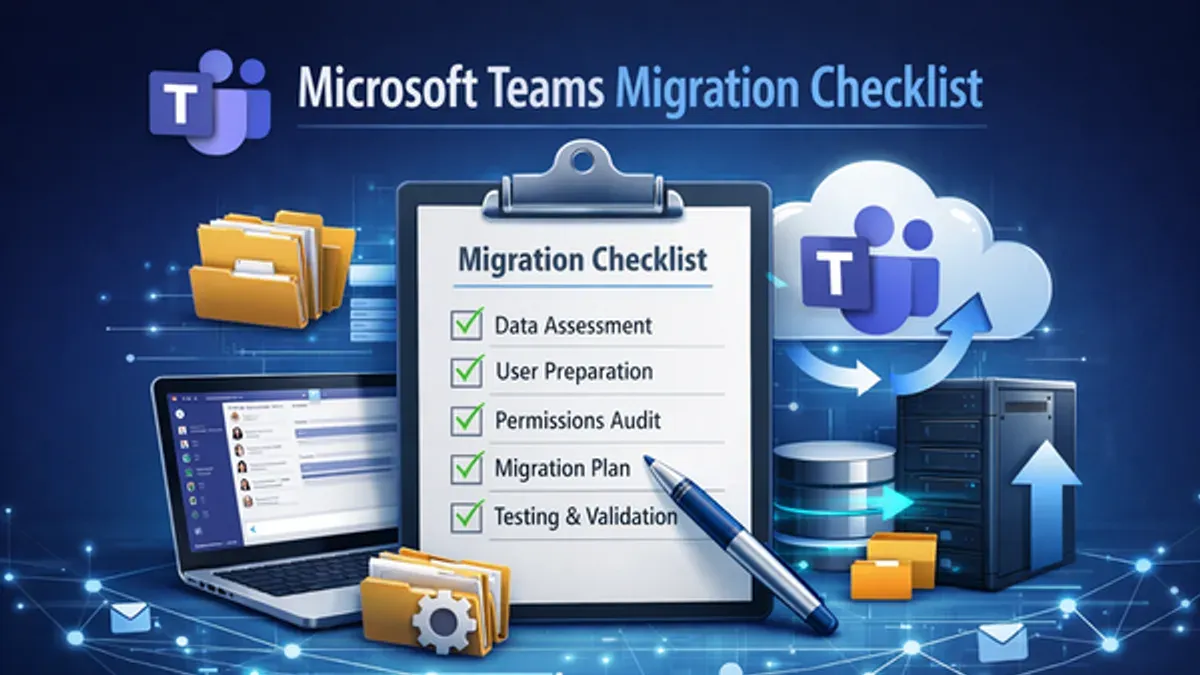
Switching from Microsoft Teams to Zoom requires a clear, step-by-step approach due to distinct differences in meeting scheduling and app integration. Unlike Teams, which uses ‘Meet Now’ and ‘Schedule Meeting’ buttons within its calendar tab, Zoom meetings must be created through the Zoom app or web portal. Additionally, the Zoom integration inside Microsoft Teams must be manually removed or disabled, as it does not replace Teams features by default.
It highlights what breaks during migration and what requires immediate attention after the switch to maintain seamless video conferencing.
How to zoom Microsoft Teams
Users often want to enlarge or shrink the interface elements for readability or focus during meetings. This can be done through keyboard shortcuts or settings within Teams.
To zoom the Teams interface on desktop, press Ctrl + Plus (+) to increase the zoom level or Ctrl + Minus (-) to decrease it. Resetting to the default zoom can be done with Ctrl + 0. These shortcuts affect the entire Teams window, making text, icons, and menus larger or smaller.
This is distinct from moving to Zoom, which involves switching applications and accounts entirely. Teams and Zoom are separate platforms; adjusting zoom in Teams does not migrate meetings or content to Zoom.
For example, if a team leader wants larger text during a Teams meeting, pressing Ctrl + Plus will zoom in the interface. However, to use Zoom’s features, the leader must open the Zoom app or web portal and schedule meetings there instead of in Teams.
How to change Zoom on Microsoft Teams
Microsoft Teams does not host Zoom meetings natively, but it allows Zoom to be added as an app for scheduling and joining Zoom calls within the Teams interface. Changing Zoom on Microsoft Teams means managing this integration rather than switching video platforms inside Teams itself.
To stop using Zoom within Teams, the Zoom app must be removed or disabled. This is done by going to the Microsoft Teams Admin Center, navigating to Teams apps > Manage apps, locating the Zoom app, and selecting Block or Uninstall. Additionally, Zoom meeting add-ins in Outlook or Teams clients should be disabled to prevent accidental scheduling.
If migrating back to Teams meetings from Zoom, existing Zoom meeting links embedded in chats or calendars need to be replaced manually with Teams meetings. Conversely, when moving to Zoom, Teams meetings must be phased out to avoid confusion.
A concrete example: An organization using Zoom integrated as an app in Teams schedules meetings via Zoom buttons. To fully switch to Teams meetings, administrators remove the Zoom app in the Admin Center, disable Zoom add-ins on users’ Outlook, and instruct users to create meetings using Teams’ native calendar functions.
How to zoom out MS Teams
Zooming out the Microsoft Teams interface adjusts only the local user interface scale, improving visibility or reducing size for accessibility. It does not affect video calls or the underlying platform settings. On the desktop app, the quickest method is using keyboard shortcuts: press Ctrl + - (minus key) to zoom out stepwise. To reset the zoom level to default, press Ctrl + 0. These shortcuts apply to Windows and macOS (on Mac, use Cmd instead of Ctrl).
Alternatively, users can change zoom settings via the Teams app menu. Click the profile picture in the top-right corner, select Settings, then navigate to the General tab where the "Zoom" section allows setting preferred scale percentages.
For example, if text and interface elements appear too large on a Windows desktop, pressing Ctrl + - twice will reduce the size incrementally, making more information visible on screen without changing any meeting or call settings.
Key differences between Microsoft Teams and Zoom affecting migration
This fundamental difference means migration cannot simply transfer scheduled meetings; each must be manually recreated in Zoom. Teams integrates tightly with Microsoft 365 accounts for authentication and calendar syncing, whereas Zoom supports multiple authentication methods and requires separate user provisioning.
| Feature | Microsoft Teams | Zoom |
|---|---|---|
| Maximum participants | Up to 300 (standard plans) | Up to 100 for Basic; up to 1,000 with Large Meeting add-on |
| Breakout rooms | Up to 50 rooms | Up to 50 rooms; available on Pro plans and above |
| Cloud recording | Included with Microsoft 365; stored in OneDrive or SharePoint | Included in Pro plans; stored on Zoom cloud |
| User roles | Owner, Member, Guest with granular permissions | Host, Co-host, Participant with limited role customization |
| Platform support | Windows, macOS, iOS, Android, Web | Windows, macOS, iOS, Android, Web |
| Meeting scheduling | Calendar tab within Teams; integrated with Outlook | Zoom app or web portal; optional Outlook plugin |
For example, migrating a recurring meeting from Teams to Zoom requires setting up the recurrence manually in Zoom’s scheduling interface since the calendar syncing mechanisms differ.
Tip: Compare meeting participant limits and feature sets before switching to ensure needs are met.
The order of operations that actually matters when migrating
Begin by auditing Microsoft Teams usage to identify meetings, channels, and data that must be migrated or archived. This step prevents data loss and informs what needs reconfiguration in Zoom. Next, disable the ability to create new Teams meetings by removing or disabling the 'Meet Now' and 'Schedule Meeting' buttons in the Teams calendar tab. This avoids scheduling conflicts during the transition.
Before onboarding users, set up Zoom accounts with the appropriate licenses and configure necessary integrations such as calendar sync and single sign-on. Ensuring Zoom is fully operational before user training reduces downtime. Communicate the change clearly and provide training on Zoom’s meeting setup, highlighting that meetings must be created through the Zoom app or web portal, not within Teams.
Only after Zoom is fully adopted and stable should Teams meeting features be decommissioned. This includes removing the Zoom app integration from Teams and disabling Teams meeting capabilities to avoid confusion. For example, if Teams meeting creation is disabled too late, users may continue scheduling in Teams, causing fragmented meeting platforms and missed invites.
Tip: Avoid switching platforms mid-meeting; schedule cutovers between meetings to maintain continuity and prevent confusion.
What to do after moving from Microsoft Teams to Zoom
Immediately after migration, verify that all Zoom accounts are activated and users can schedule meetings without restrictions. Confirm calendar synchronization by checking that Zoom meeting invitations appear correctly in users’ calendars and that external participants receive accurate invites. Monitor the initial days for user adoption issues, focusing on common questions about joining meetings or accessing recorded sessions.

Maintain access to archived Microsoft Teams data if organizational policies or compliance require it, or proceed with a full decommission only after confirming all critical information is retained. Prepare fallback procedures in case Zoom’s features do not fully meet the organization’s needs, such as temporarily reactivating Teams or enabling parallel usage.
Scheduling a test call with a small group before the full user rollout can highlight issues early, allowing adjustments without widespread disruption. For example, if calendar invites do not sync properly, administrators should review the Zoom integration and calendar permissions immediately.
Essential steps for a smooth switch from Microsoft Teams to Zoom
If meetings fail to appear or users experience scheduling issues, revisit the order of disabling Teams features and enabling Zoom. Check that the Zoom integration app is fully removed from Teams to prevent interface confusion. Revisit user permissions and calendar sync settings in Zoom to ensure all expected functionality is active.
See also: Microsoft Teams Rollout Plan for New Teachers: A Practical Guide · Switching from Google Meet to Microsoft Teams: A Clear Guide · How to Move from Microsoft Planner to Notion Checklist Confidently



