
Switching from Microsoft Teams to Webex: A Practical Guide
Migrating from Microsoft Teams to Webex requires planning for telephony, hardware, and message history to avoid downtime and lost messages.

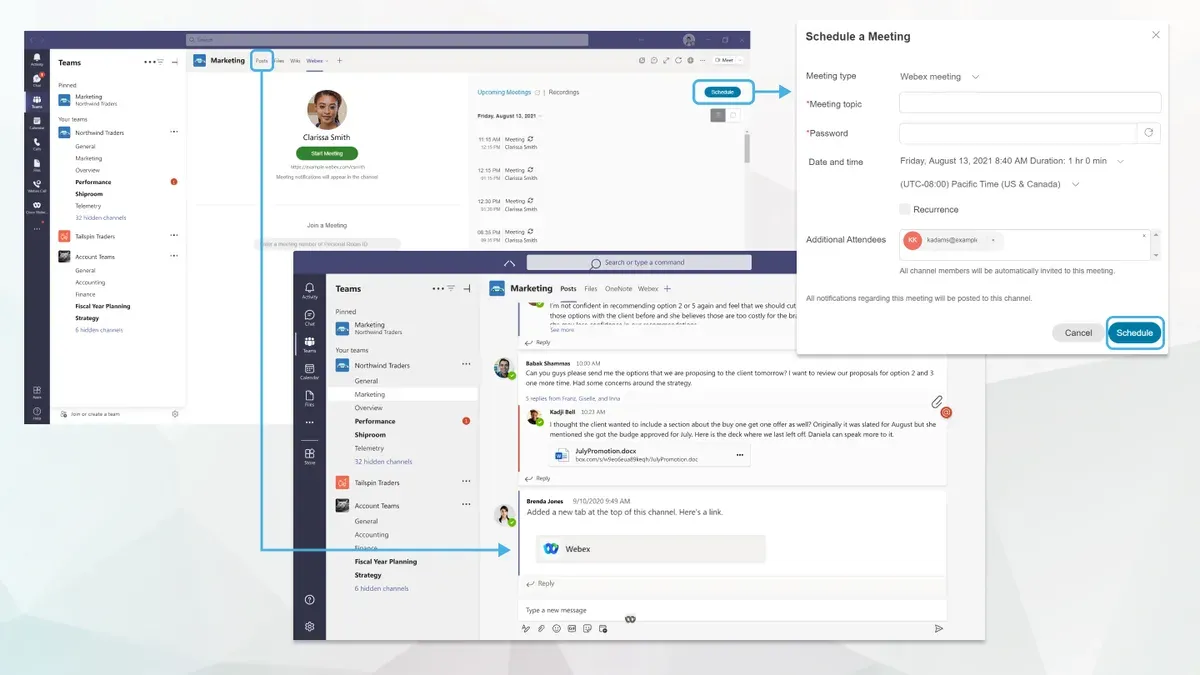
Migrating is more than swapping software; it involves separate telephony and messaging moves, hardware replacements, and complex message history transfers that lack straightforward export tools.
Expect migrations to span from two to eight weeks, followed by training and a critical overlap month running both platforms simultaneously. This transition demands clear decisions around hardware, telephony coexistence, and compliance roles for message migration. Without a plan addressing these operational realities, teams face broken integrations, lost messages, and costly downtime.
Settings, menu paths and limits here were checked against Webex Help Center, Softabase, SyncRivo (full list at the end) in November 2026.
Is Webex similar to Teams?
Both Webex and Microsoft Teams offer core collaboration features like messaging, meetings, and calling, but their operational models differ significantly. Microsoft Teams combines chat, video conferencing, and calling with a broad integration into the Microsoft 365 ecosystem. Webex splits these functions across different products: Webex Meetings handles video conferences, while Webex Teams (now rebranded as Webex App) focuses on persistent messaging and team collaboration. This separation contrasts with Teams’ all-in-one approach.
Telephony integration is another key distinction. Cisco provides Cisco Call for Microsoft Teams, a solution that embeds Cisco Calling features such as PSTN dialing, voicemail, call history, directory search, and AI-driven background noise removal directly inside the Teams interface. This means Teams users can leverage Cisco’s telephony infrastructure without leaving Teams, but it is not the same as running native Webex Calling.
Hardware compatibility also varies. Cisco Webex hardware is designed for native Webex calling environments and cannot be re-registered to Microsoft Teams. Switching platforms requires replacing Cisco devices with Teams-certified hardware, impacting device lifecycle and budgeting.
As a concrete example, an organization using Teams with Cisco Call integration can initiate and manage calls with Cisco telephony features inside Teams, but their meeting experience remains Microsoft Teams-based. Conversely, Webex users join meetings via Webex Meetings, which offers different interface and feature sets than Teams. Recognizing these functional overlaps and gaps sets realistic expectations for what changes during the switch.
Is Teams the same as Webex?
Microsoft Teams and Cisco Webex serve as collaboration platforms but differ fundamentally in architecture and ecosystem integration. Teams is deeply embedded within the Microsoft 365 suite, acting as a hub that connects Outlook, SharePoint, and OneDrive with messaging, calling, and meetings. This tight integration streamlines workflows for organizations invested in Microsoft technologies.
Webex, by contrast, centers around Cisco’s own cloud environment, focusing on robust meeting and telephony capabilities native to Cisco infrastructure. Its calling and hardware systems operate within this distinct ecosystem, which affects both device compatibility and administrative control.
One concrete example highlights these differences: Cisco Webex Boards and Room Kits register exclusively to Cisco’s cloud. They cannot be re-registered or repurposed to work with Microsoft Teams, necessitating replacement by Teams-certified devices when switching platforms. This hardware incompatibility adds a tangible cost and operational impact during migration.
Additionally, the Webex Meetings integration with Microsoft Teams will cease support after April 30th, 2026. This ending removes the ability to schedule or join Webex meetings directly inside Teams, disrupting workflows that rely on this integration and requiring reconsideration of meeting management tools post-migration. Such architectural and integration gaps underline that Teams and Webex are not interchangeable but distinct platforms requiring tailored transition strategies.
How to connect Webex to Teams?
Integrating Webex calling features within Microsoft Teams is primarily achieved using Cisco Call for Microsoft Teams. This app brings Cisco Calling capabilities into Teams, allowing directory search, PSTN dialing, voicemail, call history, and AI-based background noise removal without leaving the Teams interface. Users can access the Cisco Call icon on the Microsoft Teams desktop app by clicking it to open the dialpad or chat extension for calls. On mobile, the Cisco Call tab appears at the bottom; tapping it reveals the dialpad and chat extension for making calls.
Call history access also differs by platform. On desktop, clicking Cisco Call then Recent calls displays up to 200 calls made, received, or missed in the last 30 days, including multiple lines and shared lines. On mobile, tapping Cisco Call then Recents shows the same call history limit. Cisco Call lets users save up to 20 speed dial contacts, with a 100-character limit on names and 50 characters for phone numbers, which can constrain large contact lists.
For Webex meeting scheduling and joining within Teams, the Webex Meetings app is required. However, this integration will no longer be supported after April 30th, 2026, ending the ability to schedule or start Webex meetings natively from Teams. Until then, users need a host account on a supported Webex site for these features to work. Planning migration should consider this cutoff to avoid disruption.
- Install Cisco Call for Microsoft Teams to enable calling features inside Teams.
- Use the Cisco Call icon or tab to access dialpad, speed dials, and call history.
- Verify Webex Meetings app functionality before April 30th, 2026, for scheduling and joining meetings.
How is Webex different from Teams?
Webex and Teams differ sharply in migration complexity and ongoing management, largely driven by message history access, telephony, and hardware handling. Webex does not offer a self-service export for message history. Access requires users to hold the Compliance Officer role and to use third-party compliance tools. This means message migration demands specialized platforms and careful planning, not a simple export-import process.

Migration usually spans 2 to 8 weeks depending on data volume and complexity. Afterward, 1 to 2 weeks are needed for team training, plus about a month for running both tools simultaneously to ensure continuity. Telephony migration is separate and often extends this coexistence period; organizations frequently operate Webex Calling alongside Teams Phone for 6 to 18 months to avoid disruptions.
Message import into Teams involves Microsoft Graph API, which has strict limits. Each message must be sent individually or in batches up to 20 sub-requests. The API enforces throttling, requiring retry logic and exponential back-off to prevent failures. Without handling these constraints, imports risk partial or failed message migrations.
For example, migrating chat history requires first obtaining compliance access in Webex, then extracting messages via a third-party platform. Only after that can developers start importing into Teams via Graph API, carefully pacing requests to avoid throttling. Attempting to reverse this order or skipping compliance access blocks access to historical messages, resulting in data loss.
What breaks when switching from Teams to Webex?
Webex Meetings integration with Microsoft Teams stops working after April 30th, 2026. Native scheduling and joining of Webex meetings inside Teams will no longer be supported, causing users to see errors or missing meeting options if this is not accounted for early in the migration plan.
Message history export from Webex lacks a self-serve option. Only users with the Compliance Officer role can access historical chats, and this requires third-party compliance platforms or developer-led processes. Attempting to export messages without this leads to partial or total data loss.
These devices are tied to Cisco’s cloud, so organizations must replace them with Teams-certified hardware. Trying to reuse Webex devices results in registration failures and unusable endpoints.
Underestimating training and overlap periods creates confusion. Teams typically need 1-2 weeks of focused training on Webex, plus about a month running both platforms side-by-side to maintain continuity. Skipping this causes user frustration and productivity drops.
Migrating telephony and hardware alongside messaging in a single timeline triggers delays and failures. Webex Calling and hardware require separate, complex workflows with longer timelines. Bundling all migrations ignores dependencies and increases risk.
Not managing Microsoft Graph API throttling during message import causes failed or incomplete transfers. The import endpoints require careful rate limiting and retry logic. Ignoring this leads to dropped messages and extended migration time.
How to migrate chat history from Teams to Webex?
Migrating chat history from Microsoft Teams to Webex presents significant technical hurdles. Webex lacks a self-serve export tool for message history; access to historical messages requires the Compliance Officer role and third-party compliance platforms. This makes a direct, simple export impossible for most users.
Teams supports importing external messages through the Microsoft Graph API, but this process demands developer involvement. It requires extracting, normalizing, and mapping identities from Webex data before import. The API accepts one message per request, supports batching up to 20 sub-requests, but is subject to throttling limits that must be managed with retry and exponential back-off logic to avoid failures.
To manage migration risks, a phased coexistence approach is recommended. Integration bots, such as the SyncRivo Integration Bot, can bridge message flows between Webex and Teams during this phase, minimizing disruption and data loss. Attempting to migrate chat history without Compliance Officer access, or ignoring API throttling, leads to incomplete or failed message transfers.
- Secure Compliance Officer role access for Webex message export
- Engage developers to extract and normalize Webex messages for Teams
- Implement Microsoft Graph API import with rate limiting and retry logic
- Use integration bots to support phased coexistence migration
What to do after switching from Teams to Webex?
Post-migration, monitoring user access and message history availability is critical to confirm a stable transition. Check that users can retrieve recent conversations and that chat history migrated correctly. Cisco Call for Microsoft Teams displays up to 200 calls from the last 30 days, including all lines and shared or virtual lines, so verify call logs reflect expected activity.
Telephony migration is a separate process from messaging. During this overlap, ensure that call routing and voicemail function correctly on both platforms.
Replacing Cisco Webex hardware with Teams-certified devices is mandatory when switching telephony to Teams. Plan hardware procurement and deployment before or during the migration to avoid disruption. This includes phones, headsets, and conferencing equipment that Cisco hardware cannot re-register for Teams use.
Training is essential to minimize disruption. Teams users typically require one to two weeks of ramp-up on Webex, followed by roughly a month running both tools in parallel to ease adjustment. Provide clear support channels and documentation during this period to address questions and issues promptly.
When to run Webex and Teams side by side?
Organizations typically maintain both telephony systems in operation for six to eighteen months to prevent service disruption. Messaging and telephony migrations follow separate tracks because Webex Calling requires distinct planning, hardware upgrades, and longer deployment cycles.
Integration bots, such as the SyncRivo Integration Bot, play a crucial role during this coexistence. They bridge messages between Webex and Teams, enabling users on both platforms to communicate seamlessly while migration phases are staggered. This approach avoids forcing users into a single platform prematurely and supports gradual adoption.
Consider an enterprise that has completed chat migration to Webex but still operates critical telephony services on Teams Phone. Running both systems side by side allows the telecom team to replace hardware and transition calling features with minimal impact. Meanwhile, end users continue messaging without interruption, and training covers dual platform usage.
Effective communication with users about the parallel environment and clear training on switching between platforms are vital. Separate timelines and migration plans for messaging and telephony reduce risk and manage complexity. Attempting to consolidate telephony, hardware, and messaging migration into one timeline often causes delays and operational failures.
- Plan telephony migration separately from messaging migration.
- Deploy integration bots to synchronize messages during coexistence.
- Communicate clearly with users about dual platform usage and provide training.
Checklist: Key actions to switch from Microsoft Teams to Webex
Begin by auditing all Cisco Webex hardware in use. Cisco Webex devices cannot be re-registered to Microsoft Teams, so plan replacements with Teams-certified hardware before or during migration to avoid disruptions.
If interim calling integration is necessary, deploy Cisco Call for Microsoft Teams. This allows up to 20 speed dial contacts with strict name and phone number length limits (100 and 50 characters respectively) and access to 200 call records from the last 30 days. This integration eases telephony continuity while migration proceeds.
Plan message migration with developer-led extraction and import using Microsoft Graph API. Migration typically spans two to eight weeks depending on data size and complexity. Follow a phased approach to coexistence, running Webex and Teams side by side for about one month post-migration to reduce operational risk.
Telephony features require separate migration from messaging. Many organizations run Webex Calling alongside Teams Phone for six to eighteen months to ensure uninterrupted phone service. Closely monitor call histories, contacts, and message access after migration to catch any inconsistencies early.
Managing the overlap period with both platforms is critical. It prevents service gaps and user confusion. Allocate sufficient time for training, hardware replacement, and gradual cutover to Webex calling and messaging capabilities.
Frequently asked questions
Is Webex calling available inside Microsoft Teams?
Webex calling is not available inside Microsoft Teams as a fully integrated feature. Cisco Call for Microsoft Teams exists but only supports basic telephony functions like up to 20 speed dial contacts and viewing 200 calls from the last 30 days, falling short of full calling integration.
Can Webex hardware be used with Microsoft Teams?
Teams requires certified devices, so switching to Teams mandates replacing Webex hardware with Teams-certified alternatives rather than attempting to reuse existing Webex equipment.
How long does migrating from Teams to Webex usually take?
Migration duration varies widely depending on the complexity of message history migration and telephony integration. Because exporting chat history requires a Compliance Officer role and developer-led use of the Microsoft Graph API, the process can extend beyond basic setup times and needs careful sequencing to avoid data loss.
Essential Steps for a Successful Switch from Microsoft Teams to Webex
Pages this guide relies on
- Webex Meetings integration with Microsoft Teams — Webex Help Center
- Microsoft Teams to Webex by Cisco Migration Guide 2026 | How to Switch — Softabase
- Webex to Teams Migration: Enterprise Playbook | SyncRivo — SyncRivo
- Migrating from Webex to Teams? - Microsoft Q&A — Microsoft
- Cisco Call for Microsoft Teams — Webex Help Center
See also: Moving from Microsoft Teams to Google Meet: A Practical Checklist · Microsoft Teams Rollout Plan for New Teachers: A Practical Guide · Switching from Google Meet to Microsoft Teams: A Clear Guide · Switch from Microsoft Planner to Google Chat with Confidence



