
Switching from iPads to Windows Laptops: Your Expert Transition Guide
Learn expert strategies to switch from iPads to Windows laptops, covering syncing, file management, and hybrid workflows for seamless productivity.

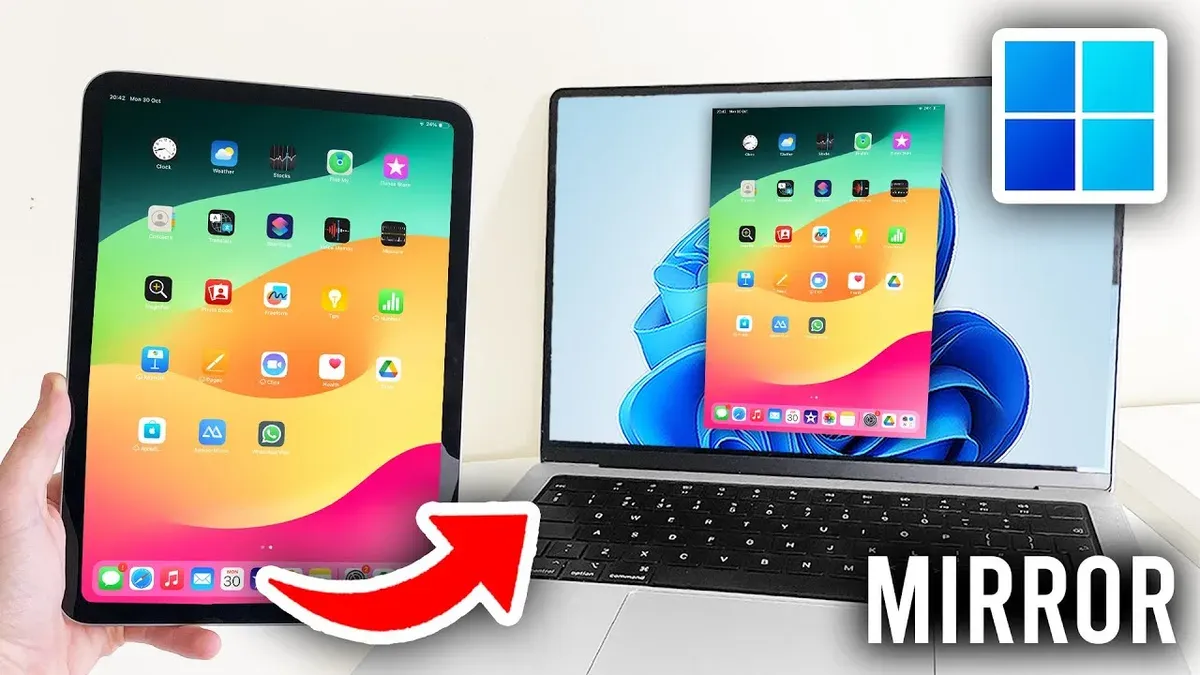
Short answer: Switching from iPads to Windows laptops requires understanding distinct operating systems, file management differences, and connectivity options. You will need to familiarize yourself with syncing tools like OneDrive or iCloud for Windows, adapt to keyboard and trackpad usage, and set up seamless file transfer methods to maintain productivity.
This guide covers practical strategies to bridge the gap between the iPad and Windows ecosystems. You'll learn how to connect your iPad to a Windows laptop for file syncing and updates, transform your iPad experience to mimic laptop workflows, and effectively combine both devices in a hybrid setup. Additionally, it highlights common pitfalls to avoid and best practices for syncing, ensuring a smooth transition without losing momentum in your daily tasks.
Understanding the Key Differences Between iPads and Windows Laptops
The primary distinction between iPads and Windows laptops lies in their operating systems and input paradigms. iPads run iPadOS, designed around a touch-first interface optimized for gestures, taps, and Apple Pencil input. In contrast, Windows OS centers on keyboard, mouse, and touchpad inputs, supporting precise cursor control and complex window management.
App ecosystems reflect these differences. iPadOS apps prioritize streamlined, touch-friendly experiences often with limited multitasking capabilities. Windows supports a broader range of traditional desktop applications including powerful productivity suites, developer tools, and legacy software not available on iPads.
File management on iPads uses the Files app, which abstracts file locations and integrates cloud services, but lacks the granular folder system and drag-and-drop flexibility found in Windows Explorer. Multitasking on iPads supports Split View and Slide Over but does not allow overlapping windows like Windows, which enables easier side-by-side workflows with resizable windows.
| Feature | iPadOS | Windows OS |
|---|---|---|
| Input | Touchscreen, Apple Pencil, on-screen keyboard, optional external keyboard | Keyboard, mouse, touchpad, touchscreen (on some models) |
| App Ecosystem | App Store apps, optimized for touch, limited desktop-class apps | Wide range of desktop applications, legacy software, full productivity suites |
| File Management | Files app with cloud integration, limited folder access | Full folder hierarchy, drag-and-drop, external drives support |
| Multitasking | Split View, Slide Over, Picture-in-Picture | Resizable, overlapping windows, multiple desktops |
For example, when editing a large spreadsheet, Windows laptops excel with keyboard shortcuts, multi-window views, and advanced software like Excel desktop app. Conversely, iPads shine in note-taking with Apple Pencil and quick app switching through touch gestures.
These differences impact syncing and connectivity: iPads rely heavily on cloud syncing via iCloud or third-party apps, while Windows laptops offer more direct file transfer options and network sharing. Understanding these contrasts prepares you to adapt workflows and select tools that bridge the gap effectively.
How to Connect iPad to Windows Laptop for File Transfer and Syncing
To transfer files and sync data between your iPad and a Windows laptop, start by installing iCloud for Windows from Apple's official site or the Microsoft Store. Once installed, sign in with your Apple ID and select the data categories you want to sync, such as Photos, Mail, Contacts, and Documents. This method provides seamless syncing of photos and documents via iCloud Drive, ensuring updates on either device reflect across both.
For direct file transfers, use iTunes on Windows, which manages backups, app data, and media syncing. Connect your iPad via USB, then open iTunes. When prompted on the iPad, tap Trust This Computer to authorize the connection. In iTunes, select your device icon, then navigate to the File Sharing section to transfer compatible app documents. This approach is reliable but slower than cloud syncing and requires a physical connection.
Alternatively, third-party apps like OneDrive offer robust syncing of documents and photos. Install OneDrive on both devices, sign in, and save or upload files to the OneDrive folder on your iPad; these files will sync automatically to your Windows laptop. OneDrive often provides faster upload and download speeds compared to iCloud, especially on Windows.
Common connection issues include the iPad not appearing in iTunes or iCloud for Windows failing to sync. Ensure your iPad is unlocked and that you have tapped Trust on the device. Also, verify that both devices use the latest software versions and that firewall settings on your laptop allow iCloud and iTunes connections.
For example, syncing photos using iCloud for Windows involves opening the iCloud app, enabling Photos, then waiting for the iCloud Photos folder to populate on your laptop’s File Explorer. This folder updates automatically as new photos are added on your iPad, offering a hands-off, continuous sync experience.
- Install iCloud for Windows or iTunes on your laptop
- Sign in with your Apple ID and select sync options
- Connect iPad via USB and tap Trust This Computer when prompted
- Use File Sharing in iTunes or cloud folders like iCloud Photos and OneDrive for syncing files
- Troubleshoot by unlocking your iPad, updating software, and checking firewall settings if connections fail
How to Update Your iPad Using a Windows Computer
Updating your iPad via a Windows laptop is a reliable method, especially when over-the-air (OTA) updates fail or your iPad has limited Wi-Fi access. This process requires connecting your iPad to the Windows PC using a Lightning or USB-C cable or, less commonly, Wi-Fi syncing if previously enabled.
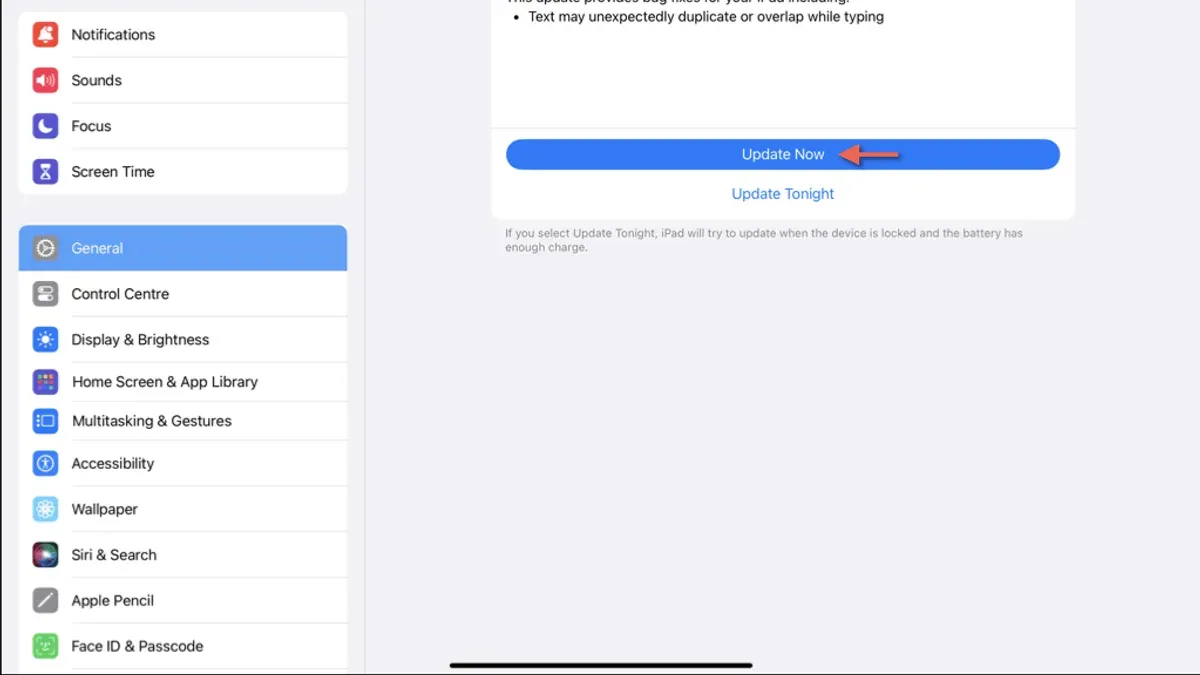
Start by launching iTunes on your Windows computer. If you haven’t installed it yet, download the latest version from Apple’s official site. Once iTunes detects your iPad, click the device icon in the top-left corner.
Under the Summary tab, click Check for Update. If an update is available, a prompt will appear. Select Download and Update to begin. The iPad will download the update to the Windows PC and install it, which can take several minutes depending on your connection and system speed.
Using iTunes to update has benefits such as a stable connection through the cable, reducing risks of interrupted downloads common with OTA updates. However, it requires physical access to the computer and can be slower if the PC has limited resources.
For example, if your iPad’s battery is low or Wi-Fi is unreliable, updating via Windows is a dependable fallback. After clicking Download and Update, iTunes verifies the update file. During the install, the iPad screen will show the Apple logo and a progress bar, reassuring you the process is ongoing.
Keep in mind that a successful update via Windows depends on iTunes recognizing your device correctly and having enough disk space on the PC for the update files. If you encounter errors, restarting both devices and ensuring you have the latest iTunes version usually resolves most issues.
- Connect iPad to Windows PC with cable or Wi-Fi sync
- Open iTunes and select your device
- Click Summary > Check for Update
- Choose Download and Update if available
- Follow on-screen prompts until update completes
How to Turn Your iPad Into a Laptop-Like Device
To mimic a laptop experience on your iPad, start by pairing an external keyboard, mouse, or trackpad. Apple’s Magic Keyboard or any Bluetooth keyboard can significantly increase your typing speed compared to the on-screen keyboard, helping you reach near-laptop efficiency. For cursor control, iPadOS supports Bluetooth mice and trackpads, allowing precise navigation similar to traditional laptops.
Enable multitasking by using features like Split View and Slide Over. Open two apps side-by-side or overlay a third in Slide Over, accessible via dragging from the dock or the multitasking menu. Managing multiple apps simultaneously boosts productivity, approximating the windowed environment on a Windows laptop. Note that the multitasking interface is optimized for touch and gestures, so it differs from the traditional desktop experience.
Apps such as Microsoft Office, Adobe Lightroom, and file management tools like Documents by Readdle enhance a desktop-like workflow by providing robust editing and file organization capabilities. For example, using Microsoft Word with a Bluetooth keyboard and a mouse, you can edit documents with keyboard shortcuts and precise cursor placement, resembling a laptop setup.
Despite these improvements, the iPad remains limited in certain areas. You cannot run multiple instances of the same app simultaneously, and file system access is more restrictive than on Windows. Some professional software available on Windows lacks full-featured iPad versions, which may impact specialized workflows.
Users transitioning report increased typing speed and fewer errors with physical keyboards, and they appreciate multitasking features to manage workflows, though they often highlight the iPad’s sandboxed environment as a limitation compared to Windows laptops.
- Pair a Bluetooth keyboard and mouse or trackpad in Settings > Bluetooth.
- Use Split View by dragging an app from the dock to the screen edge.
- Activate Slide Over by dragging an app over an open app.
- Install productivity apps that support keyboard and pointer input.
- Familiarize yourself with iPadOS multitasking gestures and shortcuts.
Using Your iPad and Windows Laptop Together: Hybrid Workflow Strategies
To maintain productivity while transitioning or using both devices, integrating your iPad and Windows laptop through hybrid workflows is essential. Cross-platform cloud storage services like OneDrive, Google Drive, and Dropbox enable seamless document access and editing on both devices. For example, editing a Word document on your Windows laptop automatically syncs changes to the iPad's Microsoft Word app, allowing you to continue work on the go without file confusion.
Remote desktop apps such as Microsoft Remote Desktop or TeamViewer let you control your Windows laptop directly from your iPad, providing access to Windows-only software without switching devices physically. For screen sharing, apps like Spacedesk turn your iPad into a secondary display, expanding your desktop workspace and improving multitasking efficiency.
Managing notifications and continuity between devices requires deliberate setup. Windows 10 and 11 offer the Your Phone app (now Phone Link) to sync notifications, messages, and calls from your Android phone but lack deep iPad integration. To bridge this gap, using cross-platform communication tools like Microsoft Teams or Slack ensures notifications and conversations stay consistent across your iPad and laptop.
Consider this workflow: you draft a presentation using PowerPoint on your Windows laptop, save it to OneDrive, then review and annotate slides on your iPad using the PowerPoint app during a commute. Later, you use Spacedesk to extend your Windows laptop display onto the iPad, giving you extra screen real estate for notes and research. This approach minimizes friction between ecosystems.
- Set up OneDrive or Google Drive on both devices for automatic syncing.
- Install Microsoft Remote Desktop on iPad for Windows access.
- Use Spacedesk to convert your iPad into a secondary display.
- Adopt cross-platform communication apps to unify notifications.
- Save files consistently in a cloud folder accessible on both devices.
Common Mistakes to Avoid When Switching from iPads to Windows Laptops
One of the biggest pitfalls is underestimating how much Windows file management differs from the iPad's simplified approach. On Windows, you deal with file explorer windows, hierarchical folders, and drive letters, unlike the app-centric sandboxed storage on iPads. Expecting to find files where you left them on the iPad without understanding Windows’ directory structure can cause frustration and lost time.
Another common error is ignoring app and peripheral compatibility. Many iPad apps do not have direct Windows equivalents, and some specialized iPad peripherals won’t work with Windows laptops. For instance, a user who relied on the Apple Pencil for note-taking found that their Windows laptop lacked a comparable stylus, forcing them to change their workflow significantly.
Skipping a thorough data backup before switching is a critical mistake. Users have reported losing photos, documents, or app data by assuming everything would transfer seamlessly via cloud services. Always back up your iPad data locally using iTunes or through iCloud before initiating the switch to avoid irreversible data loss.
Expecting iPad workflows to translate directly to Windows causes workflow interruptions. For example, multitasking gestures and app switching on iPads are quick and intuitive, but Windows uses keyboard shortcuts and window snapping, which require adaptation. A case study showed a user who struggled until they invested time learning Windows shortcuts and window management to restore productivity.
- Familiarize yourself with Windows file explorer and folder structures.
- Check app and peripheral compatibility before switching.
- Back up all iPad data locally and to the cloud.
- Learn Windows multitasking tools and shortcuts to adapt workflows.
How to Sync iPad to Windows Computer: Best Practices
Choosing the right syncing method depends on the type of data you want to keep current. For photos and personal files, using iCloud for Windows provides seamless cloud-based syncing. Documents created in apps like Pages or Keynote can also sync via iCloud Drive, accessible on Windows through the dedicated iCloud app. For music and app data, syncing via iTunes ensures reliable local backups and transfers.
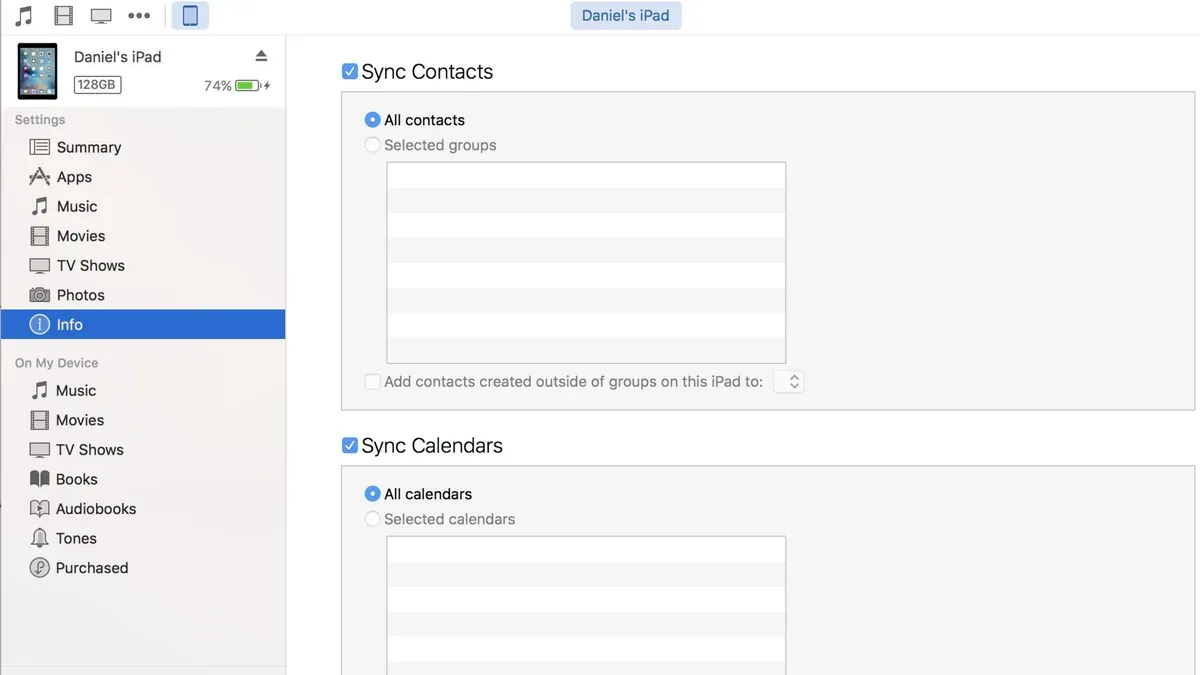
Scheduling regular syncs is essential to avoid data loss or conflicts. Professionals often set daily automatic iCloud syncs and weekly manual iTunes backups to cover both cloud and local data. For example, you might leave iCloud for Windows running in the background to keep your photos and documents updated continuously, while connecting your iPad to iTunes every Sunday evening for a full device backup and music sync.
Sync conflicts occur when changes are made on both devices before syncing. When this happens, iCloud typically prompts you to choose which version to keep. To minimize errors, resolve conflicts promptly and avoid editing the same file simultaneously on both devices. iTunes sync errors can often be fixed by updating the software or reconnecting the cable securely.
Leveraging cloud services beyond iCloud, such as Microsoft OneDrive or Dropbox, can enhance syncing flexibility. These services provide cross-platform access to files and reduce dependency on a single ecosystem.
- Identify data types and select iCloud for personal files, iTunes for media and app data
- Enable automatic iCloud sync and schedule weekly iTunes backups
- Address sync conflicts immediately to prevent data loss
- Use additional cloud services like OneDrive or Dropbox for cross-platform syncing
Read next
- Switching from iPads to MacBooks: Your Expert Transition Guide
- Moving from iPads to Chromebooks Checklist for Smooth Transitions
- Moving from Windows Laptops to iPads: Your Complete Checklist
- Windows Laptops Rollout Plan for School Administrators: A Practical Expert Guide
Frequently asked questions
How to turn ipad into laptop?
You can turn your iPad into a laptop-like device by connecting a physical keyboard, such as Apple's Magic Keyboard or any compatible Bluetooth keyboard, and using a stand or case to prop up the screen. Adjust your iPad's settings for multitasking by enabling Split View and Slide Over to mimic windowed apps. Pairing a mouse or trackpad through Bluetooth further enhances the laptop experience.
Can ipad connect to windows laptop?
Yes, you can connect an iPad to a Windows laptop using a USB cable or via Wi-Fi for certain apps. For file transfers, install iTunes or Apple’s iPad driver on your Windows laptop to recognize the device. Additionally, apps like Microsoft OneDrive or iCloud for Windows facilitate wireless syncing and access to your iPad’s files.
How to update ipad through windows computer?
To update your iPad through a Windows computer, first install the latest version of iTunes from Apple's website. Connect your iPad with a USB cable, open iTunes, select your device icon, then click "Summary" and choose "Check for Update." Follow the prompts to download and install the available iOS updates.
Can i connect ipad to windows laptop?
You can connect your iPad to a Windows laptop using a Lightning or USB-C cable depending on your iPad model. After connecting, your Windows computer should detect the iPad automatically if Apple drivers are installed. This connection allows file transfer, device backups, and syncing through iTunes or third-party apps.
How to sync ipad to laptop?
Sync your iPad to a Windows laptop by using iTunes or iCloud for Windows. With iTunes, connect your iPad via USB, select it in iTunes, and choose the content types you want to sync such as music, photos, or contacts. For wireless syncing, enable iCloud on your iPad and sign in with the same Apple ID on your Windows laptop using iCloud for Windows to keep photos, mail, and calendars updated across devices.
Quick checklist
- Ensure Windows PC has the latest version of iTunes or Apple Mobile Device Support installed for seamless iPad recognition.
- Use File Explorer or iTunes to manage file transfers rather than relying solely on cloud services.
- Regularly back up your iPad to the Windows computer via iTunes to safeguard data before updating.
- Customize your iPad with a keyboard case and enable AssistiveTouch for a laptop-like experience.
- Create shared folders in OneDrive or Google Drive to synchronize documents between iPad and Windows laptop.
- Avoid expecting exact app equivalents; identify Windows alternatives or web versions for critical iPad apps.
- Disable iCloud Drive automatic syncing if you prefer manual file management through Windows apps.
What this advice does not cover
This guide does not cover switching to Windows tablets or hybrid devices with touchscreens, which have different capabilities and workflows. Some syncing features require subscriptions to cloud services or third-party applications that may involve costs or privacy considerations. Not all iPad apps have Windows equivalents, so you may need to adapt workflows or accept compromises in certain cases.
The best next step is to connect your iPad to your Windows laptop using a USB cable and confirm the device is recognized in iTunes or File Explorer. From there, experiment with file transfers and syncing settings to build a workflow that fits your productivity needs while you gradually adjust to the Windows environment.



