How to Switch from Microsoft Copilot to MagicSchool AI Without Losing Productivity
Discover how to switch from Microsoft Copilot to MagicSchool AI smoothly without losing productivity by understanding key differences and migration steps.

Short answer: Switching from Microsoft Copilot to MagicSchool AI requires adjusting to different integration points and workflow features that affect how you manage tasks and data. The transition is smoothest when you understand MagicSchool AI’s distinct approach to document handling, collaboration, and automation compared to Copilot. Planning your migration with these differences in mind avoids productivity dips.
This article covers the core functional contrasts between Microsoft Copilot and MagicSchool AI, outlines practical steps for a seamless transition, and highlights common pitfalls to avoid. You’ll get clear guidance on configuring MagicSchool AI’s workspace, transferring your data efficiently, and adopting new features that impact your daily work. The goal is to keep your output steady while you switch tools.
What Are Microsoft Copilot and MagicSchool AI, and Why Does Switching Matter?
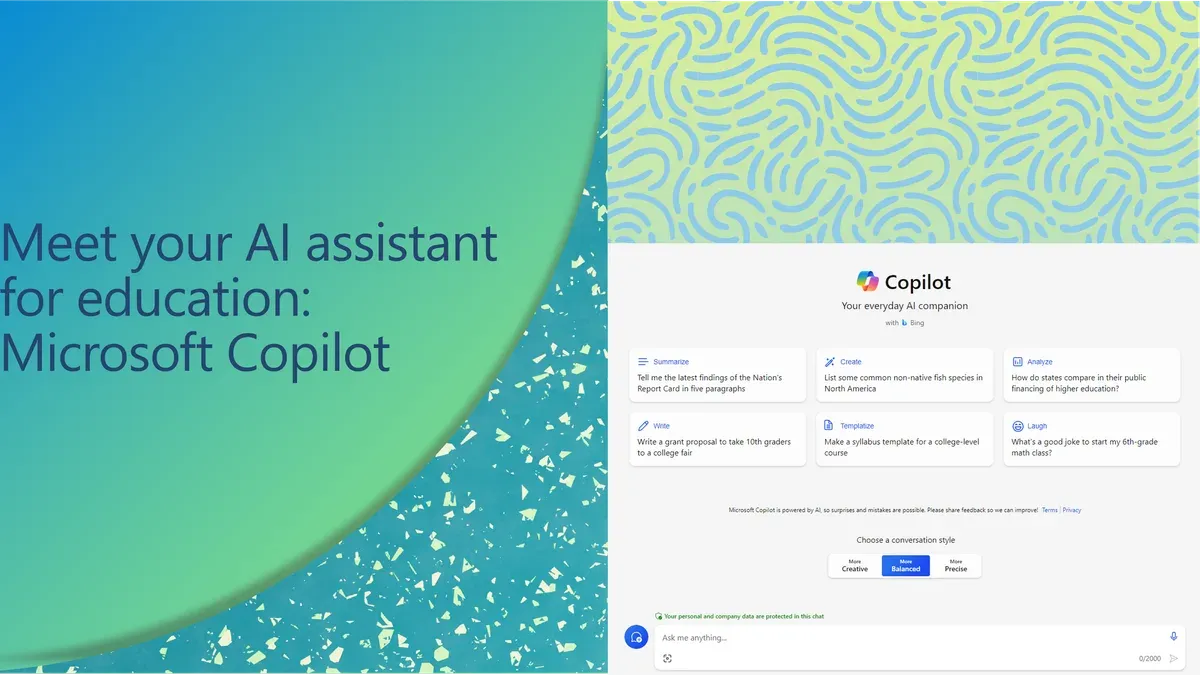
Microsoft Copilot integrates deeply with Microsoft 365 apps like Word, Excel, and Outlook. It uses AI to automate tasks such as drafting emails, generating reports, and analyzing data within your familiar Microsoft interface. Its strength lies in seamless collaboration across Microsoft’s ecosystem and leveraging existing documents and calendars.
MagicSchool AI, by contrast, specializes in educational and workflow customization. It offers tailored lesson planning, interactive content creation, and adaptive learning pathways. This tool supports broader integrations beyond Microsoft 365, including Google Workspace and common LMS platforms, making it suitable for educators and knowledge workers aiming for more dynamic, personalized workflows.
Switching from Microsoft Copilot to MagicSchool AI impacts productivity because you trade the tight Microsoft ecosystem integration for enhanced educational features and workflow flexibility. The user interface and AI assistance style differ significantly: Copilot focuses on task automation inside Microsoft apps, while MagicSchool AI emphasizes customization and interactive learning tools.
| Feature | Microsoft Copilot | MagicSchool AI |
|---|---|---|
| Primary Integration | Microsoft 365 Suite | Google Workspace, LMS, Microsoft 365 |
| Core Function | Automated content generation and data analysis | Customized lesson planning and interactive content |
| User Interface | Embedded in Microsoft apps | Standalone app with multi-platform support |
| Target Users | Business professionals, knowledge workers | Educators, knowledge workers, business pros |
Consider a project manager who uses Copilot to generate status reports based on Excel data every week. Switching to MagicSchool AI means adapting to a new interface that offers more options for interactive presentations and training modules but requires exporting data differently. Understanding these workflow differences helps you avoid productivity loss during the transition.
How Does MagicSchool AI Work Differently from Microsoft Copilot?
MagicSchool AI is built on an AI model trained extensively on educational content and versatile workflow scenarios, while Microsoft Copilot primarily relies on data from Microsoft 365 applications and corporate documents. This fundamental difference shapes their task handling: Copilot excels at embedding suggestions within Office apps, whereas MagicSchool AI offers a broader, cross-platform approach with deeper contextual understanding in learning and project management environments.
Interaction modes vary significantly. Microsoft Copilot works mostly through in-app sidebars and contextual prompts inside Word, Excel, or Outlook. MagicSchool AI, however, centers on a chat interface that accepts natural language queries and commands, plus a prompt builder for task automation. For example, to draft a project summary, Copilot suggests inline text completions in Word, but MagicSchool AI generates a full summary via chat and allows quick export to multiple formats or platforms.
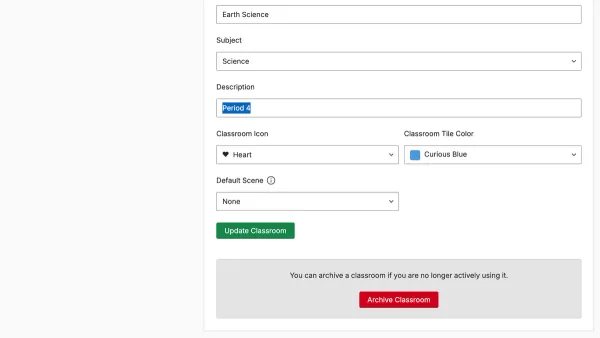
Customization is another key difference. MagicSchool AI lets you tailor workflows extensively through its dashboard, enabling integration with third-party apps beyond the Microsoft ecosystem. You can create specific task templates or automate multi-step processes. Copilot’s customization is limited to toggling feature availability within Office apps, focusing on streamlined but less flexible automation.
Regarding data privacy and security, Microsoft Copilot adheres strictly to Microsoft 365’s enterprise-grade compliance standards, storing data within your organization’s cloud environment. MagicSchool AI offers configurable data residency options and encrypts user data end-to-end, which can be crucial if your workflow spans diverse platforms or requires stricter privacy controls.
Consider a knowledge worker preparing a quarterly report. With Copilot, they receive sentence-level suggestions directly in Word, speeding up writing but confined to that document. With MagicSchool AI, they initiate a chat request summarizing key points, generate charts through prompts, and export results to a collaborative platform. The trade-off is MagicSchool AI demands initial setup time but supports a more integrated and customizable workflow.
What Are the Practical Steps to Transition from Microsoft Copilot to MagicSchool AI?
Start by exporting your current documents and data from Microsoft Copilot. Use Microsoft 365’s export feature found under Settings > Data Management > Export to save files in standard formats like DOCX, XLSX, or PDF. This preserves your work in a compatible form for MagicSchool AI. Allocate around 30 minutes to an hour depending on data volume.
Next, sign up for MagicSchool AI and access its Setup Wizard located on the dashboard. Customize your workspace by selecting relevant templates and enabling integrations with tools you use daily, such as Google Workspace or Slack. This initial configuration usually takes 20 to 40 minutes.
To get accustomed to MagicSchool AI’s interface, complete the built-in onboarding modules under Help > Onboarding. These modules cover chat-based commands, customization options, and workflow automation. Spending 1 to 2 hours here accelerates your proficiency.
Finally, connect MagicSchool AI with your existing workflow tools by navigating to Settings > Integrations. Activate connectors for email, calendars, and project management software to maintain seamless operations. Test each integration with a sample task to confirm functionality.
For example, a business professional exporting meeting notes from Copilot can import them into MagicSchool AI’s document manager, then automate follow-up reminders via its calendar integration. This preserves momentum without manual duplication.
- Export data from Microsoft Copilot via Settings > Data Management > Export (30–60 minutes)
- Create a MagicSchool AI account and complete the Setup Wizard (20–40 minutes)
- Complete onboarding tutorials in Help > Onboarding (1–2 hours)
- Configure integrations under Settings > Integrations and test workflows (30 minutes)
How Can You Use MagicSchool AI Effectively After Switching?
MagicSchool AI excels when you tailor its capabilities to your specific workflows. For educators, use its lesson planning module under the "Curriculum Tools" tab to generate customized teaching materials aligned with your syllabus. Business professionals benefit from the "Team Sync" feature, which centralizes collaborative notes and action items across devices, reducing meeting follow-ups.
Unique features like "Adaptive Prompting" let you fine-tune AI suggestions by adjusting the creativity slider in the settings menu. This customization helps avoid generic outputs and matches the AI’s tone and depth to your needs. For example, a project manager reported cutting report drafting time by nearly half by creating templates that MagicSchool AI adapts dynamically.
Regularly monitor your usage via the "Insights Dashboard." Track which features you engage with most and adjust your focus accordingly. If AI outputs stray from your expectations, retrain the model using the "Feedback Loop" option found in the profile dropdown to improve relevance over time.
- Access "Curriculum Tools" or "Team Sync" depending on your role
- Customize AI suggestions with the creativity slider in settings
- Create reusable templates for frequent tasks
- Use the "Insights Dashboard" to monitor feature usage
- Provide feedback via "Feedback Loop" to improve AI accuracy
What Common Mistakes Should You Avoid When Switching?
One critical mistake is skipping a full data backup before initiating the switch. For example, a business professional switched to MagicSchool AI without exporting their key project files from Microsoft Copilot’s integrated OneDrive folders. When syncing errors occurred, several documents were temporarily inaccessible, causing workflow delays. Always use Microsoft 365’s “Export to ZIP” function or MagicSchool AI’s import wizard backup option to secure your data.
Underestimating the learning curve can stall your transition. Some users jump straight into MagicSchool AI without completing its guided onboarding or exploring the “Help & Tutorials” section found under the profile menu. This leads to frustration, as MagicSchool AI’s interface and command syntax differ significantly from Microsoft Copilot’s task pane automation.
Failing to adapt workflows to MagicSchool AI’s strengths wastes potential. One educator retained rigid Microsoft Copilot document templates rather than switching to MagicSchool AI’s dynamic lesson builder and customizable chat prompts. This resistance slowed lesson planning and reduced engagement. Review and redesign your workflows to align with MagicSchool AI’s features instead of forcing old patterns.
Assuming a one-to-one feature match between Microsoft Copilot and MagicSchool AI causes gaps. MagicSchool AI lacks direct equivalents for certain Copilot Excel data models or PowerPoint design ideas. Trying to replicate these exact functions leads to unnecessary workarounds and confusion.
- Always back up data before switching.
- Complete MagicSchool AI’s onboarding and training.
- Adjust workflows to leverage MagicSchool AI’s unique tools.
- Do not expect all Microsoft Copilot features to have direct counterparts.
Frequently asked questions
Can I run Microsoft Copilot and MagicSchool AI side by side during the transition?
Yes, you can run both tools simultaneously. Microsoft Copilot integrates deeply with Microsoft 365 apps, while MagicSchool AI operates through its own platform and browser extensions. Running both lets you compare features and gradually shift workflows without losing access to familiar tools.
Will my existing documents and data work seamlessly with MagicSchool AI?
MagicSchool AI supports common file formats like Word documents, PDFs, and spreadsheets, but it does not integrate directly into Microsoft 365 apps as Copilot does. You may need to upload files or sync data via supported cloud services to use MagicSchool AI effectively. Plan for some manual steps during the initial transition.
How long does it typically take to become proficient with MagicSchool AI?
The learning curve depends on your prior experience with AI assistants and your specific workflows. Most users gain basic proficiency within a few days of consistent use, especially if they focus on MagicSchool AI's unique commands and integration points. Expect a week or two to fully adapt complex workflows.
What support options are available if I encounter issues during the switch?
MagicSchool AI offers customer support via email and live chat during business hours, plus an online knowledge base with tutorials and troubleshooting guides. Additionally, user communities and forums can provide practical advice. Access support early to resolve setup or compatibility issues promptly.
What this advice does not cover
This guide does not cover enterprise-level IT infrastructure changes or licensing negotiations involved in switching between these platforms. If you manage large-scale deployments or complex licensing agreements, consult with your IT department or vendor representatives. This advice focuses on individual users and small teams managing their own workflows and integrations.
Quick checklist
- Review and export all important Copilot-generated documents and data before switching.
- Familiarize yourself with MagicSchool AI’s integration points, especially how it connects with your primary tools.
- Update your workflow templates and shortcuts to align with MagicSchool AI’s commands and features.
- Set aside time for initial training or walkthroughs of MagicSchool AI’s interface and unique functions.
- Monitor your productivity in the first week and adjust settings or processes to optimize your use of MagicSchool AI.
To move forward confidently, start by exporting your current Copilot projects and backing up any essential data. This step prevents data loss and provides a reference point as you adapt to MagicSchool AI’s workflow. From there, focus on learning MagicSchool AI’s key integrations and customizing your workspace to fit your needs.
See also: Switching from Microsoft Copilot to Khanmigo: A Clear How-To Guide · MagicSchool AI Rollout Plan for Volunteers: A Practical Guide · Moving from MagicSchool AI to Google Gemini: Your Practical Checklist · Moving from MagicSchool AI to ChatGPT: Your Clear-Cut Checklist