
Switching from OneDrive to Dropbox: Your Expert Migration Guide
Learn expert steps and insights for switching from OneDrive to Dropbox to ensure a smooth, efficient file migration and workflow adaptation.

Short answer: Switching from OneDrive to Dropbox is a strategic move that involves more than just transferring files. You need to consider differences in storage management, file sharing, and integration capabilities to ensure a smooth transition without disrupting your workflow.
This guide covers the essential steps and expert insights for switching from OneDrive to Dropbox. You will learn about key differences in how both platforms handle synchronization, collaboration, and app integrations. The article also walks you through practical migration steps, common pitfalls to avoid, and how to adapt your workflow to Dropbox’s environment effectively. Whether you manage business accounts or personal data, this roadmap helps you make an informed decision and execute the migration with confidence and precision.
Understanding the Key Differences Between OneDrive and Dropbox
OneDrive and Dropbox serve similar purposes but differ significantly in architecture, integrations, collaboration, security, and pricing. OneDrive's storage is deeply integrated with Microsoft's cloud infrastructure, syncing files via the OneDrive sync client that supports Files On-Demand, allowing selective file downloads to save local space. Dropbox uses a block-level sync technology that uploads only changed portions of files, often resulting in faster sync speeds for large files.
When it comes to collaboration, OneDrive shines within Microsoft 365 environments, enabling real-time co-authoring in apps like Word, Excel, and PowerPoint directly from the cloud. Dropbox focuses on third-party integrations, supporting popular tools like Slack, Zoom, and Adobe Creative Cloud, making it versatile for diverse workflows outside the Microsoft ecosystem.
Security and compliance differ as well: OneDrive aligns with Microsoft’s enterprise-grade compliance standards (e.g., HIPAA, GDPR), offering built-in data loss prevention and advanced threat protection. Dropbox also provides strong encryption and compliance certifications, but its security model emphasizes simplicity and user control.
Pricing models reflect these differences. OneDrive is typically bundled with Microsoft 365 subscriptions, providing 1 TB or more per user plus access to Office apps. Dropbox offers standalone plans with storage tiers and business-oriented features priced separately. For example, a marketing team heavily using Adobe tools and Slack might prefer Dropbox for its integrations, while a corporate environment standardized on Microsoft 365 would find OneDrive’s seamless Office integration more efficient.
| Feature | OneDrive | Dropbox |
|---|---|---|
| Storage Architecture | Cloud storage with Files On-Demand (selective sync) | Block-level sync for faster file updates |
| Collaboration | Real-time co-authoring in Microsoft 365 apps | Integration with third-party apps (Slack, Adobe) |
| Integrations | Deep Microsoft 365 ecosystem | Wide third-party app ecosystem |
| Security & Compliance | Enterprise-grade, DLP, advanced threat protection | Strong encryption, user-focused controls |
| Pricing | Bundled with Microsoft 365 (1 TB+ storage) | Standalone tiers; flexible business plans |
How to Transfer Dropbox Files to OneDrive
Moving files from Dropbox to OneDrive can be handled manually or through automated tools depending on your data volume and workflow needs. For a 10GB folder transfer, a methodical approach ensures integrity and minimal downtime.
Manual Download and Upload
Begin by logging into your Dropbox account via the web. Navigate to the folder you want to transfer and select "Download" from the options menu. This compresses your folder into a ZIP file, which you then save locally. Next, sign in to OneDrive, click "Upload", and select "Folder" or "Files" to upload your extracted content.
This method keeps file version history and metadata intact only as much as Dropbox preserves in downloaded files. It’s straightforward but can be time-consuming and bandwidth-heavy for large volumes.
Using Migration Tools or Third-Party Services
For larger datasets or ongoing sync needs, consider tools like MultCloud or CloudFuze. These platforms connect both cloud accounts, enabling direct cloud-to-cloud transfers without local downloads. They usually offer options to preserve file timestamps and metadata, though version history may not be fully maintained.
Screenshots of MultCloud’s interface show simple connection set-up and folder selection before initiating transfer. Pricing and transfer speed vary, so evaluate based on your volume and urgency.
Syncing Both Services on One Computer
Install both Dropbox and OneDrive desktop apps. Sync your Dropbox folder locally by enabling selective sync to avoid syncing irrelevant folders. Then, copy or move the desired folders into your OneDrive sync folder. OneDrive will upload these files automatically.
This local sync approach allows you to monitor transfer progress and handle conflicts directly but depends heavily on your computer’s bandwidth and storage.
Handling File Version History and Metadata
Version history rarely transfers outside the original platform. To retain versions, export files with version notes if critical or archive versions separately before transfer.
Dealing with Large Volumes and Bandwidth
For a 10GB folder, expect that uploading and downloading might take several hours depending on your internet speed. Schedule transfers during off-peak hours and ensure stable connections. If bandwidth is limited, split large folders into smaller batches.
- Log into Dropbox and download the desired folder as a ZIP file.
- Extract the ZIP and upload files to OneDrive via the web interface or OneDrive folder synced locally.
- Consider cloud migration tools like MultCloud for direct transfers, especially for large or multiple folders.
- Sync Dropbox and OneDrive apps on your computer and manually move files between synced directories for local control.
- Plan for bandwidth and time; split transfers if needed and schedule during off-peak hours.
- Export and archive version history separately if retention is necessary.
How to Connect Dropbox to OneDrive for Seamless Workflow
Integrating Dropbox and OneDrive allows you to maintain a smooth workflow during migration or when using both platforms together. Since there is no native direct syncing feature between these two cloud services, leveraging third-party cloud connectors and integration apps is essential.
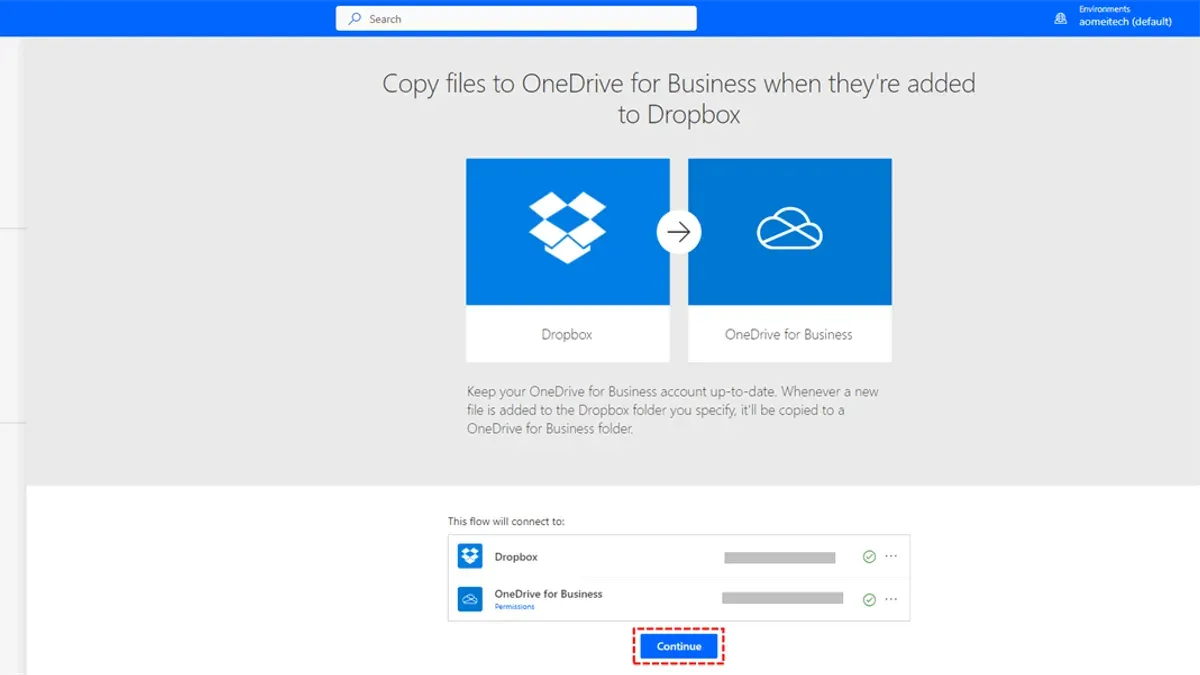
One common solution is using tools like Zapier, Microsoft Power Automate, or MultCloud. For example, with Microsoft Power Automate, you can create a flow that automatically copies new files from a designated Dropbox folder to a specific OneDrive folder. This setup ensures your files stay updated in both locations without manual intervention.
Set up sync folders by selecting a Dropbox folder as the source and a OneDrive folder as the destination. In Power Automate, you configure triggers such as "When a file is created" in Dropbox and actions like "Create file" in OneDrive. This approach helps maintain cross-platform access for teams working across both services.
Keep in mind, direct syncing with real-time two-way sync is limited. Most tools perform one-way sync or scheduled syncs, so file conflicts can occur if edits happen simultaneously in both services. A practical workaround is assigning clear ownership of files in each platform or using manual sync checks periodically.
To illustrate, imagine you're migrating a project folder from Dropbox to OneDrive. You set up an automation that copies any new or updated files from Dropbox to OneDrive, allowing your team to continue working in Dropbox while you complete the transition. Once confident, you can phase out Dropbox access gradually.
- Choose an integration app like Microsoft Power Automate or Zapier
- Create sync flows with clear source and destination folders
- Configure triggers and actions for automated file copying
- Set ownership rules to avoid file conflicts
- Monitor sync status and adjust flows as needed
How to Use OneDrive Like Dropbox: Adapting Your Workflow
Dropbox users value streamlined selective sync, intuitive sharing, and robust versioning—features you can replicate in OneDrive with some adjustments. Mapping Dropbox’s core features to OneDrive helps you leverage familiar workflows effectively.
| Dropbox Feature | OneDrive Equivalent |
|---|---|
| Selective Sync | OneDrive Files On-Demand (Settings > Settings tab > Files On-Demand) |
| Offline Access | Right-click file/folder > "Always keep on this device" |
| Sharing with Link Controls | Share > Link settings > Set expiration, password, edit/view permissions |
| Version History | Right-click file > Version History |
| Folder Organization | Use metadata, folders, and "Pin to Quick Access" in File Explorer |
Selective sync is a common sticking point. Dropbox’s selective sync hides folders from your device to save space. In OneDrive, enable Files On-Demand to see all files without downloading them. To work offline, mark files or folders as "Always keep on this device." For example, if you regularly edit a project folder, pin it for offline access to avoid delays.
Sharing in OneDrive offers granular control. When you share a link, click "Link settings" to set expiration dates or require a password—features familiar to Dropbox users but located under different menus. OneDrive’s collaboration integrates tightly with Microsoft 365 apps, enabling real-time co-authoring with version history accessible by right-clicking the file.
Organizing files can differ since OneDrive integrates with Windows Explorer deeply. Power users recommend using metadata tags in SharePoint libraries (if available) or pinning frequently accessed folders to Quick Access for faster navigation. Remember, OneDrive syncs with your file system, so folder structure impacts both local and cloud views.
- Enable Files On-Demand in OneDrive settings for selective sync.
- Right-click important files/folders and select "Always keep on this device" for offline access.
- Use "Link settings" when sharing to customize permissions and expiration.
- Access version history via right-click to restore previous file versions easily.
- Pin frequent folders to Quick Access for faster file organization and retrieval.
Is OneDrive Better Than Dropbox? Evaluating Which Fits You Best
Choosing between OneDrive and Dropbox hinges on your specific environment and priorities. For individuals and small businesses deeply embedded in the Microsoft 365 ecosystem, OneDrive offers seamless integration with apps like Outlook, Word, and Teams, delivering a unified experience that often boosts productivity. Conversely, Dropbox’s extensive third-party app ecosystem and platform-agnostic approach appeal to users valuing flexibility and specialized tools.
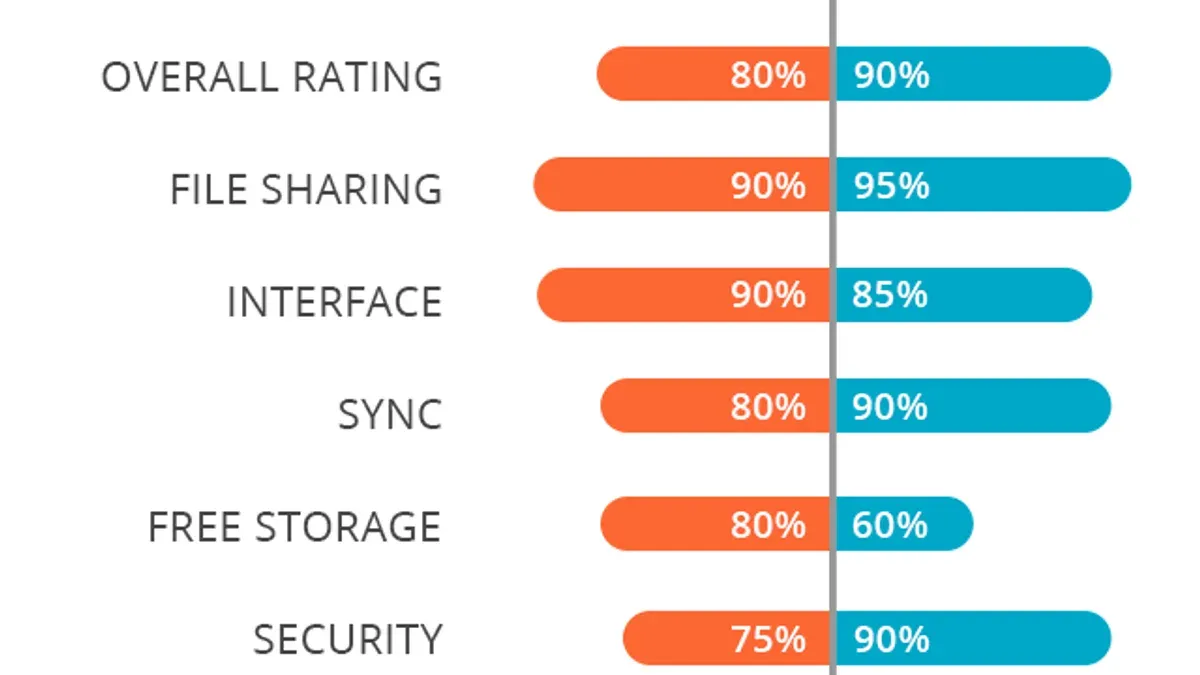
From a performance standpoint, both services provide reliable syncing and uptime, but Dropbox often edges out slightly in sync speed and handling large files, thanks to its block-level file transfer technology. OneDrive’s Files On-Demand feature, however, offers a unique advantage for users managing limited local storage.
Security and compliance are critical in enterprise settings. OneDrive benefits from Microsoft’s robust security infrastructure, including advanced threat protection and compliance certifications suited for regulated industries. Dropbox matches this with strong encryption and compliance but may require additional setups for certain enterprise requirements.
Cost-effectiveness varies by scale. OneDrive’s inclusion in Microsoft 365 bundles can be economical for organizations already subscribed, while Dropbox’s tiered plans provide granular scaling. For example, a 50-user firm using Microsoft Teams and Office apps may find OneDrive’s integrated storage more practical and cost-efficient than adopting Dropbox separately.
In summary, if your workflow revolves around Microsoft products with a need for tight integration and enterprise-grade compliance, OneDrive likely fits better. If you prioritize cross-platform flexibility, faster syncs, and a broader app ecosystem, Dropbox could be the preferred choice.
Common Mistakes to Avoid When Moving from OneDrive to Dropbox
One common pitfall is ignoring file permissions and sharing settings during migration. For example, if you move a shared folder without replicating the exact access controls in Dropbox, collaborators may lose access or gain unintended permissions, disrupting workflows. Always review and reconfigure sharing to match your original setup.
Overlooking file version history and metadata can cause significant data loss. Dropbox and OneDrive handle versioning differently; failing to export or preserve version history means losing previous iterations of files, impacting rollback capabilities. Ensure you export version histories if your migration tool allows or consider manual archiving.
Underestimating data volume and transfer time frequently leads to migration delays. Large repositories with thousands of files or big media can take hours or days to migrate fully. Plan your migration window accordingly and monitor transfer progress closely to avoid surprises.
Failing to communicate changes to collaborators causes confusion and disrupts team productivity. Inform your team about the migration schedule, new access points, and any expected downtime well in advance to ensure a smooth transition.
Neglecting to back up data before migration is a critical error. If anything goes wrong during transfer—corrupted files, incomplete sync, or accidental deletions—you risk permanent data loss. Create a full backup of your OneDrive data before starting.
Consider a case where a company moved a large shared OneDrive folder to Dropbox without preserving sharing settings or notifying users. Collaborators lost access for days and had to request permissions repeatedly, delaying projects. This scenario underscores the importance of thorough planning and communication.
- Review and replicate sharing permissions carefully
- Preserve file version history and metadata if possible
- Estimate data size and allocate sufficient transfer time
- Communicate migration plans to all collaborators beforehand
- Back up all data before initiating the migration
Practical Checklist for Switching from OneDrive to Dropbox
To migrate from OneDrive to Dropbox efficiently, start by backing up all your critical files outside both platforms to prevent accidental loss. Allocate at least a day to complete this preparation, depending on your data volume.
Next, select your migration method: manual download-upload, third-party migration tools, or syncing both services locally. For example, if you have 100 GB of data, third-party tools can save days compared to manual transfers but may require configuration time.
Execute the file transfer by following your chosen method carefully, ensuring stable internet connections and monitoring transfer progress. Large file sets might take several hours to days; plan accordingly to avoid workflow disruption.
After transfer, verify data integrity by spot-checking file sizes, formats, and folder structures. Confirm that permissions and sharing settings are correctly applied in Dropbox to maintain collaboration security.
Finally, set up your Dropbox workspace to mirror your previous workflow, including folder organization and sharing links. Conduct a brief user training session or circulate a guide highlighting Dropbox-specific features and best practices to ensure smooth adoption.
- Backup all OneDrive data externally (1 day)
- Choose migration method based on data size and complexity
- Transfer files with stable internet, monitor progress (hours to days)
- Verify file integrity and adjust permissions in Dropbox
- Configure Dropbox workflow and provide user training
For instance, a business migrating 50 GB might spend a full day backing up and choosing a tool, another day transferring, and then half a day validating and training users. Planning this timeline helps prevent surprises and keeps the transition smooth.
Read next
- Dropbox Implementation Timeline: From Inception to Everyday Use
- OneDrive Rollout Plan for Corporate Trainers: A Practical Guide
Frequently asked questions
How to transfer from dropbox to onedrive?
To transfer files from Dropbox to OneDrive, download your files from Dropbox to your local device first. Then, upload these files to your OneDrive account via the OneDrive web interface or sync client. For large datasets, use the OneDrive sync client to avoid browser upload limits and ensure file integrity.
How to move from dropbox to onedrive?
Moving files involves downloading them from Dropbox and uploading them to OneDrive. Alternatively, use third-party migration tools that support direct cloud-to-cloud transfer to save time. Always verify that all files have been transferred correctly to avoid data loss.
How to move dropbox files to onedrive?
Start by selecting the files or folders you want in Dropbox and downloading them as a ZIP archive or individually. Then, open OneDrive, navigate to the desired folder, and upload the files using the upload button or drag-and-drop. Keep an eye on file size limits and maintain folder structures if necessary.
How to migrate from dropbox to onedrive?
Migrating means planning for continuous access and workflow adjustments. Begin with backing up Dropbox data, then upload to OneDrive. Update any shared links or integrations pointing to Dropbox to reflect your new OneDrive locations. Consider syncing OneDrive locally for quick access and offline editing.
Is dropbox connected to onedrive?
Dropbox and OneDrive do not have a native, direct integration for syncing files between them. However, you can connect both accounts to third-party tools or use manual download-upload methods for transfers. Some workflow automation platforms allow limited interaction, but seamless syncing requires manual or tool-assisted migration.
What this guide does not cover
This guide does not cover enterprise-level automated migrations requiring specialized IT services or custom scripting, which may be necessary for very large or complex environments. If your organization relies on advanced compliance rules, custom metadata, or integrations beyond standard OneDrive and Dropbox features, consult with your IT department or a dedicated migration specialist. Additionally, this guide assumes you have administrative access to both OneDrive and Dropbox accounts involved in the migration.
Quick checklist
- Inventory your files and shared folders in OneDrive and Dropbox to identify what needs migrating.
- Review and adjust sharing permissions post-migration to maintain access control.
- Use the Dropbox desktop app to sync files locally before uploading to OneDrive.
- Configure OneDrive’s Files On-Demand to optimize storage after migration.
- Set up Dropbox integrations to replicate any workflows you used in OneDrive.
- Test access and syncing on multiple devices before fully switching over.
- Back up critical files before starting the migration process.
The most useful next step is to start by thoroughly auditing your existing OneDrive and Dropbox setups, focusing on shared folder structures and critical files. This upfront clarity will help you prioritize what to migrate, avoid duplication, and streamline your workflow adaptation to Dropbox. Taking this initial step carefully ensures a smoother transition and reduces disruption to your day-to-day operations.



