
OneDrive Rollout Plan for Corporate Trainers: A Practical Guide
Learn how to design and execute a OneDrive rollout plan tailored for corporate trainers to maximize user engagement and smooth adoption.

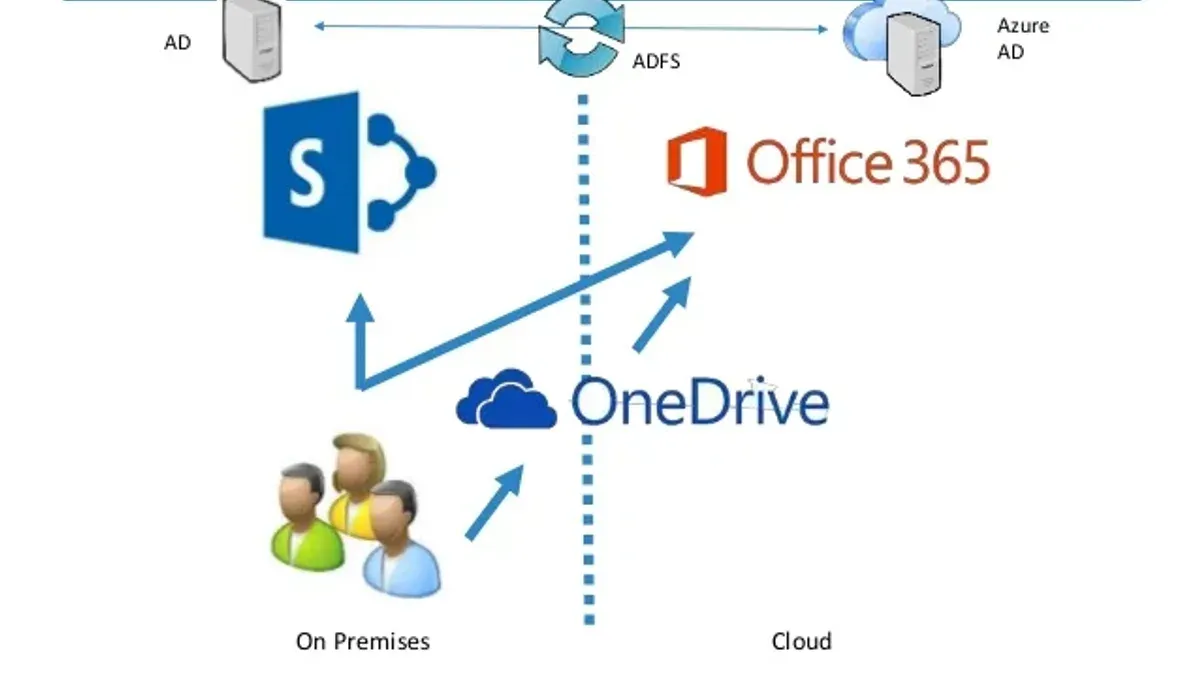
Short answer: A OneDrive rollout plan for corporate trainers focuses on structuring training to maximize user engagement and smooth adoption. It goes beyond IT setup by aligning training with employee workflows, clear communication, and hands-on practice. This approach ensures employees not only understand OneDrive’s features but also integrate it effectively into daily work.
This article covers how you can design and execute a OneDrive adoption plan tailored to corporate training goals. You will learn how to leverage Microsoft’s official materials, customize training for your organization’s needs, organize content for clarity, and avoid common pitfalls. The guide emphasizes practical steps that help employees retain knowledge and confidently use OneDrive, minimizing disruption during the rollout.
Explain what OneDrive for Business is and why it matters for corporate training
OneDrive for Business is a cloud storage and collaboration platform tightly integrated with Microsoft 365, providing employees with secure access to files from any device and location. It enables real-time collaboration on documents, which means multiple users can edit files simultaneously, reducing version conflicts and streamlining teamwork. Features like automatic version control ensure that previous file iterations are preserved, allowing users to revert changes if needed.
For trainers, understanding these capabilities is crucial because you need to translate technical benefits into practical advantages for the learners. For example, explaining how OneDrive lets employees access and update a project plan from both office desktops and mobile devices connects the tool directly to daily workflows. This relevance motivates users to adopt OneDrive, seeing it as a solution to common pain points like lost files or inefficient collaboration.
Organizations leveraging OneDrive often report measurable improvements in file-sharing speed and collaboration efficiency, which supports training efforts focused on productivity. Your role includes demonstrating how OneDrive reduces the friction of remote and hybrid work scenarios by enabling seamless file access and teamwork.
Describe how OneDrive training for end users typically works
Effective OneDrive training for end users centers on covering key functional areas: file storage and syncing, sharing and permissions, real-time collaboration, and the mobile app interface. Start with file storage basics, showing how to save files to OneDrive and set up the OneDrive sync client via Settings > Accounts > Add an account. Then, teach sharing options, including link types and permission levels, accessed through the Share button within the OneDrive web interface.
Training formats should blend live instructor-led sessions with recorded tutorials for flexible review. Hands-on labs give users practice creating shared folders and managing permissions, while interactive manuals guide users through troubleshooting common issues. A mixed approach accommodates different learning styles and schedules.
Assess users’ proficiency by pre-training surveys or quick skill checks; tailor sessions accordingly—novices focus on basic syncing and navigation, while advanced users explore version history and integration with Microsoft Teams. For example, a successful session might begin with a 20-minute live demo on syncing, followed by a 30-minute group exercise creating shared folders, ending with a Q&A and access to bite-sized video tutorials.
- Cover core topics: syncing, sharing, collaboration, mobile use
- Use varied formats: live sessions, recorded videos, hands-on labs, manuals
- Assess and tailor content based on user skill levels
- Structure sessions with demos, practice, and Q&A
Plan a OneDrive for Business rollout that aligns with corporate training goals
To ensure smooth adoption, align your OneDrive rollout with training milestones by structuring it in clear phases: pilot group training, phased organization-wide deployment, and ongoing support. Begin with a pilot group of department champions who receive comprehensive training including manuals, quick reference guides, and FAQs tailored to their workflow. Their feedback helps refine materials and identify technical issues.
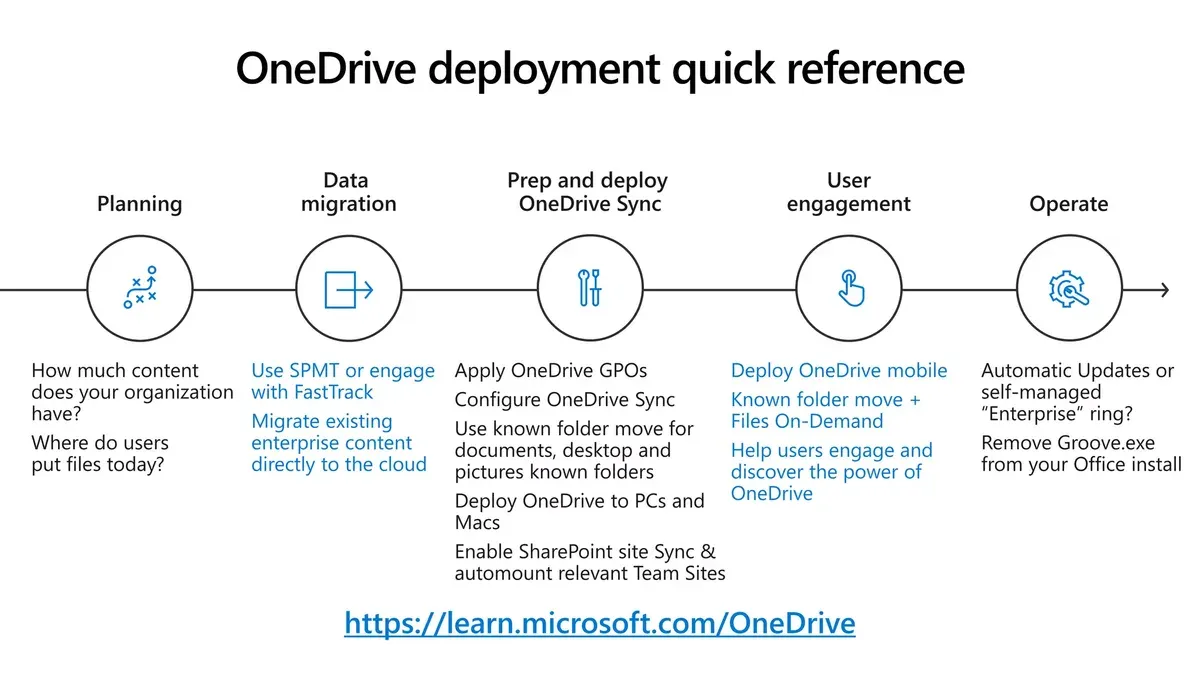
Next, schedule phased deployment across departments, coordinating with IT to confirm technical readiness such as proper OneDrive sync client configuration and permissions setup. At each phase, deliver targeted training sessions supported by updated documentation and establish feedback loops for continuous improvement.
For example, start with a two-week pilot training for 20 users in the sales team, followed by a one-month rollout to marketing and finance with weekly Q&A webinars. Concurrently, IT monitors sync performance and user issues, feeding insights back to you for adjusting training focus. This synchronization ensures users receive timely support matched to rollout progress.
- Identify and train pilot group champions first
- Develop and distribute tailored training materials at each stage
- Coordinate closely with IT for readiness checks and feedback
- Plan phased deployment with aligned training and support
- Establish ongoing channels for user questions and updates
Use Microsoft training materials and customize them for your organization
Microsoft provides a wealth of authoritative OneDrive training resources, including the Microsoft Learn modules, the official OneDrive video tutorials on the Microsoft 365 YouTube channel, and downloadable quick start guides available on the Microsoft 365 training site. These materials cover core functionality and updates, ensuring your training is aligned with the latest features and best practices.
However, to maximize engagement and relevance, you should customize these resources by weaving in organization-specific examples and scenarios. For instance, if your company uses OneDrive for project collaboration across departments, create exercises that reflect your project workflows and file naming conventions. This approach helps learners see direct application, improving retention.
Additionally, adapt the materials for localization needs, accessibility standards, and your corporate branding. For example, modify slide decks to include your company’s logo and color scheme, and ensure videos have captions or transcripts to support diverse learners. Customized training content often results in higher user satisfaction and engagement compared to generic Microsoft content alone, as it speaks directly to employees’ daily tasks and environment.
- Identify and select relevant Microsoft training guides and videos from Microsoft Learn and Microsoft 365 training sites
- Incorporate organization-specific workflows and examples into exercises
- Adjust materials for localization, accessibility (captions, screen reader compatibility), and branding
- Test customized content with a pilot group to gauge engagement before wide rollout
Apply best practices for OneDrive organization tips in training sessions
Effective file organization is key to user adoption and reduces frustration caused by lost or duplicated files. Teach users to create a clear folder hierarchy that mirrors their team’s workflow—start broad with main project or department folders, then narrow down to specific tasks or months. Introduce consistent naming conventions, such as "YYYY-MM-DD_ProjectName_Version" to make files instantly recognizable and sortable.
Demonstrate OneDrive’s search bar at the top, which indexing metadata and file content, enabling quick retrieval even when folder location is forgotten. Train users on tagging files via the "Details" pane, adding keywords that improve search accuracy.
Highlight habits that prevent common pitfalls: avoid saving multiple copies by using version history (right-click a file, select "Version history"), and explain permission settings under "Manage access" to prevent accidental sharing or access denial.
For example, a marketing team reorganized from scattered files named inconsistently to a structured system with project folders and date-based file names. This reduced time spent searching by half and minimized errors caused by outdated versions.
- Teach folder hierarchy aligned to team workflows
- Standardize file naming conventions
- Demonstrate OneDrive search and tagging
- Promote version history use to avoid duplicates
- Clarify permission management to prevent errors
Avoid common mistakes when delivering OneDrive training
One frequent error is overwhelming users with technical jargon or advanced features before they grasp basic functionality. For example, diving into SharePoint integration or sync conflicts right away can confuse employees still learning file sharing and folder creation. This often leads to frustration and disengagement.
Another pitfall is neglecting follow-up support and refresher sessions. Without ongoing reinforcement, users quickly forget key steps, reducing long-term adoption. Consider a case where a company delivered an intensive initial training but skipped follow-ups; employees reverted to old habits, causing low OneDrive usage and increased support tickets.
Ignoring user feedback and real-world scenarios also undermines training effectiveness. Some organizations design rigid training without adapting to specific departmental workflows, resulting in irrelevant content. A corporate trainer who failed to incorporate feedback from the sales team missed addressing their mobile access needs, leading to poor engagement.
- Start training with core features before advanced topics
- Schedule regular follow-up sessions to reinforce learning
- Gather and incorporate user feedback to tailor training
Read next
- OneDrive Implementation Timeline: A Complete Guide to Getting Started
- Switching from Google Workspace to OneDrive: A Practical Migration Guide
Frequently asked questions
What is a good OneDrive training manual for corporate users?
A good OneDrive training manual for corporate users should cover basic file management tasks, sharing permissions, syncing files across devices, and troubleshooting common issues. It should include step-by-step instructions with screenshots for actions like uploading files, creating shared folders, and using the OneDrive web interface. Manuals that integrate organization-specific policies and examples tend to increase relevance and user engagement.
How do I train end users effectively on OneDrive for Business?
Effective training involves hands-on practice combined with clear demonstrations of OneDrive features relevant to daily workflows. Start with basics such as saving files to OneDrive and then progress to collaboration tools like sharing and co-authoring documents. Reinforce learning through follow-up sessions, quick reference guides, and encouraging users to ask questions during training.
Where can I find Microsoft training for OneDrive?
Microsoft offers official OneDrive training materials on the Microsoft Learn website and the Microsoft 365 support site. These include video tutorials, quick start guides, and detailed articles covering OneDrive setup, file sharing, and administrative controls. Additionally, Microsoft Teams training hubs often feature integrated OneDrive content useful for corporate environments.
What should a OneDrive for Business plan include for corporate rollout?
A OneDrive for Business rollout plan should outline clear objectives aligned with corporate goals, detailed timelines for pilot and full deployment, and end-user training strategies. It must address data migration, permission management, and IT support readiness. Including metrics for adoption, user feedback channels, and a communication plan ensures smoother transition and sustained engagement.
What this guide does not cover
This guide focuses on corporate trainers and does not cover detailed IT administration or advanced security configurations that IT teams should handle separately. If your role includes managing tenant-wide OneDrive policies, compliance settings, or troubleshooting backend issues, coordinate closely with your IT department to ensure alignment and security.
Quick checklist
- Define clear learning objectives aligned with your organization's adoption goals.
- Customize Microsoft-provided OneDrive training materials to reflect your company’s workflows.
- Structure training sessions around real-world tasks like file sharing, versioning, and sync troubleshooting.
- Incorporate hands-on exercises and follow-up resources to reinforce learning.
- Communicate rollout timelines and expected changes transparently to end users.
- Monitor adoption metrics and gather feedback for continuous improvement.
- Avoid overloading users with excessive technical details unrelated to their daily tasks.
Start by mapping your training content to specific user roles and business scenarios. Tailoring sessions to what employees actually do with OneDrive increases relevance and retention, turning training from a checkbox activity into a practical skill-building experience.



