
Switching from ParentSquare to ClassDojo: A Practical Guide for Parents and Schools
Discover practical steps and tips for switching from ParentSquare to ClassDojo to enhance parent and school communication.

Short answer: Switching from ParentSquare to ClassDojo involves creating or joining your child's ClassDojo account by accepting an invitation from the school, then familiarizing yourself with ClassDojo’s interface for communication, behavior tracking, and classroom updates. You’ll need to adjust to ClassDojo’s real-time messaging and point-based engagement system, which differs from ParentSquare’s announcement-centric approach.
This guide covers the practical steps you’ll take as a parent or school administrator during this transition. It explains the key usability differences between the platforms, how to add parents to ClassDojo accounts, how to navigate the app’s main features, and common troubleshooting tips. You’ll also find recommendations on maximizing communication and involvement once the switch is complete, ensuring parents stay connected and informed throughout the process.
Understanding the Differences Between ParentSquare and ClassDojo
ParentSquare is designed as a comprehensive school communication platform, offering features like district-wide announcements, event calendars, direct messaging with teachers, volunteer sign-ups, and automated translation for multilingual families. It prioritizes broad communication channels between schools and families, aiming to cover administrative and community engagement needs in one place.
ClassDojo, by contrast, focuses heavily on student behavior, classroom culture, and parent engagement at the individual student level. Its core features include real-time behavior updates, student portfolios, and teacher-parent messaging centered around positive reinforcement and classroom activities.
From a parent’s perspective, ParentSquare delivers a structured, formal communication style with multiple message types and school-wide updates, while ClassDojo offers a more interactive, informal experience encouraging daily insights into a child’s progress and classroom life.
Schools often switch to ClassDojo to benefit from its user-friendly interface and emphasis on fostering parent involvement through behavior tracking and student stories. Some parents appreciate the simplicity and engaging visuals of ClassDojo compared to the more utilitarian ParentSquare.
| Feature | ParentSquare | ClassDojo |
|---|---|---|
| Primary Focus | School-wide communication and administration | Student behavior and parent engagement |
| Messaging | Group messages, event invites, volunteer coordination | Teacher-to-parent and parent-to-teacher chats |
| Behavior Tracking | Limited; mostly announcements | Detailed, real-time positive and negative behavior feedback |
| User Interface | Text-heavy, formal | Visual, gamified, child-friendly |
“ClassDojo makes it easier to see my child’s day and celebrate small wins,” a parent shared, illustrating why many value the platform’s approach.
Imagine a parent who previously received weekly newsletters and event reminders through ParentSquare but felt disconnected from daily classroom happenings. Switching to ClassDojo lets them get instant updates on their child’s behavior and classroom activities, making engagement more immediate and personal.
How to Add a Parent to ClassDojo
To add a parent to ClassDojo, teachers or school administrators first send an invitation or share a unique ClassDojo code. This code is typically generated within the teacher’s ClassDojo account under the “Invite Parents” section, found in the classroom settings. The teacher can either send an email invitation directly through ClassDojo or distribute the 6-digit classroom code via printed materials or secure messaging.
For example, Mrs. Smith shares the code "AB1234" with parents during a school meeting. A parent receiving this code opens the ClassDojo app or website and clicks on “Join a Class” or “Sign Up.” They enter the code, create an account or log in, and link to the classroom.
Common issues include parents not receiving email invites due to spam filters or entering an incorrect code. If an invite is missing, parents should check spam folders or ask the teacher to resend. For code errors, confirming the exact code characters with the teacher is essential.
By following these steps, parents gain seamless access to classroom updates and communications.
- Teacher generates classroom code or sends email invite via “Invite Parents”
- Parent visits ClassDojo, selects “Join a Class”
- Parent enters the classroom code and creates/logs into an account
- If invite not received, check spam or request resend
- Verify code accuracy if joining fails
How to Use ClassDojo for Parents
To start, visit www.classdojo.com and sign in with your parent credentials. The parent dashboard opens to an overview showing your child’s recent updates and behavior reports. Navigate easily between sections using the left-hand menu.
The main features you will use include Messaging, where you can send direct messages to teachers for quick questions or detailed discussions. In Behavior Reports, you can track your child’s daily classroom behavior with clear icons indicating positive and constructive moments. The Class Story section shares photos, announcements, and activities posted by teachers, giving you a window into classroom life.
Set notifications by clicking the gear icon in the top right, then selecting Notification Settings. Here, you can choose to receive alerts for messages, reports, and new class stories. If you have multiple children or classes, use the profile selector in the dashboard header to switch views seamlessly.
For example, when your child’s teacher posts a behavior update, you receive a notification. You can then open the message, view the detailed report, and reply directly to the teacher if you want to discuss strategies or share context. This two-way communication keeps you connected and involved without needing separate emails or calls.
- Sign in at www.classdojo.com with your parent login
- Use the left menu to access Messaging, Behavior Reports, and Class Story
- Adjust notification preferences via the gear icon → Notification Settings
- Switch between multiple children or classes using the profile selector
- Respond to teacher messages directly within the app for efficient communication
How to Change Schools on ClassDojo
When your child moves to a new school or the school changes platforms mid-year, you’ll need to update your ClassDojo account to stay connected. Start by leaving the current classroom: log in, go to the "My Classrooms" section from the sidebar, select the classroom you want to leave, then click "Leave Classroom" at the bottom of the settings panel. This removes you from that school’s communication stream.
Next, join the new school by entering the new classroom code provided by your child’s teacher or school administrator. From the "My Classrooms" page, click "Add Classroom," input the new code, and confirm. You can manage multiple schools or classrooms under one account, switching between them easily without separate logins.
If you can’t find the new school or lose access, first verify the classroom code with the school. If problems persist, use the "Help & Support" option in your account menu to contact ClassDojo support for assistance. For example, a parent moving from Lincoln Elementary to Roosevelt Middle simply leaves the Lincoln classroom, adds Roosevelt’s classroom code, and can monitor both schools’ updates in one place.
- Log in and navigate to "My Classrooms"
- Select and leave the old classroom via settings
- Click "Add Classroom" and enter the new code
- Manage multiple classrooms from the sidebar
- Contact support if the new school isn’t listed or access is lost
Common Troubleshooting and Mistakes to Avoid When Switching
One frequent issue is parents not receiving or misunderstanding the invite or classroom code. Ensure the invite email is sent from a recognized school address and remind parents to check spam folders. Clarify that the code is case-sensitive and should be entered exactly as provided.
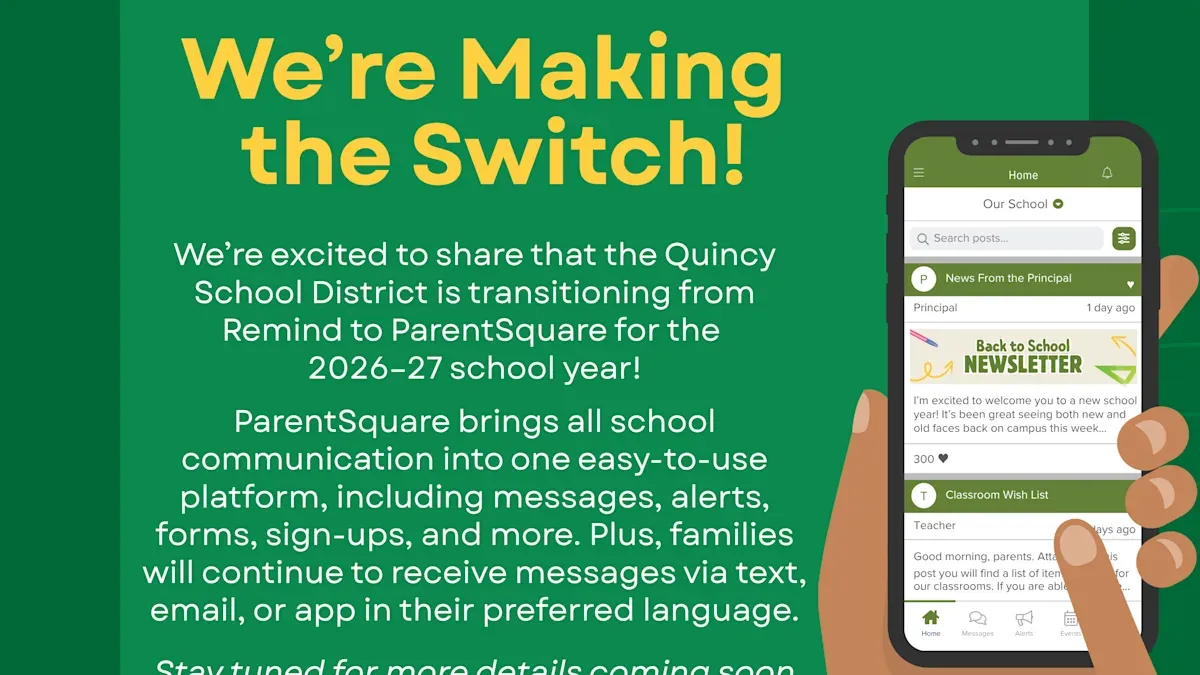
Confusion often arises when parents try to communicate on the old platform after the switch. Schools must clearly announce the transition date and specify that all messages and updates will now appear in ClassDojo, not ParentSquare.
Login problems are common, such as errors stating "ClassDojo not working for parents" or "invalid sign-in." These often stem from using outdated app versions or incorrect email addresses. Advise parents to update the ClassDojo app via the App Store or Google Play and use the email linked to their ClassDojo account.
If behavior points or messages don’t appear immediately after switching, remember these updates may take a short time to sync between systems. For example, a parent might see missing behavior reports if they log in too soon after joining the new classroom. Waiting a few minutes and refreshing the app usually resolves this.
- Confirm all parents have the correct, case-sensitive classroom code or valid invite link.
- Communicate clearly which app is now primary for school updates and messages.
- Advise updating the app and verifying login credentials if sign-in errors occur.
- Allow time for data sync; refresh or re-login if updates do not appear promptly.
Best Practices for Schools and Parents to Maximize ClassDojo After Switching
To fully benefit from ClassDojo, parents should promptly complete their profiles and verify notification settings to stay updated. Schools that have seen strong engagement encourage teachers to set clear communication guidelines, such as specifying that behavior feedback is shared daily and announcements are posted by 4 PM.
Teachers can leverage features like "Points" for positive student behavior and "Class Story" to share photos and updates, which actively involve parents. For example, a school in a suburban district reported increased parent participation when teachers used ClassDojo to celebrate weekly student achievements and shared tips for at-home learning.
Regular updates from schools, including how-to guides and FAQ links accessible via the "Help" menu, support parents navigating the platform. Parents have expressed appreciation for timely responses to questions and easy access to resources, which helps maintain ongoing engagement.
- Encourage parents to finish sign-up and adjust notification preferences immediately.
- Teachers should communicate how and when ClassDojo will be used for updates and behavior reports.
- Use behavior points and Class Story posts to engage parents with positive news.
- Provide regular communication and accessible support resources to assist parents.
Read next
- Moving from ClassDojo to ParentSquare: Your Complete Checklist
- Switching from ClassDojo to Seesaw: A Practical Guide for Teachers
- ParentSquare Rollout Plan for Substitute Teachers: A Practical Guide
- ClassDojo Rollout Plan for Substitute Teachers: A Practical Guide
Frequently asked questions
How to add parent to class dojo?
To add a parent to ClassDojo, teachers or school administrators must first create a class and then send an invitation link or a unique parent code to the parent. Parents use this code or link to connect their account to their child's class. This process ensures parents can view updates and communicate directly with teachers.
How to use class dojo for parents?
Parents use ClassDojo to track their child’s classroom activities, receive announcements, and message teachers. After joining a class, parents can view photos, videos, and messages posted by teachers, and provide feedback such as 'thumbs up' reactions. The app also allows direct communication with educators for questions or concerns.
How do I sign in to ClassDojo as a parent?
Sign in by visiting the ClassDojo website or opening the app and selecting the "Parent" option. Enter the email and password used during account setup or sign up with a new account if you haven’t registered yet. If you have a parent code from your child's teacher, use it to link your account to the classroom.
How do I join my school on ParentSquare?
To join your school on ParentSquare, you typically receive an invitation via email or SMS from the school administrator. Follow the link in the invitation to create your account. If you didn’t receive an invite, contact your school office to request access and the necessary sign-up information.
What is the ClassDojo code for parents and how do I use it?
The ClassDojo code is a unique set of numbers and letters provided by your child’s teacher to connect parents to their child’s classroom. Enter this code in the ClassDojo app or website after selecting "I'm a Parent" during account setup. This links your account to the specific class, enabling you to receive updates and communicate with teachers.
What this guide does not cover
This guide does not cover technical data migration or backend integration between ParentSquare and ClassDojo, which schools must handle separately through their IT departments or third-party service providers. If you are a school administrator responsible for syncing student records or importing historical communication data, consult your district’s technical team or vendor support for those tasks.
Quick checklist
- Confirm all parents have received ClassDojo invitations via email or SMS
- Guide parents to create accounts using the "Join a Class" feature and enter the unique class code
- Encourage parents to download and sign in to the ClassDojo app for real-time updates
- Assist parents in switching schools under Account Settings > School Info if necessary
- Remind parents to adjust notification preferences under Settings > Notifications to stay informed without overload
- Prepare parents for differences such as ClassDojo’s focus on positive behavior and classroom stories versus ParentSquare’s announcement-centric layout
- Provide support contacts for common issues like missing invitations or login difficulties
To move forward confidently, ensure you prioritize clear communication with parents about the functional changes they will experience and offer hands-on assistance during their initial sign-in and setup on ClassDojo. This practical engagement reduces confusion and helps parents become active participants in their child’s school community through the new platform.



