
Switching from ParentSquare to Seesaw: A Practical How-To Guide
Discover practical steps and tips for switching from ParentSquare to Seesaw to enhance communication and classroom engagement.

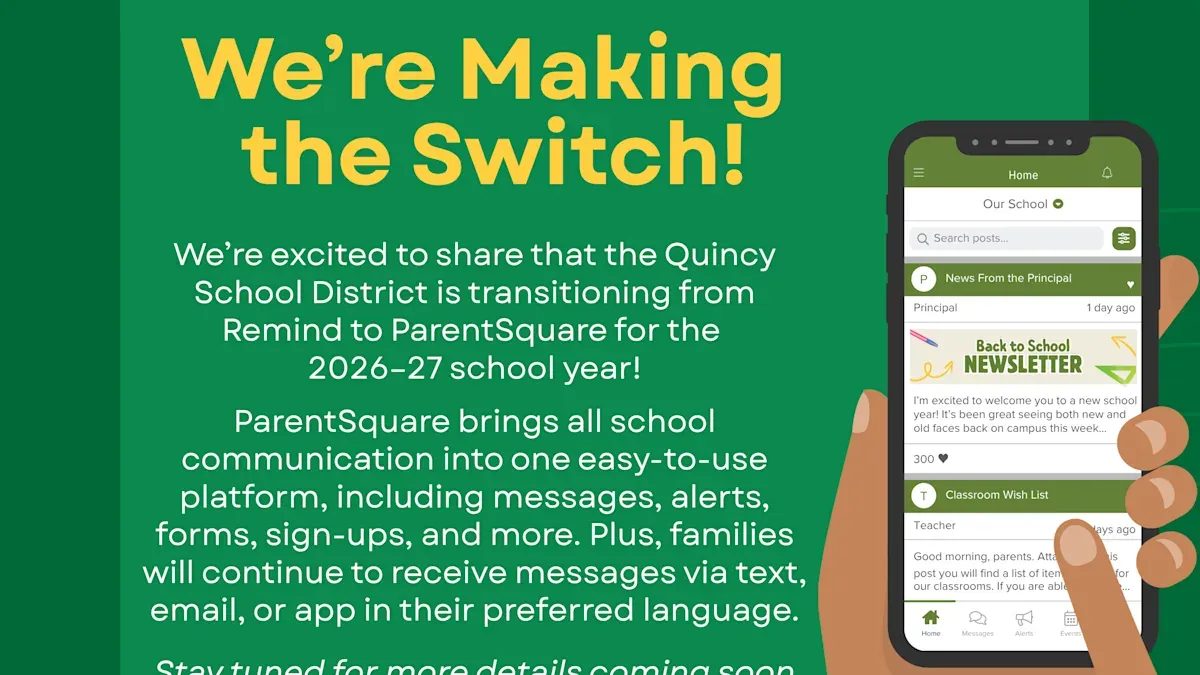
Short answer: Switching from ParentSquare to Seesaw requires understanding the distinct communication and classroom management approaches each platform offers. Seesaw focuses on interactive student portfolios and direct classroom engagement, while ParentSquare centers on school-wide communication and announcements. Managing this transition involves carefully onboarding parents, teachers, and students to ensure smooth adoption.
This article covers the key differences between ParentSquare and Seesaw, step-by-step instructions for adding users, tips for posting and classroom use, and strategies to run both systems in parallel during the transition. You will also learn common pitfalls and practical solutions to help your school community adjust efficiently to Seesaw’s workflow and user experience.
Understand the Key Differences Between ParentSquare and Seesaw
ParentSquare is designed primarily for school-wide communication, enabling administrators and teachers to broadcast announcements, event updates, and emergency alerts to entire school communities. Its user roles focus on clear hierarchies: administrators manage broad messaging, teachers contribute classroom updates, and parents receive notifications mainly as recipients.
Seesaw, in contrast, centers on classroom engagement. It empowers teachers, students, and parents to interact within a shared learning portfolio. Teachers assign activities, students showcase work, and parents actively comment and support learning progress. This creates a more interactive environment compared to ParentSquare’s announcement-driven style.
| Feature | ParentSquare | Seesaw |
|---|---|---|
| Primary Focus | School-wide announcements and communication | Classroom learning and student engagement |
| User Roles | Admin, Teacher, Parent (mainly recipients) | Teacher, Student, Parent (active collaborators) |
| Communication Channels | Emails, texts, voice messages, newsletters | Activity posts, multimedia portfolios, comments |
| Content Types | Announcements, calendar events, forms | Student work, assignments, teacher feedback |
For example, a ParentSquare message might be a principal’s notice about a school closure sent to all families, while in Seesaw, a teacher posts a student’s drawing with a prompt for parents to leave encouraging comments. Users report that Seesaw feels more hands-on and interactive, whereas ParentSquare is straightforward for one-way communication. Understanding these differences helps you set realistic expectations for engagement and workflow as you transition.
How to Add Parents to Seesaw
To add parents to Seesaw, start by using the Family Invitation feature found under the class settings menu. Navigate to Classes > Your Class > Family, then select Invite Families. You can send invitations via email or generate a unique QR code for parents to scan and register.
Parents will sign up by either entering their email address or scanning the QR code, then verifying their identity by linking to their child's profile. For families with multiple children or children in different classes, parents can add all their children under one account by entering each child's unique class code or teacher-provided invitation link.
For example, if a parent has two children in different classes, they receive two separate invites. Upon signing up with the first invite, they can add the second child from their account dashboard by entering the second class code.
To encourage parent engagement, customize your invitation message with a clear call to action and contact info for support. A sample message might be: "Welcome to Seesaw! Please join our class to see your child's work and stay connected. If you have questions, contact us at [email]."
Commonly missed details include reminding parents to check spam folders and confirming they complete the verification step to gain access.
- Go to Classes > Your Class > Family > Invite Families
- Send invites via email or generate QR codes
- Parents sign up and verify via email or QR code
- Parents add multiple children using class codes if needed
- Send clear invitation messages with support contacts
- Follow up to ensure parents complete verification
How to Add a Child to Seesaw
Enrolling students in Seesaw begins with either manual creation of individual accounts or importing student data from your Student Information System (SIS). Manual entry suits small classes, where you navigate to Classes > Students > Add Student in the Seesaw admin panel and input each student’s name and basic info. However, this method is time-consuming and prone to errors when adding many students.
Importing from SIS is more efficient for larger groups. You export student lists as CSV files from your SIS, then upload them via Seesaw’s Import Students feature. This process reduces data entry errors and takes minutes instead of hours, but requires correct formatting and up-to-date SIS records.
Once students are added, assign them to specific classes within Seesaw for organized access. Students receive unique login credentials, which you can manage or reset under Classes > Students. Common issues include students sharing credentials or login difficulties; to avoid this, communicate clear login instructions and encourage use of the Seesaw Family app for smoother access.
For example, importing a batch of 100 students from SIS typically takes 10-15 minutes, compared to manual entry that could require several hours and has a higher chance of typos or duplicates.
- Choose manual add for few students or SIS import for many
- Use Classes > Students > Add Student or Import Students
- Assign students to classes promptly
- Manage login credentials proactively
- Provide clear login guidance to students and parents
How to Add a Teacher to Seesaw
To onboard teachers efficiently into Seesaw, start by creating their accounts through the Seesaw admin console. Navigate to Classes & Teachers > Add Teacher, where you enter the teacher’s email and assign their role—typically "Teacher" or "Co-Teacher". Assigning the correct role is crucial for controlling access to class management and student portfolios.

When inviting co-teachers or support staff, use the same process, but confirm their permissions in the class settings. Co-teachers gain nearly full access, while support staff may have limited interaction rights depending on your district’s configuration.
After sending the invitation email, which includes a direct link to join and instructions to set up their password, follow up with training resources. Seesaw provides a comprehensive Teacher Quick Start Guide and video tutorials accessible via the Help Center. This ensures teachers understand features like posting, feedback, and student engagement tools.
For example, an administrator inviting a new 3rd-grade teacher might send this email excerpt: "You’ve been added as a teacher in Seesaw for Mrs. Smith’s 3rd-grade class. Click this link to activate your account and access tutorials designed to help you get started quickly." Such clear communication supports smoother adoption.
- Create teacher account via Classes > Add Teacher
- Assign appropriate role and class access
- Send invitation email with activation link
- Provide Seesaw training resources and follow-up
How to Post on Seesaw: Tips for Teachers
To create effective posts on Seesaw, start by selecting the green + Add button on the class page. You can choose from three main post types: Activities for assignments, Announcements for class updates, and Student Work Sharing to showcase individual or group projects.
Using multimedia enhances engagement significantly. Embed photos, videos, voice notes, or drawings directly within posts using the built-in tools. For example, when posting a science project assignment, include a short demonstration video and a voice note explaining the instructions to cater to different learning styles.
Schedule posts by clicking the clock icon after creating content, allowing you to plan announcements or assignments ahead. Manage notifications under Settings > Notifications to balance timely alerts with avoiding overload for families and students.
Encourage interaction by prompting students to add comments or reflections on their work and inviting parents to respond or acknowledge posts. This fosters a collaborative environment beyond traditional messaging.
Teachers often miss the Preview feature before posting, which helps verify multimedia displays correctly. Engagement typically increases when posts include at least one multimedia element, making content more accessible and inviting.
- Tap + Add and select post type
- Use multimedia tools like video, audio, and drawing
- Schedule posts via the clock icon for future delivery
- Adjust notification settings under Settings > Notifications
- Invite student and parent comments to boost interaction
- Always preview posts before publishing
How to Use Seesaw in the Classroom Effectively
Integrate Seesaw daily by making student portfolios central to learning. For example, a 3rd-grade teacher sets up weekly reflection prompts within each student's portfolio, encouraging them to document their progress and thought process on assignments. This ongoing reflection deepens understanding and ownership.
Use Seesaw’s formative assessment tools by assigning quick quizzes or open-ended questions through the Activities tab. The teacher reviews submissions via the Inbox, providing targeted, timely feedback that guides learning before summative tests. In one case, a teacher noted improved student performance after consistently using these checks.
Foster collaboration with Seesaw’s class comment feature and shared projects. Students can give peer feedback on posts, supporting social learning. The teacher monitors interactions to ensure constructive dialogue.
Align Seesaw activities with curriculum goals by tagging posts with standards and tracking progress. For instance, the teacher connects reading comprehension tasks to specific literacy benchmarks, making curriculum alignment transparent.
- Set weekly reflection prompts in portfolios
- Assign and review formative assessments via Activities and Inbox
- Encourage peer feedback on posts
- Tag posts with curriculum standards for progress tracking
How Does Seesaw Work for Teachers Compared to ParentSquare?
Seesaw offers teachers a more classroom-centered dashboard focused on student portfolios, assignments, and real-time student engagement. Unlike ParentSquare's broader communication hub, Seesaw’s interface prominently displays class activities and allows teachers to navigate quickly between individual student work and whole-class updates via the "Journal" and "Activities" tabs.
Communication flow shifts from ParentSquare’s primarily message-based announcements to Seesaw’s interactive feedback model. Teachers can comment directly on student posts or reply to family messages within the platform, encouraging ongoing dialogue rather than one-way broadcasts.
Content creation in Seesaw is streamlined through pre-built activity templates and multimedia tools embedded in the "Create" menu, making lesson setup faster. ParentSquare lacks this depth of interactive content management, focusing more on text and event posts.
Regarding time-saving features, Seesaw automates student activity tracking and portfolio compilation, reducing manual follow-ups. ParentSquare’s automation centers on mass messaging and permission slips. For example, a teacher using Seesaw can assign a drawing activity, receive instant student uploads, and provide feedback—all within one workflow, which is less integrated in ParentSquare.
Teacher surveys generally indicate higher satisfaction with Seesaw’s intuitive navigation and engagement features, although some note a learning curve transitioning from ParentSquare’s simpler announcement tools.
How to Use ParentSquare and Seesaw Together During Transition
Running ParentSquare and Seesaw in parallel helps maintain communication continuity while users adapt to the new platform. To avoid overwhelming parents, teachers, and students, designate specific communication types to each platform—use ParentSquare for broad school-wide announcements and Seesaw for classroom activities and student engagement.

Synchronizing updates is crucial. For example, if a school event is announced on ParentSquare, echo a concise reminder in Seesaw with a direct link to the original post. This reduces confusion without duplicating content unnecessarily.
Managing platform fatigue means setting clear expectations. Communicate timelines proactively—such as a 3-month overlap where ParentSquare remains active for general notices, while Seesaw gradually becomes the primary tool for classroom communication. After this period, ParentSquare access can be limited or disabled to complete the migration.
A typical timeline might look like: Month 1 – introduce Seesaw alongside ParentSquare with training; Month 2 – increase Seesaw usage for classroom updates; Month 3 – transition major communications to Seesaw and phase out ParentSquare alerts. Schools that followed this approach reported smoother adoption and fewer missed messages.
- Assign ParentSquare for school-wide announcements only
- Use Seesaw for classroom-specific communication and activities
- Cross-reference posts between platforms without full duplication
- Communicate a clear, phased timeline to all users
- Monitor feedback and adjust overlap duration accordingly
Common Mistakes to Avoid When Switching from ParentSquare to Seesaw
One frequent mistake is failing to train all user groups adequately. For example, a district that rolled out Seesaw without teacher and parent workshops saw a 40% drop in parent engagement during the first month. This happened because parents weren’t clear on how to access student posts or respond within the app.
Not communicating the change clearly to parents and staff can cause confusion and frustration. A school that sent only an email announcement without follow-up reminders reported an influx of support requests, overwhelming their tech coordinators.
Ignoring user feedback and troubleshooting issues late slows adoption. When early technical glitches or navigation questions go unaddressed, users often revert to old habits or disengage. Regular check-ins and a dedicated help channel prevent this.
Underestimating the time needed for full adoption is another pitfall. Transitioning takes weeks, not days. One principal noted that assuming immediate proficiency led to rushed expectations and teacher burnout.
- Ensure comprehensive training sessions for parents, teachers, and staff
- Communicate transition details multiple times via different channels
- Actively collect and respond to user feedback early
- Plan a realistic timeline with phased adoption goals
Read next
- Moving from ParentSquare to Remind: Your Complete Checklist
- Switching from ParentSquare to ClassDojo: A Practical Guide for Parents and Schools
- Switching from ClassDojo to Seesaw: A Practical Guide for Teachers
Frequently asked questions
How to add students to seesaw?
To add students to Seesaw, start by navigating to the class dashboard and selecting "Add Student." You can add students manually by entering their names or upload a CSV file for bulk addition. Assign each student a unique login method—either a QR code, email, or a class code—to ensure secure access.
How to use seesaw for teachers?
Teachers use Seesaw by creating classes, posting assignments, and sharing student work portfolios. Utilize the "Activities" tab to assign tasks and the "Journal" to view individual student submissions. Leverage built-in communication tools to provide feedback and engage parents efficiently.
how to add students to seesaw
Adding students involves accessing the class settings, then choosing "Add Student." Enter student details or import them via CSV. Provide students with their login credentials or share the class code for self-enrollment.
how to use seesaw for teachers
Teachers start by setting up classes and inviting students. Use the "Activities" feature to distribute assignments and monitor progress through the "Student Journal." Regularly update feedback and communicate with families through the platform's messaging system.
seesaw parent & family app
The Seesaw Parent & Family app allows guardians to view their child's work, receive updates, and communicate with teachers. Parents can join their child's class using an invite code or email link provided by the teacher. The app supports notifications for new posts and messages to keep families connected.
Quick checklist
- Review and confirm parent contact information before inviting them to Seesaw.
- Use the Seesaw Class Settings to add students manually or through bulk upload.
- Assign teacher roles with appropriate permissions via the Seesaw Admin Console.
- Post announcements and assignments using the "Add" button in the Seesaw Activity tab.
- Encourage classroom use of Seesaw’s portfolio and feedback features to maximize engagement.
- Maintain ParentSquare access during the transition period to ensure continuous communication.
- Communicate clearly about the timeline and provide training resources for all user groups.
- Watch for common pitfalls such as incomplete parent invites or duplicating student accounts.
What this advice does not cover
This guide does not cover district-wide Student Information System (SIS) integration specifics or detailed data privacy compliance matters, which require consultation with your district’s technology specialists or legal advisors. Additionally, complex custom workflow automations or third-party app integrations fall outside the scope here and should be addressed separately.
Your most effective next step is to schedule a pilot phase with a small group of classrooms to test the onboarding process on Seesaw. This approach allows you to identify gaps, gather user feedback, and refine communication before district-wide rollout.



