Switching from SMART Board to Promethean Board: A Confident Expert Guide
Switching from SMART Board to Promethean board requires adapting to new tools and features for enhanced classroom engagement and smoother workflows.

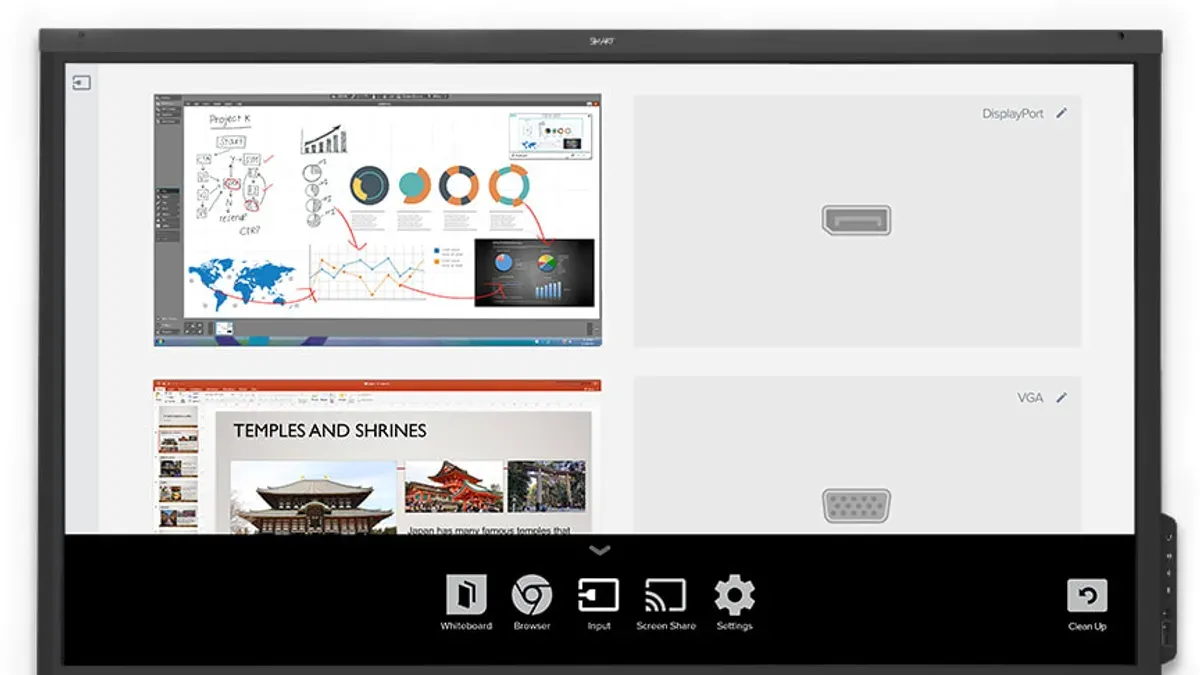
Short answer: Switching from SMART Board to Promethean board involves adjusting to a different user interface, software ecosystem, and interactive tools that affect classroom workflows. You will notice variations in pen response, touch gestures, and collaboration features that require hands-on practice to master.
This guide covers the experiential and operational differences you encounter during the switch, focusing on practical adaptation rather than just listing specifications. You will learn how Promethean Boards change interaction dynamics, how to prepare your classroom and team effectively, ways to maximize the board’s educational impact, and common pitfalls to avoid for a seamless transition.
Understand Why the Switch Matters to Your Classroom
Switching from SMART Board to Promethean Board impacts your teaching environment through distinct software ecosystems, hardware design, and compatibility with existing classroom technology. Promethean’s ActivInspire software offers a streamlined interface with flexible lesson creation tools, differing from SMART Notebook’s more rigid structure. This affects how you plan and deliver lessons, requiring some workflow adaptation but often resulting in smoother interaction and faster content updates.
Hardware differences are equally significant. Promethean Boards typically have a matte finish that reduces glare and fingerprints, enhancing visibility and reducing maintenance compared to the glossy SMART Boards. The included stylus technology is also more responsive, which many educators note improves writing precision and student engagement.
Compatibility with devices like Chromebooks, tablets, and interactive apps varies; Promethean supports a broader range of third-party integrations. For example, if your classroom relies on multiple operating systems and cloud-based resources, Promethean’s ecosystem often offers more seamless connectivity and fewer driver conflicts.
| Feature | SMART Board | Promethean Board |
|---|---|---|
| Software Ecosystem | SMART Notebook with structured lesson templates | ActivInspire with flexible lesson creation |
| Screen Finish | Glossy, prone to glare | Matte, reduces glare and fingerprints |
| Stylus Responsiveness | Good, but slight lag reported | Highly responsive, precise input |
| Device Compatibility | Limited third-party integrations | Broad OS and app compatibility |
| User Feedback | Mixed, some find software restrictive | Generally positive, praised for ease of use |
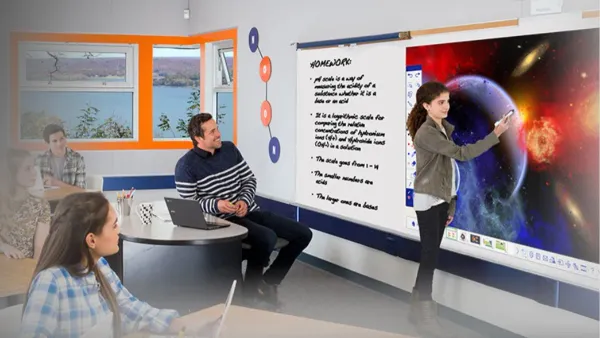
Imagine a middle school science teacher who switched to Promethean Boards. They found that lesson adjustments on the fly became easier due to ActivInspire’s flexible tools, and students responded better to the smoother pen input during interactive quizzes. The matte screen also reduced distractions from reflections, improving focus during bright morning classes.
Explore How Promethean Boards Work Differently Than SMART Boards
The Promethean ActivPanel features a streamlined user interface focused on ease of access and minimal navigation. Unlike SMART Notebook software, which relies heavily on desktop-style menus and tabs, the ActivPanel presents a home screen with large, touch-friendly icons for functions like Whiteboard, Screenshare, and Apps. This difference means you spend less time navigating menus during lessons and more time engaging with content.
Touch and pen input on the ActivPanel utilize advanced electromagnetic resonance technology, providing near-instantaneous response with minimal lag. While SMART Boards also support multi-touch and pen input, Promethean’s pens automatically switch between writing and erasing modes when flipped, reducing the need for manual tool selection. For example, when annotating a slide, you can erase a word simply by flipping the pen over, speeding up corrections without interrupting flow.
Connectivity options also differ. Promethean Boards support native wireless mirroring via ActivPanel’s built-in WiFi, allowing multiple devices to share screens simultaneously without extra hardware. SMART Boards often require additional receivers or cables for similar functionality. Integration with common educational tools like Google Workspace and Microsoft Teams is seamless on ActivPanel, accessible directly from the home screen, which simplifies lesson planning and collaboration.
- Familiarize yourself with ActivPanel’s home screen layout and main app icons
- Practice pen use to leverage automatic erase functionality
- Set up wireless mirroring from student devices to test multi-user screen sharing
- Explore direct integrations with Google Drive and Teams to streamline lesson access
Prepare Your Classroom and Team for a Smooth Transition
Begin by physically installing the Promethean Board according to the manufacturer’s guidelines, ensuring the mounting is secure and the board is at an ergonomic height for student interaction. Calibration is crucial; use the built-in calibration tool found under Settings > Display > Calibrate to align touch and pen input accurately. Skipping this step often causes frustration during lessons.
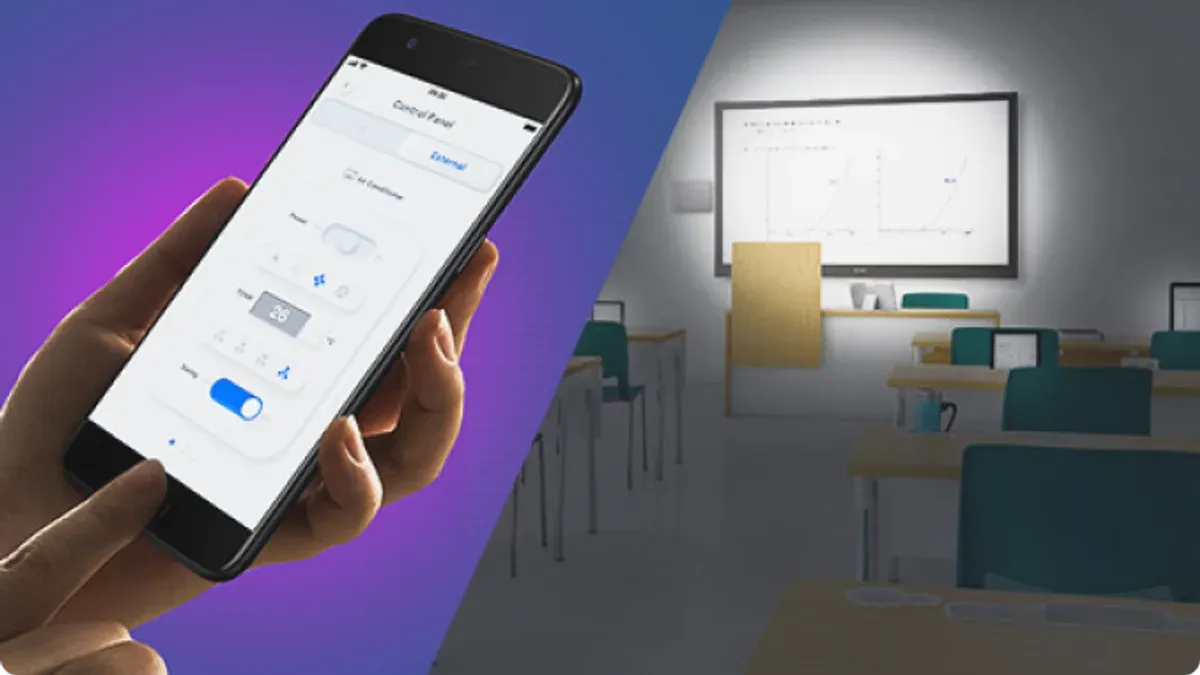
Train your educators and IT staff on essential Promethean software functions such as ActivPanel’s Whiteboard app, lesson capture, and wireless screen sharing. Allocate at least one full training session of 90 minutes, supplemented by shorter refresher workshops. Promethean’s official training modules, available on their website, provide structured learning paths tailored to different user roles.
Update lesson plans by migrating existing SMART Notebook files to Promethean’s ActivInspire or ClassFlow software. This process often requires re-linking media and adjusting interactive elements. For example, a history teacher might need to replace embedded SMART Notebook widgets with ActivInspire equivalents to maintain lesson interactivity.
- Securely mount and calibrate the Promethean Board (30–45 minutes)
- Schedule comprehensive training for teachers and technical staff (90 minutes + follow-ups)
- Migrate and adapt existing lesson materials to Promethean software (time varies by content complexity)
- Review wireless network readiness for seamless board connectivity
- Provide quick reference guides and support contacts to staff
Maximize Classroom Impact with Promethean Features
Promethean Boards offer a suite of tools designed to deepen student engagement and streamline lesson delivery. Start by mastering ActivInspire’s whiteboard functions: use the “Infinite Cloner” tool to duplicate interactive objects quickly, enabling varied practice activities without recreating content. For example, a math teacher adapted a geometry lesson by cloning shapes for simultaneous student manipulation, increasing hands-on participation.
Leverage the integrated app store to incorporate tailored interactive applications like “Learning Games” and “Quiz” modules. These cloud-based resources sync with Promethean’s software, allowing seamless access and real-time progress tracking. Pilots have shown that classes using these apps see noticeably higher student response rates during activities.
Facilitate collaboration by employing the “Classflow” platform’s multi-user features. Students can connect via tablets or laptops to contribute simultaneously to activities displayed on the board. A science teacher’s use of Classflow’s collaborative annotation in a cell biology lesson led to richer group discussions and improved concept retention.
- Use ActivInspire’s Infinite Cloner to diversify interactive content efficiently
- Integrate apps from Promethean’s store for dynamic, cloud-synced lessons
- Engage students collaboratively using Classflow’s multi-user annotation tools
- Regularly review engagement metrics within Classflow to refine lesson strategies
Avoid Common Mistakes When Switching Boards
One frequent mistake is neglecting adequate training and ongoing support. For example, a middle school that switched to Promethean Boards without scheduling follow-up sessions found teachers struggling to use advanced features like ActivInspire’s flipchart tools. This led to underutilization and frustration, which later required extra workshops to correct.
Another pitfall is underestimating hardware compatibility and software licensing needs. In a high school case, administrators overlooked that some older laptops lacked the necessary USB-C ports or updated OS versions to run Promethean’s software smoothly. This caused delays and additional costs for adapters and software upgrades.
Failing to involve key stakeholders in planning and feedback can also derail the transition. At one district, IT coordinators made purchasing decisions without consulting teachers or tech support staff, resulting in overlooked classroom layout challenges and insufficient tech support readiness. Eventually, a feedback loop was established, improving both setup and daily use.
To avoid these issues, ensure comprehensive training plans, verify all hardware and software requirements beforehand, and engage educators and IT teams early in the process.
- Schedule initial and follow-up training sessions for staff
- Audit all classroom and staff devices for compatibility
- Confirm software licenses cover all intended users and devices
- Include teachers, IT coordinators, and administrators in planning discussions
- Establish a feedback mechanism to address issues promptly
Read next
- Moving from Promethean Board to SMART Board: Your Complete Checklist Guide
- Promethean Board Rollout Plan for After-School Programs: A Practical Guide
- SMART Board Rollout Plan for After-School Programs: A Practical Expert Guide
- SMART Board Implementation Timeline: A Step-by-Step Guide for Educators
Frequently asked questions
What are the biggest differences in software between SMART and Promethean boards?
SMART Boards primarily use SMART Notebook software, which centers on page-based lesson creation and an extensive library of pre-made content. Promethean boards use ActivInspire or ClassFlow, offering a more flexible workspace with layers and dynamic tools tailored for interactive lessons. The user interface and navigation paths differ; for example, Promethean’s ActivInspire places emphasis on customizable toolbars and rapid access to annotation tools, which can change your workflow.

How much training is typically needed for teachers switching to Promethean?
Training needs vary based on prior experience with interactive boards, but most teachers benefit from a focused 2-3 hour introductory session that covers key Promethean software features and hardware basics. Follow-up workshops or peer collaboration sessions help deepen comfort with creating lessons and managing the device’s interactive functions. Pay attention to hands-on practice with ActivInspire’s workspace and the menu under the "Flipchart" tab.
Can existing SMART Board lesson resources be easily transferred to Promethean?
Direct import of SMART Notebook files into Promethean’s ActivInspire is not supported natively, so you will need to convert or recreate lessons. One common approach is to export SMART Notebook content as PDFs or images and then import these into ActivInspire as backgrounds or reference materials. This process requires some manual adjustment, especially for interactive elements like embedded quizzes or animations.
What technical support should we expect from Promethean during rollout?
Promethean typically provides onboarding assistance including access to online resources, setup guides, and live support channels during rollout. Many districts receive dedicated account managers or training specialists who coordinate initial deployment and troubleshoot hardware or software issues. Expect timely responses for warranty-covered hardware repairs and software updates accessible via the Promethean Support Portal.
Limits of This Guide
This guide does not cover switching from SMART Boards to other interactive technologies outside of Promethean Boards and assumes you have access to basic IT infrastructure such as stable Wi-Fi, network permissions, and compatible devices. If your school plans to integrate multiple brands or requires advanced technical support, consult specialized IT professionals or vendor-specific resources.
Quick checklist
- Confirm classroom Wi-Fi and network settings support Promethean Board connectivity.
- Schedule hands-on training sessions focusing on ActivPanel’s key features and software.
- Prepare lesson plans leveraging Promethean’s flipchart software instead of SMART Notebook files.
- Verify that existing peripherals like document cameras and student devices are compatible or plan for upgrades.
- Set up user profiles and permissions in the Promethean software to mirror your school’s workflow.
- Communicate timeline and support resources clearly to teachers and staff.
- Plan a phased rollout to allow adjustment time and gather feedback for improvements.
Start by arranging a dedicated training session where educators practice using Promethean’s ActivPanel tools in realistic classroom scenarios. This hands-on experience is the most effective way to build confidence and discover workflow adaptations that will make your transition seamless and productive.