Canvas Co-Teacher Access Checklist for Low Tech Confidence Teachers
This checklist helps teachers with low tech confidence set up and use Canvas co-teacher access for smooth course collaboration and management.

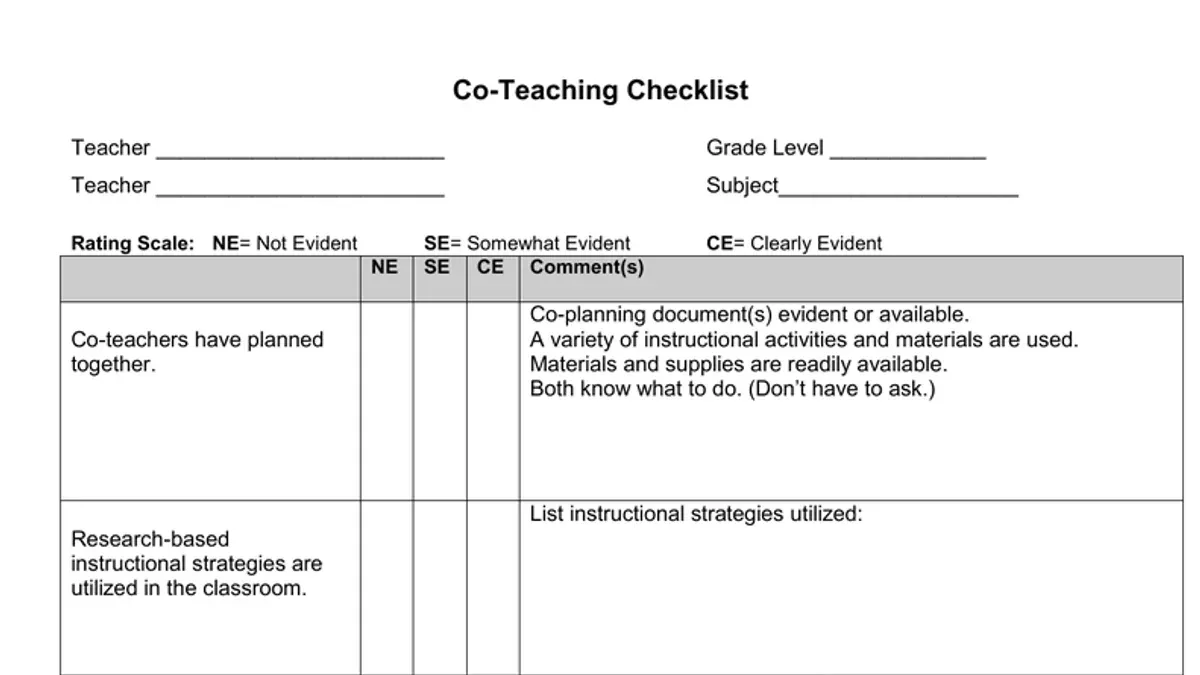
Short answer: Canvas co-teacher access lets you add another teacher or aide to your course so they can help with grading, announcements, and managing assignments. To set it up, you send a co-teacher invitation from your course settings, and the invited person accepts it from their Canvas account. This straightforward process helps you share classroom responsibilities without extra tech hassles.
This article provides a Canvas co-teacher access checklist for teachers with low tech confidence. You will get a step-by-step guide to granting and accepting co-teacher roles, understand exactly what permissions co-teachers have, and learn practical tips to avoid common setup mistakes. Real classroom scenarios will clarify how to use co-teacher access effectively, making collaboration smooth and manageable.
What is Canvas Co-Teacher Access and Why Should You Use It?
Canvas co-teacher access lets you add another instructor to your course with nearly the same management permissions you have. Unlike roles such as Teaching Assistant or Grader, co-teachers can edit content, manage assignments, and communicate with students, not just grade or assist. This means you share course responsibilities fully, lightening your workload.
For example, if you have a co-teacher, you can split grading duties so neither of you spends hours alone entering scores. You can also coordinate announcements through one platform instead of juggling multiple emails. This shared access prevents missed updates and keeps communication clear.
Using co-teacher access means you have a backup to cover for you when needed and a partner to troubleshoot technology or content questions. Instead of struggling alone, you divide tasks like updating course modules or responding to student questions efficiently.
Compared to a TA who typically only grades or a grader with limited course editing rights, co-teachers have a fuller scope. This empowers you to collaborate comfortably, especially if you feel unsure about managing the entire course by yourself.
How Do You Grant and Accept Co-Teacher Access?
To add a co-teacher in Canvas, start by opening your course and clicking Settings in the left-hand menu. Select the Users tab, then click the + People button. Choose the option Add People by Email or Login ID, enter your co-teacher’s email address exactly as it appears in Canvas, and select the role Teacher. Click Next, then confirm by clicking Add Users. This sends an invitation to your co-teacher.
Your co-teacher will receive an email with a link to accept the invitation. They need to log into Canvas, click the link, and confirm joining the course. Once accepted, they will see the course listed on their dashboard with full teacher permissions. If they don’t see the email, ask them to check their spam folder. Also, ensure their Canvas account is active and matches the email you used.
Common issues include invitations not arriving or access denied errors. If the invitation is missing, resend it from the same Users page. If access is denied, confirm the co-teacher’s account role is set to Teacher and that the email or login ID used matches their Canvas profile. For example, a teacher added with a personal email instead of their school account won’t gain access.
- Go to Settings > Users > + People
- Enter co-teacher’s email or login ID; assign Teacher role
- Click Add Users to send invite
- Co-teacher accepts invite via email link
- Troubleshoot by checking email accuracy, spam folder, and account status
How Does Co-Teacher Access Affect Course Tools and Permissions?
Co-teachers in Canvas have nearly all the same permissions as primary teachers, including editing course content, grading assignments, and sending messages to students. They can modify modules, update quizzes, and manage discussions just like you. For example, if you want a co-teacher to grade a set of essays, they can access submissions, leave feedback, and assign scores directly.
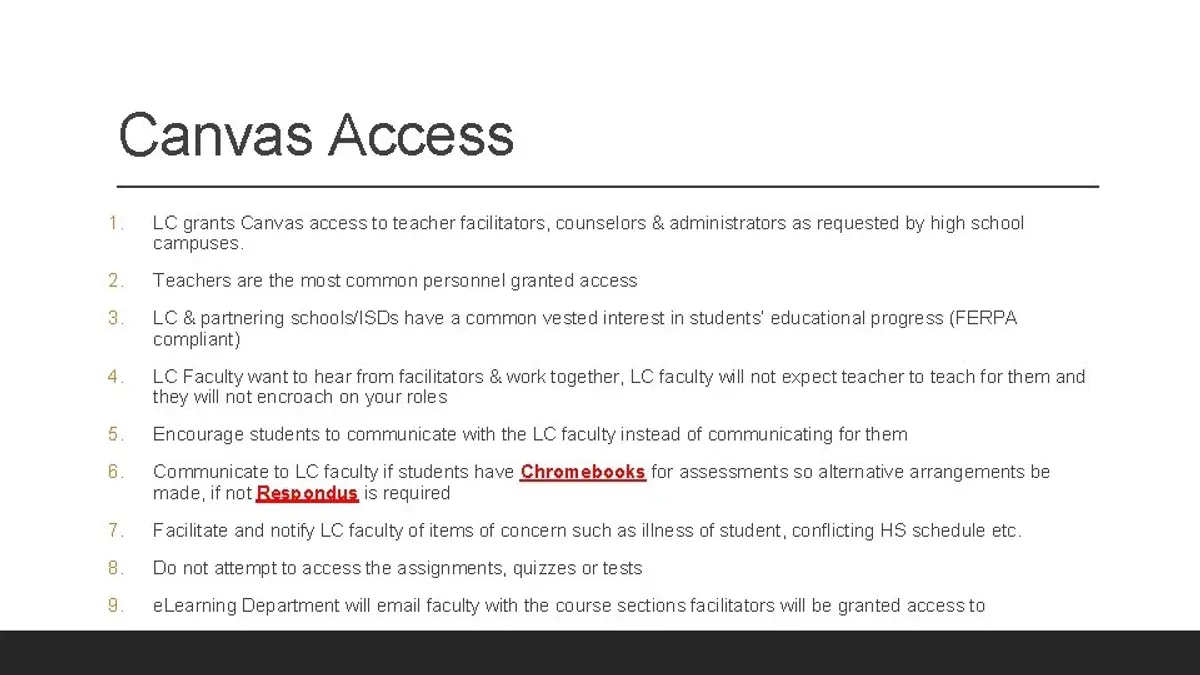
However, co-teachers cannot delete the course or permanently remove other teachers. Only the primary teacher or an admin has those rights. For instance, a co-teacher won’t be able to delete a course shell even if they have full editing access to its contents.
Compare this to a Teaching Assistant (TA) role: TAs can grade and participate in discussions but usually cannot edit course structure or add new content. Below is a table summarizing key permissions:
| Permission | Primary Teacher | Co-Teacher | TA |
|---|---|---|---|
| Edit Content (pages, modules) | Yes | Yes | No |
| Grade Assignments | Yes | Yes | Yes |
| Send Messages to Students | Yes | Yes | Limited |
| Delete Course | Yes | No | No |
| Add/Remove Teachers | Yes | No | No |
Think of co-teacher access as sharing your full toolbox except the master key. They can build, grade, and communicate freely but cannot erase the whole workshop or change the team roster. This clarity prevents accidental loss of course structure or confusion over roles.
What Are the Best Practices for Using Co-Teacher Access in Your Classroom?
Coordinate closely with your co-teacher on assignments, grading, and announcements to prevent overlap. For example, decide that you will post weekly announcements on Mondays while your co-teacher handles grading quizzes every Friday. Use Canvas Inbox messages or assignment comments to confirm updates and clarify questions immediately.
Set clear boundaries and expectations upfront. Agree on who manages which modules or topics, and document this in a shared Google Doc or Canvas page. This avoids confusion, such as accidentally duplicating feedback or missing deadlines.
Leverage Canvas tools to stay synced. Use the "Comments" feature on assignments to leave notes for your co-teacher, and the Canvas Inbox for quick communication. For instance, after grading, leave a comment like "Grades posted; please review before publishing." Regular check-ins, even brief ones, keep both of you aligned.
Example weekly task division:
- You create and publish Monday announcements.
- Your co-teacher grades Friday quizzes and updates gradebook.
- You handle discussion moderation midweek.
- Co-teacher reviews assignment submissions Thursdays.
Sample message template: "Hi [Name], I just uploaded the latest quiz grades. Please review and let me know if you see any issues. Thanks!"
What Common Mistakes Should You Avoid When Using Co-Teacher Access?
One frequent error is inviting co-teachers before confirming they have an active Canvas account. Without this, the invitation link will go unused, delaying collaboration. For example, a teacher once invited a co-teacher who hadn’t logged into Canvas before; the invite expired unaccepted, causing confusion and missed deadlines.
Another pitfall is failing to clearly communicate each co-teacher’s responsibilities. Without defined roles, tasks overlap or get ignored, leading to frustration. For instance, if both think the other will grade assignments, grading can get delayed.
Many users wrongly assume all Canvas features behave identically for co-teachers. Some functions, like removing teachers or deleting the course, remain restricted. Expecting full parity can lead to wasted time troubleshooting non-issues.
Support teams report these three issues as common sources of help requests: inactive or missing Canvas accounts, unclear role distribution, and misunderstandings about permission limits.
- Confirm co-teachers have active Canvas accounts before inviting
- Define and communicate specific roles and tasks clearly
- Understand which features co-teachers can and cannot access
- Regularly review access status to avoid expired or unaccepted invites
How Can You Check and Adjust Co-Teacher Access Over Time?
Regularly reviewing co-teacher access ensures your course stays secure and collaboration effective. Start by navigating to your Canvas course, then click Settings on the left menu. Select the Users tab to see all enrolled participants and their roles. This view shows current co-teachers and their permissions side-by-side.
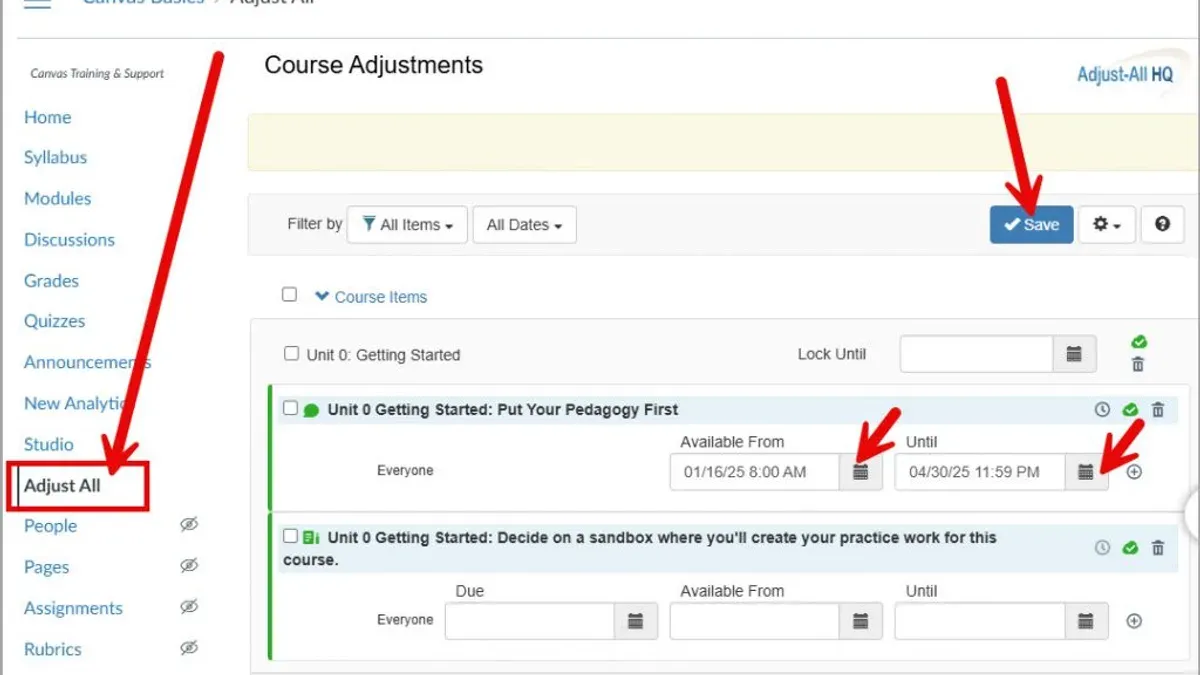
If course responsibilities shift, adjust access accordingly. To remove or modify a co-teacher, click the three-dot menu next to their name, then choose Remove From Course or Edit Role. Always confirm changes by checking the updated user list to avoid accidental access loss.
For example, at mid-course, you might remove a co-teacher who supported initial grading but is no longer involved. Alternatively, if a new aide joins, add them with the Teacher role following the earlier process. Conduct these audits at course start and midpoint to keep roles aligned with current teaching needs.
- Go to Settings > Users to review co-teachers
- Use the action menu beside each name to remove or edit roles
- Verify changes immediately by rechecking the user list
- Perform access audits at course start and midterm for accuracy
Frequently asked questions
Can a co-teacher grade assignments and give feedback?
Yes, co-teachers can grade assignments and provide feedback just like the primary teacher. They have access to SpeedGrader and can enter grades, leave comments, and attach files. This helps share the workload and ensures students get timely responses.
What if my co-teacher doesn’t have a Canvas account yet?
Your co-teacher must have a Canvas account to be added to your course. If they don’t have one, they need to sign up through your institution’s Canvas portal or be invited by your Canvas administrator. Without an account, you cannot grant them co-teacher access.
Can co-teachers send announcements to students?
Co-teachers have permission to create and send announcements in the course. They can post updates, reminders, or important information that appears on the course home page and is emailed to students if notifications are enabled.
How do I remove a co-teacher if they no longer assist my class?
To remove a co-teacher, go to People in your course menu, find the co-teacher’s name, click the three-dot Options menu, and select Remove From Course. Confirm the removal to revoke their access immediately.
Quick checklist
- Go to your course Settings and select the "Sections" tab to add co-teachers by email or Canvas ID.
- Confirm the co-teacher’s enrollment status appears as "Teacher" in the People page.
- Review and adjust module editing permissions under Settings > Course Details > Check "Let students see course content before they are officially enrolled" is off to avoid confusion.
- Use clear communication with co-teachers about who handles specific tasks like grading or announcements.
- Regularly check the People page to verify co-teacher roles remain correct throughout the term.
What this checklist does not cover
This checklist assumes use of Canvas’s standard interface and does not cover institution-specific customizations or integrations which may affect co-teacher access. If your school uses third-party tools or custom roles, consult your institution’s IT or Canvas support team for tailored instructions. This guide also does not cover how to manage co-teacher access in cross-listed or combined courses where permissions may differ.
Your next step is to log into Canvas and walk through adding a co-teacher following the checklist above. Doing so once will make the process clear and help you confidently collaborate on course management without waiting for tech support.
See also: Canvas Announcements Checklist for Teachers with Low Tech Confidence · Canvas Assignment Setup Checklist for Elementary Teachers