How to Leave Clear, Effective Feedback on Student Work in Brightspace
This guide explains how to leave clear, effective feedback on student work in Brightspace using text, rubrics, and multimedia tools.

Short answer: To leave clear, effective feedback on student work in Brightspace, access the assignment submission through the Grades or Assignments tool, then use the inline annotation tools, rubric scoring, or audio/video feedback options. Tailor your feedback to the assignment type and student needs for maximum impact.
This article explains how to leave feedback on student work in Brightspace step-by-step. You’ll learn what to prepare before starting, how to navigate to student submissions, and the best ways to provide written, rubric-based, and multimedia feedback. The guide also covers common problems and practical fixes to ensure your feedback is both actionable and easy for students to understand.
What do you need before you start leaving feedback?
Before leaving feedback, confirm you have instructor access to the Brightspace course and the assignment tool. Without this, you cannot view or comment on student submissions. Next, verify that student submissions are available and properly submitted; check the assignment submission folder for completed work.
Decide on the feedback format you will provide. Text comments are straightforward and suitable for brief notes or overall impressions. Audio or video feedback adds personal tone and clarity but requires additional setup. Annotations work best for detailed, line-by-line comments on document-based assignments. Rubrics provide structured, consistent feedback linked to grading criteria.
Check if rubrics are created and attached to the assignment. If not, prepare or request rubrics to ensure feedback is aligned with learning goals. Have a clear strategy that matches your grading criteria and supports student improvement.
- Confirm you have instructor access: Access the course and locate the assignment tool; you should see options to view submissions.
- Check student submissions: Open the assignment folder; submissions should appear with timestamps and student names.
- Choose your feedback type: Decide between text, audio/video, annotations, or rubric-based comments based on assignment needs.
- Verify rubrics: Access the assignment’s rubric settings; ensure a rubric is linked or create one as needed.
- Outline your feedback strategy: Align feedback methods with grading criteria and learning objectives for consistent assessment.
How do you access submitted student work in Brightspace?
Start by logging into your course in Brightspace. Locate the Assignments tool from the course navigation bar. This opens a list of all assignments you have set up for the course. Find and click the assignment for which you want to review submissions.
Once inside the assignment, select the Submitted tab to see all current student submissions. This tab lists students who have turned in work along with submission dates and statuses. From here, click on an individual student’s submission to open it for review. The submission will display the student’s uploaded files or text entries, ready for your feedback.
Ensure you can clearly see the submission content before proceeding with comments or grading. This step is essential to provide targeted, meaningful feedback. The interface will show navigation breadcrumbs and submission details, helping you confirm you are reviewing the correct work.
- Log in and open your course in Brightspace; verify you see the course navigation bar.
- Click Assignments in the navigation; confirm the list of assignments appears.
- Select the relevant assignment from the list; you should see assignment details and tabs.
- Click the Submitted tab; a list of student submissions appears.
- Click on a student’s name or submission; the submitted work opens for review.
How do you leave written feedback on submitted assignments?
Begin by opening the submission viewer in Brightspace. Use the Feedback or Annotations panel to add comments directly on the student’s work. Highlight specific text or sections where you want to provide targeted feedback; a comment box will appear for your notes. This inline feedback helps students see exactly what needs improvement or praise.
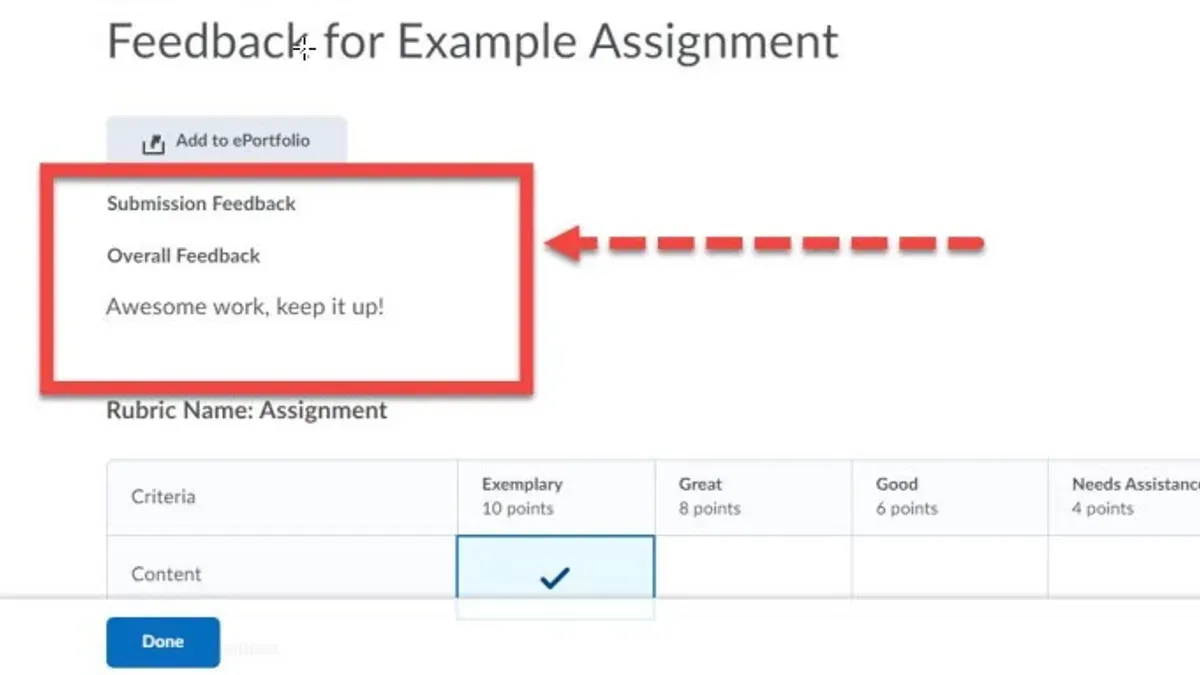
After annotating, scroll down to the designated Overall Feedback box. Here, write a concise summary that addresses the assignment as a whole. Use bullet points or numbered lists to organize your remarks clearly and improve readability.
If you have an associated rubric, link your comments to specific criteria to increase transparency. This connection clarifies how feedback relates to grading standards and learning objectives.
- Open the submission in Brightspace; the submission viewer appears.
- Highlight text to activate the annotation box; add a specific comment; the comment saves automatically.
- Scroll to the Overall Feedback box; enter a structured summary with bullet points or numbers; save your feedback.
- Review rubric criteria and connect comments where relevant; ensure clarity on performance levels.
Inline annotations provide precise guidance on particular errors or strengths, while summary feedback offers a broader perspective. Combining both methods enhances student understanding and supports targeted improvement.
How do you use rubrics to provide structured feedback?
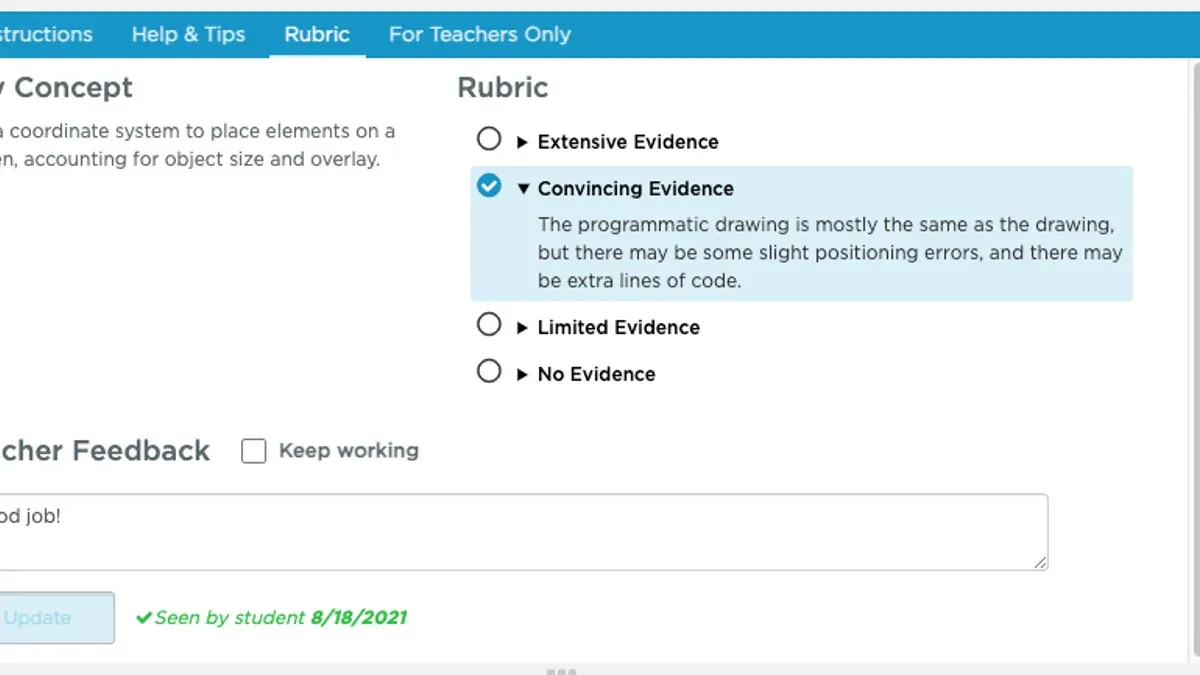
Open the rubric panel linked to the assignment by clicking the "Rubric" button within the submission viewer. This reveals the predefined criteria, each with performance levels and point values. Score each criterion by selecting the level that matches the student’s work; the total updates automatically. For each criterion, add specific comments to explain the score and suggest improvements, guiding students clearly on what to focus on next. After scoring all criteria, provide an overall rubric score and summarize general feedback in the designated text box. Brightspace allows you to export rubric feedback as a CSV or PDF, which is useful for record-keeping or sharing with students and colleagues. Using rubrics consistently helps maintain objectivity and improves student clarity on expectations and outcomes.
- Open the submitted assignment and click the "Rubric" button. You should see the full rubric with criteria and performance levels.
- Select the appropriate performance level for each criterion. The total score updates in real time.
- Add comments under each criterion to explain scores and offer actionable advice.
- Enter overall feedback in the summary box below the rubric.
- Export the rubric feedback via the "Export" option to save or share records.
How can you record and attach audio or video feedback?
First, verify whether your institution’s Brightspace setup includes multimedia feedback options. Not all configurations support audio or video recordings directly within the assignment feedback area. If available, find the multimedia feedback button in the submission evaluation interface—usually labeled "Add Audio" or "Add Video." Click it to open the recording tool.
Keep your recordings concise and focused. Start by stating the student’s strengths clearly, for example: "Your thesis presents a strong argument, especially in paragraph three." Follow with specific improvement points: "Consider elaborating on your sources to strengthen evidence." This approach personalizes feedback and often increases student engagement compared to text alone.
Once recorded, attach the audio or video file directly to the student’s submission through the feedback interface. Make sure the file uploads completely and preview it to confirm playback works without issues. Use multimedia feedback selectively—reserve it for assignments needing detailed explanation or when you want to build rapport with the student.
- Check if multimedia feedback is enabled in the submission evaluation screen; you should see "Add Audio" or "Add Video" buttons.
- Click the desired button to launch the recording tool; a recording interface should appear.
- Record a brief, clear message highlighting strengths and areas for improvement; end and save the recording.
- Confirm the recording attaches to the submission feedback area; preview to verify playback.
- Submit feedback to ensure the recording is saved and accessible to the student.
What common issues might you face when leaving feedback and how do you fix them?
If a student’s submission is not visible, first verify the assignment settings. Ensure the submission deadline has not passed and that late submissions are allowed if applicable. Check if the assignment is published and available to students.
When annotations don’t save, clear your browser cache or switch to a supported browser like Chrome or Firefox. This often resolves temporary glitches. If the problem persists, try reopening the submission to see if changes appear.
If the rubric fails to load, confirm it is correctly linked to the assignment and that you have editing permissions. Sometimes rubrics become unlinked during updates or imports.
Multimedia feedback tools require administrator activation. If unavailable, contact your Brightspace admin to verify that audio/video feedback features are enabled for your course.
Students unable to view feedback usually face release or visibility setting issues. Check the assignment’s feedback release settings under the Grades or Assignments tool to ensure feedback is published and visible to students.
- Check assignment settings and confirm submission deadlines. You should see the assignment published and submissions accessible.
- Clear browser cache or switch browsers. Annotation edits should save and reappear upon reopening.
- Verify rubric linkage and permissions. The rubric should load properly with all criteria displayed.
- Confirm multimedia feedback tool activation with admin. Audio/video options should be visible in feedback tools.
- Review feedback release and visibility settings. Students should access their feedback without restrictions.
Frequently asked questions
Can I edit feedback after releasing it to students?
Yes, you can edit feedback after it has been released. Navigate to the submission folder, select the specific assignment, and open the student's submission. Use the Feedback panel to update your comments or rubric scores. After saving changes, students will see the updated feedback unless notifications are disabled.
How do I ensure students receive notifications about new feedback?
Students receive notifications if they have enabled email or Brightspace alerts in their account settings. As an instructor, verify that the assignment's release conditions allow feedback visibility and that the grade item is published. Remind students to check their Notification Preferences under their profile to ensure feedback alerts are active.
What formats of student work can I annotate directly in Brightspace?
Brightspace supports direct annotation on common document types such as PDF, DOC, DOCX, PPT, PPTX, and TXT files. You can highlight text, add comments, and draw on these files within the platform. Other formats like images or videos require external tools or separate feedback methods.
Is it possible to reuse feedback comments across multiple students?
Yes, you can reuse feedback comments by creating a comment library within the Brightspace Assignments tool. Save frequently used comments during annotation, then insert them into other students' submissions. This speeds up grading while maintaining consistency in your feedback.
Quick checklist
- Gather assignment details and grading criteria before starting feedback.
- Access submissions via Course Tools > Assignments > Select Assignment > View Submissions.
- Use the Brightspace inline feedback editor for clear, concise written notes.
- Apply rubrics from the grading interface to provide structured, consistent feedback.
- Record audio or video feedback using the Insert Stuff tool within the feedback editor.
- Verify feedback visibility by previewing as a student or checking release conditions.
- Troubleshoot by refreshing the page, clearing cache, or contacting support if feedback doesn’t save.
This advice does not cover advanced grading integrations or offline workflows
This guide does not cover advanced third-party grading integrations or offline grading workflows that some institutions may use alongside Brightspace. If your institution relies on external tools or paper-based grading combined with Brightspace, consult your local support or instructional design team for specific processes.
Focus your feedback strategy on Brightspace’s native tools to maximize clarity and efficiency within the platform’s environment.
Start by consistently using the rubric tool to align feedback with assignment expectations. This ensures transparency and helps students understand their strengths and areas for improvement immediately.
See also: How to Grade Student Work in Brightspace: A Clear Step-by-Step Guide · How to Handle Plagiarism Concerns in Brightspace Step-by-Step · How to Assign Work to Small Groups in Brightspace: A Step-by-Step Guide