How to Install PHP on Mac: A Clear Step-by-Step Guide
Discover clear, step-by-step instructions to install PHP on your Mac for seamless development and testing.

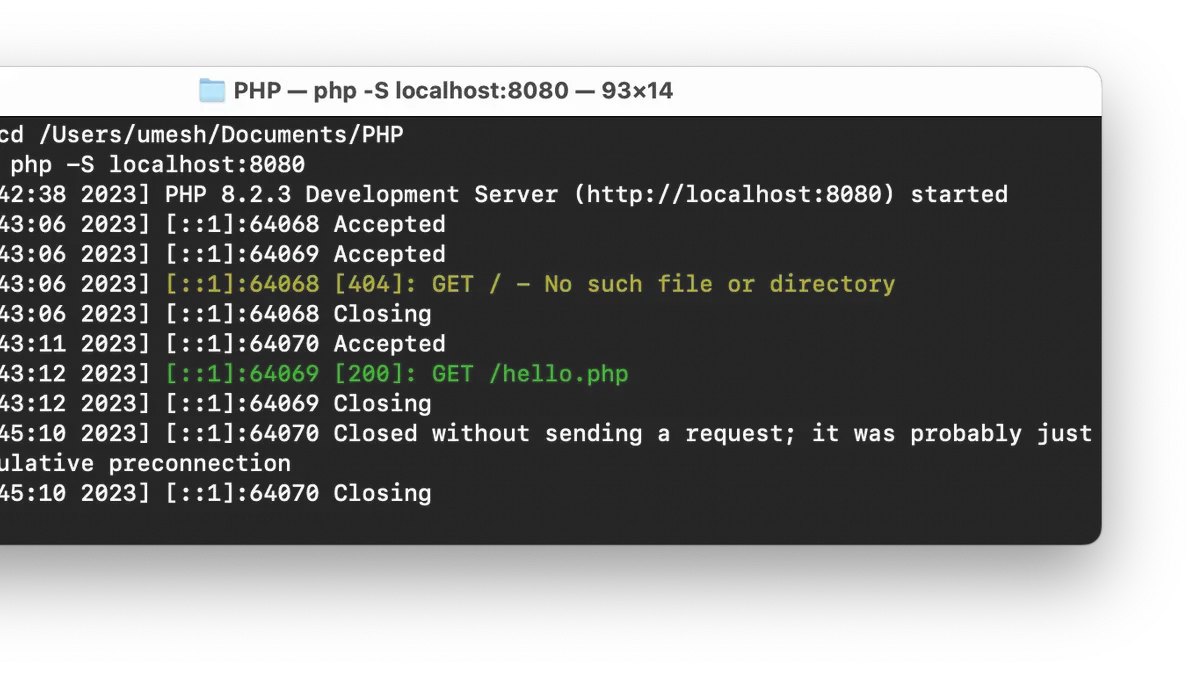
You want to develop or test PHP applications on your Mac, but the built-in tools don’t always meet your needs. Knowing how to install PHP on Mac correctly can save you hours of troubleshooting and ensure compatibility with your projects.
This article guides you through installing PHP with and without Homebrew, explains relevant Terminal commands, and clarifies common misunderstandings about macOS pre-installed PHP versions. Whether you use a MacBook, MacBook Pro, or run recent macOS releases like Monterey, you’ll find the right method tailored to your environment.
Key takeaways
- macOS may include older PHP versions but they are often deprecated or removed in recent updates.
- Homebrew offers a streamlined, maintainable way to install and manage PHP versions.
- Manual installation gives you more control but requires handling dependencies and configuration yourself.
- Terminal commands allow quick verification and switching between PHP versions.
- Choose the method that fits your macOS version and development workflow for best results.
Before you start: What you need to install PHP on Mac
Before installing PHP on your Mac, verify your macOS version by clicking the Apple menu and selecting "About This Mac." This helps ensure compatibility with PHP versions and installation tools. macOS sometimes includes a pre-installed PHP version, but it is often outdated. For example, macOS may come with PHP 7.x while the latest stable release is PHP 8.2 or higher, so updating is recommended to benefit from improved performance and security.
You will need familiarity with the Terminal app, where you will enter commands for installation and configuration. Basic command line skills like navigating directories and running simple commands will be helpful.
Installing PHP typically requires Apple's Command Line Tools, which include compilers and utilities necessary for building software. These tools can be installed separately or come bundled with Xcode, Apple's development environment.
Optionally, you can use Homebrew, a popular package manager for macOS, to simplify PHP installation and management. Homebrew handles dependencies and updates automatically but requires an initial setup.
- Open Terminal from Applications > Utilities. You should see a prompt indicating you are ready to type commands.
- Check your PHP version by typing php -v and pressing Enter. If PHP is installed, the version number will display; otherwise, an error or no output means PHP is not currently accessible.
- Check for Command Line Tools by typing xcode-select --version. A version number confirms they are installed; if not, macOS will prompt you to install them.
- If you plan to use Homebrew, type brew --version. If Homebrew is not installed, visit https://brew.sh for installation instructions.
By completing these steps, you prepare your Mac environment for a smooth PHP installation, ensuring you understand your current setup and have the necessary tools.
How to install PHP on Mac with Homebrew
Homebrew is the most popular package manager for macOS and provides a straightforward way to install PHP. If you don’t have Homebrew installed, you’ll need to install it first.
- Open Terminal and install Homebrew by entering:
/bin/bash -c "$(curl -fsSL https://raw.githubusercontent.com/Homebrew/install/HEAD/install.sh)"
You should see a series of messages indicating Homebrew is downloading and installing. When finished, the prompt returns without error. - Install PHP by running:
brew install php
This command downloads the latest stable PHP version along with its dependencies and sets it up on your Mac. - Ensure your shell prioritizes Homebrew’s PHP by checking your PATH:
echo $PATH
If/usr/local/binor/opt/homebrew/bin(for Apple Silicon Macs) is not before/usr/bin, you need to update your shell configuration file (~/.zshrc or ~/.bash_profile) to include:export PATH="/usr/local/bin:$PATH"
orexport PATH="/opt/homebrew/bin:$PATH"
Save the file and runsource ~/.zshrc(or the appropriate file) to apply changes. - Confirm again PHP is using the Homebrew version:
which php
The output should be/usr/local/bin/phpor/opt/homebrew/bin/php, indicating Homebrew’s PHP is active.
Verify the installation and check the PHP version:php -v
Expected output starts with the PHP version number, for example:
PHP 8.2.1 (cli) (built: Feb 10 2026 10:00:00) ( NTS )
This method keeps your PHP installation up-to-date and isolated from the macOS system version, reducing conflicts and easing upgrades.
How to install PHP on Mac without Homebrew
If you prefer not to use Homebrew or face restrictions on installing it, you can install PHP on your Mac by compiling it from source. This approach requires manual dependency management and configuration but gives you full control over your PHP setup.
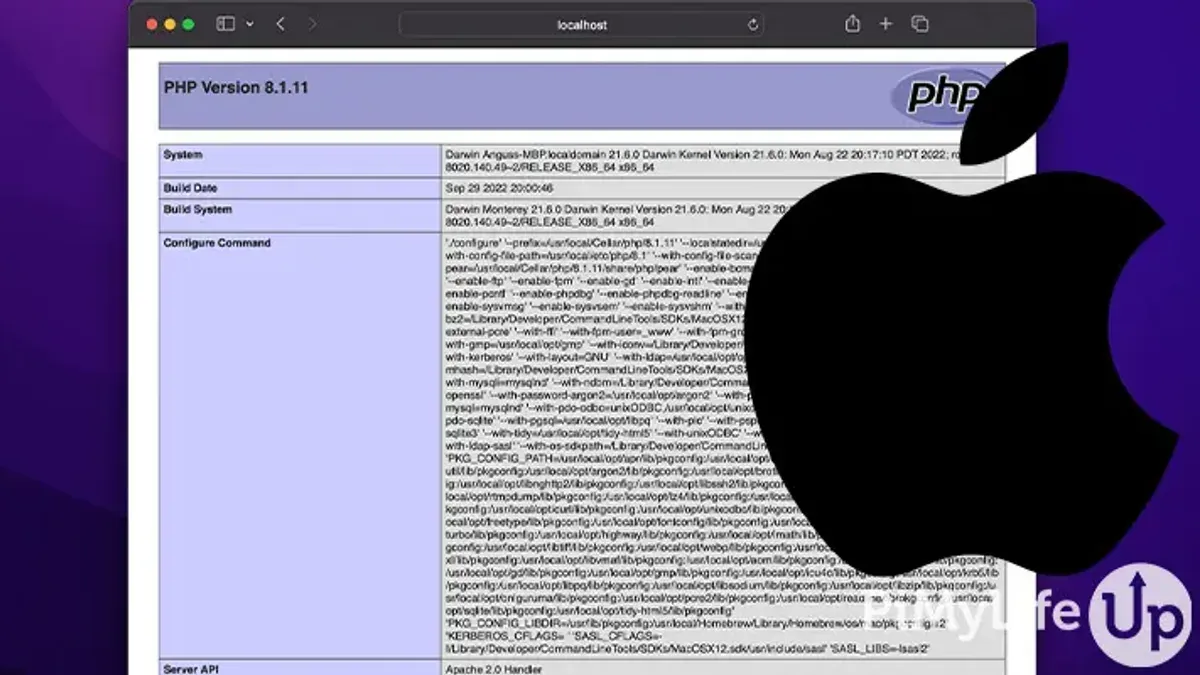
- Download the PHP source code: Visit the official PHP downloads page at php.net/downloads and download the latest stable source tarball (e.g., php-8.x.x.tar.gz).
Success means you have the source archive file in your Downloads folder or chosen directory. - Install necessary dependencies: Manually install required libraries like OpenSSL, libxml2, and others by downloading their source or precompiled binaries from official sites, then installing them according to their instructions.
Ensure these libraries are installed and their include and lib paths are known for configuration. - Extract the PHP source: Open Terminal, navigate to the directory with the tarball, and run
tar -xzvf php-8.x.x.tar.gz.
The source files should extract into a new folder named php-8.x.x. - Configure the build: Change into the extracted folder and run
./configure --with-openssl=/usr/local/opt/openssl --with-libxml-dir=/usr/local/opt/libxml2(adjust paths if your libraries are in different locations).
The output should show a summary of enabled features and no errors about missing dependencies. - Compile PHP: Run
maketo compile the source. This process may take several minutes.
Look for any compilation errors; success ends with messages like "Build complete." - Install PHP: Use
sudo make installto install PHP binaries system-wide.
Successful installation typically ends with "Installing shared extensions" and no permission errors. - Verify the installation: Run
php -vin Terminal.
You should see the new PHP version and build details confirming your installation. - Configure PHP: Edit the
php.inifile, usually located in/usr/local/lib/php.inior created by copyingphp.ini-development, to adjust settings like error reporting or extensions as needed.
This manual method requires more initial setup than Homebrew but provides flexibility and independence from package managers.
How to install PHP on Mac using Terminal commands
Using Terminal commands gives you precise control over PHP installation and management on your Mac, whether you use Homebrew or manual methods.
- Check your current PHP version: Open Terminal and type
php -v. You should see output like PHP 8.1.0 (cli) indicating the installed version. - Install or update PHP via Homebrew: If you choose Homebrew, run
brew install phpto install, orbrew upgrade phpto update. Successful installation shows messages ending with [email protected] installed and you can verify withphp -v. - Navigate common Terminal errors: If commands return errors such as command not found, ensure Homebrew and Command Line Tools are installed. For permission issues, prepend commands with
sudoand enter your password when prompted. - Configure PHP extensions: Use Terminal to enable extensions by editing the
php.inifile, typically found at/usr/local/etc/php/8.x/php.inifor Homebrew installations. For example, to enableextension=mbstring, open the file withnano /usr/local/etc/php/8.x/php.ini, uncomment or add the line, then save and exit.
These steps illustrate how Terminal commands are integral for installing, updating, troubleshooting, and configuring PHP on Mac, providing flexibility whether you rely on Homebrew or manual installation.
How to install PHP on MacBook and MacBook Pro
Installing PHP on MacBook and MacBook Pro follows the same steps as on other Mac models, with no hardware-specific differences in the process. However, there are a few laptop-related considerations to keep in mind to ensure a smooth installation, especially when compiling PHP from source.
Compiling PHP manually can be resource-intensive and may take longer on MacBooks compared to desktops, depending on your model's CPU and available RAM. Battery consumption will also be higher during this process, so it's best to keep your MacBook plugged in to avoid interruptions.
MacBook Air models with lower thermal capacity might experience thermal throttling during prolonged compilation, which can extend installation time. MacBook Pro models generally handle this workload better due to improved cooling.
To optimize the installation experience on your MacBook or MacBook Pro, follow these steps:
- Connect your MacBook to a power source. This prevents unexpected shutdowns and ensures maximum performance during installation.
- Close unnecessary applications to free up CPU and memory resources, which helps speed up the compilation or installation process.
- Open Terminal and proceed with your chosen installation method (Homebrew or manual). You should see command outputs progressing without errors.
- Once installation completes, verify PHP is installed by running php -v in Terminal. You should see the installed PHP version information.
- If compiling manually, monitor your MacBook’s temperature and fan activity to ensure it is not overheating excessively during the build.
By managing power and system resources thoughtfully, you can install PHP on your MacBook or MacBook Pro efficiently without hardware-related issues.
How to install PHP on macOS Monterey and other recent versions
macOS Monterey and later versions no longer include PHP pre-installed, unlike earlier macOS releases. When you check PHP’s version by running php -v in Terminal, you typically see an error like command not found, indicating no system PHP is available by default.
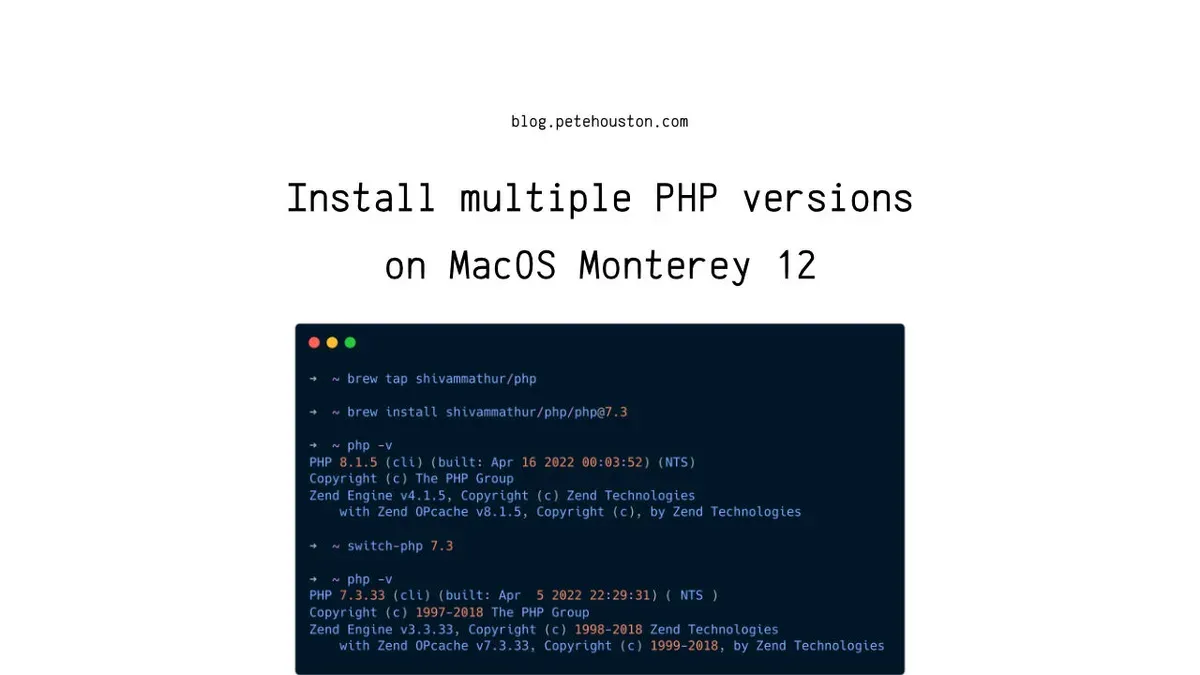
System Integrity Protection (SIP) is a security feature enabled by default on Monterey and newer macOS versions. SIP restricts modifications to certain system directories, including those where system binaries reside, preventing you from overwriting or adding PHP binaries in those protected locations.
This means installing or updating PHP directly within system folders is blocked, making Homebrew or manual installations in user-space directories the recommended approach. Homebrew installs PHP under /usr/local or /opt/homebrew depending on your Mac’s architecture, which is outside SIP protection.
To verify SIP status, run csrutil status in Terminal. You should see System Integrity Protection status: enabled. Disabling SIP is possible via Recovery Mode but is not recommended due to security risks.
Compatibility of PHP versions with Monterey and later is generally excellent, but note that some older PHP extensions may require updates or recompilation for full compatibility.
- Open Terminal and run php -v. You should see command not found, confirming no pre-installed PHP.
- Check SIP status by typing csrutil status. The output should read System Integrity Protection status: enabled.
- Choose your preferred method: Homebrew installation or manual compilation in user directories to avoid SIP restrictions.
- After installation, verify PHP is accessible by running php -v again. The terminal should display the installed PHP version information.
Troubleshooting common PHP installation issues on Mac
Several common issues can arise during PHP installation on Mac. Addressing PATH conflicts, missing dependencies, permission errors, and Apache configuration problems will help ensure a smooth setup.
Fixing PATH issues where Terminal uses the wrong PHP version
If typing php -v returns a different version than expected, your PATH might prioritize the system PHP. To fix this:
- Open Terminal and run
echo $PATH. Verify that the directory for your installed PHP (e.g.,/usr/local/binfor Homebrew) appears before/usr/bin. - If not, add the correct path by editing your shell profile (
~/.zshrcor~/.bash_profile) withexport PATH=/usr/local/bin:$PATH. - Save the file and reload it with
source ~/.zshrcorsource ~/.bash_profile. - Run
php -vagain to confirm the change.
Successful adjustment shows your chosen PHP version displayed.
Resolving missing dependencies or permissions errors
Errors like "configure: error: missing libxml2" or "Permission denied" typically occur during manual installation.
- Install missing libraries via Homebrew or manually: for example,
brew install libxml2. - Ensure you have proper permissions by running commands with
sudowhere necessary, especially for system directories. - Check if your user account has write access to the installation directory, adjusting permissions with
chmodorchownas needed.
Completion without errors indicates resolved dependency and permission issues.
Dealing with conflicts between macOS pre-installed PHP and custom installs
macOS may have an outdated PHP version in /usr/bin/php, which can conflict with your custom version.
- Confirm the PHP versions by running
/usr/bin/php -vandphp -v. - Prioritize your custom PHP in PATH as described above to avoid invoking the system PHP.
- For persistent conflicts, consider renaming or moving the system PHP binary (requires SIP disablement, generally not recommended).
When your custom PHP runs by default, the conflict is resolved.
Testing if Apache is correctly configured to use PHP
To verify Apache uses the correct PHP module:
- Create a file named
info.phpin your web root directory (commonly/Library/WebServer/Documentsor~/Sites). - Add the line
<?php phpinfo();?>inside this file. - Open your browser and navigate to
http://localhost/info.php. - If the PHP information page loads showing your PHP version and configuration, Apache is properly configured.
- If you see the raw PHP code or a 404 error, check your Apache configuration file (
/etc/apache2/httpd.conf) to ensure the PHP module is loaded and the web root is correctly set.
- How to Install Ruby with rbenv on Mac: A Step-by-Step Guide
- How to Install Node.js with NVM on Mac: A Clear Step-by-Step Guide
- How to Install Python on Mac: A Clear Step-by-Step Guide
- How to Install Rust on Mac: A Clear Step-by-Step Guide
Frequently asked questions
How to install php on mac terminal?
You can install PHP on Mac using Terminal by either leveraging Homebrew with the command brew install php or by downloading and compiling the source code manually. After installation, verify the version by running php -v. Remember to update your PATH if necessary to prioritize the newly installed PHP version.
How to install php on mac os?
Installing PHP on macOS involves choosing between Homebrew or manual installation. Homebrew simplifies the process with brew install php, while manual installation requires downloading PHP, configuring, compiling, and installing it. Ensure you check the macOS version compatibility and update your shell configuration to use the correct PHP binary.
How to install php on windows?
To install PHP on Windows, download the official PHP zip package from the PHP website, extract it to a desired folder, and configure the php.ini file as needed. You must also add the PHP folder to your system's PATH environment variable. Optionally, use installers like XAMPP or WampServer for an easier all-in-one setup including Apache and MySQL.
How to install PHP on Mac without Homebrew?
Installing PHP on Mac without Homebrew involves downloading the PHP source code from the official website, then using Terminal commands to configure, compile, and install it. This method requires developer tools like Xcode Command Line Tools and may take more time due to manual steps. You need to manage dependencies and update your PATH to use the installed PHP.
How to install PHP on Mac OS?
PHP on Mac OS can be installed either through Homebrew with brew install php or by manually downloading and compiling PHP. Since recent macOS versions may not include a usable PHP version by default, installing your own ensures you have the latest features and security updates. Always confirm your PATH points to the installed PHP binary to avoid conflicts.
What this guide does not cover and who should look elsewhere
This guide does not cover setting up full web development environments, such as combining PHP with Apache, Nginx, or databases like MySQL. It also excludes managing multiple PHP versions simultaneously with tools like phpenv or Docker containers. If you require running different PHP versions for different projects or need complex server configurations, consider using dedicated version managers or containerization solutions designed for those purposes.
The most useful next step after installing PHP is to verify the installation by running php -v in Terminal. This confirms the installed PHP version and ensures your system recognizes it correctly. From there, you can begin configuring PHP extensions or integrating PHP with your preferred web server based on your project needs.