How to Install Go on Mac: A Step-by-Step Guide for Developers
Step-by-step guide to install Go on Mac, covering Intel and Apple Silicon setups, installation methods, and troubleshooting tips.

You’ve just set up your Mac and want to start developing with Go, but the installation process isn’t straightforward. Depending on your Mac’s chipset—Intel or Apple Silicon—and your preferred workflow, the best installation method can vary.
This article explains how to install Go on Mac efficiently, comparing official packages, Homebrew, and terminal-based methods. It highlights practical commands with real output examples and guides you through common issues, ensuring you pick the right approach for your setup.
Key takeaways
- Choose the official Go package for simplicity and comprehensive setup on Intel and Apple Silicon Macs.
- Use Homebrew for easy version management and frequent updates.
- Apple Silicon Macs may require additional steps like Rosetta 2 or native ARM64 binaries.
- Terminal commands can streamline installation but require familiarity with shell operations.
- Common installation problems often relate to PATH settings and conflicting Go versions.
Before you start: What you need to install Go on Mac
To install Go on your Mac, you need to ensure your system meets specific requirements and that you have the necessary tools ready. The latest Go releases support macOS versions starting from macOS 10.15 Catalina and newer. If your Mac runs an older version, consider updating your system first.
Identifying your Mac’s chipset is crucial because installation methods can differ between Intel-based Macs and those with Apple Silicon (M1, M2). You can check your Mac’s architecture by opening Terminal and running uname -m. The output x86_64 indicates an Intel Mac, while arm64 means you have an Apple Silicon model.
Make sure you have access to the Terminal app, as most installation steps rely on command-line operations. Basic familiarity with Terminal commands will help you troubleshoot and customize the installation.
If you plan to use Homebrew for installation, verify that Homebrew is already installed. Run brew --version in Terminal. If Homebrew is installed, you will see its version number; if not, you will get a command-not-found message.
Finally, an active internet connection is necessary to download Go and any related packages regardless of the method you choose.
- Check macOS version: Click the Apple menu > About This Mac. Confirm your macOS is 10.15 or newer.
- Open Terminal and type uname -m. Interpret the output: x86_64 for Intel or arm64 for Apple Silicon.
- Confirm Terminal access by launching the Terminal app from Applications > Utilities.
- Check for Homebrew by typing brew --version. If you see a version number, Homebrew is installed.
- Ensure your Mac is connected to the internet to download installation files smoothly.
How to install Go on macOS using the official package
Installing Go using the official package from the Go website provides a straightforward and reliable method, ensuring you get the latest stable version optimized for macOS.
- Download the installer: Visit https://golang.org/dl/ and download the macOS package (a file ending with .pkg).
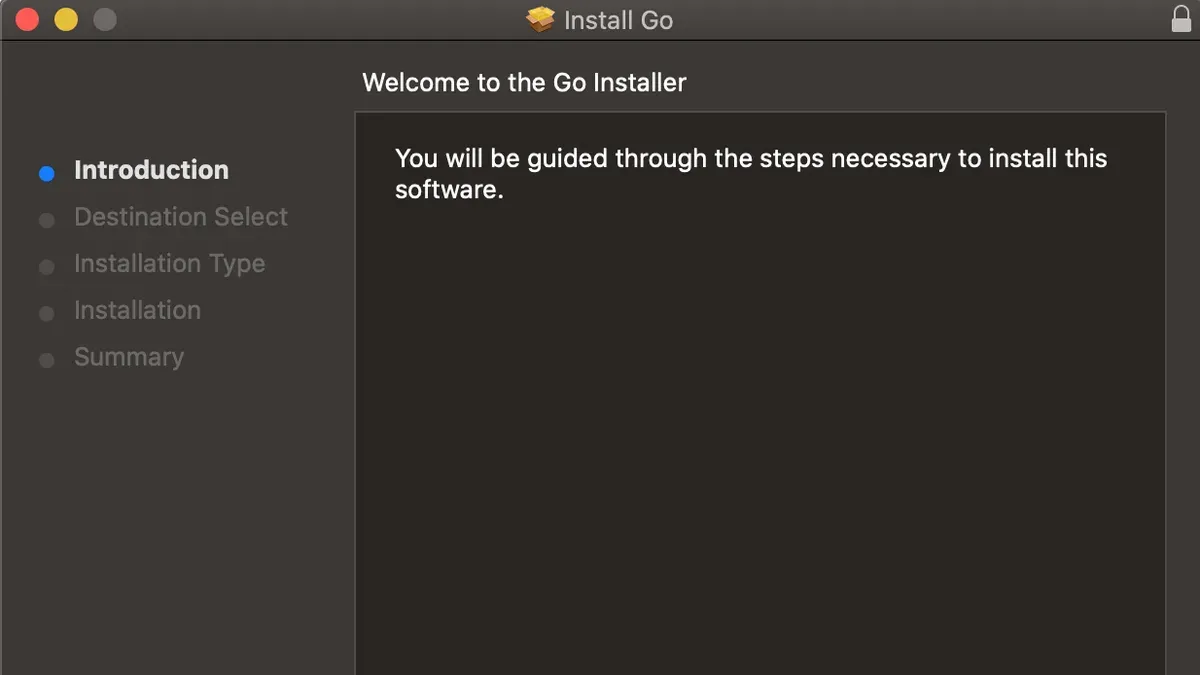
- Run the installer: Open the downloaded .pkg file. The installer will launch a guided setup. Click Continue on the introduction screen, review the license, then click Agree to accept it.
- Complete the installation: Choose the default installation location (usually /usr/local/go) and click Install. You may be prompted to enter your administrator password. Once finished, the installer will confirm success.
- Set environment variables if needed: By default, the Go installer sets
GOROOTinternally. You should setGOPATHto your workspace directory, typically$HOME/go. Add the following lines to your shell profile (e.g.,~/.zshrcor~/.bash_profile):export GOPATH=$HOME/go
export PATH=$PATH:$GOPATH/bin
Then reload your profile withsource ~/.zshrcor open a new Terminal window.
Verify the installation: Open Terminal and enter go version. A successful installation shows output similar to:
go version go1.21.0 darwin/amd64
This confirms Go is properly installed and recognized.
This method suits users who prefer a traditional installer with GUI prompts. It ensures a clean installation without relying on package managers, reducing potential conflicts.
How to install Go on Mac using Homebrew
Homebrew simplifies Go installation by handling dependencies and updates through macOS’s native package management system. It typically installs faster and uses less disk space than the official package, making it a preferred choice for many developers.
- Check if Homebrew is installed by running brew --version. If it’s missing, install it with /bin/bash -c "$(curl -fsSL https://raw.githubusercontent.com/Homebrew/install/HEAD/install.sh)". Successful installation will display Homebrew’s version.
- Install Go by typing brew install go. The terminal will show download progress and installation steps. When complete, the prompt returns without error messages.
- Verify the Go installation with go version. You should see the installed Go version, for example, go version go1.20.5 darwin/amd64, confirming the installation.
- To upgrade Go later, use brew upgrade go. Homebrew will fetch the latest version and update the installation seamlessly, avoiding manual downloads.
Compared to the official package, Homebrew’s Go installation generally takes less time and occupies less disk space because it reuses shared libraries and manages dependencies efficiently.
Homebrew also facilitates managing other development tools alongside Go, ensuring compatibility and streamlined updates across your macOS environment.
Example terminal output:
$ brew install go
Updating Homebrew...
==> Downloading https://formulae.brew.sh/api/formula.json
==> Installing go
🍺 /usr/local/Cellar/go/1.20.5: 379 files, 320MB
$ go version
go version go1.20.5 darwin/amd64
How to install Go on Mac M1 and other Apple Silicon Macs
Apple Silicon Macs use the ARM64 architecture, which differs from Intel-based Macs. To confirm your Mac’s architecture, open Terminal and run:
uname -mIf the output is arm64, you are on an Apple Silicon Mac. If it shows x86_64, your Mac is Intel-based or running via Rosetta 2.
- Download the ARM64 version of Go from the official Go downloads page to ensure native performance. Alternatively, use Homebrew configured for ARM by running
brew install goin Terminal; Homebrew automatically installs ARM-compatible packages on Apple Silicon Macs. - If you have software that requires Intel binaries, Rosetta 2 allows running Intel apps on Apple Silicon. To check if Rosetta 2 is installed, try running an Intel binary or check with
softwareupdate --install-rosetta. Installing Go through Rosetta is generally not recommended due to performance penalties. - After installation, verify Go’s architecture-specific setup by running
go env GOARCH. The output should be arm64 on Apple Silicon, confirming native ARM installation. - Run
go versionto ensure the Go toolchain is correctly installed and matches the ARM64 build.
Using the ARM64 version of Go on Apple Silicon Macs provides better performance and efficiency compared to running Intel versions via Rosetta 2. Ensuring architecture compatibility prevents subtle bugs and optimizes compile times.
How to install Go on Mac using the Terminal
Using the Terminal to install Go manually is ideal for advanced users or scripting automated setups. This method involves downloading the Go tarball, extracting it to a system directory, updating your PATH, and verifying the installation.
- Download the Go tarball. Use
curlorwgetto fetch the latest Go archive. For example, run:curl -O https://dl.google.com/go/go1.20.5.darwin-amd64.tar.gz
You should see the file downloaded without errors. - Extract the archive. Remove any previous Go installation to avoid conflicts:
sudo rm -rf /usr/local/go
Then extract the tarball to/usr/local:sudo tar -C /usr/local -xzf go1.20.5.darwin-amd64.tar.gz
No output means success. - Update your PATH environment variable. Add Go binary directory to your shell profile. For
zsh, edit~/.zshrcand add:export PATH=$PATH:/usr/local/go/bin
Forbash, edit~/.bash_profilesimilarly. Save and reload the profile:source ~/.zshrcorsource ~/.bash_profile - Verify the installation. Run:
go version
You should see output like:
go version go1.20.5 darwin/amd64
This confirms Go is correctly installed and accessible.
This terminal-only method provides flexibility for custom paths and automation but requires attention to permissions and profile configuration.
Common troubleshooting when installing Go on Mac
Encountering issues during Go installation on your Mac is not uncommon. Addressing problems like PATH misconfiguration, command recognition errors, permission denials, conflicts from previous installations, and environment variable missetup can streamline your setup process.
Fixing PATH environment variable issues
If running go version in Terminal returns command not found, your PATH variable likely doesn't include Go's binary directory.
- Check your PATH by running
echo $PATH. You should see/usr/local/go/binor the directory where Go is installed. - If missing, edit your shell profile file (
~/.zshrcfor Zsh or~/.bash_profilefor Bash) by addingexport PATH=$PATH:/usr/local/go/bin. - Save the file and reload the profile with
source ~/.zshrcorsource ~/.bash_profile. - Run
go versionagain to verify the command works.
Resolving 'go: command not found' errors
Besides PATH issues, this error can arise if Go isn't installed or the Terminal session hasn't refreshed. Confirm installation by checking /usr/local/go exists with ls /usr/local/go. If missing, reinstall Go.
Restart Terminal or open a new session to ensure environment changes take effect.
Dealing with permission problems during installation
Permission errors such as operation not permitted often occur when extracting Go to /usr/local. Use sudo to gain administrative rights:
- Run
sudo tar -C /usr/local -xzf go1.xx.x.darwin-amd64.tar.gzreplacing the filename appropriately. - Enter your Mac password when prompted.
Verify you can write to /usr/local/go by running ls -ld /usr/local/go. Ownership should typically be root with write permissions for administrators.
Handling conflicts with previous Go installations
Multiple Go versions can cause conflicts. Check for old installations using which go and go version. If pointing to unexpected locations, remove old Go directories or uninstall via Homebrew if applicable:
- Run
brew uninstall goif installed via Homebrew. - Manually delete old Go folders, e.g.,
sudo rm -rf /usr/local/go. - Confirm removal by running
which goagain; it should return empty or a new path after reinstallation.
Verifying Go workspace setup and environment variables
Incorrect GOPATH or GOROOT settings can cause build or package management issues. Check current settings with go env.
If GOPATH is unset, Go uses $HOME/go by default. To set or modify GOPATH:
- Add
export GOPATH=$HOME/goto your shell profile. - Reload the profile and verify with
go env GOPATH.
Ensure no conflicting GOROOT variable is set unless you have a custom Go installation location.
Following these steps should resolve most common installation hurdles and get you running Go smoothly on your Mac.
Understanding the difference between 'go get' and 'go install'
Both go get and go install are commands used to manage Go packages, but they serve distinct purposes, especially following the introduction of Go modules in 2018.
What 'go get' does
The go get command primarily manages dependencies for your module. It fetches packages and adds or updates them in your go.mod file, ensuring your project references the correct versions. It is commonly used during development to add or upgrade libraries your code depends on.
Example:
- Run
go get github.com/pkg/[email protected]. - The command downloads the specified version and updates
go.modaccordingly. - You will see output indicating the package was added, for example: go: added github.com/pkg/errors v0.9.1.
What 'go install' does
The go install command compiles and installs executable binaries from a given package. It is used to build and place binaries in your GOPATH/bin or module-aware install directory, making them readily runnable.
Since Go 1.17, go install can install a specific version of a binary without modifying go.mod, which is useful for installing tools globally.
Example:
- Run
go install github.com/golangci/golangci-lint/cmd/golangci-lint@latest. - The command compiles and installs the binary to
$(go env GOPATH)/bin. - Afterward, running
golangci-lint --versionwill display the installed version.
Key distinction: go get modifies your module dependencies, while go install focuses on building and installing executables, especially useful for tools.
Before Go modules, go get was also used to install binaries, but since module support, go install is the recommended way to install command-line tools without affecting your project dependencies.
- How to Install Java JDK 21 on Mac: A Step-by-Step Guide
- How to Install Node.js with NVM on Mac: A Clear Step-by-Step Guide
- How to Install Python on Mac: A Clear Step-by-Step Guide
- How to Install Python 3.13 with Pyenv on Mac: A Step-by-Step Guide
Frequently asked questions
How to install os on mac?
Installing macOS typically involves using the Mac App Store or the built-in Recovery mode. To reinstall or upgrade, restart your Mac and hold Command (⌘) + R to enter Recovery, then select "Reinstall macOS". Ensure your Mac is connected to the internet and has sufficient disk space before starting.
How to install go in mac?
To install Go on a Mac, you can download the official installer from the Go website or use Homebrew if it’s installed. After installation, verify by running go version in the Terminal. Choose the method that matches your Mac’s chipset and workflow for best results.
How to install macos?
Installing macOS is done through the Mac App Store or Recovery mode. Download the macOS installer from the App Store, then follow the prompts. For reinstalling, enter Recovery mode by restarting your Mac and holding Command (⌘) + R, then select "Reinstall macOS". Ensure your data is backed up before proceeding.
How to install go on windows?
On Windows, download the Go installer from the official Go website. Run the installer and follow the setup wizard. After installation, open Command Prompt or PowerShell and check the installation by typing go version. Adjust environment variables if needed.
How to install go on macbook?
Installing Go on a MacBook follows the same process as other Macs: use the official Go installer or Homebrew. For Apple Silicon MacBooks, ensure you download the ARM-compatible version or use Homebrew configured for Apple Silicon. Verify the installation in Terminal with go version.
What this guide does not cover and who should seek other resources
This guide does not cover setting up complex Go development environments or continuous integration pipelines, which require additional configuration beyond basic installation. If you plan to integrate Go into large-scale projects with automated build and deployment workflows, refer to specialized documentation or dedicated CI/CD tutorials.
Users unfamiliar with command line interfaces should proceed cautiously or seek additional beginner tutorials on using Terminal and environment variables before attempting installation. Misconfiguration can lead to path issues or conflicts with existing software.
The single most useful next step after installing Go is to verify your setup by running go version in the Terminal to confirm the installation and then create a simple Go file to compile and run. This practical check ensures your environment is correctly configured and helps you become comfortable with Go’s workflow.