How to Install Ruby with rbenv on Mac: A Step-by-Step Guide
This guide teaches you how to install Ruby with rbenv on Mac, manage versions, and configure your environment for smooth development.

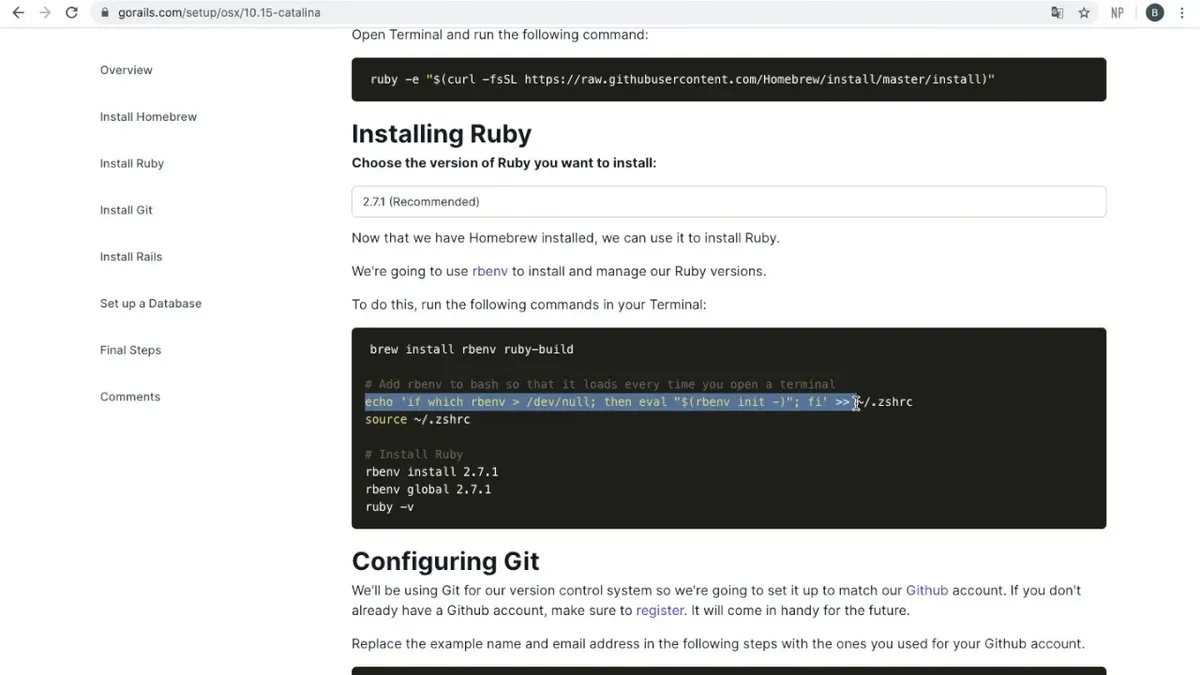
Managing Ruby versions on a Mac can quickly become confusing, especially when juggling system-installed Ruby and multiple project-specific versions. You might find that your system Ruby is outdated or that switching between versions disrupts your workflow.
This article explains how to install Ruby with rbenv on Mac, guiding you through setup, managing multiple Ruby versions, and avoiding common pitfalls. You will learn how to install rbenv, install and switch Ruby versions smoothly, and verify that your environment is correctly configured for development.
Key takeaways
- Install rbenv using Homebrew for straightforward management of Ruby versions.
- Set a global Ruby version with
rbenv globalto standardize your environment. - Update your shell configuration to ensure rbenv shims take priority over system Ruby.
- Verify Ruby version with
ruby -vafter installation to confirm success. - Address common issues like missing dependencies and PATH misconfiguration early.
Before you start: What you need to install Ruby with rbenv on Mac
Installing Ruby with rbenv on a Mac requires some preparation to avoid common issues. First, ensure your Mac is running macOS with the Command Line Tools installed. These tools include essential compilers and libraries needed for building Ruby versions.
You also need Homebrew, the popular package manager for macOS, to install rbenv and its dependencies. Make sure Homebrew is installed and updated to the latest version to prevent conflicts.
Basic familiarity with the terminal is necessary since rbenv setup involves running commands and modifying shell configuration files. Finally, a stable internet connection is required to download Ruby source files and packages.
- Check if Command Line Tools are installed by running gcc --version. You should see a version number; if not, install them with xcode-select --install.
- Verify Homebrew is installed by running brew --version. Expect to see a version number; if missing, install from https://brew.sh/.
- Update Homebrew by running brew update. Success shows updated formulas without errors.
- Confirm you can use the terminal to run commands like echo $SHELL to identify your shell environment (bash, zsh, etc.).
How to install rbenv on Mac
- Open your Terminal application on your Mac.
- Install rbenv and the ruby-build plugin using Homebrew by running:After installation, you should see messages confirming both packages were installed successfully.
- brew install rbenv ruby-build
- Configure your shell to initialize rbenv automatically:
- If you use bash, add the same line to your ~/.bash_profile.
- Reload your shell configuration by running source ~/.zshrc or source ~/.bash_profile, depending on your shell.
- Verify that rbenv is set up correctly by running:
- rbenv --version — this should output a version number like rbenv 1.2.0.
- type rbenv — this should output rbenv is a function, confirming the shell integration.
If you use zsh (default on recent macOS), add the following to your ~/.zshrc file:
eval "$(rbenv init -)"
Completing these steps ensures rbenv and ruby-build are installed and configured to manage Ruby versions efficiently on your Mac.
How to install Ruby versions and set a global default with rbenv
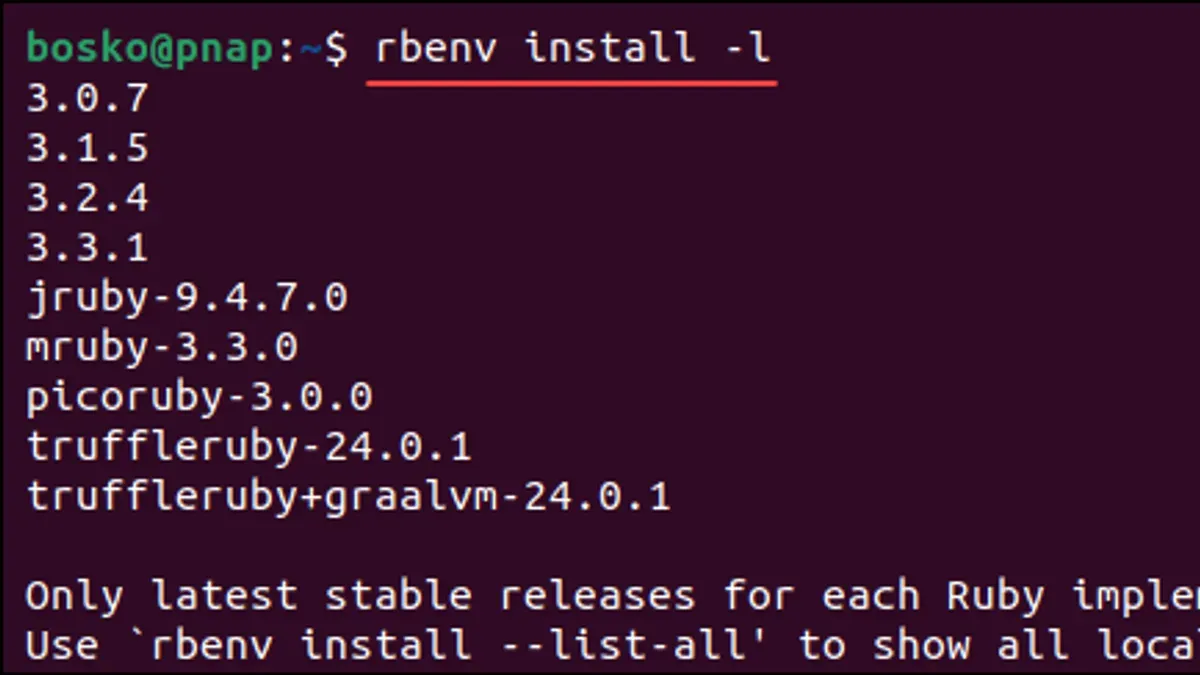
- List available Ruby versions by running rbenv install -l. You should see a list of Ruby versions, including stable releases like 3.2.2.
- Install a specific Ruby version, for example, 3.2.2, with rbenv install 3.2.2. The terminal will show progress and finish without errors if successful.
- Set the installed Ruby version as the global default using rbenv global 3.2.2. This ensures all terminal sessions use this Ruby version unless overridden.
- Verify the current Ruby version by running ruby -v. Before setting the global version, it might show the system Ruby, for example, ruby 2.6.3p62. After setting the global version, it should display ruby 3.2.2pXXX (the exact patch number may vary), confirming the switch.
How to upgrade Ruby version on Mac using rbenv
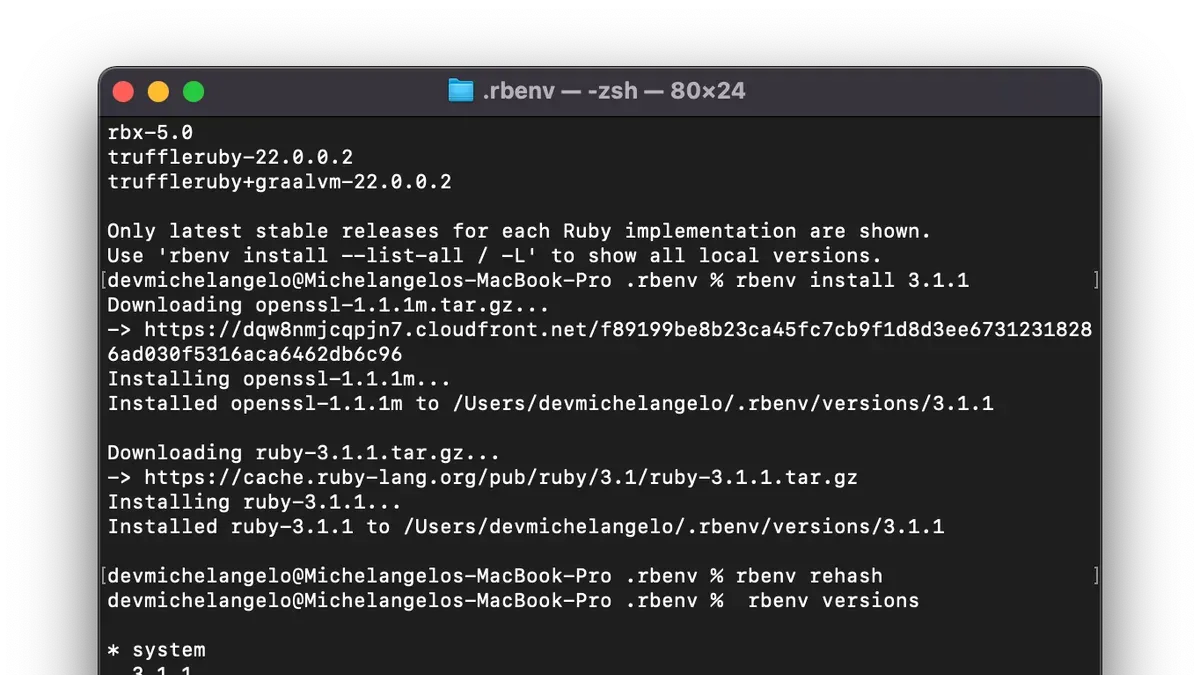
- Install the newer Ruby version by running
rbenv install <version>, replacing<version>with the desired Ruby release number (e.g., 3.1.2). Successful installation shows progress messages ending with Installed Ruby <version>. - Set the new Ruby version as the global default using
rbenv global <version>. You should see no error and rbenv will now use this version system-wide. - Alternatively, set the Ruby version locally for a project folder by navigating to the project directory and running
rbenv local <version>. This creates a.ruby-versionfile specifying the Ruby version for that directory. - Run
rbenv rehashto refresh rbenv’s shims. The output is typically empty but ensures that your shell recognizes new Ruby executables. - Verify the active Ruby version with
ruby -v. The output should reflect the version you just installed and set, confirming the upgrade.
This process lets you smoothly switch between Ruby versions globally or per project without conflict. Remember to always rehash after installing new versions to avoid command errors.
How to update Ruby version in Mac system environment safely
The macOS system Ruby is integral to the operating system, and directly upgrading or modifying it is discouraged because it can cause system instability or break macOS tools that depend on a specific Ruby version. Instead, using rbenv to manage Ruby versions allows you to isolate your development environment without affecting the system Ruby.
To keep system Ruby untouched and use a newer Ruby version, configure your shell PATH so that rbenv’s shims take precedence. This approach lets you switch Ruby versions safely without risking system integrity.
| Aspect | System Ruby | rbenv Ruby |
|---|---|---|
| Upgrade risk | High risk of breaking macOS tools | Safe, isolated environment |
| Version control | Fixed by system, hard to change | Flexible per project or global |
| System impact | Direct impact, can cause failures | No impact on system Ruby |
| Use case | macOS internal scripts and tools | Development and testing |
Follow these steps to safely use an updated Ruby version via rbenv without modifying system Ruby:
- Ensure rbenv is installed and initialized in your shell. You should see
rbenv versionoutput a version you installed, not the system Ruby. - Verify your
PATHprioritizes rbenv shims by runningecho $PATH. The path~/.rbenv/shimsshould come before/usr/bin. - If not set correctly, modify your shell profile (e.g.,
~/.zshrcor~/.bash_profile) to addexport PATH="$HOME/.rbenv/shims:$PATH", then reload your shell. - Install or set your desired Ruby version with rbenv (if not done), then run
rbenv rehash. - Check the active Ruby version with
ruby -v. It should reflect the rbenv-managed version, confirming system Ruby remains untouched.
Troubleshooting common rbenv installation issues on Mac
If you see rbenv: command not found after installation, your shell might not be properly configured. Run echo $PATH to check if ~/.rbenv/shims is included. If missing, add eval "$(rbenv init -)" to your shell profile and restart the terminal.
Ruby version installation failures often arise from missing dependencies like openssl or readline. Use Homebrew to install these with brew install openssl readline before retrying.
When ruby -v shows the system Ruby instead of the rbenv version, it usually indicates a PATH priority issue. Ensure that ~/.rbenv/shims appears before system paths in your environment by running which ruby; it should point to the rbenv shim.
Permission errors during installation can occur if Homebrew or Ruby directories are owned by root or another user. Fix this by correcting ownership with sudo chown -R $(whoami) $(brew --prefix)/* and rerun the installation.
- Check if rbenv command is recognized by running rbenv --version. Successful output means rbenv is installed.
- Verify PATH includes rbenv shims by running echo $PATH. Look for
~/.rbenv/shims. - Diagnose which Ruby runs with which ruby. It should point to rbenv's shim path.
- If Ruby install fails, install dependencies via Homebrew: brew install openssl readline.
- Fix permission issues by adjusting ownership with sudo chown -R $(whoami) $(brew --prefix)/*.
- Restart your terminal or shell session to apply all changes and verify again.
- How to Install Python 3.13 with Pyenv on Mac: A Step-by-Step Guide
- How to Install Node.js with NVM on Mac: A Clear Step-by-Step Guide
- How to Install Rust on Mac: A Clear Step-by-Step Guide
- How to Install Go on Mac: A Step-by-Step Guide for Developers
Frequently asked questions
How to upgrade ruby version mac?
To upgrade Ruby on Mac using rbenv, first install the new Ruby version with rbenv install <version>. Then set it globally with rbenv global <version> and run rbenv rehash to refresh shims. Verify the upgrade by checking ruby -v shows the new version.
How to install rbenv on Mac?
Install rbenv on Mac by using Homebrew: run brew install rbenv and brew install ruby-build. Then add eval "$(rbenv init -)" to your shell profile to enable shims and autocompletion. Restart your terminal and confirm installation with rbenv -v.
How to upgrade ruby version Mac?
This is a duplicate question of upgrading Ruby on Mac. Use rbenv to install the desired Ruby version and set it as global with rbenv global <version>. Afterwards, run rbenv rehash and verify with ruby -v.
How to update ruby version in Mac?
Updating Ruby version on Mac involves installing a new version via rbenv and configuring your environment to use it. After installing with rbenv install <version>, set it globally or locally with rbenv global <version> or rbenv local <version>. Run rbenv rehash to apply changes, then check with ruby -v.
How to install rbenv on Ubuntu?
On Ubuntu, install rbenv by cloning its GitHub repository into ~/.rbenv, then add ~/.rbenv/bin to your PATH and enable rbenv with eval "$(rbenv init -)" in your shell profile. Also, install ruby-build as a plugin for Ruby version installation. Restart your terminal and verify with rbenv -v.
What this guide does not cover and when to seek other solutions
This guide does not cover installing Ruby on Mac without using Homebrew or managing Ruby versions with alternative tools such as RVM. It assumes you have a basic familiarity with the command line and does not address installation procedures on Windows or Linux systems. If you prefer a graphical interface or need to manage Ruby on non-Mac platforms, other resources may be more appropriate.
For many developers and hobbyists, the most useful next step is to verify your rbenv installation by running rbenv versions and ruby -v in your terminal. This ensures that your system is correctly using the rbenv-managed Ruby rather than the system default. From there, experiment with installing different Ruby versions and setting project-specific versions using rbenv local to manage your workflows with precision.