How to Install Rust on Mac: A Clear Step-by-Step Guide
Discover the best methods to install Rust on Mac, including rustup and Homebrew, with tips for Apple Silicon and Intel Macs.

You’ve decided to start programming in Rust on your Mac, but the variety of installation methods can be confusing. Whether you’re using a MacBook with Apple Silicon or an Intel-based iMac, knowing the best way to install Rust matters for your workflow and compatibility.
This article covers how to install Rust on Mac using the two most common approaches: rustup and Homebrew. You’ll get a clear, step-by-step guide for each method, learn how to configure Rust for your development environment, and find solutions to typical Mac-specific installation issues. Additionally, we clarify common misconceptions about Rust support on Mac hardware so you can choose the right setup confidently.
Key takeaways
- rustup is the recommended method for managing Rust versions and toolchains on macOS.
- Homebrew provides a simpler installation but may not offer the latest Rust updates immediately.
- Apple Silicon Macs require specific considerations for Rust compatibility and toolchain selection.
- Setting environment variables like PATH correctly is essential for Rust commands to work.
- Common errors often stem from missing dependencies or outdated system tools on Mac.
Before you start: What you need to install Rust on Mac
Installing Rust on your Mac requires meeting some basic system and software prerequisites to ensure a smooth setup. Rust supports macOS versions 10.15 Catalina and later, covering most modern Mac devices. Whether you have an Apple Silicon (M1, M2) or Intel-based Mac, Rust runs natively on both architectures with generally faster compile times on Apple Silicon due to optimized hardware.
You should have basic familiarity with using the Terminal app and possess administrator access to install software and manage system paths. An active internet connection is necessary to download Rust components and dependencies, and you will need roughly 1 GB of free disk space to install the Rust toolchain, including the compiler, standard libraries, and Cargo package manager.
Optionally, installing Homebrew, the popular macOS package manager, can simplify managing Rust and other development tools. Homebrew requires macOS 10.14 Mojave or later and administrator access to install. It can streamline installation updates and dependencies but is not mandatory if you prefer to use Rust’s official installer.
- Confirm your macOS version by clicking the Apple menu and selecting About This Mac. Ensure it is 10.15 Catalina or newer. You should see your version number displayed.
- Open Terminal from the Applications > Utilities folder and type
uname -m. You should see arm64 for Apple Silicon or x86_64 for Intel, confirming your Mac’s architecture. - Check available disk space by typing
df -h ~in Terminal. Look for at least 1 GB free in the mounted volume. - Verify you have administrator privileges by attempting to run
sudo lsin Terminal. You will be prompted for your password if you have access. - (Optional) If you want to use Homebrew, check if it is installed by typing
brew --version. If not installed, visit brew.sh for installation instructions.
How to install Rust on macOS using rustup
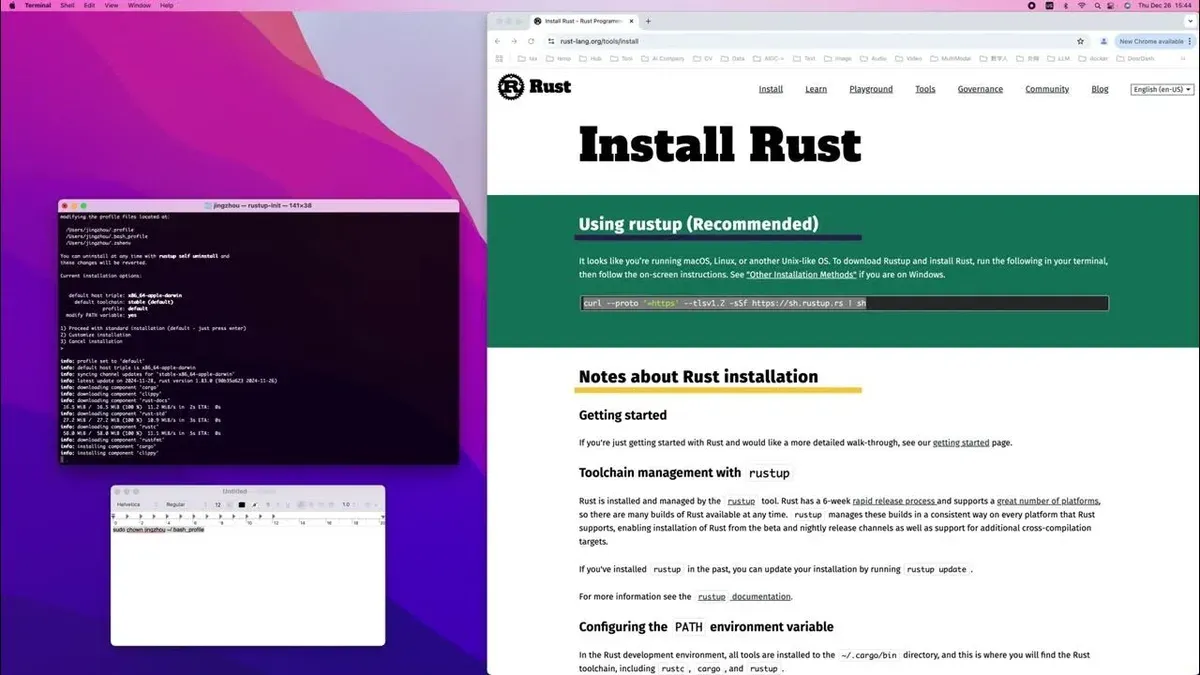
Rustup is the official and recommended tool for installing Rust on your Mac. It manages Rust versions and toolchains, allowing you to switch between stable, beta, and nightly builds seamlessly.
- Open Terminal on your Mac.
- Download and run the rustup-init script by entering the command:
curl --proto '=https' --tlsv1.2 -sSf https://sh.rustup.rs | shYou will see a prompt explaining the installation options. - Choose the default installation by pressing 1 and then Enter.The installer downloads and installs Rust components including rustc (the compiler) and cargo (the package manager).
- Once installation completes, you need to configure your shell environment to use Rust's tools. The installer suggests adding the following line to your shell profile (e.g.,
~/.zprofileor~/.bash_profile):
source $HOME/.cargo/envAdd this line by running:
echo 'source $HOME/.cargo/env' >> ~/.zprofile (assuming you use zsh, the default shell on recent macOS versions)Then restart Terminal or runsource ~/.zprofileto apply the changes. - Verify Rust installation by running:
rustc --versionYou should see output similar to:
rustc 1.XX.X (commit-hash date), confirming the compiler is installed. - Check Cargo by creating a new project:
cargo new hello_rust
Then navigate into the new directory:
cd hello_rust
Build the project with:
cargo buildIf successful, you will see a "Finished dev [unoptimized + debuginfo] target(s)" message.
Rustup simplifies managing multiple toolchains and keeps Rust updated. Adjusting your PATH ensures your terminal accesses Rust tools globally. This installation method is preferred for most Mac users.
How to install Rust on Mac using Homebrew
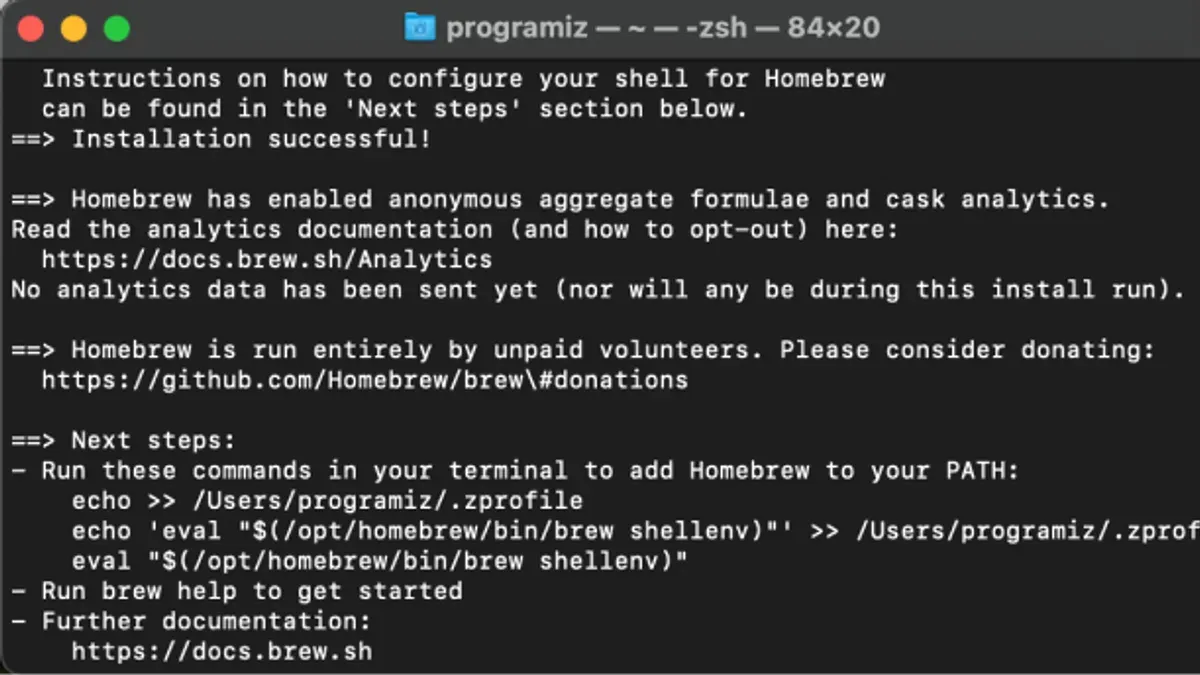
Homebrew is a widely used package manager on macOS that offers an alternative way to install Rust. Using Homebrew can be convenient if you already manage other software through it, providing a centralized approach to package management.
- Open the Terminal app on your Mac.
- Type brew install rust and press Enter. This command downloads and installs Rust and its associated tools via Homebrew.
- Wait for the process to complete. You should see messages indicating that Rust and Cargo (Rust’s package manager) are installed successfully.
- Verify the installation by typing rustc --version. If installed correctly, you will see the Rust compiler version displayed.
Comparing Homebrew and rustup installations, Homebrew installs Rust system-wide and integrates with the macOS environment, while rustup installs Rust per user and allows multiple Rust versions and easy switching between them. Homebrew updates depend on the Homebrew repository updates, which may lag behind the latest Rust release.
Choose Homebrew if you prefer managing Rust alongside other packages with a single tool and do not require frequent switching between Rust versions. Developers needing the latest Rust features or multiple Rust toolchains will find rustup more flexible.
| Feature | rustup | Homebrew |
|---|---|---|
| Installation footprint | User-specific, lightweight | System-wide, larger |
| Update flexibility | Fast updates, multiple versions | Depends on Homebrew repo updates |
| Version management | Supports multiple Rust versions | Single Rust version |
| Integration | Rust-focused toolchain management | Part of broader package management |
How to setup Rust on Mac: Configuring your development environment
- Open Terminal and install essential Rust components by running rustup component add rustfmt clippy. You should see confirmation messages indicating successful installation of both formats and lints.
- Choose a code editor suited to Rust development. For Visual Studio Code, launch the editor, open the Extensions view (View > Extensions), and install the rust-analyzer extension. Once installed, Rust syntax highlighting, error checking, and code completion will activate when editing Rust files.
- Initialize a new Rust project by entering cargo new hello_rust in Terminal. This creates a new directory with a basic project structure. Navigate into it with cd hello_rust.
- Build and run your project with cargo run. Successful execution prints Hello, world! to the console, confirming the environment is properly configured.
- If you need to manage Rust versions, use rustup commands such as rustup install to add versions and rustup default to select the active version. Running rustc --version verifies the current compiler version.
With this setup, you gain formatting and linting tools that help maintain code quality, a powerful editor integration for efficient coding, and Cargo’s project and dependency management to streamline your workflow.
Troubleshooting common Rust installation issues on Mac
Rust installation on Mac can encounter specific issues related to macOS permissions, environment configuration, and conflicts with other software. Here are the common problems and how to resolve them.
Rust keeps closing or crashing
If Rust commands or tools close unexpectedly, this often relates to macOS permissions or security settings blocking execution.
- Check if macOS is blocking Rust binaries by opening System Preferences > Security & Privacy > General. If you see a message about blocked software, click Allow.
- Run Rust commands in Terminal and look for permission-related errors such as
Operation not permitted. If seen, ensure Terminal has Full Disk Access under System Preferences > Security & Privacy > Privacy > Full Disk Access. - If crashes persist, reset Rust by uninstalling and reinstalling (see below) to remove corrupted files.
PATH not set correctly after installation
Rust tools may not be found if the PATH environment variable does not include Rust’s binary directory.
- Open Terminal and run
echo $PATH. Look for~/.cargo/binin the output. - If missing, add this line to your shell profile (
~/.zshrcor~/.bash_profile):export PATH="$HOME/.cargo/bin:$PATH" - Reload your shell configuration with
source ~/.zshrc(or the relevant file).
Verify by runningrustc --version, which should display the Rust compiler version.
Conflicts with existing package managers or older Rust versions
Multiple Rust installations or package managers can cause version conflicts or unexpected behavior.
- Check for Rust installed via Homebrew by running
brew list rust. To avoid conflicts, uninstall one version by runningbrew uninstall rustor uninstalling rustup. - Check for multiple rustc versions with
which rustcandrustc --version. Ensure the version corresponds to your intended installation method. - Clear old Rust versions by removing directories like
/usr/local/bin/rustcor/usr/local/bin/cargoif they are not managed by rustup or Homebrew.
How to uninstall Rust cleanly on macOS
Before reinstalling or switching methods, uninstall Rust completely to avoid residue conflicts.
- If you used rustup, run
rustup self uninstallin Terminal. This removes rustup and Rust toolchains. - Remove the Rust binary directory from your PATH by editing
~/.zshrcor~/.bash_profileand deleting the line containing$HOME/.cargo/bin. - If installed via Homebrew, run
brew uninstall rust. - Verify removal by running
rustc --version. You should see an error indicating the command is not found.
Following these steps addresses the most frequent Rust installation issues on Mac, enabling a stable Rust development environment.
Does Rust work on Mac and MacBook hardware?
Rust fully supports macOS running on both Intel and Apple Silicon (M1, M2) chips. The Rust compiler and standard libraries provide native binaries optimized for these architectures, ensuring compatibility and efficient execution on your Mac device.
Performance benchmarks show that Rust binaries compiled for Apple Silicon often run faster than on Intel-based Macs, benefiting from the ARM architecture's energy efficiency and modern CPU design. This advantage is especially evident in compute-intensive applications and those leveraging concurrency.
A common misconception is that Rust lacks support for Apple Silicon or that performance suffers on Mac hardware. In reality, Rust’s cross-compilation tools and active community support ensure smooth development and deployment on Macs, regardless of the processor type.
Popular Rust projects like the ripgrep search tool, the Alacritty terminal emulator, and the Servo browser engine run reliably on Mac devices, demonstrating Rust’s practical compatibility and performance.
Installing Rust on other platforms: Linux and Windows 11 overview
Rust installation on Linux and Windows 11 primarily uses the rustup tool, which provides a consistent method to install and manage Rust versions across platforms. However, environment setup and dependencies differ due to the underlying operating system architectures and package management systems.
On Linux, you typically install rustup through a terminal shell. You need common build tools such as gcc or clang, and the make utility, which are often provided by your distribution's package manager (e.g., apt on Ubuntu or dnf on Fedora). The rustup installation script downloads Rust compilers and manages toolchains similarly to macOS. You may need to adjust your shell profile (like ~/.bashrc or ~/.zshrc) to add Rust's binary directory to your PATH.
Windows 11 installation also relies on rustup but typically requires using PowerShell or the Command Prompt. The rustup-init.exe installer handles Rust setup, and Windows users often need to install the Visual Studio Build Tools or the Windows SDK to fulfill compilation dependencies. Environment variables are configured automatically by rustup, but manual PATH adjustments may be necessary depending on your shell.
The differences from macOS arise because macOS uses a Unix-based environment with a native terminal and common build tools pre-installed or easily added via Homebrew. Linux distributions vary widely in package management and system libraries, while Windows uses a distinct subsystem and build environment.
| Platform | Installation Tool | Dependencies | Environment Setup |
|---|---|---|---|
| macOS | rustup or Homebrew | Xcode Command Line Tools or Homebrew | Shell PATH configuration |
| Linux | rustup | gcc/clang, make, libc | Shell profile PATH edits |
| Windows 11 | rustup-init.exe | Visual Studio Build Tools, Windows SDK | Environment variables, possible PATH edits |
- Download and run the rustup installation script appropriate for your platform. You should see rustup download Rust toolchains and finish with a success message.
- Verify Rust installation by running
rustc --versionin your terminal or command prompt; it should display the installed Rust compiler version. - Configure your shell environment if needed by adding Rust's
bindirectory to your PATH, ensuring commands likecargoare recognized. - Install necessary build dependencies: on Linux, use your package manager to install compilers and build tools; on Windows, install Visual Studio Build Tools or the Windows SDK.
- Test your setup by creating and running a sample Rust project to confirm everything compiles and runs correctly.
For detailed, platform-specific instructions, consult the official Rust installation guides for Linux and Windows 11.
- How to Install Go on Mac: A Step-by-Step Guide for Developers
- How to Install Node.js with NVM on Mac: A Clear Step-by-Step Guide
- How to Install Python 3.13 with Pyenv on Mac: A Step-by-Step Guide
- How to Install Python on Mac: A Clear Step-by-Step Guide
Frequently asked questions
Can you play rust on mac?
Yes, you can play Rust, the survival game, on macOS if your Mac meets the game's hardware requirements. However, performance may vary depending on your Mac's graphics capabilities and processor. Ensure your system has sufficient RAM and a dedicated GPU for a smoother experience.
Can you play rust on a macbook?
Playing Rust on a MacBook is possible but depends on the model and specifications. Newer MacBooks with better GPUs and processors handle the game better, but older or lower-end models might struggle with performance and graphics settings. Adjusting in-game settings can help improve playability.
How to install rust on linux?
To install Rust on Linux, you typically use the rustup installer by running curl --proto '=https' --tlsv1.2 -sSf https://sh.rustup.rs | sh in the terminal. This method manages Rust versions and updates efficiently. After installation, ensure your PATH environment variable includes $HOME/.cargo/bin to run Rust commands.
Can a macbook run rust?
Yes, a MacBook can run Rust programs and the Rust compiler itself. Rust supports macOS natively, and you can compile and run Rust code efficiently on most modern MacBooks. Performance depends on the MacBook's hardware specs, with newer models offering better compilation speed.
How to install rust on macbook?
To install Rust on a MacBook, you can use the rustup installer by running curl --proto '=https' --tlsv1.2 -sSf https://sh.rustup.rs | sh in the Terminal. Alternatively, Homebrew offers a Rust package with brew install rust. Rustup is recommended for managing Rust versions, while Homebrew simplifies installation but with less version control.
What this guide does not cover and who should look elsewhere
This guide covers only native Rust installation and setup on macOS and does not cover advanced scenarios like cross-compilation or embedded systems development. If your workflow requires targeting non-macOS platforms from your Mac or involves specialized hardware, consult more specific resources. Users unfamiliar with terminal commands or system administration might find some steps challenging without additional background knowledge; in such cases, seeking beginner-level tutorials or interactive learning environments is recommended. The troubleshooting section addresses common issues but cannot cover all possible environment-specific problems, especially those related to third-party software conflicts or unusual Mac configurations.
The most practical next step is to create and compile a simple Rust project using cargo new followed by cargo run. This will verify your installation and help you familiarize yourself with Rust’s build system, while confirming that your development environment is correctly configured.