How to Convert Scanned PDFs to Editable Text on Mac
Discover effective methods to convert scanned PDFs into editable text on your Mac using built-in and third-party OCR tools.

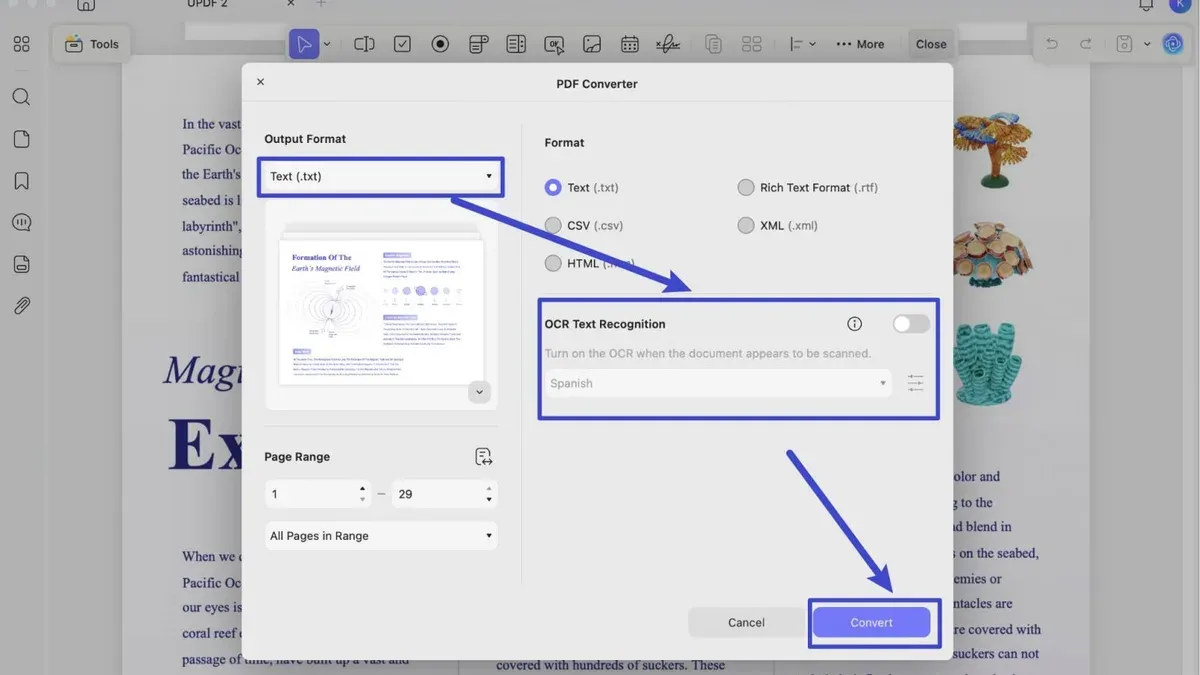
You have a scanned PDF document containing important text, but you can’t highlight or edit it directly. To work with the content, you need to convert the scanned image into searchable, editable text on your Mac.
This article explains how to convert scanned PDF to editable text on Mac by comparing built-in tools like Preview and Automator, free third-party apps, and paid OCR software. You’ll learn the pros and cons of each method so you can choose the best option based on your comfort level, budget, and privacy preferences.
Key takeaways
- Preview and Automator offer basic OCR but may struggle with complex layouts.
- Free apps and online services vary widely in accuracy and privacy safeguards.
- Paid OCR software generally provides higher accuracy and advanced features.
- Consider privacy if your documents contain sensitive information.
- Post-conversion proofreading is often necessary to fix recognition errors.
Before you start: What you need for converting scanned PDFs
Scanned PDFs differ from native PDFs as they consist of images of text rather than digitally encoded characters. To extract editable text from these image-based documents, you need Optical Character Recognition (OCR) software. OCR analyzes the images and converts them into searchable, editable text.
Before beginning, ensure your Mac is running a supported version of macOS. You will need the scanned PDF file you want to convert. Depending on the OCR tool you choose, an internet connection may be required, especially for cloud-based or online services.
High-quality scans significantly improve OCR accuracy. If your original document is physical, rescanning it under good lighting conditions and at a resolution of at least 300 DPI helps. Blurry, warped, or low-contrast scans often result in errors or incomplete text extraction.
- Locate your scanned PDF on your Mac. You should see a file that opens as a picture of text rather than selectable text.
- Confirm your macOS version via Apple menu > About This Mac to ensure compatibility with your chosen OCR tool.
- If rescanning, set your scanner to 300 DPI or higher and use even lighting to create a clear image.
- Check if the OCR tool requires internet access and connect accordingly before starting.
Using Preview and Automator for basic OCR on Mac
Preview does not include native OCR capabilities, but you can combine it with Automator to perform basic text recognition without installing extra software. Automator workflows can leverage built-in macOS features like the "Recognize Text" action available in recent versions, allowing you to convert scanned PDFs into editable text with minimal setup.
- Open Automator from your Applications folder and create a new "Workflow".
- In the search bar, type "Recognize Text" and drag the "Recognize Text" action into the workflow pane. This action analyzes image-based PDFs and extracts text.
- Set the "Language" option if available; otherwise, it defaults to English. Note that language support is limited and may affect accuracy.
- Add the "Move Finder Items" action to save the converted PDF or text output to a folder you can access easily.
- Save the workflow for reuse, then open your scanned PDF in Preview, right-click the file, and choose "Open With" > "Automator Workflow" to run the OCR process.
- After processing, open the output file to check the recognized text. Expect basic accuracy suitable for clear scans but limited handling of complex layouts or multiple languages.
This method works well for individual documents and small tasks but lacks batch processing and advanced error correction found in dedicated OCR apps. The text recognition may struggle with poor scan quality or unusual fonts, so manual proofreading is recommended after conversion.
Using free third-party apps and online OCR services
Free OCR options on Mac include Tesseract-based GUI apps like OCRKit Lite and PDF OCR X Community Edition, alongside reliable online services such as OnlineOCR.net and OCR.space. Each offers a no-cost way to convert scanned PDFs but differs in privacy, accuracy, and convenience.
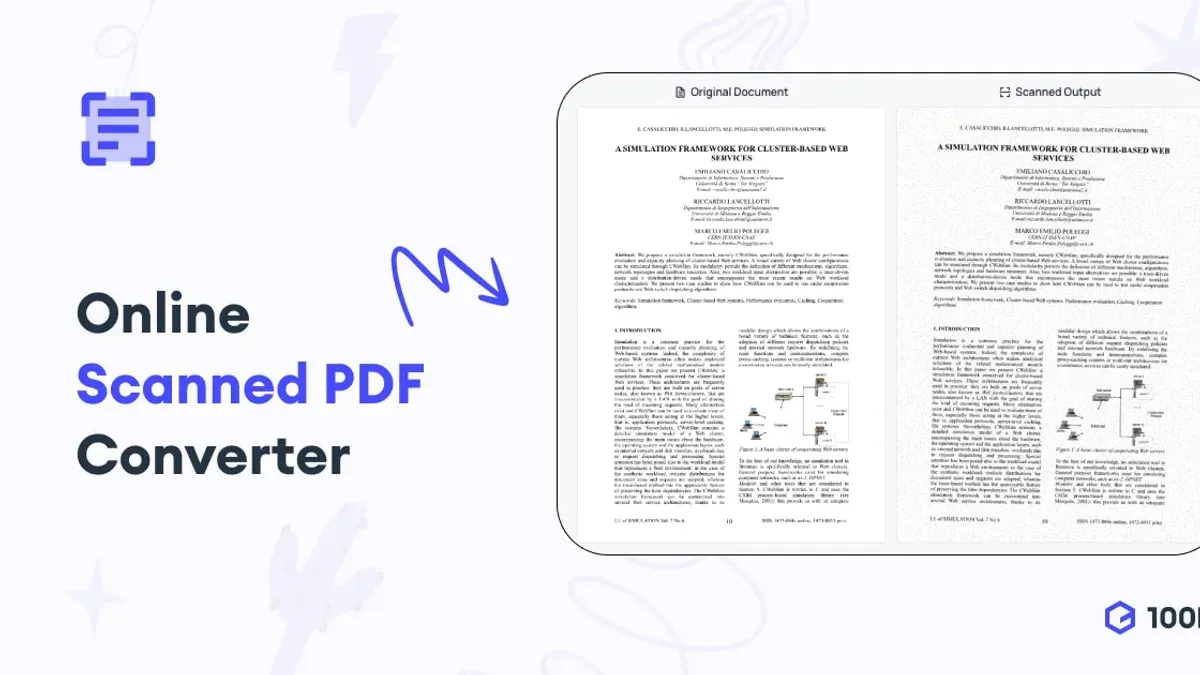
Desktop apps keep your documents local, reducing privacy risks but may require some setup. OCRKit Lite provides a simple interface where you drag and drop PDFs, then select the output format. PDF OCR X Community Edition also supports batch processing but can struggle with complex layouts.
Online services are convenient and require no installation, but uploading sensitive documents poses privacy concerns. They typically accept PDFs up to a certain size and return editable text or Word files, though formatting often needs manual correction.
| Tool | OCR Accuracy | Privacy | Cost |
|---|---|---|---|
| OCRKit Lite (Mac App) | Moderate; good with clear text | High; local processing | Free with paid upgrade |
| PDF OCR X Community Edition | Moderate; limited formatting | High; local processing | Free |
| OnlineOCR.net | Moderate; varies by language and layout | Low; uploads to server | Free limited use |
| OCR.space | Moderate to good; supports multiple languages | Low; uploads to server | Free limited use |
- Download and install OCRKit Lite from the Mac App Store.
- Open the app and drag your scanned PDF into the main window; you should see the file listed.
- Select "Plain Text" or "RTF" as the output format, then click "Convert"; a new editable document will be generated.
- For an online option, visit OnlineOCR.net.
- Upload your scanned PDF by clicking "Select file", choose the output format (e.g., Microsoft Word), and click "Convert"; wait for the text to appear for download.
- Review the converted text for errors or formatting issues, which are common especially with complex layouts or unusual fonts.
In summary, free third-party apps provide local processing with moderate accuracy and better privacy, while online OCR services offer convenience but require caution with sensitive files and usually need manual cleanup after conversion.
Using professional OCR software for best results
If you require high accuracy and better preservation of original formatting, professional OCR software for Mac is the preferred choice. Leading options include Adobe Acrobat Pro and ABBYY FineReader PDF for Mac, both known for superior text recognition, extensive language support, and advanced export capabilities.
These tools offer batch processing to convert multiple PDFs simultaneously, integration with common workflows, and export formats like Word, Excel, or searchable PDFs. They also retain complex layouts and fonts more reliably than free solutions.
Here is how to convert a scanned PDF using Adobe Acrobat Pro:
- Open Adobe Acrobat Pro and load your scanned PDF. You should see the document displayed.
- Go to the "Tools" pane and select "Scan & OCR." The OCR toolbar will appear.
- Click "Recognize Text" then "In This File." A dialog will open to set language and pages.
- Choose the correct language and page range, then click "Recognize Text." Wait for the process to finish; recognized text will be highlighted.
- Save the file as a searchable PDF or export it to Word or another editable format via "File" > "Export To." The output will maintain formatting closely matching the original.
Compared to free tools, paid OCR software typically produces more accurate results with fewer errors and better formatting preservation on the same scanned document. Trial versions are available for both Adobe Acrobat Pro and ABBYY FineReader, allowing you to test accuracy and features before purchasing.
Fixing common issues after OCR conversion
OCR conversion can produce errors like missing text, garbled characters, or disrupted formatting. These issues often stem from low scan quality or complex document layouts.
To improve accuracy, rescanning the document at 300 DPI or higher is recommended. Preprocessing the scanned image by deskewing (aligning tilted pages) and adjusting contrast enhances text clarity. For example, a poorly aligned scan with faded text may yield "H3llo W0rld" instead of "Hello World". After preprocessing and rescanning, the OCR output typically improves to the correct phrase.
After conversion, manually correcting errors is often necessary. Use text editors like TextEdit or PDF annotation apps such as PDF Expert to fix garbled text or reformat paragraphs. These tools allow you to replace incorrect characters or adjust layout without altering the original scan.
If documents have complex formatting, columns, or mixed languages that consistently cause errors, consider professional OCR services. They employ advanced tools and human review for higher accuracy.
- Open your scanned PDF and check for missing or incorrect text. You might see random symbols or blank spaces where text should be.
- Rescan the original document at a resolution of 300 DPI or higher, ensuring pages are flat and well-lit.
- Use an image editor or scanning software features to deskew the image and increase contrast, making text sharper and more legible.
- Run OCR again on the improved scan. You should notice fewer garbled characters and more complete text recognition.
- Open the OCR result in a text editor or PDF annotation app to manually correct any remaining errors or formatting issues.
- If errors persist and the document is complex, research professional OCR services that specialize in difficult layouts and languages.
Exporting and using editable text after conversion
Once your scanned PDF has undergone OCR conversion, exporting the text into a usable format is essential for editing and sharing. Common export formats include Microsoft Word (.docx), plain text (.txt), and searchable PDFs. Word documents retain the most formatting, such as fonts, paragraph breaks, and basic layout, while plain text strips all styling but ensures maximum compatibility. Searchable PDFs preserve the original appearance with an invisible text layer for search and selection.
To preserve layout and formatting, choose export options labeled "Retain Formatting" or "Original Layout" when available. However, complex elements like tables, multi-column text, or intricate graphics may not translate perfectly and might require manual adjustment.
When importing OCR text into word processors or note-taking apps like Microsoft Word, Apple Pages, or Evernote, open the exported file directly rather than copying and pasting to keep formatting intact. For databases or spreadsheet apps, plain text or CSV exports work best but will lose layout.
- Open your OCR software’s export menu and select your desired format, such as Word or searchable PDF. When prompted, enable options like "Retain Formatting" or "Preserve Layout." Successful export results in a file saved to your chosen location.
- Open the exported file in the target application (e.g., Microsoft Word). Verify that text flow and basic formatting, such as paragraphs and headings, remain consistent with the original scan.
- For documents with tables or columns, review layout carefully. You may need to adjust cell borders, column widths, or reflow text manually to match the scanned document’s structure.
- Use the application’s editing tools to finalize formatting or correct any OCR errors visible after export.
Example screenshots typically show a Word document preserving headings and paragraphs, a searchable PDF allowing text selection over the scanned image, and plain text opened in a basic editor with no formatting.
- How to Convert PDF to Word on Mac: Clear Step-by-Step Methods
- How to Convert PDF to JPG on Mac: Step-by-Step Methods
- How to Convert EPUB to PDF on Mac: Step-by-Step Guide
- How to Convert Excel to PDF on Mac: Step-by-Step Guide
Frequently asked questions
Can I convert scanned PDFs to editable text without internet on a Mac?
Yes, you can convert scanned PDFs to editable text offline using built-in Mac tools like Automator combined with Preview, or by using professional OCR software installed on your Mac. These options process the OCR locally, ensuring your files remain private and no internet connection is needed.
What is the difference between a scanned PDF and a native PDF?
A scanned PDF is essentially an image file embedded in a PDF container, capturing a picture of the document but lacking selectable or searchable text. A native PDF, on the other hand, contains actual text data that you can select, search, and edit because it was generated by exporting or saving text-based content directly as PDF.
How accurate is OCR on handwritten documents?
OCR accuracy on handwritten documents is generally lower compared to printed text, as handwriting varies widely in style and clarity. While some advanced OCR tools attempt to recognize handwriting, results may require manual correction and are less reliable for extensive handwritten content.
Are there privacy concerns with using online OCR services?
Yes, using online OCR services involves uploading your documents to third-party servers, which can expose sensitive information and raise privacy risks. If confidentiality is a priority, offline OCR tools or software that process files locally are safer choices to keep your data private.
What this advice does not cover and when to seek other solutions
This article does not cover converting handwritten notes reliably, as OCR accuracy is generally low for handwriting. If your documents include cursive or heavily stylized handwriting, specialized handwriting recognition tools or manual transcription may be necessary.
Users handling highly sensitive documents should avoid online OCR services due to privacy risks, as your files are uploaded to third-party servers. Instead, opt for offline software solutions available on Mac to keep your data secure.
Some scanned PDFs with complex layouts, such as multi-column magazines, mixed graphics, or poor scan quality, might exceed the capabilities of typical OCR tools. In these cases, professional document conversion services or advanced OCR software with layout reconstruction features may be required.
Next step: Choose the OCR method that fits your needs and try a sample conversion
Start by selecting an OCR method aligned with your comfort level, privacy concerns, and budget. If you prefer no extra installations and basic results, try Preview and Automator’s built-in features. For better accuracy without cost, free apps or reputable online OCR services are options, but remember the privacy trade-offs. If you need high accuracy and layout fidelity, consider paid OCR software like ABBYY FineReader PDF for Mac. Whichever you choose, run a test on a representative scanned PDF to evaluate the output before converting your entire document set.