How to Convert YouTube Videos to MP3 Legally on Mac
Discover legal ways to convert YouTube videos to MP3 on your Mac while respecting copyright and ensuring safe, high-quality audio extraction.

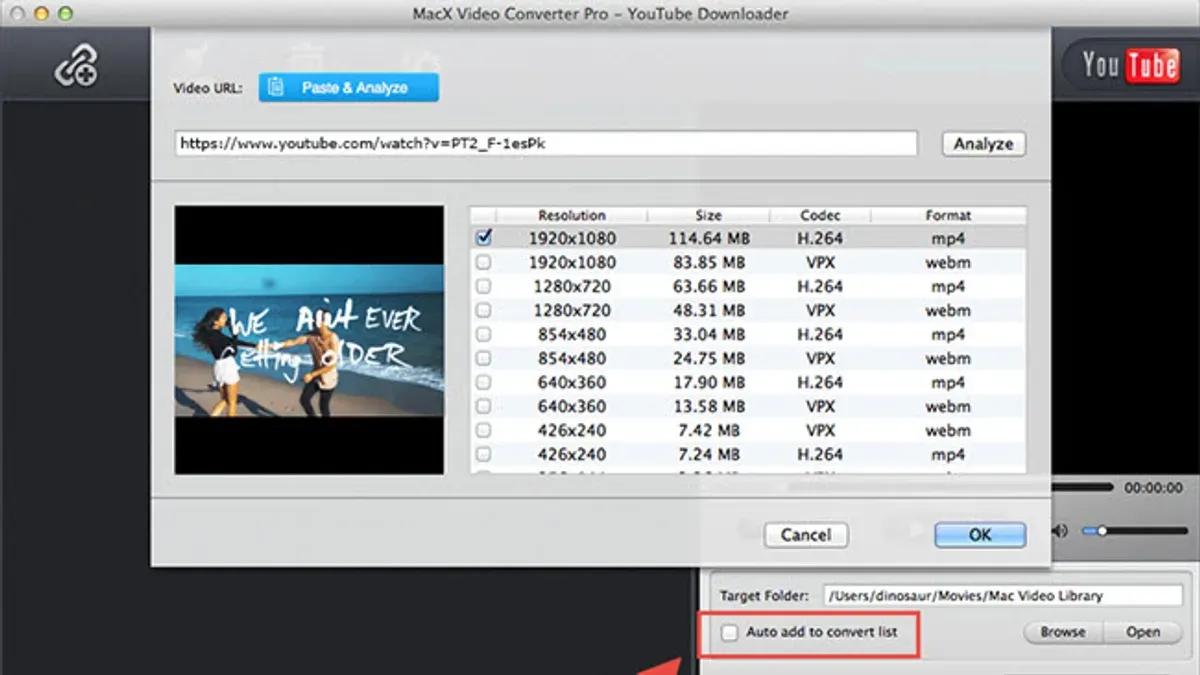
You’ve found a great YouTube video and want to enjoy its audio offline on your Mac. However, you want to make sure you’re doing this legally and respecting copyright rules. This guide explains how to convert YouTube video to MP3 legally on Mac, outlining safe methods that comply with content creators’ rights.
From using YouTube’s own services to identifying royalty-free content and obtaining permission from creators, you’ll learn step-by-step options that protect you from legal risks. The article also covers troubleshooting common issues you might encounter during the process.
Key takeaways
- Use YouTube Premium to download videos for offline listening within the app.
- Convert only royalty-free or Creative Commons licensed videos to MP3 without infringing copyright.
- Obtain explicit permission from content creators before using third-party conversion tools.
- Avoid unauthorized downloading or conversion to prevent legal and ethical problems.
- Check audio file quality settings and permissions when converting on your Mac.
Before you start: what you need to convert YouTube videos to MP3 legally
To convert YouTube videos to MP3 on your Mac legally, you need the right hardware, software, and understanding of legal boundaries. Your Mac should be running a recent version of macOS with sufficient storage and a stable internet connection. Audio extraction requires software that supports MP3 encoding and respects copyright laws.
YouTube’s Terms of Service explicitly prohibit downloading content unless a download button or link is provided by YouTube itself. For example, the terms state:
“You shall not download any Content unless you see a 'download' or similar link displayed by YouTube on the Service for that Content.”
This means unauthorized downloads can violate copyright and YouTube policies.
Legal permission or using royalty-free or Creative Commons licensed videos is essential to avoid copyright infringement. Legitimate sources include YouTube Premium downloads and videos explicitly marked for reuse or download by their creators.
| Requirement | Details | Legal Permission Needed |
|---|---|---|
| Hardware | Mac with current macOS, stable internet | Not applicable |
| Software | Authorized apps, YouTube Premium, or Creative Commons-compatible tools | Yes, explicit permission or YouTube-provided download option |
| Content | Royalty-free, Creative Commons, or YouTube Premium videos | Yes, or content owner consent |
- Verify your Mac is updated and has at least 2 GB of free disk space; you should see smooth system operation without lag.
- Review YouTube’s Terms of Service on their official site; confirm you understand restrictions against unauthorized downloading.
- Identify videos with Creative Commons licenses or available through YouTube Premium; these are eligible for legal conversion.
- Select software or services that respect copyright laws and avoid unauthorized download tools; the software should state compliance explicitly.
Using YouTube Premium to download and convert videos to MP3
YouTube Premium offers a legal way to download videos for offline playback and access their audio content on your Mac. While it does not explicitly convert videos to MP3 files, it allows you to listen to the audio offline within the YouTube app or browser, effectively providing access to the audio without breaching copyright.
To download videos using YouTube Premium on your Mac:
- Open the YouTube website and sign in with your YouTube Premium account. You should see a download button below eligible videos.
- Click the Download button. A progress bar appears, indicating the video is saved for offline playback.
- Once downloaded, access your Library > Downloads tab in the YouTube app or browser to find saved videos.
Note that YouTube Premium downloads are stored in a protected format accessible only within YouTube apps or browsers, not as standalone MP3 or other audio files. This means you cannot directly extract MP3 files for use outside YouTube’s ecosystem.
This approach prioritizes legal compliance and copyright respect but limits flexibility: downloads are device-restricted and require periodic online verification to maintain access. File formats are not user-selectable and do not include MP3, but the offline audio functionality serves many users' needs without copyright infringement.
Converting royalty-free or Creative Commons YouTube videos to MP3
You can legally convert YouTube videos to MP3 if the content is explicitly licensed for reuse, such as those under Creative Commons. To find these videos, start by searching on YouTube and then filter the results to show only Creative Commons licensed content.
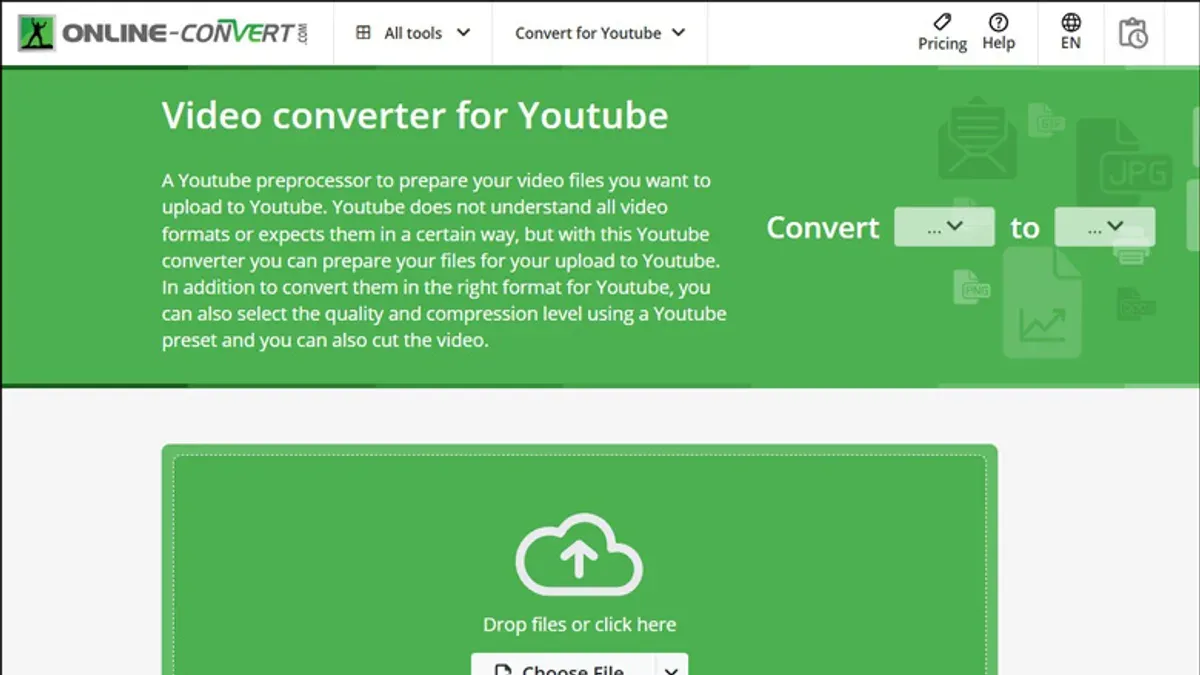
- Enter your search term in the YouTube search bar and press Enter. You should see a list of videos related to your query.
- Click the Filters button located under the search bar.
- Under the Features section, select Creative Commons. The page will refresh and display videos that are licensed for reuse.
- Click on a video to open it, then check the license information below the video title or in the description. It should explicitly state it is under a Creative Commons license or royalty-free terms.
- Once confirmed, copy the video URL from the address bar.
- Use a free Mac-compatible conversion tool, such as 4K Video Downloader or ClipGrab, which support MP3 extraction from videos with permission.
- Open the conversion app, paste the copied URL, and select the option to download or convert the video to MP3 format.
- Start the conversion process. When complete, you should see the MP3 file saved to your specified folder, ready for legal use.
This process ensures you respect copyright and only convert videos you have permission to reuse.
Using third-party software with explicit permission from content creators
When you have direct permission from a content creator, using third-party software to convert YouTube videos to MP3 on your Mac can be legal and straightforward. Always confirm explicit consent—such as a written or digital message—from the creator granting you rights to download and convert their content.
| App Name | MP3 Conversion | License & Legal Notes |
|---|---|---|
| 4K Video Downloader | Supported with MP3 export | Use only with creator permission; personal use only |
| Permute | Converts video files to MP3 after download | Requires you to have legal rights for source content |
| Audacity | Extracts audio from video files; manual process | Legal only with authorized content |
Example permission might read: "You may download and convert my videos to MP3 for personal use." Keep such documentation as proof.
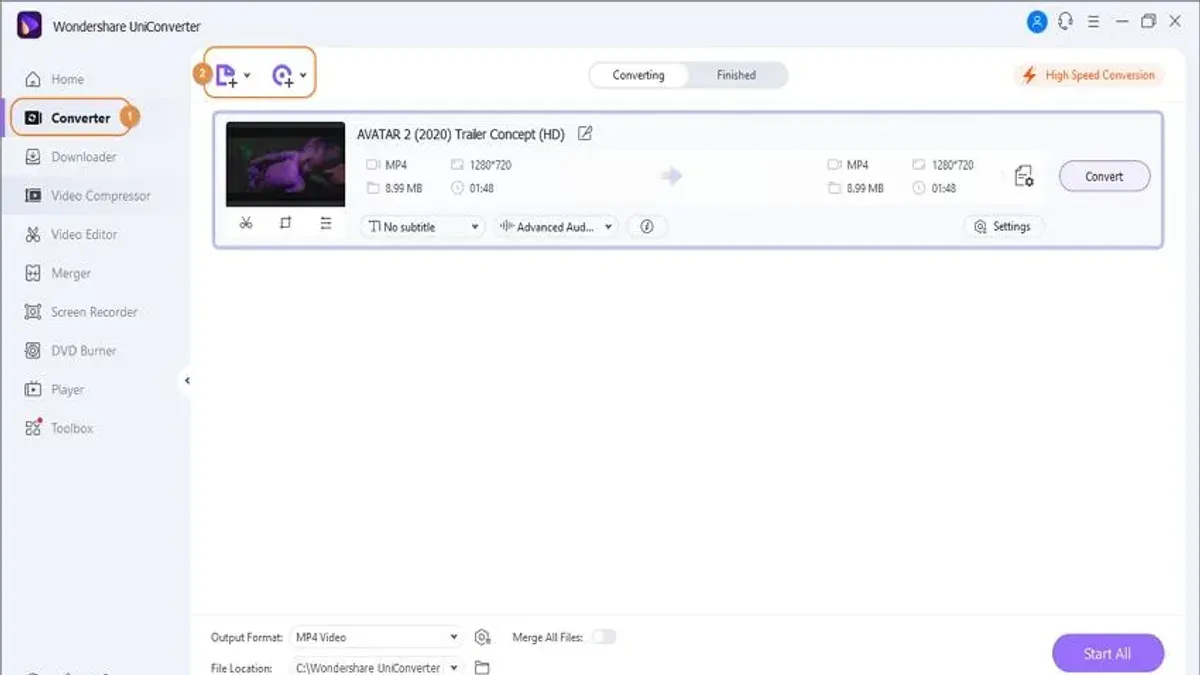
- Obtain and save the video file legally (e.g., direct download link provided by the creator). After the file is saved, open your chosen converter app on Mac.
- Import the video file into the app by selecting File > Open or dragging the file into the app window. You should see the video loaded for conversion.
- Choose MP3 as the output format from the conversion options or settings menu. The app will usually list audio formats like MP3, AAC, or WAV.
- Set your desired audio quality (e.g., 192 kbps or 320 kbps) if the option is available. This controls the resulting MP3 file size and sound fidelity.
- Start the conversion by clicking the Convert or Start button. Upon completion, the app will confirm the MP3 file is saved to the selected output folder.
Using unverified or illegal converter tools risks malware, poor audio quality, and copyright infringement penalties. Only use reputable apps and verify permissions to ensure compliance with legal and ethical standards.
Troubleshooting common issues when converting YouTube videos to MP3 on Mac
When you encounter failed conversions, poor audio quality, or software errors, several fixes can help you resume your workflow smoothly.
- Fix download or conversion failures: If the conversion process stops with errors like "Download failed" or "Conversion error," check your internet connection and ensure the video URL is accessible. Restart the app and retry. If the problem persists, clear the app cache or update to the latest version. Successful retry shows the progress bar completing without error messages.
- Ensure audio quality meets expectations: Poor audio quality may be due to low original video bitrate or incorrect export settings. Use conversion software that allows setting the MP3 bitrate to 192 kbps or higher. Compare the original video's audio bitrate by right-clicking the file and selecting "Get Info" > "More Info." After conversion, verify the MP3 bitrate similarly. A higher bitrate indicates better audio fidelity.
- Address Mac system compatibility or permission issues: If the software fails to launch or access files, check System Preferences > Security & Privacy > Privacy > Files and Folders to grant the app necessary permissions. Also, verify that macOS is updated to a version supported by the software. After granting permissions, relaunch the app and confirm it can open and save files without errors.
- When to seek alternative methods or software: Persistent errors or incompatibility suggest trying other reputable apps or online converters that comply with legal guidelines. Avoid unverified tools that may contain malware or violate copyright laws.
- How to Convert MP4 to MP3 on Mac: Step-by-Step Methods
- How to Convert M4A to MP3 on Mac: Clear Step-by-Step Methods
- How to Convert WAV to MP3 on Mac: Easy Step-by-Step Methods
Frequently asked questions
Is it legal to convert any YouTube video to MP3 on my Mac?
Converting YouTube videos to MP3 is only legal if you have explicit permission from the copyright holder or if the content is licensed for free use, such as Creative Commons videos. Downloading or converting videos without authorization may violate YouTube's terms of service and copyright laws, potentially leading to legal consequences.
What is the best software to convert YouTube videos to MP3 safely?
The safest software options are those that operate with explicit permission from content creators or offer downloads from royalty-free sources. Official solutions like YouTube Premium allow legal offline access, while third-party tools should be vetted carefully to avoid malware and copyright infringement risks. Avoid unverified apps that claim to convert any YouTube video without restrictions.
Can I convert videos from YouTube Premium to MP3 files?
YouTube Premium subscribers can download videos for offline viewing within the YouTube app, but converting these videos to MP3 files using external tools is generally against YouTube's terms. The downloaded files are encrypted and intended for personal use only within the app, so extracting MP3s would breach service agreements.
How do I check if a YouTube video is allowed to be downloaded or converted?
Look for licensing information in the video description or check if the video is marked as Creative Commons. Some creators explicitly state permissions for downloading or converting content. If no permission is given, assume the video is protected by copyright and avoid converting it without consent.
What this advice does not cover and who should do something else
This article does not cover methods that violate YouTube's terms of service or copyright laws. Avoid unauthorized downloading, distribution, or conversion of videos without explicit permission from the content creator. If you need audio from copyrighted material for professional, commercial, or public use, consider contacting the rights holder directly or using licensed services.
For most users, the single most useful next step is to explore YouTube Premium’s official download options within the YouTube app on your Mac or compatible devices. This service offers a straightforward, legal way to access offline audio and video content, ensuring you stay within legal boundaries while enjoying your favorite videos.