How to Fix Pinterest Two-Factor Authentication Code Not Working
This guide helps you diagnose and fix issues when the Pinterest two-factor authentication code is not working, restoring secure account access.

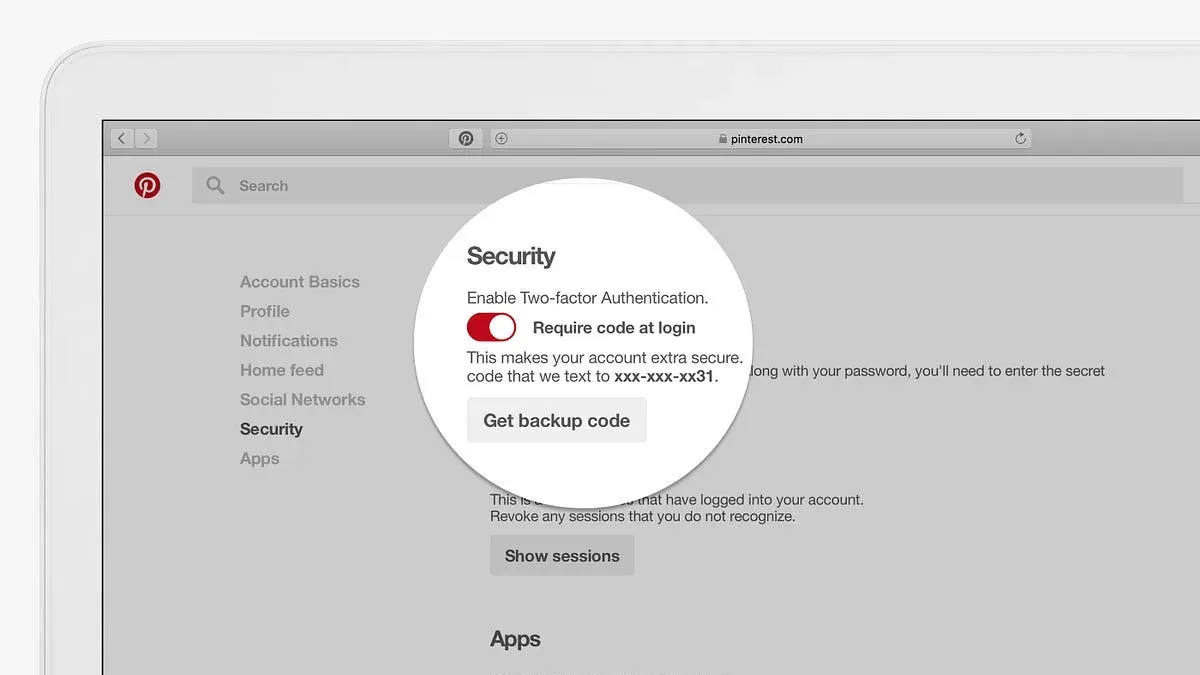
This article guides Pinterest users through diagnosing and resolving issues when the Pinterest two-factor authentication code not working prevents account access. Two-factor authentication (2FA) adds a security layer by requiring a code from an authenticator app or SMS in addition to the password, but this system can fail for several reasons.
Recognizing the symptoms is the first step: codes not accepted, delays in receiving SMS codes, or authenticator apps showing errors. The focus here is on practical fixes arranged from the simplest, such as checking device time settings, to more complex troubleshooting involving app reinstallation or recovery codes.
Following these steps helps restore access quickly while keeping the account secure. Clear warnings accompany each fix to avoid actions that could worsen the problem or compromise security.
How to Recognize When the Pinterest Two-Factor Authentication Code Is Not Working
Confirming that the issue lies with Pinterest's two-factor authentication (2FA) code is the first troubleshooting step. Typical symptoms include error messages stating "Invalid code," "Code expired," or simply a prompt indicating the code was rejected. Another common scenario is not receiving any code via the chosen 2FA delivery method, whether that is an authentication app or SMS.
Distinguishing 2FA failures from other login problems is crucial. For example, incorrect passwords trigger a different error like "Incorrect password" or "Unable to log in." Account lockouts due to suspicious activity usually come with warnings unrelated to 2FA codes. If the login halts specifically at the screen requesting a 2FA code, the problem is most likely with the code itself rather than the password or account status.
Users frequently report either not receiving a 2FA code or receiving one that Pinterest does not accept. While exact percentages vary, failure to receive the code is a common complaint alongside invalid code errors. Pinterest's error prompts during 2FA failure often read: "The code you entered is incorrect," "Code expired, please try again," or "No code received? Resend code."
If these symptoms are present, follow these steps to verify the issue and attempt a quick fix:
- Check the device or app where the 2FA code is delivered for new messages or notifications.
- Ensure the device's time and date settings are accurate, especially if using an authenticator app.
- Attempt to request a new code using Pinterest's "Resend code" option.
- Try logging in again using the newly received code within the time limit.
Success is confirmed when Pinterest accepts the code and grants account access. If the problem persists, the issue is indeed with the 2FA code process rather than other login factors.
What Causes Pinterest Two-Factor Authentication Codes to Fail?
Two-factor authentication (2FA) codes on Pinterest can fail due to several common issues. One frequent cause is time synchronization errors on authentication apps or devices. Many app-based 2FA codes rely on the device's clock, which must be accurate to within a few seconds. Even a slight clock drift can cause generated codes to be rejected. This problem is less common with SMS-based codes but still possible if the device time is incorrect.
Network or SMS delivery problems also affect 2FA reliability. SMS codes can be delayed or blocked by carrier issues, poor signal, or phone settings that filter messages. Users relying on SMS 2FA may experience longer wait times or no code receipt at all. In contrast, app-based methods avoid delivery delays but require proper setup.
Using outdated or incorrect authentication methods contributes to failure. For example, entering a code from an old device or a previously removed authenticator app will not work. Additionally, if the Pinterest account settings have changed or the app has bugs, they may interfere with code acceptance.
To fix time synchronization issues on authentication apps:
- Open the authentication app (e.g., Google Authenticator).
- Navigate to the app settings and select “Time correction for codes” or “Sync now.”
- Allow the app to sync with the correct time servers.
- Try using a new code generated after synchronization.
Success is confirmed when the new 2FA code is accepted by Pinterest without error.
Tip: For SMS issues, check that the phone has a strong signal and that message filtering settings do not block Pinterest texts.
What Is the Quickest Way to Fix a Pinterest 2FA Code That Won’t Work?
When Pinterest two-factor authentication codes fail, start by verifying the device’s time settings. Incorrect or unsynced clocks often cause code rejection because 2FA codes rely on time-based algorithms. Syncing the clock usually resolves the issue immediately.
- Open the device’s settings app.
- Navigate to Date & Time (on phones, typically under System settings).
- Enable Automatic date & time or Set time automatically to sync with the network.
- If already enabled, toggle it off and back on to force a refresh.
- Retry entering the Pinterest 2FA code after syncing.
If the code is still rejected, request a new 2FA code. On the Pinterest login screen, choose the option to resend the code by SMS or through the authentication app. Resending often resolves issues caused by delayed or lost messages.
- Tap Resend code or a similar prompt.
- Wait for the new code via SMS or the authentication app.
- Enter the fresh code promptly, as codes expire quickly.
Restarting the authentication app or the device itself can clear temporary glitches. Close the app completely, reopen it, and generate a new code. If this fails, reboot the phone or computer before trying again.
Tip: Backup codes provided by Pinterest during 2FA setup offer a reliable fallback. Use these codes if device syncing and resending codes do not work.
Success is confirmed when the Pinterest login proceeds past the 2FA prompt without error. These steps fix most common problems quickly and safely without risking account security.
How to Troubleshoot More Complex Issues with Pinterest Two-Factor Authentication
If immediate fixes don't resolve Pinterest two-factor authentication failures, deeper troubleshooting is necessary. Start by ensuring the authentication app is up to date. An outdated app can cause code generation errors. Reinstalling the app often clears corrupted data or misconfigurations.
- Open the device's app store (Google Play or Apple App Store).
- Search for the authentication app used (e.g., Google Authenticator or Authy).
- If an update is available, install it. Otherwise, uninstall and then reinstall the app.
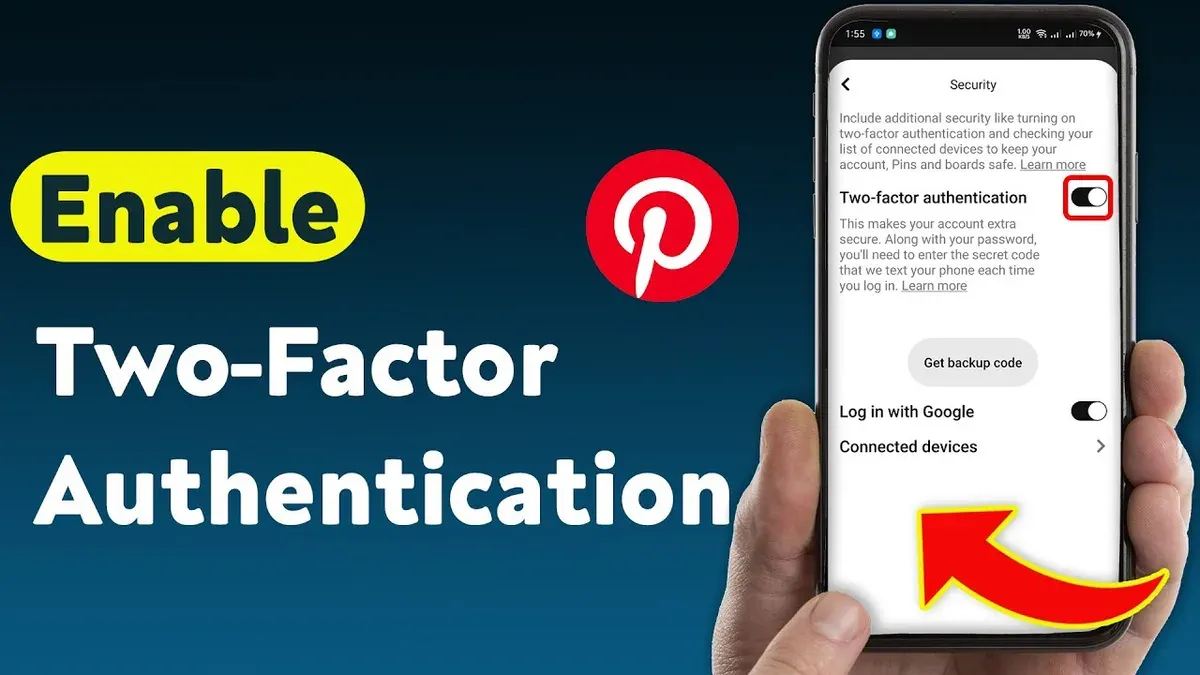
- Re-add the Pinterest account by scanning the QR code in Pinterest’s security settings under "Two-Factor Authentication."
Switching between authentication methods can resolve persistent 2FA code failures. If using an authenticator app, try switching to SMS codes, or vice versa, via Pinterest's 2FA settings. This bypasses issues related to app time sync or SMS delivery.
Worked example: Users have reported successful login after switching from app-generated codes to SMS when app codes repeatedly failed.
- Log into Pinterest on a trusted device.
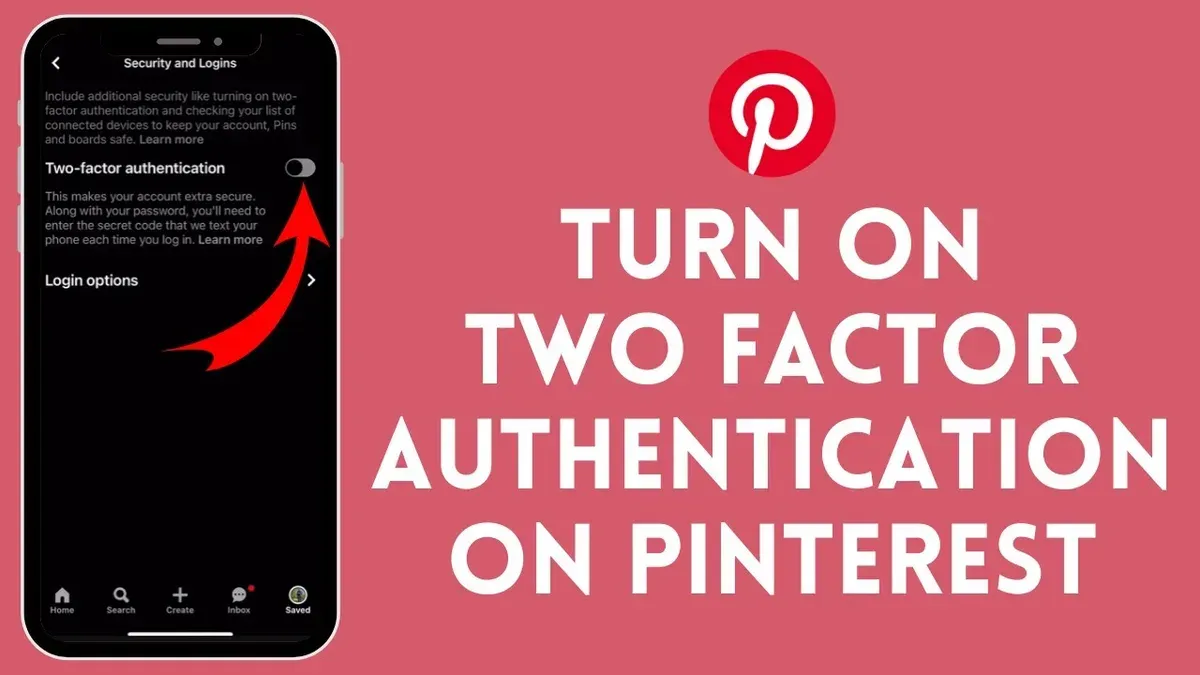
- Go to Settings > Security > Two-Factor Authentication.
- Select "Switch to SMS" or "Switch to Authenticator App" and follow prompts.
Verifying Pinterest account settings ensures 2FA is enabled correctly. Check that the phone number or authenticator app is properly registered and active. Incorrect or outdated details cause code rejection.
Clearing the Pinterest app cache or attempting login from a different device can isolate device-specific issues. Cache clearing steps differ by device but typically involve Settings > Apps > Pinterest > Storage > Clear Cache. Trying login on another device or web browser can indicate whether the problem is device-related.
Tip: Switching authentication methods or devices often reveals whether the issue lies with the app, device, or Pinterest account settings.
When Should Professional Help Be Sought for Pinterest 2FA Issues?
Professional assistance becomes necessary when self-troubleshooting efforts fail to restore access or when there are signs the Pinterest account may be compromised. Indicators of a hacked account include unexpected password changes, unfamiliar login notifications, or unauthorized activity visible in account settings. Persistent failure to receive two-factor authentication codes despite syncing device time, reinstalling apps, and trying backup methods also signals the need for expert support.
Issues stemming from lost or inaccessible authentication devices and backup codes require contacting Pinterest support or a trusted security professional. Pinterest’s support can guide account recovery through identity verification steps but response times and success rates vary, so patience and thorough communication are essential.
When professional help applies, follow these steps:
- Gather all relevant information: account email, recent activity, and error messages.
- Contact Pinterest support via the Help Center or official support channels.
- Provide requested identity verification details promptly and accurately.
- Follow instructions for account recovery or security review carefully.
- Implement any recommended security changes, such as password resets or new 2FA setup.
The process is successful when access is restored and two-factor authentication codes function properly again. Avoid risky shortcuts like sharing sensitive information outside official channels or using unauthorized recovery tools.
Tip: Keep recovery information up to date and store backup codes securely to reduce the need for professional intervention.
Frequently asked questions
Why am I not receiving my Pinterest two-factor authentication code?
Common reasons include incorrect phone number or email linked to the account, network issues delaying delivery, or temporary service outages. It is also possible that messages are blocked by spam filters or carrier restrictions. Verifying contact details in Pinterest settings and checking message folders can help identify the issue.
Can I disable two-factor authentication if the code isn’t working?
Disabling two-factor authentication requires access to the Pinterest account and its security settings. If the code isn’t working and access is still possible, navigate to Settings > Security > Two-Factor Authentication to turn it off. Without access, disabling 2FA is not possible and alternative recovery methods must be used.
What should I do if I lost access to my authentication app for Pinterest?
If access to the authentication app is lost, use Pinterest’s backup codes if they were saved during setup. If backup codes are unavailable, account recovery options such as email verification or contacting Pinterest support become necessary. Reinstalling or resetting the authentication app does not restore lost codes.
Are there alternative verification methods if the 2FA code fails?
Pinterest supports backup codes as an alternative method and may allow verification via linked email or phone number. Users should check account recovery options under Security settings. Setting up multiple verification methods in advance ensures smoother recovery if the primary 2FA method fails.
What This Guide Does Not Cover and When to Seek Specialist Help
This guide does not cover account recovery following hacking, phishing attacks, or other forms of account compromise. Users who suspect unauthorized access or account theft should immediately follow Pinterest’s official security protocols for compromised accounts, including contacting Pinterest support directly. Additionally, this guide does not address issues related to device loss or permanent loss of 2FA backup codes, which require a different recovery process.
When 2FA problems persist after trying these troubleshooting steps, or if errors indicate account suspension or security holds, contacting Pinterest customer support is the next appropriate action. Professional help is also advisable when the authentication app or device itself shows signs of malfunction or when multiple authentication methods fail simultaneously.
The single most effective next step is to verify that the authentication app’s time settings are set to automatic and synced correctly. Incorrect time on the device running the authenticator app is the most common cause of 2FA codes not working and can usually be resolved by enabling 'Automatic date & time' and 'Automatic time zone' in the device’s system settings.
See also: LinkedIn Two-Factor Authentication Code Not Working: How to Fix It Fast · Instagram Two-Factor Authentication Code Not Working: How to Fix It