How to Manage and Secure Pinterest Privacy Settings Effectively
This guide explains how to manage Pinterest privacy settings to protect personal data and control content visibility effectively.

This article explains how to manage Pinterest privacy settings to protect personal data and control content visibility effectively.
Pinterest privacy settings go beyond simple toggles; they include options to control who sees boards and pins, manage sensitive content filters, and regulate app permissions for photo access. Navigating to Settings > Privacy > Account Privacy allows users to make accounts private, limiting profile visibility to approved followers. Additionally, controlling individual pin visibility through secret boards or pin-specific settings helps tailor content exposure.
Understanding how to troubleshoot common access issues, such as login problems or restricted pin views, also plays a key role in maintaining privacy. This guide provides clear instructions for deliberate privacy management choices to keep Pinterest experiences secure and tailored to user preferences.
What Are Pinterest Privacy Settings and Why Do They Matter?
Pinterest privacy settings are controls within the platform that regulate who can see a user’s content, what personal data is shared, and how interactions are managed. These settings cover aspects such as profile visibility, board and pin privacy, notification preferences, and data sharing with third parties. Managing them effectively allows users to dictate the audience for their pins, limit exposure of sensitive information, and restrict unwanted interactions.
Properly configured privacy settings matter because default configurations often lean toward openness, increasing risks of personal data exposure and unauthorized content use. For example, a public board with personal photos can be accessed and repinned by anyone, potentially leading to misuse or identity exposure. Social media platforms, including Pinterest, have seen cases where lax privacy controls contributed to unwanted data scraping or content theft.
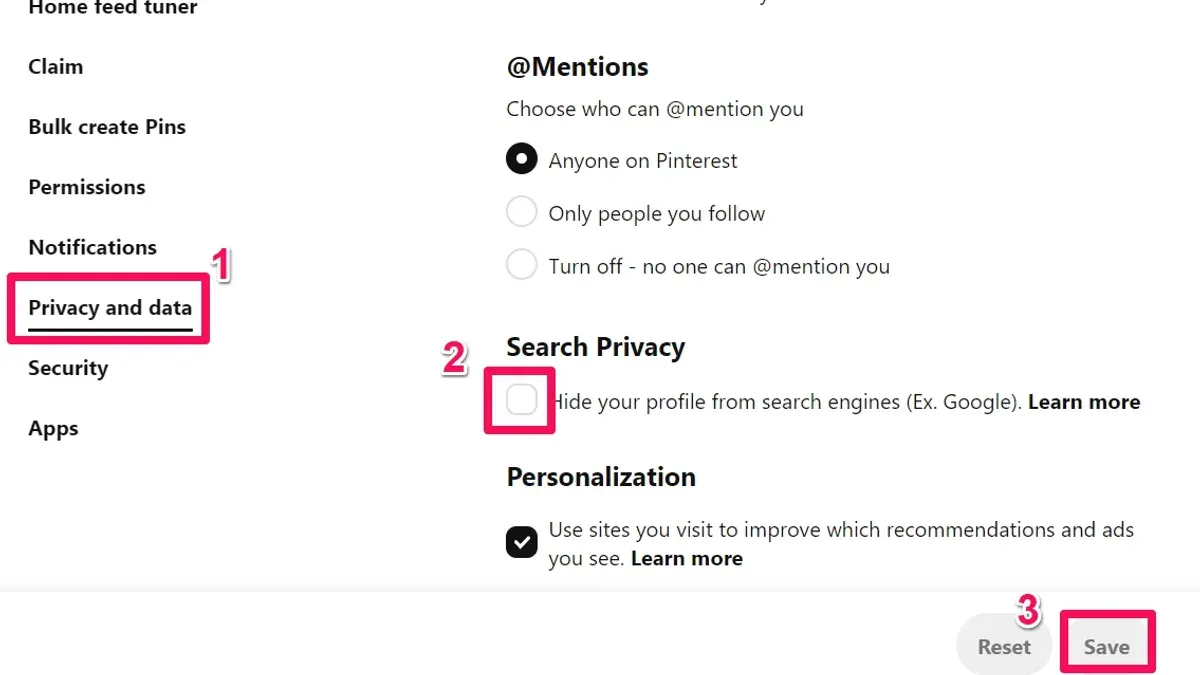
One common risk is leaving boards set to 'public' without realizing that every pin is searchable and visible beyond the user’s immediate network. This can be problematic for users sharing proprietary ideas, private projects, or personal moments. Adjusting settings like "Secret Boards" or disabling "Search Privacy" helps contain visibility and maintains control over who accesses content.
Tip: Regularly reviewing the 'Privacy and Data' section under account settings helps catch unintended public exposure before it becomes a security issue.
How to Get to Pinterest Settings and Navigate Privacy Options
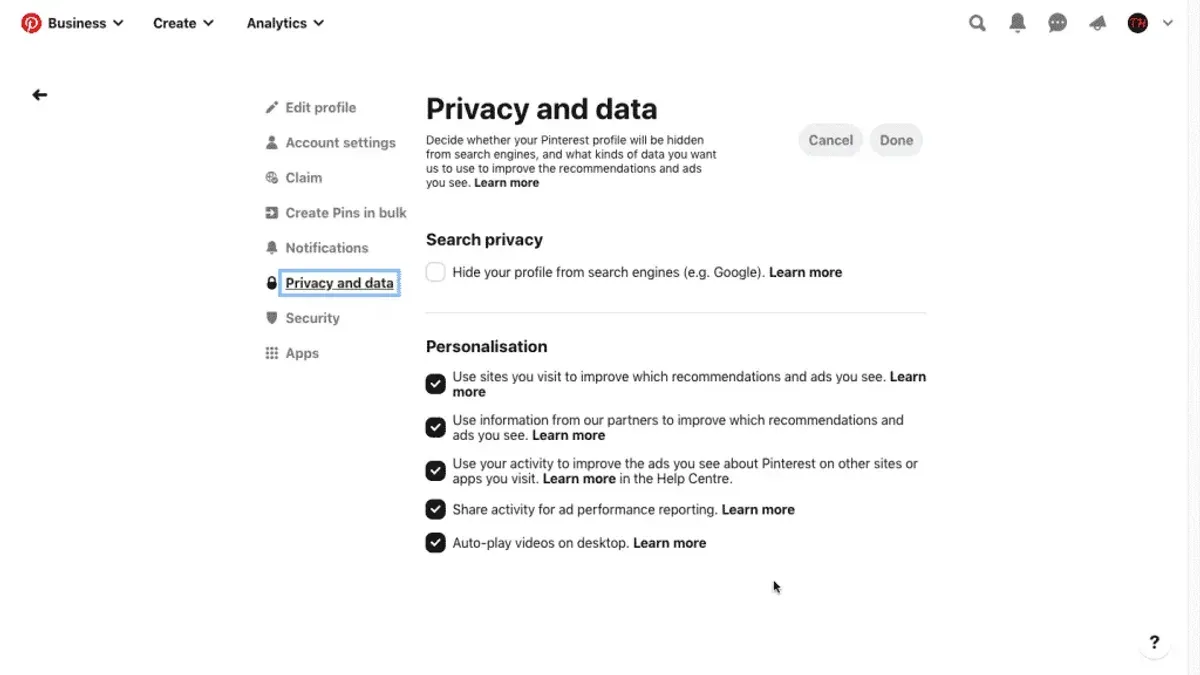
On desktop, access Pinterest settings by clicking the profile photo in the top-right corner, then selecting the gear icon labeled "Settings" from the dropdown menu. Within Settings, find the "Privacy and Data" tab on the left sidebar, which contains key privacy controls. This interface offers clear categories such as "Account Settings," "Privacy and Data," and "Notifications," allowing users to adjust visibility and data permissions systematically.
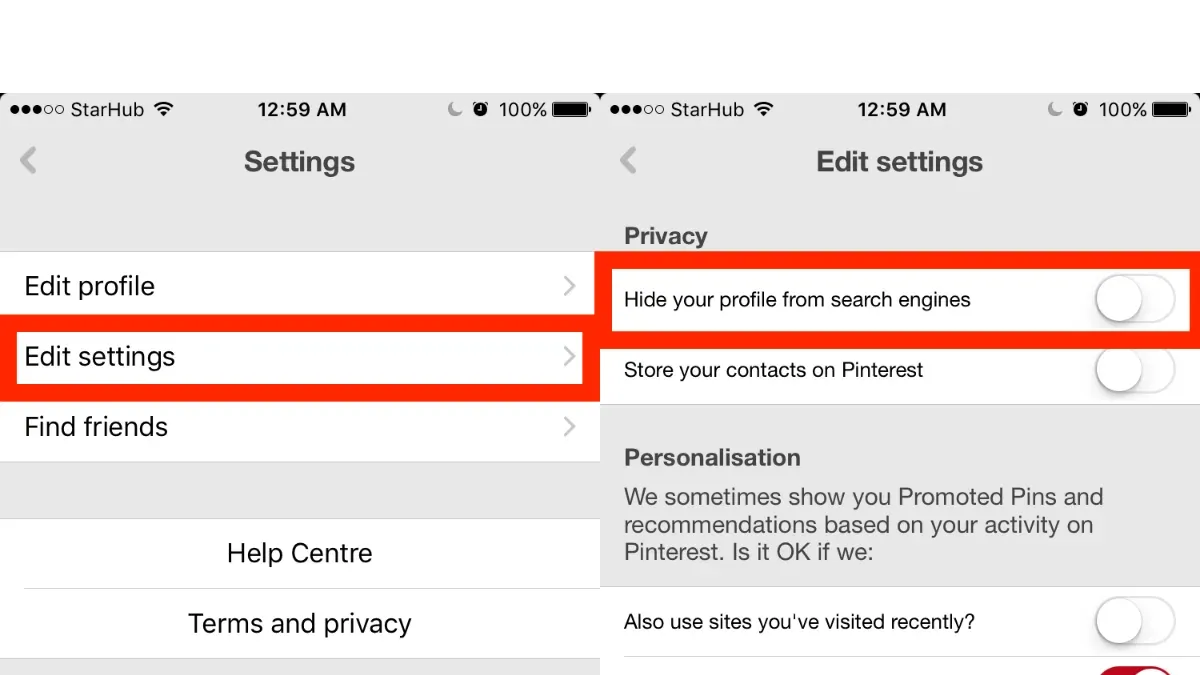
On the iPhone app, tap the profile icon at the bottom right, then tap the gear icon in the top-right corner to open Settings. Privacy-related options appear under the "Privacy and Data" section, similar to desktop but organized in a single scrolling page for streamlined access. Navigating between sections involves scrolling rather than sidebar clicks, which suits mobile usage but requires attention to locate specific controls like "Search Privacy" or "Personalization and Data."
For example, a user wanting to control who can see their boards must open "Privacy and Data" on desktop and select "Secret Boards" settings, while on iPhone they scroll to the same section. Desktop offers quicker toggling with visible menu categories, while mobile necessitates more scrolling but keeps all options on one page. Recognizing this interface difference prevents overlooking important settings.
Tip: On desktop, use the left sidebar to jump directly to privacy settings; on iPhone, use the search bar inside Settings to find specific privacy options faster.
How to Make a Pinterest Account Private
To switch a Pinterest account from public to private, the main tool is the "Secret Boards" feature, as Pinterest does not offer a full account privacy toggle. Start by creating a new board and enabling the "Keep this board secret" option, found when setting up the board or in the board's settings. This makes the board visible only to the creator and any invited collaborators. Existing boards can be converted to secret by selecting the board, clicking the ellipsis menu, choosing "Edit board," and toggling the "Keep this board secret" switch.
When an account uses secret boards, followers and other users see only public boards and pins. Secret pins and boards remain hidden from search engines and anyone not invited. For example, before setting a board to secret, all followers can view its pins on the profile. After switching to secret, these pins disappear from public view, visible only to the board owner and collaborators.
Limitations include the absence of a setting to make the entire account private. Followers can still see public boards and pins unless each board is individually set to secret. Additionally, secret boards do not appear in home feed or category searches. This requires ongoing management to maintain privacy, as new content defaults to public unless explicitly made secret.
Tip: Regularly review board privacy settings to ensure no sensitive content is unintentionally public.
How to Private Pins on Pinterest and Control Pin Visibility
On Pinterest, individual pins cannot be made private directly; instead, privacy control happens primarily through secret boards. Secret boards are private spaces where only invited collaborators can view the pins. To create a secret board, select the “Create board” option, name the board, and toggle the “Keep this board secret” switch on before saving. Pins added to these boards remain hidden from other users and search engines.
Managing secret boards involves inviting specific people who can view and contribute to the pins. For example, a user planning a private event might create a secret board to gather inspiration without sharing details publicly. Unlike regular boards, secret boards do not appear on the user’s profile or public searches, offering complete control over who sees the content.
For controlling pin visibility on public boards, users can delete pins or archive them by moving them to secret boards. This approach ensures sensitive content does not remain publicly accessible. While Pinterest does not allow private pins on public boards, secret boards provide a practical solution to keep select pins confidential.
Tip: When creating a secret board, double-check the privacy toggle before saving to avoid accidentally exposing sensitive pins.
How to Change Privacy Settings on Pinterest to Manage Sensitive Content
To manage sensitive content visibility on Pinterest, locate the setting under Settings > Privacy > Hide Sensitive Content. This toggle controls whether Pinterest filters out content tagged as sensitive from the home feed, search results, and recommendations. By enabling this setting, users reduce exposure to potentially disturbing or adult-themed pins, creating a safer browsing experience.
Disabling the filter allows more varied content, including sensitive material, to appear in search results and the home feed. For example, with the filter off, a search for “tattoos” might show images containing explicit tattoo art that some users may find uncomfortable. When the filter is on, those pins are hidden, showing only generally acceptable content.
Balancing content discovery with comfort relies on personal preferences. Users seeking broad inspiration might disable the filter, accepting all content types, while those wanting a clean, family-friendly environment should keep it enabled. Adjusting this setting offers a straightforward way to tailor the Pinterest experience without affecting board or pin privacy.
Tip: Review this setting periodically, as personal comfort levels and Pinterest’s content tagging can change over time.
How to Allow Pinterest Access to Photos and Manage Permissions Safely
Granting Pinterest access to device photos enables easier pinning directly from the photo library but comes with privacy trade-offs. On an iPhone, this permission is managed under Settings > Pinterest > Photos. Users can select between None, Selected Photos, or All Photos. Choosing Selected Photos limits Pinterest’s access to only the images explicitly allowed, reducing unnecessary exposure.
On Android devices, photo access permissions appear during app installation or can be adjusted via Settings > Apps > Pinterest > Permissions. Here, toggling Storage or Files and Media controls whether Pinterest can browse the photo library. Revoking this permission prevents Pinterest from accessing photos but disables pinning from the device gallery.
Allowing full photo access benefits convenience, especially when saving multiple images quickly. However, it increases the risk of unintended data sharing or exposure if the app is compromised. A common oversight is granting broad access without reviewing app updates that may request expanded permissions.
Tip: Regularly review app permissions in device settings to ensure Pinterest only accesses necessary photos, minimizing privacy risks while maintaining functionality.
Why Can't I Access Pinterest or My Pinterest Pins Anymore? Troubleshooting Access Issues
Loss of access to Pinterest or specific pins often stems from account suspension, login problems, or privacy restrictions. For example, repeated violations of Pinterest's Community Guidelines can trigger account suspension, displaying an error message like "Account Disabled" when attempting to log in. In such cases, reviewing the email associated with the account for suspension notices and following Pinterest's appeal process is necessary.
Login issues frequently arise from incorrect passwords, outdated app versions, or two-factor authentication complications. Users encountering a "Incorrect Password" or "Too Many Login Attempts" message should reset their passwords through the "Forgot Password" link and ensure the Pinterest app or browser is updated to the latest version.
Privacy settings and device permissions can also block access. If a pin is on a secret board, only invited collaborators can view it; an uninvited user will see a "Pin not found" error. Similarly, if Pinterest lacks permission to access photos or storage on a device, certain content may fail to load. Checking device settings to grant Pinterest access under app permissions and confirming board privacy status resolves many visibility issues.
Example: A user unable to see a collaborator's pin found it was saved to a secret board they hadn’t been invited to. After the board owner added them as a collaborator, the pin became visible.
Steps to regain access include verifying login credentials, reviewing email notifications for suspensions, updating app versions, checking board privacy settings, and adjusting device permissions. Persistent issues may require contacting Pinterest Support directly for account-specific assistance.
Understanding Pinterest’s Privacy Policy and Terms of Service
Pinterest’s Privacy Policy details the types of data collected, including user-provided information, device data, and browsing activity. The platform uses this data to personalize content, improve services, and deliver targeted advertising. For example, Pinterest tracks the pins a user interacts with to suggest similar content and relevant ads, which users can control through ad personalization settings.
Recent updates emphasize clearer explanations of data sharing with third parties and expanded user controls over cookie preferences. A notable clause allows Pinterest to use aggregated, anonymized data for research and analytics, which does not identify individual users but may influence content algorithms.
Users can access the full Privacy Policy and Terms of Service via links at the bottom of Pinterest’s homepage or within the app under Settings > Privacy > Privacy Policy. These documents are written in detailed legal language but include summaries and sections highlighting user rights, data retention periods, and opt-out options.
For instance, a user wanting to understand how their data is used for advertising can find specific details under "How We Use Your Information" in the Privacy Policy, clarifying which data points are involved and how to adjust ad settings accordingly.
Tip: Regularly reviewing Pinterest’s Privacy Policy ensures awareness of changes that may affect content visibility and personal data handling.
Frequently asked questions
Where is settings on pinterest?
Settings on Pinterest can be accessed by clicking on the profile icon in the top-right corner, then selecting the gear icon labeled "Settings" from the dropdown menu. On mobile apps, tap the profile icon, then the three-dot menu or gear icon to find Settings. Within Settings, privacy options are organized under sections like "Privacy and Data" or "Account Settings."
How to private your pinterest account?
To make a Pinterest account private, enable the "Hide your profile and boards from search engines" option under "Privacy and Data" in Settings. Additionally, create secret boards instead of public ones to keep pins visible only to invited collaborators. Pinterest does not offer a fully private account mode but using secret boards restricts most content from public view.
How to make my pinterest private?
Making Pinterest private involves setting all boards to secret by editing each board’s settings and toggling the "Keep this board secret" switch. This prevents anyone except added collaborators from seeing those boards. Also, disable the option to allow search engines to index your profile and content in the Privacy Settings.
Why can't i access pinterest anymore?
Access issues with Pinterest may result from network problems, account suspension, or login errors. Check internet connectivity and try clearing browser cache or updating the app. If the account is suspended for policy violations, follow Pinterest’s instructions to resolve it or contact support for assistance.
Why can't i access my pinterest pins?
Inability to access pins often occurs if the pins are on secret boards without collaborator access or if the pins were deleted. Account restrictions or login issues can also block pin access. Verify that the account is logged in correctly and that the pins belong to boards the user can view or have been shared with.
What This Guide Does Not Cover
This guide focuses on managing Pinterest privacy settings for content control and data protection. It does not address account recovery after hacking, phishing, or breaches. Users facing compromised accounts should contact Pinterest support directly and employ enhanced security measures such as two-factor authentication and password resets outside the scope of privacy settings. Legal concerns or data deletion requests beyond Pinterest’s standard controls also require separate procedures.
The single most useful next step is to regularly review the Settings > Privacy and Data section within the Pinterest app or website. Adjusting options like Hide Your Profile from Search Engines and Personalization and Data controls can significantly reduce unwanted exposure. Frequent audits of these settings ensure privacy preferences stay aligned with evolving content and sharing habits.
See also: How to Manage Messenger Privacy Settings for Secure Messaging · How to Manage OkCupid Privacy Settings for Safe and Effective Dating · How to Control and Protect Your LinkedIn Privacy Settings