How to Install Swift Toolchain on Mac: A Step-by-Step Guide
This guide shows you how to install the Swift toolchain on Mac, manage multiple versions, and troubleshoot common issues for smooth development.

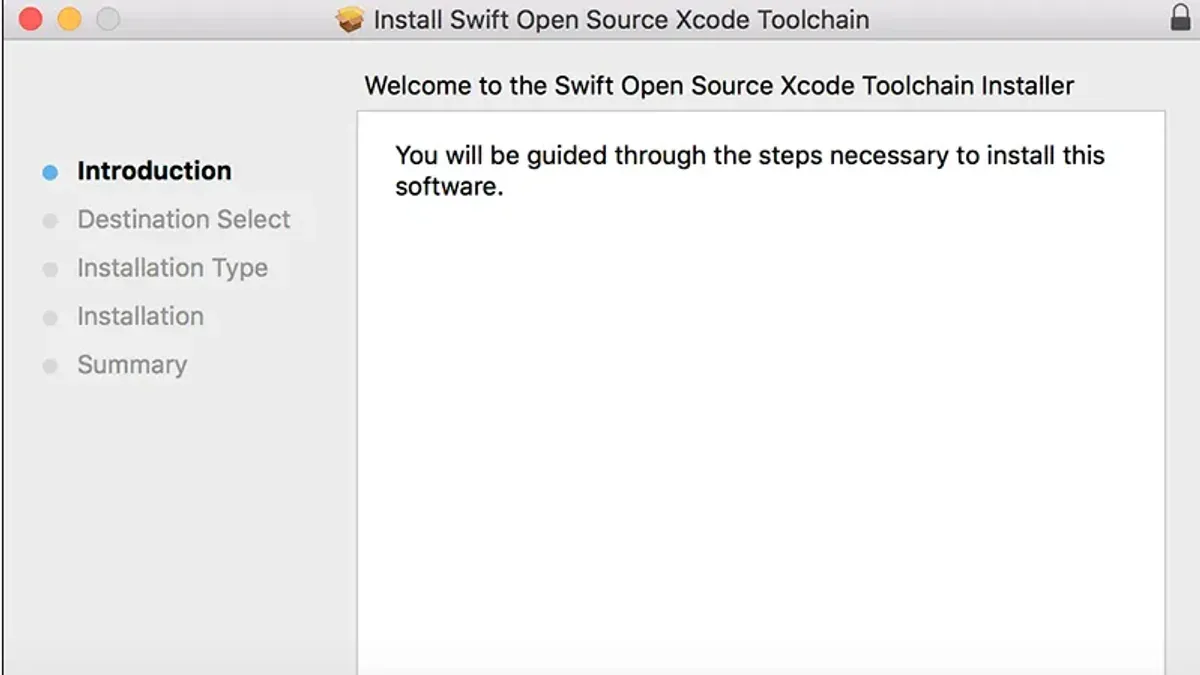
You want to try the latest Swift features or test your code on different Swift versions, but setting up the toolchain on Mac can feel confusing. Whether you aim to use the official Swift releases or custom builds, knowing how to install Swift toolchain on Mac correctly is essential to avoid conflicts and ensure smooth development.
This guide walks you through the entire process, from prerequisites to installation methods including direct downloads and Homebrew. You'll also learn how to manage multiple toolchains side-by-side and troubleshoot common installation issues effectively.
Key takeaways
- Ensure your Mac runs macOS 10.15 or later and has sufficient disk space before installation.
- Download official Swift toolchains from swift.org or install via Homebrew for easier updates.
- Use `xcode-select` and `swift --version` commands to switch and verify active Swift toolchains.
- Common issues include permission errors and conflicting Xcode versions; resolving them often involves adjusting system settings or path priorities.
- The Swift toolchain on Mac supports building and testing Swift code but does not replace full Xcode IDE features.
Before you start: What you need to install the Swift toolchain on Mac
Before installing the Swift toolchain, ensure your Mac meets the necessary system requirements. The latest Swift toolchain supports macOS versions from macOS 11 Big Sur onward. Confirm your macOS version by clicking the Apple menu and selecting About This Mac.
You will need either Xcode installed or plan to use the standalone Swift toolchain. Xcode provides integrated development tools, while the standalone toolchain is useful for testing or building projects without the full IDE.
Check that you have at least 5 GB of free disk space for the toolchain and related dependencies. A stable internet connection is required to download the toolchain packages.
Optional tools like Terminal are essential for command-line installation and verification. Installing Homebrew can simplify the process if you prefer package management.
- Open the Terminal app from Applications > Utilities. You should see a prompt such as
username@MacBook ~ %. - Type
sw_vers -productVersionand press Enter. The macOS version will display, for example,12.4.1. - Check available disk space by typing
df -h /and pressing Enter. Look for theAvailablecolumn showing free space in GB or MB. - If you want to use Homebrew, enter
brew --version. If not installed, you will see a command not found error.
How to download and install the official Swift toolchain on Mac
To install the official Swift toolchain, start by visiting Swift.org's download page. This page lists the latest stable Swift releases with macOS packages clearly marked.
- Locate the latest stable Swift release under the macOS section. You will see a link to a.pkg installer file. Click this link to download the package to your Mac.
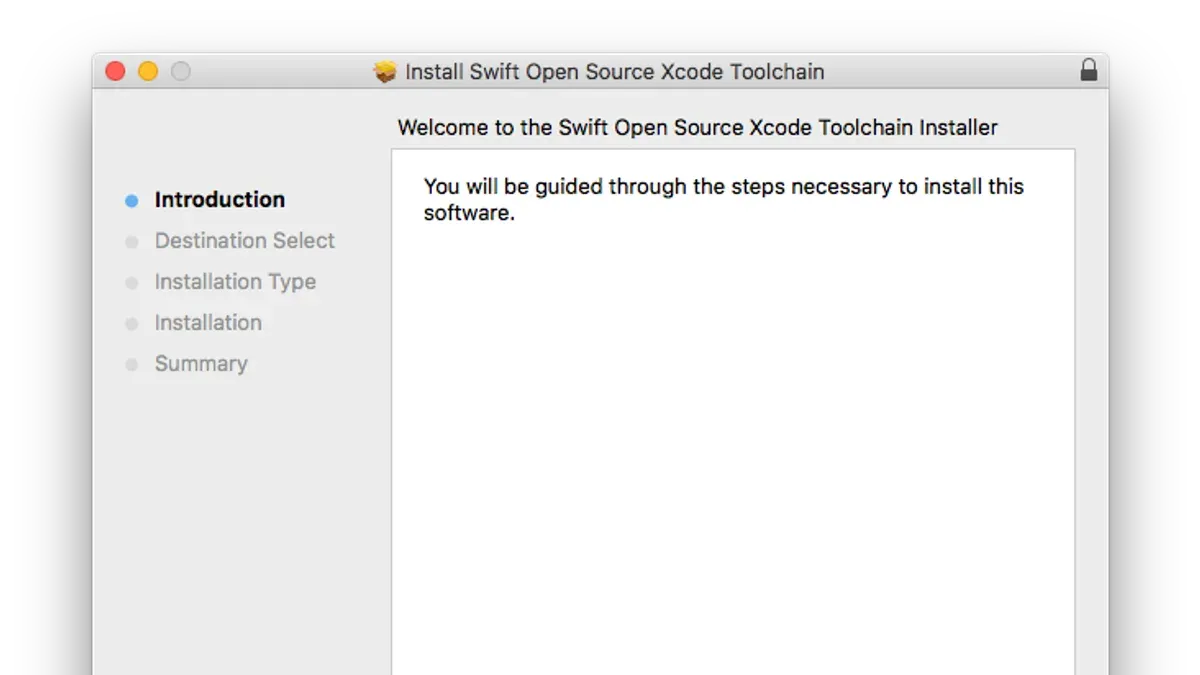
- Once the download completes, open the.pkg file to launch the macOS Installer. Follow the on-screen prompts, which include agreeing to the license and selecting the installation destination (usually your main system drive).
- After installation finishes, open Terminal and type swift --version. You should see output indicating the Swift version installed and the build date, confirming the toolchain is correctly installed.
For example, the terminal output might look like:
Swift version 5.9 (swift-5.9-RELEASE) Target: x86_64-apple-darwin
This confirms you are running the official Swift toolchain. If the version reported does not match the one downloaded, ensure there are no conflicting Swift versions in your PATH.
How to install Swift toolchain using Homebrew on Mac
Homebrew is a popular package manager for macOS that simplifies the installation of software via the command line. Using Homebrew to install the Swift toolchain can be quicker and more flexible than downloading the official installer, especially if you want to manage multiple versions easily.
- Open Terminal on your Mac. You should see your user prompt, for example: username$.
- Update Homebrew to ensure you have the latest formulae by running brew update. You will see messages about fetching and updating repositories.
- Install Swift by running brew install swift. This command downloads and installs the Swift toolchain. Upon success, you will see a message indicating completion.
- Verify the Swift version installed by typing swift --version. The terminal should display the Swift version number and build details, confirming the toolchain is ready.
Compared to the official installer, Homebrew installation is generally faster and integrates well with other command-line tools. However, it may not provide the latest Swift version immediately after release, and some users prefer the official installer for stability and direct support.
| Installation Method | Approximate Time | Ease of Use |
|---|---|---|
| Official Installer | Several minutes (depends on download speed and manual steps) | Graphical interface, straightforward |
| Homebrew | Usually faster, especially if Homebrew is updated | Command-line only, good for automation and scripting |
How to manage multiple Swift toolchains on Mac
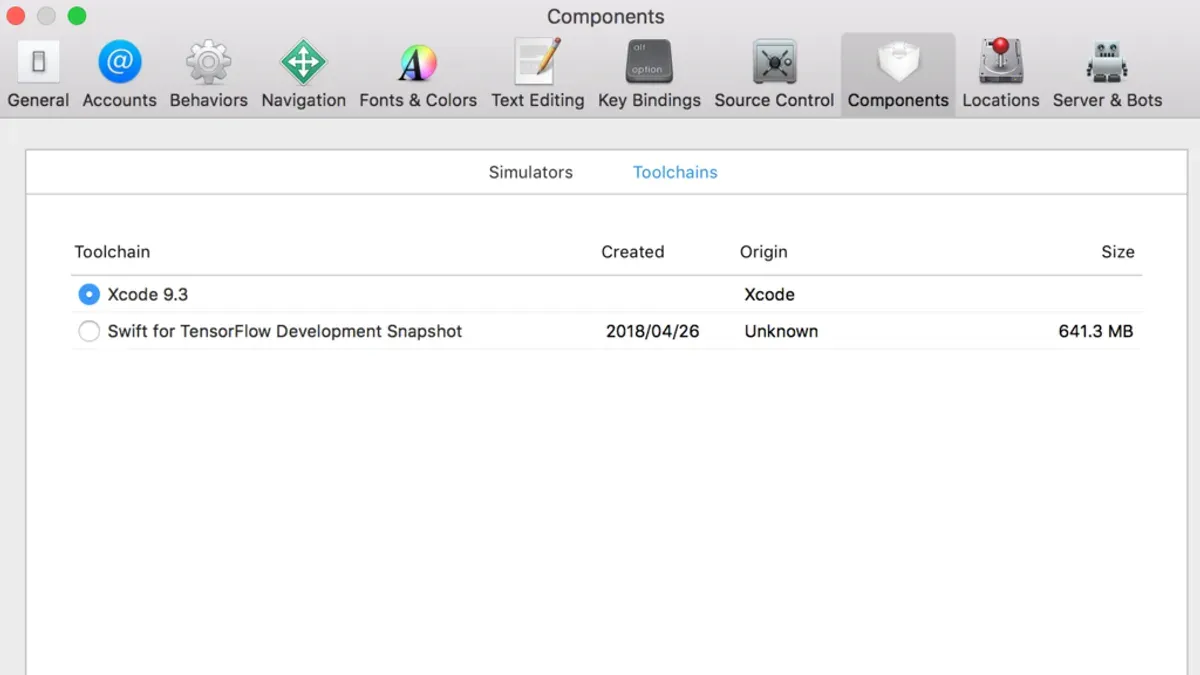
Managing multiple Swift toolchains on your Mac allows you to test and develop across different Swift versions without conflicts. You can install additional toolchains side-by-side by downloading them from Swift.org or via Homebrew, placing each in separate directories.
To select which Swift toolchain is active, use the xcrun command with the --toolchain option or adjust the PATH environment variable to prioritize a specific toolchain.
- Install the desired Swift toolchains side-by-side, for example, "swift-5.8-RELEASE" and "swift-5.9-RELEASE" in
/Library/Developer/Toolchains/. - Open Terminal and run
xcrun --toolchain swift-5.8 swift --versionto use Swift 5.8 temporarily. You should see the Swift 5.8 version output. - To use Swift 5.9, run
xcrun --toolchain swift-5.9 swift --versionand verify the version changes accordingly. - For a persistent switch, export the
TOOLCHAINenvironment variable:export TOOLCHAIN=swift-5.8. Then runxcrun swift --versionto confirm the active toolchain. - Alternatively, modify your
PATHto include the bin directory of the desired toolchain before others, e.g.export PATH=/Library/Developer/Toolchains/swift-5.8-RELEASE.xctoolchain/usr/bin:$PATH.
Using multiple toolchains is helpful when testing new Swift features, ensuring backward compatibility, or when a project requires a specific Swift version. Switching between versions using xcrun avoids system-wide changes and reduces risk of conflicts.
Common issues when installing Swift toolchain on Mac and how to fix them
Installation can fail if your macOS version is not compatible. You might see an error like "This package requires macOS 11.0 or later." To fix this, check your macOS version via Apple menu > About This Mac and update if possible.
If the swift command is not found after installation, it often means your PATH is not set correctly or the toolchain is not linked. Run xcrun --find swift to locate Swift. If it returns no path, reinstall the toolchain or add its bin directory to your PATH.
Conflicts with existing Xcode versions may cause ambiguous command errors. You can specify the toolchain explicitly using xcrun --toolchain or adjust the active developer directory with sudo xcode-select -s /path/to/Xcode.app.
Permission or security settings can block installation. If you see messages about blocked system extensions or unverified developers, open System Preferences > Security & Privacy and allow the app under the General tab.
For detailed guidance, consult the Apple Developer Forums or the Swift Forums.
What you cannot do with the Swift toolchain on Mac
The Swift toolchain provides the core compiler and runtime for Swift development but does not include the full integrated development environment (IDE) features found in Xcode. This means you won't have access to graphical debugging tools, Interface Builder, or project management utilities that Xcode offers.
Additionally, the Swift toolchain built for Mac is designed specifically for macOS environments. It does not support building or running Swift projects targeting Windows or Linux directly on your Mac. Cross-compilation or developing for non-macOS platforms requires additional tools or environments beyond the basic toolchain.
Lastly, Swift is an open source language released under the Apache License 2.0, which means you do not need to purchase any software to use the Swift toolchain on Mac. Official Swift project documentation confirms that all components are freely available, eliminating any licensing fees or purchase requirements.
- How to Install Ruby with rbenv on Mac: A Step-by-Step Guide
- How to Install Rust on Mac: A Clear Step-by-Step Guide
- How to Install Go on Mac: A Step-by-Step Guide for Developers
- How to Install Java JDK 21 on Mac: A Step-by-Step Guide
Frequently asked questions
Is there a Swift toolchain for Windows?
Yes, there is a Swift toolchain available for Windows, but it is not as mature as the Mac version. The Windows toolchain supports Swift development but may lack some features and optimizations found in the Mac toolchain, given the original focus on Apple platforms.
Where can I download the Swift toolchain for Windows?
You can download the Swift toolchain for Windows from the official Swift.org website under the downloads section. The site provides the latest stable releases and snapshots specifically built for Windows environments.
Can I buy Swift software for Mac?
No, Swift itself is an open-source programming language and toolchain that is free to download and use on Mac. You do not need to purchase any software to install or work with Swift on your Mac.
How do I update the Swift toolchain on my Mac?
To update the Swift toolchain on your Mac, download the latest version from Swift.org or update via Homebrew if you installed it through that. After downloading, replace the existing toolchain in the /Library/Developer/Toolchains/ directory or run brew upgrade swift in Terminal to keep your setup current.
What this advice does not cover and who should do something else
This guide focuses exclusively on installing the Swift toolchain on macOS and does not cover development environments on Windows or Linux in detail. If you are working on those platforms, consider resources specifically tailored to your operating system, as installation steps and compatibility vary significantly. Additionally, this article does not address configuring integrated development environments (IDEs) like Xcode beyond basic toolchain installation. Users seeking advanced debugging setups, continuous integration pipelines, or cross-compilation should consult dedicated documentation or community forums.
For a smooth installation experience, start by verifying your macOS version meets the minimum requirements for the Swift toolchain you want to install. Also, ensure you have administrative access to your Mac to permit software installations and necessary PATH environment modifications.
To take the next step, after installing your chosen Swift toolchain, open Terminal and run swift --version to confirm the installation and active version. Regularly updating your toolchain through official channels or Homebrew helps maintain compatibility and access to the latest features.