
Switching from ClassDojo to Remind: Your Step-by-Step Checklist
This checklist guides you through moving from ClassDojo to Remind to maintain clear communication and avoid data loss during the transition.

Short answer: Moving from ClassDojo to Remind requires careful steps to ensure no communication or data is lost. This moving from ClassDojo to Remind checklist will guide you through leaving your ClassDojo school, exiting any Remind classes you need to, and joining new classes on Remind without gaps.
This article covers the practical realities of switching platforms: how to handle your ClassDojo account and class memberships, the process of joining Remind classes, and the common pitfalls to avoid. You’ll learn how to maintain clear communication streams throughout the transition so families and students stay informed. By following this guide, you’ll minimize disruptions and ensure a smooth shift to Remind’s communication tools.
Understand the Differences Between ClassDojo and Remind
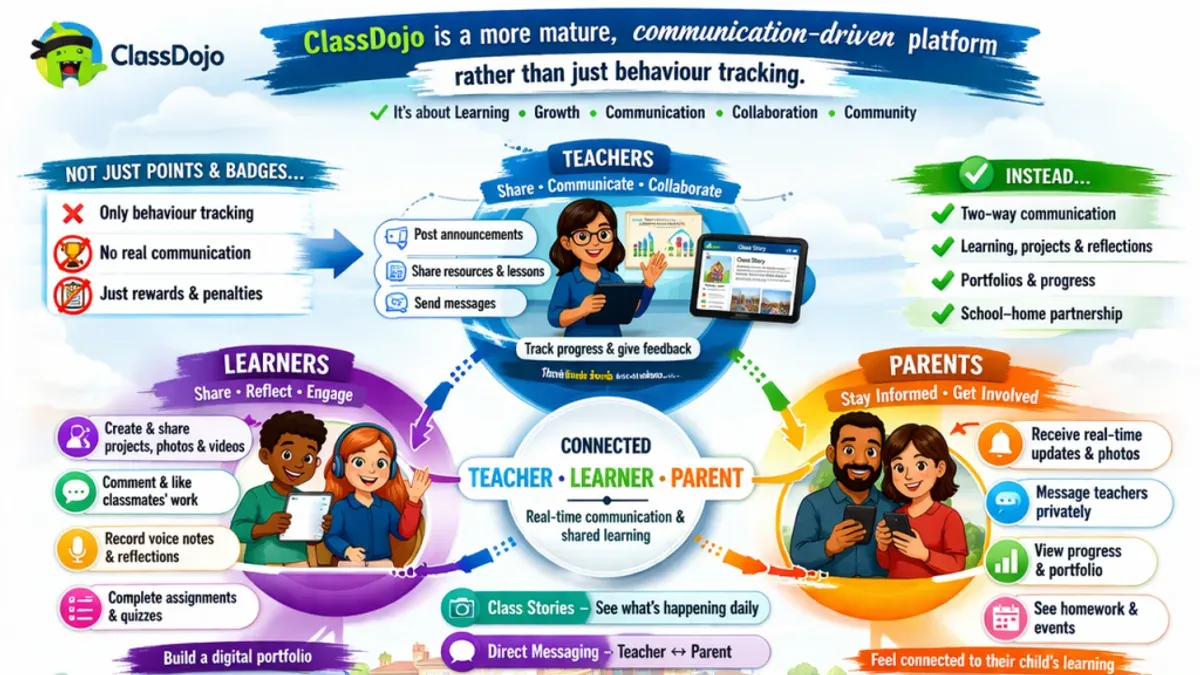
ClassDojo primarily focuses on behavior tracking and fostering a positive classroom culture. It empowers teachers to award points, share student portfolios, and engage parents through multimedia stories. In contrast, Remind centers on streamlined, direct messaging between educators, students, and parents, prioritizing quick, reliable communication over behavior monitoring.
User roles differ notably: ClassDojo offers detailed teacher control for tracking individual student progress, while Remind emphasizes flexible group messaging with simpler permission settings for teachers and administrators. For example, a teacher using ClassDojo might spend time awarding badges and updating behavior reports, whereas in Remind, the same teacher sends announcements or assignment reminders with minimal setup.
| Feature | ClassDojo | Remind |
|---|---|---|
| Main Function | Behavior tracking and classroom culture | Instant messaging and notifications |
| User Roles | Teachers, students, parents with detailed permissions | Teachers, students, parents with simplified roles |
| Communication Style | Multimedia stories, positive reinforcement | Text messages, direct announcements |
| Typical Use Case | Monitoring student behavior and sharing class moments | Sending timely updates and reminders |
Users often praise ClassDojo’s engaging behavior tools but cite occasional complexity in managing permissions. Conversely, Remind is valued for its straightforward messaging but lacks behavior tracking features. Understanding these contrasts clarifies why switching affects how you connect with your classroom community and which features you’ll prioritize.
How to Leave a School on ClassDojo
Leaving a school on ClassDojo is different from leaving just a single class. When you leave a school, you remove yourself from all classes within that school, which is essential if you are switching platforms entirely.
To start, log into your ClassDojo account and click your profile icon in the top-left corner to open the main menu. Select Settings, then choose Schools from the submenu. Here, you'll see a list of schools you belong to.
Find the school you want to leave and click on the three-dot menu next to it. Select Leave School. A confirmation prompt appears; confirm your choice. This action removes your access to all classes and communications within that school.
Timing matters: plan to leave after you have downloaded any necessary data or announcements. For example, if your school sends weekly updates on Fridays, avoid leaving before that day to prevent missing critical information.
Note that leaving a school does not automatically delete your ClassDojo account—you can still join other schools or classes if needed.
- Log in and open Settings > Schools
- Locate the school and click the three-dot menu
- Select Leave School and confirm
- Download important data before leaving
- Time your exit to avoid missing key updates
How to Leave a Remind Class
Leaving a Remind class means you will no longer receive messages or notifications from that specific class, which is different from simply muting notifications. To leave on the mobile app, open Remind and tap the class you want to exit. Next, tap the three-dot menu icon in the upper-right corner and select Leave class. Confirm your choice to complete the process. On the web, navigate to the class page, click the Settings gear icon, then choose Leave class from the menu and confirm.
Before leaving, consider notifying parents or students through a final message explaining the transition to a new communication platform to avoid confusion. For example, a teacher might send: "I will be moving our communication to Remind starting next week; please look out for updates there." This transparent step helps maintain trust and ensures no one misses important information.
Users often overlook the difference between unsubscribing from notifications and leaving a class, mistakenly expecting that muting alerts ends their membership. Leaving the class fully removes you from its roster and message threads, preventing any future messages.
- Open Remind app or web and select the class
- Tap menu (three dots) or Settings gear icon
- Choose Leave class and confirm
- Send a final message to parents/students about the switch
- Verify you no longer receive messages from that class
How to Join a Class on Remind After Leaving ClassDojo
Once you have left ClassDojo, your next step is to join or create your classes on Remind to maintain seamless communication. If you are joining an existing class, you will typically receive an invite code or a direct link from the class teacher or administrator. Navigate to the Remind app or website, select "Join a Class," then enter the invite code or click the link to become part of that class.
If you are the teacher setting up a new class, start by clicking "Create a Class" from the dashboard. Choose your class type and name it clearly, for example, "Grade 4 - Mrs. Smith's Science." Next, invite participants by generating an invite code or link. Send this information directly to families via email or text using a clear message like:
"Dear Families, we are now using Remind for class updates. Please join our class using this link [insert link] or enter this code [insert code] in the Remind app to stay connected."
This direct communication avoids confusion and encourages prompt joining. Remember to verify that all parents and students have joined before discontinuing ClassDojo communication.
- Receive or generate invite code/link in Remind.
- Use "Join a Class" to enter code or follow link.
- Create a new class via dashboard if you are the teacher.
- Send clear invite messages to families and students.
- Confirm everyone has joined before ending ClassDojo use.
Avoid Common Mistakes When Switching from ClassDojo to Remind
One frequent pitfall is leaving ClassDojo without first informing families or exporting essential data. For example, a teacher who exited ClassDojo abruptly found parents confused and missing critical behavior reports that weren’t saved beforehand. This disrupted trust and required additional outreach to clarify the transition.
Another common error is sending overlapping messages from both platforms simultaneously. This often causes parents to receive duplicate or conflicting notifications, leading to frustration and missed information. Coordinating message timing ensures clarity and prevents communication fatigue.
Lastly, overlooking permission settings on Remind can jeopardize privacy and compliance. Remind’s settings under Class Settings > Privacy & Permissions let you control who can message or see class rosters. Neglecting these controls can expose sensitive information or allow unauthorized communication.
- Inform families before leaving ClassDojo and export needed data via Settings > Account > Export Data.
- Pause messaging on ClassDojo before activating Remind notifications to avoid overlap.
- Review and adjust Remind’s Privacy & Permissions settings to restrict access appropriately.
- Communicate clearly about the timing and platform change to all participants.
Maintain Continuity in Communication During the Transition
To avoid communication gaps or duplicated messaging, use both ClassDojo and Remind in parallel for a limited transition period, typically two weeks. Continue sending essential updates via ClassDojo while gradually introducing Remind messages. This overlap ensures that families who have not yet fully shifted remain informed.
Before leaving ClassDojo, export your message history and any important class data via Settings > Data Export. Store this securely for reference or to share with new classes on Remind if needed.
Plan your announcements carefully: send an initial message on both platforms explaining the switch, followed by periodic reminders on Remind only. For example, Week 1: announcement on both; Week 2: reminders on Remind and final updates on ClassDojo; Week 3: move entirely to Remind.
Sample communication plan:
- Day 1: Notify families on ClassDojo and Remind about the upcoming change.
- Day 5: Send a reminder on Remind with instructions to join.
- Day 10: Final ClassDojo update and confirmation message on Remind.
- Day 14: Officially stop using ClassDojo.
This structured overlap keeps all parties engaged and prevents missed messages during the switch.
Read next
- Moving from ClassDojo to ParentSquare: Your Complete Checklist
- ClassDojo Rollout Plan for Substitute Teachers: A Practical Guide
- ClassDojo Implementation Timeline: Your Complete Explainer Guide
Frequently asked questions
how to leave a school on classdojo
To leave a school on ClassDojo, open the app or website and go to your profile settings. Navigate to the "Schools" section, find the specific school, and select "Leave School" or "Remove". Confirm your choice to complete the process; this stops notifications and removes your association with that school, but be sure to save any important data before leaving.
how to leave a remind class
Leaving a Remind class requires opening the Remind app or website and accessing the class list. Select the class you want to leave, then tap on the settings or options menu, and choose "Leave Class." Confirm the action to stop receiving messages and notifications from that class.
class dojo vs remind
ClassDojo focuses on student behavior tracking and parent engagement with features like points and portfolios, while Remind centers on streamlined messaging for quick, reliable communication between educators, students, and parents. ClassDojo offers more classroom culture tools, whereas Remind excels in mass notifications and direct messaging without requiring student accounts.
join a class remind
To join a class on Remind, you need a class code from your teacher or administrator. Enter this code on the Remind app or website under "Join a Class". After verifying your identity, you will gain access to class messages and announcements. Make sure to input the code exactly to avoid errors.
Quick checklist
- Review your current ClassDojo contacts and export any essential data before leaving.
- Use the ClassDojo app or website to formally leave the school or class under Settings > Account > Leave School.
- Leave any Remind classes you no longer need via the Classes tab > Select class > Leave Class.
- Join your new Remind classes by entering the correct class code or accepting an invitation from your administrator.
- Notify families and students about the switch with clear instructions and timelines to avoid confusion.
- Double-check that notifications are enabled in Remind for all communication channels you plan to use.
What this advice does not cover
This guide does not cover enterprise-level account migrations or integrations with other school systems; those require specialized IT support. If your school uses a district-wide platform that syncs with ClassDojo or Remind, coordinate with your IT department to manage the transition. Also, this article does not address legal or privacy compliance issues that may arise during data transfers.
The single most useful next step is to communicate proactively with your community before making the switch. Set clear expectations about when and how messages will appear in Remind, and provide support for families unfamiliar with the new platform. This reduces disruption and ensures your communication remains seamless throughout the transition.



