Moving from Gimkit to Microsoft Forms: A Stepwise Transition Guide
This checklist guides you stepwise through moving from Gimkit to Microsoft Forms, focusing on content recreation, engagement, and administrative setup.

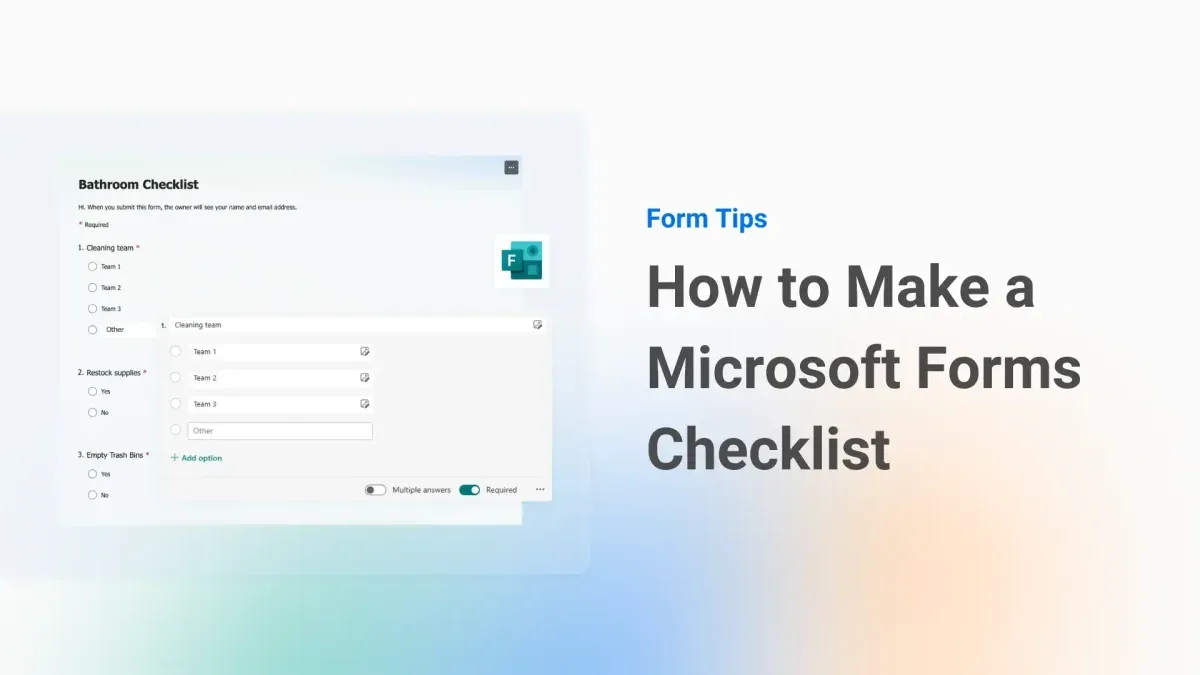
Short answer: Moving from Gimkit to Microsoft Forms requires a clear plan that addresses the shift from gamified, interactive assessments to straightforward, data-focused forms. This moving from Gimkit to Microsoft Forms checklist helps you navigate content recreation, engagement strategies, and administrative setup efficiently.
This article breaks down the key differences between Gimkit and Microsoft Forms, explains why you might switch platforms, and guides you through rebuilding your assessments without losing learner engagement. You'll get actionable steps on setting up Microsoft Forms for effective data collection, tips to avoid common pitfalls, and methods to evaluate your transition's success. The focus is on practical solutions that respect your pedagogical goals while adapting to Microsoft Forms’ capabilities.
What is the core difference between Gimkit and Microsoft Forms?
Gimkit offers a gamified quiz experience designed to boost engagement through game mechanics like earning in-game currency for correct answers, power-ups, and timed rounds. Microsoft Forms, by contrast, provides straightforward tools for creating surveys and quizzes focused on data collection and analysis without game elements. This means Gimkit motivates participants with competition and rewards, while Microsoft Forms drives motivation through clear instructional goals and detailed feedback.
For example, in Gimkit, students answer questions to earn "kits" they can spend on power-ups that affect gameplay, making the process feel like a game rather than a test. Microsoft Forms lacks this dynamic but excels in capturing responses efficiently and offering automatic grading, branching logic, and exportable reports for deeper analysis.
| Feature | Gimkit | Microsoft Forms |
|---|---|---|
| Engagement Style | Game-based incentives, competition, rewards | Direct quiz/survey interaction, no game elements |
| Question Types | Multiple choice, short answer, and more with game twists | Multiple choice, text, rating, date, ranking, and branching |
| Reporting | Basic performance summaries, in-game feedback | Detailed analytics, export options, individual responses |
| Use Case Focus | Motivating learners through gameplay | Collecting and analyzing assessment data |
Understanding these differences helps you set realistic expectations: you trade Gimkit’s high-energy game environment for Microsoft Forms’ robust data handling and administrative control.
Why might you need to move from Gimkit to Microsoft Forms?
You might consider moving from Gimkit to Microsoft Forms if your priorities have shifted toward scalability and seamless integration within the Microsoft 365 ecosystem. Microsoft Forms is embedded in this ecosystem, allowing you to easily link assessments with Teams, SharePoint, and Excel for streamlined workflows and centralized data management. For example, a school district that switched to Microsoft Forms found it easier to compile student responses directly into Excel spreadsheets for detailed analysis without exporting data manually from multiple platforms.
Another reason is the need for advanced analytics and formal data export options. Microsoft Forms supports exporting results as CSV or Excel files, which are compatible with many data analysis tools, making it simpler to generate comprehensive reports required by administrators. This contrasts with Gimkit’s limited export functions, which can restrict reporting capabilities.
Budget constraints can also drive the move. If the cost of maintaining a Gimkit subscription exceeds your available funds, Microsoft Forms offers a cost-effective alternative included with many Microsoft 365 licenses. Furthermore, if your institution mandates using Microsoft tools for compliance or compatibility reasons, switching becomes necessary to meet these requirements.
Consider a training department that initially used Gimkit for engagement but then shifted to Microsoft Forms after their institution required all assessments to be centrally stored and tracked in Microsoft Teams. This change improved reporting efficiency and compliance with institutional policies.
How do you recreate your Gimkit content in Microsoft Forms effectively?
Start by mapping your Gimkit question types to Microsoft Forms equivalents. Multiple choice questions translate directly to the "Choice" type in Forms, where you can list answer options and enable multiple selections if needed. Short answer questions become "Text" type fields with an option to set response length or require a specific format.
Use Microsoft Forms’ branching logic to mimic Gimkit’s game progression. For example, after a student answers a question, you can direct them to different sections based on correctness or choice, simulating levels or pathways. This is set up under "Add branching" in the form editor, where you assign which question or section follows each answer. This keeps the flow dynamic and tailored.
Incorporate multimedia by embedding images, videos, or audio clips directly into questions to maintain engagement. Use the "Add media" button within each question to upload files or link to content. Also, enable "Quiz" mode to provide immediate feedback with custom messages for correct or incorrect answers, preserving assessment integrity and motivation.
For example, a Gimkit multiple choice question asking, "What is the capital of France?" with four options, can be recreated as a Choice question in Forms. You can add an image of the Eiffel Tower and set branching so that if the student selects "Paris," they proceed to a congratulatory section; otherwise, they receive corrective feedback and retry options.
- Convert Gimkit multiple choice questions to Microsoft Forms "Choice" questions.
- Use "Add branching" to create adaptive pathways based on answers.
- Embed images or videos within questions using the "Add media" function.
- Enable "Quiz" mode for automated feedback on responses.
- Test each question’s flow to ensure branching works as intended.
What are best practices for deploying Microsoft Forms after switching from Gimkit?
Start by scheduling your forms to align tightly with your instructional plan. For example, set quizzes immediately after relevant lessons to capture fresh understanding. Use the "Settings" tab to enable "Send me an email receipt when respondents submit my form" for automatic notifications and activate "Send reminder emails to respondents who haven't completed the form" under the "Share" options to boost participation. Timing distribution this way prevents data lag and keeps students engaged.
Leverage Microsoft Forms’ collaboration feature by clicking "Share" and selecting "Share as a template" or "Collaborate" to invite colleagues. This approach allows multiple educators to refine questions and review branching logic, ensuring clarity and coverage before deployment.
Consider a practical workflow: an educator creates a quiz, shares collaboration access with a teaching team for review, schedules the quiz to open right after a lesson, and sets automatic reminders. This method increases completion rates and improves data quality by catching errors early and maintaining consistent student engagement.
- Align form release with lesson completion for relevance
- Enable automatic notification and reminder emails in Settings and Share menus
- Use collaboration links to involve team members in form review
- Schedule quizzes to open and close at optimal times
- Monitor responses early to spot and fix issues promptly
What common mistakes should you avoid when moving from Gimkit to Microsoft Forms?
One major mistake is underestimating the impact of losing gamification. Gimkit’s game-based rewards and pacing keep engagement high; without compensating, learners often lose motivation. For example, an educator who simply transferred questions to Microsoft Forms without adding interactive elements or incentives noticed a sharp drop in completion rates. To avoid this, incorporate multimedia, branching logic, and timely feedback to maintain learner interest.
Another pitfall is ignoring Microsoft Forms’ limitations in question variety and interaction. Unlike Gimkit, Microsoft Forms lacks some game-like question types such as power-ups or live leaderboards. Trying to mimic these without adaptation leads to frustration. Users have reported confusion when expecting dynamic interactions and instead encountering static forms. Plan assessments around Forms’ strengths—clear, data-focused questions—and avoid forcing game mechanics that aren’t supported.
Neglecting data privacy settings and permissions is a common oversight. Microsoft Forms requires deliberate adjustment of sharing options under “Settings > Who can fill out this form” to match your institution’s policies. One trainer shared how open links caused unintended access, compromising student data. Always review and restrict access as needed.
Finally, failing to train staff and students on Microsoft Forms creates unnecessary barriers. Even basic tasks like submitting or reviewing results can cause frustration if users are unfamiliar. A district resolved repeated submission errors by providing short, focused tutorials on navigation and features before rollout.
- Compensate for lost gamification with multimedia and feedback
- Adapt assessments to Microsoft Forms’ question types and interaction limits
- Check and configure privacy and sharing settings carefully
- Provide targeted training to staff and learners before launch
How do you measure success after transitioning to Microsoft Forms?
Start by checking the response rate through the Microsoft Forms dashboard under the "Responses" tab. High response rates indicate good engagement; if rates fall below your Gimkit baseline, consider revisiting your communication or form length. Next, analyze completion times to ensure assessments are neither too short to be meaningful nor too long to cause fatigue. Microsoft Forms provides average time taken per respondent, accessible via the "Open in Excel" export.
Review the accuracy and depth of data collected by examining question-level analytics, including correct answer percentages and open-text responses. This helps verify that Forms captures the intended level of insight, unlike Gimkit's gamified feedback. Use the "Insights" pane to identify questions with high error rates or low engagement.
Gather user feedback through a quick follow-up survey asking about ease of use, satisfaction, and any technical issues. This qualitative data complements the quantitative metrics and reveals hidden friction points. For example, a teacher noted a drop in student enthusiasm; a feedback survey uncovered confusion about navigation in Forms.
Finally, adjust future forms based on these insights. If data shows certain question types reduce completion or accuracy, modify or replace them. Regularly revisit the "Responses" summary and Excel exports to track trends over time.
- Monitor response rates in the "Responses" tab
- Check average completion times via Excel export
- Analyze question-level data in "Insights"
- Collect user feedback with a follow-up survey
- Refine forms based on analytic and feedback results
Frequently asked questions
Can I import Gimkit questions directly into Microsoft Forms?
No, Microsoft Forms does not support direct import of Gimkit questions. You need to manually recreate your questions by copying text and choices into Forms. Using Excel or CSV files for bulk upload can help, but only if your questions are formatted accordingly; Gimkit exports are not directly compatible.
How do I keep students engaged without Gimkit’s game elements?
Maintain engagement by varying question types like multiple-choice, ranking, and text responses within Microsoft Forms. Use branching logic to create adaptive paths that respond to student answers. You can also embed multimedia elements such as images and videos to make assessments more dynamic.
What Microsoft Forms features best replace Gimkit’s power-ups and incentives?
Microsoft Forms lacks gamified power-ups, but you can replicate incentives using features like instant feedback and customized thank-you messages. Pair Forms with tools like Microsoft Teams or OneNote to award badges or points manually. Use Forms’ quiz settings to assign points per question for a clear scoring system.
Is Microsoft Forms suitable for high-stakes testing after moving from Gimkit?
Microsoft Forms can handle high-stakes tests by enabling features like respondent authentication via Microsoft accounts and restricting submissions to one per user. However, it lacks advanced proctoring and cheating prevention tools, so combine it with third-party solutions or supervised environments for secure assessments.
What this advice does not cover
This guide does not cover switching from Gimkit to third-party gamification apps that may better replicate Gimkit’s engagement model. Microsoft Forms lacks native game mechanics, so educators prioritizing gamification may need supplementary tools such as Kahoot! or Quizizz alongside Forms. If you require a fully gamified assessment environment, consider exploring platforms designed specifically for that purpose rather than relying solely on Microsoft Forms.
Quick checklist
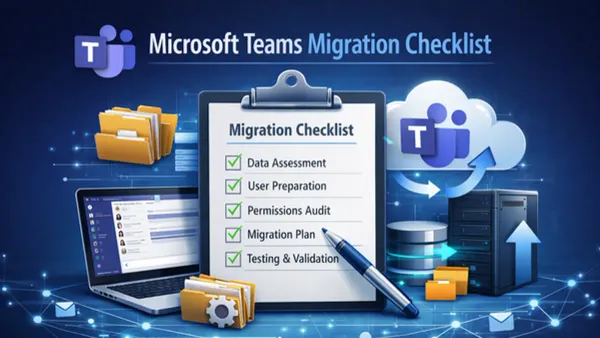
- Review your Gimkit question bank and categorize by topic and difficulty
- Create corresponding sections and questions in Microsoft Forms, using branching to mimic adaptive paths
- Enable required settings: shuffle questions, set time limits, and assign points as needed
- Test your Form with a small group to confirm data collection and responsiveness
- Schedule deployment and communicate clear instructions to learners
- Use Microsoft Forms analytics to track completion rates and score distributions
- Gather feedback from learners to identify engagement gaps and adjust accordingly
Start by exporting or manually transferring your Gimkit content into Microsoft Forms, then focus on configuring sections and branching logic. This step ensures your assessments retain structure and flow, making the transition smoother for both you and your learners. Prioritize setting up analytics tracking early to measure effectiveness and guide future adjustments.
See also: Moving from Gimkit to Kahoot: A Practical Transition Checklist · Moving from Gimkit to Edpuzzle Checklist: What You Need to Know · Gimkit Implementation Timeline: How to Start and Use It Effectively · Moving from Edpuzzle to Microsoft Forms: A Practical Transition Guide