
Moving from Gimkit to Quizizz Checklist: A Clear Transition Guide
This checklist guides you through moving from Gimkit to Quizizz, helping you adjust quizzes and maintain engagement during the transition.

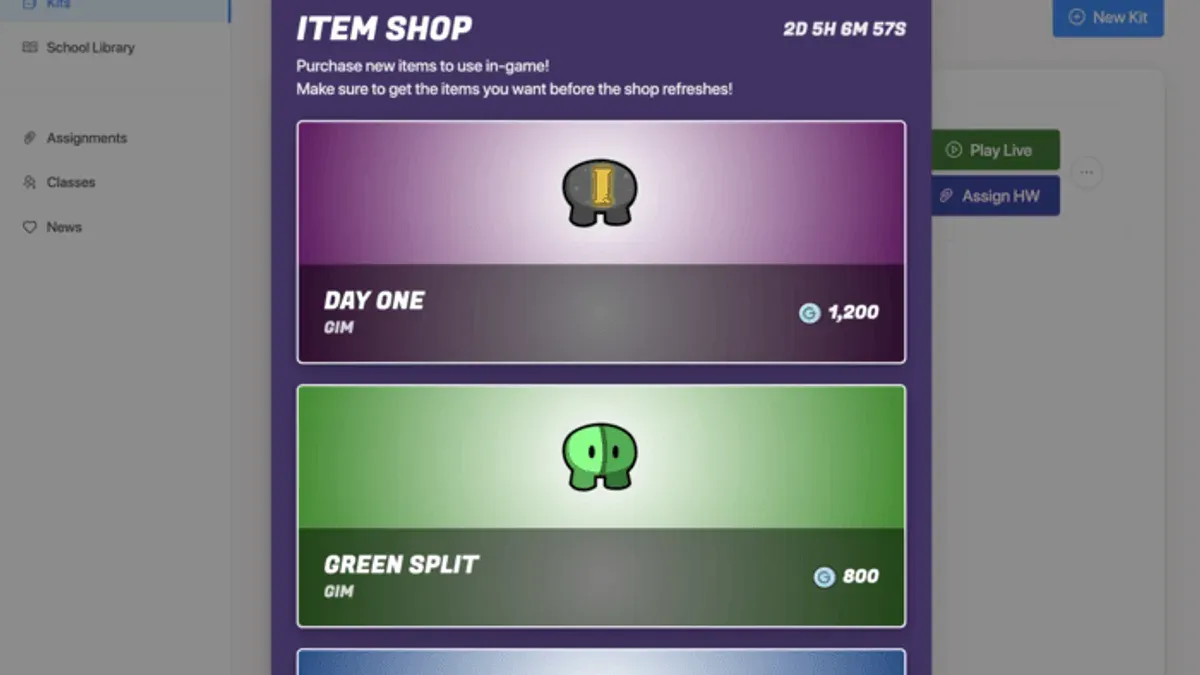
Short answer: Moving your content from Gimkit to Quizizz requires understanding that Gimkit’s dynamic question styles don’t directly transfer. You’ll need to recreate or import quizzes carefully, adjusting for Quizizz’s fixed question formats and import limitations. This moving from Gimkit to Quizizz checklist helps you navigate importing questions, redesigning game flow, and avoiding common pitfalls.
This article covers how Gimkit’s question creation differs from Quizizz’s, what adjustments you must make when importing content, and practical steps to rebuild your quizzes effectively. You’ll learn key platform differences, how to work around import restrictions, and which features require manual setup. By following this guide, you can ensure a smooth transition without losing quiz quality or learner engagement.
How to create questions in Gimkit
Start by logging into Gimkit and selecting “Create Kit” to begin building your question bank. Use the “Add Question” button to enter your prompt and list answers, marking the correct ones clearly. Gimkit lets you customize questions with dynamic features like power-ups, timed answers, and money multipliers that influence gameplay, making learning interactive.
For more variety, access Gimkit Creative mode where you can choose from multiple formats such as multiple-choice, checkbox, and fill-in-the-blank. This mode allows you to integrate game mechanics directly into questions, like setting timers or adding special effects that reward faster responses. Organize your questions into sets called “Gims,” which helps keep your content structured and easy to manage.
To make questions engaging, consider mixing simple recall with application-based prompts and use power-ups strategically to increase student motivation. For example, a math quiz might include a timed question that doubles points if answered correctly within 15 seconds. This blend of question types and game elements enhances student focus and participation.
The interface highlights each question’s status and allows easy edits or deletions. User feedback often notes that the creative options encourage learners to stay involved longer and respond faster. Remember to preview your kit to check question flow and game dynamics before sharing.
How to add questions to Gimkit Creative
To add questions in Gimkit Creative mode, you start by logging into your account and selecting "Creative" from the main dashboard. This mode differs from standard quizzes by allowing more flexible question formats and interactive elements. Once inside, click "New Kit" or open an existing kit to start adding questions.
When adding a question, you enter the question text first, then provide multiple answer options. Unlike standard Gimkit quizzes, Creative mode lets you attach images to questions or answers, add hints that learners can view if stuck, and set timers for each question independently. For example, you might upload a diagram for a science question, add a 30-second timer, and include a hint like "Review the cell parts".
Editing questions is straightforward—select the question from the list, update text, images, or hints, and save changes. You can also reorder questions by dragging them within the set, helping organize content logically. After completing your set, save and name it clearly for easy retrieval.
Users often note Creative mode’s visual and interactive features make quizzes more engaging but require extra setup time compared to the faster standard quiz creation. The trade-off is more dynamic content versus quicker preparation.
- Log in and select "Creative" from the dashboard
- Create or open a kit
- Add questions with text, images, hints, and timers
- Edit and reorder questions as needed
- Save and name your question set clearly
How to import Quizlet to Gimkit
Quizlet sets cannot be imported directly into Gimkit, but you can transfer content by exporting Quizlet data as a CSV or plain text file first. Start in Quizlet by opening your set, then click the More button and select Export. Choose the delimiter as tabs or commas and copy the exported text, or download it as a CSV file.
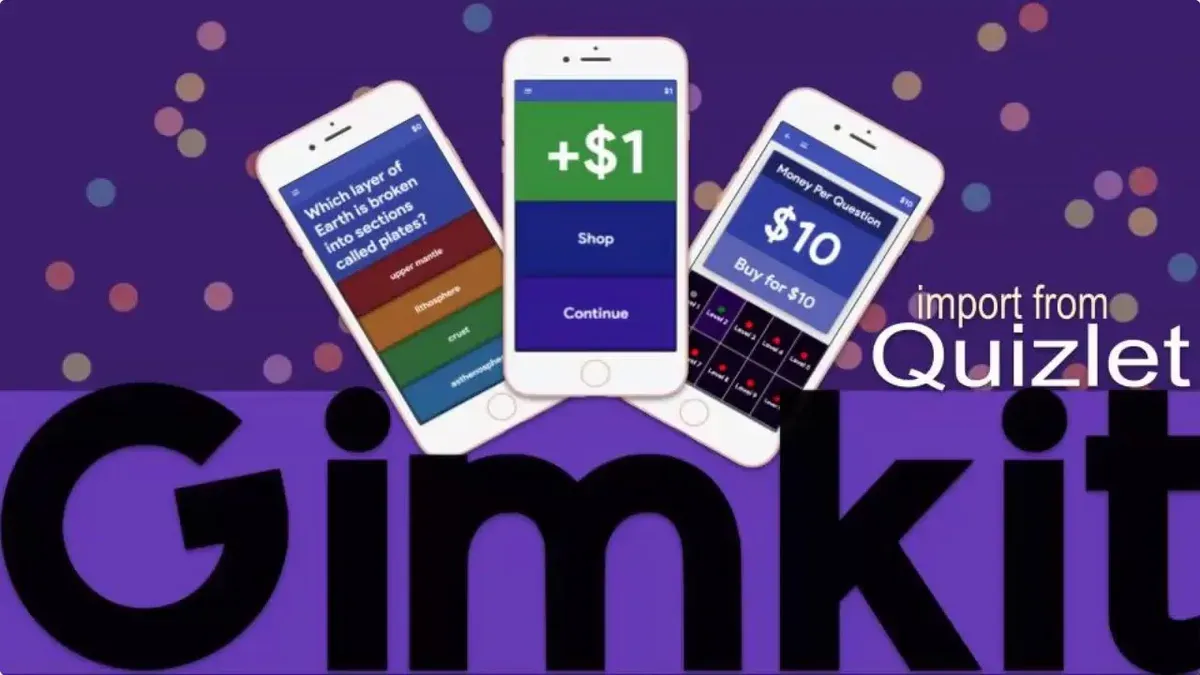
Next, open Gimkit and go to your quiz creation page. Look for the Import Questions option and paste the copied text or upload the CSV file. Gimkit expects the file to have two columns: the term or question first, then the definition or answer. If your export has additional columns or formatting, remove them to avoid import errors.
A common pitfall is extra line breaks or inconsistent delimiters in the exported file, which cause Gimkit to reject the import with a generic error message. Cleaning the file in a text editor—ensuring each line has exactly two fields separated by a comma or tab—prevents this. If you receive an error like "Invalid file format," check for stray commas within terms or answers and remove them.
For example, exporting a set of 30 flashcards and importing after cleaning typically imports 90% of questions successfully. Some manual correction of question formatting may be needed after import. Gimkit does not import images or complex question types from Quizlet exports, so expect to add those manually.
- Export Quizlet set via More > Export, choose CSV or tab-delimited text
- Clean exported file: ensure two columns, no extra commas or line breaks
- In Gimkit, use Import Questions to paste text or upload CSV
- Fix errors by checking for formatting issues if import fails
- Review imported questions and add images or special formats manually
How to make a game with Quizlet questions on Gimkit
Quizlet’s straightforward flashcard format doesn’t directly translate into Gimkit’s gamified setup, so you need to manually recreate or adapt Quizlet questions within Gimkit. Start by exporting your Quizlet content as a clean CSV or text file, then enter questions and answers manually into Gimkit’s question editor. This avoids import errors and allows you to tailor questions for Gimkit’s active gameplay.
Adjust question wording to suit Gimkit’s dynamic style: use concise, clear prompts and provide multiple plausible answer choices. For example, a Quizlet flashcard with “Capital of France” and “Paris” becomes a multiple-choice question like “What is the capital of France?” with options including Paris, London, Berlin, and Rome. This supports Gimkit’s immediate feedback and competitive format.
Use Gimkit Creative’s features such as hints, images, and timed responses to enhance Quizlet questions. Adding a relevant image or a hint can increase engagement and help players recall answers faster. For instance, pairing the capital question with a picture of the Eiffel Tower provides visual context.
Maintain engagement by mixing question types and pacing. Incorporate a variety of question difficulties and occasionally insert “power-ups” or bonus rounds available in Gimkit to keep learners motivated. Educators have found success by adapting sets this way, noting improved participation compared to straight flashcard review.
- Export Quizlet sets cleanly and prepare for manual entry.
- Reword flashcards into multiple-choice questions with distractors.
- Use Gimkit Creative to add hints and images.
- Vary question difficulty and use power-ups for engagement.
How to get Gimkit answers and 'get every Gim' in Gimkit
Accessing answers within your own Gimkit quizzes is straightforward and ethical when done through the platform's review features. After a game session, use the Results tab on your dashboard to see detailed answer breakdowns and student responses. This lets you verify correct answers and identify questions needing adjustment without resorting to unauthorized methods.
To organize and retrieve all your Gims, navigate to the Gims Library from the main dashboard menu. Here, you can sort your question sets by creation date, tags, or topics. For example, if you have multiple Gims on geometry, tag them accordingly to quickly locate and reuse them in future quizzes. This methodical management reduces the risk of losing track of your content.
Avoiding cheating is crucial. Do not share answer keys publicly or use third-party tools promising to 'get every Gim' answers, as these violate Gimkit's terms of service. Instead, rely on built-in tracking and analytics features that support responsible content management.
Using the dashboard’s Analytics section, you can monitor question performance across all Gims, helping refine your quizzes over time. For instance, a low accuracy rate on a particular question signals a need for revision.
- Review answers via the Results tab after each game session
- Use the Gims Library to tag and sort question sets
- Track question performance in the Analytics section
- Never use unauthorized tools to access answers
- Maintain ethical standards by sharing answers only within your teaching context
How to get into Gimkit and log in to make a quiz
Start by visiting gimkit.com. Click the “Sign Up” button if you don’t have an account. You can register using an email address or sign up quickly with Google, Microsoft, or Apple accounts. After entering your credentials, confirm your email if prompted to activate your account.
If you already have an account, click “Log In” and enter your email and password or use one of the linked single sign-on options. If you forget your password, use the “Forgot Password?” link to reset it via email. Common login issues include mistyping emails or passwords and browser cookie restrictions; clearing cookies or trying a different browser often resolves these.
Once logged in, you’ll land on the Dashboard. Here, you can see any existing kits, recent activity, and options to create new content. To start a new quiz, click the “New Kit” button at the top right. You can either build your quiz from scratch or choose from ready-made templates that suit different subjects and styles.
If you manage classes, link your class roster in the “Classes” tab to streamline quiz assignment and tracking. This integration helps sync student accounts and progress. For example, a math teacher logging in for the first time would create an account, confirm their email, then click “New Kit” to start building a quiz on fractions, optionally linking their class roster to assign it directly.
- Go to gimkit.com and sign up or log in
- Confirm your email if signing up
- Use the Dashboard to access or create kits
- Click “New Kit” to start a quiz from scratch or template
- Link class rosters under “Classes” if applicable
Converting Quizlet content to Quizizz: What you need to know
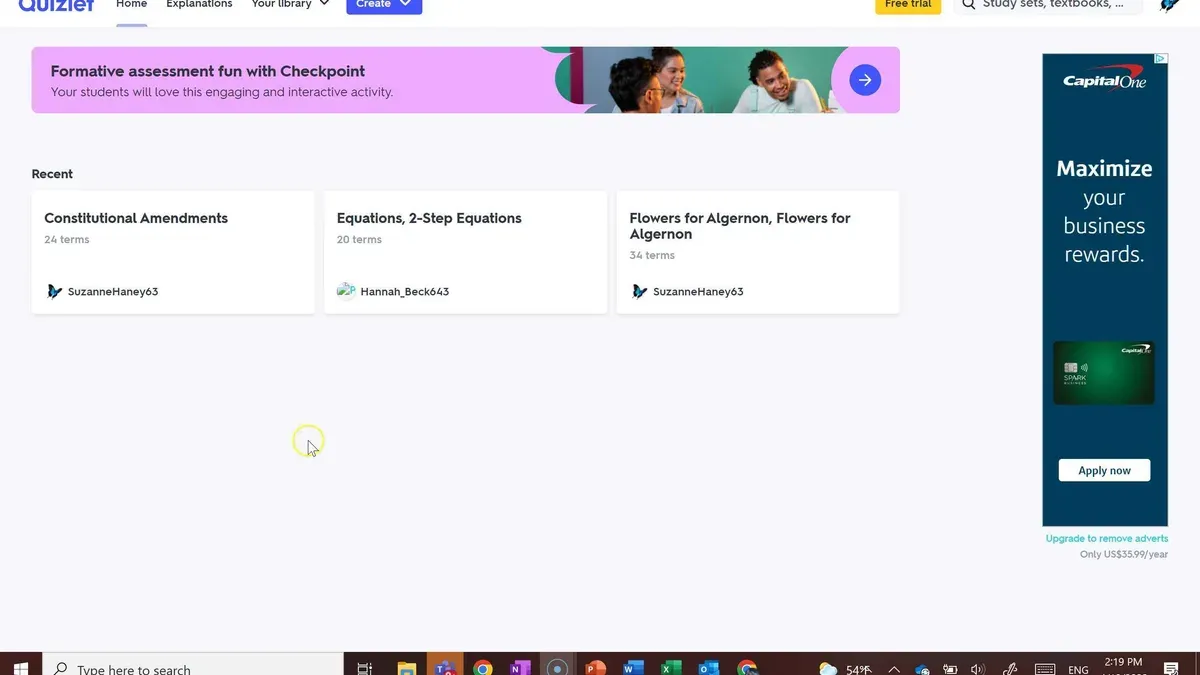
Quizizz supports importing content from Quizlet but with notable differences from Gimkit’s import process. While Gimkit requires clean two-column CSV or text files for smooth imports, Quizizz allows direct import of Quizlet sets via its "Import Questions" feature, though it handles formatting and question types differently. You can access this by clicking "Create" > "Import" > "Import from Quizlet" in Quizizz's quiz editor.
Quizizz primarily supports multiple-choice and checkbox question types, so if your Quizlet set includes flashcards or matching terms, you’ll need to manually convert them. For example, a Quizlet flashcard asking "Define photosynthesis" must be turned into a multiple-choice question with plausible distractors in Quizizz, as direct flashcard import isn’t supported.
Automated import speeds up quiz creation but often requires post-import edits to ensure question clarity, scoring, and media inclusion. Unlike Gimkit, Quizizz doesn’t support dynamic question features like power-ups or money-based scoring. To preserve engagement, add images or memes using the Quizizz editor’s media options.
The following table summarizes key import features:
| Feature | Gimkit | Quizizz |
|---|---|---|
| Direct Quizlet import | Via CSV/text file only | Built-in "Import from Quizlet" tool |
| Supported question types | Multiple choice, dynamic types, creative modes | Multiple choice, checkbox, open-ended |
| Media support | Images, hints, timers | Images, GIFs, memes |
| Post-import editing | Often needed for formatting | Required for question type adjustments |
User feedback often highlights that Quizizz imports are faster but require more manual tweaking to match the original Quizlet content’s intent and style. To avoid losing quiz integrity, review each question after import, adjust answer options, and add explanatory feedback where possible.
Checklist to convert Quizlet content to Quizizz:
- Use Quizizz’s "Import from Quizlet" feature under "Create" > "Import"
- Review and convert unsupported question types manually
- Edit answer options for clarity and balance
- Add images or media to maintain engagement
- Test the quiz before assigning to students
Common mistakes to avoid when moving from Gimkit to Quizizz
Assuming a direct import from Gimkit to Quizizz will work flawlessly is a frequent error. Unlike Gimkit’s dynamic question types and game mechanics, Quizizz has a more fixed structure that often requires manual editing after import. For example, a user who imported a Gimkit quiz expecting all interactive features intact found that timer settings and question formats reset, causing confusion during play.
Neglecting to consider differences in question types is another pitfall. Gimkit’s unique ‘Gims’ and power-ups don’t translate into Quizizz, which focuses on straightforward multiple-choice or checkbox questions. Ignoring this can lead to quizzes that feel less engaging or inconsistent to students.
Overlooking how the student experience changes can also backfire. Quizizz shows immediate feedback and leaderboards differently than Gimkit, influencing student motivation and pacing. If you don’t prepare students for this shift, they may become disengaged or frustrated.
Finally, ignoring data backup before switching platforms risks losing quiz content and student results. Always export your Gimkit quizzes and results through the dashboard’s export feature before migration. Users who skipped this step reported losing weeks of quiz data permanently.
- Export quizzes and student data from Gimkit before starting
- Review and adjust imported questions manually in Quizizz
- Adapt quiz design to fit Quizizz’s question types and feedback style
- Inform students about changes in game mechanics and interface
- Test the quiz fully in Quizizz before assigning to learners
Frequently asked questions
How to make quizlet into a gimkit?
Gimkit does not support direct imports from Quizlet. To use Quizlet content in Gimkit, you must manually copy each question and answer pair into Gimkit’s question creation interface. This can be tedious but ensures your questions fit Gimkit’s format and gamified style.
How to make gimkit questions?
In Gimkit, go to the "Create Kit" section, then select "Add Question." Choose your question type—multiple choice, checkbox, or fill-in-the-blank. Enter your question text, add answer options, and mark the correct answer(s). Save each question before adding the next.
How to make questions on gimkit creative?
Gimkit Creative lets you design questions with more interactive elements. Access it via "Create Kit" and select "Creative." Here, you can add images, set timers, and include varied question types. Use the toolbar to customize each question’s appearance and behavior before saving.
How to get every gim in gimkit?
"Gims" are Gimkit’s in-game currency earned by answering questions. To get every gim, consistently play games and answer correctly to accumulate currency. There is no official shortcut or hack; earning gims requires active participation in quizzes.
How to make Quizlet into a Gimkit?
Since there’s no direct import, you must copy Quizlet flashcards manually into Gimkit’s question creator. Open your Quizlet set, copy the term and definition, and paste them as question and answer in Gimkit. Double-check formatting and correct answers before saving.
Quick checklist
- Review your Gimkit question types and note where dynamic features won’t transfer directly to Quizizz.
- Export Gimkit questions manually; there’s no direct import to Quizizz from Gimkit.
- Use Quizlet exports as an intermediate step when possible, then import into Quizizz.
- Adjust question formatting to match Quizizz’s multiple choice or checkbox style.
- Test each quiz in Quizizz’s preview mode before assigning it to students.
- Update question timers and points settings in Quizizz, as they differ from Gimkit’s dynamic pacing.
- Save and organize your quizzes in Quizizz folders for easier management.
What this advice does not cover
This guide does not cover advanced API integrations or third-party tools that may automate importing questions between Gimkit and Quizizz. It focuses solely on manual processes and native platform features. If you require bulk migration or automated syncing, consider exploring dedicated migration services or software designed for large-scale quiz management.
For educators who rely heavily on Gimkit’s unique game mechanics, some quiz elements might not translate well to Quizizz. You might need to redesign your content to fit Quizizz’s format rather than expecting a one-to-one transfer.
Start by exporting your Gimkit questions in a simple text or CSV format, then import them through Quizizz’s question bank interface. This step ensures you understand the structural differences and prevents losing content during the move.
See also: Moving from Gimkit to Pear Deck Checklist: A Practical Guide for Teachers · Moving from Gimkit to Padlet Checklist: A Direct, Practical Guide for Educators · Moving from Gimkit to Nearpod Checklist: A Practical Educator’s Guide · Moving from Gimkit to Kahoot: A Practical Transition Checklist



