
Moving from MacBooks to iPads: Your Expert Transition Checklist
This moving from MacBooks to iPads checklist helps you adapt workflows, prepare data, and set up your iPad for optimal productivity.

Short answer: Moving from MacBooks to iPads requires understanding key differences in operating systems, app availability, and input methods. This moving from MacBooks to iPads checklist guides you through evaluating workflows, preparing data, and setting up your iPad to align with your professional needs.
This article covers the essential steps to ensure a smooth transition by focusing on workflow adjustments, device management, and user training. You will learn how to assess which MacBook tasks translate well to iPads, set up your iPad for optimal productivity, and avoid common pitfalls overlooked by generic guides. This approach helps IT decision-makers, educators, and professionals adapt without losing efficiency or control.
Understand the Fundamental Differences Between MacBooks and iPads
Transitioning from a MacBook to an iPad means adapting to two distinct operating systems: macOS and iPadOS. macOS supports a traditional desktop environment with robust multitasking, native file system access via Finder, and extensive peripheral compatibility. iPadOS offers a touch-first interface optimized for mobility, with multitasking features like Split View and Slide Over, but it handles file management through the Files app, which is more app-centric and sandboxed.
Input methods differ significantly. MacBooks rely on keyboard and mouse or trackpad inputs, allowing precise control and shortcuts. iPads emphasize touch gestures and Apple Pencil support, which adds new possibilities for annotation and creative work but may require rethinking workflows originally designed for keyboard shortcuts.
Consider multitasking: on macOS, you can freely resize and overlap multiple windows; on iPadOS, multitasking is limited to predefined layouts. For example, you can run Safari side-by-side with Notes using Split View, but cannot freely drag windows anywhere. File sharing on MacBooks allows direct folder access and drag-and-drop between apps, whereas iPads require using the Files app or app-specific import/export functions.
| Feature | MacBook (macOS) | iPad (iPadOS) |
|---|---|---|
| Multitasking | Free window resizing and overlapping | Split View, Slide Over, limited layouts |
| File Management | Finder with full filesystem access | Files app, sandboxed, app-centric |
| Input | Keyboard, mouse, trackpad | Touch, Apple Pencil, external keyboard |
| Peripheral Support | Wide range: USB, Thunderbolt, external drives | Limited USB-C accessories, AirPlay, Bluetooth devices |
Imagine editing a detailed spreadsheet on macOS using multiple windows and keyboard shortcuts to cross-reference data. On iPadOS, you'll switch between apps with Split View and rely more on touch interactions, which may slow complex workflows initially but enhances portability and direct manipulation of content.
- Recognize that macOS allows more flexible window management than iPadOS
- Expect to use touch and Apple Pencil instead of mouse for many tasks
- Prepare for a more app-centric file approach via the Files app
- Check peripheral compatibility for essential devices like external drives and printers
Assess Your Current MacBook Workflows and Identify iPad-Compatible Alternatives
Start by listing the essential applications and tasks you rely on daily, such as email clients, document editors, project management tools, and specialized software. For example, a typical MacBook user might use Mail, Microsoft Word, Adobe Photoshop, and Xcode.
Next, research iPad equivalents or cloud-based alternatives. Mail and Microsoft Word have native iPad apps with most core features intact, although advanced desktop-only functions may be limited. Adobe offers Photoshop for iPad, but it lacks some desktop-level capabilities like advanced masking and plug-ins. Xcode is unavailable on iPad, so developers often turn to code editors like Textastic combined with GitHub for version control, accepting the trade-off of a less integrated IDE.
Consider cross-platform tools such as Google Workspace or Microsoft 365, which provide seamless syncing and collaboration across devices. Cloud storage solutions like iCloud Drive, Dropbox, or OneDrive ensure your files are accessible and editable on iPad.
Evaluate these limitations carefully and plan mitigations: if a professional app is missing or pared down, test whether workflow adaptations or remote desktop solutions can fill the gap.
- Inventory your critical MacBook apps and note key functions.
- Identify iPad native apps or cloud versions matching those functions.
- Test feature parity and note significant gaps.
- Explore cross-platform tools and cloud storage for continuity.
- Plan alternative workflows or remote solutions for missing professional software.
Prepare Your Data and Settings for a Smooth Transfer
Begin by leveraging iCloud to synchronize essential data like photos, documents, and app data. Navigate to Settings > [your name] > iCloud on your MacBook to confirm syncing is active, then replicate this on your iPad to ensure seamless access across devices.
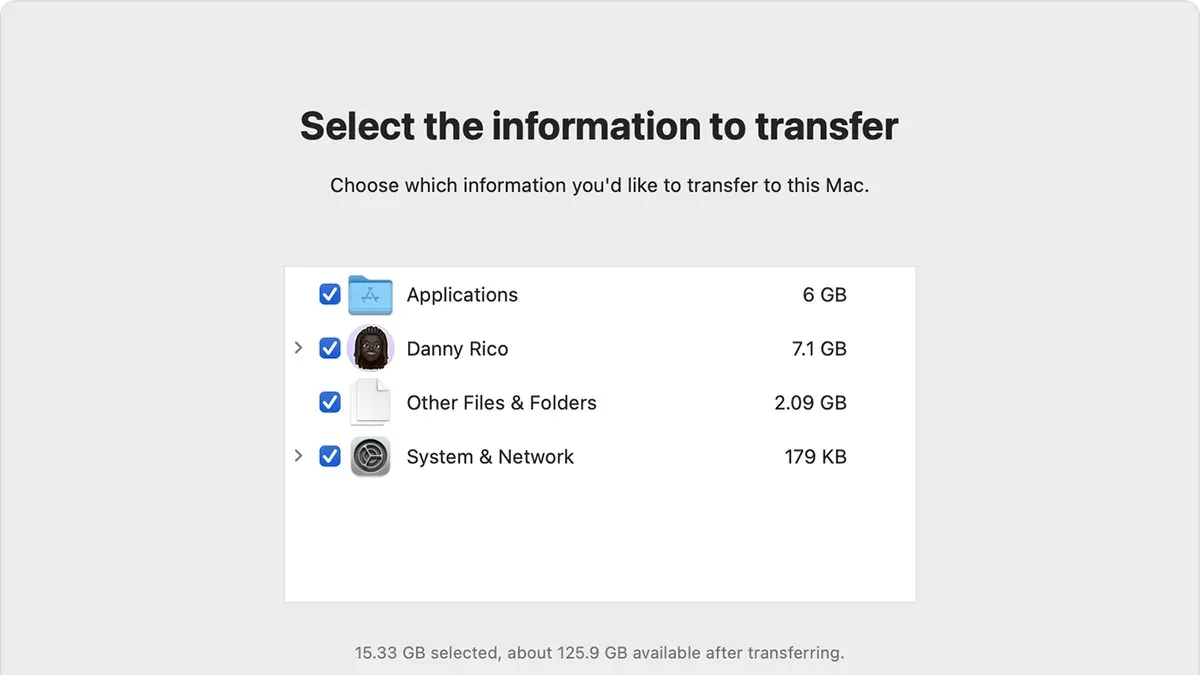
Export critical files such as spreadsheets, presentations, or PDFs to cloud services like Dropbox or OneDrive if your workflow relies on them. Organize these files into clearly named folders for easier retrieval on your iPad.
Transfer email, contacts, and calendars by configuring your accounts via Settings > Mail > Accounts on the iPad, using the same credentials. This preserves your communication and scheduling continuity without data loss.
Set up user preferences by adjusting Settings > Display & Brightness for screen readability and Settings > Face ID & Passcode for security. Installing necessary device management profiles early helps maintain organizational policies.
For example, if you frequently use Safari on your MacBook, enable Safari > Settings > Sync in iCloud to transfer bookmarks and open tabs. This avoids manual recreation and speeds up your transition.
- Verify iCloud syncing for photos, documents, and app data on both devices
- Export and organize important files in accessible cloud storage
- Configure mail, contacts, and calendar accounts on the iPad
- Adjust display, security, and management settings on the iPad
- Enable Safari syncing to migrate bookmarks and tabs
Optimize Your iPad Setup for Productivity and Familiarity
Pairing an external keyboard and mouse with your iPad bridges the gap between touch and traditional inputs. Navigate to Settings > Bluetooth to connect devices like the Magic Keyboard or any compatible Bluetooth mouse. This setup allows you to use keyboard shortcuts and precise pointer control, closely mimicking MacBook workflows.
Customize multitasking gestures under Settings > Home Screen & Dock > Multitasking. Enable Allow Multiple Apps and configure gestures such as swipe up with four fingers to switch apps. Use the Dock to quickly access your most-used apps by dragging them to the Dock or creating folders for better organization.
Set up file management by installing apps like Files, Dropbox, or Google Drive and linking them within the Files app. This centralizes your documents and supports drag-and-drop between apps. Enable iCloud Drive in Settings > Apple ID > iCloud for seamless cloud syncing.
Enhance efficiency with accessibility features like Back Tap (Settings > Accessibility > Touch > Back Tap) to trigger actions such as opening the Dock or multitasking view quickly. Create custom shortcuts in the Shortcuts app for repetitive tasks.
For example, an educator reported that after pairing a Magic Keyboard and enabling multitasking gestures, they reduced app-switching time by half and found document annotation smoother using Apple Pencil alongside keyboard shortcuts. This setup improved their daily workflow clarity and speed.
- Connect external keyboard and mouse via Bluetooth
- Enable multitasking and customize gestures
- Organize apps in the Dock for quick access
- Integrate cloud storage apps within Files
- Activate accessibility shortcuts like Back Tap
Train Yourself and Your Team on iPad Best Practices and Limitations
Transitioning to iPads requires embracing new interaction models and adjusting expectations around app behaviors and multitasking. Unlike MacBooks, iPads use touch gestures and the Dock for app switching instead of a traditional taskbar. Encourage your team to familiarize themselves with Split View and Slide Over multitasking, which allow running two or three apps concurrently but with some limitations compared to macOS windowing.
Managing notifications and background tasks is another key adjustment. iPadOS restricts background app activity to preserve battery life, meaning some apps may pause tasks when not in the foreground. Teach users to check Settings > Notifications to prioritize alerts and Settings > General > Background App Refresh to control app updates efficiently.
Effective battery management on iPads includes enabling Low Power Mode via Settings > Battery during extended use and closing apps only when they misbehave, as iPadOS manages memory proactively. Common frustrations include limited file system access and app feature differences; addressing these with clear workflows helps. For example, a team member used to multiple open browser windows on a MacBook will need to adopt Safari’s tab groups and use the Files app alongside cloud storage to replicate that flexibility.
- Practice Split View and Slide Over gestures daily
- Customize notification settings for priority apps
- Enable Low Power Mode during long sessions
- Educate on background app limitations and app refresh settings
- Set realistic expectations for file management and multitasking
Avoid Common Mistakes When Transitioning from MacBooks to iPads
One frequent pitfall is underestimating the app ecosystem differences. For example, a design team switching from macOS Adobe Creative Cloud apps to iPad versions without realizing essential features are missing caused project delays. Corrective action involved supplementing with desktop access via remote solutions.
Neglecting peripheral compatibility checks is another common error. A sales department failed to verify their barcode scanners and external keyboards worked with iPads, halting daily operations until replacements were procured. Always confirm device compatibility through Settings > Bluetooth or USB-C accessory support before deployment.
Failing to prepare users for workflow changes leads to frustration. Users accustomed to macOS windowing and file navigation struggled without proper training on iPad multitasking gestures and the Files app, resulting in productivity loss. Structured sessions demonstrating Split View and Slide Over resolved this.
Ignoring backup and data migration best practices risks data loss. One IT team skipped full iCloud backups, assuming manual file transfers sufficed, only to face missing documents post-transition. Ensuring complete backups via Settings > Apple ID > iCloud > iCloud Backup is crucial.
- Audit app feature parity before transitioning
- Test all peripherals for iPad compatibility
- Conduct hands-on user training on iPad workflows
- Perform and verify complete device backups
Read next
- Moving from MacBooks to Windows Laptops: Essential Checklist for a Smooth Transition
- Moving from MacBooks to Chromebooks: Your Complete Checklist
- Switching from MacBooks to Android Tablets: A Practical Expert Guide
- Switching from Chromebooks to iPads: Your Expert Transition Guide
Frequently asked questions
Can I run all MacBook apps on an iPad?
No, you cannot run all MacBook apps on an iPad because they use different operating systems: macOS for MacBooks and iPadOS for iPads. Many Mac apps are not available on iPadOS, but developers often provide iPad-specific versions or alternatives in the App Store. To check compatibility, look for apps labeled as "Universal" which run on both macOS and iPadOS, or search the App Store for iPad versions of your essential software.
What accessories do I need to maximize productivity on an iPad?
Key accessories include an external keyboard, such as the Magic Keyboard or Smart Keyboard Folio, to facilitate typing similar to a MacBook. A precision stylus like the Apple Pencil enhances note-taking and graphic tasks. Additionally, a USB-C hub or adapter expands connectivity for external drives and displays, and a stand or case improves ergonomics for extended use.
How do file management and storage differ between MacBooks and iPads?
MacBooks use a traditional file system accessible via Finder, allowing you to freely organize folders and files across internal and external drives. iPads use the Files app, which offers access to local storage, iCloud Drive, and third-party cloud services but with a more app-centric approach. Unlike MacBooks, iPads do not support direct access to system folders and require apps to handle file saving and opening, which means file management workflows need adjustment.
Is the iPad suitable for professional software like Adobe Creative Suite or development tools?
iPads support several Adobe apps specifically designed for iPadOS, such as Photoshop and Illustrator, but these are streamlined versions and may lack some desktop features. Full Adobe Creative Suite apps available on MacBooks are not fully replicated on iPads. Development environments on iPads are limited; while apps like Swift Playgrounds support coding education and simple projects, professional-level development typically requires a MacBook or desktop environment.
Quick checklist
- Review your essential MacBook apps and identify their iPad counterparts or alternatives.
- Back up all critical data using iCloud, Finder, or third-party cloud services.
- Set up your iPad with familiar apps arranged on the Home Screen and configure multitasking gestures in Settings > Home Screen & Dock > Multitasking.
- Enable device management tools like Apple Business Manager or Apple School Manager if applicable.
- Schedule dedicated training sessions focusing on iPadOS gestures, Files app navigation, and keyboard shortcuts.
- Prepare users for known iPad limitations, such as the lack of full Finder functionality and limited external device support.
This guide does not cover specialized desktop software needs
This guide does not cover transitioning from MacBooks to iPads for highly specialized software environments that require full desktop-class applications unavailable on iPadOS. If your workflows rely on complex professional software like advanced IDEs, legacy enterprise applications, or specialized design tools not available or fully featured on iPad, you should evaluate hybrid solutions or maintain MacBooks alongside iPads rather than a full transition.
To move forward confidently, begin by mapping your core workflows and testing critical apps on iPad to confirm they meet your operational requirements before committing to the transition.



