
Moving from SharePoint to Google Workspace: Your Expert Migration Checklist
A structured moving from SharePoint to Google Workspace checklist helps you plan, migrate data, and manage user adoption for a seamless transition.

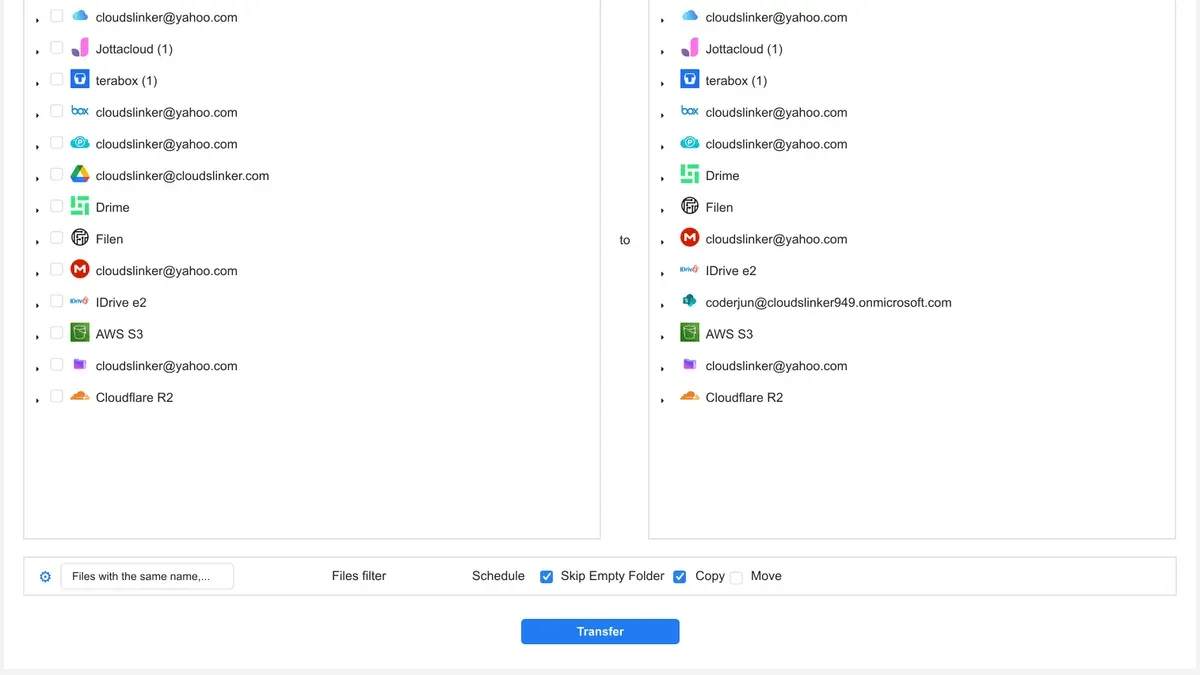
Short answer: Moving from SharePoint to Google Workspace requires a clear strategy that addresses both technical migration and organizational change. A structured moving from SharePoint to Google Workspace checklist helps you navigate environment assessment, data migration, user adoption, and governance to ensure a smooth, secure transition.
This article guides you through the essential steps for migrating from a full SharePoint environment to Google Workspace. You'll learn how to assess your current setup, plan your timeline and approach, prepare Google Workspace settings like Drive and Sites, execute data migration with validation, and manage user adoption effectively. Special attention is given to governance policies and avoiding common pitfalls that can disrupt collaboration and data integrity during the process.
Understand the Differences Between SharePoint and Google Workspace
SharePoint organizes content primarily through sites and document libraries, creating hierarchical structures where permissions and workflows are often managed at the site or library level. In contrast, Google Workspace is a cloud-native ecosystem built around integrated apps like Drive, Docs, Sheets, and Sites, emphasizing flexible, user-centric collaboration rather than rigid site structures.
For example, a SharePoint team site containing multiple document libraries and custom lists typically translates into a Google Drive shared drive paired with Google Docs, Sheets, and Sites for intranet pages. Permissions in SharePoint are granular and tied to site hierarchies, while Google Drive uses shared drives and folder-level sharing, which can simplify or complicate access depending on your organization’s approach.
This structural difference impacts your migration strategy: content organization must be rethought, workflows adjusted to Google Workspace’s real-time collaboration features, and governance policies adapted. Users accustomed to SharePoint’s model may need guidance to fully leverage Google Workspace’s app-integrated environment, while IT must recalibrate management practices accordingly.
| Feature | SharePoint | Google Workspace |
|---|---|---|
| Content Structure | Sites & Document Libraries | Shared Drives & Individual Drives |
| Collaboration | Check-in/out, Versioning | Real-time Multi-user Editing |
| Permissions | Site-based & Library-level | Drive-level & File/folder sharing |
| Workflow | Power Automate & Custom Workflows | App Scripts & Integrated Tools |
Understanding these differences helps you anticipate the need to redesign content hierarchies, retrain users, and configure governance to best fit Google Workspace’s collaborative and flexible environment.
Assess Your Current SharePoint Environment and Define Your Migration Goals
Begin by conducting a thorough inventory of your SharePoint environment. Use the SharePoint Admin Center to export lists of site collections, document libraries, custom lists, and workflows. Document any third-party integrations, custom web parts, or Power Automate flows that support your business processes. For example, if your marketing team relies on a custom approval workflow embedded in SharePoint Designer, note this as a critical asset.
Next, evaluate each component to decide what to preserve, reengineer, or retire. Some legacy content may no longer serve your organization and can be archived or deleted, reducing migration complexity. Custom workflows might need redesigning to fit Google Workspace’s automation tools like Google Apps Script or AppSheet.
Set migration goals that align with your business priorities and user expectations. For instance, if improving collaboration speed is a priority, your goal might emphasize seamless integration of Google Drive with team communication tools like Google Chat. An effective goal example: "Reduce document retrieval time by 30% within three months by reorganizing content in Google Drive with clear permissions and metadata."
A sample audit template should include columns for asset name, type, owner, usage frequency, customization details, and migration priority. This structured approach ensures you capture nuances that influence migration success.
- Export and catalog SharePoint site collections, lists, and workflows
- Identify customizations and integrations critical to business processes
- Classify content and workflows to keep, reengineer, or retire
- Define clear, measurable goals tied to organizational outcomes
- Create an audit template with detailed asset information
Plan Your Migration Approach and Timeline
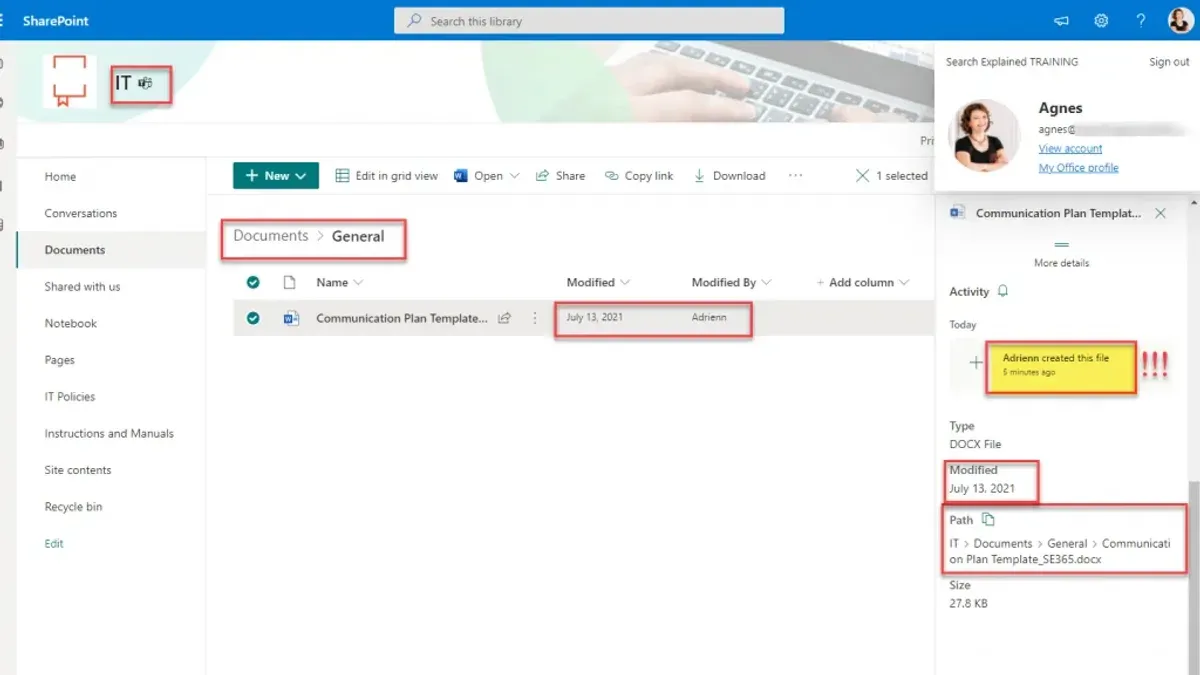
Choosing the right migration strategy is critical to balancing speed, risk, and user impact. A lift-and-shift approach moves all data and configurations at once, minimizing project duration but increasing potential disruption. In contrast, phased or hybrid migrations segment content or user groups, allowing for iterative testing and adjustment but requiring longer timelines.
| Migration Approach | Advantages | Disadvantages |
|---|---|---|
| Lift-and-Shift | Fast completion, simpler coordination | Higher risk of downtime, challenging rollback |
| Phased Migration | Reduced risk, easier troubleshooting | Longer duration, complex scheduling |
| Hybrid Migration | Flexible, supports coexistence | Requires advanced governance, complexity |
Select migration tools or third-party services that provide robust data integrity checks and detailed logs. For example, Google Workspace Migrate offers built-in validation reports confirming file counts and metadata accuracy post-transfer.
A realistic timeline begins with a pilot phase targeting a small user group or department to identify issues early. Follow with a full rollout segmented by business units or project teams. Finally, allocate time for a post-migration review to resolve residual issues and optimize configurations.
Here is a simple timeline template for planning:
- Week 1–2: Pilot migration and validation
- Week 3–6: Staggered full rollout
- Week 7: Post-migration audit and user feedback
For instance, migrating a 500-user organization might start with the marketing team to test workflows in Google Drive and Gmail, then proceed to sales and operations once data integrity is confirmed.
- Compare migration approaches against your risk tolerance and business continuity needs
- Choose tools with comprehensive data verification capabilities
- Set a phased timeline with clear milestones: pilot, rollout, review
- Prepare contingency plans for rollback or issue resolution
Prepare Your Google Workspace Environment for Migration
Before migrating, configure Google Workspace to mirror your SharePoint structure to maintain seamless access and governance. Create organizational units (OUs) that reflect your departments or teams, as you did in SharePoint site collections. For example, if your SharePoint had distinct sites for Marketing and Engineering, set up corresponding OUs in the Admin Console under Directory > Organizational units.
Next, define Google Groups that replicate SharePoint permission groups. This ensures proper access control and simplifies management post-migration. Set Drive file sharing settings carefully: navigate to Apps > Google Workspace > Drive and Docs > Sharing settings, then enforce sharing outside your organization only where necessary to maintain security.
Configure data retention policies via Google Vault to align with your compliance needs. For instance, set retention rules to preserve critical documents for a defined period, matching your existing SharePoint policies.
Train your admins on Google Workspace management tools before migration. Focus on the Admin Console, Google Vault, and Drive sharing controls. A practical training plan includes walkthroughs of key settings, role delegation, and troubleshooting common issues to empower your team for smooth ongoing management.
- Create organizational units matching SharePoint site structure
- Set Google Groups for permission management
- Configure Drive sharing settings to secure data
- Establish retention policies using Google Vault
- Conduct admin training on key Google Workspace tools
Execute the Migration and Validate Data Integrity
Begin by performing a pilot migration with a carefully selected subset of SharePoint content that reflects the diversity of your data types, permissions, and metadata. For example, choose a team site with mixed document libraries and custom metadata fields. Use a migration tool like Google Workspace Migrate or a third-party solution configured for incremental sync.
After the pilot, validate the migrated data by comparing file counts, folder structures, and metadata fields between SharePoint and Google Drive. Check permissions by reviewing sharing settings in Google Drive’s Admin console against SharePoint’s original access controls. Document discrepancies, such as missing metadata fields or altered permissions, and resolve them by adjusting migration settings or applying manual fixes.
Common errors include failed file transfers due to unsupported characters or exceeding file size limits, logged in migration reports. Address these by renaming files or splitting large documents beforehand.
With pilot success, scale the migration incrementally, migrating one department or project at a time. After each batch, repeat validation to catch issues early. This phased approach minimizes disruption and ensures your Google Workspace environment maintains data integrity throughout the move.
- Select representative content for pilot migration
- Use migration tool with incremental sync enabled
- Compare file counts, metadata, and permissions post-migration
- Review and fix errors from migration logs
- Scale migration in manageable batches with repeated validations
Drive User Adoption and Manage Change Effectively
You must develop targeted training and communication plans that clearly explain how Google Workspace differs from SharePoint, focusing on practical workflows like using Google Drive's Shared Drives instead of SharePoint sites. For example, a communication template might highlight steps to collaborate on Google Docs simultaneously, a feature unfamiliar to SharePoint users.
Establish dedicated support channels such as a Google Workspace Help Desk email and a real-time chat group using Google Chat to address user questions promptly. Setting up a feedback loop through periodic surveys helps identify adoption barriers early and tailor ongoing support.
Promote collaboration best practices unique to Google Workspace, like leveraging Google Meet for virtual meetings integrated with Calendar invites and encouraging version control through Google Docs’ comment and suggestion modes.
In a recent migration case, an organization improved user satisfaction measurably by combining tailored training sessions with active support channels, reducing helpdesk tickets by nearly half within the first two months.
- Develop communication templates emphasizing key Google Workspace features.
- Set up support channels including Help Desk email and Google Chat groups.
- Collect user feedback regularly to refine adoption strategies.
- Promote Google Workspace collaboration tools through practical examples.
Avoid Common Migration Pitfalls and Plan for Long-Term Governance
Data loss during migration often occurs when files exceed Google Drive's size limits or unsupported file types aren't identified beforehand. For example, a company lost critical project archives because their SharePoint document libraries contained several large CAD files that weren’t migrated due to Google Drive restrictions.
Permission errors are another frequent issue—incorrectly mapped SharePoint groups can lead to overexposed or inaccessible data. If you overlook detailed permission mapping, users may find themselves locked out of key documents or, worse, sensitive information might be inadvertently shared.
User resistance can derail adoption if change management is insufficient. Employees accustomed to SharePoint’s interface might resist switching without clear communication and ongoing support.
Ongoing Governance Strategies
Establish a governance framework that includes regular audits of sharing settings via the Admin Console’s "Drive and Docs" audit logs, quarterly policy reviews, and a defined process for handling access requests and violations.
Implement clear naming conventions and folder structures in Google Drive to maintain organization over time. Assign governance roles—such as data stewards and compliance officers—to oversee these policies.
When to Escalate or Engage Experts
Use a decision tree approach: if data loss or complex permission issues surface beyond initial remediation, escalate to specialized Google Workspace migration consultants or employ third-party tools like CloudM or BitTitan.
For example, if after pilot migrations you detect repeated metadata mismatches or permission inheritance errors, bringing in experts can prevent costly downtime and ensure a clean transition.
- Identify and preemptively exclude unsupported file types and large files exceeding 5TB total per user.
- Map SharePoint permissions precisely to Google Groups and Drive sharing settings.
- Communicate migration changes clearly and provide hands-on training.
- Schedule regular governance audits and policy updates.
- Define escalation paths for unresolved migration issues, including consultant engagement.
Read next
- Moving from Microsoft 365 to Google Workspace Checklist for IT Leaders
- Switching from Google Workspace to SharePoint: Your Expert Guide
- Moving from OneDrive to Google Workspace Checklist for a Confident Migration
Frequently asked questions
What are the biggest challenges when moving from SharePoint to Google Workspace?
The primary challenges include mapping complex SharePoint permissions to Google Workspace’s simpler access controls, migrating custom workflows that don’t have direct Google Workspace equivalents, and preserving metadata integrity. Additionally, adapting users to a different collaboration model and ensuring governance policies align with Google Workspace's framework requires careful planning.
How do I migrate SharePoint custom workflows to Google Workspace?
SharePoint workflows built with Power Automate or SharePoint Designer often cannot be directly migrated. You need to analyze each workflow and rebuild it using Google Workspace tools like Google Apps Script or third-party automation platforms such as Zapier. This process involves redesigning workflows to fit Google Workspace’s APIs and triggers rather than attempting a direct transfer.
Can I keep my SharePoint permissions intact after migration?
SharePoint’s granular permission model does not translate one-to-one in Google Workspace. You should plan to recreate permissions using Google Drive’s sharing settings and Google Groups for team-based access. Migrating permissions requires exporting SharePoint permission reports and manually or programmatically applying equivalent settings in Google Workspace, understanding some nuances will differ.
What tools are recommended for migrating large volumes of SharePoint data?
Tools such as Google Workspace Migration for Microsoft SharePoint (GWMM), ShareGate, and AvePoint provide robust options for large-scale migrations. These tools offer features like incremental migration, metadata preservation, and detailed reporting. Selecting a tool depends on your environment’s complexity, with many IT managers combining automated tools with manual validation for accuracy.
What this advice does not cover
This guide does not cover migrating complex SharePoint customizations or heavily integrated third-party apps, which may require specialized solutions or consulting. If your environment includes advanced workflows built with SharePoint Designer or Nintex, deep custom web parts, or integrations with enterprise resource planning (ERP) systems, engage migration specialists to assess and plan a tailored approach.
Quick checklist
- Map your existing SharePoint sites, document libraries, and permissions
- Define clear migration goals aligned with business needs and compliance requirements
- Choose an appropriate migration tool supporting Google Drive and Google Sites
- Set up Google Workspace organizational units and apply necessary security policies
- Perform a staged migration, validating data integrity at each step
- Communicate regularly with users and provide targeted training sessions
- Establish governance policies for content lifecycle, sharing, and access controls
- Monitor usage patterns post-migration and adjust support resources accordingly
The single most useful next step is to conduct a detailed audit of your current SharePoint environment focusing on content relevance, permission structures, and user activity. This groundwork informs every subsequent decision, ensuring your migration to Google Workspace aligns with organizational priorities and minimizes disruption.



