
How to Grade Student Work Efficiently in Blackboard
Discover efficient ways to grade student work in Blackboard using tools like Grade Center and inline grading for both Learn and Ultra platforms.

How to Grade Student Work in Blackboard Ultra: Flexible Grading, Rubrics, Annotate and Posting Grades
Two facts about grading in Blackboard cause almost every "Blackboard ate my grades" panic, and neither is a bug. First: entering a grade and releasing a grade are two separate steps. A grade you type sits invisible to students until you post it (or set the item to post automatically) — which is a feature when you are halfway through a queue of 80 essays, and a complaint generator when you forget the second step for a week. Second: the overall grade is a running calculation over work graded so far, so a student whose missing essay has not been zeroed looks like they are doing better than they are, right up until the zero lands. Everything in this guide is built around those two mechanics: a setup pass that makes the gradebook behave the way your syllabus says it should, the fastest honest route through each kind of queue, and a short verification pass before anything is posted.
This guide is for the person doing the grading — instructors and teaching assistants. If you are a student looking for your marks, they live under Grades in your course once your instructor posts them; there is nothing here you need. Times given for grading a queue are planning arithmetic, not benchmarks: time your own first five submissions, then multiply.
Last updated: November 2026. Covers Blackboard Learn in the Ultra Course View on Anthology's SaaS deployment, checked against Anthology's instructor help (help.anthology.com) as of November 2026; menu labels in Ultra change gradually between monthly releases, and your institution controls some features (SafeAssign licensing, Video Studio, which originality tool sits in the Originality Report slot). Written and reviewed by the RolloutReady editorial team.
First, which Blackboard are you grading in?
This guide is written for the Ultra Course View, and from January 2027 that stops being a choice. Anthology's published end-of-life notice for the Original Course View states that institutions can no longer use Original for active teaching after 31 December 2026: on 1 January 2027 Original courses are marked Complete and become read-only, and the remaining Original courses are converted to Ultra in January 2028. If your institution still has you in an Original course for the current term, you are finishing the term there — the differences that matter for grading are in the table below, and everything about what good grading looks like (rubric calibration, the verification pass, posting discipline) transfers unchanged.
| Ultra Course View (this guide) | Original Course View (ends 31 Dec 2026) | |
|---|---|---|
| Where the queue lives | Gradebook Overview (needs grading / needs posting), the Gradable Items list, or the global Grades page across all your courses | Needs Grading page and the Full Grade Center |
| When students see a grade | Only after you Post it, or automatically if the item is set to post grades automatically | As you enter it, unless the column is hidden from students |
| Inline annotation | Bb Annotate in the browser | Bb Annotate — the same tool, reached from the Grade Assignment page |
| Grading tests by question | Questions tab inside the grading view (Flexible Grading) | Grade Questions from the test column's menu |
| Splitting marking across a team | Delegated grading (each grader gets a set of students) and parallel grading (2 graders per student, then a reconciler) | Delegated grading with provisional grades and final graders |
| Overall grade | Set up in Gradebook Settings: Points or Weighted calculation | Total and Weighted Total columns in the Grade Center |
| Missing work | Course setting Assign automatic zeros for past due work | You enter the zeros yourself, cell by cell |
One naming trap before we start: Anthology's current help titles the product "Blackboard LMS", your institution may call it Learn, HuskyCT, Minerva or something local — the grading screens described here are the same underneath.
Set up the gradebook before the first deadline, not after the first complaint
Twenty minutes of setup before anything is due removes the four most common mid-term gradebook fires. Do it in this order, because each step changes what the next one shows you.
- Set up the Overall Grade. In the Gradebook, open Settings (the gear icon) and choose the overall grade setup. Pick the calculation that matches your syllabus: Points (each item worth what its points say — transparent, and the only basis on which extra credit behaves predictably) or Weighted (categories carry percentages — Assignments 40%, Tests 30% and so on — and items inside a category count proportionally to their points, or equally, your choice). Then decide the question every student will eventually ask about: whether the running overall grade is calculated only over items graded so far or treats ungraded items as zeros. The first is kinder mid-term and misleading in week 12; the second is brutally honest and generates week-3 panic. Either is defensible — an undecided one is not.
- Put every item in the right category, and set the category rules. In a weighted course the category is the grade policy. If your syllabus says "lowest quiz dropped", that is a calculation rule on the Quiz category — open the category's Edit calculation rules, enable it, and choose Drop Scores (drop the lowest n) or Use only (count only the highest/lowest). Do not plan to drop grades by hand-editing cells later; you will forget one student, and that student will find out.
- Decide your posting policy per item, now. For each assessment, open its settings and find Post assessment grades automatically (under the grading/assessment grade settings). Sensible default pattern: auto-post ON for auto-graded quizzes with no written answers, OFF for anything you mark by hand — essays, discussions, group work — so nothing reaches students half-marked. There is no course-level switch; it is per assessment, which is exactly why it belongs in setup, not in week 9.
- Decide the automatic-zeros behaviour. Gradebook Settings contains Assign automatic zeros for past due work. It is on by default in Ultra — check yours before the first deadline passes rather than after a student emails you about a zero for an assignment you allow late. If it is on, a student who misses a deadline gets a posted zero immediately (see "Late work, zeros and exceptions" below for what happens when they then submit). If your course runs on drafts, extensions and negotiated deadlines, turn it off and zero missing work yourself at the points in the term you choose.
- Check the grade schemas. Schemas control how a score is displayed (points, percentage, letter) — they never change the underlying number. If your institution's letter boundaries differ from the default schema (90/80/70…), fix the schema now; a letter displayed wrong in October is a formal complaint in December.
Pre-term gradebook setup checklist:
Find the work: three doors into the same queue
You never need to hunt course by course for marking. Ultra gives you three entry points, and they all land in the same grading view:
- Gradebook → Overview. The triage screen. It lists items that need grading and items with grades that need posting, oldest ungraded work first, with a Grade now jump into each queue. This is the screen to open with your morning coffee.
- Gradebook → Gradable Items. The full inventory: every gradable item in the course with its due date, grading status and counts (how many submissions, how many graded, how many grades waiting to post). Use it when you want the whole picture rather than the urgent slice — and to catch the item whose grades you graded but never posted (see the verification pass below).
- The global Grades page. From the main Blackboard menu (where your name appears), the Grades page aggregates grading tasks across all your courses. If you teach three sections, this is how you stop discovering section B's essay queue by accident in week 10.
From any of these, selecting an item opens its Submissions page — the roster of attempts with a grading status filter (show only Needs Grading) — and selecting a submission opens the grading view: submission in the centre, the student/question list on the left, feedback and grade panels on the right. That view is called Flexible Grading, and it is where assignments, tests and (with the variations below) discussions are all marked.
Grade an assignment: the per-submission routine
For a file-submission assignment, the efficient unit of work is one pass per submission, in a fixed order, so nothing needs a second visit:
- Filter the list to Needs Grading in the left panel, so graded work disappears as you finish it and the queue visibly shrinks.
- Read the submission in the centre panel. Supported files open in Bb Annotate (next section). If the file type is unsupported, you are prompted to download it instead — grade it from the download and enter the result the same way.
- Annotate as you read (comments and highlights in Annotate), or leave the file clean and put everything in the feedback panel — pick one home for comments per course and tell students where it is. Split feedback (some on the file, some in the panel) is the feedback students report as "missing".
- Score the rubric, if one is attached (see "Rubrics" below), then check the calculated grade in the grade pill at the top of the panel. If you disagree with the rubric total, type your grade into the pill — that makes it an override, labelled as such, and the rubric selections stay on record underneath it.
- Write or record the overall feedback in the feedback panel (text, an attached file, or an audio/video recording — see "Feedback that doesn't slow you down").
- Move to the next student in the left panel. Your grade and feedback save as you go; there is no separate submit step per student. The grades are not visible to students yet — posting is the separate step covered below.
Per-submission routine checklist:
Bb Annotate: what it does, and where it stops
Bb Annotate is the inline tool that renders a student's file in the browser so you can mark on it: highlight and comment on selected text, add point comments, draw freehand, add text boxes and stamps. It is the same tool in Ultra and Original. It is genuinely good — and it has four hard edges that are worth knowing before you build a marking workflow on it:
- File types are a fixed list. Annotate renders Microsoft Word (DOC, DOCX), PowerPoint (PPT, PPTX) and Excel (XLS, XLSX), OpenOffice documents (ODS, ODT, ODP), PDF, PSD, common image formats (JPG, PNG, TIF/TIFF, BMP, HEIC and others), source code files and DICOM medical images. Anything else — a Pages file, a zip, most design or data formats — will not open inline; you download it and mark it outside Blackboard. Submissions a student typed directly into the text editor cannot be annotated at all; for those, feedback goes in the feedback panel only.
- Sessions expire after one hour. Annotate warns you before the session ends and saves completed annotations, but a long paper marked across a distracted afternoon is where lost final comments come from. If a submission needs more than an hour of you, work in sittings and make sure each sitting's annotations are finished, not half-placed.
- The rendered copy is a conversion. Files are converted for display, and Anthology and university guides both warn that fonts can substitute and layouts can shift in the converted view. If the work is graded on its layout or typography — design portfolios, formatted reports — download the original file and judge that; Annotate's rendering is not evidence of what the student produced.
- Annotations are part of the feedback, not a side channel. Students see the annotated file when the grade is posted — and not before. There is no way for a student to peek at your markup mid-queue, and no way for you to release annotations without releasing the grade.
The comment library is the Annotate feature most graders never find. Annotate includes a comment library (in SaaS deployments): comments you write can be saved and reused across submissions and courses. The thirty seconds it takes to save "This claim needs a source — see the feedback panel for the two places it matters most" the first time is repaid on every subsequent paper that needs it. A small, well-kept library of your twenty most frequent comments is the single largest speed-up available for written-work marking — larger than any keyboard shortcut — because it removes retyping, not reading.
Feedback that doesn't slow you down
Four feedback channels exist on every graded item; the craft is using the right one:
| Channel | Where it lives | Best for | Limit to know |
|---|---|---|---|
| Annotations (Bb Annotate) | On the student's file | Pointing at the exact sentence, figure or cell that is wrong | Supported file types only; sessions expire after 1 hour; students see them when the grade posts |
| Overall feedback (text/file) | The feedback panel beside the submission | The judgement as a whole: what was strong, the one or two changes that matter, what to do next time | Students reliably miss it if your comments are also scattered across the file — pick one home |
| Audio/video recording | Recorded from the feedback panel (Audio/Video) | Tone-sensitive feedback, complex explanations, accessibility | Up to 5 minutes per recording (20 minutes where your institution licenses Anthology's Video Studio); auto-captioned; recordings are not included in course archives or backups |
| Grader notes | Feedback & Notes on a graded item | Private notes to yourself and co-markers (moderation notes, "check against paper 12", integrity flags) | Never shown to students — which is precisely why anything a student needs to read must not live here |
Two habits keep feedback fast and defensible. First, write the feedback while the work is on screen: feedback reconstructed from a rubric score an hour later is generic, and students can tell. Second, for tests, remember that question-level feedback exists as well as overall feedback — when grading a test by student or by question you can attach feedback to individual questions, including auto-graded ones, which is where "the whole class divided by the wrong thing in Q4" gets said once, per student, automatically.
Grade a test: let the machine finish first
Test grading splits cleanly in two, and the split decides your workflow:
What is already done. Multiple choice, true/false, matching, ordering, calculated and similar machine-markable question types are scored the moment the attempt is submitted — there is nothing in your queue for them. Several of these types award partial credit under the question's scoring settings (a matching question with 7 of 9 pairs right need not be all-or-nothing); if your marks look harsher than you intended, the scoring settings on the question are the first place to look, not the students.
What is actually yours. Essay, short answer and file response questions arrive ungraded, and the attempt's total stays provisional until you score them. For a test with written answers, grade by question, not by student:
- Open the test from the Gradebook and go to its Submissions page.
- Switch the left panel to the Questions tab. Each question shows how many responses still need grading.
- Select the question. Every student's response to that one question appears in sequence; use the Grading Status filter set to Needs Grading so responses you have scored drop out of the list (you can re-show graded responses when you need them).
- Score each response and add question-level feedback where a pattern repeats. When every question is scored, each attempt's total calculates automatically.
- If a question turns out to be broken — ambiguous wording, a wrong key on an auto-graded item — fix it for everyone from this same view (adjust scores across all responses, or award full credit for that question) rather than compensating student by student. Then post.
By-question marking is faster (you hold one mark scheme in your head instead of forty) and visibly fairer: borderline answers to the same question sit next to each other, so the 6/10 and the 7/10 are separated by a reason you can articulate. Use by-student grading for tests that are mostly auto-graded with one short written answer, where opening the whole attempt is quicker than switching views.
Test-grading checklist:
Graded discussions in Ultra are marked on a different model from the old forum-by-forum approach, and it changes how you work: you grade each student's total contributions to the discussion, not individual posts. The workflow:
- Open the discussion and go to its Grades & Participation page (also reachable by selecting the discussion in the Gradebook).
- The participant list shows each student's activity. Note the counting rule, because students trip on it: only contributions made before the due date are counted on the grading page, even though later posts still appear in the discussion itself.
- Select a student to see all of their responses and replies gathered on one page, highlighted in context. Grade the body of work — quality and engagement, not raw count — with the rubric if one is attached (a discussion takes one rubric, like an assignment).
- Add feedback and post grades from the same page or from the Gradebook.
The discussion analysis view (participation counts, average posts and word counts, and Anthology's sentence-complexity and critical-thinking indicators) is useful as a triage layer for a large class — it finds the student with zero posts and the thread nobody replied to. Treat its "critical thinking level" as a sorting hint, never as evidence in a grade dispute: it is an automated text metric, not a judgement.
Journals grade like lightweight assignments: each student's entries collect on one page, you grade the set, and feedback sits beside it. If you use journals formatively, consider leaving them ungraded-but-commented for most of the term and grading a small number of checkpoints — a permanently graded journal quickly becomes a performed journal.
Grade group assignments: one submission, one grade, careful exceptions
A group assignment produces one submission per group and one grade for every member — that is the whole design, and it is also where the fairness arguments start. Grade it from the assignment's Submissions page like an individual submission. Then handle the two things that are different:
- Individual exceptions. If one member demonstrably did (or did not) do the work, expand the group on the Submissions page and enter a different grade in that member's row. Their grade is labelled Override, the group grade displays as Multiple, and members only ever see their own grade. You can also give each member individual feedback from the group's Individual tab. Decide your evidence standard for member adjustments before the first group complains (peer evaluations, contribution logs, the submitted file's history) — improvising it per group is how "Multiple" grades become appeals.
- The settings freeze. You cannot change grade settings or group membership after grading has started, and you cannot enable anonymous or parallel grading on a group assignment. Sort membership disputes and grading-mode decisions out before the first group is marked, because afterwards the only lever left is the member-level override.
Rubrics: calibrate once, then let them carry the marking
A rubric in Ultra attaches to an assignment, a graded discussion or a journal — one rubric per item — and comes in five flavours: Percentage, Percentage Range, Points, Points Range, and No Points (descriptors only; you enter the grade yourself). Percentage Range is the usual right answer for essay-type work: you pick the band, then place the mark inside it, which is how human markers actually think. Three facts govern rubric use:
- The rubric total becomes the grade — until you override it. Score each criterion and the grade calculates. Typing a different value into the grade pill overrides the total (labelled as an override); the rubric selections remain attached to the attempt as the justification. Override consciously: an override with a rubric that visibly contradicts it is the first thing a student screenshots in an appeal.
- You cannot edit a rubric after it has been used to grade. The fix is to duplicate it, edit the copy, and attach the copy to future items. Mid-queue discoveries ("this criterion is unmarkable") therefore apply from the next assignment, not retroactively — note them in your grader notes and say so in feedback if students ask.
- Rubrics do not attach to individual test questions. A test with an essay question is graded question-by-question with points and feedback, not with the assignment rubric machinery. If your mark scheme for the essay question matters, publish it in the test instructions and keep it open while you grade by question.
The large-cohort system: 80 submissions at 9pm
Volume marking is a logistics problem before it is an academic one. The system below is the one that survives contact with a real queue, and every element of it is a Blackboard behaviour described earlier in this guide, used on purpose:
Worked example — one essay queue, costed. Dr A has 80 midterm essays, 100 points each, marked against a four-criterion Percentage Range rubric, with annotations on the file and a short overall comment per student. She times her first five submissions honestly: 6 minutes each. The queue is therefore ~8 hours of marking — not an evening, whatever the deadline pressure says. Planned as four sessions of 20 (about 2 hours each) across four days, with grades posted after the last session so no student compares a posted grade with a friend's still-pending one mid-queue. The rubric carries the consistency: by submission 60, her standard for "analysis" has inevitably drifted from submission 5, so sessions 1 and 4 end with a two-minute re-read of the first two marked papers — the cheapest moderation there is. Your numbers will differ; the method — time five, multiply, split into sessions, post once at the end — is the point.
- Batch by question on tests, by sitting on essays. Never interleave item types inside a session; every context switch costs you the mark scheme you were holding.
- Keep manual posting on for big hand-marked items (set in the setup pass). Students whose work is marked in session 1 should not receive grades three days before students marked in session 4 — posting once, at the end, is both fairer and quieter.
- Feed the comment library as you go. Every comment you type twice gets saved. By the second assignment of term, the library holds your real feedback vocabulary and marking speed stops depending on typing speed.
- Use grader notes for the moderation trail. "Borderline — checked against #12 and #47" notes take seconds, are invisible to students, and are what you will wish existed when a grade is queried in March.
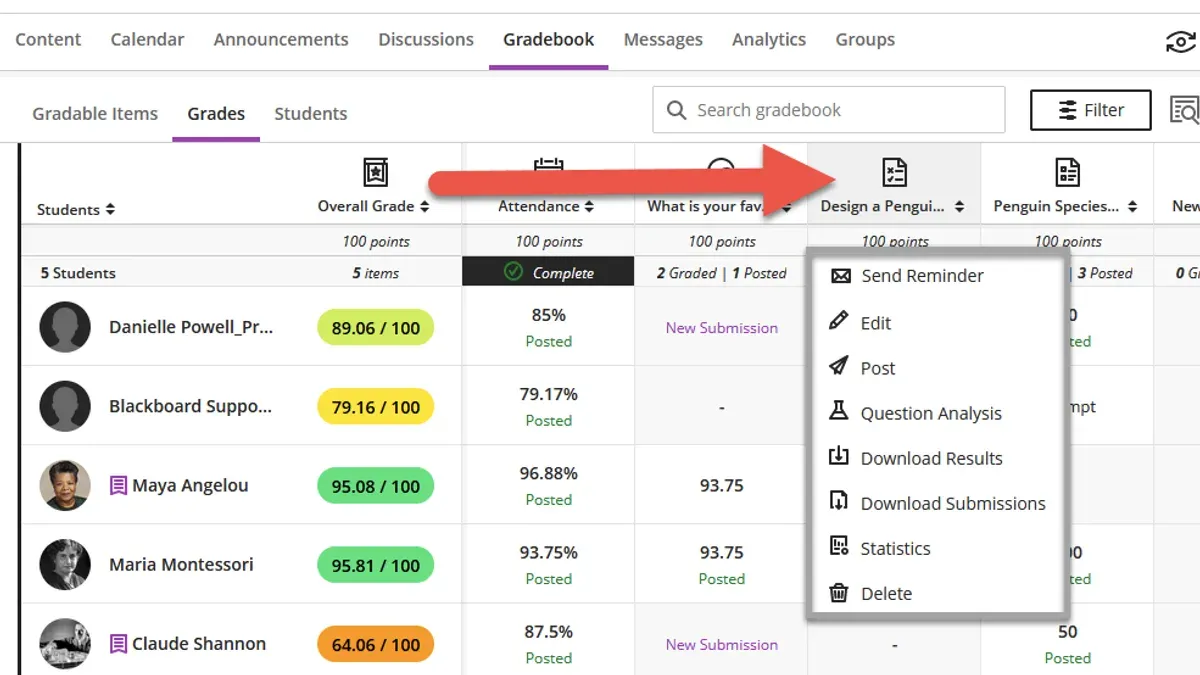
- Download when the screen is the bottleneck. From the assignment's column menu in the Gradebook (or its Submissions page), Download Submissions packages all (or selected) submissions as a ZIP, named by student, and emails you when it is ready; Download Results gives the item's grades as a spreadsheet. This is the route for marking on a train, on a tablet with a pen, or in a tool Annotate cannot render. Know the re-upload reality before you choose it: markup you make in downloaded files does not flow back into Blackboard. What comes back is the grades: work in the downloaded gradebook file offline and use Upload in the Gradebook Settings' Upload and Download Gradebook section to write the scores back — then paste or attach your feedback per student. And two download limits from Anthology's help: editor-typed content attached to test questions is not in the ZIP, and you cannot bulk-download discussions, group work or anonymous submissions at all.
- Protect the last session. Fatigue errors cluster at the end of queues. If your timed rate has slowed by half, stop: a rested final 20 marked consistently beat a midnight final 20 that generates five appeals.
Late work, zeros and exceptions: what the settings actually enforce
Three separate mechanisms get conflated under "late policy", and they behave differently:
- The Late label. A submission made after the due date is flagged late in the grading views. The label is information, not a penalty: Ultra has no built-in "deduct x% per day" engine. If your syllabus promises a per-day deduction, you apply it — in the grade pill, as an override, with the arithmetic written in the feedback so the student can see it.
- Automatic zeros. With Assign automatic zeros for past due work on (Gradebook Settings), a student with nothing submitted when the deadline passes receives a zero that is posted automatically — it is meant to be seen, as a prompt to act. Two consequences to manage: the class overall grades drop visibly at every deadline (decide whether your cohort needs that honesty in week 2), and when the student then submits late, that new submission arrives with the grade returned to unposted — you grade and post it like any other work, replacing the zero. Turning the setting off mid-course asks you whether to keep or clear the zeros already assigned; "clear" is usually the honest choice if you are changing policy.
- Hard cutoffs. Inside an assessment's own settings, Prohibit late submissions auto-submits in-progress and saved attempts at the due date, and Prohibit new attempts after due date lets a started attempt finish but bars new ones. These are exam-integrity tools, not late-policy tools — enabling them on an ordinary coursework assignment converts every technical hiccup at 23:59 into an appeal.
Accommodations and exceptions are different levers, deliberately. From the course Roster (under Details & Actions), a student's Accommodations apply to everything in the course: a due date accommodation (their work is never marked late) and/or a time limit accommodation (+50% extra time, +100%, or unlimited, applied to every timed assessment — students with one show a purple ribbon icon in the Roster and Gradebook, and students cannot see their own accommodations). An exception, set per assessment from its Submissions page, is the one-off version: a different due date, different access dates, or extra attempts for one student on one item — the home of "my laptop died" cases. And an exemption removes an item from one student's calculation entirely. Students in groups inherit a member's accommodation for that group item, which settles most "but my group…" emails before they are written. Get the accommodations in before deadlines start passing: a due date accommodation added late, or worse removed, makes late labels appear and disappear in ways that are hard to explain after the fact.
Splitting the marking: anonymous, delegated and parallel grading
When a queue is too big for one marker, or the stakes demand a second pair of eyes, Ultra has three distinct mechanisms — they solve different problems:
| Mechanism | How it works | Use it when | Hard limits |
|---|---|---|---|
| Anonymous grading | Hide student names in the assessment settings; names are revealed only after grades are posted | Single marker, bias-sensitive marking (exams, contested subjects) | Only for assignments/tests built from text and files — not for assessments containing built-in question types; cannot be combined with group assignments; the setting locks once students start submitting |
| Delegated grading | Each grader (instructor, TA, or grader role) is assigned a set of students — by group, section, or random split — and sees only their set; provisional grades are reviewed and finalised by a designated final grader/reconciler | One marker per student, workload division across a teaching team | Graders see only their assigned set, so cross-set consistency is the reconciler's job, not the tool's |
| Parallel grading | 2 graders per student grade the same submissions independently — neither can see the other's grades, feedback, annotations or rubric — then a reconciler reviews both and sets the final grade | High-stakes work needing genuine double marking and moderation | Not available for group work, and not for assessments with added questions; needs at least two graders plus a reconciler |
Whichever you choose, add one human process the tool cannot supply: a calibration round. All markers grade the same three submissions first, compare, and agree what each rubric band looks like in practice — before the sets are split or the parallel grading starts. Delegated and parallel grading distribute the work; only calibration distributes the standard.
Multi-marker setup checklist:
Gradebook hygiene: the errors students find before you do
The Gradebook is a running calculation, and most "wrong grade" reports are configuration facts surfacing, not corruption. The recurring ones:
- Unposted grades. The classic. Work is marked, students see nothing, and the item sits in the Gradebook's Overview as "grades to post". Posting is per item (post all grades for the item in one action), and a posted grade cannot be un-posted — corrections are made by editing and re-posting, or by an override.
- The invisible zero problem. Ungraded items do not drag the overall grade down (calculation runs over graded work, per your setup choice). The student coasting on a missing essay looks fine until the zero — manual or automatic — lands. Whichever behaviour you chose in setup, re-check it after the first deadline, not the last.
- Overrides that outlive their reason. A grade typed directly into a grid cell, or typed over a rubric total, is an override: it wins over the attempts beneath it, including attempts submitted afterwards. Overrides are labelled — audit them at the end of term (grade history, below, shows every change), and revert the ones whose reason has expired, such as a provisional mark you meant to replace.
- Categories quietly lying. A weighted course where one test landed in the Assignment category is a syllabus breach with arithmetic attached. Recheck category membership whenever an item is created by copy, import or an external tool.
- Rounding surprises. Schemas display; they do not round the stored score — a student at 89.96 shown under a letter schema is a policy question about your boundaries, not a Blackboard error. Decide the boundary rule before the appeals arrive, and apply it identically to everyone (an Overall Grade Notation exists in Gradebook Settings for record-level overrides such as withdrawn/incomplete, which is cleaner than hand-editing totals).
- Record-keeping. Export before you need it: Gradebook Settings → Upload and Download Gradebook → Download Grades produces the full gradebook or the Grade History (every grade change, with timestamps) as a spreadsheet. Download one at each assessment board or term end, and keep it out of the LMS — it is your evidence if the LMS record is ever disputed, and it is also a file full of personal data, so store it like one.
The verification pass: five minutes before you post
Posting is the one irreversible-feeling step in the workflow (a posted grade can be corrected, but it cannot be unseen), so it gets its own gate. Run this for every hand-marked item, every time — it is calibrated to catch exactly the errors in the section above:
Pitfalls that actually break Blackboard grading
| Pitfall | What happens | The fix / the habit that prevents it |
|---|---|---|
| Grading finished, grades never posted | Students see a blank for work you marked days ago; the item waits in Overview under grades to post | The verification pass above ends with posting; treat "graded" and "posted" as different words in your own tracking |
| Posting too early | One student's feedback (and annotations) is released while you are still marking their peers — and your standard is still drifting | Manual posting for hand-marked items; post once, at the end of the queue |
| Marking against the Annotate conversion | You penalise layout, fonts or pagination that are artefacts of Annotate's rendering, not the student's file | For layout-graded work, download the original file and judge that (Annotate's own guidance warns about font substitution) |
| Annotation session quietly expires | The last comments on a long submission are missing when the student opens their feedback | Annotate sessions end after 1 hour; finish annotations in sittings, and check the annotated file before posting |
| Rubric override contradiction | The rubric shows top-band selections; the grade pill shows a mid-range override; the student appeals with a screenshot | If you override a rubric total, write the reason in the feedback panel — the rubric stays on the record |
| Rubric needs editing mid-queue | Used rubrics cannot be edited, so the flawed criterion marks the whole cohort unless you intervene | Duplicate-edit-attach applies to future items; for the current one, agree a marking convention in grader notes and apply it to every submission |
| Automatic zeros meet a late submission | A student submits after their posted zero; the new attempt sits unposted and they conclude the zero is final | Grade and post late attempts promptly; tell students in the course that a posted zero is a placeholder until late work is marked |
| Late "penalty" assumed to be automatic | You promise −5% per day in the syllabus; Blackboard never deducts anything | Apply deductions yourself as overrides, showing the arithmetic in the feedback |
| Wrong attempt graded | A student resubmitted; you marked attempt 1, but the assessment counts the last (or highest) attempt | Check the attempt on screen against the assessment's attempt setting before scoring (per-submission checklist) |
| Parallel/delegated marking without calibration | Two markers, two standards; reconciliation becomes re-marking | The calibration round (same 3 submissions, all markers) before any split or parallel grading starts |
| Feedback recordings treated as records | Recorded feedback is not included in course archives/backups, so it vanishes from the institutional record | Keep summative-critical feedback in text as well; recordings are for tone and explanation, not the sole record |
References
Vendor documentation this guide's workflows, limits and labels rest on (Anthology's instructor help, help.anthology.com):
- Anthology — Bb Annotate (supported file types, the one-hour annotation session, editor-created submissions not being annotatable): https://help.anthology.com/blackboard/instructor/en/grading/grading-assessments/bb-annotate.html
- Anthology — Record Audio and Video (feedback recordings from the grading panel, 5-minute limit without a Video Studio licence / 20 minutes with, auto-captioning, recordings excluded from course archives): https://help.anthology.com/blackboard/instructor/en/interact-with-students/record-audio-and-video.html
- Anthology — Enable Anonymous Grading ("Hide student names", which assessment types qualify, the setting locking once submissions begin, SafeAssign results staying hidden until posting): https://help.anthology.com/blackboard/instructor/en/grading/types-of-grading/anonymous-grading/enable-anonymous-grading.html
- Anthology — Types of Grading and Parallel Grading (anonymous vs delegated vs parallel grading, provisional grades and the reconciler role): https://help.anthology.com/blackboard/instructor/en/grading/types-of-grading.html and https://help.anthology.com/blackboard/instructor/en/grading/grading-setup/parallel-grading.html
- Anthology — Grade Group Assignments (one grade for all members, member-level override grades, group exceptions, membership freezing once grading starts): https://help.anthology.com/blackboard/instructor/en/grading/grading-assessments/grade-group-assignments.html
- Anthology — Original Course View End of Life (Original unavailable for active teaching after 31 December 2026; courses read-only from 1 January 2027; conversion to Ultra in January 2028): https://help.anthology.com/blackboard/administrator/en/configure-blackboard/original-course-view-end-of-life.html
- Anthology release notes and university teaching-centre guides (checked November 2026) for the grade-by-question workflow in Flexible Grading, grade posting behaviour, automatic zeros, accommodations and exceptions, and the overall-grade calculation rules (Drop Scores / Use only) — feature names and defaults can vary with your institution's release and settings.
Read next
- How to Leave Clear, Actionable Feedback on Student Work in Blackboard — the companion to this guide: turning the feedback channels above into comments students actually act on
- How to Set Up Rubrics in Blackboard: A Step-by-Step Guide for Educators — building the rubric itself: criteria, bands and the percentage-vs-points decision this guide assumes you have made
- How to Handle Plagiarism Concerns in Blackboard — what to do when a SafeAssign report or your own reading raises an originality concern, in the right order
- How to Grade Student Work in Brightspace — the same job on D2L Brightspace: a different gradebook, different release mechanics (grades publish from each tool, not a separate post step), and its own efficiency levers
Frequently asked questions
I graded everything, but my students say they can't see any grades. Why?
Because grading and posting are separate steps in Ultra. Your grades are saved, but students only see them once you post the item's grades (from the Gradebook Overview, the Gradable Items list, or the item itself) — or if the assessment was set to post grades automatically. This is the single most common Blackboard grading complaint, and it is a workflow step, not lost work.
A student submitted late after an automatic zero was posted. What do I do?
Exactly what you would do with any late submission: grade the attempt that is now waiting in the queue and post the grade, which replaces the zero. The zero was a placeholder the system posted to make the missing work visible. If you don't accept the late work, leave the zero in place — but make sure the student knows which of those two things happened.
Can I mark on paper or in another app and put the results back?
Halfway. Download Submissions gives you a ZIP of the files to mark wherever you like, and the gradebook's Upload and Download Gradebook tools let you download the grades spreadsheet, fill in scores offline, and upload them back. What does not come back is your markup: annotations made outside Bb Annotate cannot be imported into it, so offline feedback has to be typed into the feedback panel or attached as a file per student.
Can I grade in the Blackboard app on my phone?
For assignments, yes — the Blackboard app supports grading Ultra assignments, including annotations and posting. Grading for tests, group submissions and discussions is web-browser work. The app is fine for clearing a small assignment queue on the move; it is not where you want to run a 80-essay moderation exercise.
My course is still in the Original Course View. Do I need to do anything now?
Yes — plan around the date. Anthology ends the Original Course View for active teaching on 31 December 2026; Original courses become read-only on 1 January 2027 and are converted to Ultra in January 2028. You can finish the current term in Original (Bb Annotate and most marking habits transfer), but any course you are building for 2027 should be built in Ultra, and the one workflow to learn first is Ultra's grade-then-post release step, which Original does not have.



