How to Use Signal Privacy Settings to Secure Your Conversations
This guide explains how to optimize Signal privacy settings to secure personal conversations and control data visibility.

This article explains how to navigate and optimize Signal privacy settings to secure personal communications effectively. Signal privacy settings control key aspects of message encryption, data visibility, and user interaction within the app. Understanding these settings enables users to tailor privacy protections beyond the default configurations that often leave subtle gaps. Signal’s architecture is built around end-to-end encryption, but privacy extends to managing read receipts, typing indicators, profile visibility, and disappearing messages.
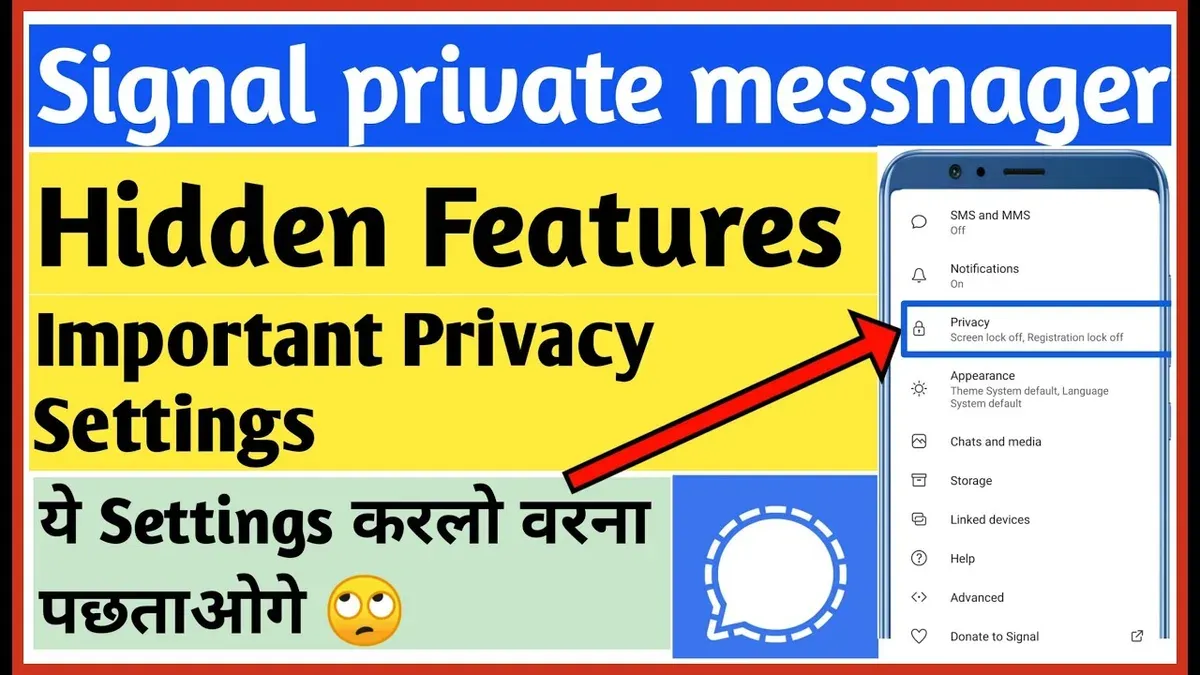
Signal’s privacy settings are accessible through the app’s main menu under Settings > Privacy. This guide outlines how to enable critical options such as Screen Security, Registration Lock, and Incognito Keyboard, and highlights less obvious but impactful configurations. The goal is to empower privacy-conscious users to make informed decisions about which settings to enable or disable based on personal threat models and communication needs.
What are privacy settings and why are they important?
Privacy settings in messaging apps are the controls that regulate who can see, access, and share a user's data. They determine the visibility of profile information, message read receipts, last seen status, and other personal details. Without these controls, sensitive information can be exposed unintentionally to contacts, third parties, or attackers.
These settings are crucial for preventing unauthorized access and data leakage. Messaging apps have been targets of breaches and leaks where private conversations or user metadata were exposed due to weak or default privacy configurations. For example, if read receipts or typing indicators remain enabled by default, a user’s activity patterns become visible to all contacts, potentially revealing habits or sensitive moments.
Privacy settings empower users to control their digital footprint. By adjusting who can see profile photos, blocking unwanted contacts, or disabling link previews, users decide what personal information to share and with whom. This autonomy is essential to maintain confidentiality and minimize risks from data misuse or surveillance.
Consider a user who shares a profile photo visible to everyone by default. Without changing this setting, acquaintances or strangers can access personal images, increasing vulnerability. Adjusting the setting to “My contacts” or “Nobody” limits exposure, illustrating how privacy settings directly impact security and comfort in communication.
How do Signal privacy settings work?
Signal’s privacy framework is built around end-to-end encryption (E2EE), which ensures message content is encrypted on the sender’s device and decrypted only on the recipient’s device. This encryption prevents intermediaries, including Signal’s own servers, from accessing message data. Unlike some messaging apps that store or analyze message content on servers, Signal’s E2EE architecture eliminates such exposure, making conversations inherently private by default.
Beyond encryption, Signal provides granular privacy controls to manage user interactions and metadata visibility. Settings like Read Receipts and Typing Indicators can be toggled off via Settings > Privacy, preventing others from seeing when messages are read or when a user is typing. Profile Photo and About visibility can be limited to contacts or hidden entirely, reducing the personal information exposed to unknown users.
Signal emphasizes minimal metadata collection to protect user privacy further. Unlike many apps that log extensive metadata, Signal records only the last connection timestamp and no detailed communication logs. Users can enable Relay Calls to obscure IP addresses during voice and video calls, masking location data. However, some metadata, like message timestamps, remain necessary for functionality but are tightly controlled.
For example, when sending a message, Signal encrypts it end-to-end while storing only minimal metadata on servers. If Read Receipts are disabled, the sender will not know if the recipient has opened the message, increasing privacy at the cost of less immediate feedback. This trade-off exemplifies how Signal’s settings balance privacy with user experience.
How to go to privacy settings in Signal
Accessing privacy settings in Signal requires navigating through the app's menus, which vary slightly between Android, iOS, and desktop versions. On Android, start by opening Signal and tapping the three-dot menu icon in the top-right corner of the main chat screen. From the dropdown, select Settings. Within Settings, choose Privacy to reach the full suite of privacy controls. This path is typically: Signal > ⋮ > Settings > Privacy. Screenshots here would show the three-dot icon on the top right and the Settings and Privacy menu options.
On iOS, open Signal and tap the user profile icon located in the top-left corner of the main chat interface. This opens the Settings menu directly. Scroll down and tap Privacy to enter privacy options. The path is: Signal > Profile Icon > Privacy. A screenshot would highlight the profile icon and the Privacy button within Settings.
Signal’s desktop app has a more limited privacy settings menu. To access it, open Signal desktop, click on the three-dot menu at the top-left corner, and select Preferences. Then navigate to the Privacy tab. However, some privacy features available on mobile are not present on desktop.
Tip: On mobile, the difference in starting points (three-dot menu on Android versus profile icon on iOS) is a common point of confusion. Remember the icon location to quickly access privacy settings.
How to enable and turn on key privacy settings in Signal
To increase privacy on Signal, start by disabling read receipts and typing indicators. Navigate to Settings > Privacy, then turn off Read Receipts and Typing Indicators. This stops others from knowing when messages are read or when a reply is being typed, reducing metadata exposure. For example, with read receipts off, a sender sees only if a message was delivered, not if it was seen.
Next, enable Screen Security by going to Settings > Privacy > Screen Security. This prevents Signal's content from appearing in app switchers or screenshots, protecting conversations from casual visual snooping. Turning on screen security is especially useful when multitasking or sharing a device.
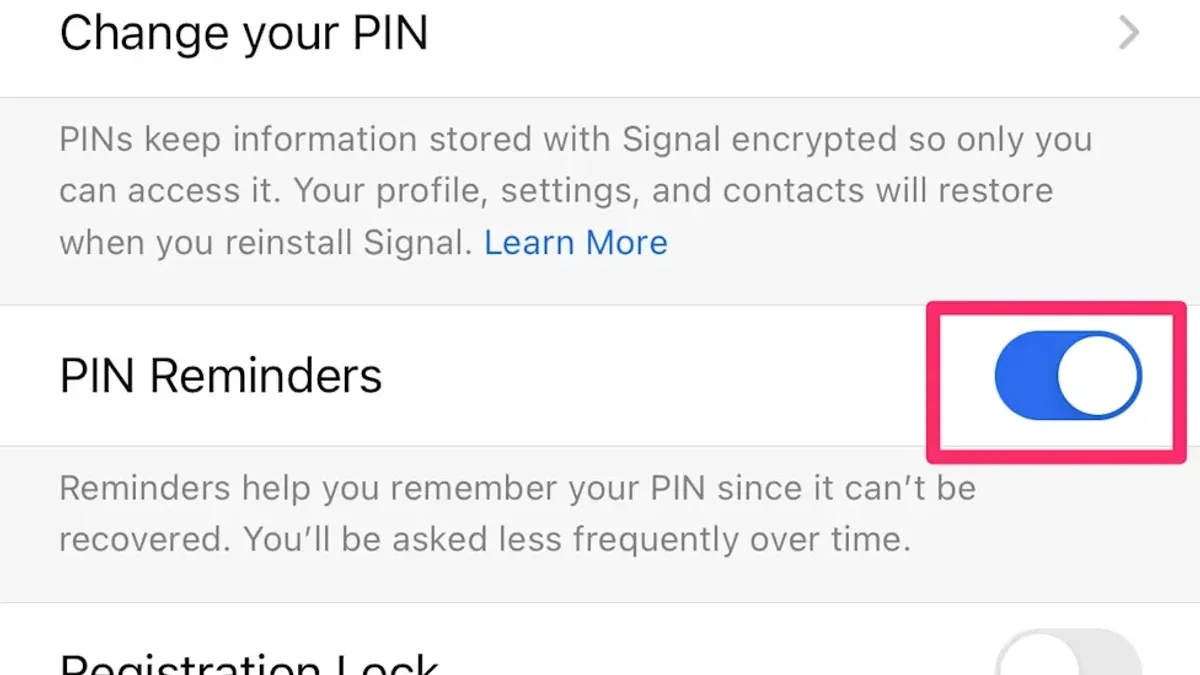
Activate Registration Lock under Settings > Privacy > Registration Lock. This adds a PIN requirement when registering the phone number on a new device, blocking unauthorized transfers of the Signal account. Once enabled, the PIN must be entered to reactivate Signal, preventing account hijacking.
Set disappearing messages by opening a chat, tapping the contact or group name, and selecting Disappearing Messages. Choose a timer from 5 seconds to 1 week. This ensures messages self-delete after the set time, limiting data persistence. For instance, setting messages to disappear after 1 minute can protect sensitive conversations from lingering on devices.
Control group access by visiting Settings > Privacy > Groups. Change the setting to allow only contacts or nobody to add the user to groups, avoiding unwanted group additions. This prevents exposure to unknown participants and uninvited conversations.
How can I enhance my Signal privacy settings beyond defaults?
Signal offers advanced privacy features that go beyond the standard options to tighten communication security. One often overlooked setting is the Incognito Keyboard mode. Enabling this in Settings > Privacy > Incognito Keyboard prevents the keyboard from learning from typing within Signal, reducing data leakage through predictive text or cloud-based keyboard services. This is crucial when sensitive information is shared.
Another critical enhancement is managing Linked Devices. By regularly reviewing and blocking unused linked devices under Settings > Linked Devices, unwanted access points are eliminated. For example, if a linked desktop session is forgotten or compromised, blocking it immediately stops message synchronization there, ensuring no residual exposure.
Group privacy settings deserve attention as well. The default allows anyone who knows the link to join or view group info. Adjusting this under Group Settings > Who Can Add Me to “My Contacts” or “Nobody” restricts additions and limits exposure of group membership. This prevents untrusted contacts from infiltrating conversations or learning group details.
Finally, Signal’s Global Privacy Control features, like Network Privacy options found in Settings > Privacy > Network Privacy, reduce metadata leakage at the network level by obscuring IP addresses and blocking analytics. This contrasts with default configurations that may expose connection data to network observers, enhancing privacy significantly.
Tip: Regularly revisiting these advanced settings can prevent subtle leaks and maintain a tighter privacy posture over time.
How private is Signal really? Is Signal good for privacy?
Signal’s privacy foundation rests on open-source end-to-end encryption, verified through multiple independent security audits. These audits confirm that message content is encrypted so that only sender and recipient can read it, not even Signal's servers. This transparency builds trust by allowing experts worldwide to inspect the codebase for vulnerabilities and backdoors.
Signal minimizes metadata collection aggressively, storing only the date and time a user registered and their last connection timestamp. Unlike many messaging apps, it does not retain contact lists, message histories, or location data on servers. However, some minimal metadata is unavoidable to maintain service functionality, such as device registration and encrypted message routing information.
Despite these strengths, Signal’s privacy depends on device security. If a phone is compromised, for instance with malware, encryption does not protect message content. Users must secure devices with strong passcodes and regularly update the app to patch vulnerabilities. Additionally, while Signal encrypts messages, it cannot prevent all metadata leakage at the network level, especially under advanced surveillance or legal compulsion.
For example, if a user activates disappearing messages but loses device access, Signal cannot recover those chats, emphasizing the trade-off between privacy and data availability. Overall, Signal offers robust privacy for communications but requires user vigilance and an understanding of its limitations.
What common mistakes to avoid when managing Signal privacy settings?
One frequent error is leaving Signal's default settings unchanged, which can expose more metadata than necessary. For instance, not disabling "Read Receipts" or leaving "Profile Photo" visibility set to "Everyone" allows contacts or strangers to infer activity patterns or identify users more easily. Users often overlook the "Who can add me to groups" setting, which by default permits anyone to add the user to groups, potentially compromising privacy through unwanted exposure.
Sharing screenshots or backups without encryption is another common pitfall. Users might export chat backups or share conversation screenshots via insecure channels, exposing sensitive information outside Signal's encrypted environment. For example, sending unencrypted backups to cloud storage services or sharing screenshots over email risks interception or unauthorized access.
Neglecting app updates also undermines privacy. Signal regularly issues updates that patch vulnerabilities and enhance security features. Failing to install these updates promptly can leave devices exposed to known exploits. An outdated Signal app might lack recent protections against metadata leaks or exploit vectors discovered in earlier versions.
To illustrate, a user who keeps default privacy settings, shares unencrypted backups, and delays updates could unintentionally expose contact lists, message timestamps, and conversation content to third parties. Avoiding these mistakes requires active management of settings, cautious data handling, and timely software maintenance.
Frequently asked questions
How to enable privacy settings?
Privacy settings in Signal are enabled through the app’s Settings menu. Navigate to Settings > Privacy, then toggle on features like Screen Security, Registration Lock, and Read Receipts according to preference. Each setting must be individually activated to take effect.
How do privacy settings work?
Privacy settings control how Signal manages user data and interactions. They affect message visibility, metadata exposure, and app behavior, such as disabling read receipts or preventing screenshots. These settings limit what others can see and reduce potential data leakage.
How to turn on privacy settings?
Open Signal, tap the profile icon to access Settings, then select Privacy. From there, switch on desired options like Incognito Keyboard, Screen Security, and Registration Lock. Confirm any prompts that follow to finalize activation.
What are the privacy settings?
Signal’s privacy settings include options such as Screen Security, which blocks screenshots; Registration Lock, which prevents unauthorized account registration; Read Receipts, which can be enabled or disabled; Typing Indicators; Incognito Keyboard; and Disappearing Messages with customizable timers. These settings control message visibility and app security.
Why are privacy settings important?
Privacy settings protect sensitive conversations from unauthorized access and minimize data exposure. They help maintain confidentiality by restricting metadata sharing, preventing screenshots, and controlling message lifespan. Without proper configuration, default settings may leave some aspects vulnerable.
What this advice does not cover and when to seek other solutions
This advice focuses strictly on Signal's in-app privacy settings and does not cover device-level security issues such as operating system vulnerabilities, malware, or physical access compromises, all of which can critically impact overall privacy. Signal’s encryption and privacy features are strong, but they rely heavily on secure user behavior—including verifying contacts and managing linked devices—and trusting trusted contacts. No messaging app can guarantee absolute privacy against all threats, especially those originating outside the app itself.
The single most useful next step is to review the “Privacy” section under Signal’s Settings menu and enable “Screen Security” to prevent screenshots and “Disappearing Messages” to limit message lifespan. These subtle but powerful settings are often overlooked and provide immediate, meaningful privacy enhancement without significant usability trade-offs.
See also: How to Turn On Two-Factor Authentication on Signal: A Clear Step-by-Step Guide · How to Manage Messenger Privacy Settings for Secure Messaging · How to Manage Quora Privacy Settings for Safe and Smart Use · How to Manage and Secure Pinterest Privacy Settings Effectively