
Effective Slack Rollout Plan for Volunteer Teams
Discover how to create an effective Slack rollout plan that supports volunteers with clear goals, dedicated champions, and structured channels.

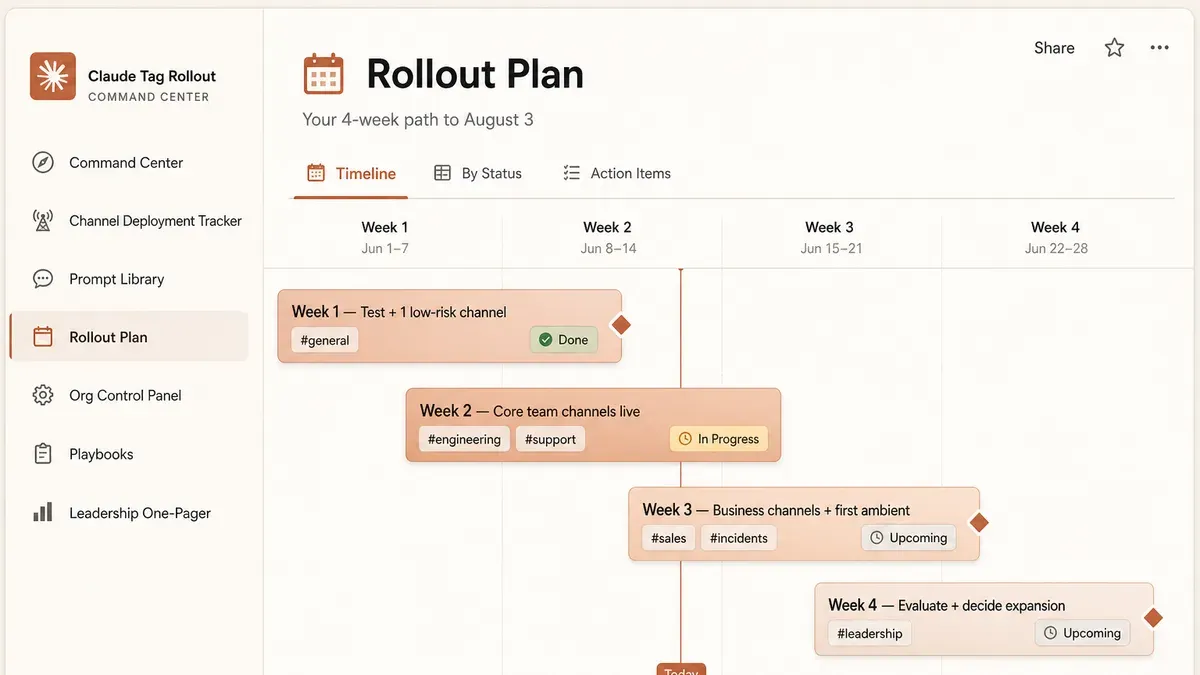
Next, assemble a launch team with Slack champions—experienced users who can guide others through setup and adoption. This ensures volunteers receive ongoing support and helps maintain momentum. Rename the default #general channel to #announcements-company and restrict posting to coordinators only, keeping critical updates visible and preventing clutter.
Settings, menu paths and limits here were checked against Slack, Volunteer Shift Manager, Perigeon (full list at the end) in November 2026.
Define clear goals and boundaries for Slack use
You must set precise limits on what Slack will manage and what stays on other channels before launching. Slack excels at real-time coordination and community engagement within volunteer teams comfortable with technology, but it cannot replace formal communications like shift confirmations or cancellations. These messages require the reliability of SMS or email.
- List processes to move to Slack and those to keep off it.
- Communicate these boundaries clearly to all volunteers.
- Enforce ground rules consistently to prevent overlapping channels.
Defining these goals and boundaries upfront is crucial to a successful Slack rollout that enhances volunteer communication without creating chaos. Slack rollout requires setting clear goals and boundaries.
Assemble a launch team with Slack champions
You need a dedicated launch team composed of experienced Slack users who understand the unique workflows of your volunteer group. These Slack champions act as the backbone of your rollout, guiding adoption and providing essential support when volunteers encounter hurdles.
This ensures volunteers feel supported and reduces frustration that often arises with new tools.
For instance, imagine a volunteer struggling with Slack’s channel structure. A champion steps in to clarify the purpose of each channel and assists in customizing notifications, preventing that volunteer from disengaging early. This proactive support fosters confidence and speeds up adoption.
- Select volunteers experienced with Slack and familiar with your team’s communication style.
- Define roles: trainer, support contact, guideline enforcer, and feedback collector.
- Ensure champions are accessible throughout rollout to respond promptly.
Without this team, volunteers face confusion and inconsistent use, which undermines coordination. Champions are your frontline for success. Learn more about Slack champions.
Establish a simple, effective channel structure for volunteers
Limit your Slack workspace to 3-5 essential channels to prevent volunteer overload and promote engagement. Focus on core groups such as #announcements for official updates, a coordination channel for task management, a social channel to foster community, and one or two program-specific channels tailored to your volunteers’ roles.
Use predictable naming conventions to keep channels intuitive and scalable. Prefix project-related channels with #proj- and name shared channels after clients or partner organizations. For instance, #proj-park-cleanup clearly signals a project channel, while #client-habitat identifies a shared channel with a partner group.
Onboard volunteers by adding them first to essential channels like #introductions and #announcements to reduce noise and help them acclimate. Avoid joining volunteers to too many channels at once, which fragments attention and lowers participation.
- Limit channels to 3-5 key groups: announcements, coordination, social, and program-specific
- Apply consistent prefixes such as
#proj-for projects - Join volunteers to essential channels first, then add others as needed
This approach balances clarity and activity, making Slack a tool that supports rather than overwhelms your volunteer team. Channel naming conventions matter.
Set up announcement channels with posting restrictions
Rename the default #general channel to a clear, purpose-driven name like #announcements-company. This clarifies its role as the place for important updates and prevents confusion with casual conversations. Use the Slack admin console path: Workspace Settings → Channel Management → Rename #general to #announcements-company to make this change.

Volunteers should retain the ability to react with emojis, but not to post or reply.
For example, when a volunteer coordinator posts a schedule update or an urgent announcement, volunteers can acknowledge it with reactions such as thumbs-up without adding comments. This preserves the channel’s clarity and focus, ensuring everyone sees essential information immediately.
Set posting restrictions via the admin console under Workspace Settings → Channel Management. Restrict posting rights to designated roles only. Failing to impose these limits leads to important messages being lost amid back-and-forth conversations, diluting communication effectiveness.
Create user groups to automate channel assignments
To streamline onboarding, create user groups in Slack that correspond to volunteer subteams, such as @sales-team or @it-team. Assign default channels to these groups so every new volunteer added automatically gains access to the relevant conversations without manual intervention.
In the Slack admin console, navigate to Members Management → Create User Groups. Here you define your groups and specify which channels are assigned by default. This automation eliminates delays and reduces administrative overhead by ensuring volunteers never miss critical team channels or updates.
For example, when a new volunteer joins the IT group, Slack instantly adds them to channels like #it-support and #it-announcements without requiring manual steps from coordinators. This keeps onboarding consistent and scalable as your volunteer base grows.
Note that this feature is crucial for maintaining organized communication across distinct volunteer roles. Without it, onboarding risks become bottlenecked by manual channel invites, causing confusion and missed messages. Use user groups to enforce structured, role-based channel access throughout your volunteer Slack workspace.
Learn more about creating user groups and assigning default channels.
Implement governance and security policies from day one
Setting governance rules before launching Slack prevents chaos and protects your volunteer workspace. Decide who can create channels by restricting this ability to coordinators in the Slack admin console under Settings & administration > Workspace Settings > Permissions. Limit guest invitations to trusted users only, controlling external access and reducing security risks.
Establish clear data retention policies early. Define how long messages and files stay in Slack to comply with your organization's privacy and record-keeping needs. This keeps your workspace clean and manageable over time.
Communication guidelines are vital. Make rules about respectful, purposeful conversations and discourage off-topic chatter that clutters channels. This fosters a positive environment and focuses volunteer efforts.
Skipping these governance steps often causes fragmented communication, low volunteer engagement, and security gaps. For instance, if anyone can create channels unchecked, you’ll end up with overlapping topics and confused members. Coordinators lose control, and volunteers disengage.
By setting channel creation, guest access, and data rules at the start, you keep Slack organized, safe, and effective for volunteer coordination. This foundation supports smooth onboarding and ongoing volunteer collaboration.
- Limit channel creation permissions to coordinators via the admin console.
- Restrict guest invitations to prevent unauthorized access.
- Define and enforce data retention policies aligned with your organization’s needs.
- Set communication standards to maintain respectful and goal-focused exchanges.
Governance and security rules from day one are essential to avoid chaos and ensure security in your Slack workspace.
Use Slack workflows to automate routine volunteer tasks
Slack workflows streamline repetitive volunteer coordination tasks by automating onboarding, notifications, approvals, and status updates. These automations reduce manual effort and accelerate common processes, freeing your team to focus on higher-impact activities.
Typical workflows include onboarding checklists that guide new volunteers through essential steps automatically upon joining Slack. Another common automation routes support tickets or volunteer requests to the correct channels or personnel, ensuring timely responses without manual triage.
For example, you can create a workflow triggered when a volunteer completes an introductory form, automatically sending welcome messages, assigning them to specific channels via user groups, and prompting coordinators for any necessary approvals. This sequence replaces manual follow-up and reduces onboarding delays.
Keep in mind that Slack workflows require a Pro or higher plan; they are not available on free plans. You can further enhance workflows by integrating Slack with tools like Salesforce, Google Workspace, Microsoft 365, Jira, or ServiceNow to connect your volunteer management ecosystem seamlessly.
To implement workflows effectively, start by mapping routine volunteer tasks that repeat frequently, then build step-by-step automations in Slack’s Workflow Builder under Tools > Workflow Builder. Test each workflow carefully to ensure it runs smoothly and adjust as volunteer needs evolve.
Learn more about Slack workflow automation.
Drive user adoption with training and ongoing support
Your volunteers need more than just access to Slack; they require tailored training that suits their varying levels of technical comfort. Start with a focused agenda covering basic navigation, channel etiquette, posting restrictions, and how to use announcement channels effectively. Integrate best practices to keep communication clear and purposeful.
Appoint Slack champions from your launch team as go-to experts. They provide real-time assistance, answer questions, and reinforce guidelines. This peer support reduces frustration and builds confidence among volunteers.
Encourage volunteers to provide feedback on their Slack experience. Use their input to adjust channel structures, workflows, or training materials. This iterative approach ensures the platform evolves with your team's needs and improves engagement.
Track adoption with specific metrics such as active user counts, message engagement, workflow usage, channel activity, and response times. These indicators reveal how well volunteers integrate Slack into their routines and highlight areas needing attention.
For instance, a volunteer coordinator might hold an initial training session explaining how posting restrictions in the announcement channel keep important messages visible and why user groups simplify onboarding. Slack champions then follow up with informal Q&A sessions and monitor adoption metrics weekly to identify volunteers needing extra support.
- Prepare training materials tailored to volunteer tech skills
- Assign Slack champions for ongoing guidance
- Collect and act on volunteer feedback regularly
- Monitor adoption metrics to fine-tune support efforts
Monitor Slack usage and adjust after rollout
After launching Slack for your volunteer team, tracking key metrics is essential to confirm the platform supports your communication goals. Focus on active users, message engagement, workflow utilization, channel activity, and response times. These indicators reveal how volunteers are interacting and whether workflows automate routine tasks as intended.
Schedule follow-ups one week and one month post-rollout to review adoption rates and identify pain points. Use Slack’s analytics and your admin console dashboard to check if volunteers consistently access required channels and respond promptly. For example, if message engagement in announcement channels is low, consider revisiting posting restrictions or providing additional guidance on channel purpose.
If engagement remains weak or confusion persists, revisit training and support resources. Adjust channel structures or clarify governance policies to reduce friction. If workflows show minimal use, confirm volunteers understand and have access to them, noting that workflows require a Slack Pro plan or higher.
- Check active user counts and daily message volume per channel.
- Review workflow execution logs for automation effectiveness.
- Assess average response times to volunteer inquiries.
- Confirm volunteers are in the correct user groups and channels.
- Follow up personally with volunteers showing low engagement.
These steps help maintain an organized workspace, improve volunteer experience, and prevent the chaos that comes from launching Slack too quickly without adequate follow-up.
Avoid common pitfalls in volunteer Slack rollouts
Launching Slack without a solid plan creates chaos. Volunteers face fragmented communication and low engagement because users lack clear goals, governance, and a structured workspace. For instance, rushing to add volunteers before defining channel purposes results in confusion and message overload.
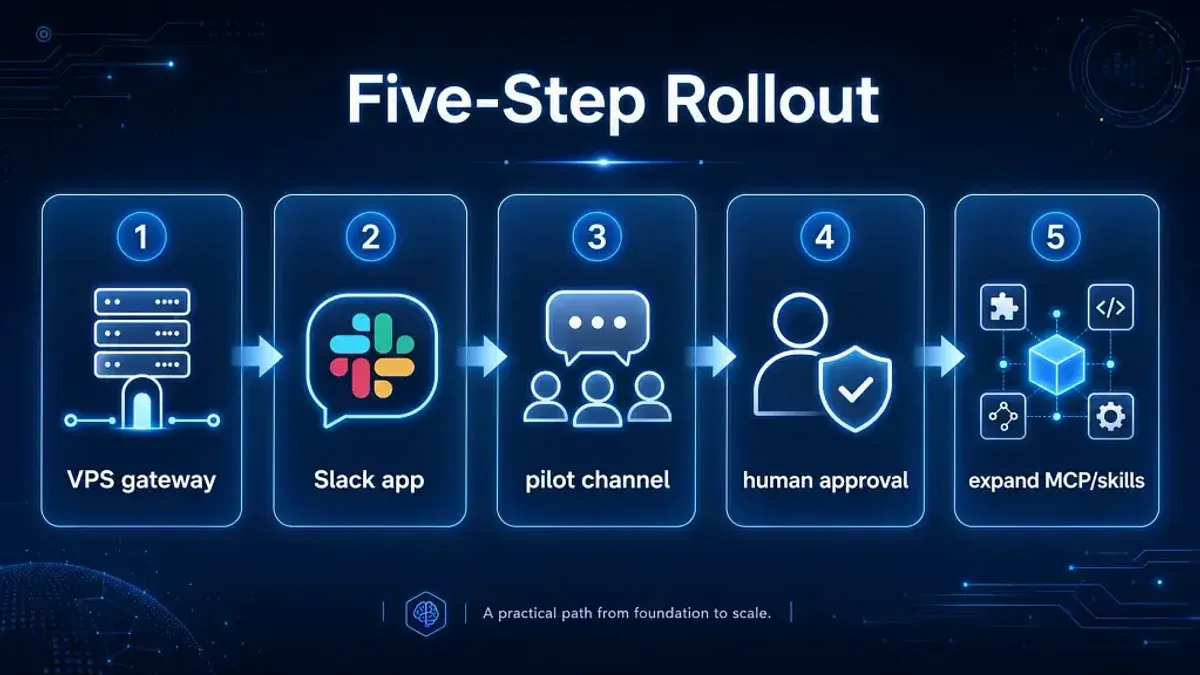
Too many channels at launch dilute attention. Volunteers tend to ignore channels that appear inactive or irrelevant, causing vital updates to be missed. Keep your initial channel list concise and purposeful to maintain engagement.
Allowing unrestricted posting in announcement channels buries critical messages under replies and side conversations. Rename #general to #announcements-company and restrict posting there to coordinators only. This preserves message visibility and prevents important information from getting lost.
Consider volunteer tech comfort before adopting Slack. Volunteers who primarily use phones or have limited digital skills may find Slack cumbersome, adding friction rather than streamlining communication. Assess your team’s preferences and readiness before committing.
| Symptom | Cause | Fix |
|---|---|---|
| Volunteers overwhelmed, ignoring messages | Too many channels launched simultaneously | Limit initial channels to essential ones; add more gradually |
| Important announcements lost in chat replies | Posting not restricted in announcement channel | Rename #general to #announcements-company and restrict posting permissions via Slack admin console |
| Low engagement, scattered communication | Slack launched without clear goals or governance | Define Slack’s purpose, set boundaries, and enforce policies before rollout |
| Volunteers struggle to use Slack on mobile or lack tech skills | Slack chosen without assessing volunteer comfort or device usage | Survey volunteer tech readiness; consider alternative tools if needed |
Checklist to Make Your Slack Rollout Work for Volunteers
Confirm your rollout’s success by verifying volunteers are added to the correct channels automatically and that announcement channels restrict posting as configured. Monitor active participation levels and check the admin console for any permission conflicts or security alerts. If volunteers report confusion or post outside designated channels, revisit your channel structure and posting restrictions immediately. Should automation workflows fail to trigger, ensure your plan meets the Slack Pro or higher requirement. Continual adjustments within the first week prevent confusion and maintain smooth communication, so use Slack’s admin tools to refine settings rather than expanding complexity. This focused approach preserves volunteer engagement without overwhelming them.
Pages this guide relies on
- Rolling out Slack at scale — Slack
- How to Use Slack or Teams for Volunteer Communication — Volunteer Shift Manager
- How to plan a Slack implementation — Perigeon
- Swing Left Volunteer Slack Guide — Swing Left
- 5 steps to launch Slack — Slack



