
How to Roll Out Notion for Team Leads: A Practical Plan
Learn a practical Notion rollout plan for team leads to manage permissions and ensure smooth team adoption and productivity.

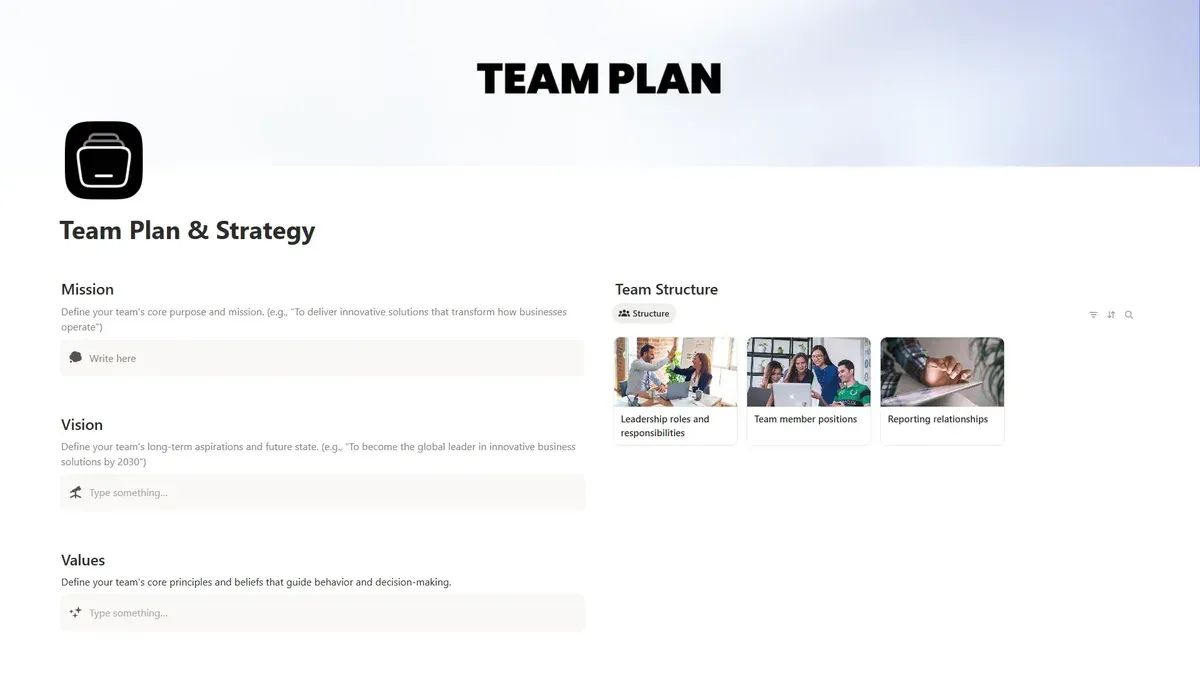
Notion organizes all content into flexible blocks—text, images, databases, and subpages—so your rollout must clarify structure and permissions upfront. Without this, confusion quickly arises, blocking productivity and collaboration.
Overview of the Notion rollout plan
- Define your leadership role and manage workspace permissions via Settings & Members.
- Follow the exact rollout order to avoid adoption pitfalls and confusion.
- Use the decision matrix to select appropriate Notion tools and integrations for your team’s needs.
- Build your skills with Notion Certified Admin certification to implement best practices.
Every limit and setting name below comes from Wikipedia, Notion Docs, Notion, as of November 2026.
Start your Notion rollout by defining the team lead’s role clearly
You are the central figure in managing workspace permissions and onboarding new members.
This approach prevents chaos and ensures everyone finds information where expected.
As the bridge between technical setup and team adoption, you translate workspace capabilities into daily practices. Clear role definition lets you manage permissions effectively while guiding your team to use Notion as a shared, organized workspace rather than a cluttered repository. This leadership focus reduces friction and accelerates adoption.Learn more about Notion blocks.
Roll out Notion step-by-step to your team for seamless adoption
Begin by setting up your workspace and immediately invite team members through Settings & Members. Managing permissions here first prevents access errors that occur when users try to open content they cannot reach. Skipping this step leads to confusion and support tickets.
Next, organize your workspace content using Notion’s fundamental units—blocks. These can be text, images, databases, or subpages. Build the structure to reflect your team’s workflows, keeping pages clear and databases aligned with tasks or projects.
Before a full rollout, train early adopters to explore and use the workspace. Their familiarity will help them support others and identify workflow gaps. Rolling out without early training risks widespread user frustration and low adoption.
Adjust permissions progressively. Start with broad access to essential pages, then tighten controls on sensitive data. This balances openness with security, avoiding either locked-out users or accidental data exposure.
Finally, ensure your team knows Notion’s cross-platform availability—Windows, macOS, Android, iOS, and web browsers—so everyone can work from their preferred devices. Ignoring device diversity can limit adoption and productivity.
For example, if you invite members but delay organizing blocks and setting permissions, users will see blank or inaccessible pages and think Notion is broken. This sequence safeguards a smooth, clear introduction to Notion’s capabilities.[source]
Choose the right Notion tools and integrations to match your team’s needs
Decide your approach by matching your team’s size, technical skills, and automation goals with the capabilities of Notion’s tools. For straightforward collaboration, rely on core Notion blocks—text, images, databases, and subpages—and manage workspace permissions through Settings & Members. This setup suits smaller teams or those new to Notion.
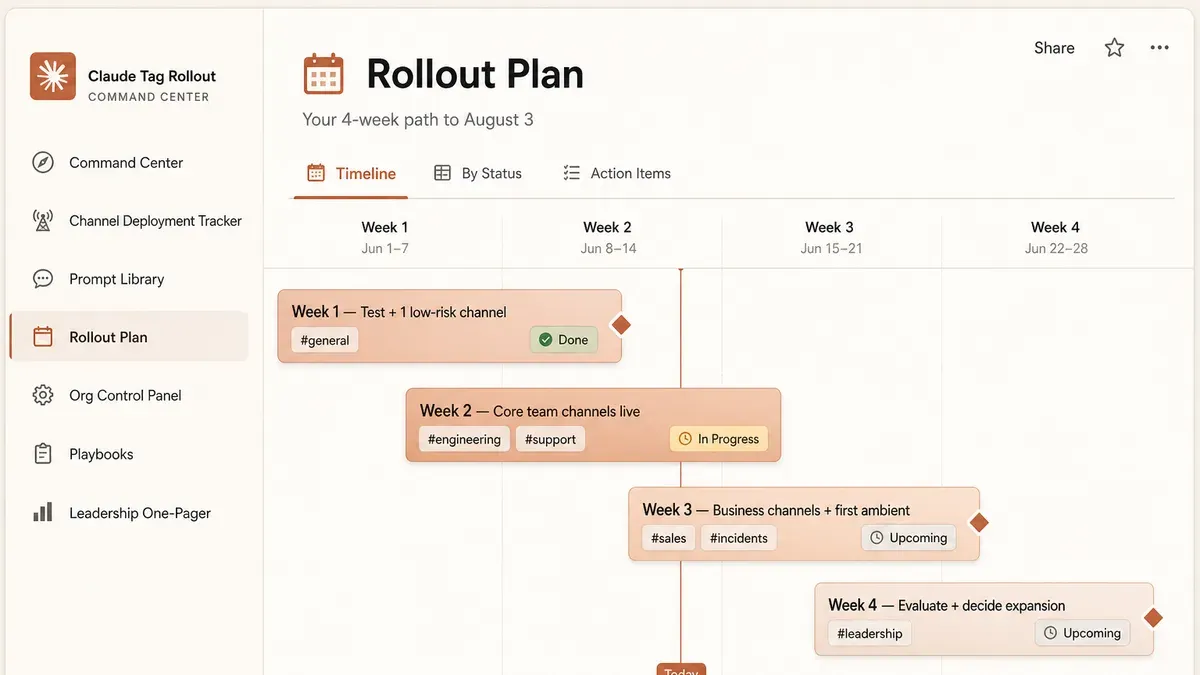
| Team Situation | Recommended Tool | Deciding Factor |
|---|---|---|
| Needs automated workflows and live integration with external data | Notion Developer Platform Workers with database sync | Ability to run custom code securely and sync databases |
| Requires command-line management for advanced automation | Notion CLI (ntn) | Command-line interface to manage Workers, API requests, and uploads |
| Simple team collaboration without technical overhead | Core Notion blocks and workspace settings | Ease of use and native permission controls |
For example, if your team tracks project status by syncing live data from external databases and automates task assignments, deploying Workers via the Developer Platform is essential. Meanwhile, if you need to script batch updates or manage integrations programmatically, the Notion CLI empowers you to do this efficiently. Avoid these tools if your team lacks the technical resources or automation needs; stick to native blocks and permissions for clarity and simplicity.
Choosing precisely aligns your rollout with your team’s capacity and goals, preventing complexity overload or missed automation opportunities. Explore Notion Developer Platform for detailed capabilities.
Build your expertise with Notion Academy certifications and best practices
To lead a successful Notion rollout, formal training is not optional—it’s essential. The Notion Certified Admin certification offers a structured path to mastering workspace management, security protocols, and scalable design. This certification equips you to implement robust permission settings through the Settings & Members menu and design modular workspaces using Notion blocks that align with your team's workflows.
Training through Notion Academy provides concrete strategies to avoid common pitfalls such as improper permission setups that compromise security or workspace structures that become unsustainable as your team grows. For example, a team lead who completes the certification can confidently configure workspace permissions to prevent unauthorized access while enabling smooth collaboration.
Beyond the initial rollout, the learning paths support ongoing adoption and troubleshooting, empowering you to maintain a secure and efficient Notion environment. This expertise builds leadership confidence, helping you guide your team through updates and new feature integrations with authority and clarity. Pursuing the Notion Certified Admin certification is a proactive step to safeguard your workspace’s integrity and scalability. Explore Notion Academy to start building this vital expertise.
Check what can go wrong and how to fix common rollout failures
When you encounter issues during your Notion rollout, recognizing the exact symptom helps you pinpoint the cause and apply the right fix swiftly. Permission errors often stem from incorrect member roles or misconfigured settings in Settings & Members. For example, if a team member reports “Access Denied” on a critical page, verify their role and permissions there—resetting them correctly resolves the block.
Access problems may arise from incomplete invitations or platform incompatibility. If a user cannot open the workspace, confirm they received a full invite and are on a supported platform. Missing steps here create invisible barriers to adoption.
Data loss risks exist if your team used Notion Mail drafts, scheduled emails, snippets, or auto-label instructions before its discontinuation. Users who didn’t export these items before the shutdown lose access permanently; ensure all team members export their content promptly to avoid surprises.
Automation failures linked to Developer Platform Workers occur if the Workers are misconfigured or not managed through the CLI or API. If a Worker script fails to run, check your Developer Platform settings and verify the CLI commands used for deployment.
| Symptom | Cause | Fix |
|---|---|---|
| “Access Denied” on pages | Incorrect member role or permission settings | Review and adjust roles via Settings & Members → Manage permissions and members |
| Cannot access workspace | Incomplete invitation or unsupported platform | Send full invite and confirm platform compatibility |
| Lost drafts or scheduled emails | Not exporting Notion Mail content before shutdown | Export all drafts and snippets before discontinuation; inform team to do so promptly |
| Developer Platform Worker not running | Misconfigured Worker or missing CLI/API deployment | Check Worker config and deploy via Notion CLI or API correctly |
Picture this: A team member can’t open a shared page and sees an “Access Denied” message. You immediately check the Settings & Members menu, confirm their role is set to “Member” with page access, and fix it. The problem disappears, and the workflow resumes without delay.
Maintain and adjust your Notion workspace after rollout success
After your Notion rollout, maintain control by regularly reviewing member access and permissions through Settings & Members → Manage permissions and members. This prevents unauthorized changes and keeps your workspace secure as team composition evolves.
Monitor content organization by checking that blocks and databases remain logically structured. Misplaced or outdated blocks can confuse users and degrade workflow efficiency.
Track how your team uses Notion by soliciting feedback and observing usage patterns. Use this insight to refine workflows, adjust page layouts, or introduce new templates tailored to real needs.
Update your integrations and automations when team goals change. For example, revise Developer Platform Workers or database sync settings to match shifting project demands, ensuring automation stays relevant and effective.
Have rollback strategies ready. If a new integration or permission change breaks workflow, revert quickly by restoring previous workspace states or adjusting member roles back via the Settings & Members menu.
For instance, one week after rollout, schedule a review to confirm that all invited members have appropriate access and that custom code running in your Developer Platform Workers is operating as expected without errors.
This ongoing vigilance prevents issues from compounding and helps your team maintain momentum with Notion’s evolving capabilities. Notion Developer Platform with Workers, database sync, external agent integration provides the tools you need to keep extending functionality securely.
When Notion rollout is not the right choice and what to do instead
Notion excels as a flexible, cross-platform workspace using blocks for content, but it has limits. If your team needs specialized project management features—like complex Gantt charts, resource allocation, or advanced time tracking—notion’s native blocks and databases may fall short. In such cases, platforms dedicated to project management will serve better.
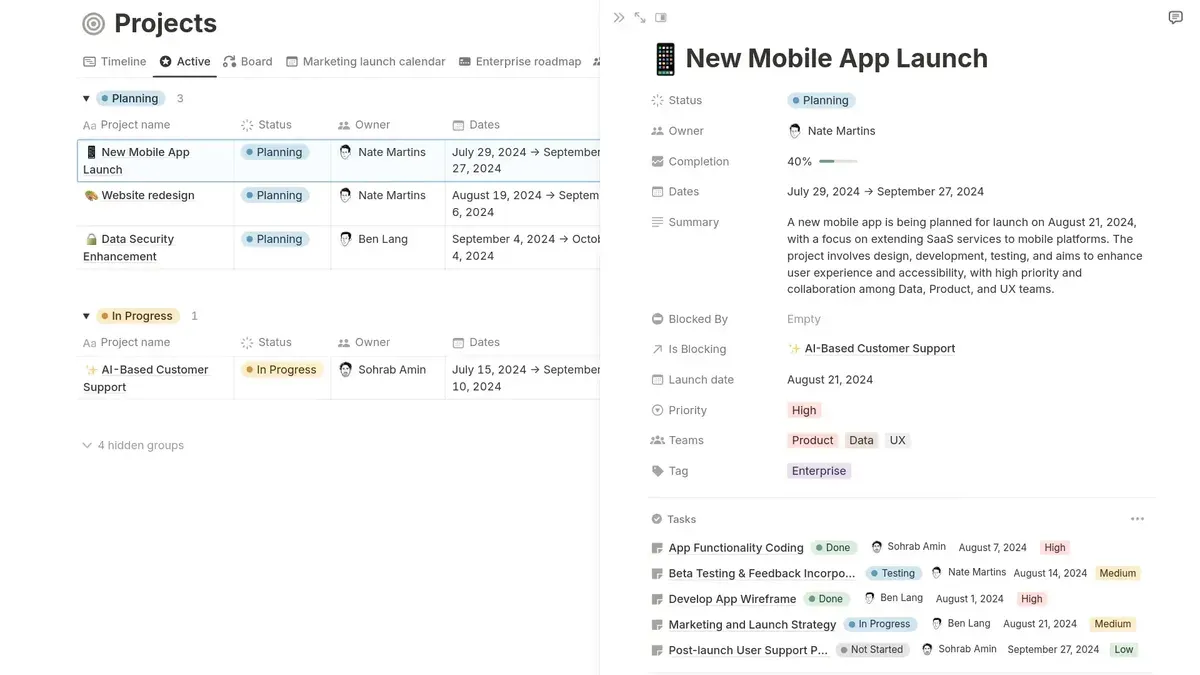
Managing Notion’s Developer Platform Workers and CLI demands technical skills and time. Without sufficient resources to handle custom code via the Notion CLI or maintain API integrations, automation efforts can stall, risking workflow disruptions. If your team lacks these capabilities, consider simpler tools or external consultants.
For large-scale, immediate migrations involving extensive data and integrations, a professional services partner is essential. They handle complex setups and ensure smooth transitions, avoiding common pitfalls like missing data or broken workflows.
Notion’s Developer Platform can help, but only if you have CLI expertise and developer support. Without that, engaging a specialized platform or consultancy ensures reliable results.
If these exceed Notion’s practical scope for your rollout, seek platforms or partners tailored to your demands rather than forcing Notion to fit.
Read next
- Plan a Smooth Miro Rollout for Remote Teams
- Plan and Execute Google Chat Rollout for Hybrid Team Collaboration
- Plan and Execute an Effective Asana Rollout for Startup Teams
- OneDrive Rollout Plan for Corporate Trainers: A Practical Guide
Frequently asked questions
How to roll out teams?
Start by defining clear roles for each team lead in the rollout process, then introduce Notion step-by-step to ensure seamless adoption.
When to Seek Alternatives to Notion Rollout
If your team requires complex data migrations or extensive custom integrations, consider involving specialized migration services or experienced developers familiar with Notion's API.
Larger teams with automation needs should evaluate the Developer Platform and CLI tools to run custom code securely.
Sources
- Notion (productivity software) - Wikipedia — Wikipedia
- Notion CLI - Notion Docs — Notion Docs
- Notion Academy — Notion



