How to Switch from Adobe Express to Google Sites: A Clear Expert Guide
Switching from Adobe Express to Google Sites shifts your focus to structured websites and collaboration for better content management.

Short answer: Switching from Adobe Express to Google Sites involves moving from a graphic design-focused tool to a website builder that prioritizes structured content and navigation. You’ll need to adjust your workflow to emphasize web page hierarchy and interactive elements rather than standalone visual assets.
This guide covers the core differences between Adobe Express and Google Sites, how to prepare your browser settings for a smooth transition, and the best methods to move and optimize your content. It also highlights common pitfalls to avoid, ensuring you maintain a seamless user experience while adapting your content strategy to fit Google Sites’ capabilities.
Understand the Core Differences Between Adobe Express and Google Sites
Adobe Express primarily serves as a graphic design and quick content creation platform with limited web publishing capabilities. It excels in producing visually rich, single-page assets such as social media posts, flyers, and simple landing pages. Its interface centers around templates, drag-and-drop design elements, and easy image editing, making it ideal for rapid content generation without deep web development skills.
In contrast, Google Sites is a website builder designed for creating structured, multi-page websites with a focus on collaboration and organization. Its strength lies in building informational websites, intranets, or project hubs where multiple users can edit content simultaneously. Google Sites emphasizes page hierarchy, embedded Google Workspace tools, and responsive layouts over advanced graphic design features.
| Feature | Adobe Express | Google Sites |
|---|---|---|
| Main Purpose | Graphic design & quick content creation | Structured multi-page website building |
| Content Type | Single-page visuals, social media, flyers | Multi-page informational sites, project hubs |
| Collaboration | Limited sharing, mostly individual use | Real-time multi-user editing |
| Design Flexibility | High visual customization with templates | Basic layouts focused on structure |
| Publishing | Simple web page or direct social sharing | Full website hosting with page navigation |
For example, if you used Adobe Express to create a promotional flyer with bold graphics and typographic elements, switching to Google Sites means shifting from a single, design-heavy page to building a multi-page site that organizes information logically, such as an About page, Services, and Contact. This transition impacts how your audience navigates your content and interacts with it, requiring a shift from visual impact to structured usability.
How to Change Adobe Express Browser Settings for a Smoother Transition
Choosing the right browser and adjusting its settings can significantly improve your workflow when moving from Adobe Express to Google Sites. Adobe Express performs optimally in Google Chrome due to its integration with Adobe’s cloud services and better support for HTML5 features. Firefox and Edge work but may exhibit slower load times or limited functionality with some Adobe Express tools.
Start by opening Adobe Express in your preferred browser. For Chrome, ensure you are using the latest version by clicking the three-dot menu, selecting Help > About Google Chrome, and updating if needed. In Firefox, go to the hamburger menu, click Help > About Firefox. For Edge, use the three-dot menu, then Help > About Microsoft Edge.
Next, manage your logged-in accounts to prevent conflicts. Clear cache and cookies related to Adobe Express by navigating to Settings > Privacy and Security > Clear browsing data in Chrome and selecting Cookies and other site data and Cached images and files. This ensures your Adobe Express session syncs correctly across browsers and eases content migration.
As an example, if you try importing Adobe Express-created graphics into Google Sites while logged into different Google accounts in Chrome and Firefox, you may encounter permission errors. Synchronizing your active Google account in Chrome helps avoid this issue.
- Update your browser to the latest version.
- Clear Adobe Express-related cache and cookies.
- Confirm you are logged into the correct Google account.
- Prefer Chrome for best Adobe Express compatibility.
- Test Adobe Express features before transferring content.
Move Your Content from Adobe Express to Google Sites Efficiently
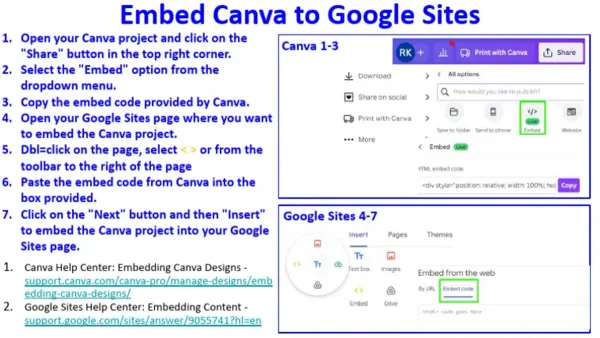
Begin by exporting your Adobe Express project assets: click the Download button and select PNG or JPEG for images and graphics. For text content, copy the text directly from Adobe Express or export it via the Export as PDF option to preserve formatting. Save all assets in an organized folder for easy access.
Next, open Google Sites and create a new page. Use Insert > Image > Upload to add your exported graphics. Rebuild your layout by dragging and dropping elements into the desired order, mindful that Google Sites uses a section-based format rather than freeform design. To replicate Adobe Express aesthetics, choose a Google Sites template with a clean, minimal style, then customize colors and fonts under Themes to match your original design.
For example, migrating an Adobe Express flyer with a bold header, central image, and bullet points involves uploading the header graphic, inserting a text box for bullet points, and arranging them vertically on the page. Unlike Adobe Express’s canvas approach, Google Sites requires you to think in terms of sections and navigation, so consider breaking content into multiple pages if it feels crowded.
Embedding interactive elements like videos or forms is done via the Insert menu, which supports Google Drive files and external embeds, enabling more dynamic content than static Adobe Express projects.
- Export images via Download > PNG/JPEG
- Copy or export text separately
- Create a Google Sites page and upload images
- Use templates and customize themes to match style
- Arrange content in sections, not freeform canvas
- Embed interactive content through Insert menu
Optimize Your Google Sites Setup for What Adobe Express Users Need
Google Sites offers robust options to tailor your website’s structure, multimedia integration, and collaboration settings that address the creative flexibility Adobe Express users expect.
Customize Site Navigation and Page Structure
Unlike Adobe Express's single-page focus, Google Sites lets you organize content across multiple pages. Use the Pages tab to add, rename, or reorder pages, creating a clear hierarchy that guides visitors. The Navigation Settings under the gear icon allow you to switch between top navigation or side navigation menus. For example, educators can separate lesson plans, resources, and student projects into distinct pages, improving discoverability.
Add Multimedia and Interactive Elements
Google Sites supports embedding videos, Google Drive files, calendars, and forms directly onto pages. Use the Insert panel to add images, YouTube videos, or Google Docs, maintaining dynamic content without leaving the site. This replaces Adobe Express’s graphic-centric outputs with interactive components, like embedding a Google Form for client feedback or an event calendar for scheduling.
Manage Sharing and Collaboration Settings
Google Sites lets you control who can view or edit your site via the Share with others option. Set permissions at the viewer, commenter, or editor level. Teams can collaborate in real time, with changes tracked through Google’s version history. This granular access management suits small business owners who want controlled client previews or educators coordinating with teaching assistants.
User feedback often highlights the ease of setting up navigation menus and embedding Google Workspace content as a key advantage when switching. A common oversight is not adjusting navigation style, which can make the site feel cluttered or confusing for visitors.
- Use the Pages tab to structure your site logically.
- Choose Navigation Settings for top or side menus based on content volume.
- Leverage the Insert menu to add multimedia and interactive Google Workspace elements.
- Set precise permissions in Share with others to control collaboration and access.
- Review navigation layout on different devices to ensure usability.
Avoid Common Mistakes When Switching from Adobe Express to Google Sites
One frequent issue is an over-reliance on Adobe Express design effects that do not translate well to Google Sites. For example, users often employ Adobe Express’s layered shadows and complex text effects which Google Sites cannot replicate, resulting in a flat or unpolished appearance. This mismatch can lead to disappointment and a need to redesign elements from scratch.
Ignoring site performance and mobile responsiveness is another common pitfall. Google Sites automatically optimizes for mobile, but heavy image files exported from Adobe Express can slow load times dramatically. A user reported their newly migrated site took over 10 seconds to load on mobile due to uncompressed graphics, which drove visitors away.
Finally, skipping thorough user testing and feedback after migration risks overlooking usability issues. One small business owner found navigation confusing because multi-page layouts in Google Sites differ from Adobe Express’s single-page focus. Gathering feedback from actual users early helps identify and fix these problems before launch.
- Don’t expect Adobe Express effects to carry over exactly; plan to adapt your design.
- Compress and optimize images before uploading to Google Sites.
- Test your site on multiple devices and gather user feedback to refine navigation and content presentation.
Read next
- Your Expert Checklist for Moving from Adobe Express to Book Creator
- How to Roll Out Adobe Express for Volunteers: A Step-by-Step Guide
Frequently asked questions
How do I access Adobe Express in a browser?
You can access Adobe Express by navigating to express.adobe.com in any modern browser such as Chrome, Firefox, or Edge. Signing in with your Adobe ID or a linked Google or Facebook account will give you full access to your projects and templates.
Can I use Adobe Express on Google Play?
Yes, Adobe Express is available as a mobile app on Google Play for Android devices. Installing the app allows you to create and edit projects on the go with a touch-optimized interface that complements the desktop experience.
What is the best way to go to Adobe Express online?
The most direct and reliable way is to enter express.adobe.com into your browser's address bar. Bookmarking this URL ensures quick access, and logging in through this site provides access to all features without requiring additional downloads.
Does Adobe Express support creating full websites?
Adobe Express is primarily designed for creating graphics, social media posts, and simple web pages but does not support building full, multi-page websites. For comprehensive website creation with advanced navigation and hosting, platforms like Google Sites are more appropriate.
What this advice does not cover
This guide does not cover switching from Adobe Express to Google Sites for highly complex web development needs or e-commerce functionalities, as Google Sites has limitations in these areas. If your project requires advanced custom coding, extensive plugin use, or integrated shopping cart systems, consider platforms specifically designed for those purposes.
Additionally, this guide assumes a foundational understanding of both platforms. If you are new to website building or graphic design software, you might need introductory resources before attempting this transition.
Quick checklist
- Identify key content elements in Adobe Express to migrate (images, text, layouts)
- Adjust browser permissions and settings for seamless file access
- Export or download assets in web-friendly formats (JPEG, PNG, PDF)
- Create a sitemap or outline reflecting your new Google Sites structure
- Set up Google Sites with templates that accommodate your content style
- Configure sharing and access permissions in Google Sites
- Test navigation and mobile responsiveness before publishing
- Avoid relying on Adobe Express–specific features unsupported by Google Sites
Your most effective next step is to draft a clear content migration plan that prioritizes your essential assets and layout preferences. This focused approach will streamline your workflow and help you adapt your content strategy to the strengths of Google Sites without losing your brand’s visual identity.