
Switching from Trello to Miro: A Clear Migration and Setup Guide
Discover how to smoothly switch from Trello to Miro with this clear migration and setup guide that enhances your team's collaboration and workflow.

Moving from Trello’s structured task lists to Miro’s flexible canvas changes workflows and collaboration dynamics. Automation options differ, and direct import of Trello cards into Miro is not available.
Every limit and setting name below comes from IdeaPlan, Miro, as of November 2026.
How does Trello work and what changes with Miro?
Trello structures projects using a Kanban board model. Boards contain columns representing workflow stages, and cards within those columns represent individual tasks. This linear setup suits task tracking and step-by-step progress management.
Miro replaces this linear model with an infinite canvas that supports freeform layouts. It offers sticky notes, shapes, drawing tools, and more than 1000 templates designed for retrospectives, journey mapping, OKR planning, design thinking workshops, and agile ceremonies. This creates an open visual collaboration space rather than a fixed task list.
The shift from Trello to Miro means moving away from strictly sequential workflows toward flexible, visual brainstorming and planning. For example, instead of moving cards left to right, teams can cluster ideas anywhere on the canvas, connect them with arrows, or overlay diagrams. This supports broader collaboration styles beyond task management.
| Feature | Trello | Miro |
|---|---|---|
| Structure | Kanban board with columns and cards | Freeform infinite canvas |
| Task representation | Cards within columns | Sticky notes, shapes, drawings |
| Templates | Limited built-in templates | Over 1000 templates for diverse use cases |
| Collaboration style | Linear workflow management | Visual collaboration and planning |
See detailed comparison of Trello vs Miro features
How to set up Trello before starting the move
Archive or delete unnecessary cards to streamline what will be referenced or migrated. Keeping boards tidy ensures focus remains on relevant tasks and reduces confusion during integration or migration.
Leverage Trello’s Power-Ups to optimize workflows before moving. Activate features like the Calendar view, Timeline (Gantt) view, and Butler automations for rules-based card movement. These tools enhance project visibility and automate routine actions, making current processes more efficient before transitioning.
Note that direct importing of Trello cards into Miro is not supported. Exported data can serve as a guide for manual recreation rather than a direct import, requiring careful planning to avoid data loss or mismatches.
For example, a project manager might archive completed cards and enable the Timeline Power-Up to visualize project phases. Then, export the board JSON or CSV files for offline reference. This preparation eases the shift to Miro’s infinite canvas and prevents carrying over outdated information.
Tip: Use Butler automations to clean up cards automatically by setting rules to archive or move cards based on due dates or labels before migration.
Trello Power-Ups extend functionality with calendar views, timeline (Gantt) views, and automation rules, all useful for optimizing boards before the move.
How to move around Miro board and use its key features
Miro uses an infinite canvas instead of Trello’s fixed Kanban columns. Navigating this canvas requires zooming and panning freely to access all areas. Zoom controls are found in the bottom right corner, or use mouse scroll and click-drag for smooth movement. Unlike Trello’s linear layout, Miro’s space lets teams organize tasks visually in any pattern, supporting complex workflows and brainstorming.
Core tools include sticky notes, shapes, and connectors. Sticky notes replicate Trello cards but allow flexible placement and color coding anywhere on the board. Shapes and connectors build flowcharts or diagrams, enhancing clarity beyond simple lists. Miro also offers over 1000 templates for retrospectives, journey maps, and agile ceremonies to speed setup and match familiar processes.
Layering objects is vital for clarity on the canvas. Basic actions like “Send to back” or “Bring to front” from the right-click menu control which items appear on top. For example, a sticky note can be layered above a shape to highlight a task. Mastering these controls prevents objects from obscuring critical information and keeps the board readable.
Tip: Use templates to quickly create structures similar to Trello boards, then customize with connectors and shapes for added visual context.
See Miro’s visual collaboration tools versus Trello for details.
How to move Trello boards or data to Miro: what works and what doesn’t
Direct import of Trello cards into Miro is not supported. This means Trello cards cannot be brought into Miro as native objects. Instead, users must recreate boards manually or export cards as CSV files and then import the data into Miro in a limited, non-automated way. Attempting to bypass this with other methods will result in data loss or misalignment.

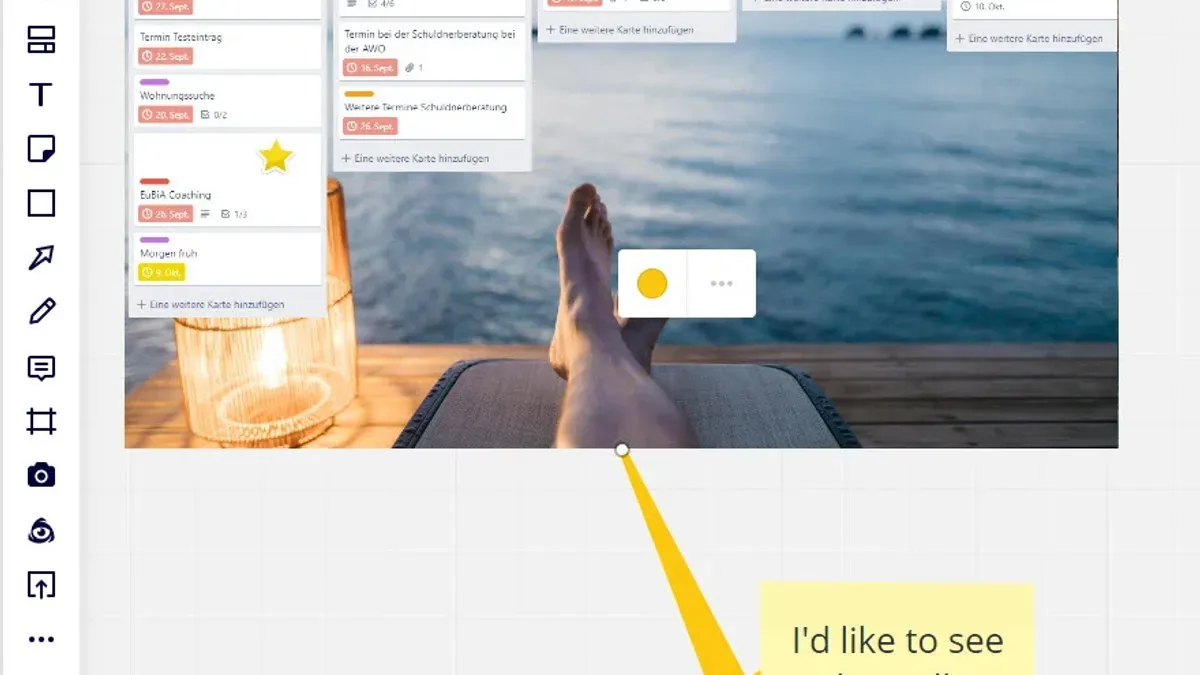
The Miro Power-Up for Trello offers a practical alternative for seamless workflow integration without full migration. It attaches live, editable Miro boards directly to Trello cards. This keeps collaboration in sync and avoids switching between apps, preserving Trello’s card structure while benefiting from Miro’s visual flexibility.
Moving entire Trello boards between Trello accounts or workspaces is possible within Trello itself but does not transfer boards into Miro. The two platforms handle data structures differently, so a direct board move from Trello to Miro is not feasible.
For example, a team wanting to visualize a Trello project in Miro can use the Power-Up to embed an editable Miro board inside relevant Trello cards. This enables visual brainstorming on the board while keeping task tracking in Trello intact. Any attempt to import Trello cards into Miro directly will require manual effort and may miss key metadata or attachments.
Miro’s official page on the Trello Power-Up confirms these limitations and integration options.
Tip: Set sharing permissions carefully when linking Miro boards in Trello cards to ensure all collaborators have access.
Why is Trello not working or down, and how Miro differs in reliability and offline use
Common symptoms include “Connection lost” errors or inability to load boards when offline. These issues stem from Trello’s dependence on constant internet connection and basic offline caching. The typical fix involves reconnecting to the internet or restarting the app, but offline functionality remains limited.
Miro addresses these gaps with stronger offline support, allowing boards to be edited without a network and syncing changes once reconnected. Its real-time collaboration includes full cursor tracking and asynchronous commenting, enhancing clarity in teamwork. Trello lacks these advanced interaction features and does not provide historical context or reporting beyond basic activity logs.
For example, updating a card’s checklist on Trello’s mobile app is straightforward, while adjusting multiple objects on Miro’s canvas can become cumbersome.
Tip: Use Trello’s mobile app for rapid task updates but switch to Miro’s desktop or tablet app for complex visual collaboration and offline work.
Comparison of offline capabilities and mobile usability
How to work with Trello and merge Trello cards before or after switching
Trello cards represent individual tasks or items that can hold descriptions, checklists, attachments, and comments. When preparing to migrate or integrate with Miro, consolidating related cards can reduce clutter and simplify the workflow. Trello does not support automatic card merging, so combining details must be done manually or through automated workflows.
The Butler Power-Up enables automation rules that can move, copy, or archive cards based on triggers, which helps simulate merging by aggregating relevant information into a single card before archiving duplicates. For instance, setting a Butler rule to move all cards labeled "Phase 1" into a master card or list can centralize tasks efficiently.
Understanding the lifecycle of cards is key: completed or obsolete cards should be archived to avoid unnecessary migration. Deciding which cards to move, merge, or archive depends on their current relevance and the chosen workflow in Miro.
Before switching, use Power-Ups like Butler to automate repetitive consolidation tasks and minimize manual data entry. After switching, maintain synchronization by linking live Miro boards to Trello cards via the Miro Power-Up, allowing ongoing collaboration without full card duplication.
Tip: Set Butler automation rules to tag or move cards based on due dates or labels; this preps boards for smoother transition and clearer task consolidation.
What this guide does not cover and when to consider other tools
Those transitions involve different workflows and integrations beyond this scope. For example, a small startup managing simple sprint tasks benefits from Trello’s ease of use without incurring higher costs.
Its infinite canvas and extensive template library justify the $8 per member per month price for teams ranging from 5 to over 50 members. A marketing department conducting frequent visual brainstorming sessions with 30+ participants is more likely to leverage Miro’s features effectively despite added complexity and cost.
| Team Situation | Best Tool | Deciding Factor |
|---|---|---|
| Simple task and sprint tracking with minimal onboarding, budget-conscious, small teams (2-15) | Trello | Kanban focus and $5/user/month pricing |
| Flexible visual collaboration, workshops, large teams (5-50+), real-time and asynchronous work | Miro | Infinite canvas, advanced collaboration, $8/member/month cost |
How to confirm the switch to Miro worked and what to do if it didn’t
Start by verifying if core workflows are replicated or improved on Miro’s infinite canvas. Check that the key processes from Trello’s Kanban boards translate into visual flows with Miro’s templates, sticky notes, and connectors. Confirm that all team members can access the boards, navigate the canvas smoothly, and edit content without delay or confusion. Accessibility and ease of use are primary indicators of a successful switch.
Next, audit the completeness of critical Trello data. Since Trello cards cannot be imported directly into Miro, missing information is common. Revisit manual recreation of tasks or attachments and consider using the Miro Power-Up for Trello. This Power-Up attaches live, editable Miro boards directly to Trello cards, enabling collaboration without switching apps—a useful fallback when full data transfer is impossible.
If persistent issues remain—such as missing data, poor team adoption, or workflow gaps—evaluate whether a full switch suits the team or if hybrid use is a better fit. For instance, continuing Trello for task tracking while using Miro for visual collaboration can preserve strengths of both tools. This balanced approach often prevents loss of productivity and avoids forcing a premature full migration.
| Verification Step | What to Check | Action If Failed |
|---|---|---|
| Workflow replication | Key Trello processes mapped onto Miro canvas and templates | Adjust visual setup; add missing templates or connectors |
| Team access and navigation | All members can open boards and edit content smoothly | Check permissions; provide navigation training |
| Critical data completeness | All essential Trello info present or linked | Recreate manually or use Miro Power-Up for live links |
| Overall team adoption | Workflows flow without friction or confusion | Consider hybrid use or partial switch |
For example, a project manager may find that key Kanban statuses lost clarity in Miro’s canvas. Adding connectors and color-coded sticky notes can rebuild clarity. If some tasks are missing details, linking Miro boards to Trello cards via the Power-Up keeps information live and accessible. This approach confirms the switch is effective or highlights what adjustments remain.
Tip: Use the Miro Power-Up to keep both tools connected until the team is confident in the new setup.
Frequently asked questions
How to move in miro?
Zooming is done via the mouse wheel, pinch gestures on touchpads, or the zoom controls in the bottom-right corner. Keyboard shortcuts like holding the spacebar to temporarily switch to the pan tool speed up navigation.
How to send to back in miro?
Alternatively, use the Arrange menu in the top toolbar. This changes the stacking order, placing the object behind all others.
How to navigate trello?
Users scroll vertically through lists and horizontally between boards. The sidebar and top menu provide access to boards, notifications, and settings. Searching and filtering cards help locate items quickly.
How to merge trello cards?
Combining information requires manually copying content from one card to another or using third-party tools that export and import card data. Alternatively, attach one card to another using links or labels to simulate merging.
Why is trello down?
Fixes involve checking Trello's status page, refreshing the browser, or clearing cache.
How to transfer Trello board to another account?
Instead, add the new account as a board member with admin rights, then have that user copy the board using the "Copy Board" feature. This maintains structure but not comments or power-ups.
Key Steps to Complete the Trello to Miro Move
How to Verify the Switch Worked and Troubleshoot Issues
Verify that Miro boards linked to Trello cards via the Power-Up remain live and editable without errors. If key data is missing, review the export and manual re-creation steps to identify skipped items. Broken or missing links often result from incorrect attachment procedures or incomplete board setup and require manual repair. Should collaboration suffer due to workflow mismatches, consider a phased approach maintaining both tools until workflows stabilize. For persistent reliability concerns, consult Miro’s support resources regarding offline mode and sync issues.
Pages this guide relies on
- Trello vs Miro: 8 Key Differences — IdeaPlan
- Trello + Miro | Team Collaboration Apps Marketplace — Miro
See also: Mastering Your Miro Implementation Timeline: From Setup to Success · Master Trello Implementation Timeline: From Setup to Project Success · Moving from Airtable to Miro Checklist: Expert Guide for Seamless Transition · Plan a Smooth Miro Rollout for Remote Teams



