
How to Roll Out Trello for Small Business Owners
Discover how to set up Trello workspaces, choose the right plan, and organize boards to optimize task management for small business owners.

Last verified November 2026 against Atlassian Support, PM Tools Reviewed, Trello (full list at the end).
Understand Trello’s workspace and board setup
A Workspace in Trello acts as the main container for your business's boards, members, and billing. Invite all team members upfront to ensure smooth management of access and billing.
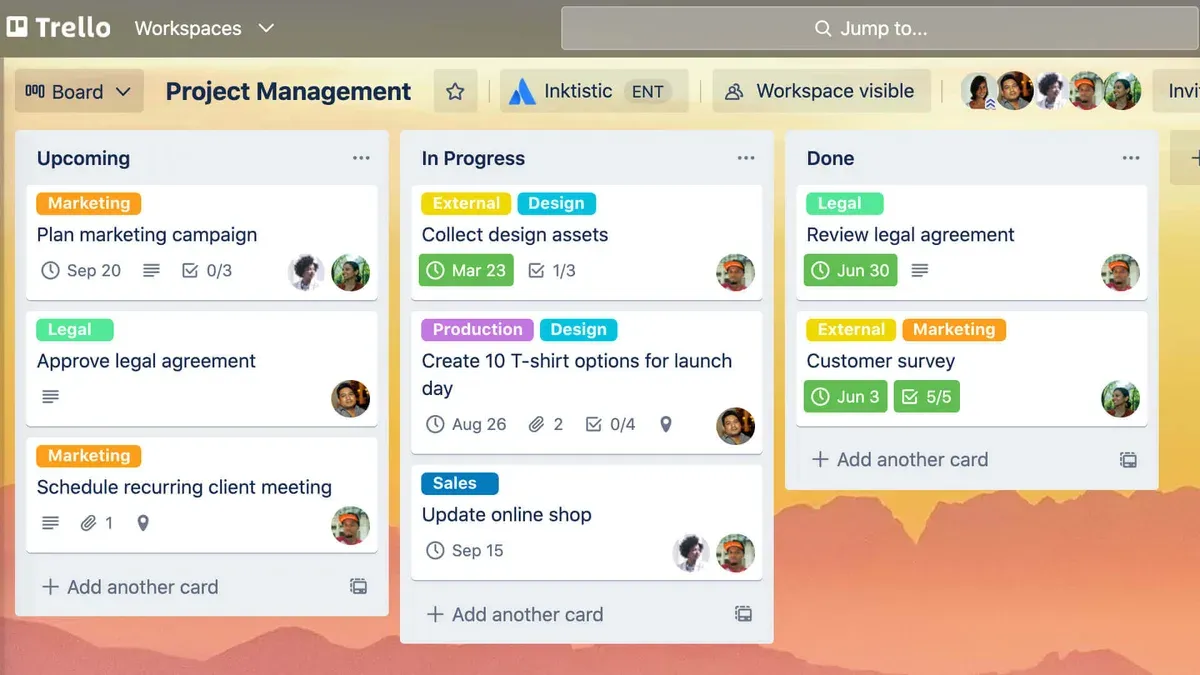
Within this Workspace, organize your work by setting up one board for each key business function. Typical boards include Marketing, Operations, Finance, and Hiring. This focused approach keeps tasks relevant and easy to navigate.
This uniformity reduces confusion and eases onboarding.
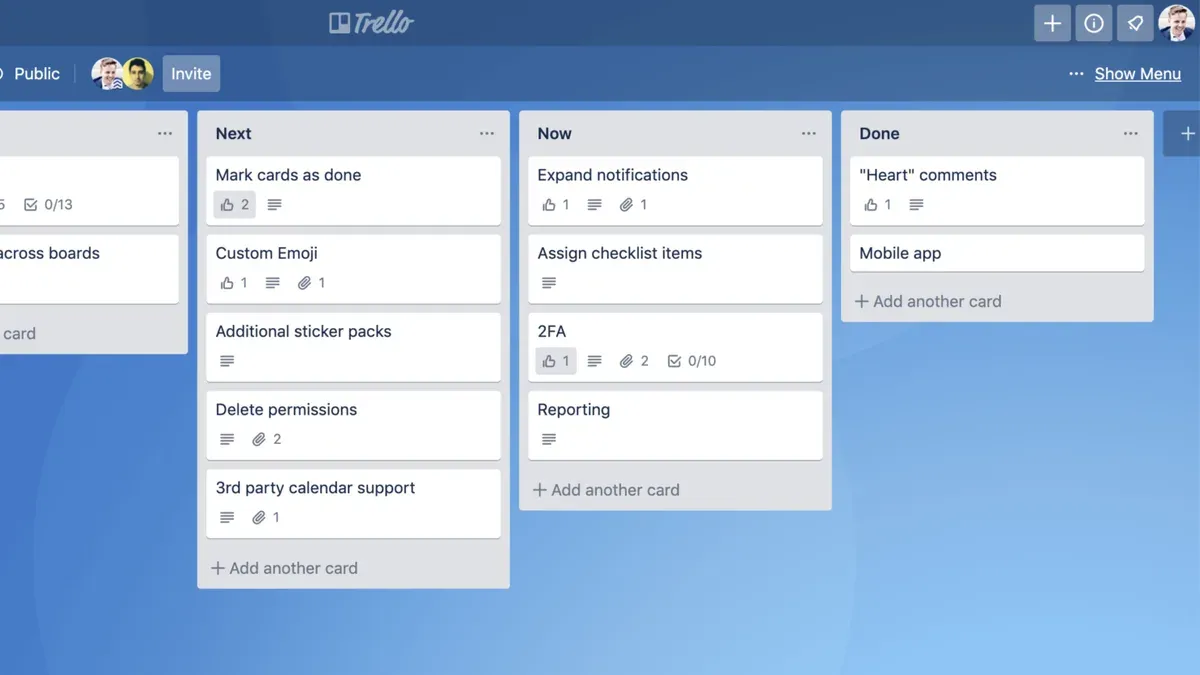
For example, imagine your Operations board: its Backlog list holds upcoming operational tasks, In Progress tracks active projects, and Done archives completed items. If every board follows this pattern, your team quickly understands where to find and update work.
Sticking to one Workspace and consistent boards prevents this pitfall and supports ongoing maintenance.
Choose the right Trello plan for your business needs
The Free plan accommodates up to 10 collaborators per Workspace with unlimited boards and cards. It includes unlimited Power-Ups per board but restricts automation commands to 250 runs monthly. All members are Workspace admins on this plan, which can complicate permission control.
| Plan | Cost | Collaborators | Automation Runs/Month | Key Features | Admin Controls | Client Access |
|---|---|---|---|---|---|---|
| Free | Free | Up to 10 per Workspace | 250 | Unlimited boards, basic automation, unlimited Power-Ups | No | No single-board guests |
| Standard | $5/user/month (annual billing) | Unlimited | 1,000 | Custom fields, advanced checklists, card mirroring | Basic | Single-board guests allowed |
| Premium | $12.50/user/month (annual billing) | Unlimited | Unlimited | AI features, multiple board views (Timeline, Calendar, Dashboard, Map, Table), advanced admin controls | Yes | Single-board guests allowed |
| Enterprise | $210/user/year | Unlimited | Unlimited | Enterprise-grade security, SAML SSO, multi-board guests, centralized admin dashboard | Centralized and advanced | Single-board and multi-board guests allowed |
However, if the business expects to grow beyond 10 collaborators or needs custom fields and more automation runs, upgrading to Standard makes sense. Larger teams requiring detailed oversight, multiple board views, or strict permission controls will benefit from Premium or Enterprise.
Tip: Add clients as single-board guests on Standard or higher plans to restrict their access to relevant projects without increasing your collaborator count.
Set up automation early to save time and reduce manual work
Butler automation is built into every Trello plan, designed to handle repetitive tasks that otherwise eat up your team’s time. Activating it early lets you automate routine actions like archiving cards marked Done after 7 days, labeling cards flagged as urgent, and automatically assigning members when cards move to In Progress.
These automations keep your boards tidy and your workflows transparent by reducing the need for constant manual upkeep. For instance, a rule that archives Done cards after a week prevents clutter from accumulating and keeps your focus on active tasks. Another common setup is labeling cards containing keywords like “urgent” so they stand out immediately.
This means you should prioritize your automation rules to fit within these limits unless you have Premium access.
Tip: Start with simple automation rules that address your biggest time sinks, then expand as your team grows comfortable with using Trello’s automation features.
By defining these workflows early, you prevent repetitive manual work and maintain clarity across your boards, letting your team focus on what matters.
Integrate email and other Power-Ups to extend Trello’s functionality
These extensions tailor your boards to fit specific business needs and streamline workflow communication.
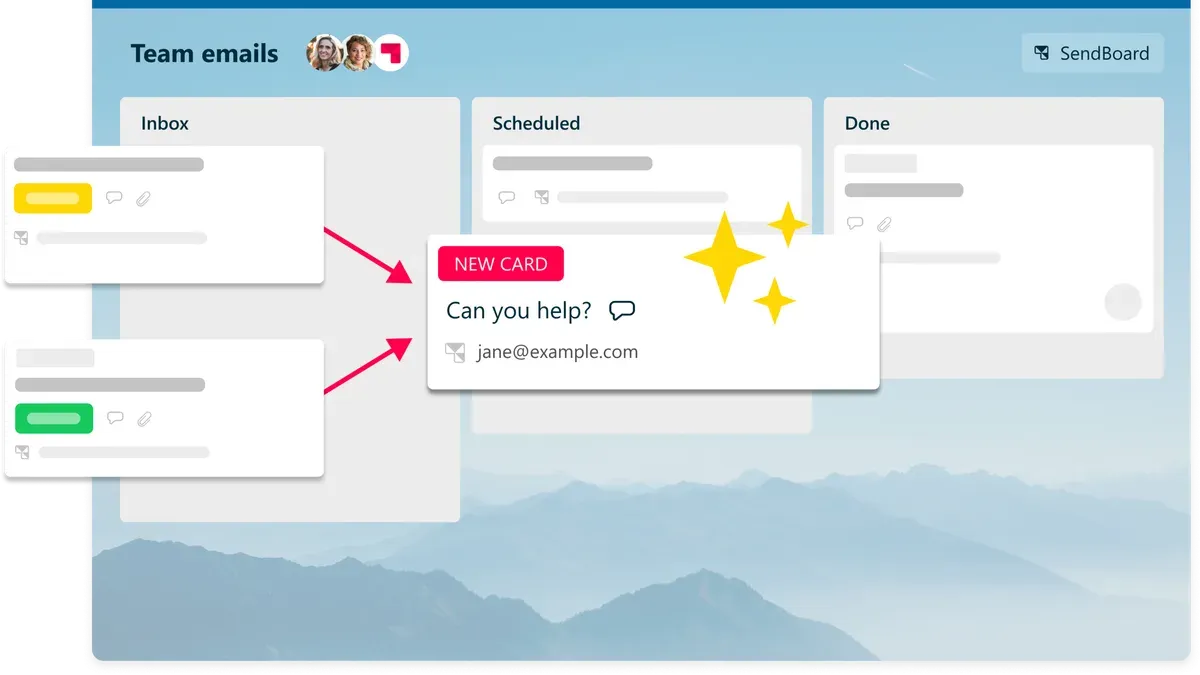
To enable email capabilities, open your Trello board menu, select Power-Ups, then search for and activate the Email for Trello Power-Up. This integration lets you send status updates and track emails directly within your project tasks, keeping communication centralized and accessible.
Imagine managing a client project where each task card has its own email thread. With Email for Trello, you can forward client emails to the card, instantly linking correspondence to the relevant task. When you send updates from Trello, you maintain a clear audit trail without switching apps.
Tip: Limit enabled Power-Ups to those essential for your workflow. Excessive Power-Ups clutter boards and complicate navigation, reducing efficiency rather than improving it.
Manage member roles and client access securely
On Trello’s Free plan, every member you add is granted admin privileges by default. This means they can invite others, change Workspace settings, and modify boards without restrictions. Such open admin access risks uncontrolled invitations and accidental changes that can compromise your workspace security.
To add members on the Free plan, navigate to Workspace settings, select Invite Members, and enter their emails. However, all these members will have equal admin rights, so be cautious about who you invite.
If your business requires tighter control, upgrading to the Premium plan is essential. Premium introduces admin controls that let you restrict who can invite new members, modify Workspace settings, or change permissions. These controls live under Workspace settings in the Permissions tab, allowing you to assign admin roles selectively and safeguard your boards.
When collaborating with clients, avoid adding them as full Workspace members. Doing so inflates your paid seat count unnecessarily and exposes more data than needed. Instead, on Standard plans and above, add clients as single-board guests. This limits their access strictly to the boards relevant to them without counting as full members.
To add a single-board guest, open the specific board, click Invite at the top, enter the client’s email, and select Invite as guest. This method ensures clients see only what they need, protecting your internal workflows and sensitive information.
Tip: Review your member list regularly to remove inactive users and keep admin rights tightly controlled.
Example: Suppose you run a marketing agency using Trello Free. Adding a client as a full member means they can see all projects and invite others, potentially leading to data leaks and higher costs. By inviting them as a single-board guest on a Standard plan, you confine their view to their project board, preventing accidental exposure and controlling expenses.
Maintain your Trello boards to prevent clutter and confusion
Without it, boards proliferate unchecked, lists become inconsistent, and your team struggles to navigate or adopt the tool fully.
Archive Done cards that are older than 30 days every week. This clears completed tasks from sight while preserving their history. For instance, if your marketing board piles up with finished campaign cards from months ago, archiving these weekly prevents the list from becoming overwhelming and distracting.
Delete boards that remain unopened for 60 days. Unused boards clutter your workspace and dilute focus. Removing them ensures only active projects are visible, helping your team concentrate on current priorities.
Maintain consistent list names and structures across all boards. This familiarity reduces confusion and speeds up onboarding. Imagine your sales and support boards using the same lists like "To Do," "In Progress," and "Done"—your team will instantly know where to find tasks regardless of the board.
Tip: Schedule a weekly review session dedicated to archiving, deleting, and standardizing your boards. This habit prevents board sprawl and sustains team productivity by keeping Trello organized and relevant.
Recognize Trello’s limits and when to consider alternatives
If your projects require linking tasks in a sequence or identifying the longest task chain to meet deadlines, Trello will fall short. This makes it unsuitable for managing complex workflows where task order and timing are crucial.
Additionally, Trello does not offer advanced portfolio reporting across multiple projects. You won’t find built-in tools to consolidate progress, budgets, or resource allocation at a high level. This limits its usefulness for managers needing comprehensive oversight of several projects simultaneously.
For example, imagine you run a small marketing agency coordinating a campaign with tightly linked tasks—content creation must finish before design starts, which in turn must be completed before launch preparations. Trello cannot automatically enforce or visualize these dependencies, increasing the risk of missed deadlines or overlooked bottlenecks.
In such cases, turn to tools like Asana or spreadsheet-native project management software that include native dependency tracking and portfolio reporting. These platforms provide structured task sequencing and insights that Trello currently cannot deliver.
Tip: Use Trello for flexible, visual workflows without complex task chains. When dependencies or detailed portfolio views matter, select specialized software instead.
Follow the right sequence to set up your Trello workspace effectively
This Workspace acts as the container for all boards, members, and billing. Inviting all team members upfront is crucial; it ensures billing is streamlined and permission management is straightforward. Delaying member invitations can cause confusion and billing errors.
Next, create boards corresponding to each key business function, such as Operations, Marketing, Finance, and Hiring. Use consistent lists across these boards—like Backlog, In Progress, and Done—to maintain clarity and prevent disorganization.
After your boards are established, enable Butler automation immediately. Automate repetitive actions such as archiving cards marked Done after 7 days, labeling urgent items, and auto-assigning cards moved to In Progress. Early activation prevents manual workload buildup and keeps boards manageable.
Introduce Power-Ups selectively based on your team’s specific workflow needs. Overloading boards with unnecessary Power-Ups can clutter interfaces and confuse users.
Only after boards and automations are in place should you add clients as single-board guests. This approach limits their access to relevant boards without inflating your Workspace member count. Adding clients too early or broadly risks exposing sensitive information or complicating permissions.
Finally, schedule regular maintenance starting one week after setup. Weekly archiving of Done cards older than 30 days, deleting unused boards unopened for 60 days, and verifying consistent list naming prevents board sprawl and preserves usability.
Example: If you invite members before creating the Workspace, billing and permissions become fragmented, causing administrative headaches. Similarly, activating Butler automation before boards exist means automations won’t have the correct triggers, wasting your setup effort.
Tip: Follow the sequence: Workspace creation → member invitations → board creation → automation setup → Power-Ups addition → client guest invitations → regular maintenance.
Learn more about creating an effective Trello setup
Choose the Trello plan that fits your business scenario
Matching your small business’s size and feature needs to the right Trello plan avoids paying for extras you don’t use or hitting frustrating limits. Use this decision matrix to pinpoint the plan that suits your setup.
| Business Situation | Recommended Trello Plan | Key Reason | Pricing |
|---|---|---|---|
| 10 or fewer collaborators, basic project management, cost sensitive | Free | Supports up to 10 collaborators per Workspace, unlimited boards and cards, 250 automation runs/month | Free |
| More than 10 collaborators or need AI features, custom fields, advanced checklists | Standard | Unlimited collaborators, 1,000 automation runs/month, custom fields, advanced checklists | $5/user/month billed annually |
| Need advanced views (Timeline, Calendar), admin controls, unlimited automation | Premium | Includes AI features, admin controls, multiple board views, unlimited Butler runs | $12.50/user/month billed annually |
| Large organization requiring enterprise-grade security, SSO, centralized admin | Enterprise | All Premium features plus SAML SSO, multi-board guests, centralized admin dashboard | $210/user/year |
Consider a small marketing agency with 8 team members focused on content scheduling. The Free plan lets them create unlimited boards and automate up to 250 tasks monthly, staying within budget while covering basic needs. If the team grows beyond 10 or requires custom fields and AI-powered suggestions, upgrading to Standard at $5 per user monthly unlocks these tools and expands automation to 1,000 runs.
Tip: Assess your team size and feature needs before starting your rollout to avoid costly mid-project plan changes.
Choose Premium when you require detailed timeline views, calendar integrations, and strict admin controls to manage permissions across multiple teams. For example, a growing firm managing complex campaigns across departments benefits from these features to maintain clarity and security.
Enterprise is tailored for large businesses needing the highest security standards, single sign-on, and a centralized admin dashboard to manage multiple Workspaces efficiently.
Align your choice with this matrix to ensure your Trello setup fits your business scenario and budget without compromise. Explore detailed plan features for precise comparisons.
When to Look Beyond This Trello Rollout Guide
Choosing the right Trello plan depends on your team size, need for admin controls, and automation volume. The Free plan fits teams with up to 10 collaborators and limited automation, while Standard suits those needing more automation runs and client guest access. Premium unlocks advanced admin permissions and unlimited automation, ideal for larger or security-conscious teams. Enterprise is designed for organizations requiring centralized control across multiple workspaces. Match your plan to your team’s size, security needs, and workflow complexity to ensure a smooth rollout and ongoing management.
Pages this guide relies on
- Which Trello plan is best for me? | Trello | Atlassian Support — Atlassian Support
- Set Up Trello for a Small Business — PM Tools Reviewed
- Trello for Startups — Trello
- A complete guide to using Trello as your business operating system — SendBoard



