Master the Asana Implementation Timeline for Project Success
Learn how to create and manage an Asana implementation timeline to visualize tasks, dependencies, and subtasks for successful project delivery.

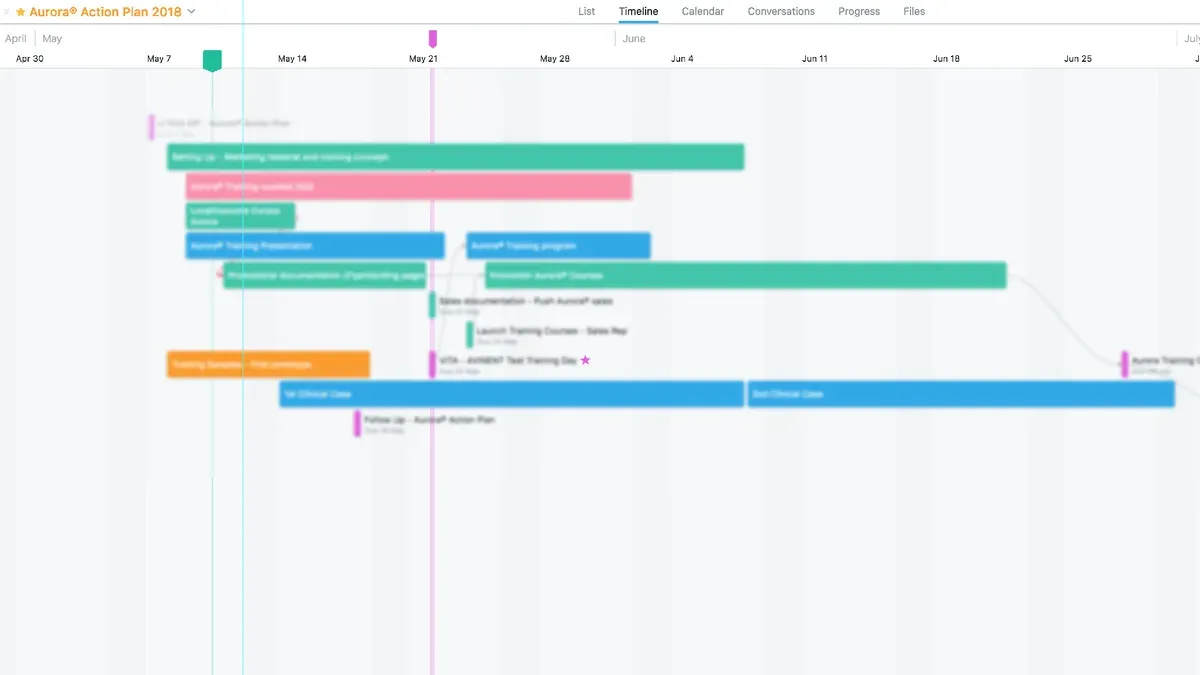
Access the timeline through Projects → Timeline view to manage task dependencies and subtasks clearly, avoiding the common pitfall of missed task interrelations that derail deadlines.
This article adds value by integrating timeline usage with Asana’s historical milestones and data export methods, empowering you to optimize planning, tracking, and reporting with precision.
Last verified November 2026 against Wikipedia, Asana, Asana Docs (full list at the end).
Create a timeline in Asana to visualize your project plan
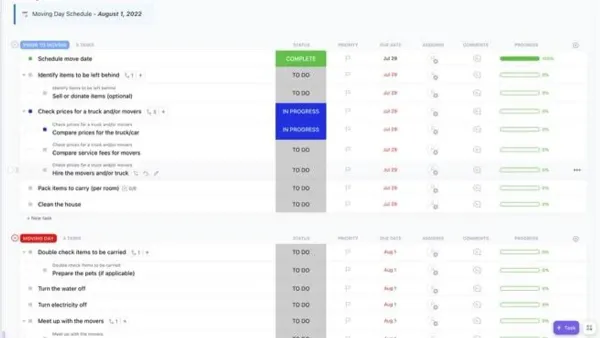
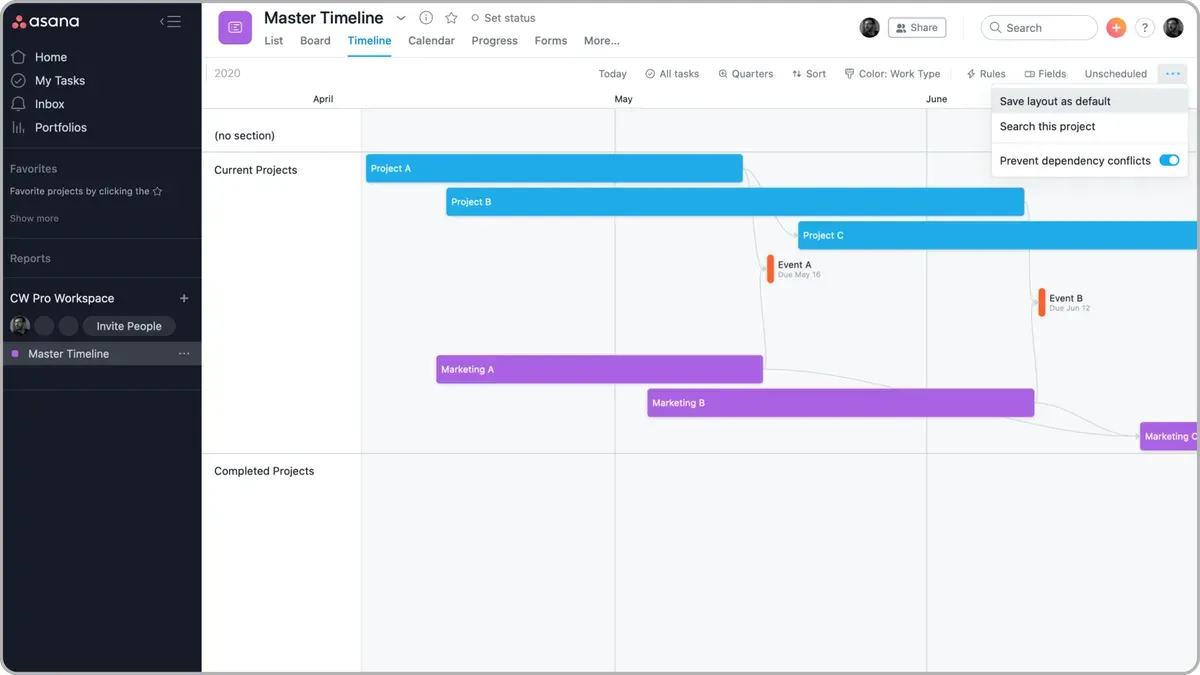
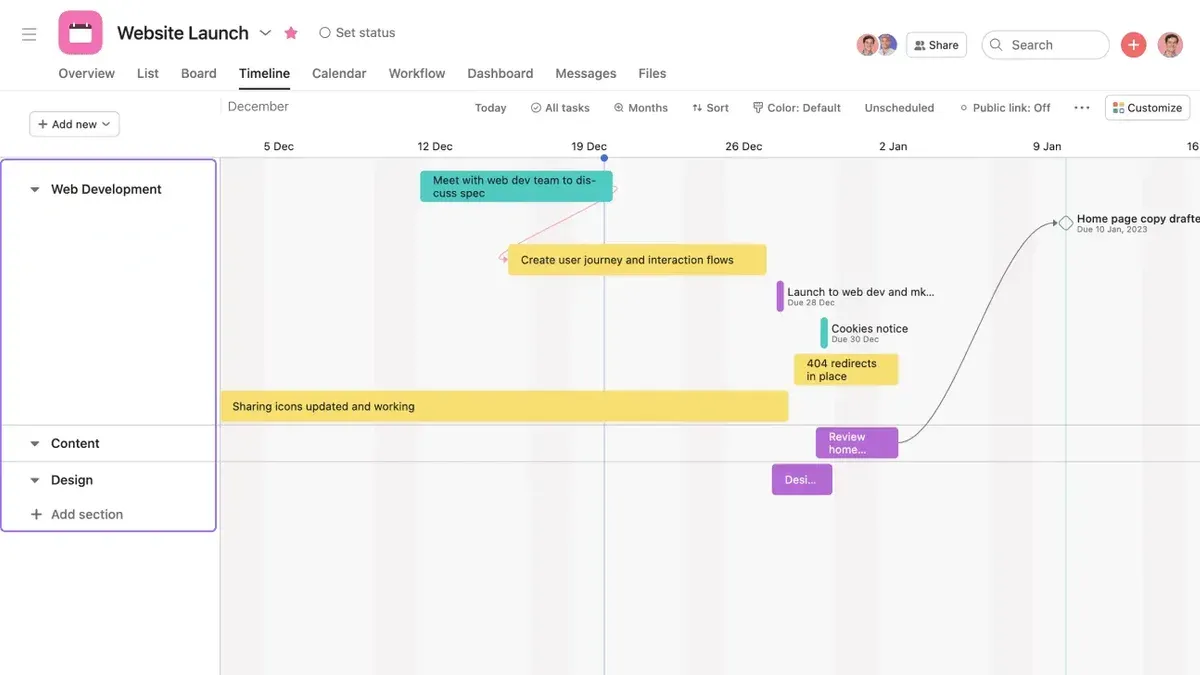
Start by opening the Asana app and navigating to Projects → Timeline from your project interface. This view reveals your project’s schedule as a horizontal timeline, clearly showing tasks with their assigned start and due dates. Add tasks by inputting them directly or importing from other sources, then assign precise start and due dates to position them accurately on the timeline.
Leverage dependencies by linking tasks to indicate order and highlight critical paths. For example, if Task B cannot start until Task A finishes, set Task B dependent on Task A to prevent scheduling conflicts and missed milestones. Subtasks also appear on the timeline, nested under their parent tasks, giving you granular visibility without cluttering the main schedule.
Use or customize Asana’s project timeline templates to speed up setup for recurring project types. Templates come prepopulated with common phases and dependencies, letting you adapt quickly rather than build from scratch. This approach ensures you visualize your plan clearly, track progress effectively, and avoid missing key deadlines. Timeline for project visualization
Add time tracking and start dates to manage task schedules effectively
Set start dates on each task to ensure your timeline reflects the true sequence of work. Unlike due dates, which mark deadlines, start dates indicate when a task actually begins, allowing Asana’s timeline to display the correct task duration and dependencies. Without start dates, tasks may appear compressed or misaligned, causing confusion about project flow.
To add a start date, open a task, select the date field, and choose the start date option alongside the due date. This explicitly defines your task’s timeframe on the timeline view under Projects → Timeline.
For time tracking, Asana does not provide built-in timers but supports integration with third-party tools such as Harvest or Toggl. These tools sync with your tasks, letting you monitor actual hours spent versus planned durations. Tracking time complements timeline management by offering real progress data, which helps adjust schedules and resource allocation dynamically.
Imagine you assign a task “Design wireframes” with a start date of Monday and a due date of Friday. Time tracking reveals it took three days instead of five, prompting timeline updates and preventing downstream delays. This synergy between start dates and time tracking keeps your project milestones visible and realistic. Timeline for project visualization
Export timeline and project data from Asana for reporting and analysis
Asana does not provide a direct UI option to export timeline visuals or project status, but you can access this data through Asana’s API. The API offers a RESTful interface that allows you to extract comprehensive project information, including status updates and timeline-related data, in CSV format.
To export data, start by generating a personal access token in Asana’s developer console. Use this token to authenticate API requests that fetch project tasks, dependencies, start dates, and status updates. The retrieved CSV files can then be imported into external reporting tools or spreadsheets for offline review and deeper analysis.
For example, if you want to analyze task progress across multiple projects alongside timeline data, exporting via the API enables you to consolidate this information outside Asana, where you can build custom dashboards or combine it with financial or resource data.
Keep in mind, exporting via API captures raw data but does not preserve the visual timeline layout. This means you cannot export the interactive timeline view itself; instead, you get structured data suitable for reporting or integration.
Access more details and developer tools at Asana’s developer site.
Understand Asana’s timeline feature in the context of its product evolution
This cross-platform approach ensures real-time sync of timeline updates, keeping your project schedule current whether you’re on web, phone, or desktop.
These integrations empower you to automate repetitive tasks and enhance timeline management with AI-driven insights, streamlining how you track and adjust complex project schedules.
Picture managing a product launch with multiple teams: your timeline not only shows dependencies but AI agents monitor task progress and alert you to delays before they cascade, all synced across devices instantly. This progression from simple visualization to AI-enhanced automation marks the timeline feature as a strategic asset in project success.
Decide when to automate workflows and enhance timelines with AI tools
Manual timeline updates often cause stale project data and missed deadlines because status changes lag behind real progress. If your projects suffer from these delays, it’s time to consider automation.
| Your Situation | Recommended Option | Deciding Factor |
|---|---|---|
| Small projects with few dependencies and stable schedules | Manual timeline management using Asana’s native Timeline view | Low complexity and minimal risk of outdated status updates |
| Medium to large projects with frequent changes and multiple dependencies | Use AI Studio to customize AI agents that monitor and update timelines automatically | Need for timely updates to avoid stale data and missed deadlines |
| Complex enterprise workflows requiring integration across teams and systems | Leverage StackAI’s no-code AI workflow automation to trigger updates and actions based on timeline progress | Demand for scalable, AI-driven automation across multiple projects and teams |
For example, a project manager overseeing multiple interdependent tasks can configure an AI Studio agent to automatically update task statuses and adjust dependent timelines when delays occur. This reduces the risk of manual errors and keeps stakeholders informed in real time.
These tools transform timeline management from reactive to proactive.
Smaller, stable projects benefit from manual control, while dynamic projects with shifting deadlines gain from AI-enhanced automation that ensures accuracy and saves time.
Explore AI Studio and StackAI to create customized solutions that fit your workflow needs and minimize the risks of outdated timeline data and missed milestones.Learn more about Asana’s AI tools.
Follow the sequence of steps that ensures your timeline works smoothly
Begin by clearly defining your project scope and listing all tasks before adding anything to the Asana timeline. Assign start and due dates to each task upfront to anchor them in time. Only after dates are set should you link dependencies; reversing this order risks broken or misleading connections that disrupt your schedule.
Next, incorporate subtasks and verify their start and end dates align logically within their parent tasks. Misaligned dates here cause confusion and inaccurate timeline visuals. Regularly update task statuses to keep your timeline current. Failing to do so leads to stale data, increasing the chance of missed deadlines and project delays.
| Step | Must Precede | Common Error If Ignored |
|---|---|---|
| Define project scope and tasks | Adding tasks to timeline | Missing or incomplete timeline entries |
| Assign start and due dates | Link dependencies | Broken or incorrect dependencies |
| Add subtasks with aligned dates | Ensure parent task consistency | Misrepresented schedules and confusion |
| Regular status updates | Maintain timeline accuracy | Stale information causing delays |
For example, if you link dependencies before setting dates, Asana cannot properly visualize the sequence, which may cause tasks to appear out of order or overlap incorrectly. This misrepresentation can lead to missed milestones and confusion during team reviews. By following this strict order, you ensure your timeline reflects real project progress and dependencies clearly. Access the timeline via Projects → Timeline view to keep your plan visible and actionable throughout the project lifecycle.Timeline for project visualization
Recognize when Asana timelines may not fit your needs and explore alternatives
Asana’s timeline excels at visualizing project plans and managing dependencies but falls short if your project demands advanced Gantt chart features like critical path analysis or detailed resource leveling. In such cases, specialized project management tools provide richer functionality tailored to complex workflows.
Export options for timeline visuals are limited since Asana only supports exporting status updates and timeline data via its API in CSV format. This restricts sharing polished, detailed timeline graphics externally, which can be critical when presenting to stakeholders who require clear visual summaries.
Teams depending on dedicated time tracking or resource allocation tools will find Asana’s offerings insufficient and should consider integrating or switching to software focused on those capabilities.
For example, a project manager coordinating a multi-team construction project might find Asana’s timeline unable to handle the nuanced resource assignments and risk assessments required. In that case, employing a tool designed for complex scheduling and resource management will prevent missed deadlines and cost overruns more effectively than relying solely on Asana.
Understanding these limitations helps you decide when to augment Asana or explore alternatives to maintain control and clarity in your project timelines.
Read next
- Moving from Airtable to Asana Checklist: Your Expert Transition Guide
- Master Airtable Implementation Timeline: From Setup to Project Success
- Mastering Your Microsoft 365 Implementation Timeline: A Practical Guide
- Master Your SharePoint Implementation Timeline: A Step-by-Step Guide
Frequently asked questions
How to create timeline in asana?
To create a timeline in Asana, navigate to your project, then select the Timeline tab from the project view menu. From there, you can add tasks, set start dates, and link dependencies to visualize your project schedule clearly within the timeline interface.
When did asana launch?
Asana was launched in 2008, marking its entry as a work management platform designed to help teams organize, track, and manage their work efficiently.
How to export timeline from asana?
Asana does not support direct timeline export through its user interface. Instead, you can export timeline-related data by using Asana’s API to extract the project data in CSV format for reporting and analysis purposes.