Moving from Basecamp to ClickUp Checklist for Seamless Project Management
Use this checklist to migrate from Basecamp to ClickUp smoothly, avoiding data loss and workflow disruptions while optimizing project management.

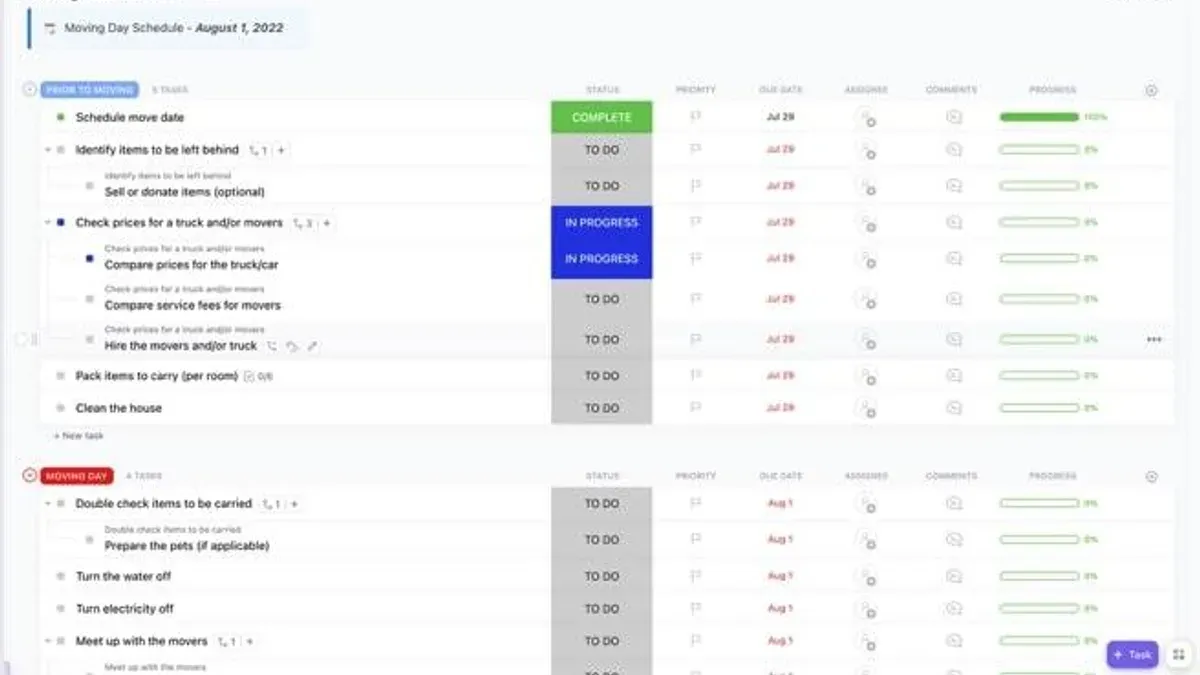
ClickUp’s advanced automation rules, customizable dashboards, and extensive integration ecosystem offer capabilities that Basecamp lacks, but migrating without a clear plan risks data loss, workflow disruption, and duplicated effort.
However, without careful management, updating projects across both platforms can lead to missed details and confusion.
Running Basecamp and ClickUp in parallel for about two weeks with ClickUp in read-only mode reduces risk by allowing reference to historical data while teams adjust. Choosing between manual CSV import and a service like Relokia, which supports custom fields and filters without coding, is a critical early decision that depends on your team size, project complexity, and technical capacity.
Last verified November 2026 against LogicalRefer, ToolStack, Projects & tasks migration | Data import and migration for J (full list at the end).
How to use Basecamp effectively before migrating
Users are your team members, Projects are containers for related work, and To-dos represent individual tasks within those projects. Understanding this hierarchy is essential because when migrating to ClickUp, Basecamp Users map directly to ClickUp People, and Basecamp To-dos become ClickUp Tasks.
Projects in Basecamp break down into To-do lists and individual To-dos, which are the actionable items. You should review your projects to ensure tasks are clearly defined and assigned to appropriate Users, as this structure will guide your migration and help avoid data confusion.
To prepare your data for migration, use Basecamp’s CSV export feature found at Settings → Export. This export includes projects and tasks in a structured format suitable for manual import or professional migration services. Note that Basecamp does not support native automation, so automated workflows rely on third-party tools like Zapier or Make to bridge these gaps.
Basecamp offers over 20 native integrations to enhance functionality, but for automation beyond these, you’ll need to set up external connectors. For example, automating task updates between Basecamp and ClickUp requires such bridging tools, as Basecamp does not handle this internally.
Picture this: you have a marketing project with multiple To-do lists assigned to various team members. Exporting this project via CSV captures all these details, but if tasks aren’t well organized or users not properly assigned, the migration will produce incomplete or misaligned data in ClickUp. Cleaning up your Basecamp data before export helps prevent this.
Set up your ClickUp workspace for Basecamp data
Preparing your ClickUp workspace to receive data from Basecamp begins with creating a structured environment that mirrors your existing projects and team roles. Start by configuring your workspace settings to accommodate your organization's size and complexity, ensuring that project folders, spaces, and lists are organized to match Basecamp's project structure.
Map Basecamp Users directly to ClickUp People, which is crucial for maintaining accurate task ownership and communication. Basecamp To-dos translate into ClickUp Tasks, so align task statuses and priorities accordingly to minimize workflow disruption.
Consider which features your team will rely on most, as these vary by plan tier.
Selecting the right plan depends on your team's size and the complexity of your workflow requirements.
Before importing any data, audit your current workflows and back up all relevant information. This prevents data loss and ensures any legacy issues in Basecamp do not propagate into ClickUp.
| ClickUp Plan | Automation Rules | Dashboards | Integrations | Support Level |
|---|---|---|---|---|
| Free | Limited | Basic | Standard | Community |
| Paid ($10-15/user/month) | Advanced | Customizable | Extensive | Priority |
Configuring your workspace to match Basecamp’s structure and ensuring user-task mappings are precise sets a foundation for smooth migration and reduces the risk of operational delays.
Choose your migration method: manual CSV import or professional service
Basecamp’s CSV export is accessed through Settings → Export, allowing you to pull out Users, Projects, and To-dos into files that ClickUp can import. This manual approach fits small teams with straightforward projects and minimal custom fields.
Relokia’s migration service automates data transfer without requiring coding skills. It supports custom fields and data filtering, preserving complex workflows and connections between records. This service suits larger teams or projects with intricate workflows that manual CSV import cannot fully replicate.
| Your Situation | Recommended Method | Reason |
|---|---|---|
| Small team with simple projects and few custom fields | Manual CSV import | Efficient for limited data complexity and volume |
| Medium to large team with complex workflows, many custom fields | Relokia migration service | Ensures integrity of custom fields and data relationships |
| Need to test migration first on limited data | Start with manual or Relokia pilot migration | Helps evaluate impact and data mapping before full migration |
For example, if your team manages multiple projects with interdependent tasks and uses many custom fields to track status or priority, manual CSV import will likely miss these connections. Relokia’s service can handle this complexity, reducing risk of data loss or workflow disruption.
Manual migration demands careful setup and data cleanup before export, and you must map users and tasks correctly.
- Assess your team size and workflow complexity
- Decide whether to run a pilot migration or full data transfer
- Choose manual CSV import for simple cases or Relokia service for complex needs
Run Basecamp and ClickUp in parallel to reduce risk
Set ClickUp to read-only mode during this period, so your team can access historical data without altering it, while continuing active work in Basecamp. This approach minimizes the risk of data loss and provides a reliable reference point for validation.
Begin the parallel run immediately after completing your initial data migration. Do not switch ClickUp to full edit mode or retire Basecamp before the two-week overlap ends. If you enable editing in ClickUp too early, you risk creating conflicting updates and duplications, especially because manual updates between platforms are necessary without integration.
For example, your team can consult ClickUp to review completed tasks or project notes migrated from Basecamp, but all new task assignments and progress updates remain in Basecamp. This clear separation avoids confusion and prevents missing updates on either platform. At the end of the period, verify that all active tasks have been recreated or transferred correctly into ClickUp before fully switching over.
Managing this parallel run carefully reduces errors and builds confidence in your new ClickUp environment. Follow this schedule to keep your migration on track:
Map Basecamp workflows and terminology to ClickUp equivalents
Basecamp’s interface and terminology differ significantly from ClickUp’s, creating a steep learning curve that can delay adoption and frustrate your team if unaddressed.
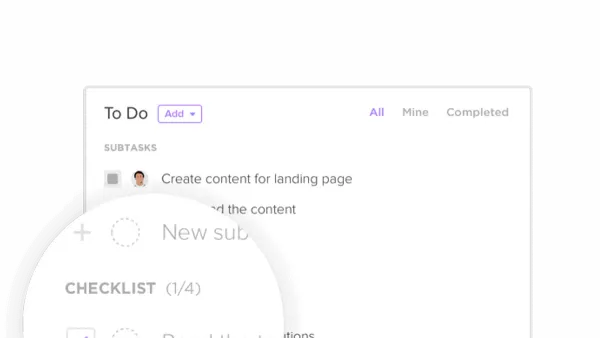
Before migration, you must explicitly map Basecamp features to their ClickUp counterparts. For example, Basecamp’s “To-dos” translate to ClickUp “Tasks,” but ClickUp also offers subtasks, checklists, and custom statuses that require conscious alignment with your existing workflows. Neglecting this step leads to workflow gaps—missed task dependencies, broken notifications, or inconsistent status tracking.
Consider a project where Basecamp users rely heavily on message boards and automatic check-in questions. In ClickUp, these must be recreated using Docs and Automations, or you risk losing critical communication flows. Without mapping, your team may see missing features or confusing labels, such as searching for “To-dos” but finding “Tasks” with unfamiliar properties, which causes workflow disruption.
Common failure symptoms include unexpected task behavior, missing user permissions, or unclear status updates. These are caused by incorrect or incomplete mappings of Basecamp’s Users to ClickUp’s People, To-dos to Tasks, and message boards to Docs or Comments. Fixes involve revisiting your workflow map and adjusting ClickUp’s structure to reflect Basecamp’s logic.
Train your team on these differences and update onboarding materials to highlight terminology changes and new process steps. This minimizes resistance and accelerates effective use of ClickUp post-migration.
- Map Basecamp features like To-dos, Users, and message boards to ClickUp’s Tasks, People, and Docs before migration
- Identify workflow gaps caused by UI and terminology differences and plan customizations accordingly
- Provide targeted training to your team on ClickUp’s terminology and workflow to ensure smooth adoption
Integrate Basecamp with ClickUp for ongoing synchronization
Without integration, you must manually update tasks and statuses in both systems, which risks missing critical updates and duplicating work, especially when multiple team members are involved.
ClickUp’s native integration with Basecamp synchronizes tasks and project status changes automatically, providing you with a unified project view. This streamlined workflow reduces errors and keeps your team aligned without extra overhead.
For example, when a task is marked complete in Basecamp, the integration updates the corresponding ClickUp task instantly, so your project dashboard reflects the current status across both platforms without delay. This prevents confusion that arises when one system lags behind the other.
Where native integration gaps exist, tools like Zapier or Make bridge automation between Basecamp and ClickUp. They allow you to customize triggers and actions, ensuring that updates flow smoothly even for complex workflows or specialized data fields.
| Management Approach | Outcome | Key Risk or Benefit |
|---|---|---|
| Manual Updates | Separate task lists, frequent switching | High risk of missed updates and duplicated efforts |
| ClickUp-Basecamp Integration | Unified task status, automatic sync | Reduced errors and streamlined project tracking |
| Zapier/Make Automation | Customized sync for complex needs | Fills native integration gaps, maintains data consistency |
- Enable ClickUp’s Basecamp integration from your ClickUp workspace settings
- Set up Zapier or Make workflows if your project requires custom automation
- Monitor synchronization logs regularly to catch any missed updates early
What this checklist does not address and who should consider other options
It does not cover the migration of advanced project management features such as roadmapping, sprint planning, or backlog management, as these do not transfer from Basecamp to ClickUp. For example, if your team relies heavily on sprint boards or a detailed backlog to track iterative development, these elements will not migrate and require rebuilding within ClickUp’s native tools or third-party integrations.
Teams operating highly complex agile workflows or those with extensive custom fields and specialized configurations should consider professional migration services. Relokia’s service supports custom fields and data filtering without coding, ensuring your detailed workflows and data remain intact during migration. This is critical when manual CSV import cannot capture the full complexity of your project data or when preserving data integrity is non-negotiable.
In summary, if your team requires advanced agile features beyond Basecamp’s scope or has customized setups that exceed simple task and user structures, this checklist alone will not suffice. Seek specialized solutions that address those needs directly to avoid workflow disruption and data loss.
- Evaluate if your projects rely on advanced roadmapping, sprint planning, or backlog features before migrating.
- For complex workflows with many custom fields, engage a professional migration service like Relokia.
- Confirm that your project scope aligns with task- and user-focused migration assumptions.
After migration: Validate data and maintain your new ClickUp environment
Check ClickUp People against your original Basecamp Users list to confirm mapping integrity. Review task details meticulously, especially custom fields and attachments, for completeness.
Monitor workflow functionality by running typical project routines in ClickUp. Ensure automations and task dependencies behave as expected. Early detection of discrepancies prevents workflow disruption.
If you encounter missing or misaligned data, identify whether the issue stems from the export-import process or mapping errors. Minor fixes may be resolved by manual edits within ClickUp. For more significant inconsistencies, consider rolling back to Basecamp while you troubleshoot, especially if you kept Basecamp operational during the parallel run period.
Training refreshers can reinforce user familiarity with ClickUp’s terminology and features, reducing errors and encouraging smooth adoption. Regularly monitor usage patterns and feedback to identify any lingering issues or workflow bottlenecks.
Maintain a checklist for the first two weeks post-migration to confirm data integrity and operational stability. For example, verify that new tasks created in ClickUp trigger notifications correctly and that user permissions match your intended configuration. These checks ensure your team transitions confidently and avoids productivity loss.
Read next
- Switching from Asana to ClickUp: A Clear Expert Transition Guide
- Master the Asana Implementation Timeline for Project Success
- Switching from Basecamp to Airtable: A Practical Transition Guide
- Basecamp Rollout Plan for Corporate Trainers: A Clear Action Path
Frequently asked questions
How to use Basecamp to manage my projects effectively?
Regularly update your To-dos and assign them to specific Users to keep accountability visible. Utilize the Settings → Export option to prepare for data migration or backup your work efficiently.
Sources checked
- Basecamp to ClickUp Migration Guide 2026 — LogicalRefer
- Migrating from ClickUp to Basecamp — Step-by-Step Guide | ToolStack — ToolStack
- Basecamp to ClickUp migration - Projects & tasks migration | Data import and migration for Jira, Wrike, MS Project and others — Projects & tasks migration | Data import and migration for J
- Basecamp Integration with ClickUp | Project Management — ClickUp
- Switching Project Management Tools Checklist: 5 Steps | ClickUp — ClickUp Blog