Book Creator Rollout Plan for Substitute Teachers: An Expert Guide
Learn how to create a tailored Book Creator rollout plan that equips substitute teachers with quick access and essential training for seamless classroom use.

Short answer: A successful Book Creator rollout plan for substitute teachers requires setting up quick and secure access, focusing training on essential features, and integrating the tool seamlessly into substitute lesson plans. This approach ensures substitutes can maintain classroom engagement without time-consuming onboarding.
This guide covers how to tailor the Book Creator rollout specifically for substitute teachers, addressing their limited preparation time and varied experience with digital tools. You will learn how to configure access permissions efficiently, prioritize core functionalities during training, embed Book Creator into daily lessons, and monitor usage for ongoing improvements. Additionally, it highlights common pitfalls to avoid, ensuring your implementation supports substitutes effectively and sustains smooth classroom continuity.
Understand Why Substitute Teachers Need a Tailored Book Creator Rollout
Substitute teachers face unique challenges that standard rollout plans often overlook. They typically have limited time to prepare and may be unfamiliar with the specific digital tools used in the classroom. This can lead to delays, frustration, and reduced student engagement.
Book Creator offers a streamlined platform that supports lesson continuity with minimal setup. However, without tailored support, substitutes may struggle to access key features quickly, limiting the tool’s effectiveness. For example, a substitute stepping into a middle school English class with only an hour’s notice might miss critical steps like logging in with the correct permissions or opening pre-made Book Creator projects, causing valuable class time to be lost.
Tailoring the rollout means configuring access permissions in advance and providing concise, focused training that addresses substitutes’ immediate needs. Schools that adopt this approach see higher adoption rates and smoother transitions, reducing classroom disruption and maintaining student engagement even in the substitute teacher’s brief tenure.
Set Up Book Creator Access and Permissions for Substitute Teachers
Start by creating dedicated substitute teacher accounts or shared access credentials within your Book Creator admin console. For example, establish a shared login like "[email protected]" with a strong, regularly updated password stored securely in a central location accessible to authorized staff only. This avoids the overhead of creating individual accounts for short-term users while maintaining security.
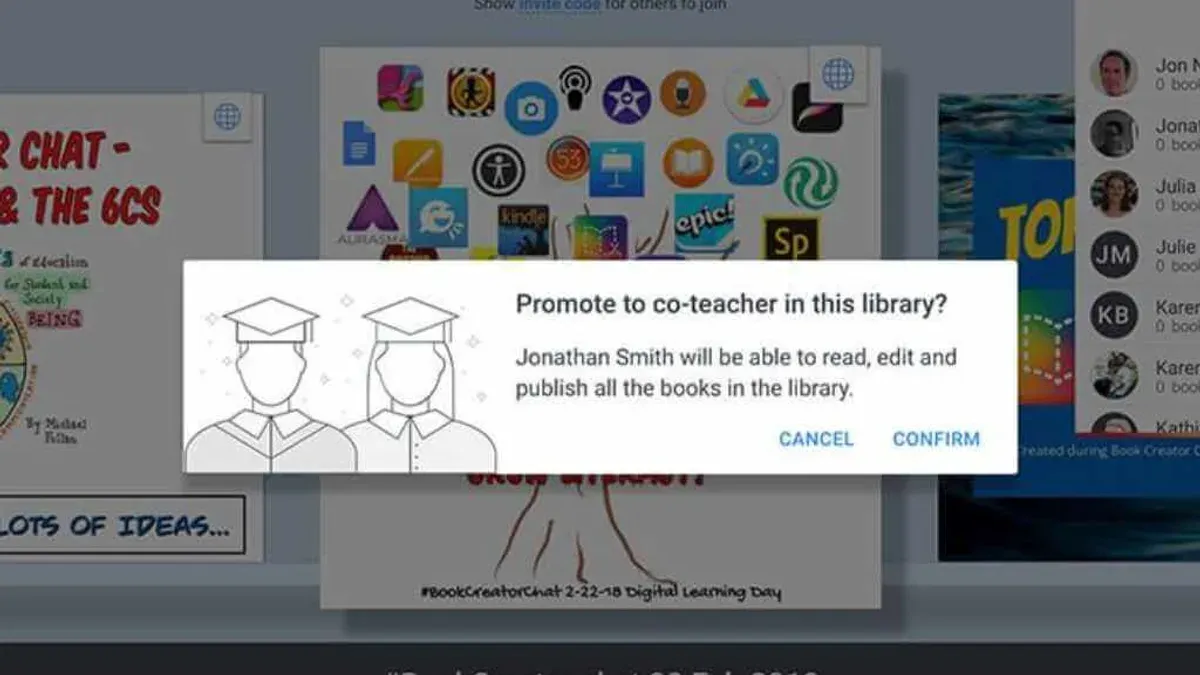
Configure access rights by assigning these accounts to specific classes or grade-level libraries to ensure substitutes see only relevant content. Use the "User Roles" settings under the admin dashboard to apply the "Contributor" role, which allows editing but restricts administrative changes.
Prepare devices by installing the latest Book Creator app version and verifying reliable Wi-Fi connectivity. Test login credentials on each device substitutes might use to avoid delays on the first day. Include a user access matrix like the example below to clarify who can access what:
| User Type | Account Type | Access Level | Notes |
|---|---|---|---|
| Substitute Teacher | Shared Account | Contributor | Access limited to assigned classes |
| Permanent Teacher | Individual Account | Owner | Full library control |
Device readiness checklist tailored for substitutes:
- Install and update Book Creator app on all substitute devices
- Verify login credentials work on each device
- Ensure stable Wi-Fi connection in classrooms
- Confirm access to assigned class libraries
- Provide easy-to-find password storage or retrieval method
Train Substitute Teachers on Core Book Creator Features They Need Now
Substitute teachers often have minimal prep time, so training should focus on essential Book Creator functions. Prioritize how to open assigned lessons from the Library tab, perform basic edits like adding text or images, and share completed work via the Share button.
Quick-start guides, concise video tutorials, and on-demand help resources work best for short-notice users. For example, a quick-start guide might outline steps to open a lesson, insert a new page using the + icon, add text boxes from the Insert menu, and save changes. Video tutorials under five minutes showing these actions visually enhance understanding.
Hands-on practice is critical. Provide sample lesson templates substitutes can open and adapt, such as a science journal template with editable prompts. This approach builds confidence by allowing substitutes to experiment with editing and saving before managing real student projects.
Compared to lengthy manuals, quick-start materials paired with practical exercises enable substitutes to gain functional proficiency efficiently, even with limited time.
- Focus training on opening lessons, basic editing, and sharing
- Use brief quick-start guides and short video tutorials
- Provide sample templates for hands-on practice
- Offer on-demand help resources for immediate questions
Integrate Book Creator Into Substitute Lesson Plans Smoothly
Embed Book Creator activities directly within your lesson plans using clear, step-by-step instructions substitutes can follow effortlessly. Design lessons with minimal setup by specifying exactly which template to open, which pages to edit, and what content students should add, avoiding generic directions like "explore the app." For example, a science lesson segment might read: "Open the 'Water Cycle' Book Creator template from the shared drive. Have students add a drawing on page 3 illustrating evaporation, then write two sentences describing the process on page 4."
Provide substitutes with ready-made templates and examples accessible via a shared folder or learning management system. These resources reduce decision-making and save valuable time, allowing substitutes to focus on student engagement rather than tech navigation.
Clearly communicate expectations about the lesson flow and offer support channels, such as a dedicated chat group or contact number, so substitutes can quickly resolve any issues. This ensures confidence and continuity during the class.
- Include precise Book Creator tasks within the lesson plan script
- Share ready-to-use templates and sample projects beforehand
- Set up clear support options substitutes can reach during lessons
Monitor Usage and Gather Feedback to Refine the Rollout
To ensure your Book Creator rollout for substitutes evolves effectively, use the platform’s built-in analytics to track substitute activity. Navigate to the Dashboard > Usage Reports to view metrics such as session frequency, number of books created, and time spent per session. For example, if a report shows that substitutes rarely open certain features like audio recording, this signals a usability barrier or training gap.
Complement analytics with direct substitute feedback collected via brief surveys or quick check-ins after their sessions. Questions should focus on what worked well, encountered challenges, and suggestions for improvement. For instance, a substitute might report confusion about how to access shared templates, an insight missed by usage data alone.
Use this combined data to adjust training materials, modify access permissions, or streamline lesson plan integration. If usage reports indicate low engagement on mobile devices, consider adding mobile-specific instructions or troubleshooting tips. Regularly updating your rollout based on concrete data ensures substitutes remain confident and the tool stays effective in real classroom conditions.
- Access Book Creator Dashboard > Usage Reports monthly
- Send short feedback surveys after every substitute session
- Review findings to identify common usage patterns and obstacles
- Update training guides and lesson plans accordingly
- Communicate improvements to substitutes to close the feedback loop
Avoid Common Mistakes When Rolling Out Book Creator for Substitutes
One frequent error is overwhelming substitutes with comprehensive training sessions or exposing them to the full range of Book Creator features. Substitutes benefit most from concise, targeted guidance that covers only essential tools required for immediate lesson delivery.
Another common pitfall is neglecting access logistics. For example, a middle school failed to prepare substitute accounts with saved passwords, causing delays as substitutes repeatedly reset credentials. Additionally, device incompatibility—such as outdated tablets unable to support the latest Book Creator app—can halt usage entirely.
Schools that skip providing ready-to-use lesson materials and clear, step-by-step instructions often see substitutes abandon the platform. One district mitigated this by creating a shared folder of preloaded classroom books and embedding simple navigation cues in lesson plans, enabling substitutes to focus on teaching rather than troubleshooting technology.
- Limit training content to essential features substitutes need immediately.
- Ensure all substitute accounts have tested, saved login credentials.
- Verify device compatibility with the current Book Creator app version.
- Provide substitute-ready lesson materials with clear usage instructions.
Read next
- Create an Effective Book Creator Implementation Timeline
- Your Expert Checklist for Moving from Adobe Express to Book Creator
- How to Roll Out Adobe Express for Volunteers: A Step-by-Step Guide
Frequently asked questions
How can I quickly set up Book Creator accounts for substitute teachers?
Use your school's Google or Microsoft integration to create accounts seamlessly without separate passwords. Assign substitutes to specific classes via the admin dashboard, ensuring they have immediate access to the necessary books. Pre-configure permissions under Settings > Users > Manage Roles to limit editing rights if needed for security and focus.
What are the must-know Book Creator features for substitutes?
Substitutes should focus on basic editing tools like text insertion, image uploading, and audio recording to keep lessons engaging. Navigating the Pages panel and using the Read Aloud feature helps manage content efficiently during class. Bookmark frequently used templates in the Library for quick setup of new books.
How do I support substitutes who are not tech-savvy?
Provide a concise, step-by-step quick start guide highlighting essential tasks and common workflows. Offer short, focused training sessions or video tutorials that demonstrate key functions they will use. Set up a dedicated help channel or contact for immediate support during substitutions to reduce frustration.
What should I do if substitutes report technical issues during class?
First, verify the device’s internet connection and restart the Book Creator app or browser tab. Have a troubleshooting checklist ready, including clearing browser cache or trying an alternate browser like Chrome or Edge. Escalate persistent issues to your IT team promptly with detailed error descriptions to minimize downtime.
Quick checklist
- Confirm substitute teachers have guest or temporary accounts with appropriate Book Creator permissions.
- Provide concise training on creating, editing, and sharing books using essential tools like text, images, and audio recording.
- Embed Book Creator activities clearly within substitute lesson plans with step-by-step instructions.
- Set up a simple feedback channel to monitor substitute engagement and identify obstacles.
- Avoid overloading substitutes with advanced features; focus on core functions that support lesson continuity.
What this advice does not cover
This guide does not cover advanced Book Creator features that require extensive training, such as collaborative project management or multimedia embedding beyond basic images and audio. Those responsible for long-term curriculum design or specialist instruction should provide additional training and resources tailored to those advanced capabilities.
For substitutes, the priority is rapid onboarding to core functionalities that maintain classroom flow without causing delays.
Next step
Start by setting up a dedicated substitute teacher Book Creator account with pre-configured permissions and a brief tutorial document. This immediate action ensures substitutes can jump into lessons smoothly, minimizing downtime and maximizing student engagement from day one.