Master Canva for Education Implementation Timeline: A Step-by-Step Guide
Learn the step-by-step Canva for Education implementation timeline to smoothly adopt and use timeline features in your school projects.

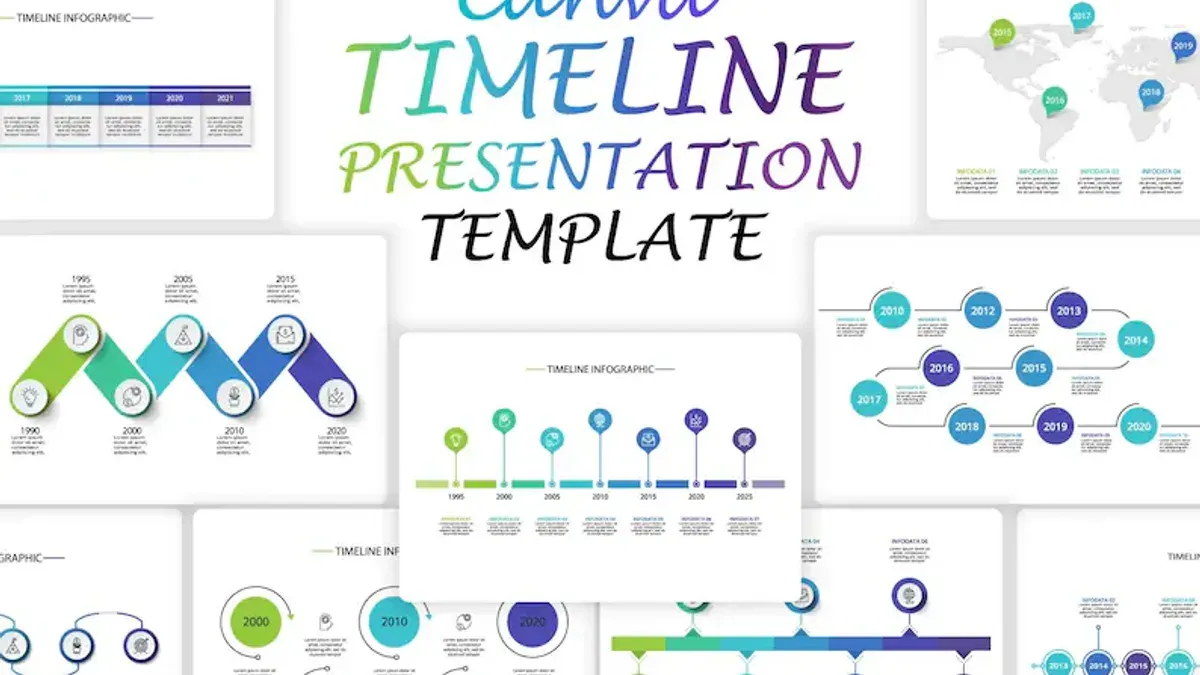
Short answer: The Canva for Education implementation timeline involves a clear sequence of steps starting from understanding the platform, setting up your account, to integrating timeline features within your projects. This guide breaks down when and how to introduce Canva for Education effectively in your school or district while showing you how to create and manage timelines directly in Canva.
This article covers the strategic approach to adopting Canva for Education, detailing the rollout timeline with practical actions. You will learn how to access and enable timeline features in Canva, craft useful project timeline templates tailored for educational settings, and avoid common pitfalls. This ensures your adoption process is smooth and that your timelines serve as effective tools for project management and instruction.
Understand What Canva for Education Is and Why It Matters
Canva for Education is a specialized version of the popular graphic design platform tailored specifically for K-12 schools and educators. It offers core features such as access to thousands of free templates, educational graphics, and collaborative tools designed to enhance classroom creativity and streamline digital learning projects. Unlike the standard Canva, this version provides secure, ad-free access with features that support student privacy and teacher management tools.
Teachers benefit from the ability to create interactive lesson materials collaboratively with students in real time, while students develop visual communication skills through hands-on design projects. Schools choose Canva for Education for its easy integration into existing digital learning environments and its capacity to foster engagement through creative assignments.
For example, a history teacher can design a timeline project where students collaboratively add events using Canva's timeline templates, promoting both teamwork and deeper understanding of the subject. Adoption rates among schools have grown steadily, supported by positive user feedback on ease of use and the platform's impact on student motivation and learning outcomes.
Learn What Year Canva for Education Was Launched and Its Growth Milestones
Canva for Education was launched in 2019, introducing a specialized version of Canva tailored to meet the needs of educators and students. The initial reception was strong, with schools appreciating the blend of creative freedom and classroom-friendly controls.
Since launch, Canva for Education has seen several major updates. In 2020, the platform added collaborative features allowing multiple users to edit projects simultaneously, enhancing teamwork in classrooms. In 2021, privacy and compliance tools were expanded to meet stricter educational data standards globally. Later, integration with popular learning management systems was introduced, streamlining adoption for many schools.
User growth has been exponential. From a modest start with a few thousand schools, Canva for Education now supports millions of teachers and students worldwide. For example, a large school district in the United States reported full adoption across all its schools within two years, driven by the platform’s ease of use and comprehensive timeline creation tools.
- 2019: Launch of Canva for Education
- 2020: Collaborative editing features added
- 2021: Enhanced privacy and LMS integrations
- Millions of users globally, widespread school adoption
How to Open Timeline in Canva and Create Your First Timeline
To start building a timeline in Canva, log into your Canva for Education account and click on the "Create a design" button in the top right corner. In the search bar, type "timeline" to access a variety of pre-designed timeline templates. Selecting a template is a quick way to begin, as it provides a structured layout you can customize.
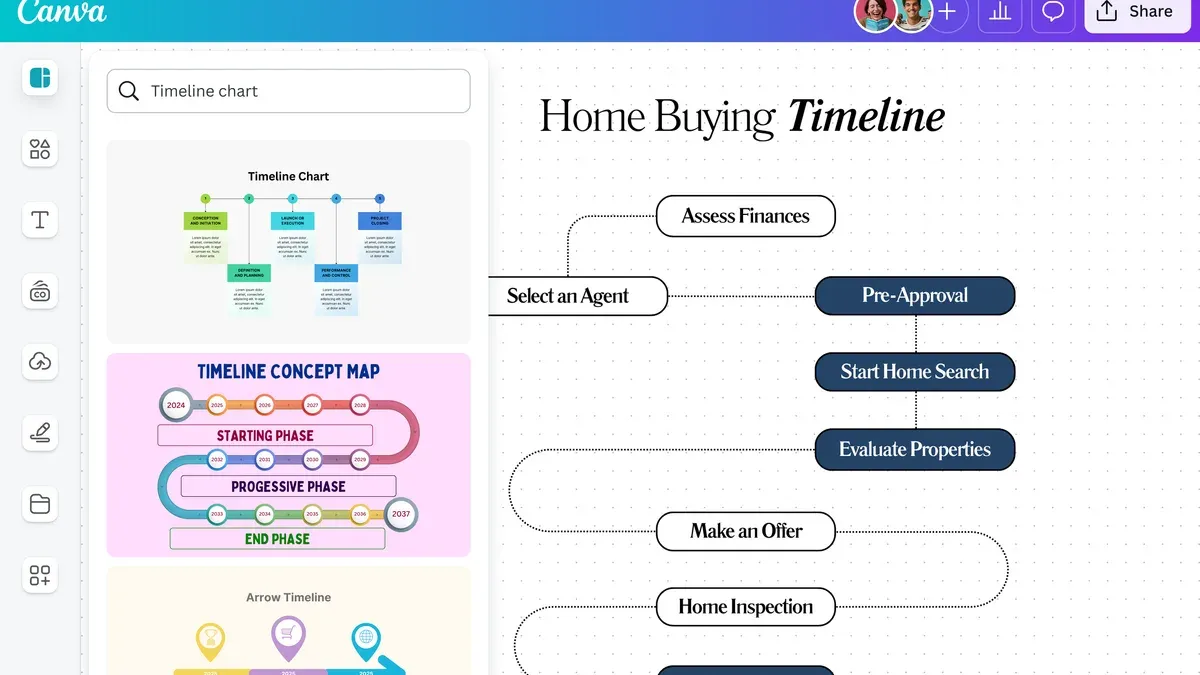
If you prefer to create a timeline from scratch, select a blank presentation or infographic format. Then, navigate to the "Elements" tab on the left sidebar. Use the search feature in Elements to find "timeline" graphics, lines, shapes, and icons to construct your timeline manually.
Once your timeline template or blank canvas is open, add key dates and events relevant to your project. Customize colors, fonts, and spacing to match your school’s branding or presentation style. Use text boxes for descriptions and arrows or lines to indicate progression. A common oversight is not aligning dates uniformly; use Canva's grid and snap tools for consistent spacing.
For example, if you’re planning a semester rollout, place milestones like "Teacher Training," "Pilot Phase," and "Full Deployment" along a horizontal timeline, adjusting the distance between events to reflect their actual timing.
- Click "Create a design" and search for "timeline" templates.
- Select a template or start with a blank design.
- Use "Elements" to add shapes and lines for custom timelines.
- Add and align dates and event descriptions carefully.
- Customize colors and fonts to suit your needs.
How to Enable Timeline in Canva for Education Projects
To activate timeline features within Canva for Education, first ensure your account has the appropriate permissions. Navigate to your project dashboard, click the three-dot menu next to your project, then select Project Settings. Under the Features tab, toggle on Timeline View. This setting allows you to visualize project stages chronologically, enhancing collaboration and tracking.
Canva for Education offers timeline functionalities distinct from regular Canva accounts. Unlike the standard platform, Education accounts include interactive timeline templates with editable milestones and integration options for group projects. For example, you can assign tasks with deadlines directly on the timeline to coordinate student contributions.
Consider a group assignment where students must submit research drafts, peer reviews, and final presentations. Using the enabled timeline, each phase can be visually mapped with specific dates and responsible members, which updates dynamically as progress is made.
| Feature | Canva for Education | Regular Canva |
|---|---|---|
| Interactive Timeline Templates | Available with task assignment | Basic templates only |
| Project Timeline View Toggle | Enabled via Project Settings | Not available |
| Collaboration Deadline Tracking | Integrated | Limited |
Remember, enabling the timeline view requires project-level permission, so if you cannot access it, verify your role with your administrator. This feature transforms static designs into dynamic project management tools within Canva for Education.
- Open your project dashboard
- Click the three-dot menu and select Project Settings
- Enable Timeline View under the Features tab
- Use interactive timeline templates to assign tasks and deadlines
- Coordinate group work with dynamic updates on the timeline
Create an Effective Canva Project Timeline Template for Education
Designing a reusable timeline template tailored for educational projects starts with identifying key elements such as project phases, deadlines, milestones, responsible roles, and resource links. For instance, a science fair timeline template might include stages like research, experiment setup, data collection, and presentation, each with clear due dates and checkpoints.
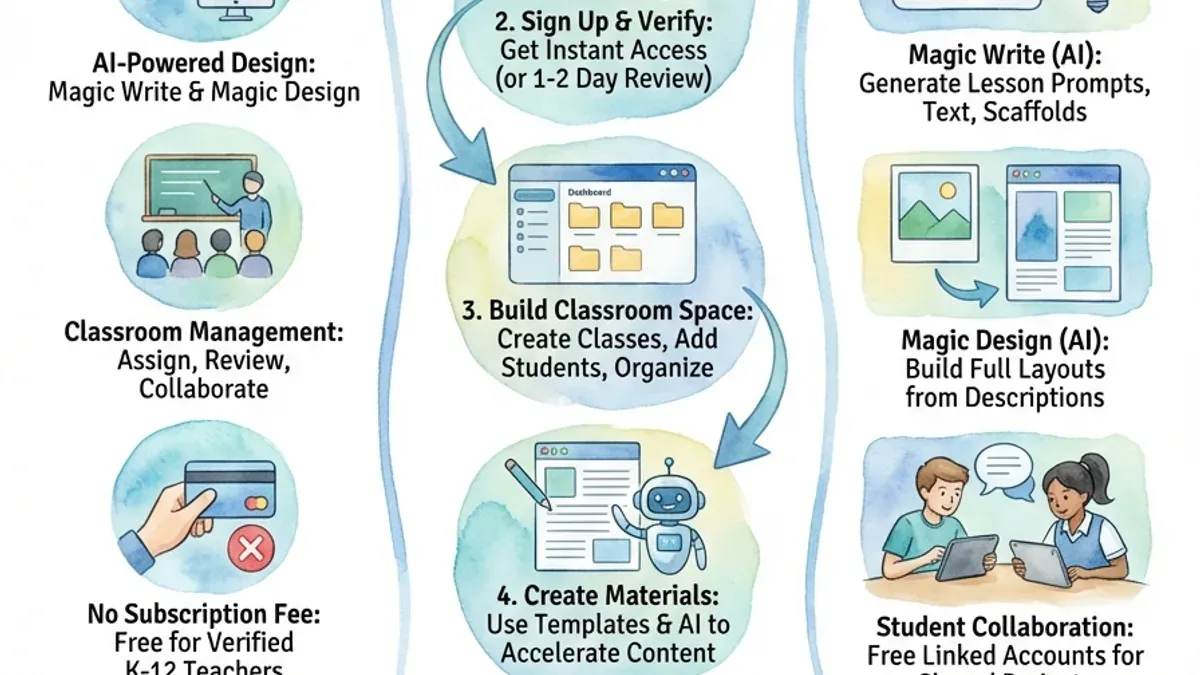
To adapt Canva’s existing timeline templates, search within Canva’s template library for "education timeline" or "project timeline". Customize the color scheme to match your school's branding, rename sections to fit your workflow, and embed interactive elements like clickable links to assignment briefs or video instructions to engage students actively.
Interactive timelines encourage student involvement; use Canva’s animation features to highlight upcoming deadlines or progress. One teacher reported improved student task management by sharing a timeline template that included checkboxes for completed tasks and embedded explanatory videos directly in timeline events.
- Include phases, deadlines, roles, and resources in your template
- Customize existing Canva templates with school branding and workflow terms
- Add interactive elements such as links, animations, or checkboxes
- Test the template with a small group to gather feedback before full rollout
Avoid Common Mistakes When Implementing Canva for Education and Using Timelines
One frequent error is skipping or rushing staff training. Without thorough onboarding covering features like Timeline View toggling in project settings, educators often struggle to fully utilize Canva’s capabilities. For example, a district rollout failed when many teachers bypassed training, resulting in inconsistent timeline usage and frustration.
Device compatibility and access issues are another stumbling block. If students or staff use incompatible browsers or devices, interactive timeline features may not function properly. Ensuring that all users have access to supported platforms prevents these technical barriers.
Overcomplicating timelines by adding excessive dates or events can overwhelm users, while underusing Canva’s interactive tools diminishes engagement. A balanced approach, focusing on clear milestones aligned with school calendars, fosters better adoption.
Aligning timeline milestones with academic schedules is critical. One school experienced delays when timeline tasks conflicted with exam periods, causing missed deadlines and confusion. Planning with the school calendar in mind ensures smoother progress.
- Conduct comprehensive staff training emphasizing key Canva for Education timeline features.
- Verify all devices and browsers meet Canva’s compatibility requirements.
- Design timelines that are clear and manageable, avoiding clutter.
- Synchronize timeline milestones with your school’s academic calendar.
Read next
- Moving from Book Creator to Canva for Education: Your Essential Checklist
- Your Expert Checklist for Moving from Adobe Express to Canva for Education
- Create an Effective Book Creator Implementation Timeline
- Mastering Adobe Express Implementation Timeline: A Complete Guide
Frequently asked questions
How to do a timeline in canva?
To create a timeline in Canva, start by searching for "timeline" in the Templates tab. Select a template that suits your project, then customize the text, dates, and graphics to match your schedule. Use Canva’s drag-and-drop tools to add or remove elements and adjust the layout for clarity.
What year was canva for education launched?
Canva for Education was launched in 2020. Since then, it has expanded its features and user base, becoming a widely adopted tool for schools and educators to facilitate creative learning and project management.
How to do a timeline in Canva?
Open Canva and click on the "Create a design" button, then search for "timeline" in the design templates. Choose a timeline layout, then edit each event by clicking on the text boxes and replacing placeholder content with your own information. Adjust colors and icons as needed to align with your educational theme.
Can you create an interactive timeline in Canva?
Yes, Canva allows you to create interactive timelines by adding clickable links to elements within your design. Use the "Link" option in the top toolbar to attach URLs to text or images, enabling viewers to navigate to additional resources when presenting or sharing your timeline digitally.
What is the timeline view in Canva?
The timeline view in Canva is a feature that displays your project's events in chronological order, helping you visualize the sequence and duration of tasks or milestones. It is particularly useful for managing project schedules within Canva designs, making it easier to track progress and deadlines.
Quick checklist
- Review Canva for Education’s core features and ensure they align with your school’s goals
- Familiarize yourself with Canva’s timeline tool via the Elements tab – search for “timeline”
- Enable timeline features within project settings to integrate timelines seamlessly
- Create a reusable timeline template tailored to your education projects, using clear milestones and deadlines
- Test the timeline functionality with a small team before full rollout
- Avoid overcomplicating timelines; keep them clear and focused on key dates
What this guide does not cover
This guide does not cover advanced integrations with other Learning Management Systems or detailed IT infrastructure requirements for large-scale rollouts. If your institution needs to connect Canva for Education with complex LMS platforms or requires extensive network configuration, consult your IT specialists or Canva support for tailored solutions.
The most useful next step is to start building your first timeline within Canva by opening a new project, navigating to the Elements tab, and selecting a timeline template. This hands-on approach helps you understand timeline capabilities firsthand and sets a practical foundation for your broader implementation plan.