
Effective ClickUp Rollout Plan for Non-Technical Staff
Learn how to smoothly implement ClickUp for non-technical staff with a phased rollout, leadership involvement, and organized training.

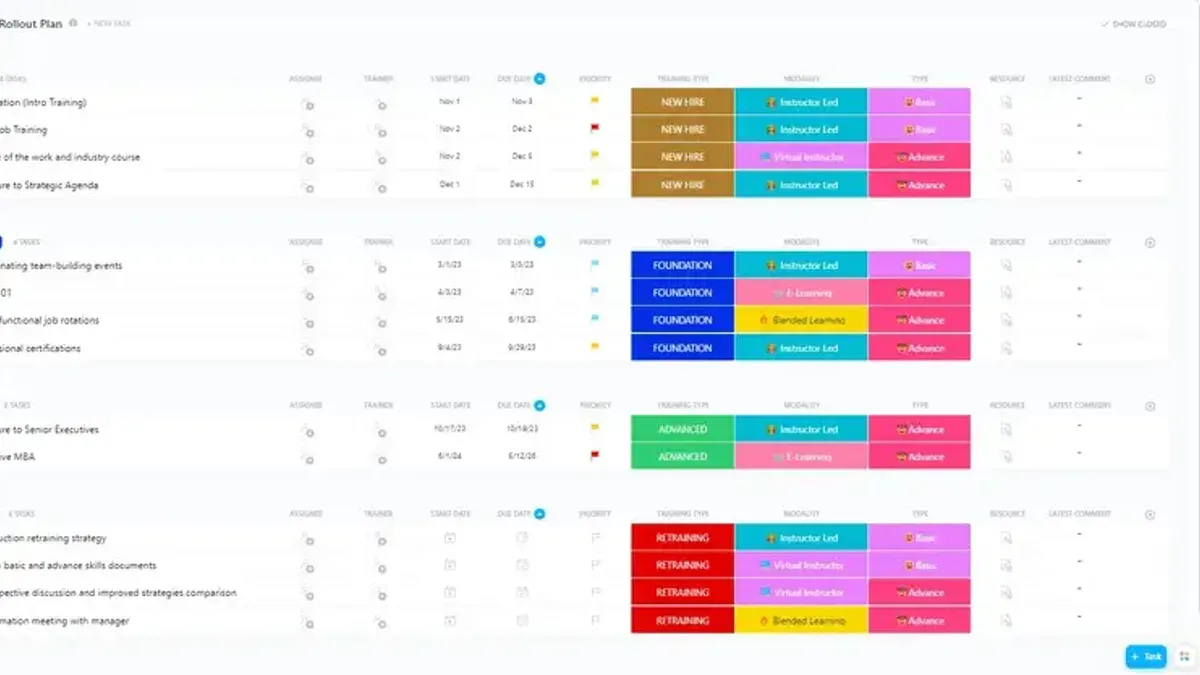
Rolling out ClickUp in an organization typically spans 60 to 90 days, covering pre-launch preparation, build, launch, and adoption phases. Leadership must visibly manage workflows and meetings through ClickUp dashboards for at least the first 90 days to embed the tool into daily habits effectively. Utilizing ClickUp’s Training Rollout Plan Template, with its custom statuses like Assessment and Training plus five specialized fields to track modality, trainer, and resource, keeps training organized and transparent. Without deliberate change management, users default back to email or Slack, undermining the rollout’s success.
Last verified November 2026 against ZenPilot, ClickUp, ProcessDriven (full list at the end).
Plan a phased rollout starting with a pilot team
When every user encounters initial bugs or confusion simultaneously, your support resources will be stretched beyond capacity, and frustration will grow fast. Instead, start with a pilot team to catch issues early and adjust workflows before the full rollout.
Choose a small group representing typical non-technical users. They will identify pain points, gaps in training, and any unexpected hurdles. You can then refine your ClickUp setup and training materials without disrupting the entire organization.
This phased timeline balances thorough preparation with steady progress.
Your support team will face a flood of questions and troubleshooting requests. Early problems will affect everyone, creating a groundswell of resistance that can stall adoption. By contrast, a pilot team lets you fix bugs and ease users into the platform gradually, creating advocates who help champion ClickUp as you expand usage.
Plan your phased rollout carefully. Start small, learn fast, then scale confidently. This approach safeguards your support capacity and sets non-technical staff up for a smoother transition to ClickUp’s workflows and features. A 60 to 90-day timeline is typical and proven to reduce resistance.
Secure leadership commitment and visible usage
When you lead meetings and manage workflows directly within ClickUp dashboards, you set a clear standard that the tool is central to daily operations. This visible usage signals to your team that ClickUp is not optional but integral to how work gets done.
Team members mirror leader behavior more than verbal directives or training sessions. If leaders do not actively use ClickUp, staff perceive it as a secondary system, leading to low engagement and increased resistance.
During this period, consistently run team meetings, assign tasks, and track progress within ClickUp. This continual reinforcement helps your staff internalize the workflow changes and reduces the risk of backsliding into old habits.
This practical demonstration encourages team members to follow suit. Conversely, if the same manager uses email or other tools for meetings, staff will question the value of ClickUp and hesitate to fully adopt it.
This visible leadership approach is a ClickUp-specific insight that prevents common rollout failures tied to lack of executive engagement. You can significantly increase adoption success by committing to this visible usage and reinforcement strategy for the initial three-month window. Learn more about leadership’s role in ClickUp rollout.
Use ClickUp’s Training Rollout Plan Template to organize training
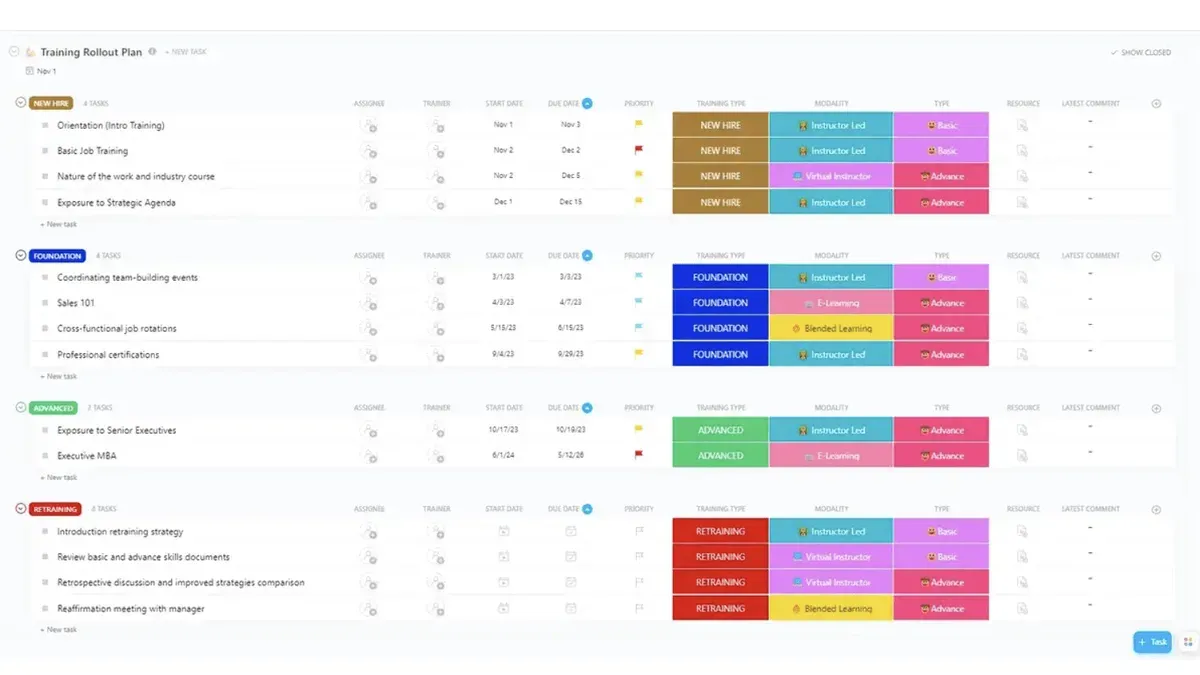
ClickUp’s Training Rollout Plan Template is essential for keeping your training organized and transparent. It uses distinct custom statuses—Assessment, Cancelled, Complete, Not Started, and Training—to clearly track where each training session stands. This makes it impossible to lose sight of pending or incomplete training steps.
These fields allow you to assign who leads the session, the format it takes, and which materials support it. For example, you can tag a session as an instructor-led (Training Type) online (Modality) ClickUp basics course, with a designated trainer and linked resource files, ensuring everything is accessible in one place.
The Schedule view lays out training timelines, while the Trainings view gives a list of all planned sessions with their statuses. The Modality view filters trainings by delivery method, and the Getting Started Guide view helps onboard new users with key resources. These views enable you to monitor progress and adjust plans dynamically.
Using this template means you avoid manual tracking errors and keep all stakeholders informed. It aligns training delivery with your rollout phases and helps prevent the common pitfall of scattered or forgotten sessions. The system is designed specifically for ClickUp’s environment, making it the backbone of an effective, trackable training program. Training Rollout Plan Template details.
Sequence your rollout steps for smooth adoption
Setting up the tool without clear, finalized workflows leads to inefficient dashboards and confused users, as the tool will only reflect unclear processes. For example, configuring task statuses or automations without process consensus causes rework and user frustration.
Skipping this step causes support overload and amplifies resistance when the full team faces unforeseen issues simultaneously. A pilot allows you to iterate on ClickUp’s setup and adjust training before scaling.
Users need continuous reinforcement to translate training knowledge into daily ClickUp use. Without ongoing practice and support, most revert to old communication methods like email and Slack.
Leaders need to visibly run meetings and workflows from ClickUp dashboards for at least 90 days; failing this, adoption stalls as team members do not take the tool seriously. Imagine a leader hosting weekly project updates directly in ClickUp—this signals priority and encourages use.
For instance, configuring before agreeing on processes leads to ineffective workflows; launching without a pilot causes widespread confusion and support bottlenecks; treating training as a one-time event leaves users unprepared; and absent leadership use results in faltering adoption.
Follow this order strictly: finalize processes, pilot with a test group, launch training with continuous follow-up, and maintain visible leadership use. This sequence prevents common ClickUp rollout pitfalls and secures smoother adoption across your non-technical team.
Define and track adoption metrics weekly for 90 days
Focus on two key indicators: daily active users and the percentage of tasks updated within the last 7 days. These metrics reveal how engaged your team is and whether workflows are actively maintained.
Create custom dashboards in ClickUp to visualize these metrics clearly. Dashboards let you monitor training progress, spot areas where users struggle, and reduce reliance on email check-ins. For example, a dashboard can show if daily active user counts dip below your target, signaling the need for targeted follow-up.
This keeps accountability high and allows you to adjust training or support promptly. If daily active users stagnate or task updates drop, it often means users need more guidance or leadership reinforcement.
For instance, imagine your team has 50 users. Tracking shows only 20 active daily users and 30% of tasks updated in the last week after the first month. This gap highlights a risk of poor adoption. Leadership should then increase visible ClickUp use in meetings and workflows, reinforcing usage until metrics improve.
Maintaining this attention on adoption metrics for the entire 90 days ensures ClickUp becomes embedded in daily work rather than fading after rollout. Dashboards provide the concrete feedback loop necessary to sustain momentum and address issues before they grow.
Onboard new hires gradually to prevent overwhelm
Start new hires in ClickUp by inviting them to a single list only. This controlled access protects your workflows from accidental disruption while they familiarize themselves with ClickUp’s interface and processes. Use the ClickUp desktop or web app to create the list via Workspace → Create List, then invite the new hire directly to that list.
Assign onboarding tasks within this single list to focus their attention on essential responsibilities without overwhelming them. As new hires grow more confident and demonstrate proficiency, expand their access step-by-step to other lists and projects. This gradual expansion prevents confusion and reduces support requests.
Schedule regular check-ins between new hires and their supervisors during the first weeks. Set up a dedicated 1-on-1 dashboard area by navigating to Workspace → Dashboard → Add Widgets. This facilitates focused conversations on progress, questions, and ClickUp usage issues. Frequent check-ins help identify stumbling blocks early and reinforce proper tool adoption.
For example, imagine a new customer service representative invited initially only to the “Customer Tickets” list. Their supervisor uses a 1-on-1 dashboard widget to review their task completion and discuss any ClickUp questions weekly. After a few weeks, the representative gains access to related workflow lists, ensuring steady learning without disruption.
This approach mitigates overwhelm and supports consistent ClickUp adoption by new hires. Inviting new hires to just one list first is a proven way to control learning pace and minimize workflow risks while building confidence. Learn more about this process here.
Avoid common rollout pitfalls unique to ClickUp
Launching a ClickUp rollout without executive sponsorship dooms adoption from the start. When leadership does not visibly use ClickUp dashboards and workflows, team members treat the tool as optional or temporary. This lack of visible leadership engagement erodes trust and motivation to switch fully.
Support teams become overwhelmed by early bugs and user confusion, which spreads resistance quickly. Imagine every employee calling for help simultaneously while critical workflow glitches persist—this overload stalls progress and frustrates everyone.
ClickUp’s complexity requires ongoing practice, refreshers, and resource access. Without continuous training, users forget key features and revert to old habits, defeating the rollout’s purpose.
Without reinforcement from leadership and regular check-ins, new ClickUp habits fade. Teams slip back to legacy tools, wasting the investment in rollout effort.
Each of these pitfalls can be prevented by ensuring leadership visibly leads in ClickUp, starting with a pilot team, scheduling repeated training sessions using ClickUp’s Training Rollout Plan Template, and maintaining communication after launch. These steps address ClickUp’s unique user experience and support demands that generic software rollouts overlook. Further detail on executive sponsorship pitfalls highlights why visible leadership use is non-negotiable.
Choose the right rollout approach based on your team’s needs
Start by evaluating your team size, workflow complexity, and leadership readiness. For large teams managing complex workflows, implement a phased rollout over 60 to 90 days using pilot teams. This approach minimizes disruption and spreads the learning curve, letting you measure adoption steadily through ClickUp dashboards.
If your team includes new hires unfamiliar with ClickUp, begin by inviting them to a single list. Gradually expand their access and schedule frequent one-on-one check-ins to build confidence without overwhelming them.
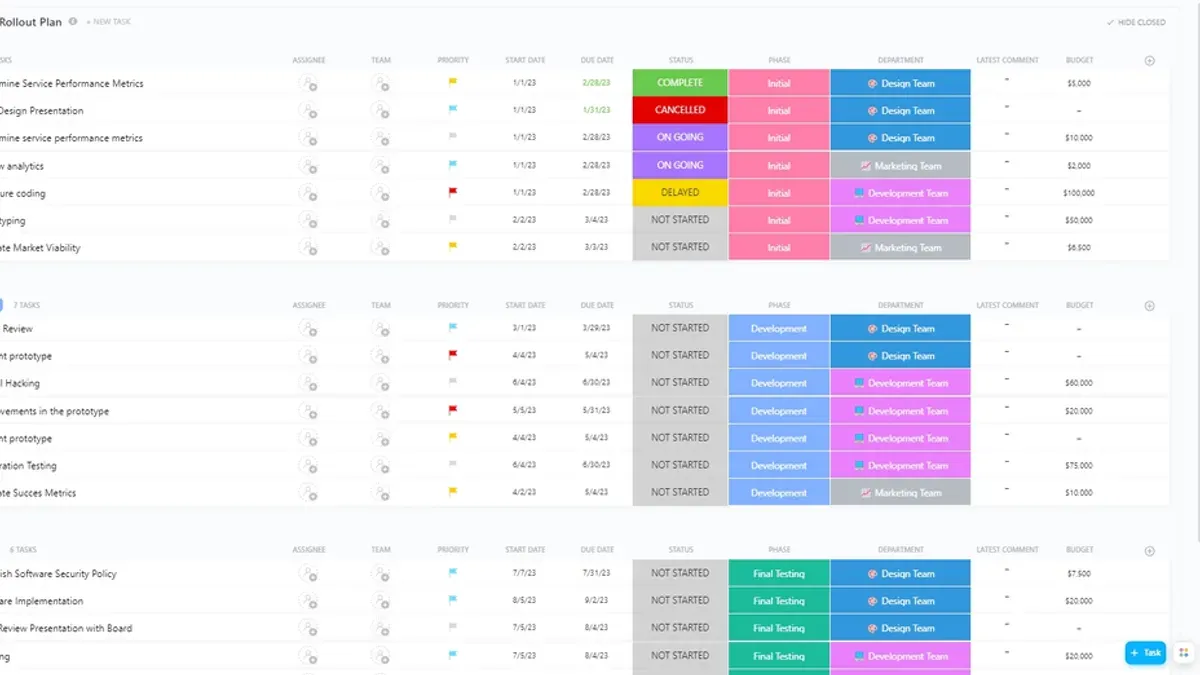
When planning formal training sessions, leverage ClickUp’s Training Rollout Plan Template. Its custom statuses like Assessment and Training, plus fields such as Trainer and Modality, help you organize progress clearly and hold trainers accountable.
Without executive sponsorship, adoption stalls and resistance grows. Delay the rollout until leaders actively demonstrate ClickUp usage.
| Situation | Recommended Rollout Approach | Decisive Factor |
|---|---|---|
| Large team with complex workflows | 60 to 90 day phased rollout with pilot team and ongoing adoption tracking | Size and workflow complexity require gradual adoption |
| New hires unfamiliar with ClickUp | Start with access to one list; expand access gradually; schedule regular check-ins | Prevent overwhelm and build familiarity over time |
| Structured training rollout needed | Use ClickUp’s Training Rollout Plan Template for tracking and organization | Custom statuses and fields facilitate training progress management |
| Leadership not visibly committed | Delay rollout until leadership engagement is secured | Visible executive use drives adoption |
For example, imagine a manager at a company with 150 staff and multi-department workflows. Jumping straight into full rollout would overwhelm support due to ClickUp’s specific user experience demands. Instead, piloting with one department while leadership runs meetings from ClickUp dashboards ensures clear benefits are demonstrated. Meanwhile, new hires receive only basic access, preventing confusion. Training progress is tracked through the dedicated template, keeping everyone aligned.
Use this decision framework to tailor your rollout strategy precisely. Avoid rushing steps that lead to resistance or overload. Your team’s unique characteristics determine the best path to smooth, sustainable ClickUp adoption. Learn more about phased rollout and leadership impact.
Maintain momentum after rollout to embed ClickUp in daily work
Leadership must visibly continue running meetings and workflows from ClickUp dashboards for the full 90 days after launch. This sustained visibility reinforces that ClickUp is the primary work platform and prevents users from slipping back into email or Slack for task management.
Create and maintain custom ClickUp dashboards to monitor ongoing training progress and facilitate regular 1-on-1 check-ins. Use these dashboards to track individual adoption and quickly identify team members who may be struggling or falling behind. This proactive approach reduces support overload and keeps communication transparent without reverting to external tools.
Schedule weekly check-ins between new hires and supervisors during their first weeks in ClickUp. These meetings help uncover issues early and reinforce proper use, embedding ClickUp habits before bad alternatives take hold. For example, a supervisor can review the trainee’s task updates and guide them through any confusing workflows, ensuring confidence and consistency.
Recognize what elements of your rollout plan can be adjusted as workflows evolve. Some custom statuses or fields might become redundant or require fine-tuning once the team settles into daily use. Remove or modify these thoughtfully to prevent clutter and maintain user focus. However, avoid removing essential tracking fields prematurely, as they support ongoing adoption metrics.
Address any problems promptly to prevent users reverting to familiar but inefficient communication channels. Quick resolution combined with leadership’s ongoing reinforcement and peer influence sustains momentum. The goal is to make ClickUp the unmistakable center of your team’s daily work, not just a temporary initiative.
After rollout, monitor adoption metrics weekly using ClickUp’s dashboards to catch any drop in engagement. Keep leadership actively managing workflows and meetings within ClickUp to reinforce its role in daily operations. Gradually adjust training resources and onboarding pace based on observed team proficiency, and retire temporary rollout statuses like "Training" once users are autonomous to avoid clutter.
For teams with high resistance or limited leadership bandwidth, start with a small pilot group to minimize support load. If leadership can dedicate time to visible ClickUp use, opt for a full phased rollout leveraging the Training Rollout Plan Template. Smaller or less technical teams benefit from incremental onboarding to maintain steady adoption without overwhelm.
Sources checked
- ClickUp Onboarding: The Complete Guide for Teams | ZenPilot — ZenPilot
- Training Rollout Plan Template by ClickUp™ | Template by ClickUp™ — ClickUp
- Blog: How to Use ClickUp for New Hire Onboarding (5 Easy Steps!) - ProcessDriven — ProcessDriven
- Leading a ClickUp Rollout? Avoid These 5 Mistakes - dtechsystems.co — dtechsystems.co



