
Moving from Basecamp to monday.com Checklist for Effective Transition
Learn how to transition smoothly from Basecamp to monday.com with this checklist covering key differences, integrations, and setup tips.

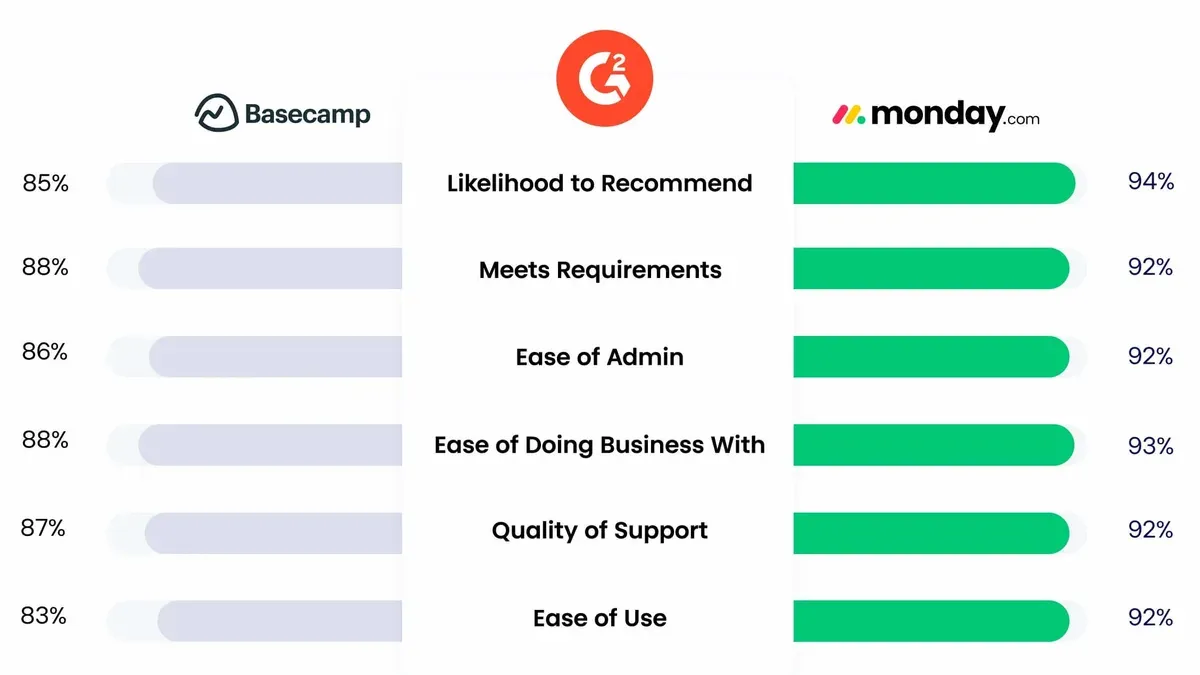
Many teams struggle because they expect a direct one-to-one transfer, but the two platforms organize and display project data very differently.
You’ll learn how to replace Basecamp’s built-in chat with integrations, understand what features won’t carry over, and maintain your new setup for smooth ongoing use.
Every limit and setting name below comes from monday.com Blog, Lilach Bullock | AI Implementation Consultant, as of November 2026.
Understand how Basecamp and monday.com differ in project structure
This one-page design centers communication and task management in one place, suitable for client-facing projects where messaging and transparency are key.
In contrast, monday.com employs a flexible system of customizable boards and dashboards. Each board can be tailored to specific teams or departments, allowing you to design workflows that fit your unique processes rather than conforming to a rigid template.
Instead, monday.com provides multiple data views—including calendar, timeline, Kanban, Gantt charts, and map views—offering you diverse ways to analyze and visualize your project data.
| Feature | Basecamp | monday.com |
|---|---|---|
| Project Layout | Fixed, one page per project | Flexible boards and dashboards |
| Progress Tracking | Hill Chart | Multiple views: calendar, timeline, Kanban, Gantt, map |
| Communication | Built-in chat and message boards | Integrations with Slack, Microsoft Teams |
Imagine moving from Basecamp’s single-page project where all tasks and messages live side-by-side, to monday.com’s boards where you build task lists, timelines, and dashboards separately but connect them with automations. This shift demands rebuilding your projects to leverage flexibility and integration rather than a fixed layout.
Decide if monday.com fits your team’s workflow needs better than Basecamp
If your projects demand advanced reporting, multiple views, and seamless connections to third-party tools, monday.com is the clear choice. It supports multiple departments with tailored workflows, dashboards, and automation recipes to reduce routine task time, which Basecamp lacks.
Conversely, if your team values a simple, fixed project layout with built-in chat and message boards, and you want minimal setup time, Basecamp remains a practical solution. Its flat-rate pricing covers communication and project management in one package, avoiding the cost of bundling separate tools.
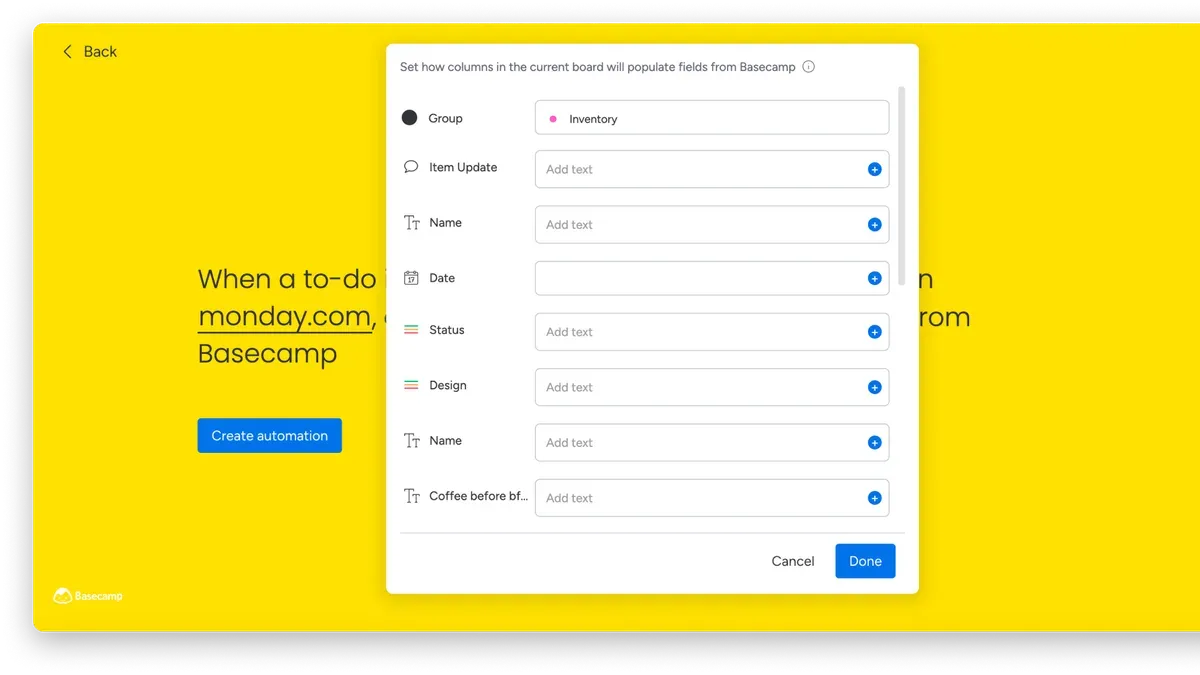
You must manually create boards and automation sequences through Dashboard → Boards → Automations → Create Automation. Skipping this step leads to inefficient workflows and lost time.
| Your Situation | Recommended Tool | Reason |
|---|---|---|
| Client-facing projects needing simple, integrated communication | Basecamp | One-page project layout with built-in chat and message boards |
| Multiple departments requiring custom workflows and automation | monday.com | Flexible boards, dashboards, and extensive automation recipes |
| Need advanced reporting and third-party integrations | monday.com | Supports multiple project views and numerous integrations |
| Prefer minimal setup and immediate usability | Basecamp | Fixed layout ready to use without configuration |
However, a small consultancy running straightforward projects with direct client communication might find Basecamp’s fixed layout and integrated chat more efficient.
Prepare your Basecamp data and team before starting the move
If you use the Personal plan, remember it limits you to three projects and up to twenty users, so confirm your current usage fits within these boundaries to avoid surprises.
This includes to-dos, messages, and schedules, as no official direct migration tool or automated import path exists. Export these items in a structured way so you can reference them during setup.
Outline any expected downtime and the learning curve inherent in switching to a new system. This reduces confusion and sets realistic expectations.
Skipping this planning leads to disorganized boards and lost productivity.
Pre-migration checklist
- List all active Basecamp projects and verify user count against Personal plan limits.
- Manually export to-dos, message boards, and schedule items from Basecamp.
- Inform your team about the migration schedule and training resources.
- Draft a monday.com board and automation plan to mirror or enhance current workflows.
Then, notify the team of a planned weekend migration with a brief on monday.com’s different interface and automation setup. Finally, prepare board outlines and automation rules in monday.com’s Dashboard → Boards → Automations → Create Automation path before importing data. This sequence avoids data loss and confusion during the switch.
Rebuild your projects as flexible boards and dashboards in monday.com
Start by creating a new board for each Basecamp project, tailoring each to the specific needs of your department or team. Navigate to Dashboard → Boards and select Create Board. Choose from monday.com’s diverse board views—Kanban for task flow, Timeline or Gantt for scheduling, or Calendar for date tracking—to best fit your project’s task types.
For example, a marketing team migrating a campaign project might use a Kanban board to track content stages, while a product team may prefer a Gantt view to manage deadlines and dependencies. Boards built this way replace Basecamp’s fixed layout with structures that adapt as your projects evolve.
Next, set up dashboards to consolidate data from multiple boards. Go to Dashboard → New Dashboard, then add widgets to display metrics, task statuses, or timelines across projects. This portfolio view helps you oversee several projects simultaneously without switching boards.
Incorporate automations early by visiting Dashboard → Boards → Automations → Create Automation. Automate routine actions like status updates, due date reminders, or task assignments to reduce manual work and enhance consistency. Early automation setup ensures smoother workflows and less catch-up later.
Building your boards and dashboards with these steps leverages monday.com’s flexibility and powerful views, replacing Basecamp’s fixed project layout with customizable, scalable structures built around your team’s actual workflow.
Configure automations and integrations to replace Basecamp’s built-in chat and message boards
Connect these through monday.com’s integration center to keep conversations seamless alongside your workflows.
Automations are key to reducing manual follow-ups and status checks. Navigate to Dashboard → Boards → Automations → Create Automation to access hundreds of automation recipes. For example, set a trigger like “When status changes to Done, notify the project manager” or “When a due date arrives, send a reminder to the assigned team member.” These automations replace routine manual updates and ensure nothing slips through the cracks.
Beyond messaging, monday.com supports over 40 integrations including MailChimp and Salesforce, which Basecamp lacks. Use these to link marketing, sales, or other external tools directly to your boards. For instance, an integration with Salesforce can automatically update deal stages based on project progress.
Adjust triggers and actions to optimize workflow efficiency and avoid notification overload. This ongoing tuning ensures your monday.com workspace remains responsive and tailored to your team’s needs.
Understand what data and features will not carry over and how to handle them
When migrating from Basecamp to monday.com, some key Basecamp features will not transfer. Basecamp’s Hill Chart, a unique visual tool that tracks project progress from exploration to completion, does not have an equivalent import or native feature in monday.com. You will need to recreate progress tracking using monday.com’s flexible board views or dashboards.
Basecamp’s fixed one-page project layout also cannot be moved into monday.com’s flexible, multi-board structure. This difference means you must manually rebuild your projects as boards, arranging items and statuses according to your team’s new workflow.
Advanced reporting and budget management functions available in monday.com are new capabilities that won’t come from your Basecamp data. These features require fresh setup and configuration within monday.com dashboards and widgets.
Manual export and import of data—such as CSV files for tasks and notes—are necessary. Plan for this manual effort and validate data accuracy after transfer.
This strategy helps when you need to verify information or access features that do not carry over, preventing workflow disruption.
For example, if your team relies heavily on Basecamp’s Hill Chart to visualize project stages, you must prepare to replace it with a custom monday.com board using status columns and timelines to approximate that view.
Avoid common pitfalls when moving from Basecamp to monday.com
Set up Slack or Microsoft Teams integrations early via monday.com’s integration menu to maintain smooth team interaction.
Rushing the creation of boards and automations reduces the advantages of monday.com's flexible system. Take time in the Dashboard → Boards → Automations → Create Automation path to build workflows that truly fit your team’s needs.
Basecamp’s simple fixed project layout is replaced by a more powerful but complex flexible board system. Trying to replicate Basecamp’s one-page simplicity without adjusting your approach causes confusion and inefficiency.
Be aware that Basecamp offers a flat rate business plan, which can be more budget-friendly than bundling monday.com with Slack, Teams, and other tools. Confirm your team size and feature needs to avoid unexpected costs.
For example, a team switching quickly without setting up communication integrations found workflows stalled because messages were missed. Had they configured Slack integration before migration, team collaboration would have stayed uninterrupted.
Check and maintain your monday.com setup after migration
Start your post-migration process by verifying that every Basecamp project and task has been accurately recreated in monday.com. Navigate through each board and dashboard to confirm workflows operate as intended, testing automations via Dashboard → Boards → Automations. For example, check that task status updates trigger notifications and dependencies work correctly.
Within a day of migration, monitor team adoption closely. Identify users struggling with the new flexible board system and provide targeted training or support. Frequent questions often arise from unfamiliarity with customization options or automation setup.
One week after going live, review your automations and integrations. Adjust or add new automation recipes to reflect real workflow needs, accessed through the same menu path. Use feedback from your team to refine alerts, task assignments, and Slack or Microsoft Teams integrations to maintain smooth communication.
Maintain access to Basecamp temporarily as a fallback and comparison tool. This ensures you can verify data integrity and reference any missing details without disrupting ongoing work. Avoid fully deactivating Basecamp until you are confident your monday.com setup supports your team’s full workflow.
- Day 1: Verify project and task accuracy; test workflows and automations.
- Day 2–7: Support team adoption; offer training where needed.
- Day 7: Review and adjust automations and integrations based on user feedback.
- Weeks 2–4: Continue monitoring usage and maintain Basecamp access as backup.
Following this schedule avoids common pitfalls such as incomplete setups or neglected automations that undermine monday.com’s potential after migration. The manual configuration effort is essential to realize the benefits of flexible boards over Basecamp’s fixed layout.
Example: Migrating a 3-project team from Basecamp Personal to monday.com
Your team’s Basecamp Personal plan supports up to three active projects and twenty users, making it ideal for small setups. Start by exporting all to-dos and messages from these three projects manually, since no direct import tool exists for monday.com. This ensures you capture current tasks and essential communications before migration.
Next, create three separate boards in monday.com reflecting each Basecamp project. Customize each board using Kanban and timeline views from monday.com’s extensive data visualization options. This setup allows you to track tasks dynamically and schedule deadlines visually.
Configure automations by navigating to the Dashboard → Boards → Automations → Create Automation menu path. Set up task status updates and deadline reminders to mimic Basecamp’s workflow but with increased efficiency. These automations reduce manual follow-ups and keep your team aligned.
Since Basecamp’s built-in Campfire chat does not transfer, integrate Slack for team communication within monday.com. This replaces Basecamp’s messaging with a more versatile platform, leveraging monday.com’s over 40 integrations to maintain seamless collaboration.
After one week, review workflows and gather feedback from your team. Adjust boards and automations to fit real-world usage and fix any workflow gaps. This iterative refinement is essential because monday.com’s flexible system requires hands-on tuning to maximize productivity.
Moving your projects from Basecamp’s fixed layout to monday.com’s flexible boards involves careful planning and execution to maintain continuity and efficiency. After completing your migration, monitor your new boards daily for at least a week to catch any missing data or automation errors. Regularly update automations via Dashboard → Boards → Automations → Create Automation to adapt workflows as your team settles into monday.com’s environment.
Begin by setting up your first project board following the outlined steps, focusing on replicating your team’s critical workflows. This initial setup is where you define the foundation for all subsequent boards and automations. Prioritize configuring integrations with Slack or Microsoft Teams to ensure seamless communication replaces Basecamp’s built-in chat.
Documentation used
- What's the best Basecamp alternative? | monday.com Blog — monday.com Blog
- Basecamp vs monday.com: which project tool suits your team? — Lilach Bullock | AI Implementation Consultant



