How to Convert Image to Text on Mac: A Clear Step-by-Step Guide
Discover easy methods to convert images to editable text on Mac using native tools and third-party OCR apps for accurate results.

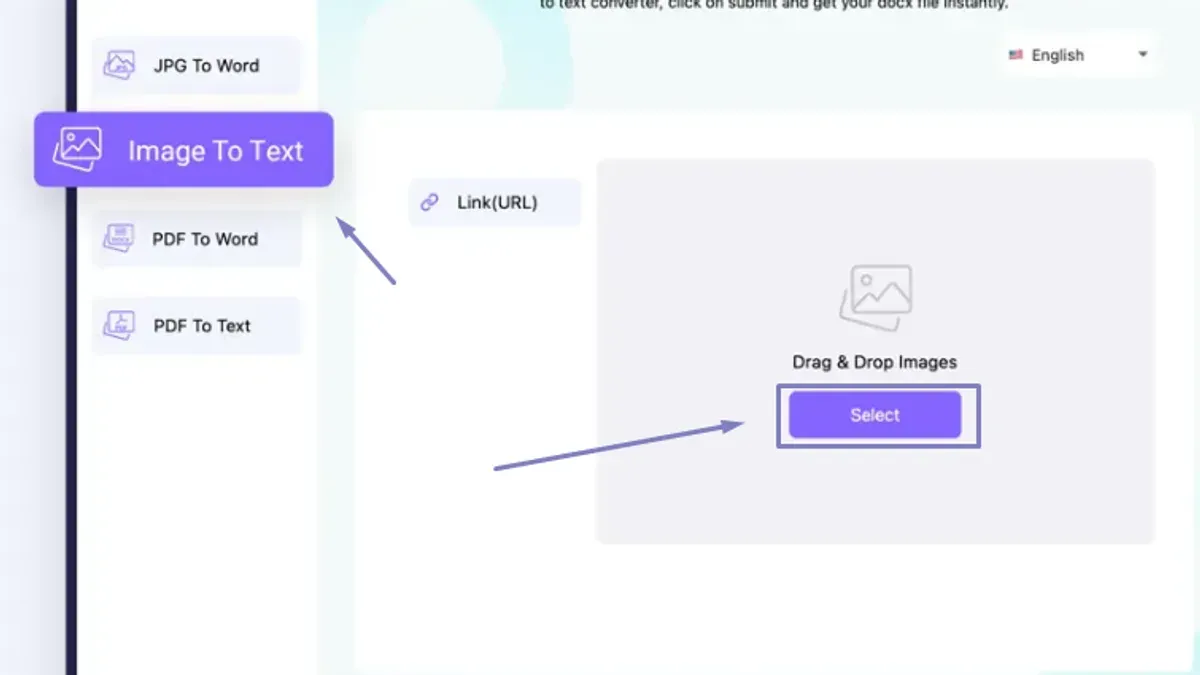
You have a screenshot or a photo containing important text, but retyping it manually feels tedious and error-prone. Fortunately, Mac offers several ways to extract editable text from images quickly and accurately.
This article explains how to convert image to text on Mac using built-in tools like Preview and Live Text, Microsoft Word's OCR feature, and reliable third-party applications. It also covers transferring text from Apple phone images to your Mac and troubleshooting common issues you might encounter during the process.
Key takeaways
- Use Preview and Live Text for quick, native text extraction without extra software.
- Microsoft Word can convert scanned images to editable text but requires recent versions.
- Third-party OCR apps offer enhanced accuracy and batch processing options.
- Transfer images from iPhone to Mac via AirDrop or Photos for seamless conversion.
- Common issues include poor image quality and unsupported file types, which can hinder text recognition.
Before you start: what you need for image to text conversion on Mac
Optical Character Recognition (OCR) technology converts printed or handwritten text in images into editable digital text. To get accurate results, you need clear, legible images without blurring, shadows, or excessive distortions. High-contrast images with simple backgrounds work best.
Your Mac includes built-in OCR capabilities through features like Live Text in Preview and other native apps, which support common image formats such as JPEG, PNG, TIFF, and PDF. For more complex needs or bulk conversions, third-party OCR applications like Adobe Acrobat, Prizmo, or Readiris offer advanced options.
Image quality directly impacts OCR accuracy. For example, a sharp screenshot of typed text typically converts flawlessly, while a photo of a page with uneven lighting may produce errors. Supported file formats vary by tool, but most recognize JPEG, PNG, TIFF, and PDF files.
- Prepare a clear image file with readable text, saved in a common format like JPEG or PDF. You should see a file preview with sharp text.
- Ensure your Mac is updated to enable Live Text support in macOS. Check System Preferences > Software Update to confirm.
- Decide whether to use built-in tools or install a third-party OCR app based on your conversion volume and accuracy needs.
How to convert image to text on MacBook using Preview and Live Text
macOS includes native features that let you quickly extract text from images without extra software. The Live Text feature allows you to select, copy, and paste text directly from supported images, while Preview provides basic text selection for certain file types.
- Open the image file using Preview. If the image supports text selection, use your cursor to highlight the text. When the text is highlighted, right-click and select Copy. You can then paste the text into any document.
- If you’re running macOS with Live Text support, open the image in any app like Preview or Photos. Hover your cursor over the text area; the cursor will change to a text selection pointer.
- Click and drag to select the text you want. Once highlighted, press Command + C or right-click and choose Copy. Paste it into your desired app.
- Live Text works best on clear, high-contrast images and supports common image formats like JPG and PNG. It requires macOS Monterey or later; earlier versions do not support this feature.
- Note that Live Text's accuracy can vary based on image quality. Text in photos with complex backgrounds or low resolution may not be selectable or copied correctly.
For example, Live Text easily extracts text from a screenshot of a webpage but may struggle with handwritten notes or heavily stylized fonts. Preview’s text selection is limited mostly to PDFs or images with embedded text layers.
How to convert image to text on Mac with Microsoft Word
Microsoft Word on Mac does not have a direct OCR feature to extract text from images, but you can leverage its PDF conversion capability or integrate with OneNote to accomplish this. This method is useful if you already have Microsoft 365 installed and prefer working within Word or related apps.
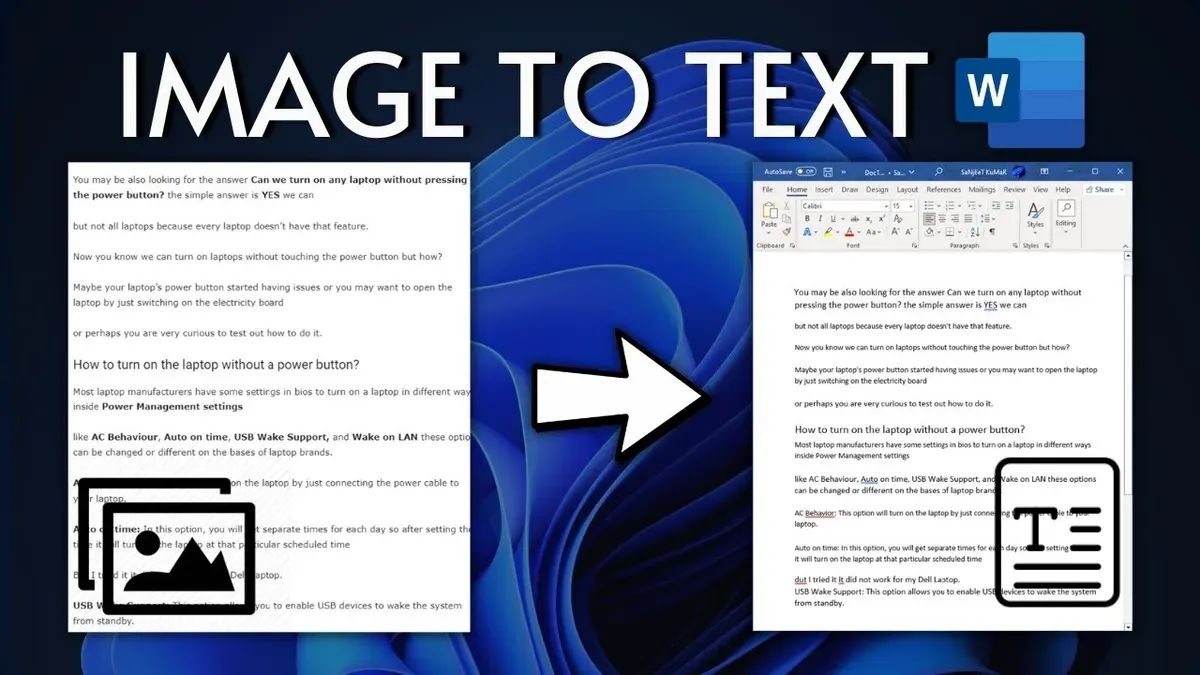
- Insert the image into a blank Word document using Insert > Pictures > Picture from File. You should see the image displayed in the document.
- Save the document as a PDF via File > Save As, choosing PDF format. This converts the Word file including the image into a PDF.
- Open the saved PDF with Microsoft Word again. Word will attempt to convert the PDF content back into editable text and images. If the image contains clear, printed text, Word extracts it as editable text below or near the original image.
- Alternatively, insert the image into OneNote (part of Microsoft 365), right-click the image, and select Copy Text from Picture. Then paste the extracted text into Word. OneNote’s OCR tends to be more accurate and convenient for this task.
Compared to dedicated OCR apps, Word’s built-in PDF conversion and OneNote OCR can handle simple images but may struggle with complex layouts or low-quality images. The process is practical for occasional use or when no extra software is available, but it may require cleanup of formatting errors.
In a typical example, text extracted from a scanned document image via Word’s PDF conversion was mostly accurate for short paragraphs but showed errors with fonts and spacing that dedicated OCR apps handled more cleanly.
How to convert image to text on Mac using third-party OCR apps
For professional or bulk text extraction, third-party OCR apps offer enhanced accuracy and additional features beyond built-in tools. Popular options include Adobe Acrobat Pro, ABBYY FineReader PDF, and Google Keep (via web access).
Adobe Acrobat Pro is widely used for converting scanned PDFs and images to editable text with good accuracy and fast processing. ABBYY FineReader PDF is praised for its high accuracy and support for multiple languages, suitable for complex documents.
Google Keep provides a free, web-based OCR option accessible through a browser on your Mac, useful for casual or occasional use.
Steps to convert image to text using ABBYY FineReader PDF:
- Open ABBYY FineReader PDF on your Mac and select "Open" to load your image file. You should see the image displayed in the main window.
- Choose the "Recognize" option in the toolbar, then select the language of the text for better accuracy. The app will process the image and display recognized text in an editable format.
- Review the extracted text for any errors, then export it by clicking "Save As" and choosing your preferred document format.
Steps to convert image to text using Google Keep:
- Go to Google Keep in your browser and sign in with your Google account.
- Create a new note by uploading your image via the “Add Image” button. Once uploaded, click the image, then select “Grab Image Text” from the options.
- The text will appear below the image in the note, ready to be copied and pasted elsewhere.
Comparison of OCR apps:
| App | Accuracy | Speed | Cost |
|---|---|---|---|
| Adobe Acrobat Pro | High | Fast | Paid subscription |
| ABBYY FineReader PDF | Very High | Moderate | One-time purchase / Subscription |
| Google Keep | Moderate | Moderate | Free |
Paid apps generally provide greater accuracy, batch processing, and export options but come with a cost. Free options like Google Keep work well for simple or occasional tasks but may lack advanced features and precision.
How to convert image to text on Apple phone and transfer to Mac
If you capture images on your iPhone, you can use the built-in Live Text feature to extract text directly from photos before transferring it to your Mac. This is useful for quick access and editing without scanning or retyping.
- Open the Photos app on your iPhone and select the image containing text. You should see Live Text indicators (highlighted text or a text selection icon).
- Tap and hold on the text within the photo until you see selection handles. Adjust the selection to cover the text you want to copy.
- Tap "Copy" from the contextual menu. The text is now copied to your iPhone clipboard.
- To transfer the text to your Mac, use AirDrop: open the Notes app on your iPhone, paste the text into a new note, and then share the note via AirDrop to your Mac. On your Mac, accept the AirDrop transfer and open the note.
- Alternatively, if you use iCloud Notes, simply paste the copied text into a note on your iPhone and it will sync automatically to the Notes app on your Mac.
- You can also copy the text on your iPhone and then paste it on your Mac using Universal Clipboard, which requires both devices to be signed in to the same Apple ID with Bluetooth and Wi-Fi enabled.
If you prefer direct conversion on your Mac, transferring the original image via AirDrop or iCloud Drive and then using macOS OCR options may be more convenient.
Troubleshooting common issues when converting image to text on Mac
Poor OCR accuracy often results from low-quality images. Before conversion, improve clarity by increasing contrast, cropping unnecessary borders, and straightening tilted images. For example, a faded document scanned at low resolution might yield garbled text, but adjusting brightness and contrast can reveal clearer characters.
If the extracted text appears incomplete or jumbled, check that the image is not blurred and that text orientation is correct. Sometimes, re-saving the image as a PNG or JPEG resolves compatibility issues with OCR software.
Handwritten text or unusual fonts frequently cause recognition errors. Most OCR tools perform best with standard printed fonts; in these cases, manual correction after conversion is often necessary.
When persistent errors occur despite cleanup, try alternative OCR apps that specialize in difficult scripts or languages. If all else fails, manually retyping sections may be faster than troubleshooting.
- Open your image in Preview and use the Adjust Color tool to increase exposure and contrast; you should see sharper text edges.
- Crop the image to remove any blank margins, focusing on the text area; this limits OCR distractions.
- Run the OCR process again; the converted text should now be more complete and readable.
- If text remains garbled, try converting the image to a PDF using Preview’s Export function, then rerun OCR in your chosen app.
- For handwritten or decorative fonts, review the output carefully and correct errors manually.
- How to Convert PDF to JPG on Mac: Step-by-Step Methods
- How to Convert HEIC to JPG on Mac: Simple Step-by-Step Guide
Frequently asked questions
How to convert image to text in laptop?
You can convert images to text on a laptop using built-in tools or third-party software. On Mac laptops, Live Text in Preview allows you to select and copy text directly from images. Alternatively, apps like Microsoft Word or specialized OCR programs can extract editable text from image files.
Can we convert image to text?
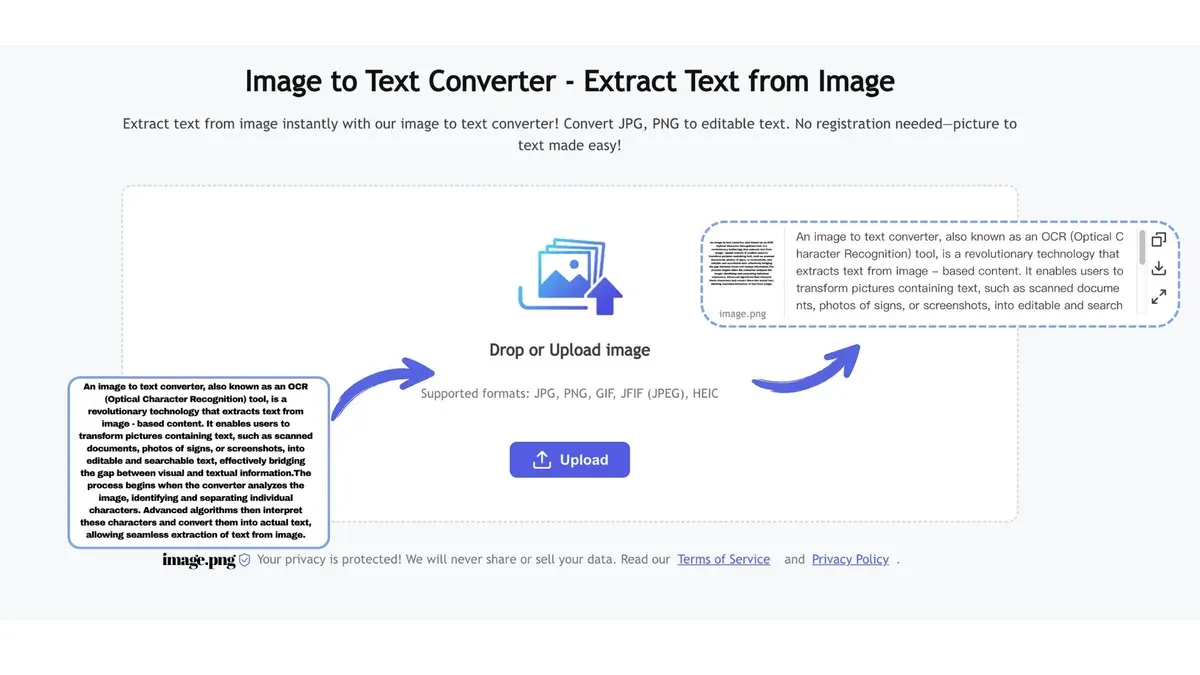
Yes, images containing text can be converted into editable text using Optical Character Recognition (OCR) technology. This process scans the image for characters and transforms them into text format, which you can then edit or use in other applications.
Can word convert image to text?
Microsoft Word can convert images to text when the image is embedded in a Word document or inserted via the mobile app. On Mac, you can use Word’s 'Insert' feature along with OCR capabilities to extract text, usually by opening PDFs or images through Word or converting scanned documents.
How to convert image to text in mac?
On a Mac, you can use Preview’s Live Text feature by opening an image and selecting the text to copy. For scanned documents or images without Live Text support, third-party OCR apps like Adobe Acrobat or dedicated OCR software provide reliable conversion options.
How to convert image to text in macbook?
To convert an image to text on a MacBook, open the image in Preview and highlight the text using Live Text to copy and paste it elsewhere. If Live Text does not recognize the text, you can use OCR tools available in apps like Microsoft Word or third-party applications designed for Mac.
What this advice does not cover
This article does not cover converting handwritten notes with very low OCR accuracy or specialized languages that require custom OCR models. If you need to convert complex scripts, rare languages, or highly stylized handwriting, consider dedicated OCR software tailored for those purposes or professional transcription services.
For bulk conversions of large image libraries, automated batch processing tools beyond basic apps may be necessary, which are outside the scope of this guide.
Next step to take
To begin extracting text from images on your Mac, start by using the Live Text feature within Preview or directly in macOS. This built-in tool offers a quick, accurate way to select and copy text from screenshots, photos, and scanned documents without installing additional software. If you encounter limitations, then explore Microsoft Word’s OCR capabilities or trusted third-party OCR applications for more advanced needs.