How to Convert Text to Speech Audio on Mac: Step-by-Step Guide
Discover how to convert text to speech audio on Mac using built-in features and customize voices for a natural listening experience.

You have a document or article on your Mac that you want to listen to rather than read. Or maybe you need an audio version of your text for accessibility or multitasking purposes.
This article shows you how to convert text to speech audio on Mac using built-in features, along with tips on customizing voices to suit your preferences. It also covers converting speech to text with macOS dictation and explores third-party tools for turning audio back into text, helping you choose the best options for your workflow.
Key takeaways
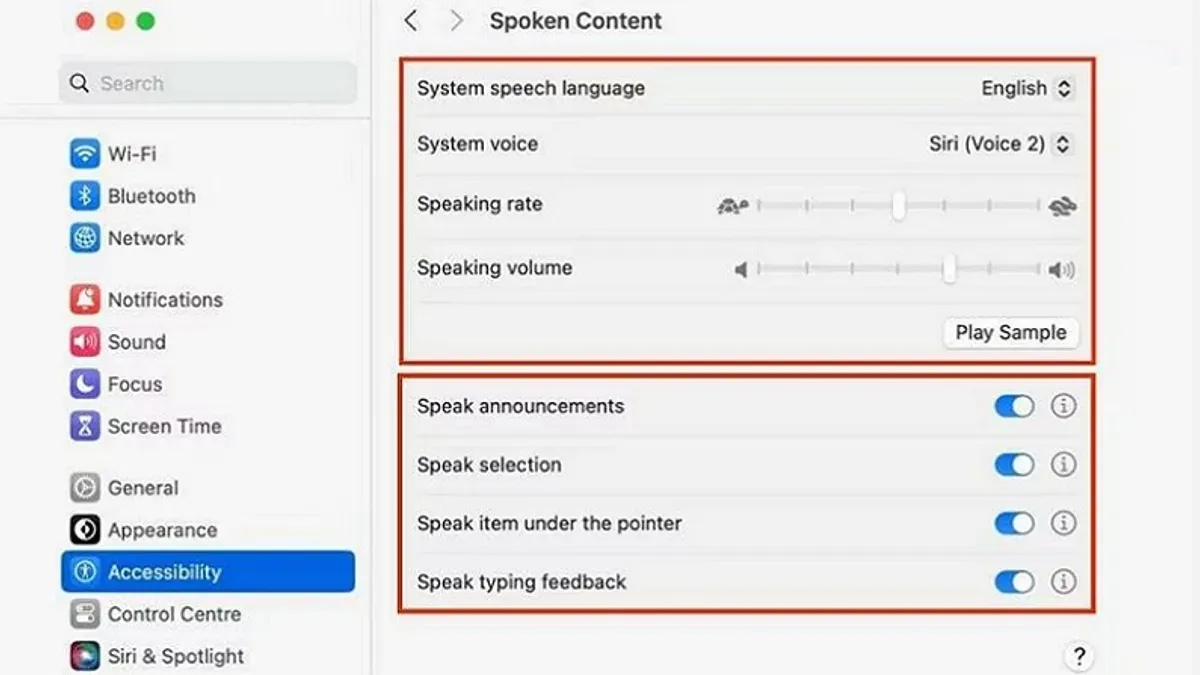
- Use the macOS Speech feature in System Settings > Accessibility > Spoken Content to convert text to speech audio.
- Customize voices via System Settings > Accessibility > Spoken Content > System Voice for a more natural listening experience.
- Enable Dictation under System Settings > Keyboard to convert your speech to text quickly and accurately.
- Explore apps like Otter.ai or Apple's Voice Memos with transcription for converting audio back to text.
- Check microphone permissions and internet connection when troubleshooting speech-to-text issues.
Before you start: What you need for text-to-speech and speech-to-text on Mac
To use text-to-speech and speech-to-text features on your Mac, ensure it runs macOS Sierra or later, as these versions include built-in support for these capabilities. You will need basic hardware: a microphone for converting speech to text and speakers or headphones for listening to speech output. Most modern Mac models include a high-quality built-in microphone and speakers sufficient for this purpose.
Before beginning, familiarize yourself with the System Preferences related to accessibility and speech. This includes the “Accessibility” pane for text-to-speech settings and the “Keyboard” or “Dictation & Speech” pane for configuring dictation. Optional third-party software can enhance audio-to-text conversion accuracy, especially for specialized vocabulary or noisy environments.
- Open the Apple menu and select “System Preferences”. You should see the system settings window.
- Click on “Accessibility”, then select “Spoken Content” or “Speech” to review text-to-speech options. Confirm that voices are installed and audio output is working.
- Return to System Preferences and open “Keyboard” or “Dictation & Speech”. Enable dictation and select the preferred language. You will see a confirmation message when dictation is active.
- Test your microphone in “Sound” preferences under the “Input” tab to ensure it picks up your voice clearly. Input level bars should move as you speak.
Having these settings verified and hardware ready will streamline your experience converting text to speech and speech to text on your Mac.
How to convert text to speech audio on Mac using built-in tools
- Open System Preferences and select Accessibility, then click Spoken Content. Here, enable Speak selection to allow reading aloud of highlighted text.
- Click System Voice to choose from default voices like Alex, Samantha, or Fred. Adjust the speaking rate slider for faster or slower speech. These voices vary in naturalness and accent, so test them to find your preference.
- In any app, highlight the text you want read aloud. Right-click and select Speech > Start Speaking or use the Services menu from the app's main menu to choose Start Speaking Text. The Mac will read the selection immediately.
- To save speech audio as a file, open Terminal and use the
saycommand. For example,say -v Alex -r 200 "Hello, welcome to your Mac" -o ~/Desktop/greeting.aiffcreates an AIFF audio file on your desktop. Replace-v Alexwith another voice name and-rfollowed by a number to adjust speaking rate. - Play the exported audio file using QuickTime Player or another media app to verify quality and speed.
This process uses only native macOS features, letting you convert text to speech audio without third-party apps while customizing voice and speed for your needs.
How to change text to speech voice on Mac and MacBook
Personalizing the voice used for text-to-speech on your Mac improves clarity and comfort during listening. To access voice settings, open System Preferences, go to Accessibility, then select Spoken Content. Here, you can find the System Voice drop-down menu, allowing you to pick from a variety of pre-installed voices.
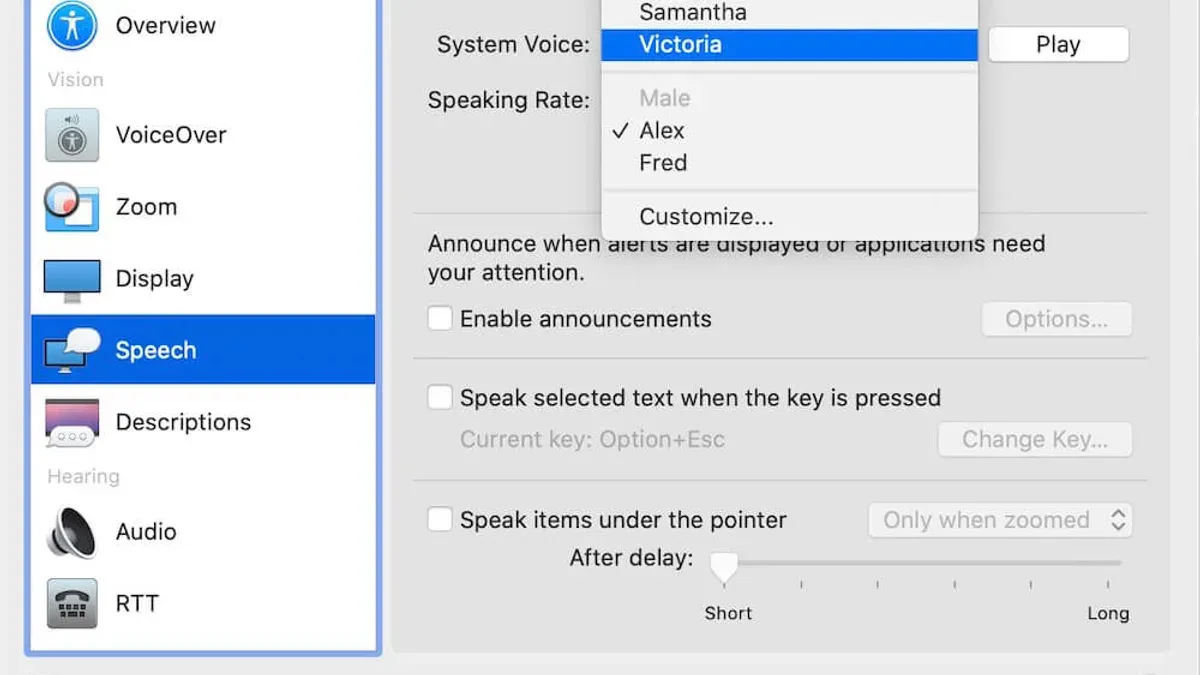
- Click the System Voice menu to see available options such as "Alex," "Samantha," "Fred," and "Victoria." When you select a voice, your Mac plays a sample so you can hear it.
- To download additional voices and languages, click Customize... at the bottom of the voice list. This opens a list where you can check desired voices, which range from 50MB to over 300MB in file size depending on quality.
- After selecting, click OK to start downloading. Once downloaded, these voices appear in the voice menu and can be selected like built-in options.
- You can switch voices on the fly by selecting a different voice before using text-to-speech, adapting to different texts or preferences without changing system-wide settings.
System voices are generally smaller and use moderate-quality audio, suitable for everyday use. Enhanced voices, marked by larger file sizes, offer higher fidelity and more natural intonation but require more storage space. User experience often highlights the enhanced voices for clearer and less robotic speech, beneficial for longer listening sessions or content creation.
How to convert speech to text on Mac using built-in dictation
macOS includes a native dictation feature that converts your spoken words into editable text. To start, enable Dictation in System Preferences under Keyboard > Dictation. Turn on Dictation and choose your preferred language. You can use the default shortcut, press the Fn key twice, to start dictating.
- Open System Preferences and select Keyboard, then click Dictation.
- Enable Dictation by selecting the "On" radio button. You should see "Press Fn (Function) key twice to start dictation" noted below.
- Choose your language and if available, enable "Use Enhanced Dictation". This allows offline use and continuous dictation without time limits.
- Place your microphone close to your mouth in a quiet environment to improve accuracy.
- Press the Fn key twice to activate dictation, then speak clearly and at a moderate pace. You should see text appearing where your cursor is placed.
- Press Fn once or click Done to stop dictation.
Enhanced Dictation improves accuracy and responsiveness by processing speech locally. Apple’s documentation notes high accuracy under optimal conditions but dictation may struggle with long, complex audio or specialized vocabulary.
Common dictation errors include homophones and punctuation mistakes, so reviewing the transcribed text is recommended. Dictation works best for short notes or quick text input rather than lengthy transcripts.
How to convert audio to text on Mac with free and paid software options
Converting audio recordings to text on Mac can be done using several third-party tools that offer varied accuracy and features beyond built-in dictation. Free online converters like Otter.ai and Google Docs Voice Typing provide basic transcription capabilities and work well for clear, short audio files. Paid options such as Dragon Professional Individual and Sonix offer enhanced accuracy, multiple language support, and advanced editing tools suitable for longer or lower-quality recordings.
| Software | Price | Accuracy | Key Features |
|---|---|---|---|
| Otter.ai (Free Version) | Free with limits | Good for clear audio | Live transcription, speaker identification |
| Google Docs Voice Typing (Free) | Free | Moderate accuracy | Voice typing via Chrome browser |
| Dragon Professional Individual | Paid (one-time or subscription) | High accuracy | Custom vocabulary, transcription of audio files |
| Sonix | Subscription-based | High accuracy | Automated transcription, multi-language support, editing tools |
Here is how to transcribe an audio file using Otter.ai:
- Create a free account at Otter.ai and log in. You should see the dashboard with options to import files.
- Click the "Import Audio/Video" button and select your audio file. Once uploaded, the file will begin processing automatically.
- Wait for the transcription to complete; this may take a few minutes depending on file length. You will see the text appear in the transcript pane.
- Review and edit the transcript directly in Otter to correct any errors or misheard words.
- Export the transcription as a text or Word file using the export options.
Choose third-party software over built-in tools when dealing with poor audio quality, multiple speakers, or longer recordings requiring higher transcription accuracy and editing flexibility. Free tools are suitable for casual or infrequent use, while paid software supports professional and large-scale transcription needs.
Troubleshooting common issues converting text to speech and speech to text on Mac
If the text-to-speech voice does not play or exporting audio files fails, first check that the correct output device is selected under System Preferences > Sound > Output. Also, confirm the voice is downloaded by visiting System Preferences > Accessibility > Spoken Content > System Voice and ensuring Enhanced Quality is enabled. An error like “Unable to export audio” often resolves by restarting the Mac or resetting the NVRAM (shut down, then hold Option+Command+P+R for 20 seconds at startup).
When dictation does not recognize speech or lags, verify you have a stable internet connection if using Enhanced Dictation. Try toggling dictation off and on in System Preferences > Keyboard > Dictation, and use the shortcut (default: pressing Fn key twice) to activate it. If it still fails, check microphone access under System Preferences > Security & Privacy > Privacy > Microphone.
Third-party software installation errors or compatibility issues often stem from macOS version mismatches or missing permissions. Ensure apps are downloaded from trusted sources and that you allow installation under System Preferences > Security & Privacy > General. If an app crashes, check the developer’s site for updates compatible with your macOS version.
Audio quality significantly impacts transcription accuracy. Use a noise-cancelling microphone, record in a quiet environment, and avoid overlapping speech. If transcription errors persist, try adjusting input volume in System Preferences > Sound > Input so the waveform shows adequate levels without clipping.
- Open System Preferences and select Sound > Output; confirm your speakers or headphones are selected. You should hear test sounds when selected.
- Go to Accessibility > Spoken Content > System Voice, select a voice, and click Customize to download Enhanced Quality voices. The voice status should show as downloaded.
- Enable Dictation under Keyboard > Dictation, then press Fn twice and speak clearly; text should appear in your active document.
- Check app permissions under Security & Privacy > Privacy for Microphone and Files and Folders; ensure your transcription app has access.
- Adjust input volume under Sound > Input while speaking; the input level meter should move actively without turning red.
- How to Convert YouTube Videos to MP3 Legally on Mac
- How to Convert M4A to MP3 on Mac: Clear Step-by-Step Methods
- How to Convert WAV to MP3 on Mac: Easy Step-by-Step Methods
Frequently asked questions
How to speech to text on mac?
To convert speech to text on Mac, enable Dictation in System Settings under Keyboard or Accessibility. Press the specified shortcut (usually pressing the Fn key twice) and start speaking; your words will appear as text in supported apps. Ensure you have an active internet connection for enhanced dictation accuracy.
How to get text to speech mac?
Text to Speech on Mac is accessible through the Speech settings in System Settings under Accessibility. Highlight the text, right-click and select “Speech” followed by “Start Speaking.” You can also use keyboard shortcuts like Option+Esc to trigger speech for selected text.
How to change text to speech voice on Mac?
Go to System Settings and select Accessibility > Spoken Content (or Speech). Under System Voice, choose from a list of available voices, including high-quality premium options. Download additional voices by clicking “Customize” and selecting your preferred voices.
How to change text to speech voice on MacBook?
Changing the text to speech voice on a MacBook follows the same steps as on any Mac: open System Settings, navigate to Accessibility > Spoken Content, then select a different System Voice. You can also adjust speaking rate here for a faster or slower voice.
How to get text to speech on Mac?
Text to Speech is built into macOS and can be activated via System Settings > Accessibility > Spoken Content. You can enable “Speak selection” to have highlighted text read aloud or use the keyboard shortcut Option+Esc. Third-party apps offer more features but are not required for basic use.
What this advice does not cover
This article does not cover professional-grade transcription services or highly specialized voice synthesis tools that may require advanced hardware or subscriptions. Users needing extremely accurate transcription for legal or medical purposes or those seeking highly customized synthetic voices with neural network models might consider dedicated software or cloud services designed specifically for those tasks.
If your needs go beyond native Mac capabilities and commonly available third-party apps, exploring platforms like Otter.ai, Rev.com, or advanced voice synthesis software may be more suitable.
Next step to take
To get started, open System Preferences and navigate to Accessibility > Spoken Content to enable “Speak selection” or “Speak screen.” This allows you to convert text to speech instantly on your Mac without extra apps. Experiment with voice options there to find a voice that suits your preferences, then record or export the audio as needed. For speech-to-text, enabling dictation under Keyboard settings is the easiest way to convert your spoken words into text quickly.