
Plan and Execute Google Chat Rollout for Hybrid Team Collaboration
Discover the step-by-step Google Chat rollout plan for hybrid teams to enable seamless interoperability with Microsoft Teams and enhance collaboration.

The process involves precise sequencing of configuration steps within the Google Workspace Admin console and Microsoft Teams admin center, ensuring registration of NextPlane OpenHub as an enterprise application on both sides.
Last verified November 2026 against Workspace Updates Blog, Chrome Unboxed, Nextplane, Inc. (full list at the end).
Enable Google Chat and Microsoft Teams interoperability for hybrid teams
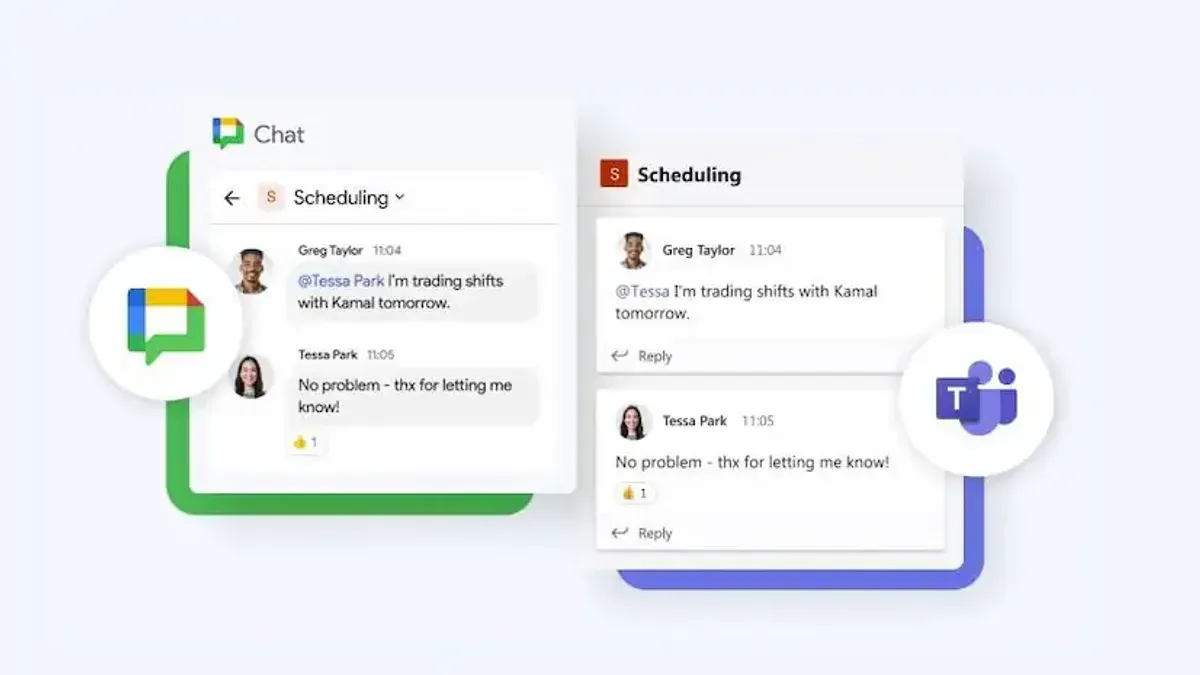
This feature, enabled through NextPlane OpenHub with separate licensing, supports real-time messaging, presence indicators, file sharing, and native voice and video calls. It covers all chat space types, including 1:1 conversations, group chats, and channels or spaces, ensuring flexible collaboration.
Once you enable and configure interoperability via the Google Workspace Admin console and Microsoft Teams admin center, end users require no additional action to start communicating across platforms.
Set up interoperability: step-by-step order of operations that matters
You must start by registering NextPlane OpenHub as an enterprise application in both the Google Workspace Admin console and the Microsoft Teams admin center. This registration is mandatory to enable interoperability features.
Next, secure administrator consent on both platforms. Without this consent, interoperability cannot be activated or used. In Google Workspace, navigate to Admin console > Apps > Google Workspace > Google Chat settings to configure Google Chat. On the Teams side, go to Microsoft Teams admin center > Teams apps > Manage apps to manage Teams app permissions.
This integrated approach means you must complete all steps inside the existing Google and Teams admin environments.
For example, failing to grant admin consent on either side prevents users from communicating across platforms. Similarly, neglecting to register NextPlane OpenHub in either admin console results in interoperability features remaining disabled.
Therefore, adhere strictly to the sequence: first register OpenHub on both sides, then obtain admin consent, and finally configure Google Chat and Teams apps settings.
- Register NextPlane OpenHub as enterprise app in Google Admin console and Microsoft Teams admin center
- Obtain administrator consent on both platforms
- Configure Google Chat settings via Google Workspace Admin console
- Configure Teams apps management via Microsoft Teams admin center
Understand NextPlane OpenHub licensing and its impact on rollout planning
NextPlane OpenHub employs a usage-based licensing model that counts licenses per unique active cross-platform user each month. This count includes both Google Chat and Microsoft Teams users involved in conversations, ensuring that every individual communicating across platforms is licensed. The license pool resets monthly, which means your license count can fluctuate based on actual usage rather than the total number of accounts provisioned.
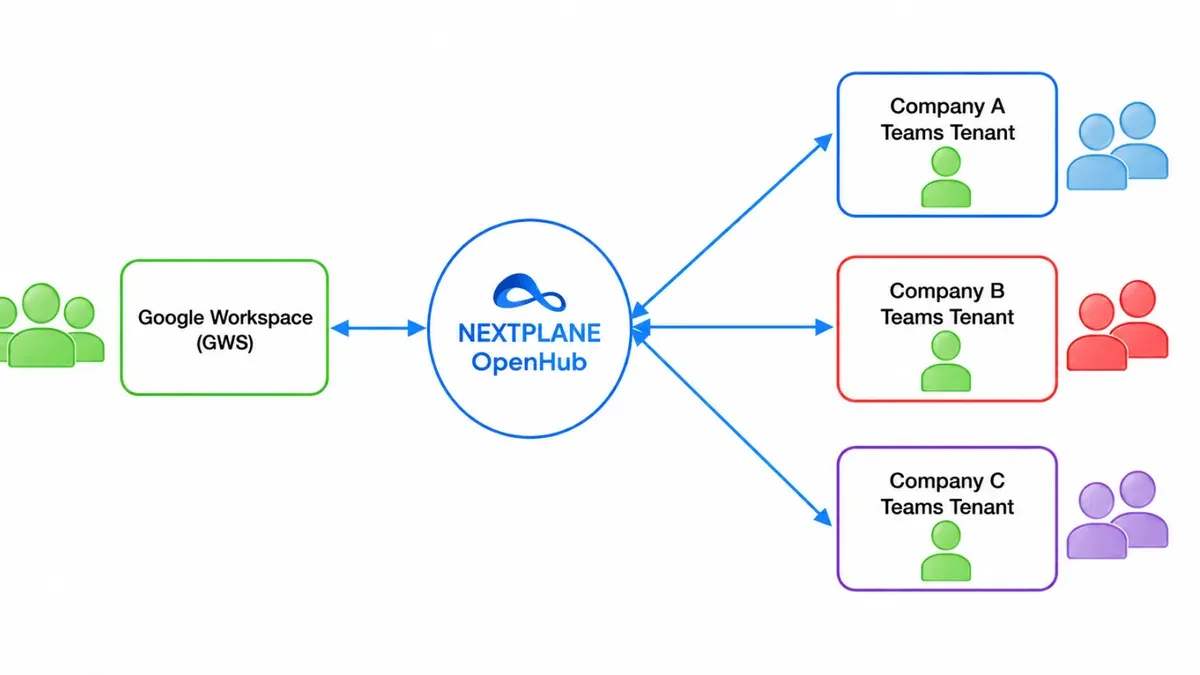
This dynamic licensing approach prevents overspending on inactive users but demands close monitoring of usage patterns to align your budget and team size accordingly. You must plan for the peak number of unique active users in any month, not just a fixed headcount, as the licensing cost depends directly on this metric.
If 80 Google users and 50 Teams users actively communicate across platforms in a month, your license count is 130 unique individuals. Your license pool must cover these 130 users for that month. If next month only 100 unique users are active, your license requirement drops accordingly.
Budgeting must factor in these monthly fluctuations. A static license count based on total employees risks overpayment. Instead, track active cross-platform participation regularly through your native admin consoles to anticipate license needs.
Learn more about usage-based licensing.
Choose the right deployment and administration approach for your organization's needs
Deploying NextPlane OpenHub as a single-tenant service on Google Cloud Platform puts data residency and compliance firmly under your control. This is essential when strict regulatory requirements dictate where your data resides and how it is managed. For instance, a multinational financial institution subject to regional data privacy laws must deploy OpenHub within its own Google Cloud project to guarantee compliance.
Alternatively, if your IT team has limited resources or you want to avoid managing an additional portal, native administration via the Google Workspace Admin console and Microsoft Teams admin center is the streamlined choice. This approach leverages existing admin tools and workflows, eliminating the complexity of a separate management interface.
| Organization Need | Recommended Approach | Reason |
|---|---|---|
| Need to control data residency and comply with strict regulations | Single-tenant deployment on Google Cloud Platform | Ensures full data control and compliance with residency requirements |
| Limited IT administrative resources; want to avoid extra portals | Native administration via Google Workspace and Teams admin centers | Avoids complexity by using existing platform consoles |
| Collaborate with multiple external Microsoft Teams tenants from one Google Workspace | Use NextPlane OpenHub to connect multiple Teams tenants centrally | Enables secure multi-tenant collaboration with centralized management |
Deploying OpenHub as a single-tenant service meets compliance demands, while native administration keeps daily management straightforward by using the Google Workspace Admin console and Teams admin center exclusively.
Avoid common pitfalls during Google Chat and Teams interoperability rollout
One critical mistake is neglecting to obtain administrator consent and register NextPlane OpenHub as an enterprise application on both Google Workspace and Microsoft Teams platforms. Without this dual admin consent, interoperability cannot be enabled or used, leaving users unable to communicate across platforms.
Another frequent error is assuming that end users must configure settings to enable interoperability. All necessary configurations occur through the Google Workspace Admin console and the Microsoft Teams admin center, so end users have no setup responsibilities. Misunderstanding this leads to unnecessary support tickets and confusion.
Failing to correctly register NextPlane OpenHub also causes issues. If registration is incomplete or incorrect, the interoperability link remains inactive. For example, if you register on Google but skip the Teams side, chats will not flow, and users will see errors indicating lack of connection.
Licensing misunderstandings create unexpected costs. Each unique active user is licensed monthly, so not planning for fluctuating active user counts can cause billing surprises. Ensure your budgeting accounts for peak active users, not just total headcount.
| Symptom | Cause | Fix |
|---|---|---|
| Interoperability not working; users cannot message across platforms | Missing admin consent or incomplete NextPlane OpenHub registration on either Google or Teams | Secure admin consent and register NextPlane OpenHub as enterprise app on both platforms |
| End users report settings to configure or setup steps | Incorrect assumption that users must configure interoperability | Clarify all setup is admin-controlled; provide user communication explaining no user action is needed |
| Billing higher than expected | Not accounting for monthly licensing per unique active cross-platform user | Plan budgets based on active user counts, monitor usage monthly |
Checklist to avoid these pitfalls:
- Confirm administrator consent on both Google Workspace and Microsoft Teams admin consoles.
- Complete NextPlane OpenHub registration as an enterprise application on both sides.
- Communicate clearly to end users that no configuration or action is required from them.
- Monitor and plan for active user licensing to control costs.
For example, if you register NextPlane OpenHub only on the Google side and skip Teams, users will encounter connection errors and fail to message across platforms. This exact scenario happens because the interoperability link is incomplete without full registration and consent on both ends. Avoid this by following the correct order and ensuring both platforms are fully configured.
Remember, administration occurs solely within the native Google Workspace Admin console and Microsoft Teams admin center. There is no separate management portal for NextPlane OpenHub, so all critical steps must be completed there to enable smooth interoperability.
Learn more about admin consent and registration requirements.
Maintain and monitor your Google Chat and Microsoft Teams interoperability after rollout
After deploying interoperability, keep a close eye on active user counts to ensure your NextPlane OpenHub licenses align with actual usage. Since licenses are counted monthly per unique active user across platforms, monitoring usage prevents budget overruns and allows timely adjustments to the license pool.
Check the Google Workspace Admin console and Microsoft Teams admin center regularly to confirm that NextPlane OpenHub remains registered and that admin consent is valid. Platform updates can sometimes invalidate consent or app registrations, halting interoperability if left unchecked.
Review compliance settings and data residency policies periodically, especially if your organization updates its governance requirements. If strict data control is necessary, consider deploying OpenHub as a single-tenant service on Google Cloud Platform to maintain compliance.
Interoperability settings can be disabled or adjusted centrally through the native admin consoles without requiring any action from end users, preserving seamless communication during maintenance or policy changes.
Use this checklist to maintain your interoperability setup:
- Monitor monthly active cross-platform user counts via admin consoles to adjust license subscriptions.
- Verify NextPlane OpenHub app registration and admin consent status after platform updates.
- Audit compliance and data residency settings against current organizational policies.
- Adjust interoperability enablement or disable it centrally as needed without impacting users.
For example, if your team size grows rapidly, the monthly license count will rise accordingly. Failing to track this may lead to unexpected licensing charges or service interruptions. Staying proactive ensures continuous interoperability without surprises.
Final Steps to Ensure a Smooth Google Chat and Microsoft Teams Interoperability Rollout
When deciding your rollout strategy, consider your organization's scale and administrative structure. Smaller teams with straightforward needs benefit from a centralized administration via the native consoles, streamlining management. Larger or segmented organizations might require delegated administration to handle varied policies or compliance demands effectively. Licensing limits are critical; ensure your NextPlane OpenHub subscriptions match your active user base to avoid service interruptions. Align your deployment choice with both technical requirements and operational capacity to maintain seamless hybrid team collaboration.
Sources
- Introducing enhanced interoperability between Google Chat and Microsoft Teams — powered by NextPlane — Workspace Updates Blog
- The barrier between Google Chat and Microsoft Teams is falling — Chrome Unboxed
- Google Chat and Microsoft Teams Interoperability Is Now Generally Available with NextPlane OpenHub — Nextplane, Inc.
- Google Chat external interoperability with Microsoft Teams via NextPlane OpenHub is now available — Workspace Updates Blog



