
Switching from Google Meet to Microsoft Teams: A Clear Guide
Discover the key differences and benefits when switching from Google Meet to Microsoft Teams for enhanced collaboration and communication.

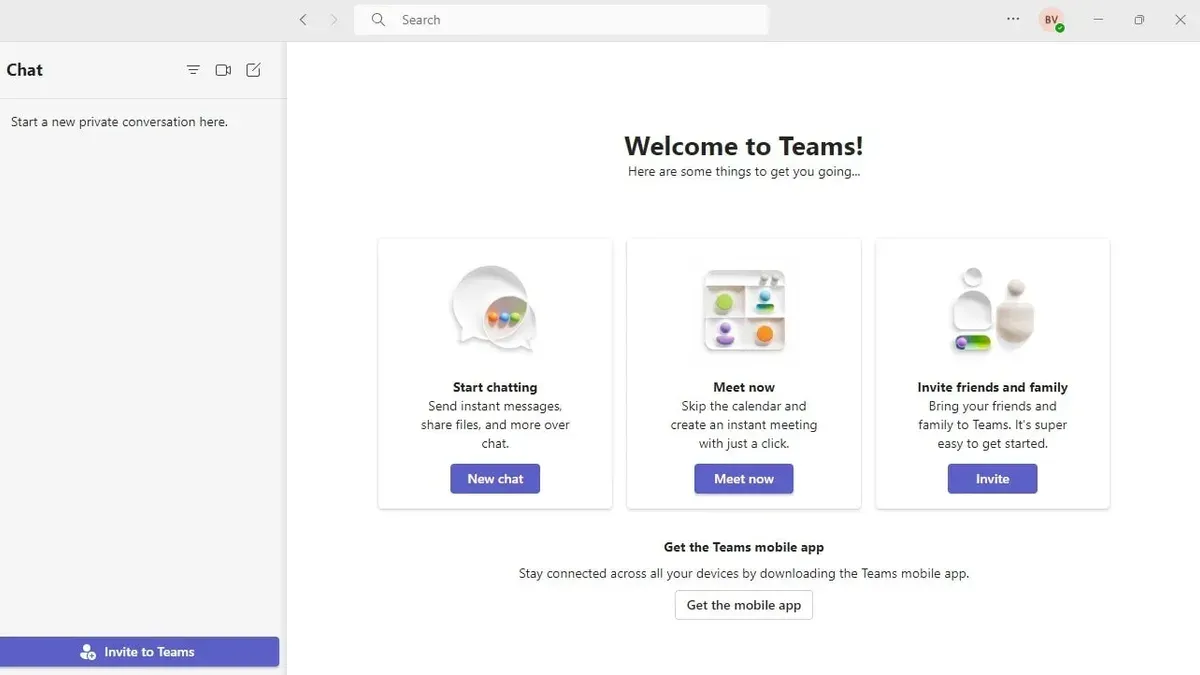
It clarifies key differences between the two platforms, including feature sets and interoperability limitations, such as the inability of Microsoft Teams to natively join Google Meet calls within its client.
What is the difference between Google Meet and Microsoft Teams?
Google Meet is a dedicated video conferencing tool integrated within Google Workspace, focusing primarily on providing reliable video calls. Microsoft Teams, by contrast, is a comprehensive collaboration platform that combines chat, video meetings, file sharing, and app integrations, deeply tied to Microsoft 365. Teams supports persistent chat channels that remain accessible outside of meetings, enhancing ongoing communication, whereas Meet offers chat limited to live meetings only.
The following table summarizes key feature differences across common plans and platforms:
| Feature | Google Meet | Microsoft Teams |
|---|---|---|
| Core Function | Video conferencing only | Chat, meetings, file collaboration |
| Meeting Capacity | Up to 500 participants (Enterprise plans) | Up to 300 participants (standard plans), higher with live events |
| Meeting Duration Limit | Up to 24 hours | Up to 24 hours |
| Recording Availability | Available with Google Workspace Business Standard and above | Available with most Microsoft 365 Business and Enterprise plans |
| Persistent Chat | No, chat only during meetings | Yes, in channels and group chats |
| Integration Scope | Google Workspace apps (Calendar, Docs, Drive) | Microsoft 365 apps (Outlook, SharePoint, OneDrive, Planner) |
| Platform Availability | Web, Android, iOS, Chrome OS | Windows, macOS, Web, Android, iOS |
Consider an organization currently using Google Docs and Google Calendar for collaboration. Google Meet naturally fits as it integrates directly with these apps. Switching to Teams means shifting to Microsoft 365 apps like Word, Outlook, and SharePoint, which offer deeper integration within the Teams environment but require adjustment in workflows. Teams’ persistent chat channels also create ongoing communication spaces beyond scheduled meetings, contrasting Meet’s meeting-only chat.
Is Google Meet better than Microsoft Teams?
Google Meet excels in organizations fully embedded in Google Workspace that require straightforward video conferencing without additional collaboration features. It supports up to 100 participants in its basic plan and offers seamless calendar integration within Google services. This simplicity benefits teams that prioritize quick, reliable meetings over complex workflows.
Microsoft Teams suits environments needing an all-in-one collaboration platform combining chat, file sharing, and meetings. Its standard meeting capacity reaches 300 participants, with advanced options in higher-tier plans. Teams tightly integrates with Microsoft 365 apps, which is advantageous for organizations relying on Office tools and persistent teamwork across channels.
Performance and security depend heavily on device capability and network quality rather than inherent platform superiority. Both platforms use encryption and comply with enterprise-grade security standards, but Teams offers more granular admin controls for compliance and data governance.
Cost differences hinge on existing licensing agreements. Organizations with Microsoft 365 subscriptions may find Teams included without extra fees, while Google Workspace plans vary based on feature tiers. For example, a company with Microsoft 365 E3 licenses gains Teams access immediately, whereas Google Meet advanced features require a Business Standard or higher tier.
Picture a marketing team that needs frequent brainstorming sessions with shared notes and document collaboration. Microsoft Teams enables them to chat, co-author files, and hold video meetings in one interface, streamlining workflows. Conversely, a small business focused solely on client calls without document sharing might prefer Google Meet’s straightforward approach.
Is Microsoft Teams the same as Google Meet?
While Teams includes video meetings as a core feature, it also provides persistent chat channels, file sharing, and integration with apps across the Microsoft 365 ecosystem. This enables ongoing teamwork beyond scheduled calls.
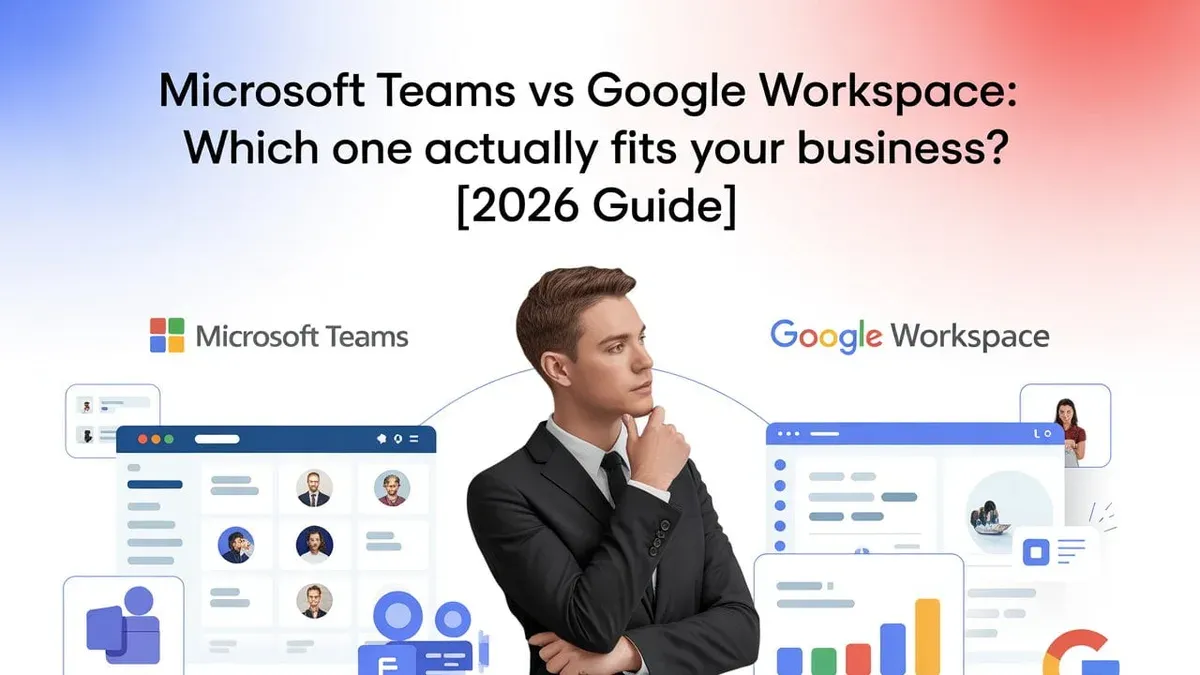
It relies on Google Workspace apps for those additional functions. This fundamental difference means Teams supports a broader range of workflows within a single interface.
For example, in Teams, a project team can chat continuously, hold meetings, co-author documents in OneDrive or SharePoint, and use integrated apps like Planner or Power Automate without leaving the platform. In contrast, Google Meet users switch between separate apps like Gmail, Chat, and Drive for those tasks.
Can Microsoft Teams work with Google Meet?
When a Teams user receives a Google Meet invitation link via chat or calendar, opening that link launches the Google Meet session in a web browser or the Google Meet app. There is no built-in cross-platform meeting joining; meetings remain confined to their respective platforms.
Users juggling both platforms must switch between apps or browser tabs to participate in meetings on each service. While some third-party integration tools and connectors offer calendar synchronization or meeting reminders across Teams and Google Workspace, these require configuration and do not enable seamless in-app meeting crossover. This setup introduces context switching and potential workflow interruptions.
For example, a team using Teams for collaboration but needing to join a client’s Google Meet call must click the Meet link shared in Teams, which opens externally. The Teams client itself will not embed or stream the Google Meet session. This requires clear communication about which tool to use for each meeting and training on handling multiple apps.
How to migrate from Google Meet to Microsoft Teams
Begin by analyzing existing Google Meet usage patterns and workflows. Identify frequent meeting types, recurring events, and integration points that rely on Google Meet links. This assessment ensures the migration plan aligns with actual user needs and prevents missing critical workflows.
Next, communicate the transition clearly with all users. Provide specific timelines and access to Microsoft Teams training resources covering meeting creation, joining, and collaboration features. Early communication reduces confusion and resistance during the switch.
Set up the Microsoft Teams environment before deactivating Google Meet. Create user accounts, assign appropriate policies, and configure meeting settings such as lobby controls, meeting capacity, and default audio/video options. This preparation avoids disruptions when users start scheduling Teams meetings.
Plan calendar migration carefully. Direct migration of Google Meet meeting links into Teams is not supported; meeting history and past recordings cannot be transferred. Instead, establish new meeting scheduling processes within Teams using Outlook or Teams calendar integration. Inform users that past Google Meet data remains accessible only via Google Workspace.
Phase out Google Meet access gradually. Monitor adoption by tracking Teams meeting activity and gather feedback on issues. Maintain Google Meet availability during this period to prevent loss of meeting continuity. This staged approach minimizes operational risks.
What to check after switching from Google Meet to Microsoft Teams
Confirm that all users can schedule and join Microsoft Teams meetings without encountering permission or connectivity errors. This includes verifying that Teams meetings appear correctly in Outlook or other calendar apps and that joining links function across devices. Integration with email clients must be checked by sending and receiving meeting invitations to ensure calendar sync is active and accurate.
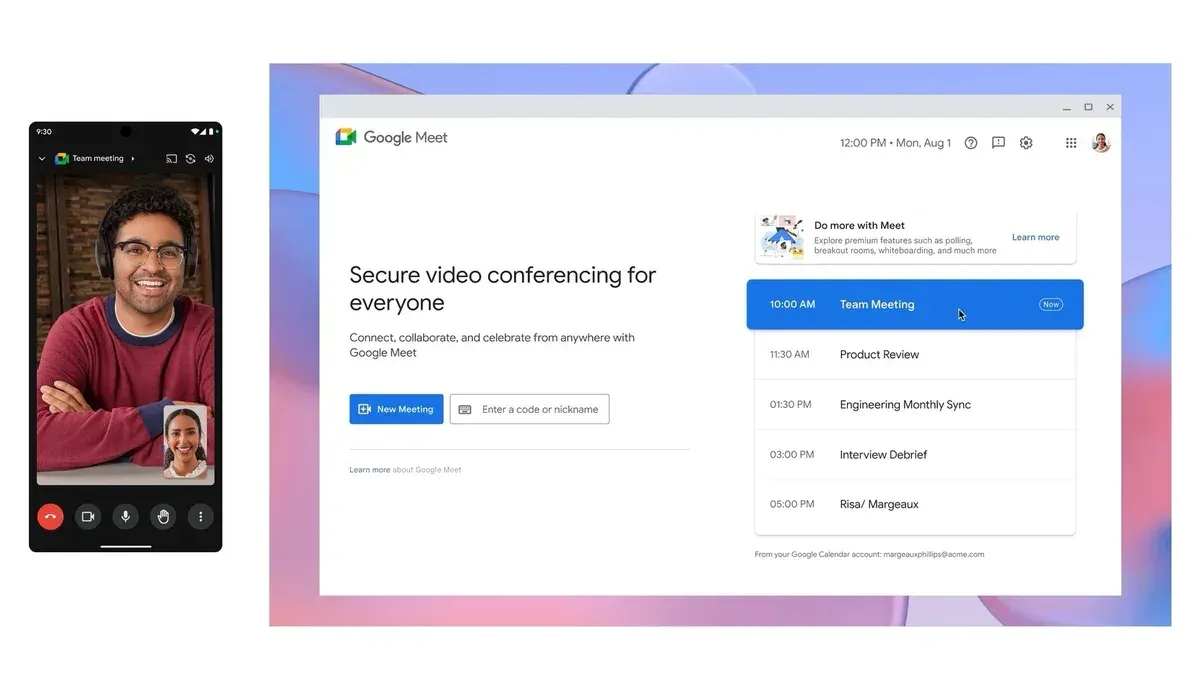
Monitor user feedback for indications of missing features or confusion, such as difficulty finding meeting controls or accessing chat during calls. This helps identify training gaps or configuration adjustments. Check that compliance settings like data retention, meeting recording policies, and guest access restrictions are correctly applied in the Teams admin center to maintain organizational security standards.
Maintain a fallback plan to support legacy Google Meet meetings during the transition period. Users should have clear guidelines on how to handle invitations to ongoing Google Meet calls, since Microsoft Teams cannot natively join them. An example is providing a shared document listing active Google Meet meetings with external participants, ensuring no meetings are missed.
Frequently asked questions
Is Microsoft Teams better than Google Meet?
Whether Microsoft Teams is better depends on the organization's needs. Teams offers broader collaboration tools beyond video conferencing, including chat, file sharing, and integration with the Microsoft 365 suite. Google Meet focuses primarily on video meetings with a simpler interface and integration with Google's ecosystem. The choice hinges on the desired feature set and existing platform investments.
What are the main differences between Google Meet and Microsoft Teams?
The main differences lie in core features, meeting capacity, integration scope, and platform availability. Microsoft Teams includes chat, file collaboration, and extensive Microsoft 365 integration, supporting up to 1,000 participants in interactive meetings and 20,000 in view-only modes depending on the plan. Google Meet focuses on video calls with native Google Workspace integration, supporting up to 250 participants for business plans. Platform availability differs slightly, with both supporting major operating systems and browsers but Teams offering desktop clients with deeper OS integration.
How do I migrate meeting links from Google Meet to Microsoft Teams?
The migration process involves creating new meeting invitations in Microsoft Teams and communicating these changes to participants. Google Meet links remain active until the organization stops using Google Meet, but users must switch to Teams links for future meetings. Documentation updates and training help ease this transition.
Key Steps for a Successful Switch from Google Meet to Microsoft Teams
Begin the transition by confirming all users have properly configured Microsoft Teams accounts and understand the changes in meeting setup. Prioritizing communication about the migration order and the known limitation regarding Google Meet link handling prevents confusion and downtime. Ensuring Teams policies and integrations are in place before disabling Google Meet access secures continuity. A phased rollout with dedicated training reduces resistance and accelerates adoption. Post-migration checks and monitoring reveal gaps early, allowing swift corrections without disrupting collaboration.
See also: Google Meet Rollout Plan for School Librarians: A Practical Guide · Switching from Trello to Miro: A Clear Migration and Setup Guide · Switch from Microsoft Planner to Google Chat with Confidence · Switching from Miro to Microsoft Planner: A Clear Transition Guide



