How to Grade Student Work in Brightspace: A Clear Step-by-Step Guide
Step-by-step guide to grading student work in Brightspace, covering gradebook setup, grading assignments, quizzes, discussions, and managing grade release.

How to Grade Student Work in Brightspace: Quick Eval, Assignments, Quizzes, Discussions and the Gradebook
Grading in Brightspace does not happen in one place, and that is the first thing to get right. The Grades tool holds the gradebook — grade items, categories, the grading system, the final grade — but most marking happens somewhere else: inside Assignments, Quizzes and Discussions, where each activity is associated with a grade item and pushes its scores into the gradebook when you evaluate. Publication follows the same split. There is no single "post grades" step for the whole course. Each tool releases its own results: you publish feedback from an assignment, publish or export quiz attempts from the quiz, publish discussion scores from the topic. The gradebook's own release step applies to one thing only — the final grade.
That model is powerful, but it means a grade can be finished and still invisible for three different reasons: the evaluation is sitting in draft inside the tool, the quiz attempt was never exported to its grade item, or the final grade was never released from the gradebook. This guide works through the whole chain in the order a marking queue actually runs: set the gradebook up so scores land correctly, triage everything waiting in Quick Eval, grade each activity type with its own workflow, handle groups, accommodations and exemptions, then run a verification pass that catches the drafts and orphans before students start asking where their marks are.
Last updated: November 2026. Brightspace is updated continuously by D2L and institutions configure it differently, so a few menu labels vary slightly between releases — the workflows below follow D2L's current documentation.
The two mechanics that govern everything
1. Association. A score only reaches the gradebook if the activity is linked to a grade item. Quizzes and discussions can only link to Numeric grade items (discussions also accept Selectbox items on some configurations), and the grade item's maximum points must match the activity's points exactly — a 20-point quiz linked to a 25-point item will not sync cleanly. When you set a Grade Out of value while building an assignment, quiz or discussion topic, Brightspace creates the grade item for you; that is the safest route, because the points match by construction. Grades entered for an activity with no associated item live only inside that tool: students may see them there, but they never enter the final grade calculation.
2. Publish from the tool, not the gradebook. Each activity type has its own release mechanics:
| Activity | Where you grade | How the grade is released | Where the draft state lives |
|---|---|---|---|
| Assignment | Evaluate Submission page | Publish per submission, or Publish Feedback / Publish All Feedback from the submissions list | Save Draft — the learner sees nothing |
| Quiz | Grade page (Users / Attempts / Questions tabs) | Auto-publish setting, or select attempts → Publish Feedback, then Export to Grades | Unpublished attempts; attempts graded but not exported |
| Discussion topic | Assess Topic page | Publish per learner, or Publish Feedback for selected learners | Save Draft per learner |
| Manual grade item | Grades → Enter Grades | Visible as soon as the item itself is visible; no separate publish step | A hidden grade item |
| Final grade | Grades → final grade item | Release All, or per-learner Release | Unreleased — hidden from learners by default |
Two consequences follow. First, "I graded it" and "the student can see it" are separate claims in Brightspace, and both need checking. Second, the gradebook is a receiving system: if a score is wrong or missing there, the fix almost always belongs in the tool that produced it, not in the gradebook cell — because re-publishing from the tool will overwrite a gradebook edit. The one deliberate exception is individual adjustments to group grades, covered below.
Set up the gradebook before you grade anything
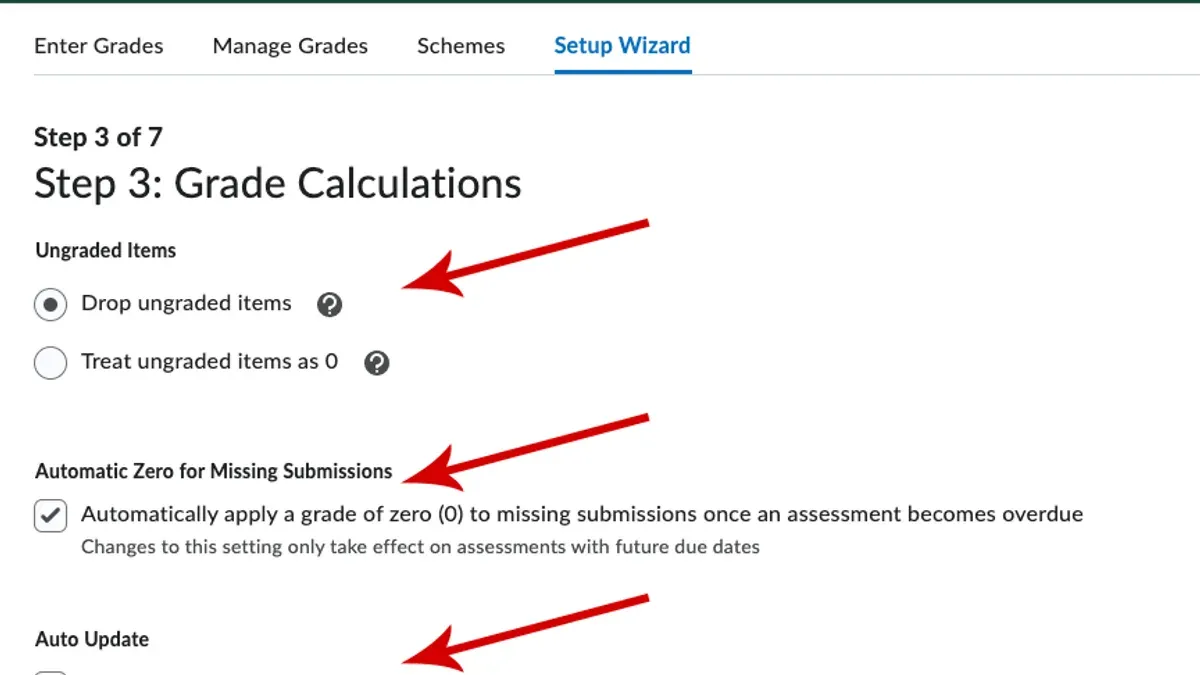
Grading into a badly configured gradebook creates the worst kind of rework: scores that calculate wrong for everyone at once. Run the Setup Wizard (Grades → Setup Wizard) before the first deadline, and make four decisions deliberately.
Choose the grading system: points, weighted, or formula. Points adds raw scores (a course out of 400 points). Weighted assigns each category a percentage of the final grade (Essays 40%, Quizzes 40%, Discussions 20%). Formula uses the points system plus a custom formula for the final grade, and is rarely worth its complexity. The choice changes behaviour most when work is missing, as the example below shows.
Decide how ungraded items count. The calculation option is either Drop ungraded items (they are excluded and the remaining work re-weights, so the running grade flatters students) or Treat ungraded items as 0 (honest, but brutal early in term). A related setting, Automatic Zero for Missing Submissions, writes a real zero into overdue items attached to activities with due dates. Pick consciously: this single setting explains most "my grade is wrong" emails.
Choose which final grade you will release. The Final Calculated Grade is computed by the system from your items. The Final Adjusted Grade is a separate column you type into; the moment you enter an adjusted grade for anyone, that becomes the released figure course-wide, and adjusted grades do not update themselves when item scores change later. Most courses should release the Calculated grade and reserve Adjusted for end-of-term edge cases.
Set the grade scheme. Schemes (Grades → Schemes) convert percentages to what learners see — the default Percentage scheme, or your institution's letter scheme. Letter displays come from schemes and Selectbox items, not from typing letters into numeric cells.
A worked example: the same student, two systems, one missing quiz
Course components: Essay 1 (100), Essay 2 (100), Midterm quiz (50), Final quiz (100), Discussion participation (50). One student has scored 82, 74, 41 and 38, with the final quiz not yet taken. The term is not over, but Brightspace will happily show this student a running grade — what it shows depends entirely on your setup:
| Setup | How the running grade is computed | Running grade shown |
|---|---|---|
| Points (400 total), drop ungraded | 235 earned ÷ 300 possible so far | 78.3% |
| Points (400 total), treat ungraded as 0 | 235 earned ÷ 400 | 58.8% |
| Weighted (Essays 40 / Quizzes 40 / Discussions 20), drop ungraded | Essays 78% × 40 + Midterm 82% × 40 + Discussions 76% × 20 | 79.2% |
| Weighted, treat ungraded as 0 | Essays 31.2 + Quizzes (41/150) 10.9 + Discussions 15.2 | 57.3% |
Same student, same work, a 22-point spread — produced by settings, not marking. When the final quiz is eventually graded (say 77/100), both systems converge: 312/400 = 78.0% in points, 77.9% weighted. The lesson is not that one system is better; it is that the drop-ungraded choice is a communication decision. If you drop ungraded items, tell students the running grade only counts submitted work. If you treat ungraded as zero, tell them early grades will look low and recover.
Categories carry one more rule worth knowing before you rely on it: to drop the lowest (or highest) scores in a category — "best 6 of 8 weekly quizzes" — the category's distribution must be set to spread points or weight evenly across its items, which means equal maximum points (points system) or equal weights (weighted system). Unequal items cannot be auto-dropped; the workaround is manual exemptions, covered in the hygiene section.
Gradebook setup checklist
Triage the queue with Quick Eval
Quick Eval is Brightspace's cross-activity marking inbox: one list of submissions awaiting evaluation drawn from Assignments, Quizzes and Discussions, at course level or — where your institution enables it — across all your courses. Open it first, every marking session. It offers two views: Submissions, a sortable, filterable list of individual pieces of work (filter by user, activity, course or submission date), and Activities, which shows progress per activity — how many submissions it has, how many are evaluated, how many are published — and offers Publish All for an activity whose evaluations are done.
Clicking an item in Quick Eval opens that tool's own evaluation page; Quick Eval is a doorway, not a separate grader. What makes it trustworthy — if you understand its quirks — is that items leave the list when the work is truly finished, but "finished" is defined differently per activity type:
| Activity type | When it leaves Quick Eval | The trap |
|---|---|---|
| Assignment | Only when feedback is published | Draft evaluations still show, marked with a draft icon — the list is honest here |
| Quiz attempt | As soon as the attempt is graded and saved | It can vanish from Quick Eval while still unpublished and unexported in the Quizzes tool |
| Discussion post/topic | As soon as feedback is saved or published | A saved draft looks "done" in Quick Eval but the learner sees nothing |
| Group assignment | Never appears | Grade group work from the Assignments tool; Quick Eval will not remind you |
So Quick Eval answers "what is left to mark?" reliably for assignments, and only partially for quizzes and discussions. Pair it with the Activities view's published counts, and with the per-tool checks in the verification pass at the end of this guide. One more quiz-specific caveat from D2L's own documentation: if a quiz is not set to export automatically (Automatic Export to Grades in the quiz's grade settings), evaluating attempts from Quick Eval does not push scores to the gradebook — those attempts must be published from the Quizzes tool itself.
Grade assignments
Open the assignment and choose View Submissions (the submissions list can be organised by user, by group, or by individual submission — by user is the view that shows who has not submitted). Click a learner to open the Evaluate Submission page: the submission on the left, the Evaluation and Feedback panel on the right. That panel is where the whole evaluation lives:
- Rubric, if one is attached: click a level for every criterion. The rubric total flows into the Overall Grade automatically, and you can override it — but if you skip a criterion or leave levels unselected, students may see only the score and not the rubric detail you intended.
- Overall Grade: the numeric score, typed directly if there is no rubric.
- Overall Feedback: written in the Brightspace Editor, so it can carry formatting, links, images and inserted media — this is the main written feedback students read.
- Feedback files: upload an annotated copy of the submission or any other file.
- Audio/video feedback: record a Video Note from the panel — roughly one minute for audio-only notes and up to three minutes for video in current releases, which makes it a tone-and-summary tool, not a line-by-line medium.
For file submissions, the built-in annotation tools let you mark the document in place — highlights, notes, text comments and drawing — on PDFs, Word documents and other common formats. Annotations only exist if the assignment's Evaluation & Feedback settings have them enabled (they are on by default in most configurations), and students download either the original file or an annotated PDF from their feedback view.
Draft versus publish is the core discipline. Save Draft stores the evaluation where only you can see it; Publish releases grade and feedback to the learner and syncs the score to the grade item. Working marker practice: draft everyone, review the distribution, then release the cohort together from the submissions list with Publish Feedback (selected learners) or Publish All Feedback. Published too early? An evaluation can be Retracted, edited and re-published — use it, rather than leaving a known-wrong grade visible while you "fix it later".
Marking offline in bulk. For long documents, download all submissions as one ZIP from the submissions list, mark the files on your own machine, and return them in one pass with Add Feedback Files. Do not rename the downloaded files — Brightspace matches returned feedback files to learners by filename, and renamed files cannot be matched.
Anonymous marking is a real Brightspace feature, but scoped: it exists for Assignments (enable it per assignment under Evaluation & Feedback → Anonymous marking). While it is on, learner names are hidden on the evaluation page — and the per-submission Publish button is disabled, so every evaluation is necessarily saved as a draft and the whole cohort is released at once with Publish All Feedback when marking closes. That enforced batch release is arguably a fairness feature, not just a limitation. (Quiz by-question grading also offers an anonymous marking option; see the quiz section.)
Turnitin, where your institution licenses it, is switched on inside the assignment, not in a separate tool: Evaluation & Feedback → Manage Turnitin → enable the Similarity Report for the folder. Two timing facts matter: it must be enabled before submissions arrive, because papers submitted earlier are not checked retrospectively; and similarity percentages then appear beside each submission in the submissions list, with the full report one click away. If you also enable Turnitin's own grading (Feedback Studio), choose it instead of Brightspace's annotation tools for that assignment — students cannot see both annotation sets presented together, so pick one home for your markup and say so in the feedback.
Grade quizzes
Quiz grading splits cleanly in two: the machine's work and yours. Objective question types are scored on submission. What lands in your queue is the human residue — above all Written Response questions, which sit at 0 points until a person grades them. Treat that zero as "unmarked", never as a score. A second, quieter residue: Short Answer, Multi-Short Answer and Fill-in-the-Blanks questions are auto-graded by exact text match, so correct answers with variant spelling, word order or an extra word score zero until you review them. Question statistics on the Grade page are the fastest way to spot a question whose answers need that review.
Work from Quizzes → the quiz → Grade, which gives you three tabs:
- Users — attempts grouped by learner; the view for "has everyone been graded?"
- Attempts — each attempt in turn; the view for grading one student's whole paper.
- Questions — the view that matters for large cohorts. Select a question, choose Grade Individual Responses, and every learner's answer to that one question appears in sequence with a Save and Continue flow: one criterion in your head, thirty answers, consistent standard. An Anonymous Marking option on this view hides which learner wrote which response.
Attempt totals recalculate automatically as you save question scores; each score is badged (auto-graded) or (not auto-graded) so you can see what the machine did. If an individual attempt deserves a different total — a disrupted sitting, a partially credited answer — override the Attempt Grade itself, and leave per-question feedback where the learner will see it; note that learners only see question feedback if the quiz's submission view settings allow it.
Releasing quiz grades is a two-part setting, and most quiz confusion lives here. In the quiz's Evaluation & Feedback settings:
- Auto-publish attempt results immediately upon completion releases the attempt to the learner as soon as it is submitted/graded.
- Synchronize to grade book on publish is what actually carries the score into the associated grade item.
If neither is on, release manually from the Grade page: select the attempts, Publish Feedback, then Export to Grades (the export action only appears when the quiz is associated with a grade item — its absence is your diagnostic that the association is missing). Labels for these settings vary slightly between Brightspace releases; the publish-then-sync logic does not.
Regrading after the fact. If a question itself was wrong — a bad answer key, an ambiguous option — do not hand-edit thirty attempts. Edit the question and choose Update All Attempts, then pick a grading type: "Give to all attempts ___ points" or "Give to attempts with answer ___ ___ points". Scores recalculate across every attempt and flow to the gradebook if synchronized. Two cautions: wait until all attempts are in before regrading, or late attempts will be scored against whichever key is live when they submit; and if you ever need to change the grade item's maximum points after grades are published, you must retract the published scores, edit, and re-publish — editing the maximum alone does not resync what is already released.
Grade discussions
Discussion assessment is configured per topic — forums only organise topics, they hold no grades. Almost every discussion grading problem is a topic-setup problem, so check the topic before the marking starts:
- Setting a Grade Out of value on the topic creates its grade item automatically; alternatively link an existing item (In Grade Book → Edit or Link to Existing). The item must be Numeric or Selectbox, and its points must match the topic's points exactly.
- Under Evaluation & Feedback, attach a rubric if you use one, and decide the key option: Allow assessment of individual posts. With it on, you score each post and Brightspace combines them using the topic's Calculation method (for example, the average or the sum of post scores). With it off, you give one overall topic score per learner.
- Decide how silence counts: the option to include unassessed posts in the calculated score as zero — and, more importantly, whether a learner who never posted gets a zero or gets left unassessed (which interacts with your gradebook's drop-ungraded rule). Some configurations also let you require a minimum number of posts before a score is generated at all.
To assess: open the topic's menu and choose Assess Topic. You get the full user list — including students who never posted — and selecting a learner shows all of that learner's posts in the topic on one page, with a Topic Score field, the rubric if attached, and an Overall Feedback box. That one-page-per-learner design is what makes discussion grading bearable: you judge the contribution as a whole instead of chasing posts through threads. Publish each evaluation as you finish it, or Save Draft across the cohort and release selected learners together with Publish Feedback from the assessment list. Drafts matter here more than anywhere, because of the Quick Eval behaviour above: a saved discussion draft disappears from your Quick Eval list while remaining invisible to the learner. To seed the same starter comment for everyone (useful for "you have met the minimum posts" confirmations), Add Feedback to All posts identical feedback across the cohort, which you can then personalise before publishing.
One retraction caveat specific to discussions: if you retract scores, the gradebook updates, but already-delivered notifications and the Brightspace Pulse app on a student's phone may still show the old score for a while. If you retract a discussion score, tell the class where the authoritative number lives — the Grades tool in the course.
Group assignments: one evaluation, every member
A group assignment in Brightspace is evaluated once, in the Assignments tool, and the grade and feedback flow to every member of the group automatically. There is no per-member marking pass to forget — and no per-member differentiation unless you deliberately add it afterwards. Two structural facts follow:
- Group submissions do not appear in Quick Eval. Your triage list will under-report group work every time; track group deadlines separately.
- The submissions and grading views can be filtered View By → Groups, which is the view to mark in.
Individual adjustments — the member who did the work, the member who vanished — are made afterwards, in the gradebook: open the grade item's Enter Grades page and change that learner's cell (with individual feedback if needed). Sequencing is everything: the Assignments evaluation overwrites gradebook values for that item, so if you re-open and re-publish the group evaluation after adjusting, your adjustments are gone. Make group evaluations final first, adjust individuals last, and warn adjusted students that they will see two numbers: the group grade inside Assignments and their adjusted grade in the Grades tool. The Grades figure is the real one.
Accommodations and Special Access are two different levers
Markers get pulled into access questions mid-queue ("why did she get 90 minutes?"), and Brightspace's terminology is precise here, so use it precisely:
| Accommodations | Special Access | |
|---|---|---|
| Where set | Classlist → learner → Edit Accommodations | Inside each assignment or quiz (Availability Dates & Conditions → Manage Special Access) |
| Scope | All quizzes in the course | That one assessment only |
| Covers | Quiz time limits: a multiplier of the original time (rounded up to the nearest minute — 1.5× a 30-minute quiz is 45 minutes) or a fixed number of extra minutes | Assignments: start/end/due dates for named learners. Quizzes: availability and due dates, a time-limit override (set time, multiplier, extra time, or no limit), attempt count, and conditions such as passwords/IP ranges |
| Does not cover | Assignments, discussions, due dates | An assignment's resubmission count; anything outside that one assessment |
On a quiz where both exist, the quiz's Special Access settings win for that quiz. The marking implication: before questioning an unusual attempt — longer duration, an extra attempt, a late submission that the system accepted — check the learner's accommodations and the assessment's Special Access list. In almost every case the system did exactly what it was configured to do, and the grade stands.
Gradebook hygiene: the five traps that survive careful marking
1. The final grade is not released until you release it. Individual item grades become visible as you publish them, but the final grade does not — learners see nothing in the final grade row until you release it. Release from the final grade item's Enter Grades page: Release All, or tick individual learners and use Release/Unrelease (there is also an Unrelease All, if you release too early). A settings option can automate this, but at least one institutional guide warns it must be switched on before any grades are entered to take effect — treat mid-term automation as unreliable and release deliberately. Also know what learners actually see: their Grades view shows published items and, once released, the final grade; it never shows them drafts, unpublished quiz attempts, or your unreleased calculations.
2. Hidden does not mean excluded. Hiding a grade item or category from learners (Hide from users) stops them seeing it — it does not stop it counting. A hidden practice category still drags the final grade unless you also act: in a points system, set Exclude from Final Grade Calculation on the item; in a weighted system, give it a weight of 0%; or delete items you will never use. The mirror-image options exist for legitimate use: Bonus items add points on top without raising a category's maximum, and Can Exceed lets a score pass an item's maximum — but for the excess to reach the final grade, Can Exceed must also be set on the item's category and on the final grade itself.
3. Exemptions are the surgical tool. For the student excused from one item — illness, a dropped quiz your category rules cannot express — use a grade exemption: on the item's Enter Grades page, select the learners and choose Exempt. The cell shows "Exempt", the item leaves that learner's calculation entirely (displayed as – / –), and no zero poisons their average. A learner's full exemption picture can be managed from their row menu via Bulk edit exemptions, and exemptions can also be set from activities and Content. Three limits: final grade items (Calculated and Adjusted) cannot be exempted; an exemption is per item, not per student overall; and if another item or a content release condition depends on the exempted item, that condition will never trigger for the exempted learner — check dependencies before you exempt.
4. Import/export is a power tool with one dangerous behaviour. Export from Enter Grades produces a CSV or Excel file with one column per item. Import accepts CSV, TSV or TXT only — work in Excel if you like, but save as CSV before importing. The format is strict: it needs the OrgDefinedID and Username columns, one column per item headed exactly " Points Grade", and a # end-of-line indicator in the final column. Only Numeric, Pass/Fail, Select box, Text and Final Adjusted Grade columns can be imported — Formula and Calculated items cannot — and any imported score above an item's maximum is capped unless Can Exceed is on. Best practice: export first and edit that file as your template, and import only the items you changed; very large imports across many items can stall. Now the dangerous behaviour, stated plainly in D2L's own import documentation: grades you import against an item that is associated with an assignment or discussion are pushed back into that tool as published feedback. Import is therefore safe for standalone manual items and final adjusted grades, and risky as an offline-marking route for assignments and discussions — one CSV upload can publish a whole cohort's assignment grades before you have reviewed them. For offline assignment marking, the ZIP download and Add Feedback Files route in the assignment section is the safe path, precisely because it separates marking from publishing.
5. Renaming is safe; re-pointing is not. Renaming a grade item is cosmetic and harmless. Deleting an item that an activity points at, or changing an item's points after an activity has published to it, breaks the association's arithmetic — published scores stay at the old maximum until retracted and re-published. If the structure must change mid-term: retract, restructure, re-publish, then re-run the verification pass below.
The verification pass: fifteen minutes before you say "grades are posted"
Run this once per assessment, once more at end of term. It exists because Brightspace's failure mode is silence: nothing errors when an evaluation sits in draft.
- Quick Eval, Submissions view: anything left for this activity? Draft icons on assignments mean marked-but-unpublished.
- Quick Eval, Activities view: for the activity, is published equal to evaluated?
- Assignments: open the submissions list and confirm every learner shows Published feedback, not Draft.
- Quizzes: on the Grade page, confirm attempts are published and exported — check one known student's gradebook cell holds the score.
- Discussions: open Assess Topic and confirm no learner is left in draft (Quick Eval will not show them — it clears on save).
- Gradebook: open Enter Grades for the item and scan for blanks that should be scores, and scores that should be exemptions.
- Final grade: if you announced a final grade, confirm it shows as released.
- Learner view: check Grades as a learner would; confirm the item, the score and the final grade all appear as intended — and that nothing appears that shouldn't (an unhidden draft item, a practice category).
- Counts: submissions received = evaluations published + exemptions granted + genuine non-submissions. If the arithmetic doesn't close, something is in draft.
Pitfalls
| Pitfall | What actually happens | The fix |
|---|---|---|
| Grading an activity with no grade item associated | Scores live inside the tool only; the final grade ignores the work entirely | Set Grade Out of when building the activity; if it already happened, link a Numeric item with matching points and re-publish/export |
| Publishing assignment feedback as you mark each student | Early finishers' grades are visible while classmates wait — and your standard drifts across the cohort | Draft everyone, then Publish All Feedback in one release |
| Assuming a graded quiz reached the gradebook | Without Synchronize to grade book (or Export to Grades), attempts are graded but the gradebook cell is empty | Check both release settings; use the missing Export button as the tell-tale of a missing association |
| Changing a grade item's maximum points after publishing | Published scores do not resync; the gradebook keeps the old maximum's arithmetic | Retract the published scores, edit the item, re-publish |
| Hiding an item to "remove" it from the course grade | Hidden items and categories still count in the final calculation | Exclude from Final Grade Calculation (points), set weight 0% (weighted), or delete |
| Importing a CSV against an assignment-associated item to "mark offline" | The import syncs back into Assignments as published feedback — the cohort is released before review | Use the ZIP download + Add Feedback Files route for assignments; reserve import for manual items |
| Marking a discussion draft and trusting Quick Eval | Discussion items leave Quick Eval when feedback is saved, so the queue looks empty while learners see nothing | Verify in Assess Topic that every learner is Published, not Draft |
| Regrading a quiz question before all attempts are in | Late attempts are scored against the edited key in ways you didn't choose, and totals shift under students | Wait for the attempt window to close, then Update All Attempts once |
| Re-publishing a group evaluation after adjusting one member | The Assignments evaluation overwrites the gradebook, wiping the individual adjustment | Adjust individuals last, in the gradebook; never re-publish the group evaluation after |
| Enabling Turnitin after submissions have arrived | Earlier papers are never similarity-checked, leaving a silent gap in the cohort | Enable the Similarity Report when the assignment is created |
FAQ
Where do I actually grade — the Grades tool or the activity?
In the activity, almost always. Assignments, Quizzes and Discussions each have their own evaluation screens, and their scores flow into the Grades tool through the associated grade item. The Grades tool itself is for setup, manual items (participation, offline work), exemptions, adjustments, importing/exporting, and releasing the final grade.
I graded everything, but a student says they can't see their grade. What do I check first?
Which of the three invisibility points applies: is the evaluation still in draft in the tool (assignments, discussions)? Is the quiz attempt graded but not exported to its grade item? Or is it the final grade that was never released from the gradebook? Each has a different fix, and the verification pass above checks all three.
Does Brightspace have a saved comment library, like a bank of reusable feedback comments?
Not in the evaluation panel in the way some other platforms offer one. Brightspace's reusable layer is the rubric: criterion and level descriptions you write once are applied to every learner, and you can add per-criterion feedback as you score. For a comment you will repeat across a whole cohort, Add Feedback to All in discussions seeds the same starter feedback for everyone. Markers who need extensive reusable text keep it in a document and paste — plan for that rather than hunting for a library feature that isn't there.
Points or weighted — which grading system should a new course choose?
Whichever matches how your syllabus already describes the course. If the syllabus says "four essays at 25 points each", points. If it says "essays are 40% of your grade", weighted. As the worked example shows, the two systems agree closely on completed work; what matters more is the drop-ungraded-versus-zero setting, because that decides what the running grade tells students mid-term.
Can I mark assignments completely offline and upload the results?
Partly. You can download all submissions as a ZIP, annotate the files offline, and return them in bulk with Add Feedback Files — files stay unpublished until you publish feedback, so review remains possible. What you should not do is mark scores offline and import a CSV against the assignment's grade item: imported grades sync back into Assignments as published feedback, releasing the cohort before you've reviewed anything.
Quick checklist
References
- D2L Brightspace Community Knowledge Base: Grade with Quick Eval — quick eval behaviour per activity type, Publish All, and the quiz export caveat. https://community.d2l.com/brightspace/kb/articles/5223-grade-with-quick-eval
- D2L Brightspace Community Knowledge Base: Evaluate with Quick Eval — opening evaluations and publishing from Quick Eval. https://community.d2l.com/brightspace/kb/articles/1714-evaluate-with-quick-eval
- D2L Brightspace Community Knowledge Base: Importing grades — CSV format, importable item types, and the sync-back of imported grades to Assignments and Discussions. https://community.d2l.com/brightspace/kb/articles/5195-importing-grades
- University Brightspace instructor guides (Vanderbilt, Langara College, SUNY and others) for evaluation-page detail: annotation tools, Video Note recording limits, the offline ZIP / Add Feedback Files workflow, anonymous marking, and discussion assessment options.
Read next
- How to Grade Student Work in Blackboard — the same job in Blackboard Ultra, where grading centres on the gradebook and a separate posting step; the contrast shows why Brightspace's publish-from-each-tool model needs its own checks.
- How to Create Assignments in Brightspace — the setup decisions (Grade Out of, evaluation settings, availability) that determine whether grading later is one click or an afternoon of repairs.
- Canvas Course Copying Checklist — if your institution runs more than one LMS, what actually survives a course copy, and what silently doesn't.